
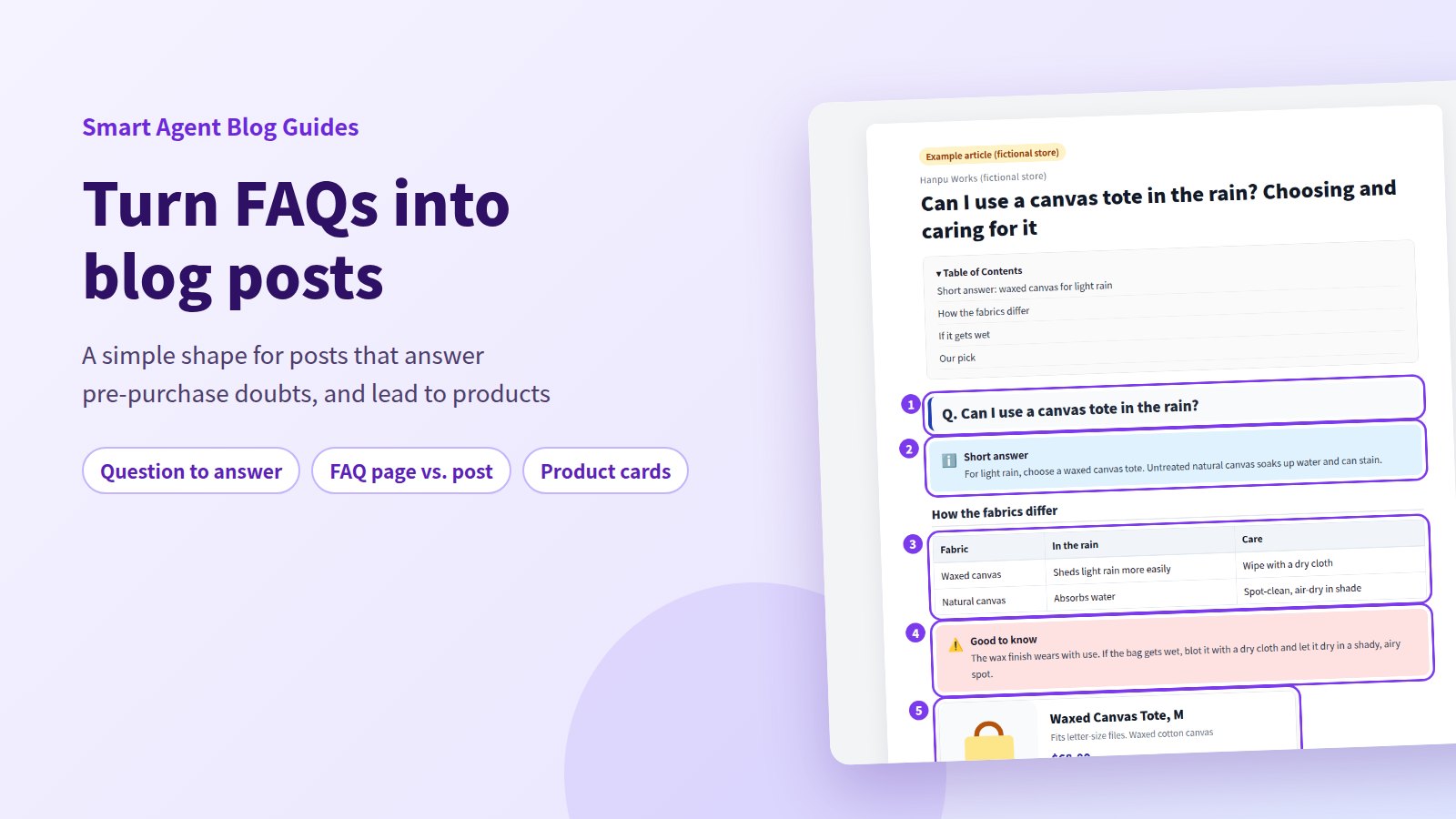
"Will a laptop fit?" "Can I use it in the rain?" If you answer the same questions over and over by email and chat, you already know where shoppers get stuck before they buy.
The short answer: give each common question its own blog post, and write it in five parts: question, answer, reasons, caveats, then products. Readers find the answer fast and can pick the right product without leaving the page. Shopify's built-in editor handles headings and tables. For a table of contents, callouts, and product cards, Smart Agent Blog's blocks make it much easier. This guide covers when to use an FAQ page vs. a post, the five-part structure, and which block to use where.
- How an FAQ page and a blog post divide the work
- A five-part structure for posts that answer one question
- Where headings, a table of contents, callouts, and product cards fit
- What Shopify does on its own, and how to build it in Smart Agent Blog (with screens)
- What the finished post looks like (fictional store example)
Pre-purchase questions often go unanswered in the post
While preparing proposals for Smart Agent Blog in August and September 2026, we reviewed blogs from Shopify stores in Japan. Of 88 posts we recorded, 66 (75%) had no link from the body to a product page. In other words, 3 out of 4 posts left readers with nowhere to go after reading. Of 78 posts, 27 (about 35%) had no headings at all, and among 113 posts, none used a card showing a product's name, image, and price together.
When the answer is buried in paragraphs, or there's no path to the product once readers find it, they leave still unsure. A good FAQ post makes two things obvious: where the answer is, and where to go next.
An FAQ post is one format among several. To see how it sits alongside the others, browse the use cases for a store blog.
FAQ page vs. blog post
You can answer common questions in two places: an FAQ page and blog posts. Use both, for different jobs.
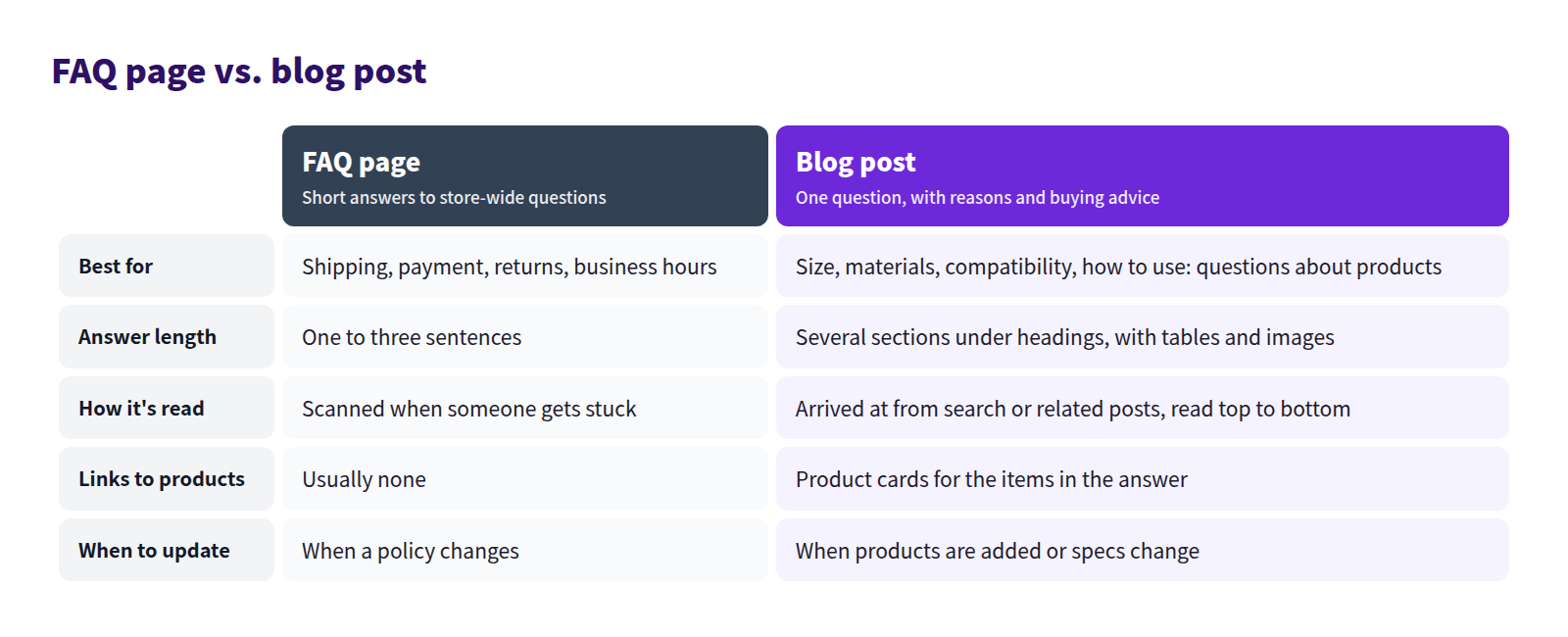
- FAQ page: short answers to store-wide questions like shipping, payment, and returns. People scan it when they're stuck.
- Blog post: one product question, such as size, materials, or how to use it, answered with reasons and buying advice. People arrive from search or related posts and read from the top.
The best setup: end each short FAQ answer with a "Read more" link to the matching post. People who want a quick answer get one, and people comparing options can go deeper.
To decide which questions deserve posts, see Out of Blog Ideas? Start With Your Customers' Questions. It covers collecting questions from your inbox and reviews and sorting them into a topic list.
A five-part structure for FAQ posts
Build each post in this order:
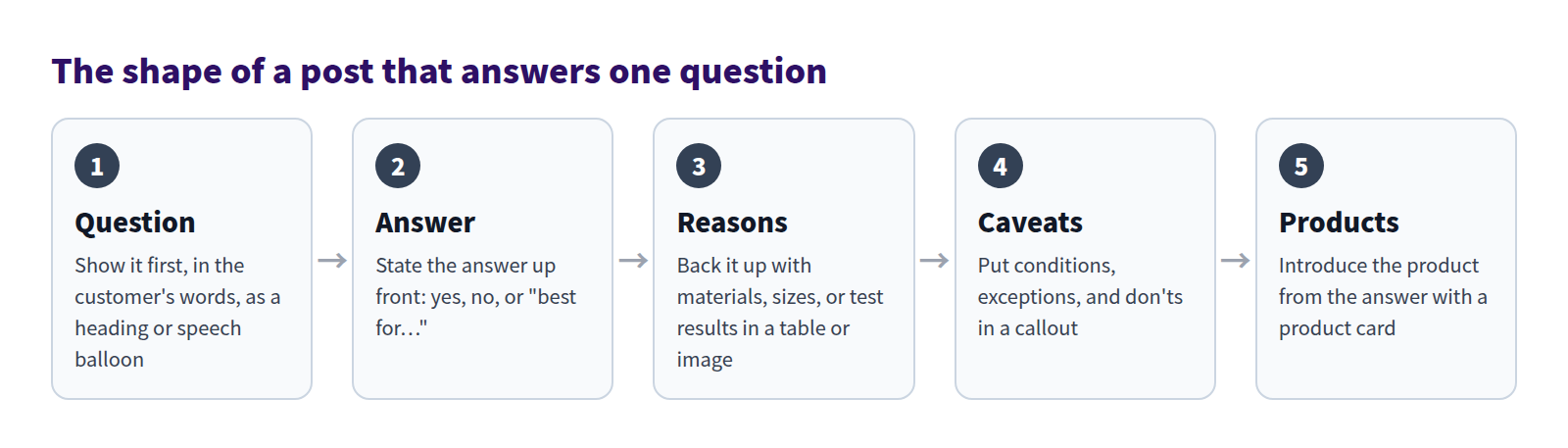
Question: use the customer's words
Put the question you actually received in the title and first heading. Phrasing it as a question, such as "Can I use a canvas tote in the rain?", tells readers with the same doubt that this post is for them.
For the title, pair the question with what readers will learn: "Can I use a canvas tote in the rain? Choosing and caring for it."
Answer: say it in the first paragraph
Answer immediately after the question. Lead with "Yes," "Not really," or "Yes, if…", and include any conditions.
Don't stop at "it depends." Say what it depends on and what happens in each case, in one sentence. Once readers have the answer, they can decide whether to read the reasons.
Reasons: show, don't just tell
Back the answer with facts: materials, dimensions, or what happened when you tested it. Use a table when you're comparing, and photos when seeing is easier than reading. What your team noticed from actually using the product is evidence no other post has.
Caveats: make conditions stand out
Most answers come with conditions. "The finish wears with use." "Don't machine wash." Anything that causes trouble if skipped should be pulled out of the paragraph and highlighted.
Be careful not to overstate. "Water-resistant" and "waterproof" are different claims. Use the same wording as your product page and labels, and leave out anything you haven't verified.
Products: show what the answer mentioned
Finish by introducing the products named in the answer, with name, image, and price. You can also place one near the answer for readers who don't scroll. Keep it to one to three products so the choice stays easy.
What the finished post looks like
Here's the structure applied to a post from a fictional canvas bag store:
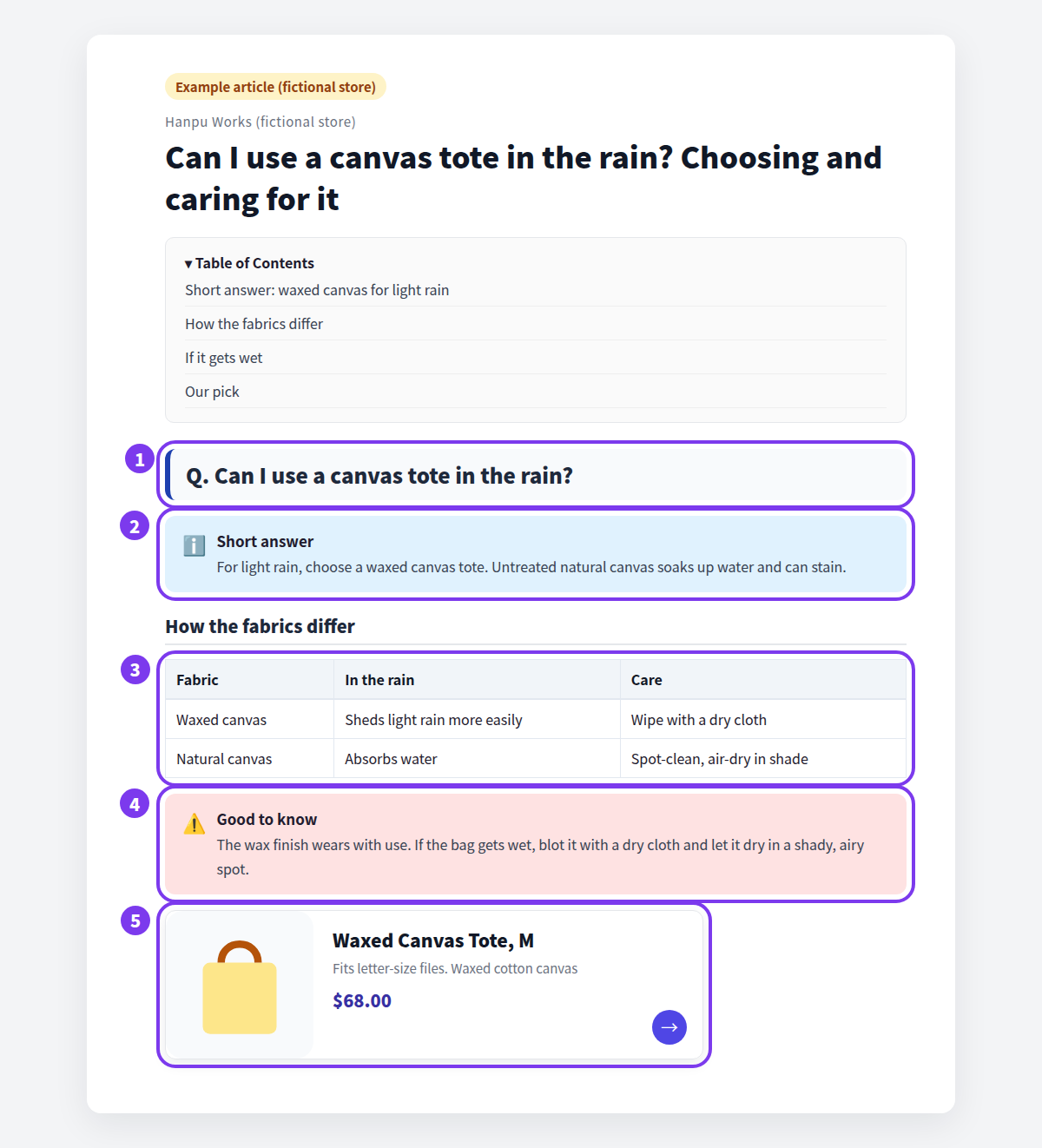
- Question heading: the customer's question, used as-is for a Heading 2.
- Answer: in a callout, with the condition included (waxed canvas, light rain).
- Reasons: a table comparing the two fabrics.
- Caveats: a second callout, in a different color, explains that the finish wears and what to do if the bag gets wet.
- Products: a product card for the tote mentioned in the answer.
The table of contents at the top is built from the headings, so readers can jump straight to the part they need.
Which block goes where
Choosing the right block for each part is what makes the structure easy to read.
| Block | Use it for | Watch out for |
|---|---|---|
| Heading 2 / Heading 3 | Each part: question, answer, reasons, caveats | Make headings meaningful on their own |
| Table of Contents | The top of posts with four or more headings | It lists Heading 2 to Heading 4 only |
| Create a table | Comparing sizes, materials, or options | Keep columns few enough for phones |
| Callout | The answer and the caveats | Two or three per post; more and none stand out |
| Product Insert | Products named in the answer | Draft, hidden, and archived products can't be picked; out-of-stock items show a sold-out label |
| Speech Balloon | A staff comment or the customer's question | Only where a conversational tone helps |
Headings aren't decoration. They're signposts readers skim to find their answer. "How the fabrics differ" beats "Reasons."
What Shopify can do on its own
You can build both an FAQ page and FAQ posts with Shopify's built-in tools:
- FAQ page: create it under Online Store > Pages. The rich text editor supports links, tables, images, and video.
- Blog posts: create them under Content > Blog posts. The editor supports headings, tables, images, video (YouTube and Vimeo embeds), links, and an HTML view.
What's missing for FAQ posts:
- Table of contents: there's no automatic one. A manual list has to be fixed every time headings change.
- Product cards: product links are typed-in URLs. There's no card showing name, image, and price.
- Callouts: there's no menu option for a highlighted box. You'd need to write the code yourself in the HTML view.
The five-part structure works in the built-in editor, but the table of contents, product cards, and caveat boxes take manual work or HTML.
Building an FAQ post in Smart Agent Blog
In Smart Agent Blog's editor, every part of the structure has a matching block. Add them from the insert menu or by typing /.
Insert headings, products, and callouts
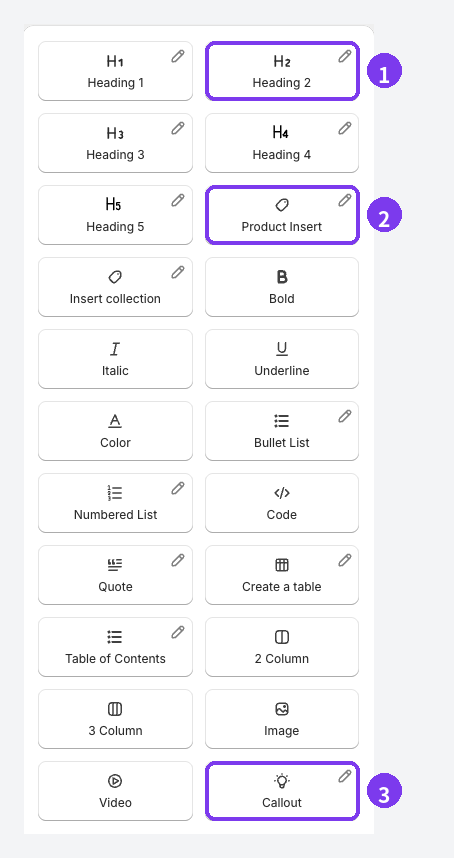
- Heading 2: for the question, answer, reasons, and caveats. Use Heading 3 to split a section further.
- Product Insert: opens Shopify's product picker. The chosen product is added as a card with its name, image, and price. Draft, hidden, and archived products can't be selected, so publish them in Shopify admin first.
- Callout: highlights the answer or a caveat in a colored box.
Table of Contents and Create a table work the same way. At the start of a line, type / and part of a name, such as /head or /table, to narrow the list.
Check how it comes together
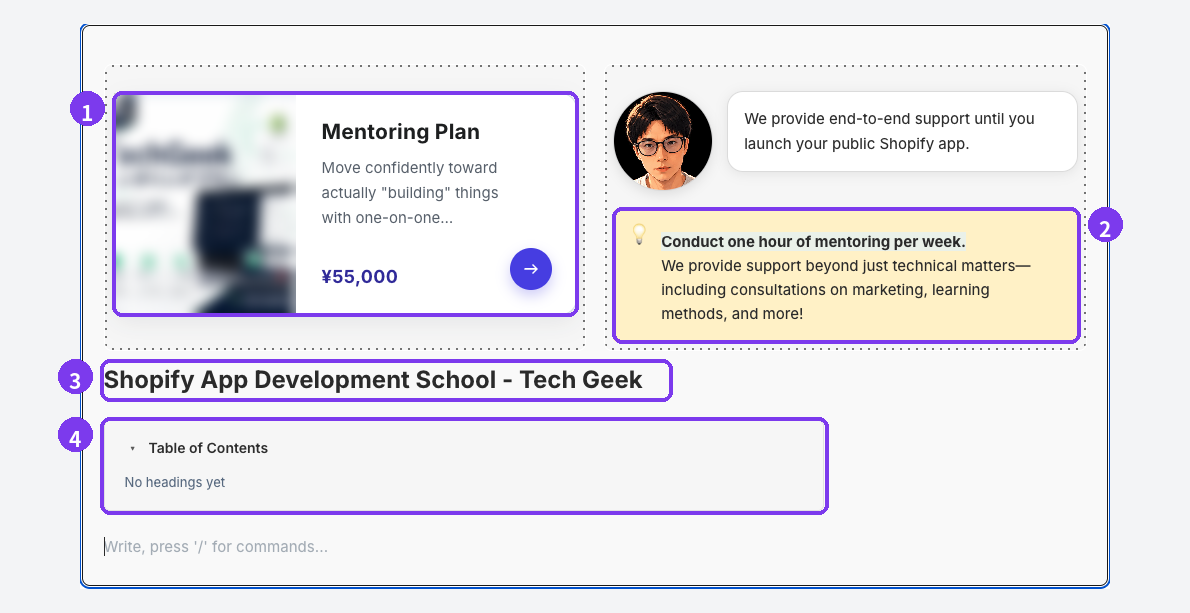
- Product card: name, image, short description, and price. Selecting it takes readers to the product page.
- Callout: a colored box for the answer or a caveat. With 2 Column, as shown here, the card and callout can sit side by side.
- Heading: this one is a Heading 1.
- Table of Contents: builds itself from Heading 2 to Heading 4 and updates as you edit. Because the only heading here is a Heading 1, it shows "No headings yet." Use Heading 2 for your sections and the list fills in.
Drag the handle on the left of any block to reorder it. When you're done, save the post as Hidden, check it with Preview, then set it to Visible and save. The final look depends on your theme, so always preview first. See Preview and publish an article for the steps.
Want AI to write the first draft? Add your question-based topics to Themes / Keywords in AI Scheduled Blog Proposals and set Article purpose to Product guide or comparison. Check the answer in the draft, then add the blocks above to match this structure.
Before you publish an FAQ post
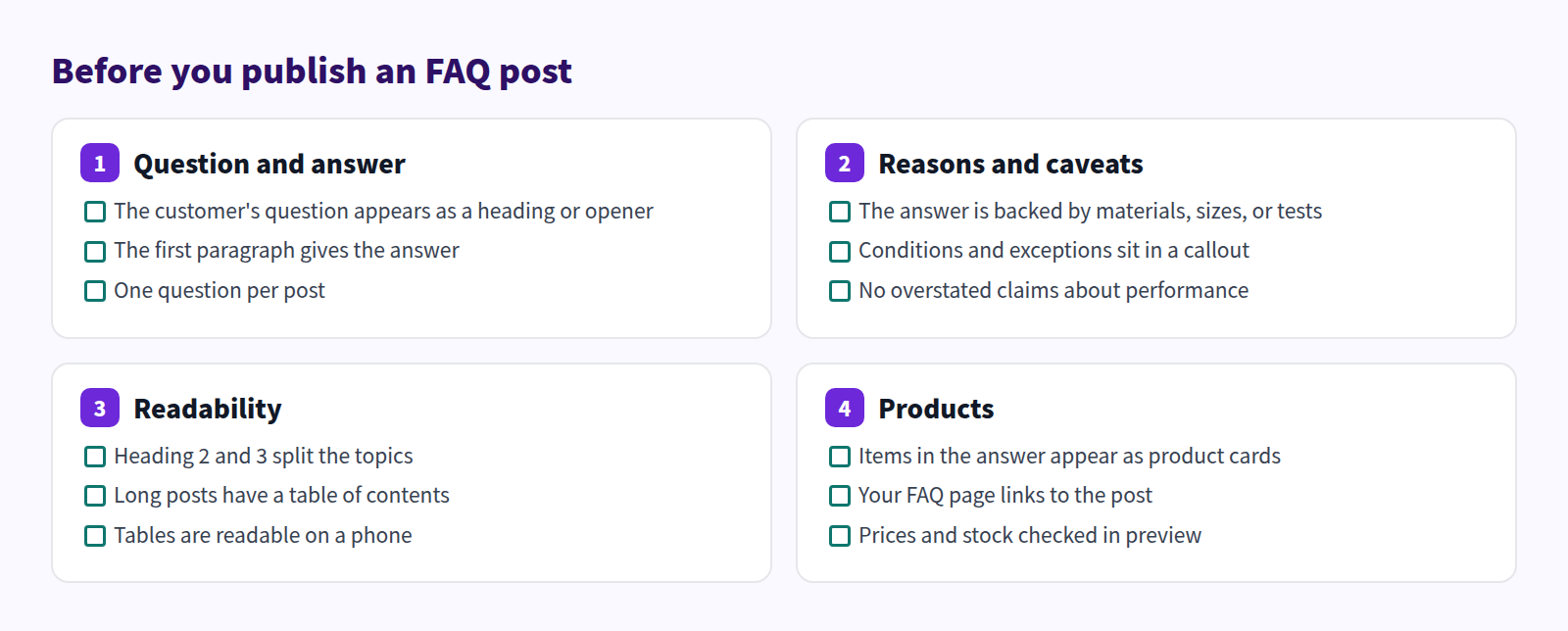
Run through these four areas before publishing:
FAQ
I already have an FAQ page. Won't posts repeat it?
Some overlap is fine. Keep the FAQ answer short and link to the post at the end of it. The post covers reasons, choices, and caveats in full. It's the same question answered at two depths.
Can one post answer several questions?
Build it around one main question. Put two or three related questions in a short FAQ section at the end. With several main questions, the title and the answer both lose focus.
Will product cards match my store's design?
The final appearance depends on your theme settings, so check it in preview before publishing. Changing how headings and callouts look (Design Edit) is a paid-plan feature. See Plans and usage limits.
Summary
- Give each common question its own post, and link to it from your FAQ page.
- Follow the structure: question, answer, reasons, caveats, products. Answer in the first paragraph.
- Split sections with headings, add a table of contents, put caveats in callouts, and show products as cards.
- In Smart Agent Blog, all of these are buttons in the insert menu.
Pick the question you heard most this week and write one post with this structure.