

If a product looks hard to use, shoppers hesitate, however good it is. When the only instructions are a paragraph on the product page, readers can't picture themselves using it.
The fix is a how-to post built the classic way: split the task into a numbered list and give each step one photo. Put the easy-to-miss parts in a callout, and use a short video only where motion or timing matters. That's what lets a reader think, "I could do this."
Shopify's standard editor can handle numbered lists, images, and video. In Smart Agent Blog, you can also drag photos straight into the body to upload them to Shopify, and highlight warnings with a callout, all in the same editor. This guide walks through it with a fictional store's post and the actual editor screens.
- The five steps of building a how-to post
- How to shoot photos that make steps clear: one per step, same angle
- How to pair a numbered list with images, with a fictional example
- When to use a video and when to use a callout
- How to build it in Shopify's standard editor and in Smart Agent Blog
Shoppers hesitate when they can't see how it works
For tools, gadgets, and anything that needs care, shoppers wonder whether they'll actually manage once it arrives. If that doubt stays, they put off buying, or they email you the same question again and again.
A how-to post answers that doubt. But written as one long block of text, it's easy to lose your place. While preparing proposals for Smart Agent Blog in August and September 2026, we reviewed the blogs of 110 Shopify stores in Japan. Of the 78 posts where we recorded headings, 27 (about 35%) had no headings at all. One in three posts ran on without a single break.
In a how-to post, headings separate topics, numbers separate steps, and a photo sits with each step, so readers always know where they are.
Once the how-to is done, the catalog of store blog formats helps you pick what to write next.
The five steps of a how-to post
Build it in this order:
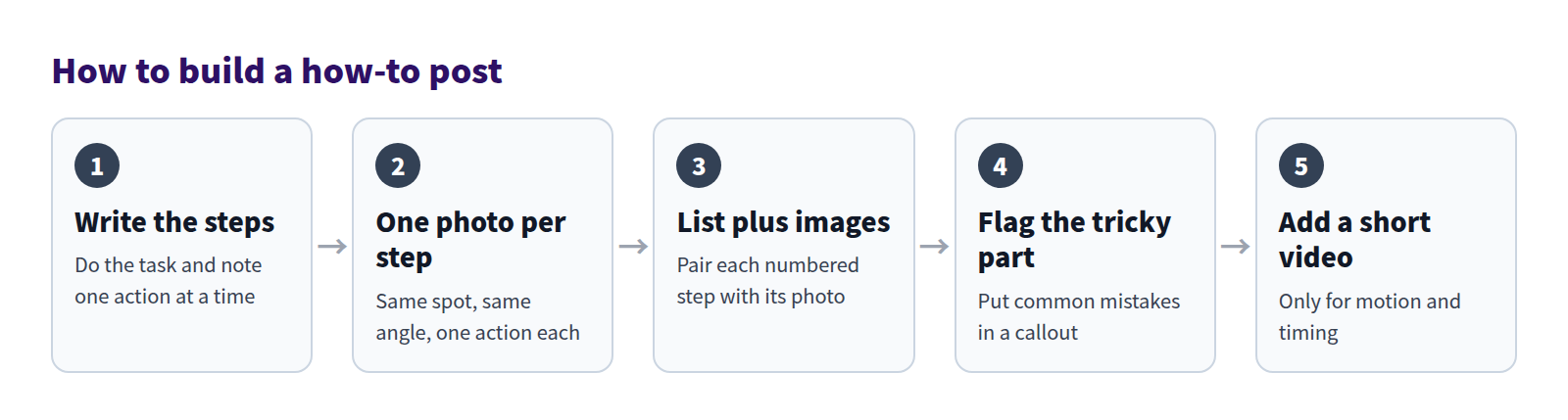
Writing the steps before you shoot tells you exactly which photos you need, so you reshoot less.
Write the steps first
Use the product while you write, noting one action at a time. Written from memory, the steps tend to skip things, especially when the writer is an expert.
As you write:
- One action per number. "Add the grounds, pour water, and wait 30 seconds" is three steps.
- List tools and amounts before the steps. Don't let readers find out halfway through that they needed a filter.
- Use numbers where you can. "About 3/4 fl oz" and "30 seconds" beat "a little" and "a while."
- Keep it to about eight steps. If there are more, split them under headings such as Prep, Brew, and Clean up.
Then ask someone who has never used the product to follow your steps exactly. Wherever they get stuck, a step is missing.
Shoot one photo per step, from the same angle
A good step photo doesn't need to be beautiful. It needs to show what changed since the last photo.
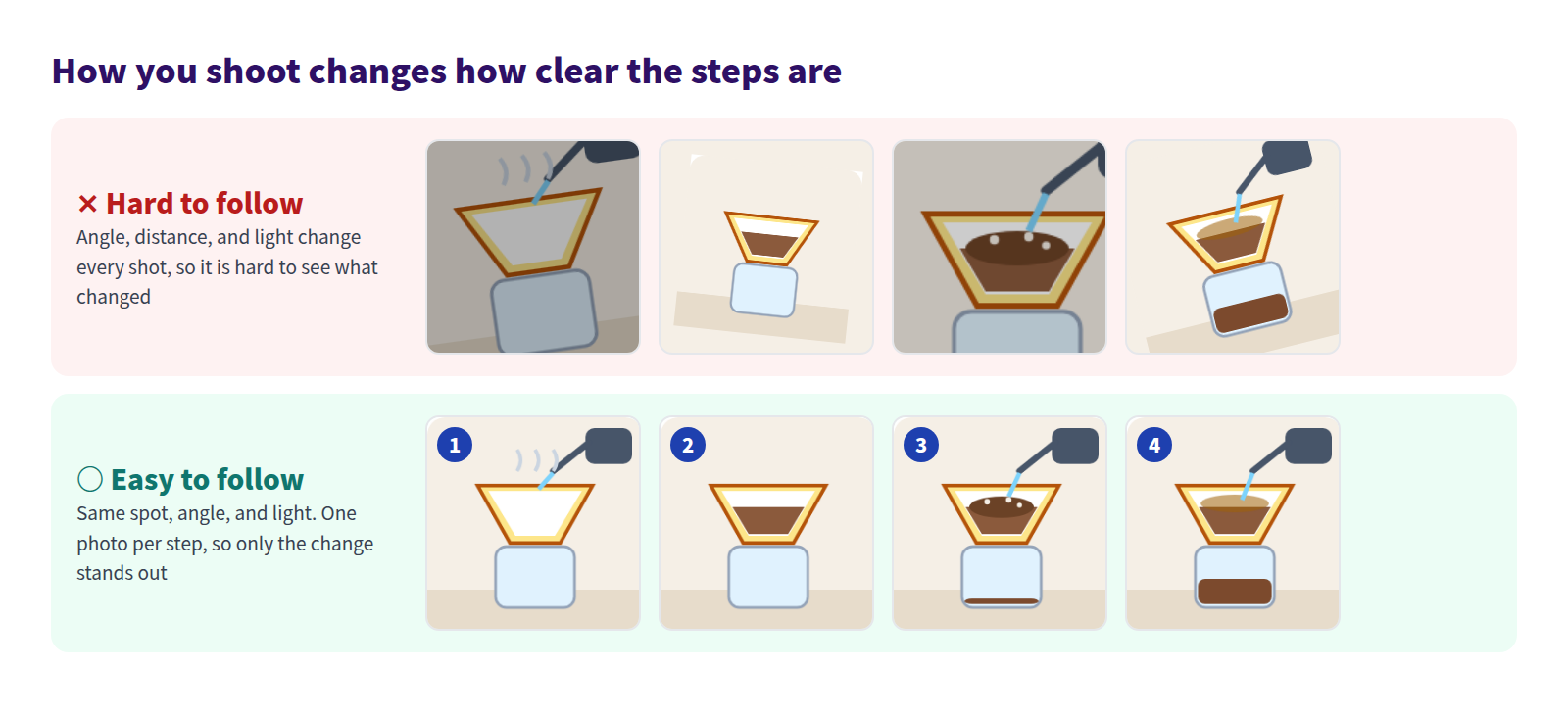
Keep these consistent:
- Same spot, same angle. Mount your phone on a stand so every shot has the same framing.
- One photo per step. Capture the action in progress, such as the moment of pouring, not just the result.
- Same light and background. Shoot near a window and use a plain cloth or board behind the product.
- Same orientation. Mixing portrait and landscape photos breaks the rhythm of the post.
If hands are in the shot, keep them at the same angle too. Name each file with its step number so you can drop them in order later.
Pair a numbered list with images
With the photos ready, attach one to each step of a numbered list. Here's a how-to post from a fictional coffee roaster:
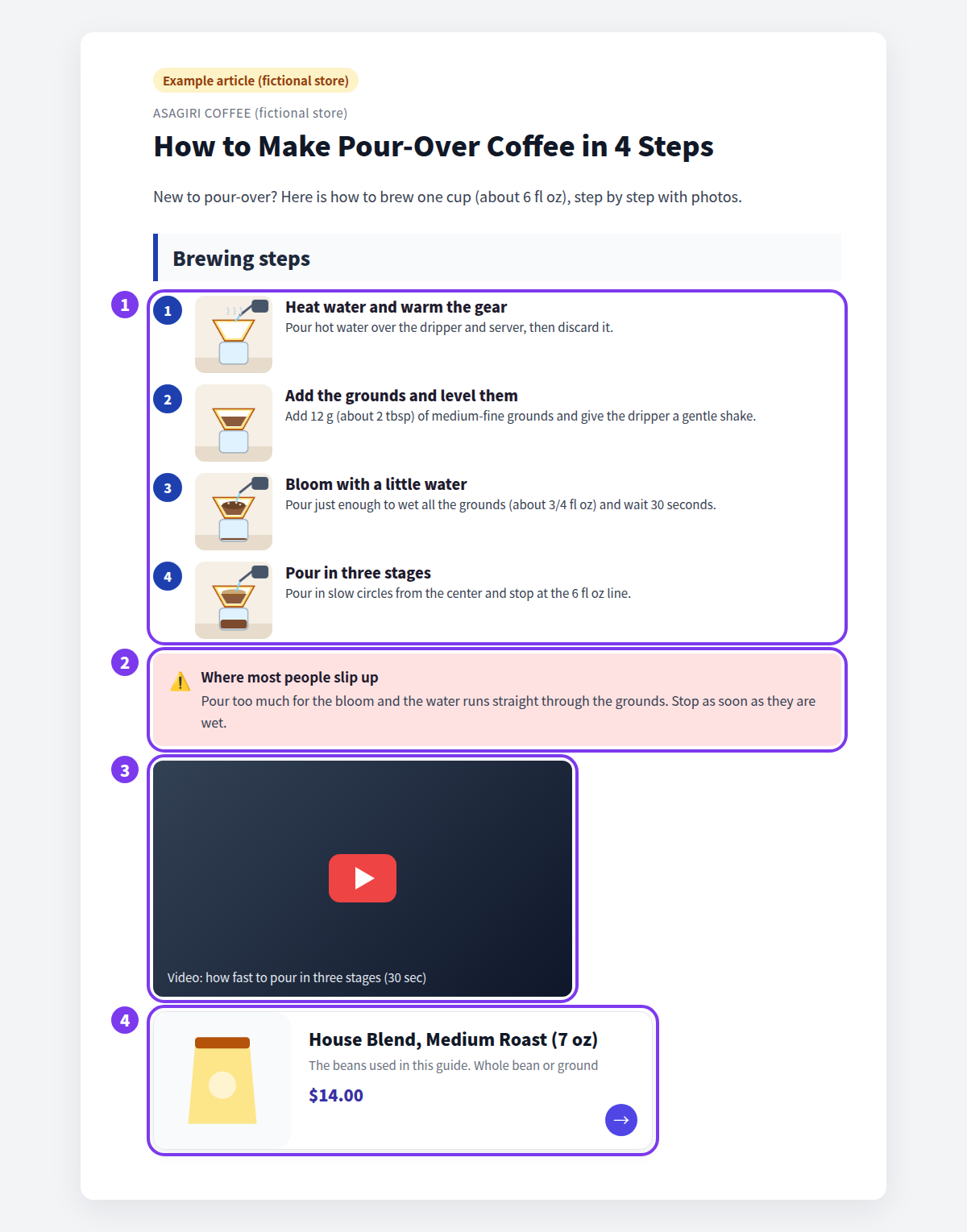
- Steps with photos. Each of the four steps has one photo taken from the same angle. Each step title is an action, such as "Add the grounds and level them."
- Callout. The easy-to-miss bloom step gets a warning box right after the steps. It's harder to skim past than a sentence inside the step.
- Video. A 30-second clip covers the one thing photos can't show: how fast to pour.
- Product card. The beans used in the guide appear at the end, so readers who finish can pick the same product.
Never let a photo carry the step alone. Put a sentence before or after each image so the step still makes sense if an image doesn't load or someone is zoomed in.
Use video as a supporting act
Video is great for motion, speed, and sound, which photos can't capture. But a video-only post is hard to use for someone reading with the sound off, or for someone who just wants to check the one step they're stuck on.
When you add video:
- keep text and photos as the main content, so the steps work without the video,
- keep each clip short and say in one line above it what it shows, and
- place it next to the step where the motion matters, not at the top of the post.
For more on embedding and choosing videos, see How to add video to your Shopify blog.
Flag the tricky parts with a callout
Questions customers keep asking, and mistakes that can't be undone, belong in a callout, separate from the step text. A box catches the eye of someone skimming the steps.
Good callout content includes:
- a common mistake and how to avoid it,
- something to check before first use, and
- uses the product isn't designed for, or other usage warnings.
Keep warnings consistent with the product page and any included instructions. A warning that appears only in the post invites contradictions. See How to make important notes impossible to miss for more.
What Shopify's standard editor can do
You can build the basics of a how-to post in Shopify's standard rich text editor. Go to Content > Blog posts, open a post, and use:
- the Numbered list button for the steps,
- images inserted by uploading, choosing from your product images, or entering a public image URL, and
- videos embedded from YouTube, Vimeo, and similar sites with the Insert video button and an embed code.
There's no built-in callout block, though, so you'd write HTML or fall back on bold and colored text. And a product mentioned at the end becomes a text link to the product URL, not a card with its name, image, and price.
How to build it in Smart Agent Blog
In Smart Agent Blog, steps, photos, callouts, videos, and product cards all come from the insert menu in one editor.
Build the steps with Numbered List and Image
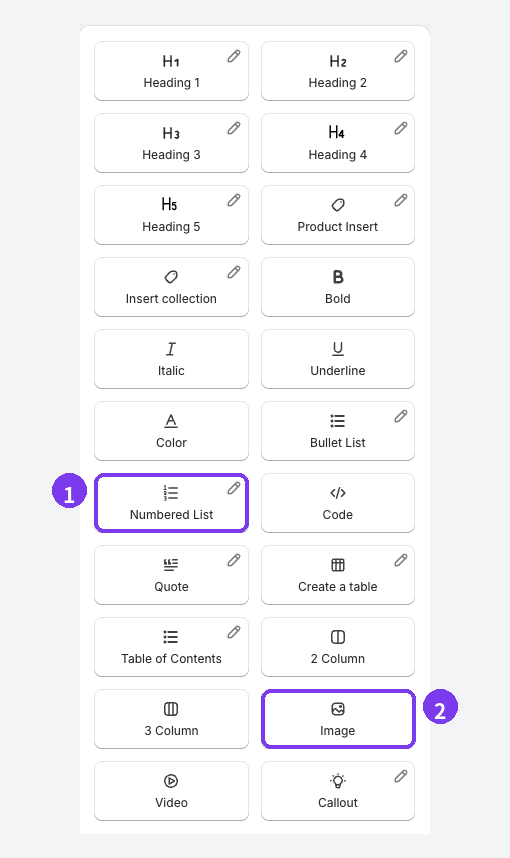
- Numbered List. Select it where the steps begin and enter one step per item. You can also type
/at the start of a line and choose it from the list. - Image. Select it where a photo belongs, then enter an image URL, select File Upload to upload from your computer, or pick one of the images already in Shopify.
The quickest route is to drag photos from a folder on your computer straight into the body. Pasting works too, and either way the image uploads to Shopify automatically. If your files are named by step number, dragging them in order lines the photos up with the steps. Check each image's size and alignment afterwards.
To reorder blocks, hover over one and drag the handle that appears on its left. After moving a block, check that the text around it still reads naturally.
Add callouts for tricky parts and video for motion
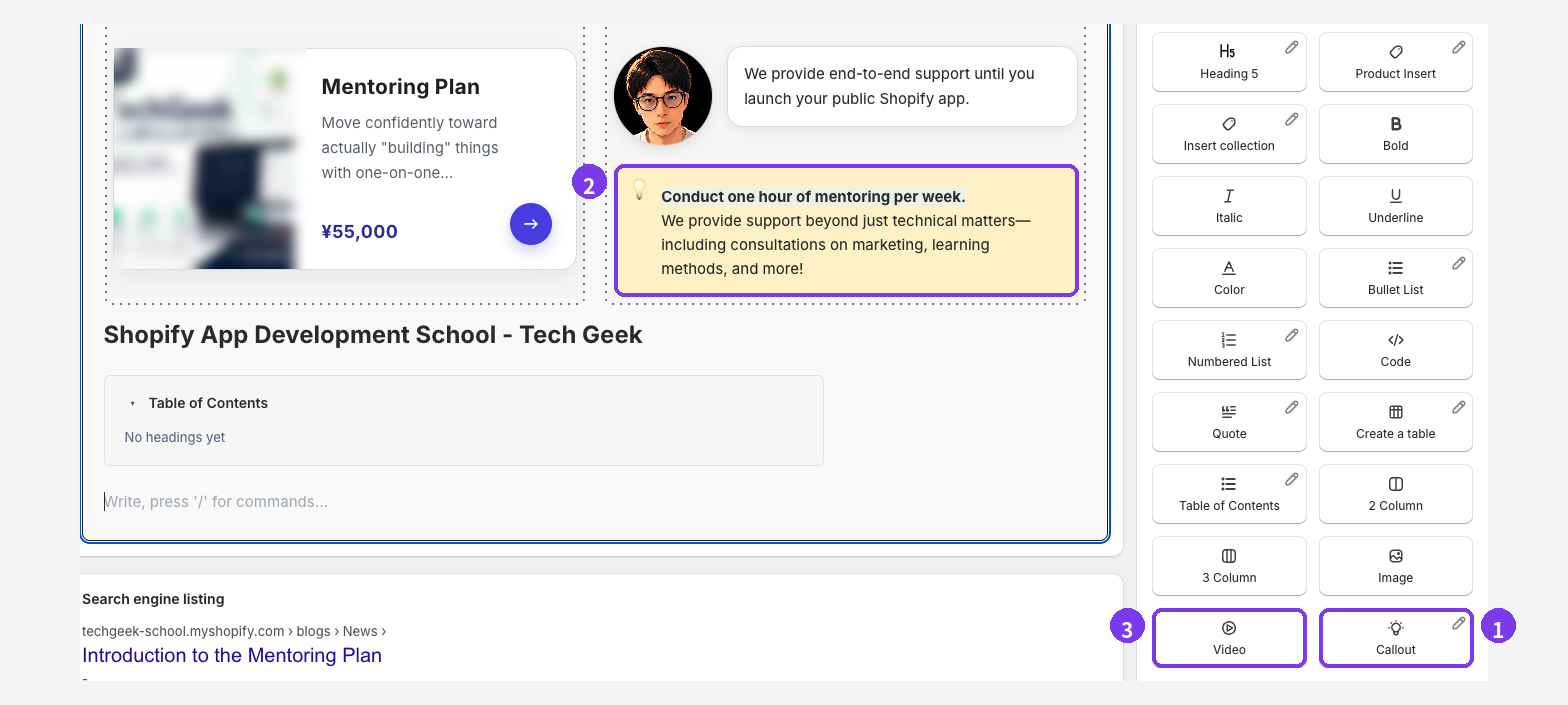
- Callout. Select it where the warning should go.
- The callout in the body. Write the easy-to-miss point and how to avoid it inside the box.
- Video. Select it, then enter a video file URL, enter a YouTube URL, upload a file with File Upload, or pick a video already in Shopify.
Uploading a video can take a while, so leave the dialog open until the progress indicator finishes. Design editing (the pencil icon), which changes a callout's look, requires a paid plan.
After saving, select Preview, choose a theme, and check the post in the theme editor, including the mobile view. Themes differ, so make sure the numbers and photos still line up at phone width before publishing. For details, see Add content to an article and Preview and publish an article.
Standard editor vs. Smart Agent Blog
| Shopify standard editor | Smart Agent Blog | |
|---|---|---|
| Numbered steps | Numbered list button | Numbered List |
| Adding photos | Upload, choose from product images, or URL | URL, File Upload, or images in Shopify. Drag or paste into the body to upload to Shopify automatically |
| Video | Embed code from YouTube, Vimeo, and others | Video file URL, YouTube URL, File Upload, or videos in Shopify |
| Warning boxes | Write HTML, or use bold and color | Callout |
| Product at the end | Text link to the product page | Product Insert adds a product card |
Either way, the prep is the same: write the steps, then shoot one photo per step. The more photos a post has, and the more you want warnings and product cards in it, the more a single editor saves you time.
What to check before publishing
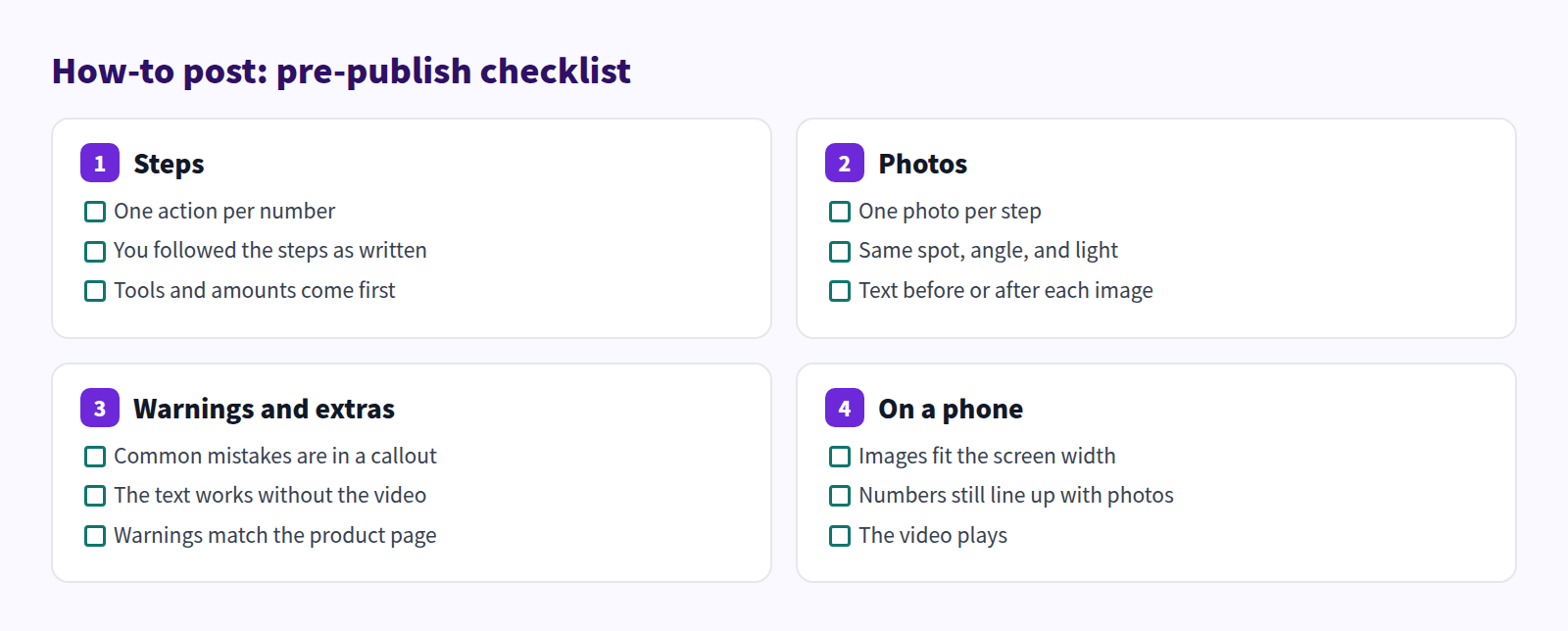
Above all, follow your own steps exactly as written. Better yet, have a coworker do it; they'll spot missing actions and unclear words that the writer can't see.
FAQ
Can't I just use a video?
Video is easy to watch, but hard to follow with the sound off and slow to search for a single step. Let text and photos carry the steps, and use video to show motion and speed.
I don't have time to shoot every step. What then?
Start by shooting only the one or two steps where people struggle most, and describe the rest in text. Smart Agent Blog's Image block can also pick from images already in Shopify, so check whether any product photos fit. You can swap photos later.
How is this different from the product page?
Put specs and warnings on the product page, and the situations and steps in the blog. End the post with a product card that leads to the product page, and link from the product page back to the post so readers can move between them. See Product page vs. blog post for more.
Summary
- Write the steps while using the product, one action per number.
- Shoot one photo per step, from the same spot, angle, and light.
- Put easy-to-miss points in a callout, and use video only for motion.
- Before publishing, check at phone width that numbers and photos line up.
Start with the product customers most often ask how to use, and write down its steps. For care instructions, the approach in our product care guide post works well too.