
Launch prep eats every hour, so the blog gets a single "Our new product is here!" post on launch day. Sound familiar? One post can't hold the story of how the product came together, how it differs from the old one, and how to use it.
The better approach: plan your launch content in three stages. Before launch, share the product story and a teaser. At launch, publish a full introduction with comparisons. After launch, post how-tos and answers to the questions customers actually send. Each stage calls for different blocks, too: images, tables, product cards, videos, and speech balloons.
This guide walks through a stage-by-stage plan, fictional store examples, and one thing to watch out for when adding product cards to pre-launch posts, with Smart Agent Blog screens.
- How to plan launch posts in three stages: before, at, and after launch
- What to write at each stage, and which blocks to use
- What a teaser post and a launch-day post look like
- How to handle product cards when the product isn't live yet
- How to have AI draft how-to posts after launch
One launch-day post isn't enough
A single post on launch day has a few weaknesses:
- No chance to build anticipation. The backstory and prototype photos are most interesting before the product is out.
- Too much in one post. The story, features, differences from the old model, and how to use it all in one place makes a long post where nothing is easy to find.
- Nowhere to answer follow-up questions. On launch day you don't yet know what buyers will ask about using or caring for it.
Whether readers can get from the post to the product matters too. While preparing proposals for Smart Agent Blog in August and September 2026, we reviewed the blogs of Shopify stores in Japan. Of the 88 posts we recorded, 66 (75%) had no link from the body to a product page. In 3 out of 4 posts, readers couldn't reach a product page from the text. When someone reads about your new product and wants it, the product page should be one click away.
The launch series doesn't have to end there; the list of store blog formats suggests what to publish next.
A before, during, and after plan
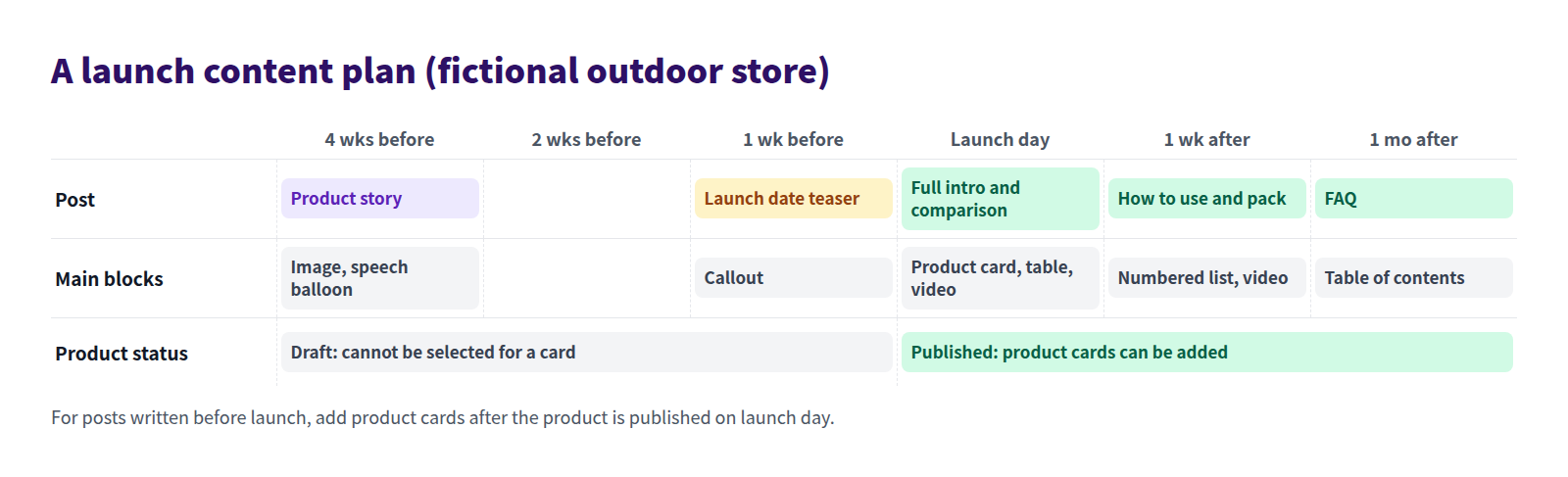
Here's a plan for a fictional outdoor store launching a new backpack.
Before launch: the story and a teaser
A few weeks out, publish a post about why and how you made the product. What prompted it, what customer feedback shaped it, what was hard to get right in prototyping. The goal before launch isn't a sale. It's getting people to look forward to launch day.
- Product story. Build it around prototype photos and the maker's own words. Images and speech balloons work well.
- Teaser. Briefly state the launch date and time, and what happens then (where to buy). Put the date in a callout so it's easy to find and update later.
For more on telling the story behind a product, see Product stories that help shoppers.
At launch: a full introduction and comparison
On launch day, publish a post with everything a shopper needs to choose.
- Answer first. Open with who it's for and what's new.
- Comparison. Put the differences from the previous model or similar products in a table. Owners of the old model can decide whether to upgrade.
- Video. Show what text can't: how it looks on your back, how it holds its shape when packed.
- Product card. Let readers go straight from the post to the product page.
After launch: how-tos and customer questions
About a week after launch, questions start coming in. Those are your next posts.
- How to use it. Packing tips, adjusting straps, and other steps as a numbered list, with a video if you have one.
- FAQ. Collect the questions customers actually send and answer them. Add a table of contents once it gets long.
For more, see Write how-to guides on your blog and Turn common questions into FAQ posts.
Examples: a teaser and a launch-day post
Here are two posts from a fictional outdoor store, Yamabiko Gear.
The teaser
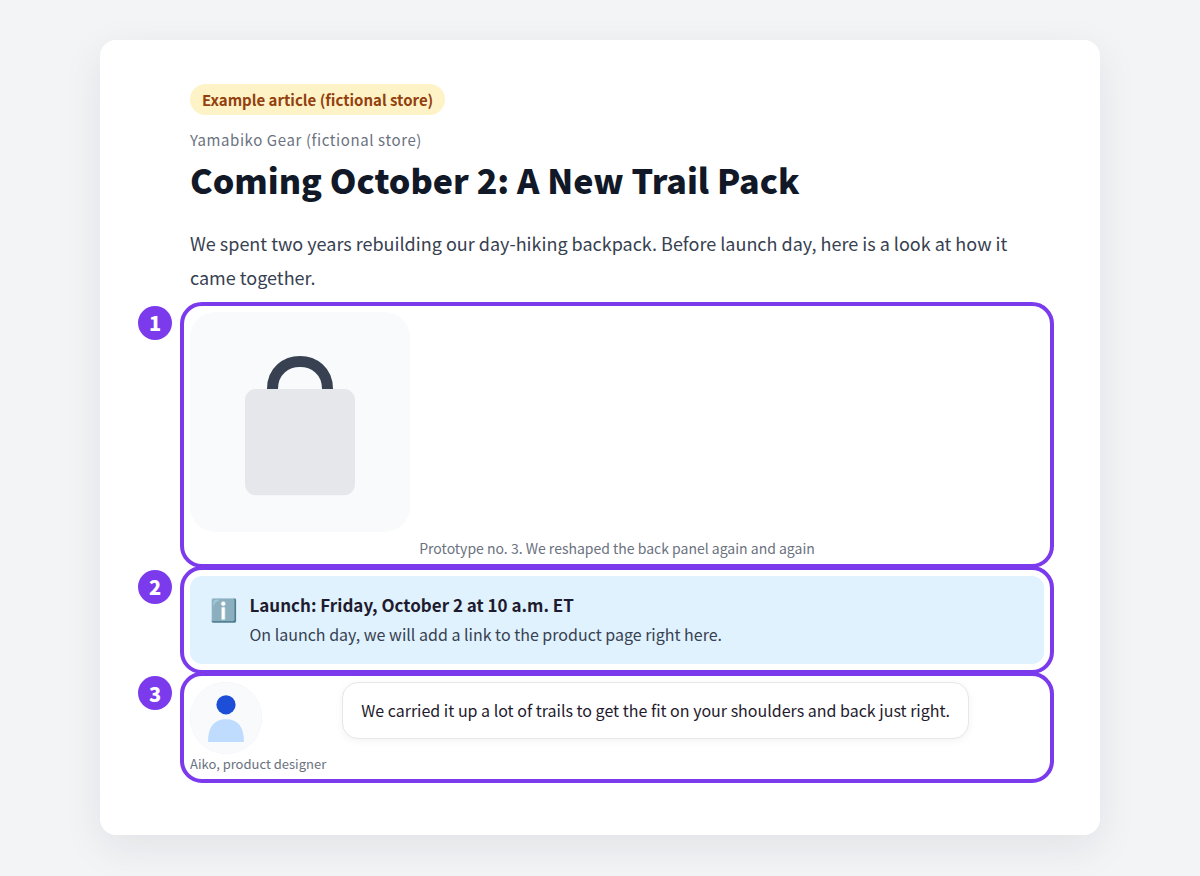
- Prototype photo. Showing a work-in-progress, not the finished product, lets readers see the thought that went into it.
- Launch date callout. The date and time plus "we'll add a link to the product page right here" in one box.
- Designer's speech balloon. A line like "we carried it up a lot of trails to get the fit right" is often the most-read part of a pre-launch post.
There's no product card yet, because the product isn't on sale.
The launch-day post
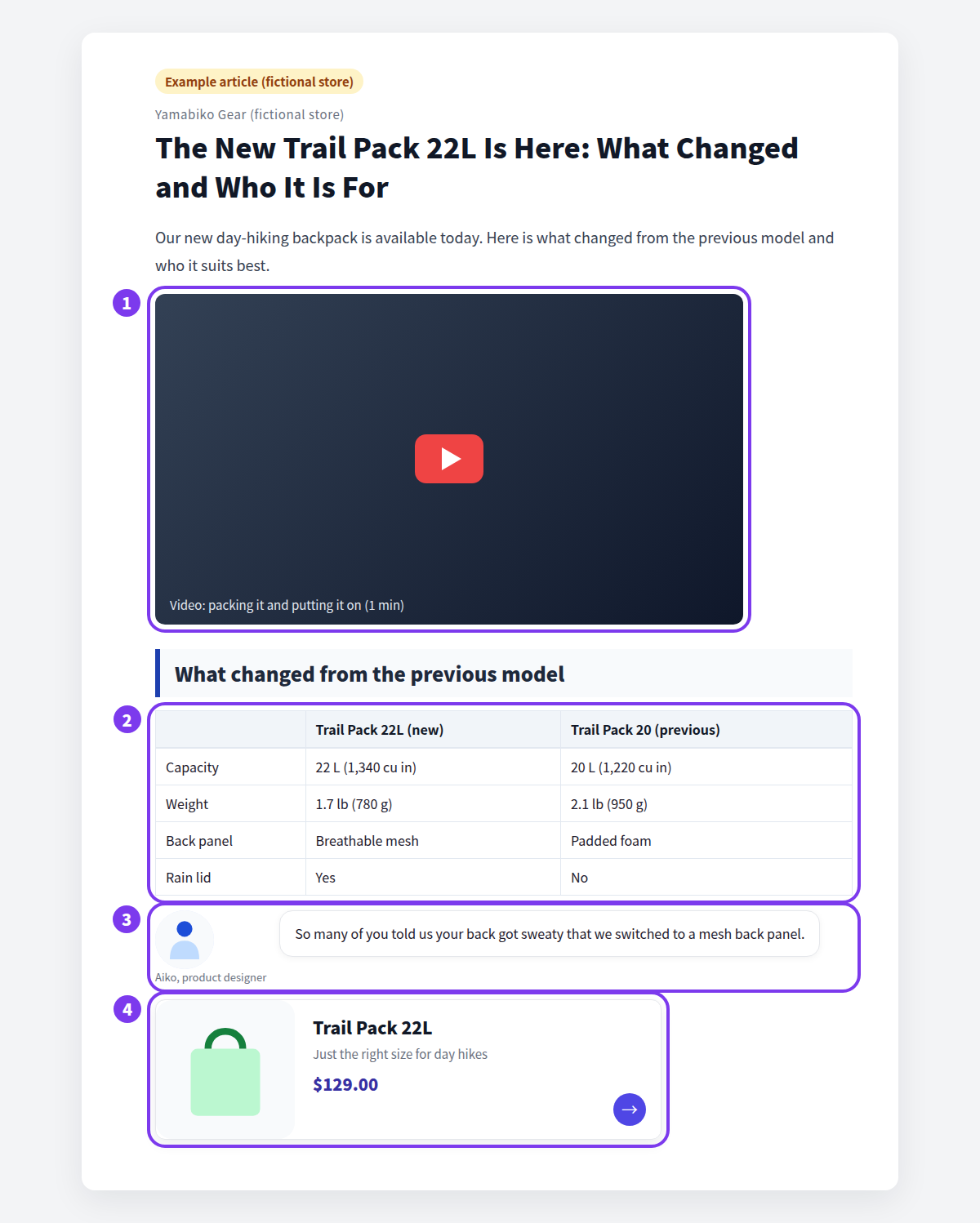
- Video. A one-minute clip of packing the bag and putting it on. Size and shape come across better on video than in photos.
- Comparison table. Capacity (22 L, about 1,340 cu in), weight, back panel, and rain lid side by side, so changes are obvious at a glance.
- Designer's speech balloon. The reason behind a change, in the designer's words: customers said their backs got sweaty, so the back panel is now mesh.
- Product card. Readers who finish the post can go straight to the product page.
Watch the timing of product cards
In Smart Agent Blog, Product Insert can't select draft, hidden, or archived products. If your new product stays a draft until launch day, you can't add its card to pre-launch posts. Work in this order:
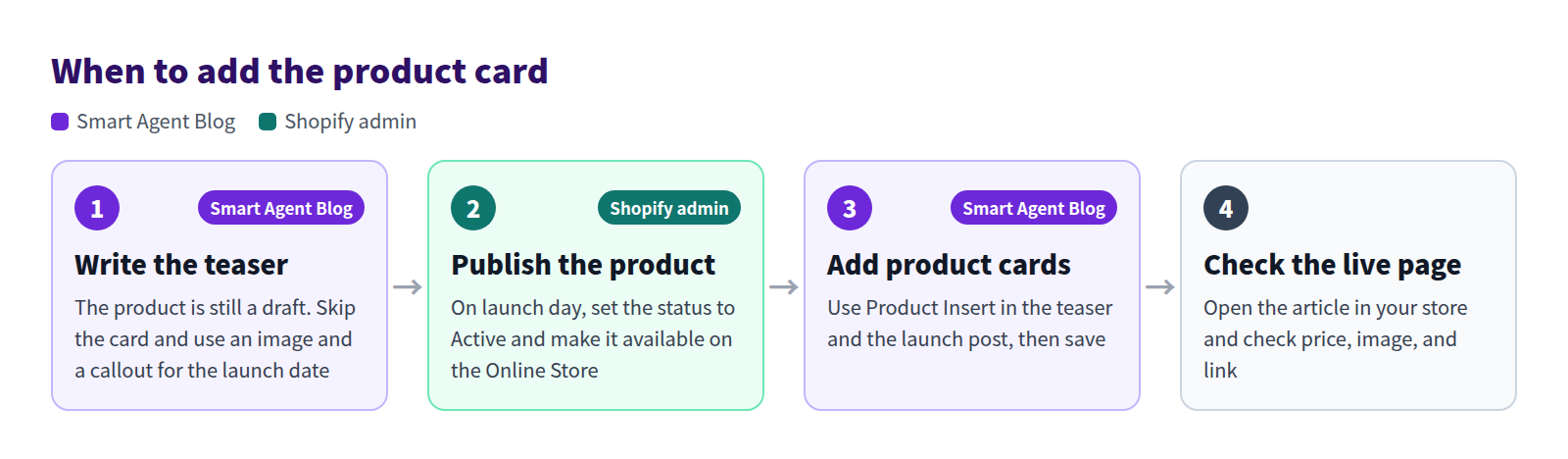
- Write the teaser. No product card. Use a photo and a callout for the launch date.
- Publish the product on launch day in Shopify admin.
- Add product cards. Use Product Insert in the teaser and the launch post, then save. Update the teaser's callout to say the product is available.
- Check the live page. Open the article in your store and confirm the price, image, and link.
Draft the launch post ahead of time and keep it hidden. Once the product is live, add the card and publish, and launch morning stays calm.
What Shopify can do out of the box
Shopify products have a status: Active, Draft, Archived, or Unlisted. Active means ready to sell.
- Scheduled product publishing. With the product set to Active, go to the Publishing section, click the calendar icon next to Online Store, pick a date and time, click Schedule publishing, and save.
- Scheduled blog posts. Under Content > Blog posts, open the post, click the calendar icon in the Visibility section, choose a date and time, and click Set visibility date.
- Post content. The standard rich text editor supports tables, images, embedded video (YouTube and Vimeo), and links. There's no built-in card showing a product's name, image, and price, and no automatic table of contents.
You can line up product and post launch times with built-in tools. To show the product inside the post, you'd add a product image and a text link yourself.
How to do it in Smart Agent Blog
Pick blocks for each stage
The insert menu to the right of the editor holds the blocks you'll use at each stage.
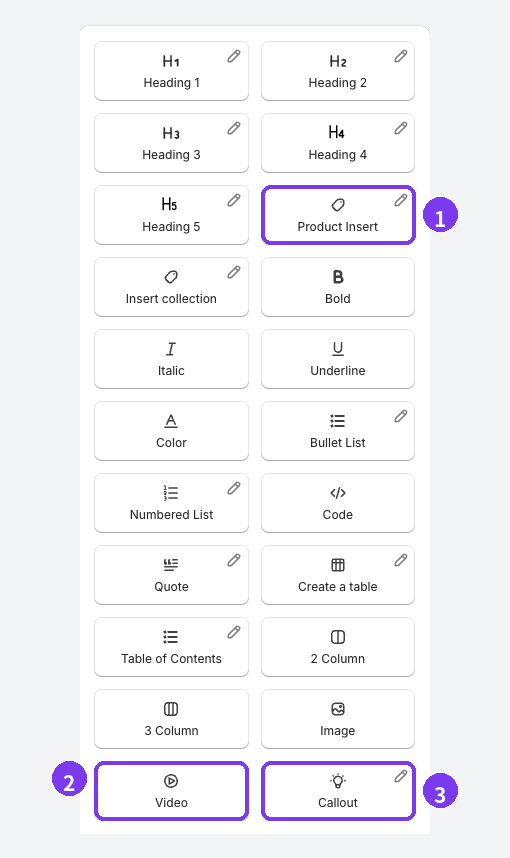
- Product Insert. Choose a Shopify product and a card with its name, image, and price is added. Out-of-stock products show a sold-out label. Use it from launch day on.
- Video. Enter a video file URL or a YouTube URL, upload with File Upload, or pick a video already in Shopify. Use it in the launch post and how-tos.
- Callout. Highlights key details like the launch date. Use it in the teaser, and update it at launch.
Speech Balloon is also available from the / list for a maker's or staff member's comment. Here's how the blocks line up by stage:
| Stage | Posts | Main blocks |
|---|---|---|
| Before launch | Product story, teaser | Image, Speech Balloon, Callout |
| At launch | Full introduction, comparison | Product Insert, Create a table, Video, Speech Balloon |
| After launch | How-to, FAQ | Numbered List, Video, Table of Contents, Speech Balloon |
Table of Contents builds itself from Heading 2 to Heading 4 and updates as you edit. To show a group of related products, use Collection Insert. See Add content to an article for details.
Publish at launch time
You can schedule a post to go live at the launch time.
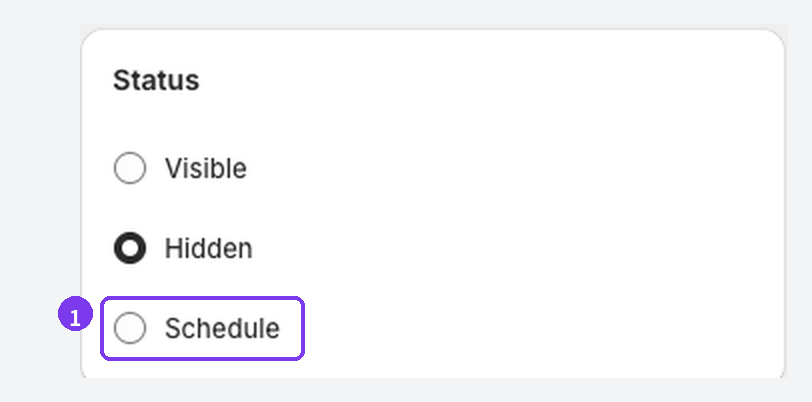
- In the status card, choose Schedule, and under Set current status, choose Hidden.
- Select Publish date and set the launch date and time.
- Save the article.
If the product stays a draft until launch, the scheduled post will go live without a product card. As soon as the product is published, add the card and save again. After the scheduled time, check the article list and the live page. See Preview and publish an article for more.
Have AI draft how-to posts after launch
AI Scheduled Blog Proposals can draft post-launch how-to and care posts for you. Open Setting, then select Manage for AI Scheduled Blog Proposals.
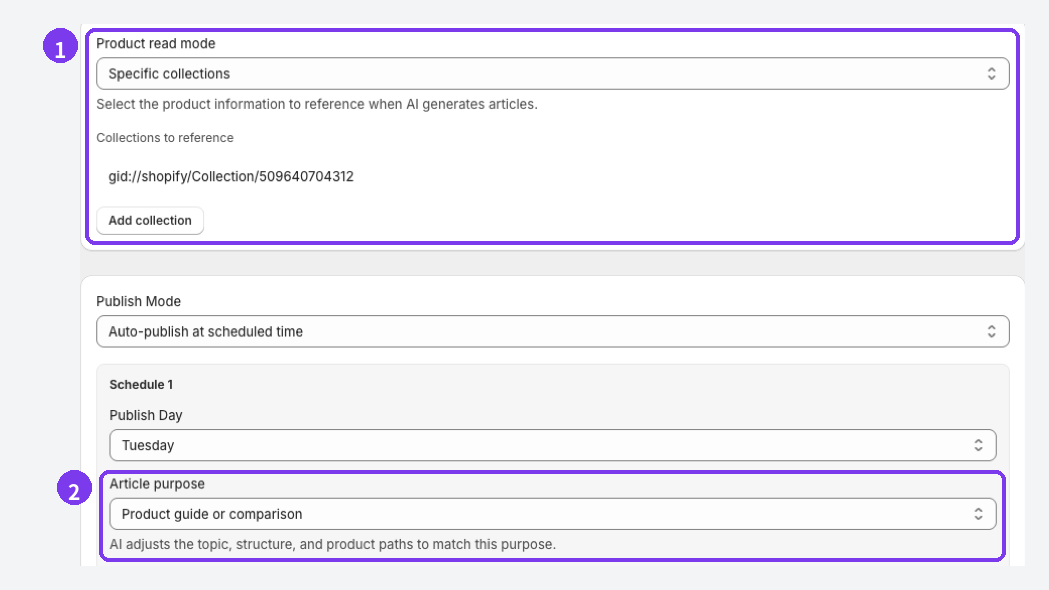
- Product read mode. Choose Specific products and a button appears for selecting them. Pick the new product, and drafts will draw on its information. If the new line lives in its own collection, Specific collections works too.
- Article purpose. For how-to and care posts, choose Education and editorial. For comparisons with other products, choose Product guide or comparison.
For the first few posts, set Publish Mode to Save as draft (manual publish) and review before publishing. AI can describe features a product doesn't have, and new products have little information to go on, so spell out the new product's features and intended uses in Business Overview and Themes / Keywords. See Schedule AI article suggestions for the full setup.
Checklist by stage
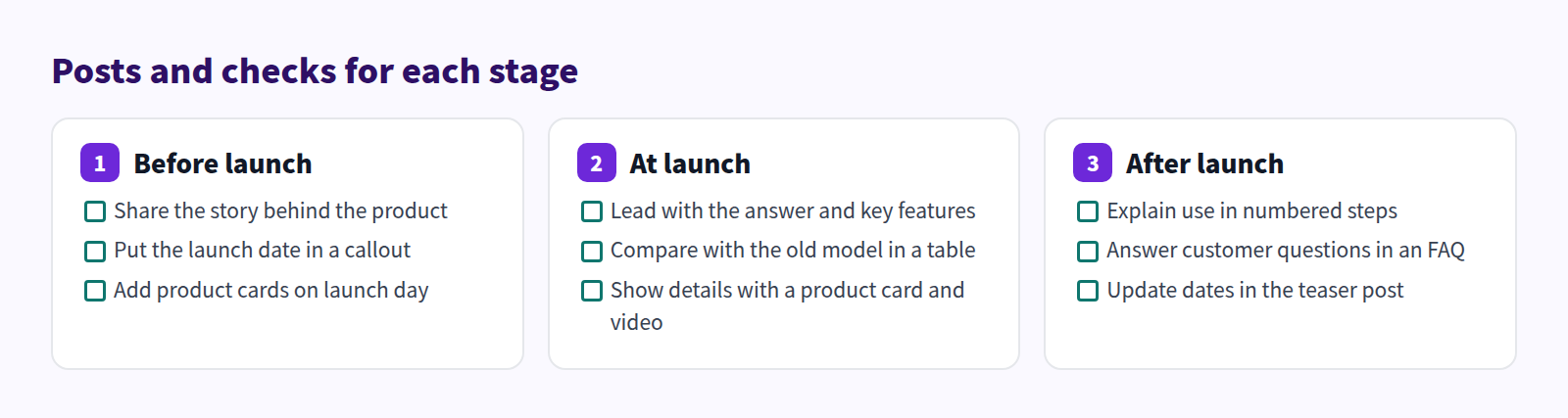
Use this as you prepare each stage.
FAQ
Can I add a product card to a pre-launch teaser?
Product Insert can't select draft, hidden, or archived products. If the product stays a draft until launch, use a photo and a callout for the date in the teaser, then add the product card once the product is published.
What should I do with the teaser after launch?
Change the callout to say the product is available, and add a product card and a link to the launch post. Keep the product story; people will still read it after launch. For handling time-limited posts in general, see Is your blog just sale announcements?
Where should how-to videos live?
A video on YouTube shows up in the post once you enter its URL. Smart Agent Blog's Video block also accepts a video file URL, an upload with File Upload, or a video already in Shopify. Uploads can take a while, so leave the dialog open until the progress indicator finishes. See Add video to your Shopify blog for more.
Summary
- Plan launch content in three stages: before, at, and after launch.
- Before: product story and teaser. At launch: comparison and product card. After: how-tos and FAQ.
- Draft products can't be selected for product cards, so publish the product on launch day, then add the cards.
- For post-launch how-tos, AI Scheduled Blog Proposals can draft posts based on the specific product you choose.
Pick your next product, count back from its launch date, and write down when the story post and the teaser will go out.