
"Should I get this one or that one?" If your store sells products that look alike, you hear this question constantly. Shoppers who can't tell the difference bounce between product pages and often leave without deciding.
There's a reliable way to answer it in a blog post: narrow the comparison to 3–5 criteria, put them in a table, state a verdict right after the table ("Choose A if…"), and place product cards directly under the verdict. Readers can pick the right product and go straight to its page.
You can build the table in Shopify's standard editor. With Smart Agent Blog, you can also use Create a table and Product Insert in the same editor, so the table, verdict, and product cards come together in one flow. This guide shows how, using a fictional store's post and the actual editor screens.
- How to choose comparison criteria and narrow them down
- How to build a table that stays readable on a phone
- The table, verdict, product card pattern, with a fictional example
- What Shopify's standard editor can do, and the steps in Smart Agent Blog
- What to check before publishing
Shoppers who can't see the difference don't decide
With similar products, shoppers open each product page and compare them one by one: weight on one page, care on another. The more scattered the information, the more people close the tab to "think about it later."
A blog post can do that comparing for them. But many comparison posts stop at the explanation and never lead the reader to the product.
While preparing proposals for Smart Agent Blog in August and September 2026, we reviewed the blogs of 110 Shopify stores in Japan. Of the 88 posts where we recorded body links, 66 (75%) had no link to a product page. In 3 out of 4 posts, readers couldn't get from the article to a product. And of the 113 posts we recorded, not one used a card that showed a product's name, image, and price together.
If there's no way to the product after the comparison, readers have to search for it themselves. A good comparison post explains the difference and leads to the product in one continuous flow.
The five steps of a comparison post
Build the post in this order:
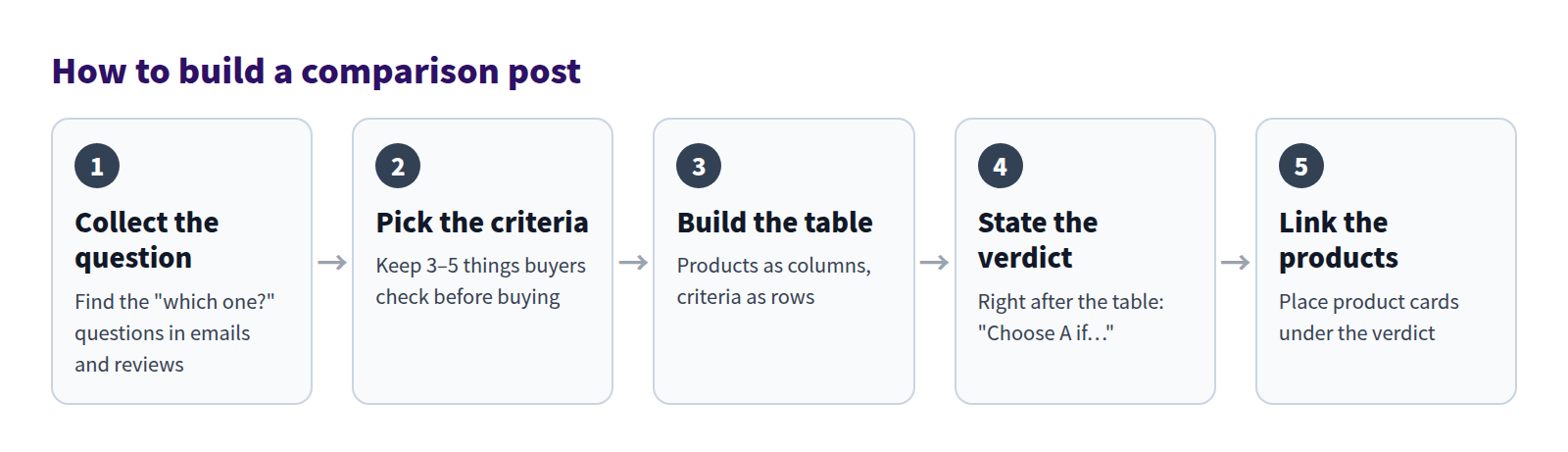
Deciding what to compare matters more than building the table.
Pick criteria from what shoppers hesitate over
Collect candidate criteria
Criteria should come from what readers worry about before buying, not from the features you most want to promote. You'll find them in:
- the reasons behind "which one should I get?" emails and chats,
- reviews that say things like "heavier than I expected,"
- the points your staff always mention when explaining the difference, and
- the most common reasons for returns and exchanges.
For a skillet, likely candidates are weight, care, what it cooks best, induction compatibility, and price.
Narrow them to 3–5
Even if you come up with ten, keep three to five. With too many rows, readers can't tell which ones matter.
To narrow them down, ask: "Would this criterion change the verdict?" If both products are identical on a point (both work on induction, say), you can move it out of the table and mention it in one sentence. If readers ask about it a lot, though, keeping it in the table is reassuring.
Compare two or three products per table
Two or three products per table is the sweet spot. With four or more, group them first ("the two lightweight options") and give each group its own table.
Build a table that's easy to read
Four rules keep a comparison table readable:
- Products as columns, criteria as rows. Two or three products means three or four columns, which won't sprawl sideways on a phone.
- Consistent units and wording. "2.4 lb" next to "28 oz" is hard to compare. Write "About 2.4 lb" and "About 1.8 lb."
- Words, not just symbols. Checkmarks and stars don't say what's better or why. Use short phrases like "high-heat searing" or "eggs."
- Differences, not winners and losers. Both products are yours. Instead of good and bad, describe what each one is best for.
Check every spec against the product page. Text in the table doesn't update itself, so when you change a spec or a price, the post needs editing too.
Put the verdict and product cards right after the table
A table on its own leaves readers asking, "So which one is for me?" Right after the table, write a verdict for each type of reader, then put the product cards directly below it.
Here's an example post from a fictional kitchenware store:
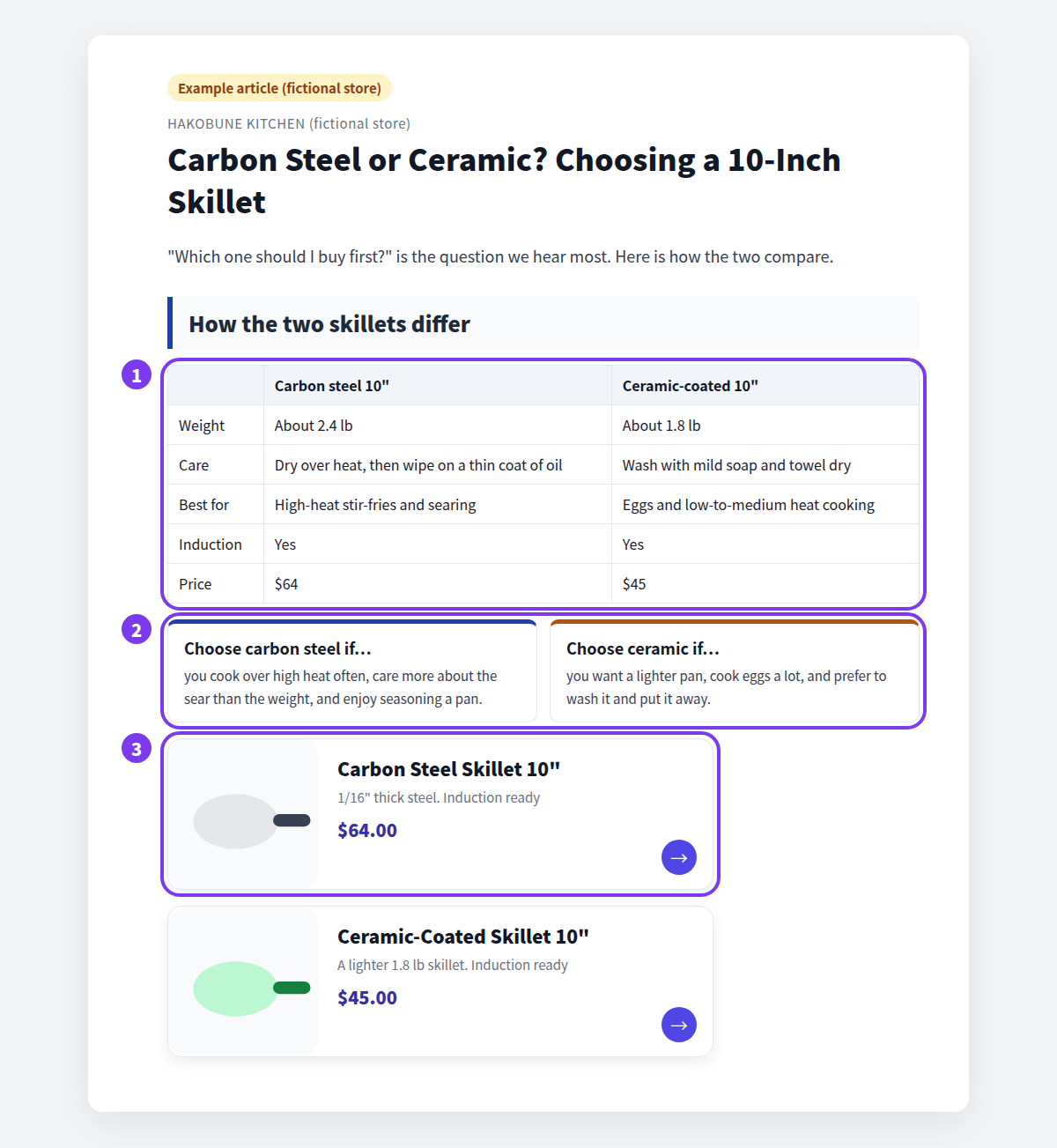
- Comparison table. Two skillets, five criteria: weight, care, best for, induction, and price. It sits right under the heading, so readers see where the comparison happens.
- Verdict. "Choose carbon steel if…" and "Choose ceramic if…" give each type of reader a clear pick, using the same words as the table so they know which criteria to weigh.
- Product cards. A card for each product sits right below the verdict. Readers check the image and price and go to the product page without losing the thread.
Write the verdict as conditions readers can check against themselves: "you cook over high heat often," "you want a lighter pan." If size is the main difference, combine this with the approach in our size guide post.
Check how the table looks on a phone
A table that looks neat on a laptop can get cramped on a phone. Your readers may well be on a phone, so always check the post at phone width before publishing.
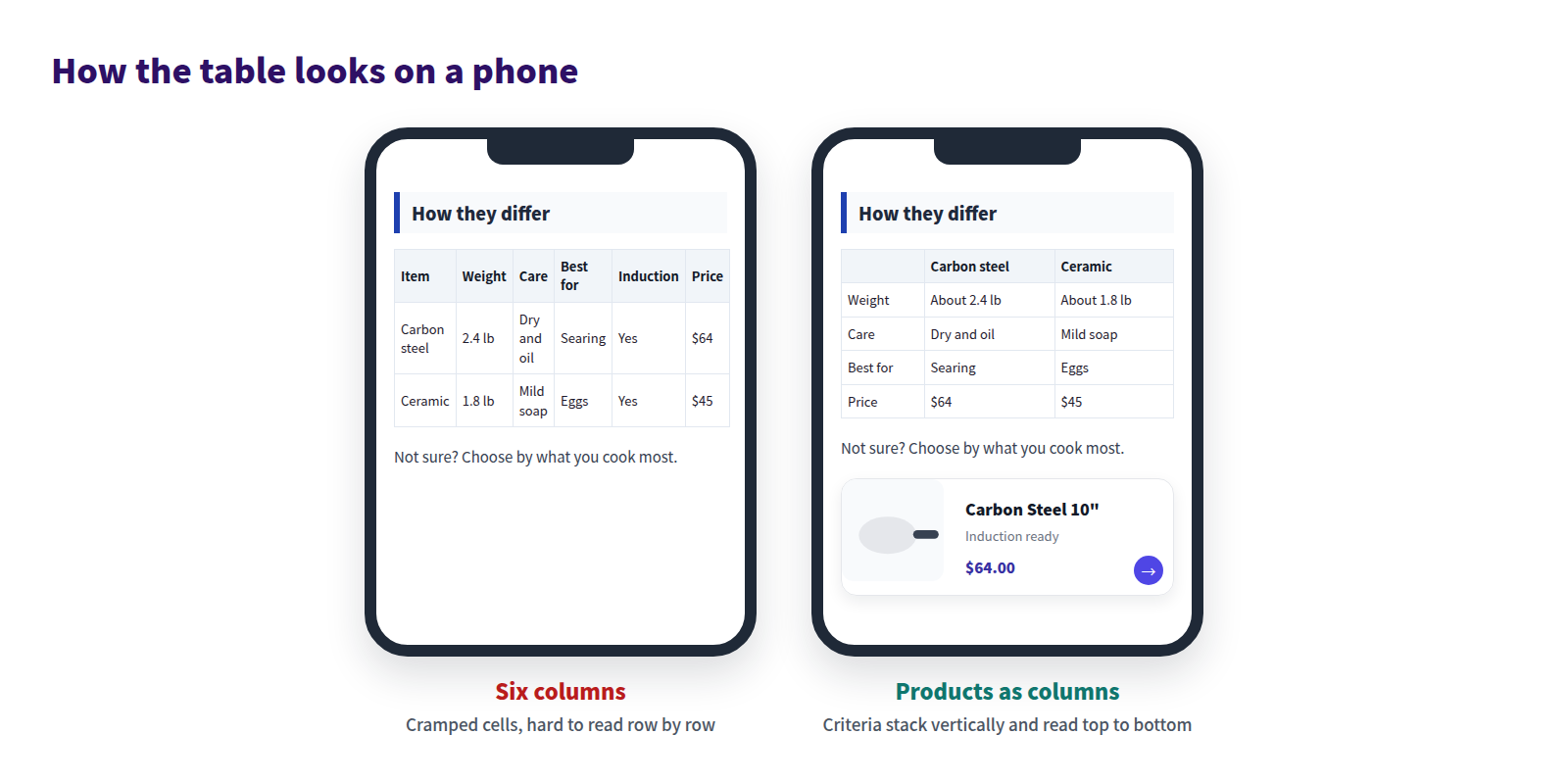
When products are rows and criteria are columns (left), every new criterion adds a column. With products as columns (right), new criteria just add rows, and the table reads top to bottom.
When you check, look for:
- tables spilling past the edge of the screen,
- cells wrapping after every word or two, and
- how far readers have to scroll from the table to the verdict and product cards.
How tables render depends on your theme. If one overflows, first cut columns, then shorten the cell text, then move long explanations out of the table.
What Shopify's standard editor can do
You can build a comparison table in Shopify's standard rich text editor. In your admin, go to Content > Blog posts, open a post, and use the Insert table button. After that, commands such as Insert row above, Insert column after, and Delete row adjust the rows and columns.
The product links after the table are a different story. In the standard editor, you select text and enter a product page URL to make a link, but there's no way to show a product as a card with its name, image, and price. You can fake cards with images, but you'd have to swap images and links by hand whenever products change.
How to build it in Smart Agent Blog
In Smart Agent Blog, the table, the verdict, and the product cards all come from the insert menu in the same editor.
Add the table with Create a table, and the cards with Product Insert
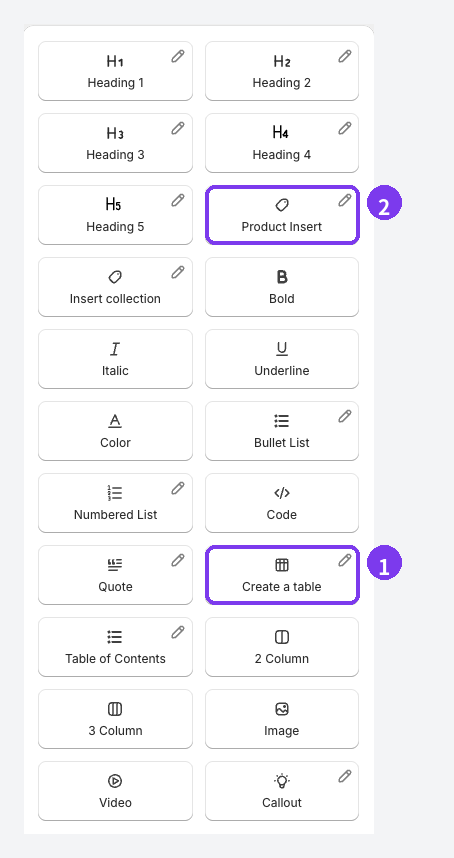
- Create a table. Place the cursor where the table should go and select Create a table from the insert menu on the right. You can also type
/at the start of a line and pick it from the list. Then fill in the products and criteria. - Product Insert. After writing the verdict, select Product Insert on the next line. Shopify's product picker opens. Choose the product, and a card with its name, image, and price is added to the body.
Draft, hidden, and archived products can't be selected. Out-of-stock products show a sold-out label, so if one of the compared products sells out, adjust the verdict so the text and the card don't contradict each other.
Place verdicts side by side with 2 Column
To show two verdicts next to each other, 2 Column gives you left and right areas for text or product cards.
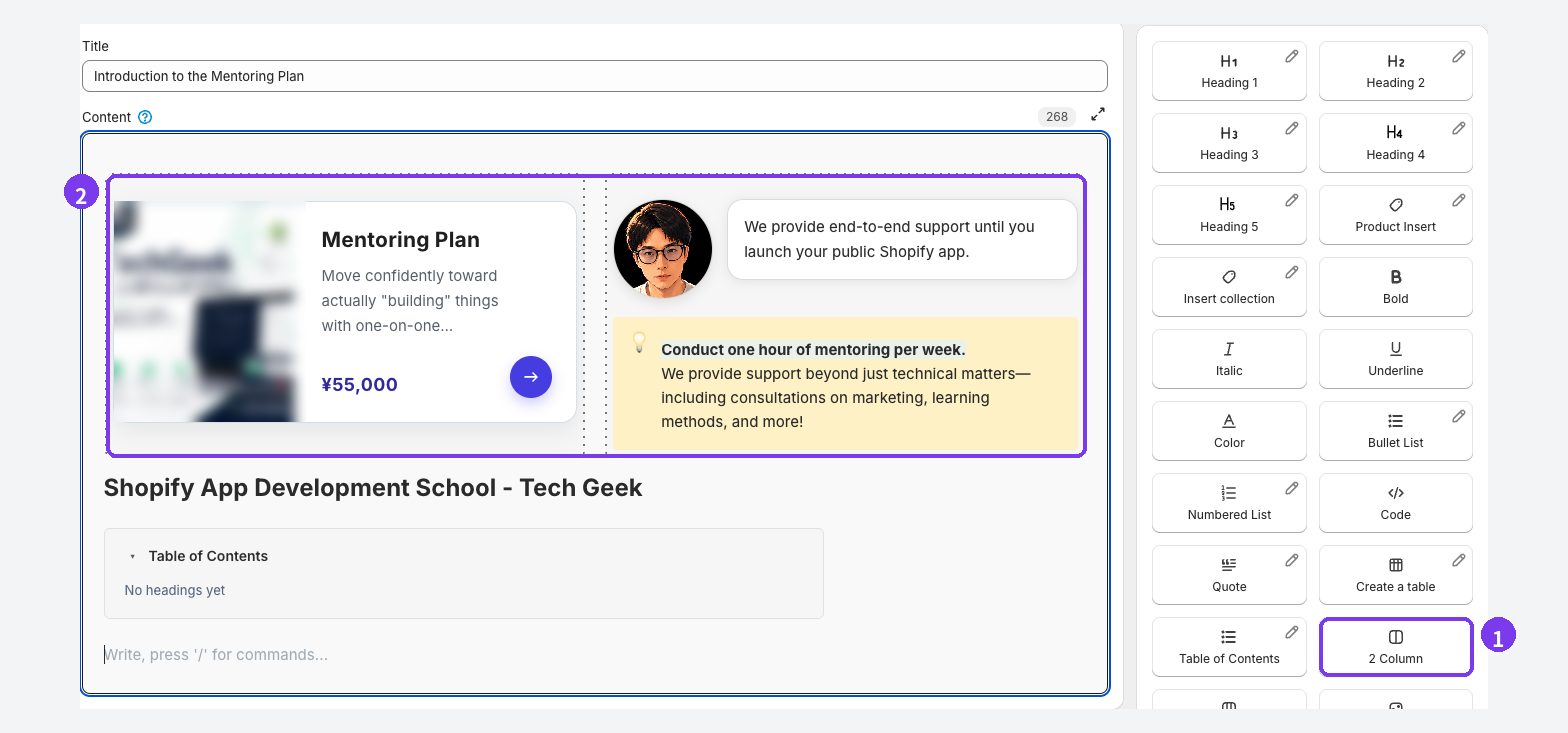
- 2 Column. Select it where the verdicts should go.
- The two-column block. Put each verdict and its product card in one side. In this screen, the left side holds a product card and the right side a speech balloon and a callout.
Side-by-side layouts get narrow on a phone, and how they stack depends on your theme, so check in preview. Long verdicts may read better stacked. For more on column layouts, see When to use 2-column and 3-column layouts.
Save as Hidden and check the preview
- Choose Hidden in the Visible / Hidden card and select Save. The editor doesn't autosave, so save as you go.
- Select Preview at the top of the editor (it appears once the article is saved) and choose a theme. The Shopify theme editor opens; switch to the mobile view and check the table and product cards.
- When it looks right, choose Visible, save, and check the live article on your store.
For details, see Add content to an article and Preview and publish an article in the user guide.
Standard editor vs. Smart Agent Blog
| Shopify standard editor | Smart Agent Blog | |
|---|---|---|
| Comparison table | Insert table | Create a table |
| Linking to products | Enter the product URL as a text link | Product Insert adds a card with name, image, and price |
| Sold-out products | Check yourself and edit the text | Out-of-stock cards show a sold-out label |
| Side-by-side verdicts | Write HTML or use a table | 2 Column and 3 Column |
| Best for | You only need a table and text links are enough | You want the whole path from comparison to product page in one editor |
Either way, the fundamentals are the same: choose the criteria, then state the verdict right after the table.
What to check before publishing
Run through this list before a comparison post goes live:
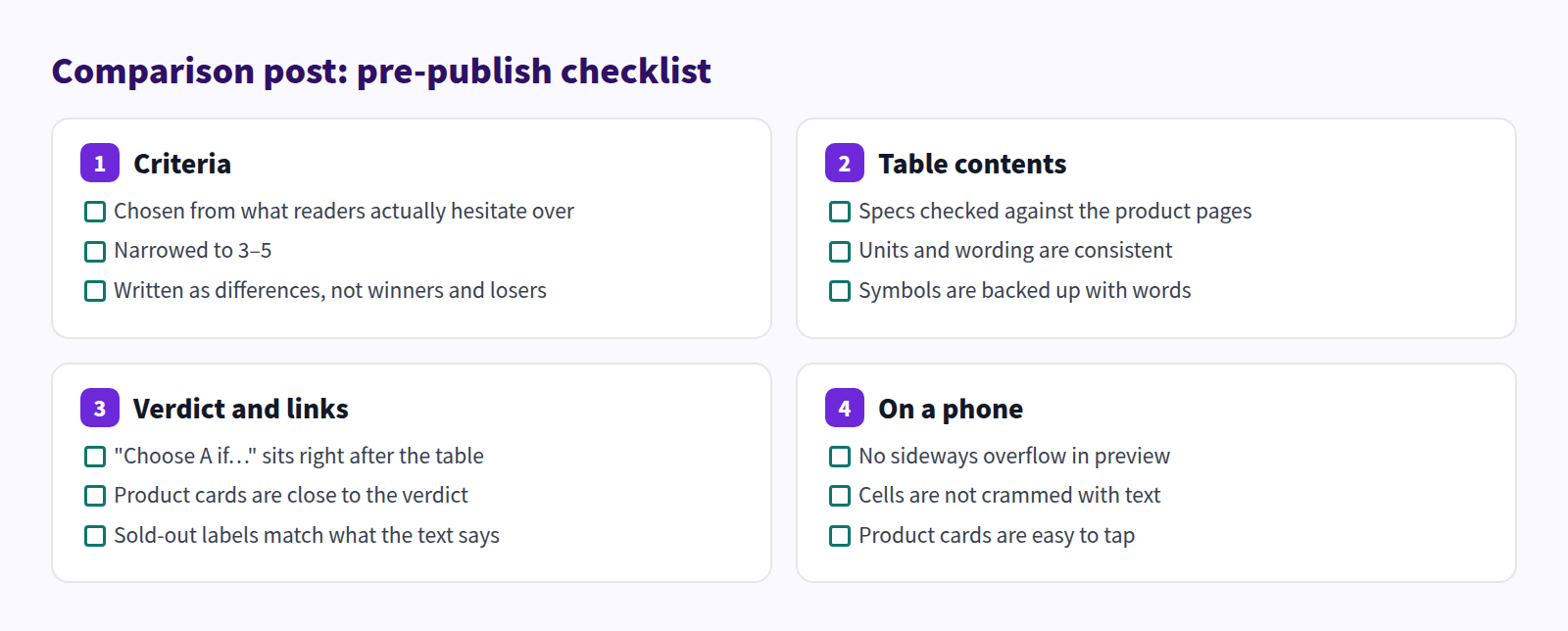
The easiest thing to miss is a mismatch between the table and the product page.
FAQ
What if I need to compare four or more products?
Keep each table to two or three products. With four or more, group them by use or price range and make a table per group. To show a larger set at once, use Collection Insert (labeled Insert collection in the insert menu) to list the related products, and compare only the two or three main ones in a table.
Should I put prices in the table?
You can, but table text doesn't change on its own, so edit the post whenever prices change. To reduce updates, show a price range in the table and let the product cards show the exact price.
Can I add a comparison table to a post that's already live?
Yes. Open the post from the article list in Smart Agent Blog, add the table and product cards, and save. Note that the Free plan allows up to 10 articles created in Smart Agent Blog, and a post created in the Shopify admin counts toward that limit once you open and save it in Smart Agent Blog. See Plans and usage limits.
Summary
- Choose criteria from what shoppers hesitate over, and keep 3–5.
- Put products in columns and criteria in rows, with consistent units and wording.
- Write "Choose A if…" right after the table, with product cards directly below.
- Check the table and cards at phone width before publishing.
A comparison table is one step in a longer path. For the whole route from post to purchase, see turning blog readers into buyers.
Start by picking the two products customers most often ask you to choose between, and write down three criteria. For more on placing product cards, see How to add products to your Shopify blog.