
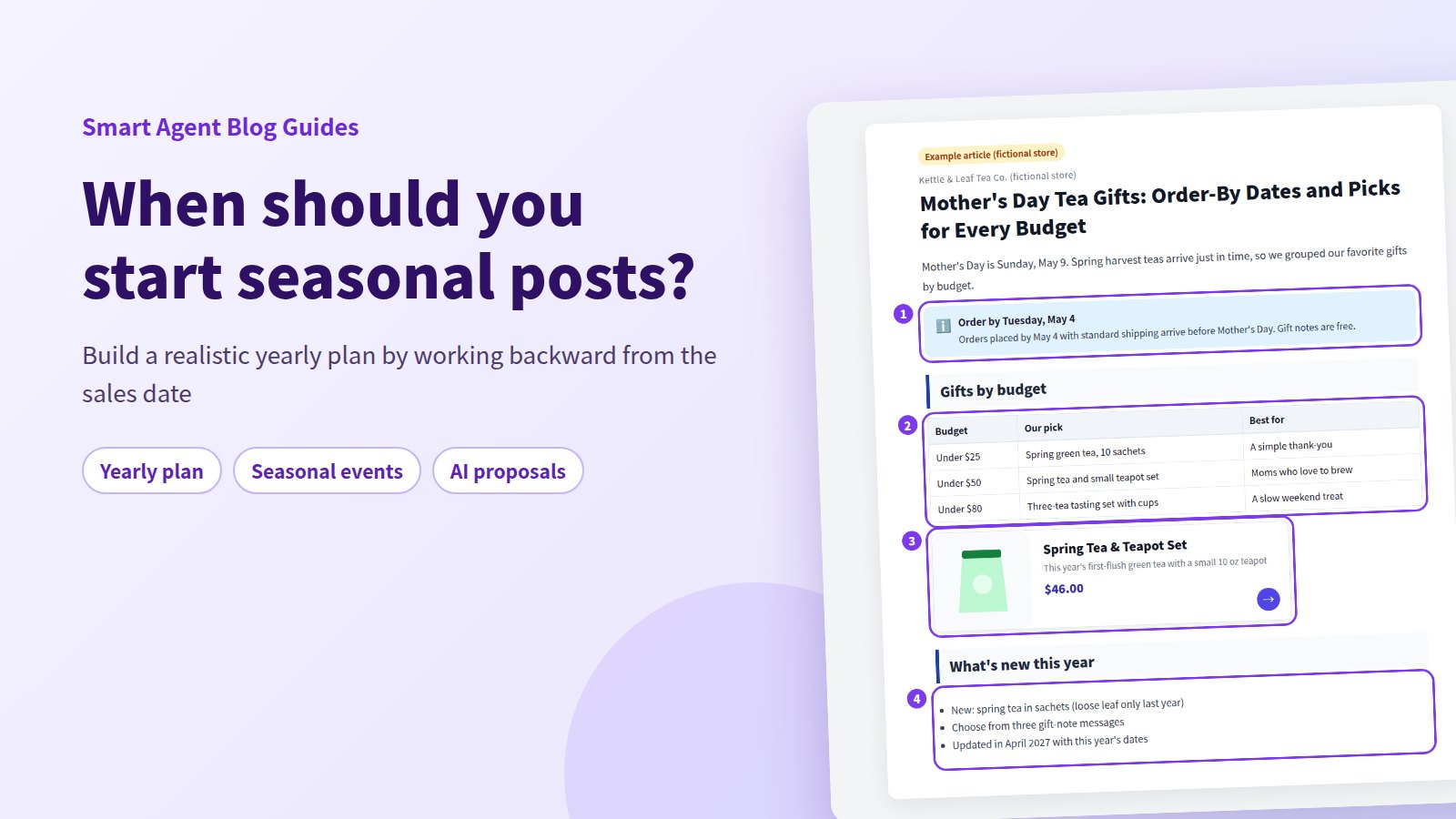
It's the first week of May and you finally sit down to write the Mother's Day post. By the time it goes live, the order cutoff is a few days away. Seasonal posts rarely miss because of writing skill. They miss because nobody decided when to start.
The short answer: plan backward from the day sales start. Publish 2 to 4 weeks before sales begin, and start preparing 2 to 4 weeks before that. Put the whole year on one grid, with each event split into prepare, publish, and review, and the rush goes away.
You can hand the first drafts to Smart Agent Blog's AI Scheduled Blog Proposals and use AI Rewrite to refresh last year's post instead of starting over. This guide walks through the plan and the settings, using a fictional tea shop as the example.
- How to decide when to prepare and when to publish each seasonal post
- A sample yearly calendar split into prepare, publish, and review
- Four things every seasonal post should include
- How to get Campaign drafts from AI Scheduled Blog Proposals
- How to refresh last year's post instead of writing a new one
Why seasonal posts end up late
Seasonal posts come with a deadline other posts don't have. Once Mother's Day passes, the next chance to use that post is a year away. Start late, and the post has almost no time to be found.
The other reason is treating seasonal posts as something you write when inspiration strikes. While preparing proposals for Smart Agent Blog in August and September 2026, we reviewed the blogs of 110 Shopify stores in Japan. About 4 in 10 (42 stores) had no posts, had stopped after a handful, or hadn't posted in over a year. A blog without a schedule is the first thing to stop in a busy season. Seasonal topics have fixed dates, which makes them the easiest posts to put on a calendar.
To fill the gaps between seasonal dates, the catalog of post formats a store blog can use gives you topics that work in any month.
Work backward from the day sales start
Build the plan from the day you start selling, not the day you publish. There are five steps:
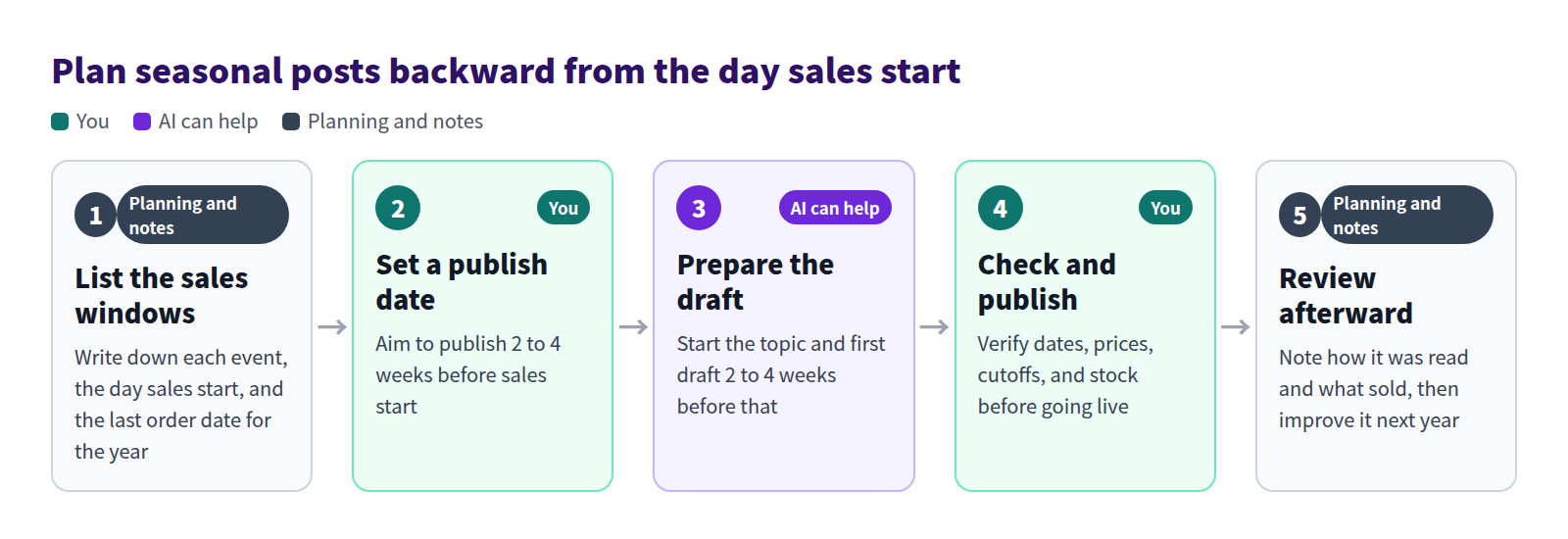
- List the sales windows. Write down the event date, the day sales start, and the last order date. For gifts, include shipping time.
- Set a publish date. Aim for 2 to 4 weeks before sales start. Gift shoppers compare options well before the day itself.
- Prepare the draft. Pick the topic and start the first draft 2 to 4 weeks before the publish date. This step can go to AI.
- Check and publish. A person verifies dates, weekdays, prices, cutoffs, and stock. In a seasonal post, a wrong number turns straight into support emails.
- Review afterward. Note how the post was read and what sold. Those notes are where next year's version starts.
Put the year on one grid: prepare, publish, review
Turn those dates into a one-page calendar. List events down the side and months across the top, then mark when each event is in prepare, publish and sell, and review.
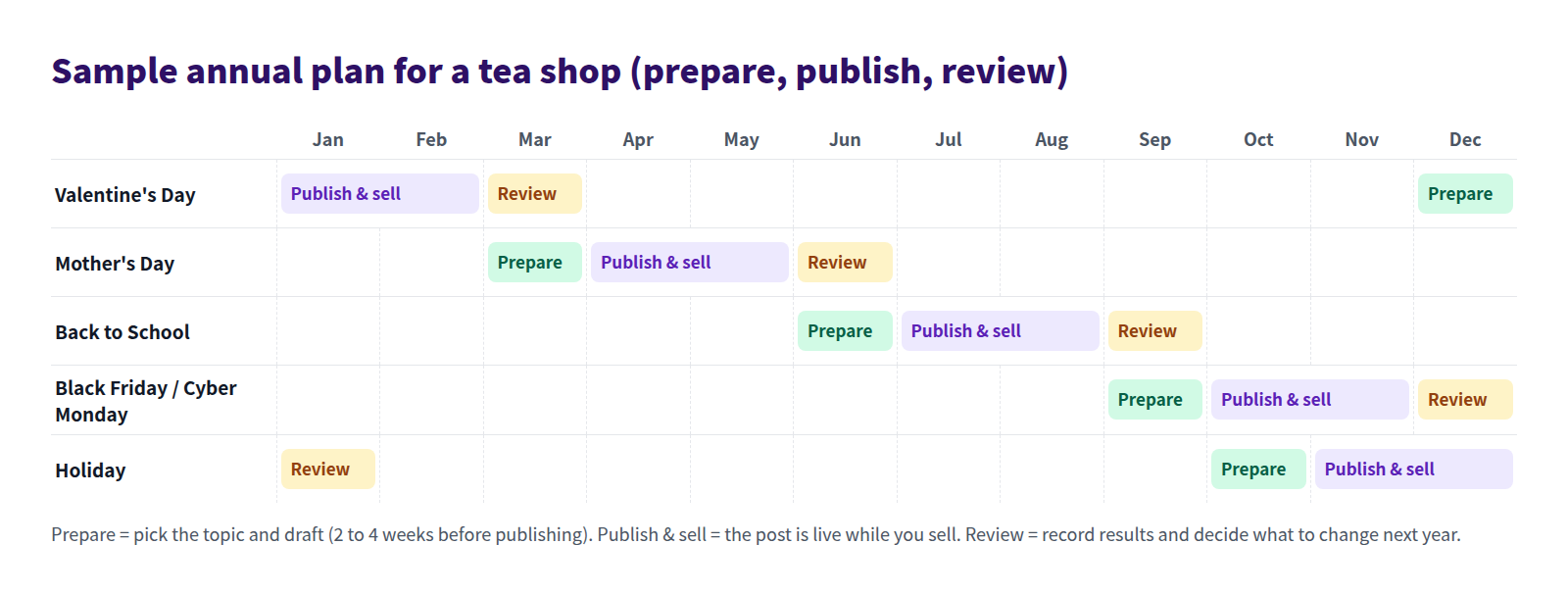
A few things jump out once it's on paper:
- Crowded months. Here, October has the Black Friday / Cyber Monday post going live while Holiday prep starts. Choosing topics a month early spreads the work out.
- Too many events. A small team can't publish ten event posts a year and still do them well. Pick the four to six events that bring in the most sales and save the rest for next year.
- Review timing. Finish each review before the next prep starts. Right after the season, you still remember which questions customers asked and what ran out.
Your events depend on what you sell. A tea shop leans on Mother's Day and the holidays. An apparel brand may care more about Back to School and spring break. A home goods store might add moving season. Start with the windows when your products actually sell.
Four things every seasonal post needs
A seasonal post should let a reader decide, fast, what to buy and by when. Here's a Mother's Day post from a fictional tea shop.
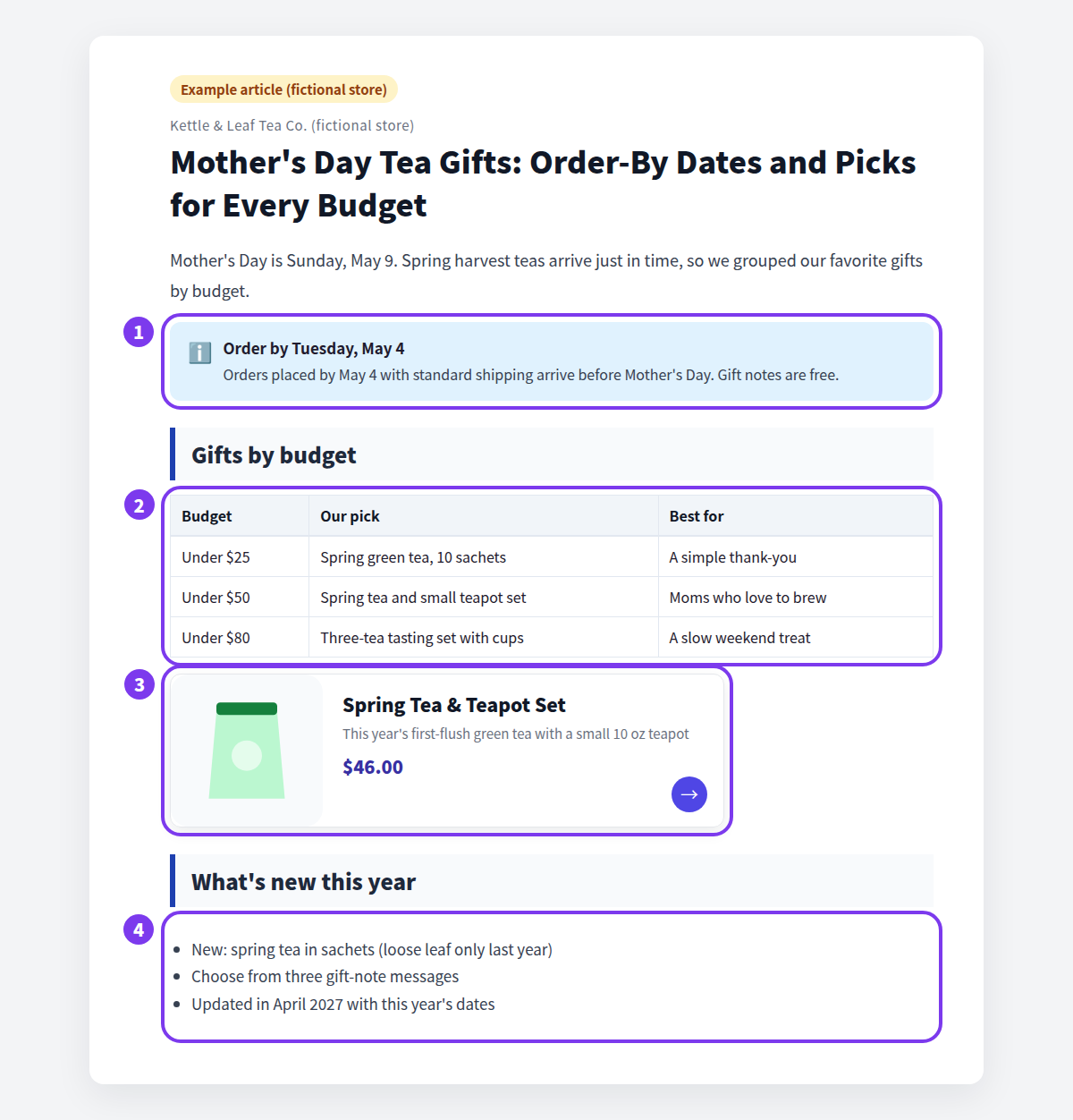
- An order-by date. Put the date that still gets the gift there on time near the top. A callout box keeps it from being skimmed past.
- A table by budget or recipient. Gift shoppers narrow by price first. One table with budget, pick, and who it suits does most of the work.
- A way into the product. Let readers open whatever caught their eye in the table. A product card shows the name, image, and price at a glance.
- What changed, and when it was updated. If the same post returns next year, say what's new and add the month and year you updated it, so readers know it isn't last year's information.
For how to structure gift posts in more detail, see How to organize a gift guide by budget, recipient, and occasion.
What Shopify handles on its own
In Shopify admin, you create posts under Content > Blog posts. In the Visibility section, click the calendar icon and choose a date and time to schedule a post. Shopify Magic's Generate text can draft the copy.
That's enough for one seasonal post at a time. To run a full yearly plan with built-in tools only, you'll need to:
- track prep start dates in a separate calendar,
- type product details and the seasonal angle into every prompt, and
- work out on your own which of last year's posts need updating, and how.
Prepare seasonal drafts with Smart Agent Blog
Smart Agent Blog's AI Scheduled Blog Proposals creates one post a week on the day and time you set. Set it up for your prep window, and you start each season by reviewing drafts instead of staring at a blank page.
Choose the products for the season
Open Setting, then select Manage for AI Scheduled Blog Proposals. Add the upcoming event to Themes / Keywords. "Mother's Day spring tea and teapot gift set" tells the AI far more than "Mother's Day." When the season changes, delete the old theme and add the next one.
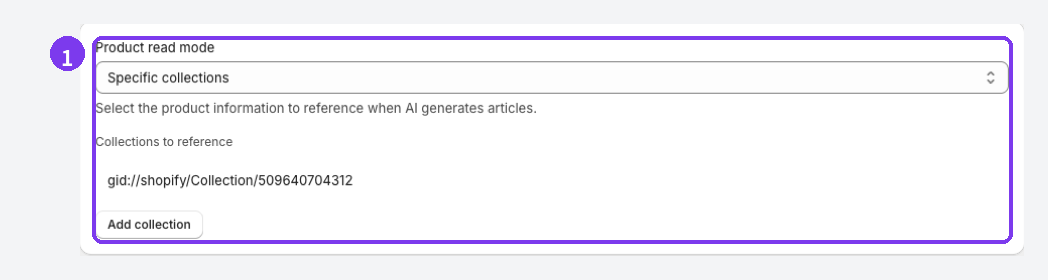
Then set Product read mode to Specific collections and pick your seasonal collection. Limiting the AI to the products you're featuring keeps the draft on topic.
Set the schedule and the article purpose
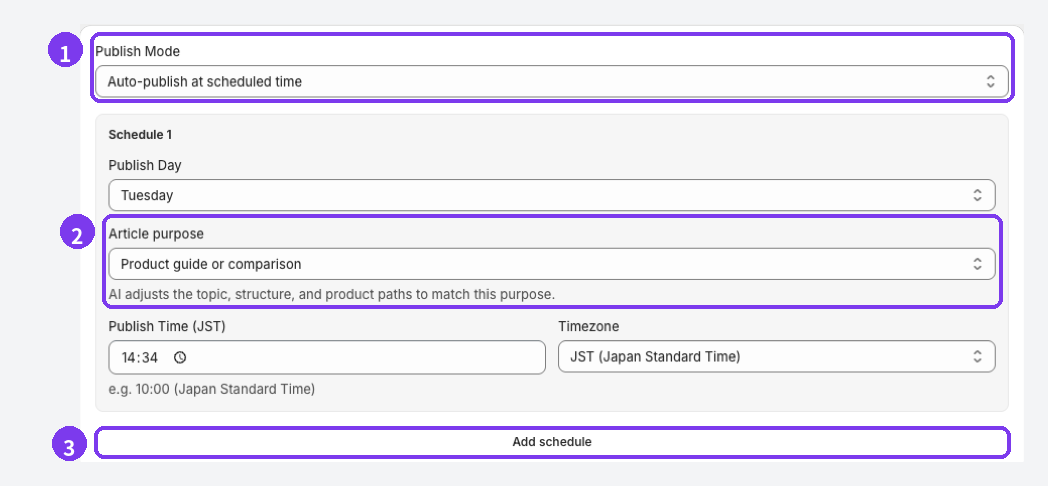
- Publish Mode: seasonal posts need a date and cutoff check, so choose Save as draft (manual publish).
- Article purpose: choose Campaign. The AI adjusts the topic, structure, and paths to products for a sale or seasonal promotion.
- Another schedule: depending on your plan, you can add schedules. Run one as Campaign and another as Education and editorial, and you get seasonal posts and brewing guides from separate schedules.
Each schedule creates one post a week, so turn it on when prep starts and revisit it once the post is live. Turning the feature off and saving removes the registered schedules. The time zone options are JST and UTC, so US stores should convert: 9 a.m. Eastern is 13:00 UTC during daylight saving time and 14:00 UTC otherwise.
AI article generation is limited to 2 articles in total on Free, 1 per month on Basic, and 15 per month on Pro. On Basic, plan for one draft in each prep month. See Plans and usage limits.
Schedule the publish date
After you review and finish the draft, choose Schedule in the status card of the editor and set a Publish date. Add an Unpublish date as well if the post should only be visible during the sales window.
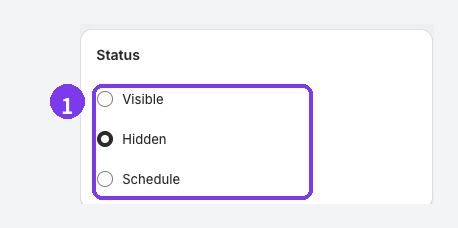
Once the scheduled time passes, confirm the status in the article list and on the storefront. See Preview and publish an article.
Refresh last year's post instead of starting over
Updating last year's post usually beats writing a new one. The URL stays the same, so readers you reached last year and links from other posts still land in the right place.
Check last year's results first
On Pro, Article analytics can judge a post with the Campaign purpose. Analytics covers the 30 days ending yesterday, so open it within a month after the season ends and note the four diagnostic scores (Reach, Reading, Action, Conversion) and the recommendations. See Review article analytics.
Let AI Rewrite propose the update
On paid plans, AI Rewrite proposes changes to an existing post's title, body, and SEO description. For seasonal posts, the strategy that fits is Freshness Update.
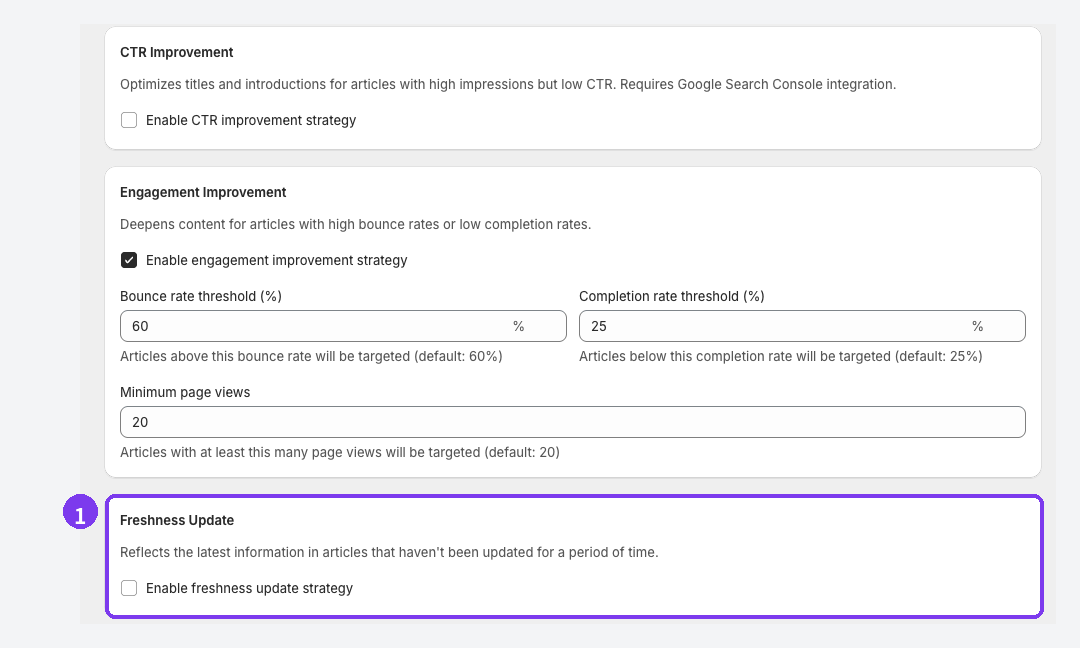
Freshness Update targets posts that haven't been updated in a long time or are losing traffic. Choose Approval required (Recommended) so you compare before and after and accept changes one by one. The original stays untouched until you apply them.
On Pro, the Rewrite action in the editor runs on a single post. Under What would you like to improve?, write something like "Restructure this for next year's Mother's Day and make it easier to scan."
Keep this order:
- Accept and apply the rewrite.
- Then update dates, weekdays, prices, cutoffs, and stock by hand.
If you accept even one body change, the whole body is rebuilt from the post as it was when the proposal was generated. Fix the dates first and they can be lost. See Use AI Rewrite.
If a product you featured has been discontinued, see What to do with blog posts that feature sold-out or discontinued products.
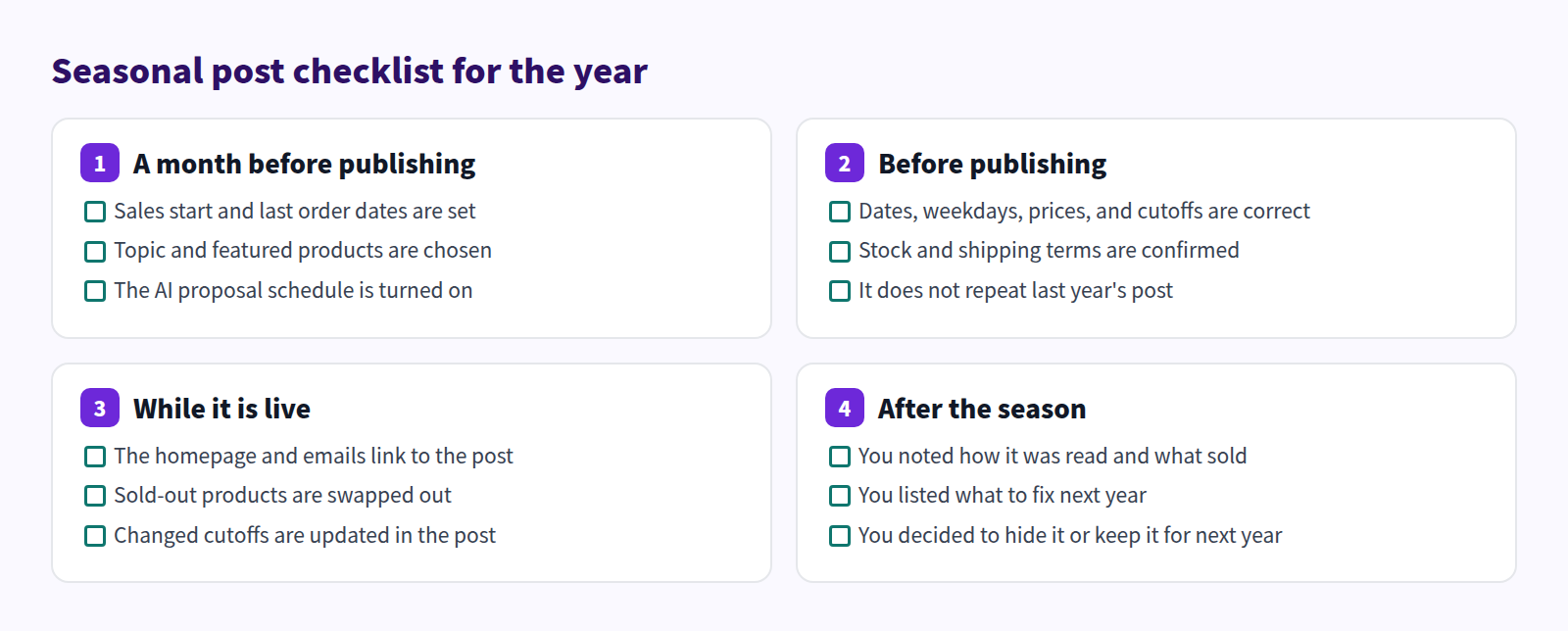
Yearly checklist
Here's what to check for each event, by stage.
FAQ
Should I update last year's post or write a new one?
If most of it still applies, update it. Change the year in the title if it has one, and add a short "what's new this year" section. If you already have several near-identical posts from different years, merge them using What to do when your blog has too many similar posts.
Should I hide a post after the event ends?
If it still shows cutoffs or prices, either hide it or add a line such as "Orders for this year have closed." If you plan to reuse it, hiding keeps it ready for next year. Hiding doesn't delete the post.
Can I use this on the Free plan?
The Free plan includes 2 AI-generated articles in total, enough to test the next one or two events. AI Rewrite requires a paid plan, so consider Basic or above if you want monthly prep.
Summary
- Plan backward from the day sales start: publish 2 to 4 weeks before, and start preparing 2 to 4 weeks before that.
- Put the year on one grid of prepare, publish, and review, and limit it to four to six events.
- Get drafts from AI Scheduled Blog Proposals with the Campaign purpose and Save as draft (manual publish).
- Next year, refresh the post with AI Rewrite, then fix dates and prices by hand after applying.
Pick your next event, count back from the day sales start, and put the prep date on your calendar today.