
You asked an AI to draft a blog post and got something you could have read anywhere. The product names are right, but nothing in the article says it came from your store. That is almost never a limit of the model. It is a limit of what the model was told.
Three things decide the difference: what you sell, who you are writing for, and how your store talks. With Shopify Magic you type those into the prompt every single time. With Smart Agent Blog you save them once as settings and every later draft is written from them. This article covers both, with the wording that actually moves the needle.
- Why AI drafts drift into generic advice, and what is missing
- The six things to put in a Shopify Magic prompt, with a reusable template
- How to fill in Business Overview, Target Audience and Writing Style in Smart Agent Blog
- How the same topic reads differently once the settings are specific
- When to fix the article and when to fix the settings
Why AI drafts read like everyone else's
An AI can only write from what it is given. If all it knows is "we sell bags," you get a general article about bags. Everything you take for granted — the canvas weight, who buys it, what you refuse to compromise on — stays out of the draft unless you say it.
While preparing proposals for Smart Agent Blog, we reviewed the blogs of 110 Shopify stores in Japan between August and September 2026. About 40% of them (42 stores) had no blog posts, had stopped after a handful, or had not published for more than a year. In most cases the material existed. What was missing was the time to turn it into articles. AI can take on that time, but somebody still has to hand over the material.
There is a second kind of "not quite right." The facts are correct, but the voice is wrong. A store that normally writes "give it a try and let us know how it goes" gets back a stiff explainer. Rewriting voice takes longer than fixing facts, and again, the AI had no way to know.
What you teach is per store, not per article
Topics change every week. What kind of store you are, who you write for and how you speak stay the same across almost every post. Those are not things to rethink each time — they are things to write down once and reuse.
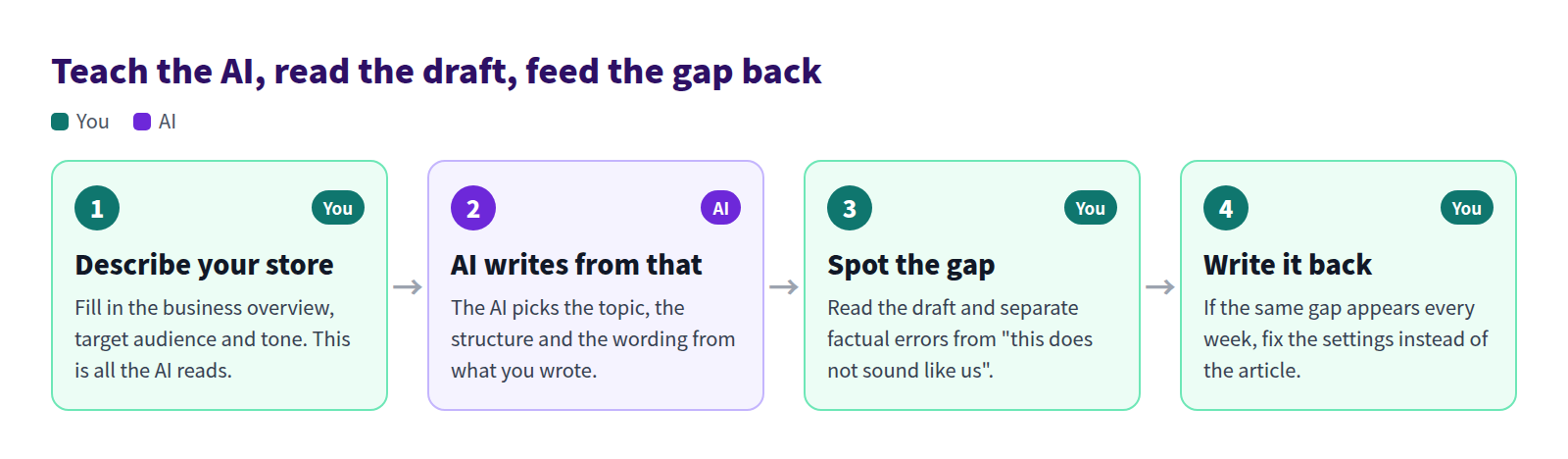
Step four is the one people skip. If you fix a problem only in this week's article, the same problem shows up next week. Anything that recurs belongs in the settings.
What Shopify can do on its own with Shopify Magic
Shopify Magic is included in the admin. No extra app, nothing to install, and you can try it today.
The steps
- In the Shopify admin go to Content > Blog posts and select Add blog post.
- Select the Generate text icon in the Title field and describe the article to get title suggestions.
- Do the same in the content editor and describe what you want written.
- Read the result, correct anything that is wrong, then save.
Shopify's own guidance is that the more detail you include, the more relevant the suggestions are. Product keywords, brand names and taglines, the keywords you want covered, and the tone you want all belong inside the prompt.
Six things to put in the prompt
Writing the prompt from scratch each time guarantees you will forget something. Use a fixed shape instead.
- The goal of the article — attract search traffic, or help someone who is already deciding
- Who it is for — age, the moment they buy, how much they already know
- Products or collections covered — names, materials, price range, anything that must appear
- What kind of store you are — what you sell and what you care about
- Tone — Shopify's help center describes asking for styles such as expert, playful, sophisticated, persuasive or supportive. Plain instructions like "warm but not chatty, no jargon" work too
- Length and shape — roughly how many words, how many headings
A worked example:
Write a blog post for a store that sells waxed canvas tote bags. Readers are 30 to 50 years old and carry the same bag to work every day. Explain how to dry a bag after it gets caught in the rain and how to store it so it keeps its shape. Our bags are sewn in our own workshop and the handle joints are double-stitched. Warm, plain English, no jargon, around 900 words, no more than three headings.
Save that paragraph in a notes app and swap out only the topic each time. If you take one thing from this article and you are not ready for an app, take this.
What to watch for with the built-in approach
- You are responsible for the accuracy of what you publish, even when the text was generated. Shopify says this explicitly and asks you to review closely before publishing. Generated drafts do invent benefits and features
- The same prompt does not always produce the same result
- Product details have to be typed into the prompt yourself. Your product pages are not read automatically
- The prompt is not stored anywhere. When the person who wrote it leaves, the quality goes with them
- There is no built-in way to run generation on a schedule. Someone opens the admin and triggers it every time
For one-off posts that is perfectly workable. It gets tiring the moment you try to publish every week.
Saving what you teach, in Smart Agent Blog
In Smart Agent Blog, AI Scheduled Blog Proposals keeps your store description, audience and tone as saved settings. Every later article is written from them.
Open Setting, then Manage under AI Scheduled Blog Proposals, and select Enable AI Scheduled Blog Proposals to reveal the fields.
Write the business overview
Business Overview is required, and it is the foundation everything else sits on.
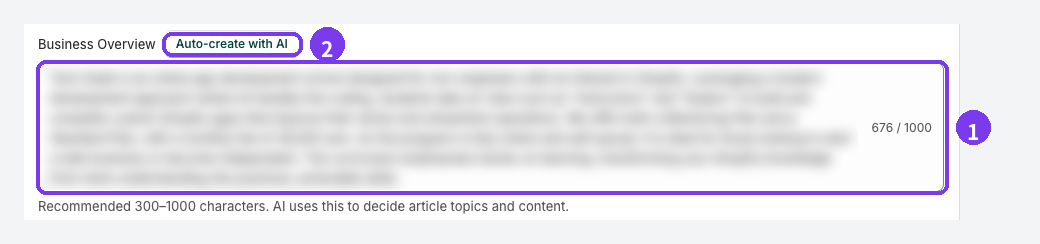
- The overview field — what you sell, who your typical customers are, what matters in your products and service, and what makes you different. The character count sits at the lower right. Aim for 300 to 1000 characters; 1000 is the hard limit
- Auto-create with AI — drafts an overview from your store data. Do not save it as-is. Edit it until it describes your real business
Specific beats polished
The same store, written two ways, produces very different drafts.
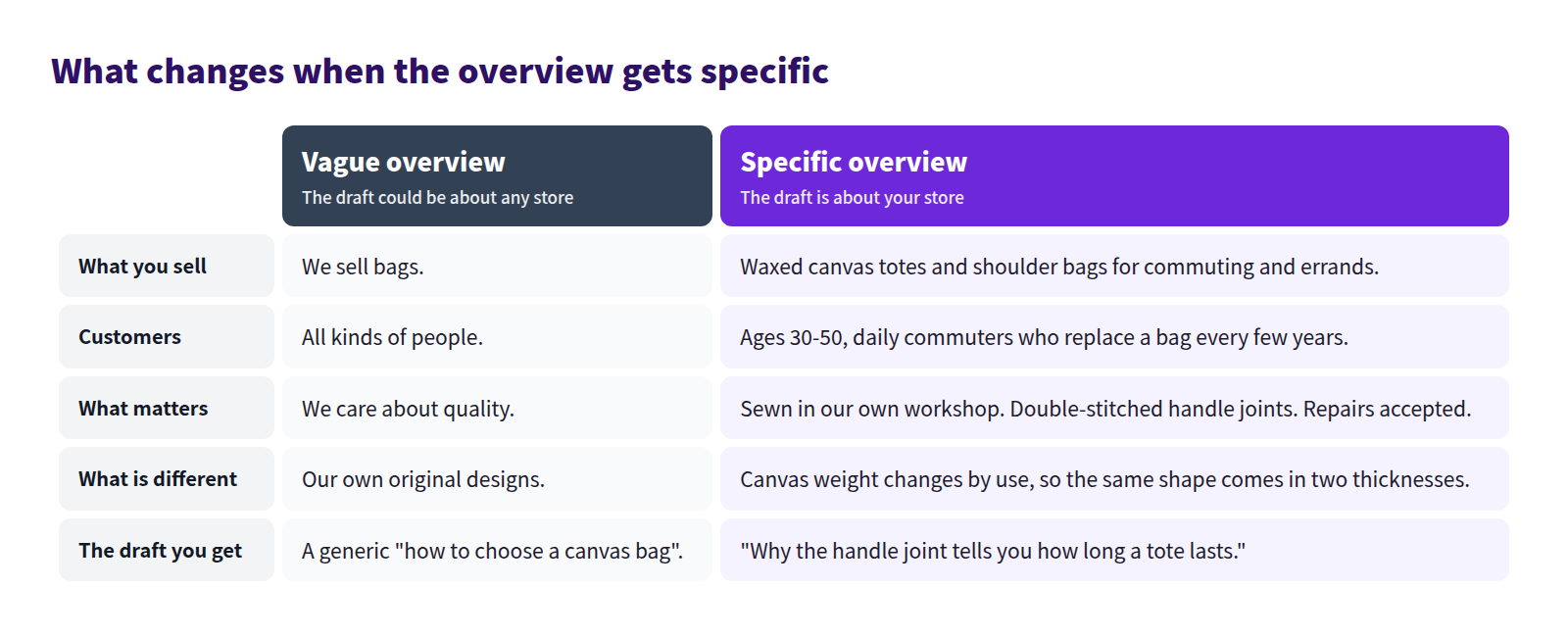
The rule of thumb: include what a search engine cannot tell you. "We care about quality" is available to every store. "Double-stitched handle joints" is available only to yours, and the AI can build an article around it.
If nothing comes to mind, list the questions customers actually ask. Each question hides a fact only you have. Turning those into topics is covered in Shopify blog post ideas from customer questions.
Set the audience and the voice
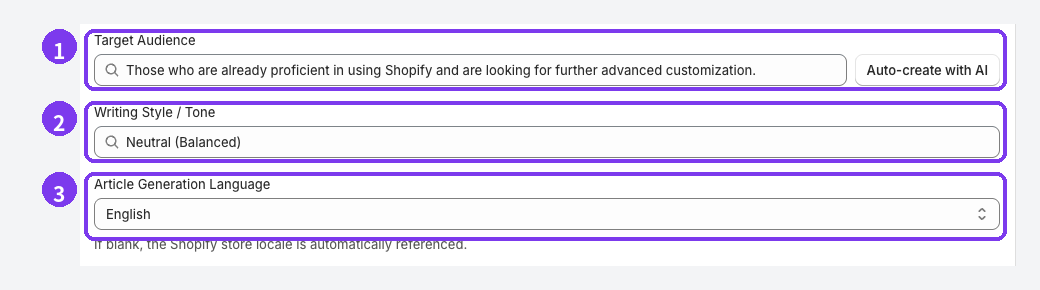
- Target Audience — who the article is for. Auto-create with AI suggests reader profiles from your store data; select one to fill the field, then edit it
- Writing Style / Tone — Casual, Neutral or Professional, or type your own wording. Pick whatever is closest to how you already talk to customers
- Article Generation Language — the language the article is written in. Left blank, the Shopify store locale is used
Target Blog and Article author are also required, and the settings will not save while either is empty. If no author appears, register one first. The full field-by-field walkthrough is in Schedule AI article suggestions.
Where the settings show up in the article
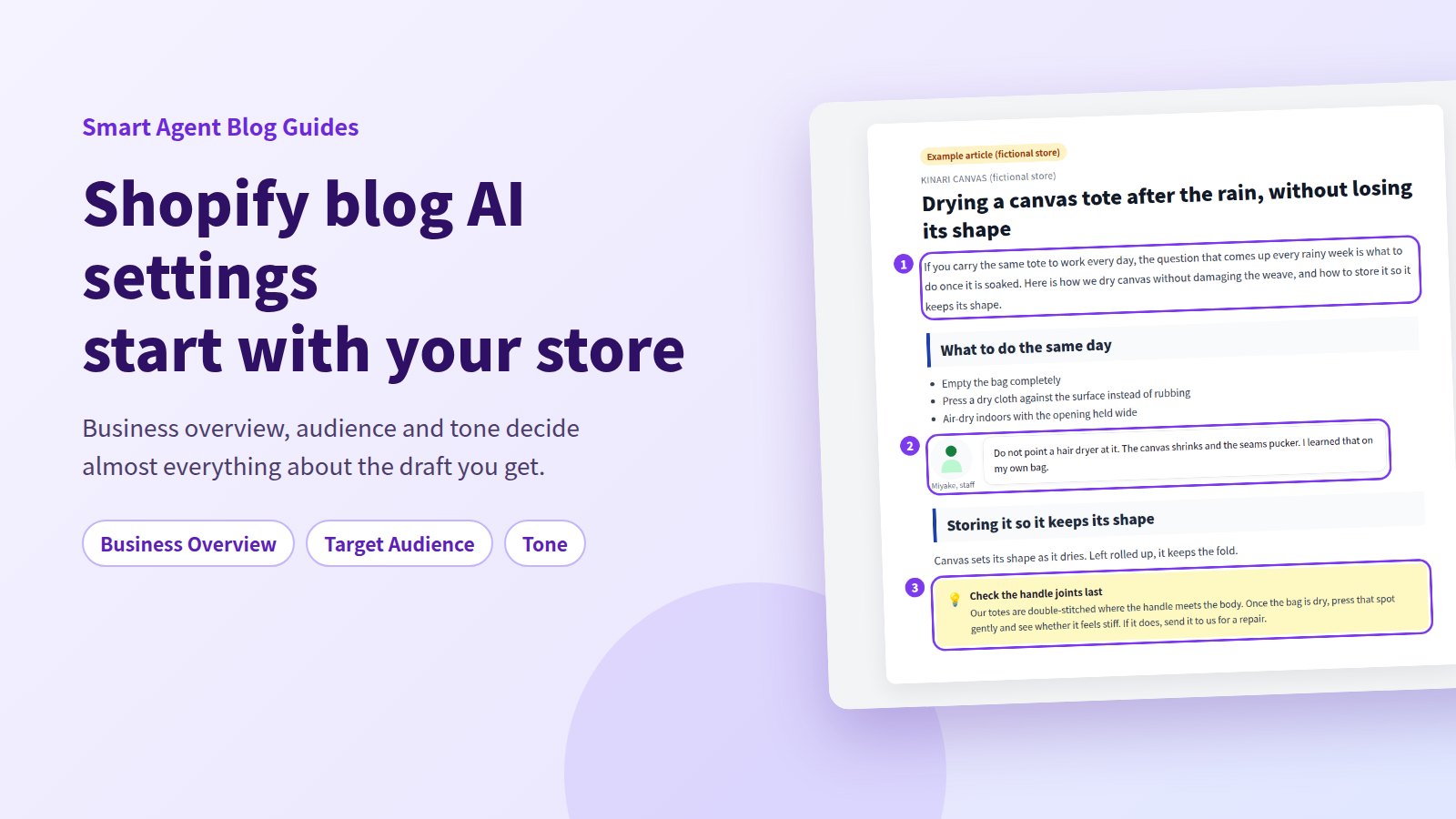
Here is a fictional store's article. Watch for the settings we just wrote — readers aged 30 to 50 who commute, double-stitched handle joints, a warm and plain voice.
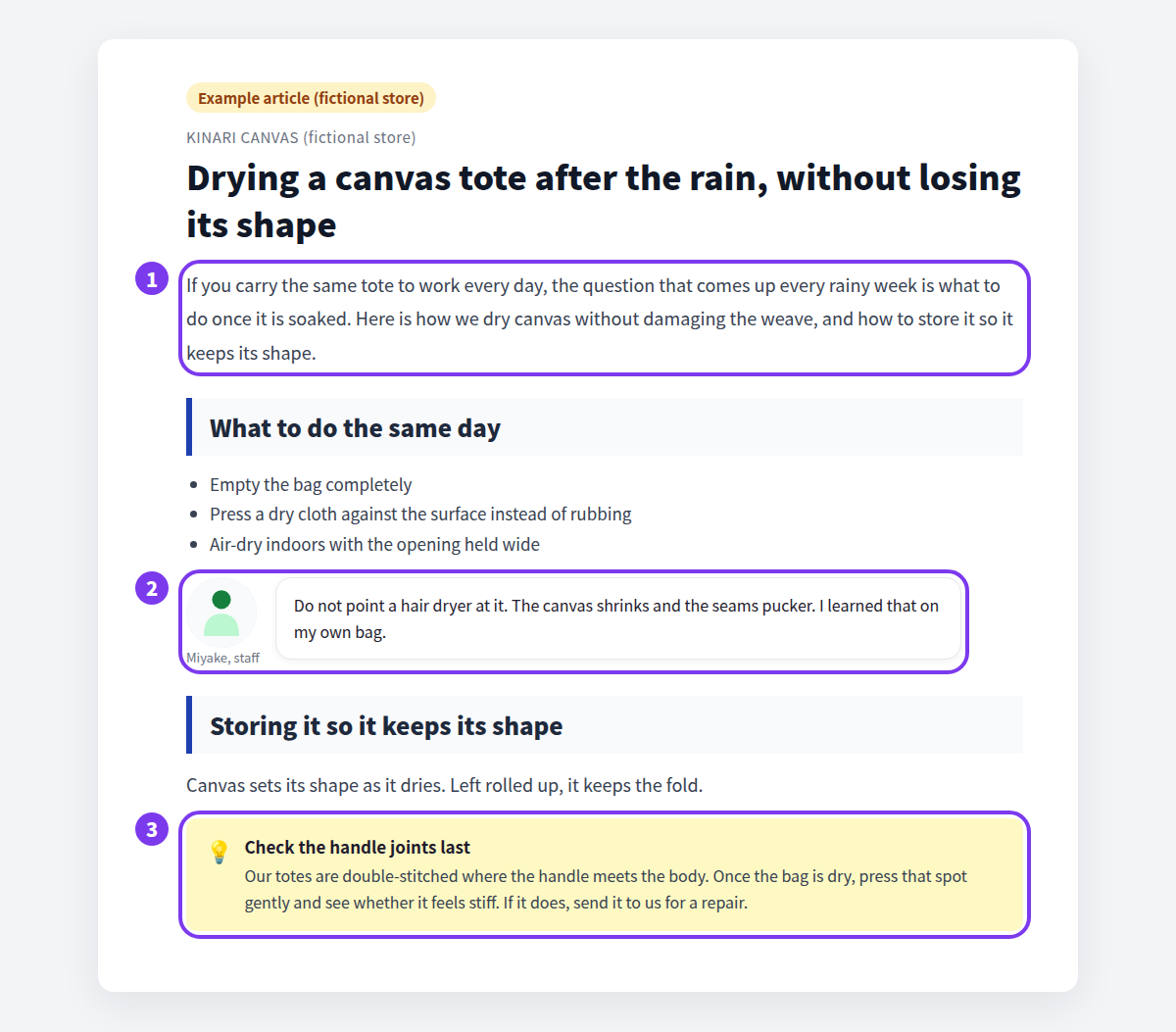
- The opening picks up "carries the same bag to work every day" straight from Target Audience
- The staff speech bubble is where the tone setting is most visible
- The closing callout uses the double-stitched joints and the repair service from Business Overview
Item 3 could never appear on its own. Written into the settings, it appears every week.
Fix the article, or fix the settings
Sort every note you make on a draft into two piles.
- Only this article — the order of these headings, the length of that product paragraph, one awkward sentence. Fix the article
- Every article — the product category is always named wrong, the reader is always assumed to be a beginner, the voice is always too formal. Fix the settings
A simple rule: the second time you make the same correction, go and look at the settings instead.
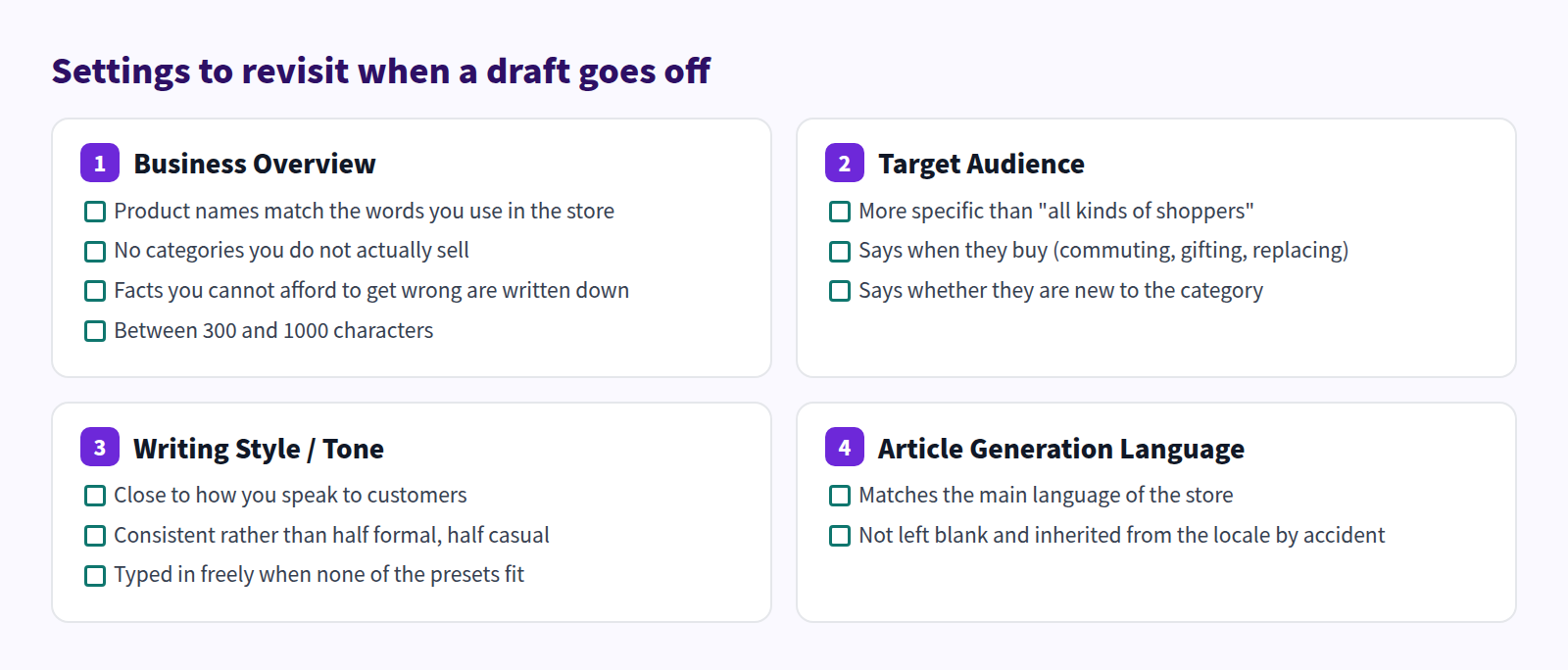
After a change, judge it on the next generated article rather than the current one. It usually takes two or three rounds to land.
What to look for while reading a draft is covered in Shopify blog AI draft review, and connecting drafts to real products in Shopify blog AI product context. For how all of this fits into running a blog, see Shopify blogging best practices. The end-to-end generation flow is in Shopify blog AI article writing.
Frequently asked questions
How long should the business overview be?
Between 300 and 1000 characters, and 1000 is the maximum the field accepts. Starting near 400 and adding missing facts as you read drafts is easier than trying to write the perfect version first.
Can I keep the overview that Auto-create with AI produced?
Not as-is. It is usually in the right neighbourhood, because it is built from your store data, but the voice and the "what makes us different" part need a human. Treat it as a first draft and verify the facts before saving.
If I change the settings, do my published articles change?
No. Settings apply to articles generated from that point on. To change an existing article, edit it directly or use AI rewrite.
I saved the settings but no article appeared
Check that the target blog, the article author and every schedule time are filled in. The settings will not save while any of them is empty. If the settings are fine, see AI is not working.
Summary
- Generic AI drafts come from a thin brief, not a weak model
- Shopify Magic works, but the same explanation has to be retyped into every prompt
- Smart Agent Blog stores your business overview, audience and tone and reuses them
- Facts a search engine cannot supply — your process, your repairs, your warnings — are what make the article yours
- When the same correction comes up twice, change the settings instead of the article
Start by adding one line about what makes your store different. You will see it in the next draft.