You got the AI generation set up. Two weeks later there are three drafts sitting there and nobody has read any of them. Nothing is broken. What is missing is a reason to go and look.
A draft nobody opens never gets published. Turn that around — a message arrives the moment one is ready, with a link straight to it — and the review becomes a 10 to 20 minute task instead of a project you keep deferring. This article covers what the Shopify admin can tell you on its own, how to switch on email notifications in Smart Agent Blog, and what to do once one lands.
- Why drafts pile up, and what a notification actually changes
- How to check publishing status in the Shopify admin, and what it will not tell you
- Turning on Enable email notifications and setting the address
- What the notification does and does not tell you
- How the AI article notification differs from the SEO report email
Drafts stall at "unread", not at "unwritten"
While preparing proposals for Smart Agent Blog, we reviewed the blogs of 110 Shopify stores in Japan between August and September 2026. Eighteen had stopped somewhere between one and nine posts, ten had not published in over a year, and fourteen had no posts at all.
Blogs stall in several ways, but one pattern shows up specifically after AI generation is introduced: drafts accumulate and nothing gets published. The reasons are not mysterious.
- Generation is automatic; review is not. Somebody has to open the admin
- The only trigger to open it is remembering to
- With more than one person involved, nobody is specifically responsible
A notification addresses all three. Its job is not really to inform you — it is to create the moment the work starts.
What Shopify can do on its own: check the status yourself
Start with what the admin gives you.
There is no blog notification
Settings > Notifications in the Shopify admin covers customer emails for orders and shipping, SMS, staff order notifications, exchanges and webhooks. Nothing there relates to blog posts or content publishing. Shopify's help center documentation on future publishing also says nothing about being notified when a scheduled item goes live.
In other words, the built-in model assumes you go and look.
How to check
- In the Shopify admin, go to Content > Blog posts.
- Read the status of each post in the list.
- For a scheduled post, open it and check the Visibility section: the planned date sits next to Hidden, with a pencil icon to change it and a trash icon to cancel the schedule.
Making it work without notifications
There are reasonable substitutes inside the admin.
- Put the review in your calendar. Fifteen minutes the day after posts usually appear. You are building your own trigger
- Tag your drafts. The blog post list gives no indication of which posts an AI wrote, so a shared tag is how you find them again
- Name one person. "Someone will look at it" is the failure mode. Decide who, and which day
- Schedule the publish date first. Choosing a date after the article exists invites drift. A scheduled date works as a deadline
There is one more thing worth doing in the admin while you are there. Open Content > Blog posts and sort your attention by what is not published rather than what is. A post sitting unpublished for a week is a signal about your process, not about the post. If you find two or three of them, the review slot is in the wrong place in your week, or the person who owns it has too much else on that day.
None of this needs an app, and if it is working for you, keep it. It breaks during a busy week, when the calendar entry gets skipped. Calendar entries are easy to skip. An unread message in your inbox is slightly harder, because it stays in front of you until you deal with it — and that difference is the entire argument for setting up a notification.
Turning on notifications in Smart Agent Blog
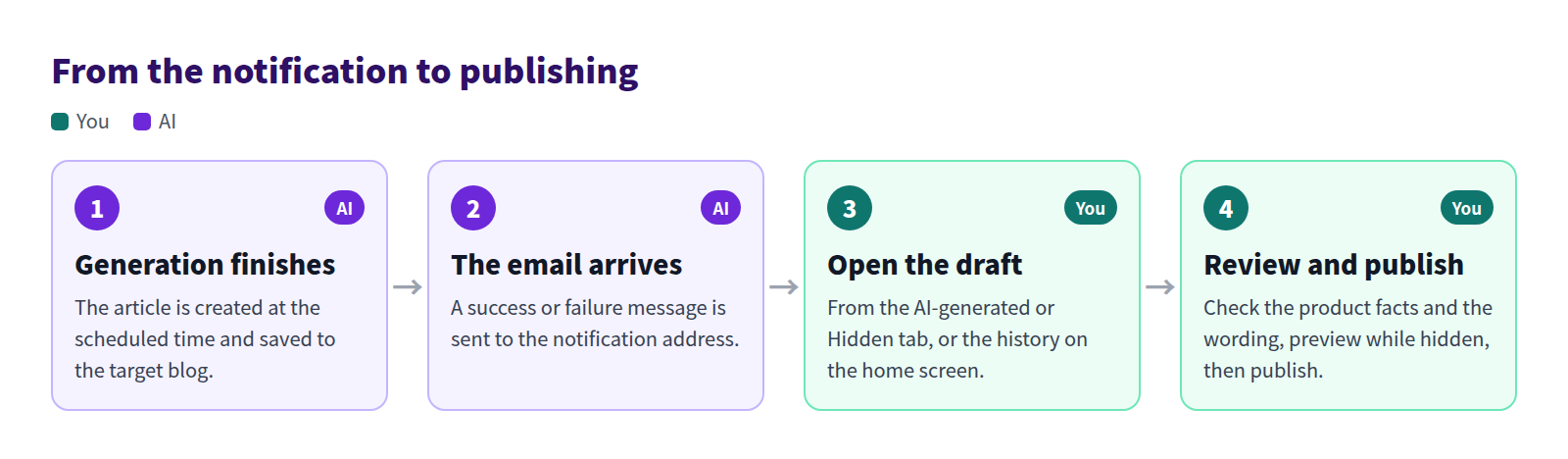
AI Scheduled Blog Proposals can email you when generation succeeds or fails.
Where the setting lives
Open Setting, then Manage under AI Scheduled Blog Proposals, and scroll to the bottom of the page.

Select Enable email notifications and enter an address in the field underneath. Then select Save Settings at the bottom of the page — leaving without saving discards the change.
Use an address somebody actually reads every day. A shared mailbox nobody checks defeats the purpose. If several people are involved, use a forwarding address and agree who handles it.
The full settings walkthrough is in Schedule AI article suggestions.
What the notification tells you
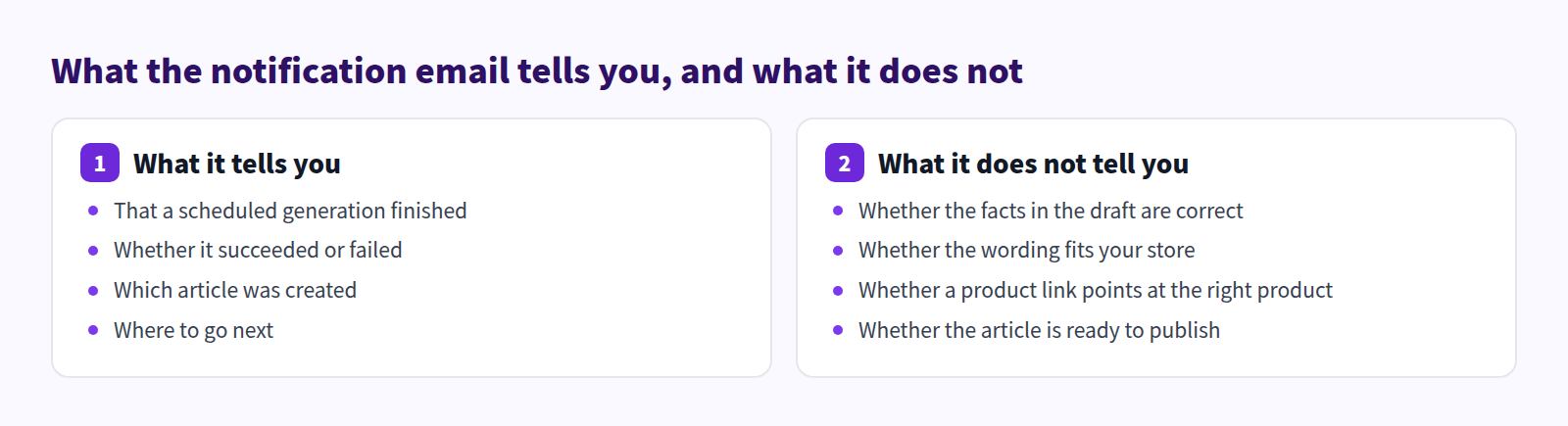
The message confirms that a scheduled run finished, whether it succeeded, and which article was created. That is enough to decide whether to review it now or later in the day.
What it cannot tell you is whether the draft is correct. A notification is not a quality signal. Opening and checking the article is still a person's job, and what to look at is covered in Shopify blog AI draft review.
One practical habit: treat the notification as a two-minute triage, not as the review itself. Open the article, skim the headings and the product names, and decide one of three things — publish it today, book it for the review slot later in the week, or discard it and let the next schedule run produce something better. Deciding immediately is what stops the queue forming. Leaving the message unread until "later" is how three drafts become ten.
Finding a draft you missed
Missing the email does not lose the draft.
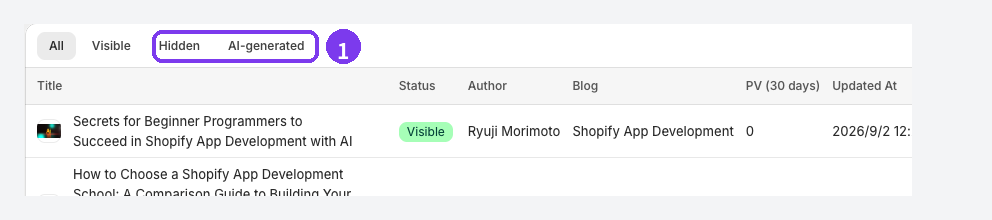
The AI Auto Blog history on the home screen works too. It lists the run time, the article title and the status — success, failure or processing — and View article opens the editor directly. The home screen is explained in Viewing the home screen.
Two emails, two different settings
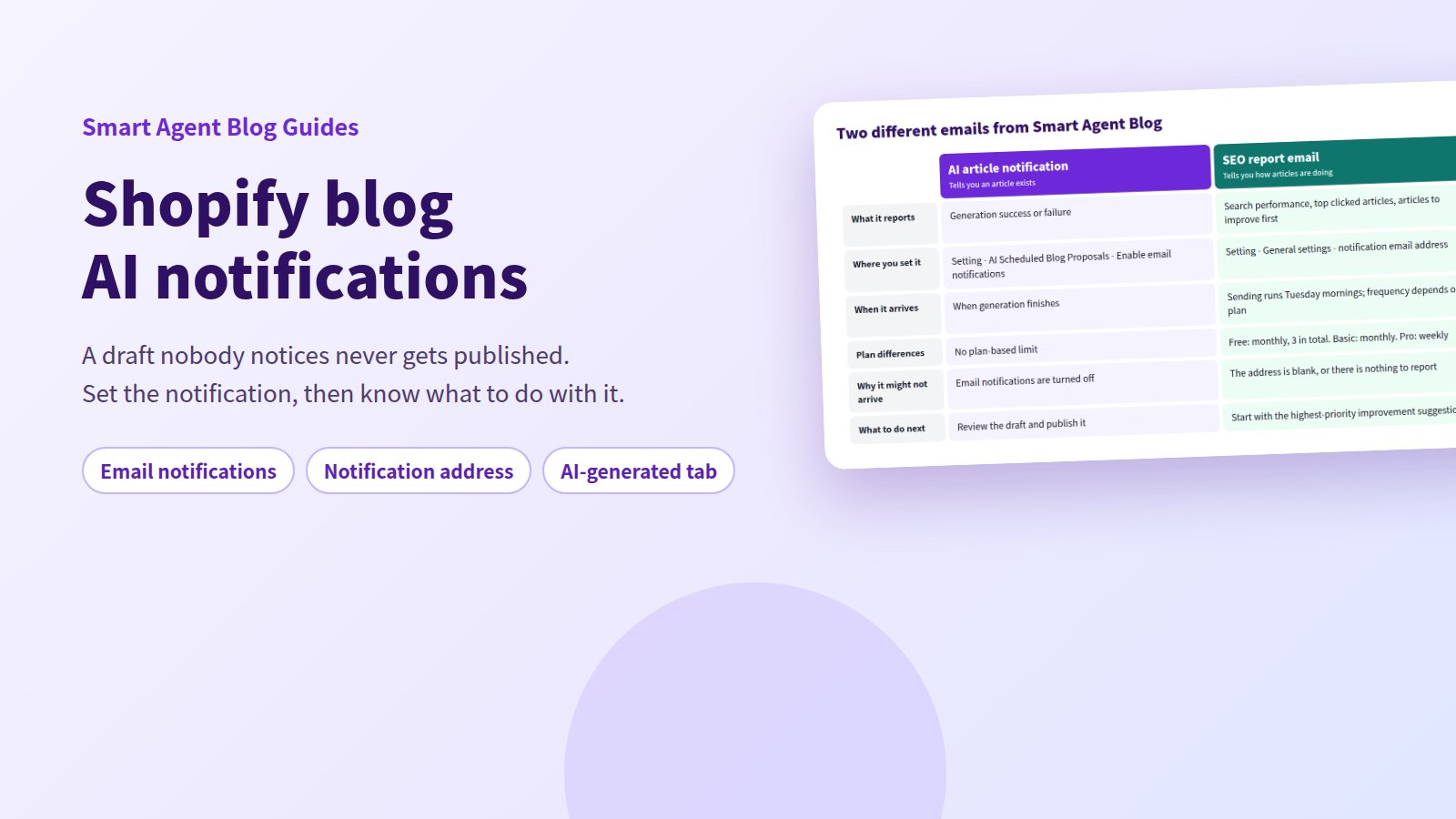
Smart Agent Blog sends two kinds of email, configured in two different places. Setting up one and expecting the other is a common source of "I never got a notification."
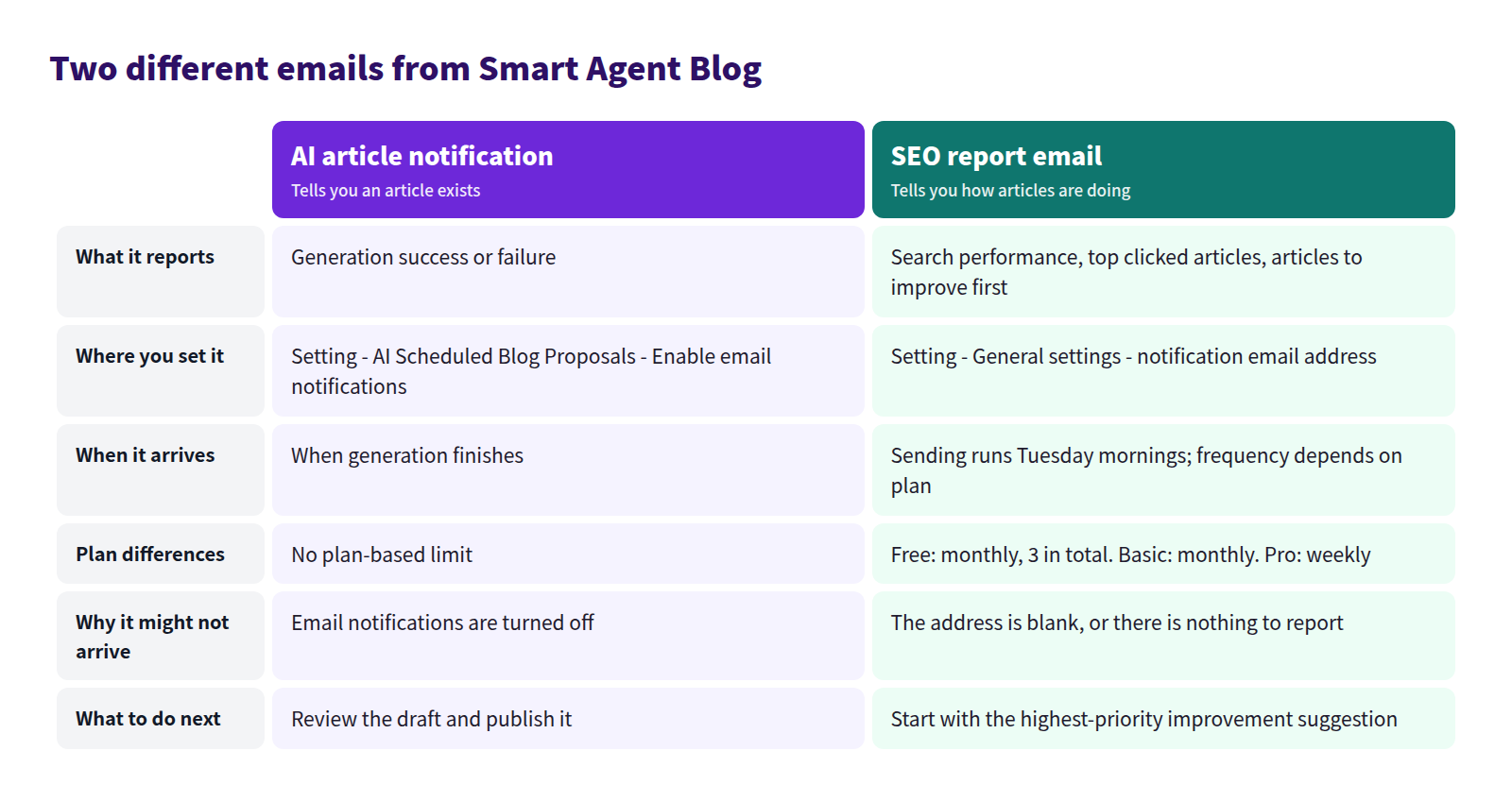
The AI article notification is set under AI Scheduled Blog Proposals. The SEO report email uses the notification email address in General settings. Putting the same address in both is the simplest arrangement.
The SEO report covers search performance, the five most-clicked articles, and an AI-generated list of articles worth improving first. Frequency depends on your plan, and the sending job runs on Tuesday mornings. See Changing general settings, Plans and usage limits and Shopify blog SEO reports.
When nothing arrives
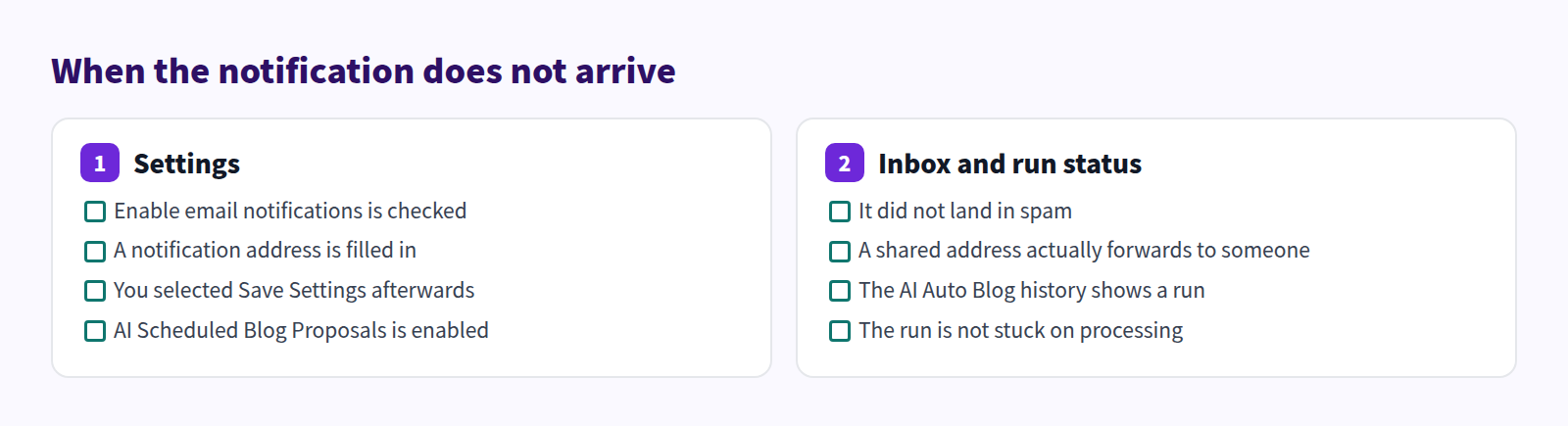
If the settings are right, the article may simply not have been generated. Check the AI Auto Blog history on the home screen: a run marked processing is still working. If nothing is listed at all, go back to the schedule registration — covered in Shopify blog automated posting — and then AI is not working.
How notifications fit into running a blog is covered in Shopify blogging best practices, and the pre-publish items in the Shopify blog draft checklist.
Frequently asked questions
Who receives the notification?
Whatever address you entered in the AI Scheduled Blog Proposals settings. It is not sent to every Shopify staff account automatically.
Do I get told about failures too?
Yes. Enable email notifications covers both success and failure messages.
Can I publish straight from the email?
No. The email tells you the article exists; reviewing and publishing happen in the Smart Agent Blog article editor. The review steps are in Review an AI draft.
How do I turn notifications off?
Clear the Enable email notifications checkbox and select Save Settings. Generation continues; only the emails stop. To stop generation as well, clear Enable AI Scheduled Blog Proposals and save — note that this removes the registered schedules.
Summary
- Most unpublished AI articles are not bad articles, they are unnoticed ones
- The Shopify admin has no blog notification, so you check manually or build your own calendar trigger
- In Smart Agent Blog, select Enable email notifications, enter an address, and save
- A notification confirms an article exists; it says nothing about whether it is correct
- The AI notification and the SEO report are configured separately — use the same address for both
Point the notification at an inbox someone opens daily. Sent anywhere else, the drafts just keep stacking up.