
The AI draft reads fine, but your products are nowhere in it. Or they are in it, and the name is slightly wrong, or the price is from last season. For a store that wants the blog to sell, that is the whole problem.
There are two decisions to make, in this order: which products the AI is allowed to read, and where in the article a reader can act on them. In the Shopify admin you handle the first by typing product facts into the prompt and the second by inserting links. In Smart Agent Blog you handle the first with the product read mode and the second with product card blocks. This article walks through both.
- The two reasons AI drafts never reach your catalog
- How to send readers from a post to a product page using only the Shopify admin
- How the four product read modes differ, and which one to start with
- Using product cards and collections to build a path inside the article
- What to verify before publishing anything that names a product
Two reasons readers never reach the product
While preparing proposals for Smart Agent Blog, we reviewed the blogs of 110 Shopify stores in Japan between August and September 2026. Of the 88 posts whose body copy we recorded, 66 (75%) contained no link to a product page at all. Across 113 recorded posts, not one used a card-style block with a product name, image and price together.
Three posts out of four leave the reader with nowhere to go. There are two causes, and neither is specific to AI.
- The AI does not know your catalog. Telling it what kind of store you run is not the same as telling it which products to write about. Without that, it falls back on general advice
- The article has no exit toward the product. A product name in a sentence is not a path. If the reader has to go and search for it, most will not
The first is a settings problem. The second is a layout problem. Here is the order they get solved in.
What Shopify can do without an app
You can build a path from a post to a product page using nothing but the admin. It is more manual, but knowing exactly how much work it is makes the rest of the decision easy.
Link to the product page
The standard rich text editor supports links.
- Open the product under Products in the Shopify admin and check the URL handle under the search engine listing. Copying the URL from the live product page works just as well
- Open the post under Content > Blog posts and select the text you want to turn into a link
- Insert the link and paste the URL
Linking the bare product name converts less well than linking what the reader wants next: "see the canvas weight on the product page" beats "Summer Dark Blend."
The standard editor also supports tables, so a size or capacity comparison can sit directly above the link. Images and embedded video from YouTube and Vimeo work as well.
Feed product facts to Shopify Magic
If you generate the copy with Shopify Magic, the product information goes into the prompt by hand. Your product pages are not read automatically.
Worth including every time:
- the exact product name as it appears in your store
- material, size, capacity, colorways
- price range
- the moment someone buys it (commuting, gifting, replacing)
- how it differs from the product you would suggest next
Shopify states that you are responsible for the accuracy of what you publish even when the text was generated, and asks you to review it closely first. Price and stock deserve special attention, because whatever you typed into the prompt becomes a sentence in the article.
What the admin cannot do
- There is no card display that combines a product name, image and price. Links are text links
- A price written into the body does not update when the product page changes. You open the article and edit it
- Shopify Magic for product descriptions belongs to the product page and is separate from blog generation
- There is no way to display a whole collection inside a post
For a post about one or two products whose prices rarely change, this is entirely workable. It stops scaling the moment you publish weekly about different products each time.
The layout side of this — where the exits go and what they should say — is covered in adding products to a Shopify blog post.
Choosing the products in Smart Agent Blog
AI Scheduled Blog Proposals has a setting that decides exactly which products the AI may read.
Pick a product read mode
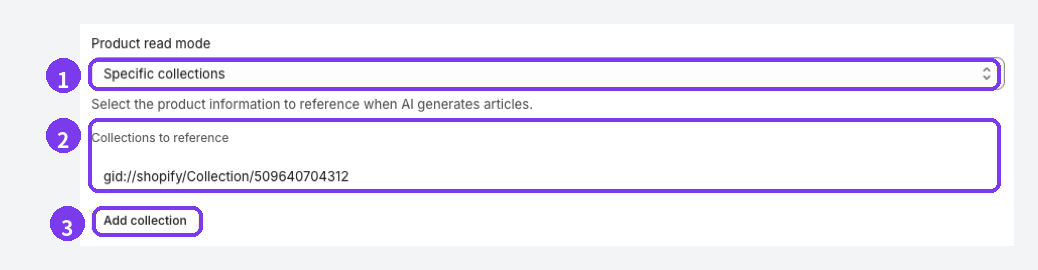
- Product read mode — the product information the AI references when it generates an article
- Collections to reference (or products) — everything currently in scope
- Add collection — adds to that list. Choosing specific products shows a product picker instead
There are four modes, and they suit very different articles.
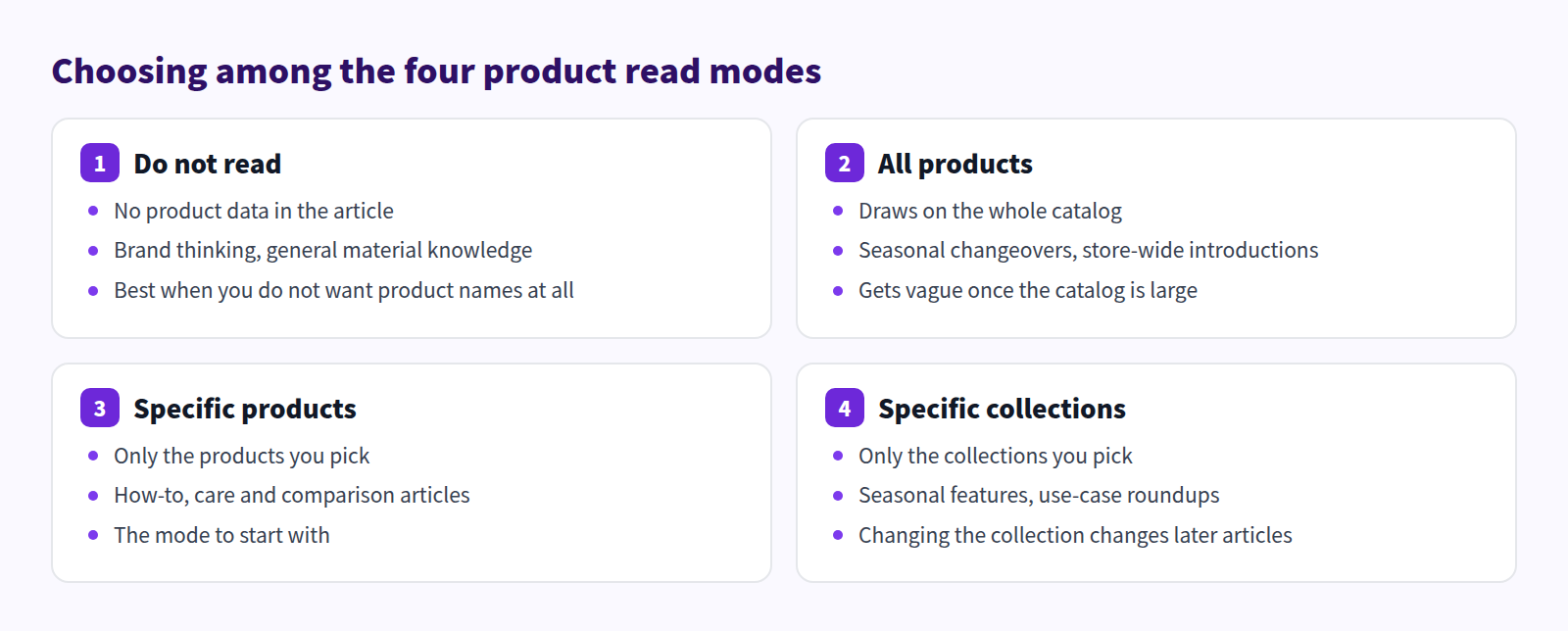
Start with specific products and pick a handful. With too much in scope, the AI has no basis for choosing what the article is about, and the draft goes vague.
Specific collections suits seasonal features and use-case roundups. Because the article follows whatever is in the collection, swapping summer stock for autumn stock changes what future articles talk about without touching the settings at all.
What the AI knows about your store more broadly — how you name things, what you stand behind — lives in a different set of fields, covered in Shopify blog AI settings. The full field list is in Schedule AI article suggestions.
Add product cards to the draft
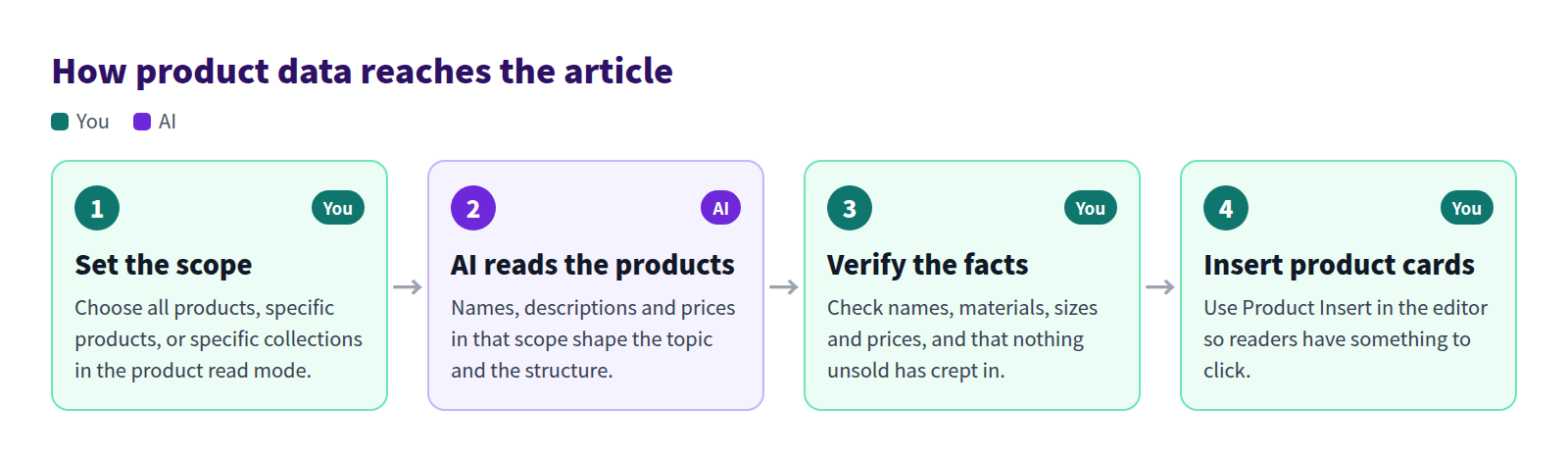
The AI produces body copy. The clickable card is something you add in the editor.
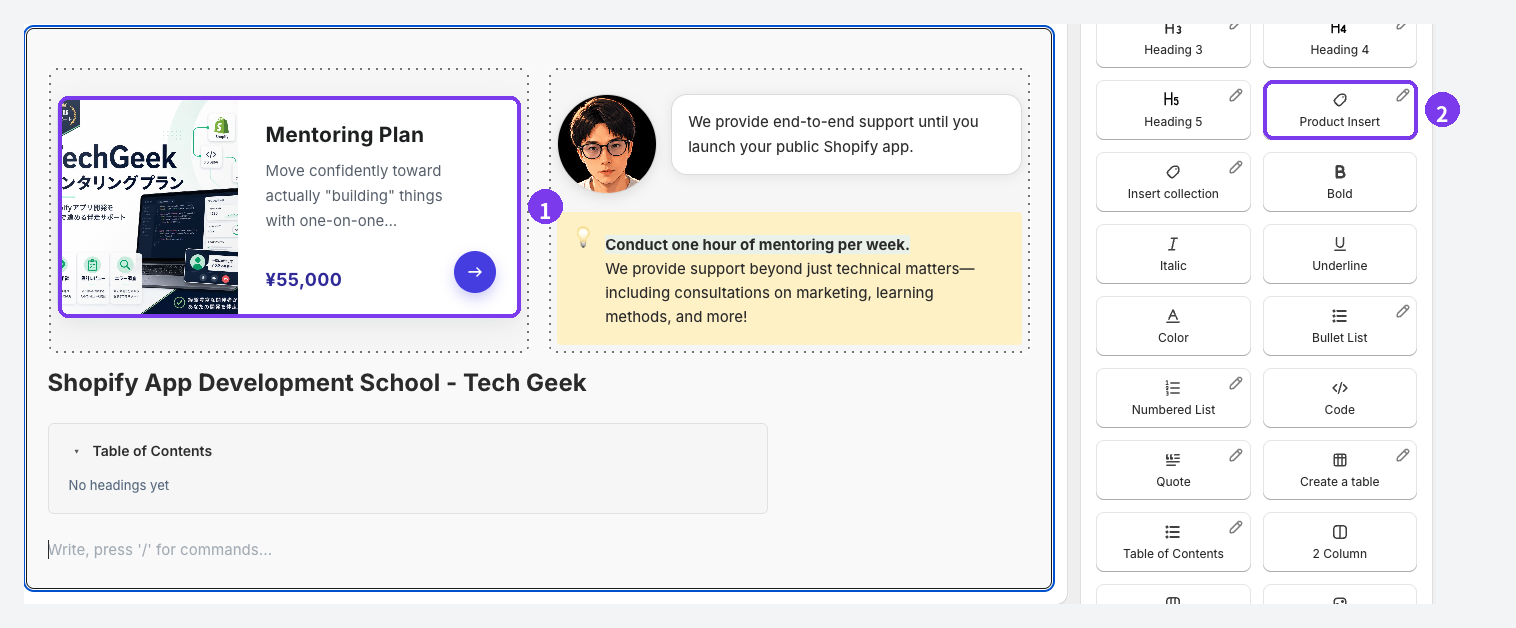
- The product card — image, name, description and price as a single block
- Product Insert — choose it from the block menu on the right and pick the product
Three things to know:
- Draft, hidden and archived products cannot be selected
- Products with no stock get a Sold out label
- How the card looks on the storefront depends on your theme
There is also a collection block, where you can edit the heading, the description, how many products to show and how many columns to use. The full block list is in Adding blocks to an article.
A fictional store, end to end
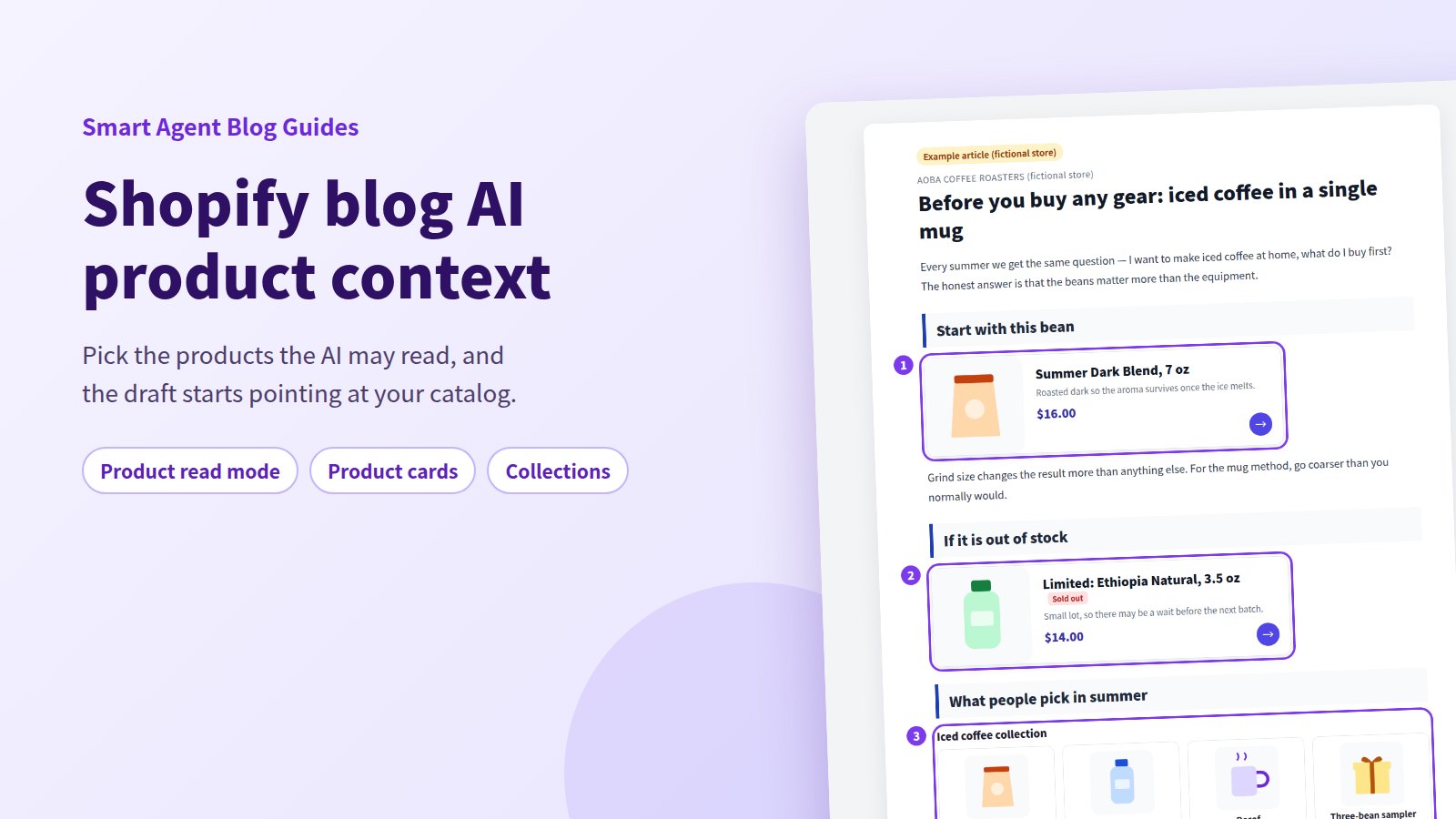
Here the read mode points at a coffee bean collection, and the draft has had a product card and a collection block added.
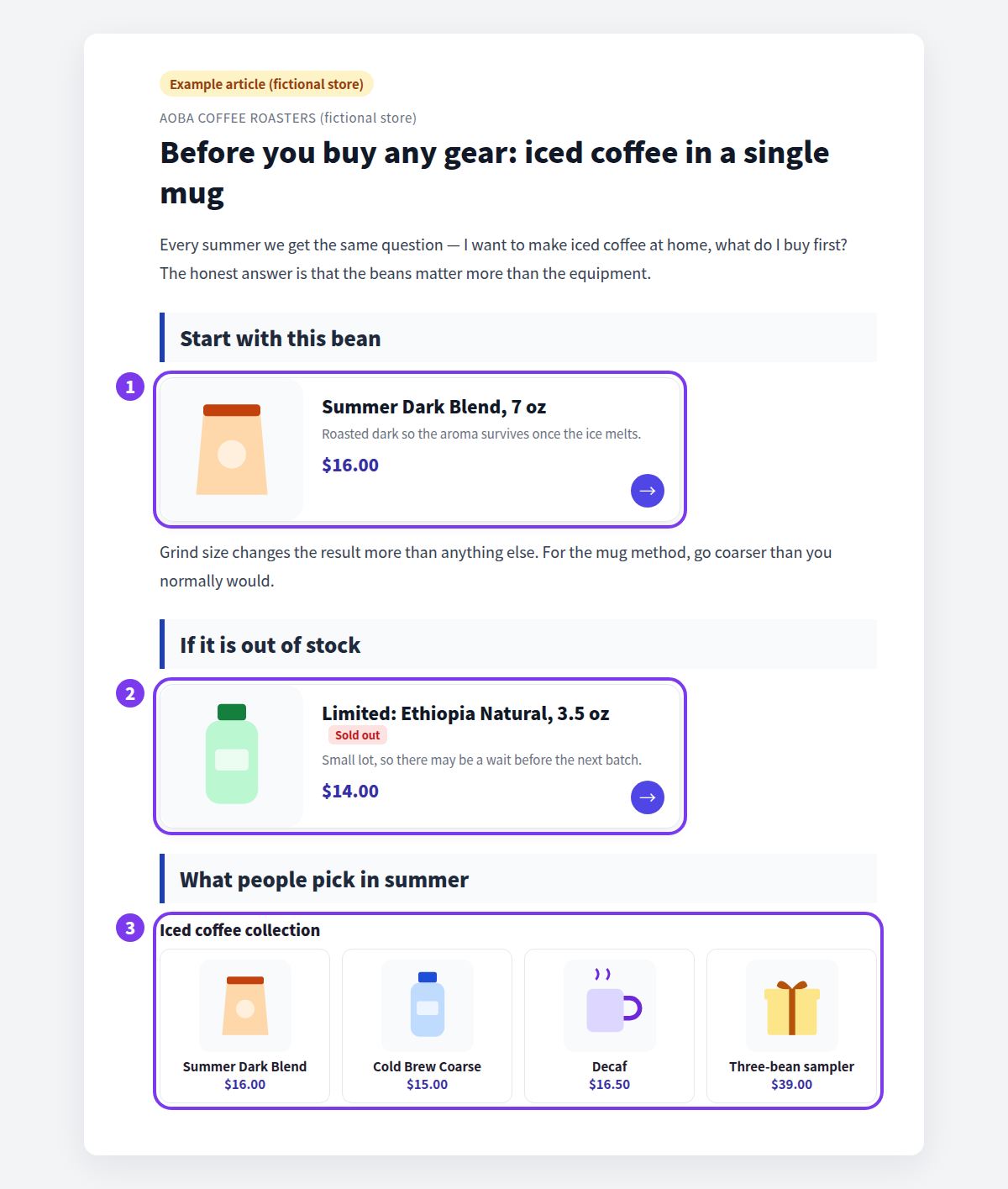
- A card right after the decision. The sentence says "start with this bean," and the card is immediately below it. Nobody is made to wait for the end of the article
- Out of stock is not a reason to delete it. Naming an alternative underneath gives the reader a next move
- A collection shows the range. For readers who cannot commit to one item, the same use case in four options works better than one
Collections inside posts are covered in more depth in showing related products in a Shopify blog.
The two approaches side by side
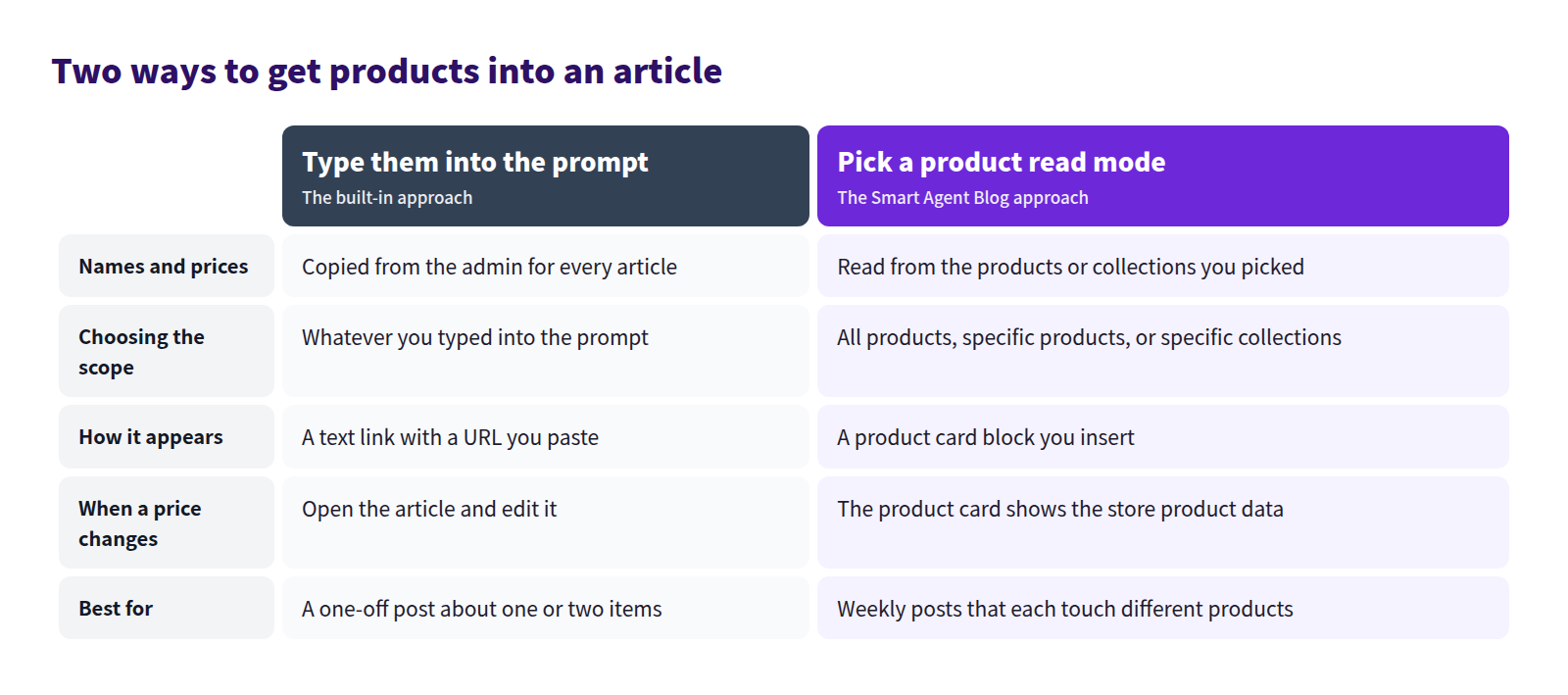
Either way, the verification step stays. It is not optional.
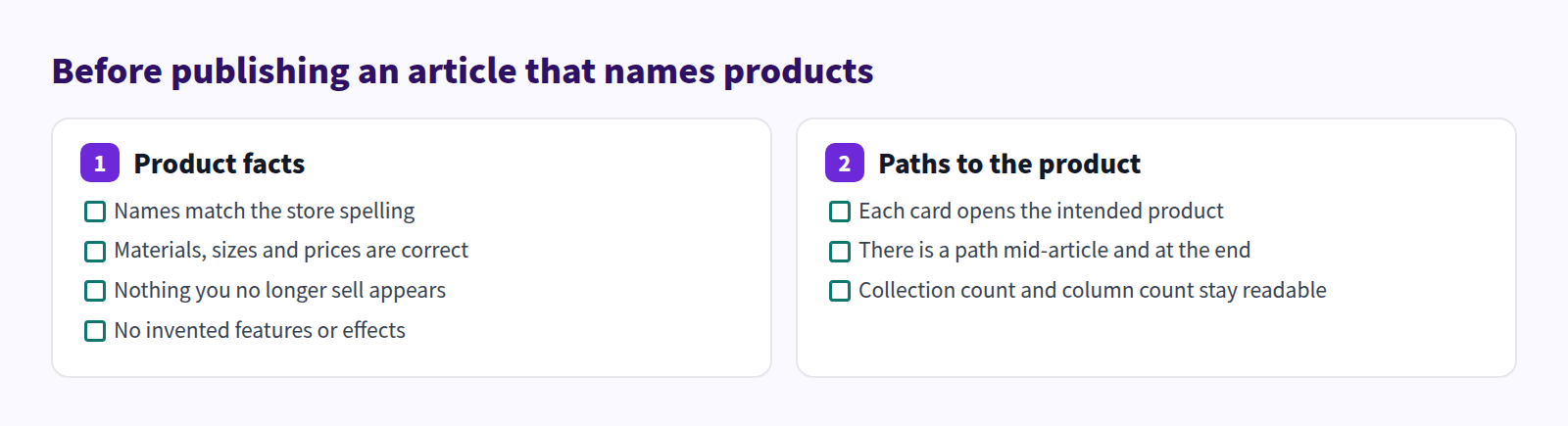
After publishing, look at whether the links are actually used. Article analytics in Smart Agent Blog separates the call-to-action score from the purchase contribution score, so clicks and conversions are judged apart. What to do when clicks do not happen is in getting product clicks from a Shopify blog, and the report itself is explained in Viewing article analytics.
The wider design of blog-to-purchase paths is covered in Shopify blogs and sales.
Frequently asked questions
If I choose all products, does every product end up in the article?
No. It only widens what the AI may reference; the article still covers whatever fits the topic. The catch is that a large catalog makes the draft less focused. For a clearly defined topic, specific products or specific collections give steadier results.
If I change the referenced products, do published articles change?
No. The setting applies to articles generated after the change. Product cards in published articles show the store product data.
The price the AI wrote does not match the product page
Prices written into body copy do not update on their own. Check them against the product page before publishing. Better still, keep prices out of the prose and let the product card carry them. The review checklist is in Review an AI draft.
Can I feature a product that is sold out?
Yes. It gets a Sold out label. Adding a restock note or a comparable alternative underneath gives the reader something to do.
Summary
- Most store blogs do not connect to the catalog: 75% of the 88 posts we recorded had no product link in the body
- The Shopify admin can link to products by URL, but there is no card display and no automatic updating
- Smart Agent Blog decides what the AI may read through the product read mode
- Begin with specific products and a small number of them; wide scope produces vague drafts
- Put the exit where the reader has just made a decision, not at the very end
Name your three best sellers, generate one article, and compare it with the last one you got. The difference is in how the products are handled.