
The hardest part of deciding on a blog app is that nobody tells you where Shopify's own blog actually stops. Without that line, you either pay for something you already had, or you try to push through by hand and the blog quietly stops updating.
This guide draws that line. It covers what Shopify's built-in blog does — accurately, not dismissively — then what an app takes on, how to install one without breaking your existing posts, how to tell whether your theme supports it, and how to choose a plan. Keeping a blog running is covered in Shopify blogging best practices; writing an individual post is in How to write a Shopify blog post.
- Everything Shopify's built-in blog already handles
- The four areas an app takes on, and how to tell if you need them
- How to switch over without touching your existing posts
- How to check whether your theme supports app sections
- The difference between Free, Basic and Pro, and how to choose
Before you compare blog apps
While preparing proposals for Smart Agent Blog in August and September 2026, we reviewed the blogs of 110 Shopify stores in Japan. Two numbers from that record bear directly on this decision.
First, about 4 in 10 (42 stores) had no posts, had stopped after a handful, or had not published in over a year. Second, of the 88 posts whose body content we recorded, 66 (75%) contained no link to a product page at all. Cards showing a product name, image and price appeared in zero of the 113 posts we looked at.
Three posts in four gave the reader nowhere to go — less a writing failure than a consequence of the built-in editor offering exactly one way to point at a product: a URL turned into a text link.
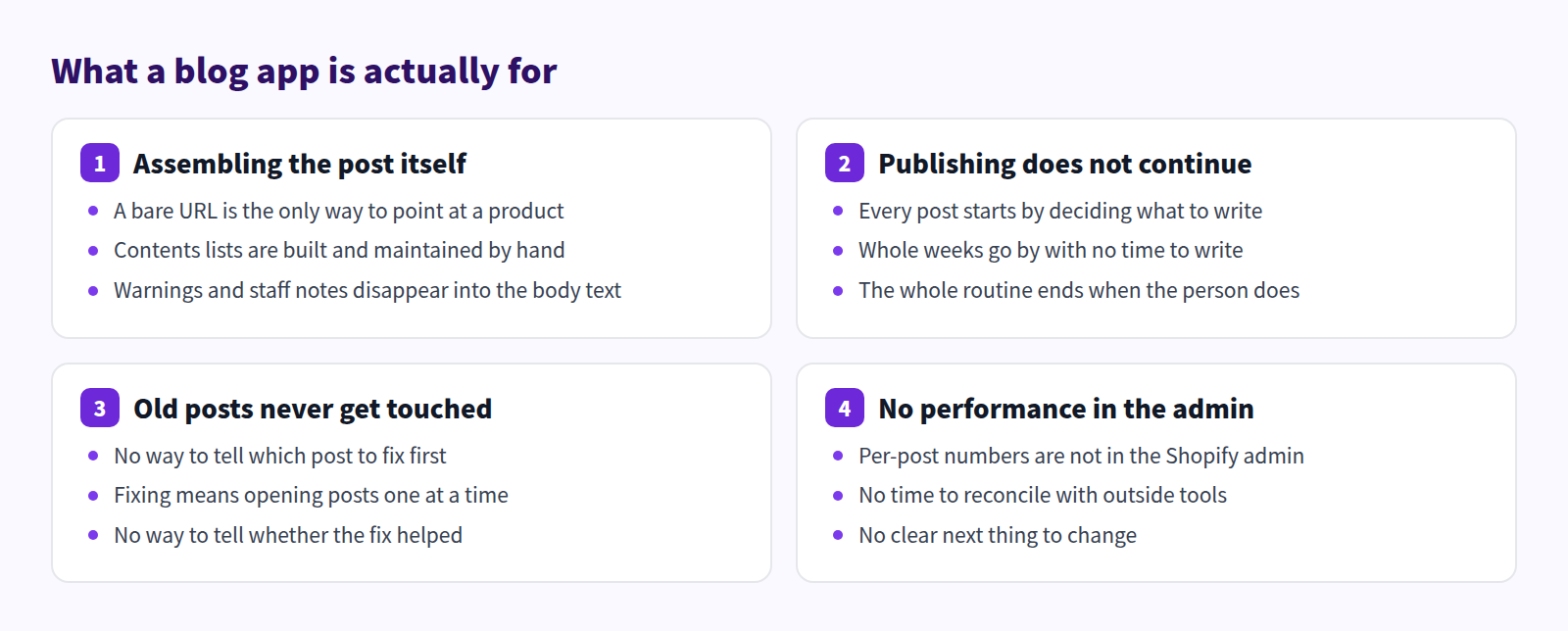
Almost every reason to install a blog app falls into one of these four. Decide which one is yours before reading further.
What Shopify does on its own
Before any app talk, here is the built-in feature set stated accurately. Shopify's blog is more capable than its reputation suggests.
Posts are created from Content > Blog posts in the admin. These are the fields and options you get:
| Field | What Shopify provides |
|---|---|
| Body | A rich text editor that lets you add an image, insert a link, make a table, and embed video or other media. You can switch to the HTML view and edit directly |
| Headings | Heading levels are selectable from the paragraph menu |
| Drafting | Shopify Magic's Generate text produces title and body suggestions |
| Featured image | An image shown for the post on the blog landing page |
| Excerpt | A custom summary for the landing page, separate from the body |
| Visibility | Publish immediately, or set a date and time for scheduled publishing |
| Author | The store owner or a staff account |
| Blog | Create multiple blogs and choose the destination per post |
| Tags | Organise posts into categories or by subject |
| Theme template | Apply a specific template to an individual post |
| Search engine listing | Page title, meta description and URL handle, editable per post |
| Comments | Disabled, moderated, or auto-published. Spam is detected and flagged automatically |
Read that list again: writing, categorising, setting SEO fields, and publishing on a chosen date is a complete workflow, with no app and no extra cost. There is no missing table feature and no missing image support.
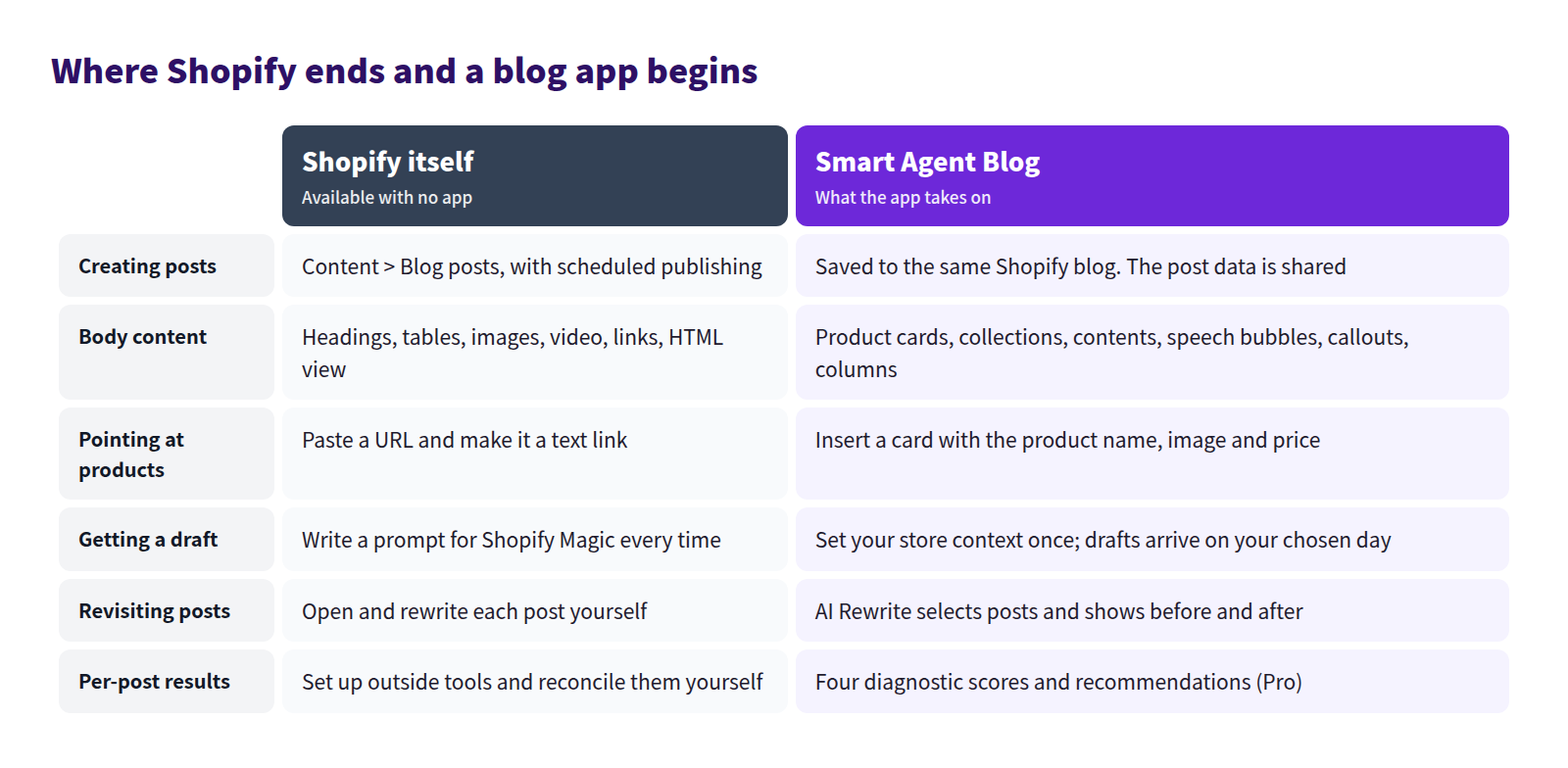
Here is what is genuinely absent, or manual:
- An automatic table of contents. You give headings id attributes and hand-write anchor links from a list at the top, per post.
- Product cards. There is no block that renders a product name, image and price. You paste the product URL and make it a text link.
- Collection displays. No component for laying out several products with images.
- Styled callouts and speech bubbles. Any such treatment means switching to the HTML view and writing it yourself.
- Per-post performance. The admin's blog post list does not show views or search data per post. You register Search Console and an analytics property, then filter by blog URL.
- Author profiles. The author is a staff account name. There is no photo, job title, bio or social link attached to it.
Up to roughly ten posts, all of this is fine by hand — more so if someone on the team writes HTML. An app starts earning its place when you have dozens of posts and the same manual work recurs every month.
Assembling the post: what blocks change
What is going on
That 75% with no product link is not a lack of willingness. When the only mechanism is a URL text link, it is awkward to place naturally mid-paragraph, so it does not get placed. The post gets read and the reader leaves.
What Shopify can do on its own
The built-in editor does let you insert a link to a product page, and you can lay products out in a table to compare them. Add an image with a description and a link underneath, and you have a serviceable product mention.
So "you cannot present products" is not true. What is costly is doing it presentably, and at consistent quality as the post count grows. Change a price and you may have to redo the image; sell out and you have to revise the copy. That maintenance scales with your archive.
What changes with Smart Agent Blog
In Smart Agent Blog's editor you type a forward slash at the start of a line, or pick from the insert menu on the right. Choosing Product Insert opens the Shopify product picker, and a card carrying the product name, image and price is added to the body. Out-of-stock products are labelled Sold out.
The available blocks are Headings 1 to 5, bold, bullet and numbered lists, code, quote, Create a table, Table of Contents, 2 and 3 column layouts, Image, Video, Product Insert, Insert collection, Callout and speech bubble. Table of Contents is built from the post's headings and updates itself when a heading changes.
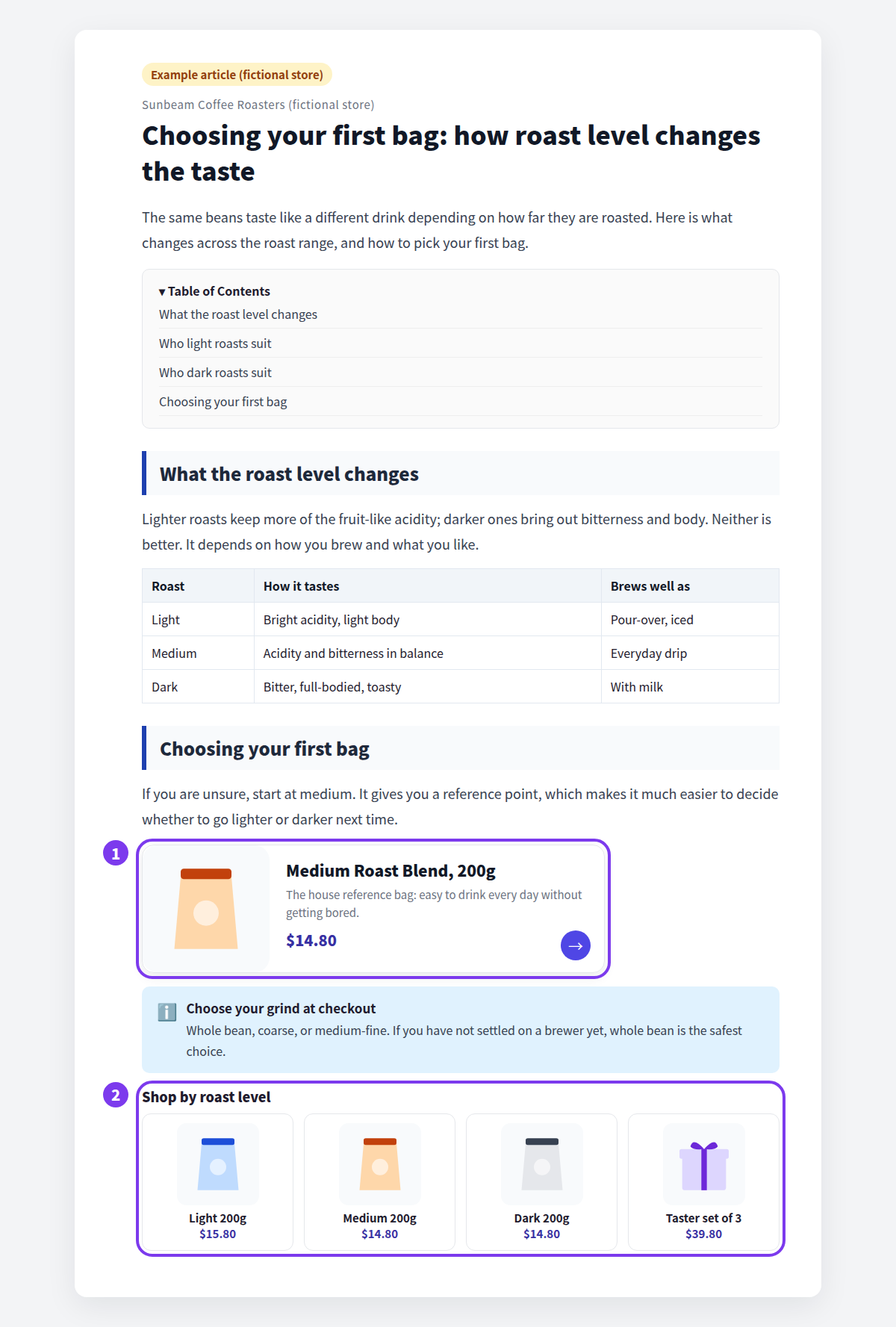
Draft, hidden and archived products cannot be selected. The full block list is in Add content to an article. For individual uses, see Add product links to your blog, Show related products with collections and Make important notes stand out with callouts.
Keeping it going: getting drafts delivered
What is going on
The 4 in 10 that had stalled did not run out of material; they ran out of routine. Choose a topic, plan the structure, write the prose — doing all three from scratch every week means one busy month ends it.
What Shopify can do on its own
Shopify gives you two real tools here: scheduled publishing and Shopify Magic.
Write two or three posts in a week when you have room, set each one's publish date further out, and Shopify releases them on schedule. That alone smooths your cadence. For drafting, the Generate text icon in the body editor turns a description into a draft. The more specific you are about products, features, audience and tone, the closer it lands. Accuracy is your responsibility, so read it before publishing.
The limit is that both require a person to remember and act. Scheduling moves the publish date of a post you already wrote. Shopify Magic assumes you compose a fresh prompt each time, with your store's details typed into it again and again.
What changes with Smart Agent Blog
AI Scheduled Blog Proposals takes a Business Overview, themes and keywords, a target audience, a tone, and the range of products to reference — set once — and produces a draft on the day and time you choose. Publish Mode is either Save as draft (manual publish) or Auto-publish at scheduled time. Use draft mode for the first several posts.
Because the context lives in settings rather than in a prompt, there is nothing to rewrite each week, and a new person inherits the same output. See Get scheduled AI article proposals and Review an AI draft, plus How to write Shopify blog posts with AI.
Old posts and results: where manual work stops first
What is going on
Past a certain archive size, maintaining posts outweighs writing new ones. Choosing what to fix needs per-post numbers; fixing is one post at a time; confirming it helped needs the numbers again. Miss any of the three and the loop never closes.
What Shopify can do on its own
Editing is easy. Open the post from the blog post list, change the body, save. Leave the URL handle alone and the address is unchanged.
Measuring is free too. Register the store in Google Search Console for impressions, clicks and average position per blog URL, and add an analytics property for time on page and exits. Both work on a Shopify store at no cost.
What gets hard is repeating it monthly. Open the external tools, filter by blog path, reconcile against your post list, decide an order. Somewhere past fifty posts, that stops happening.
What changes with Smart Agent Blog
AI Rewrite produces revised titles, bodies and SEO descriptions for existing posts, selecting targets according to the strategies you enable: CTR improvement, engagement improvement, freshness update, and conversion improvement. Publish mode is Approval required (recommended) or Auto-publish rewrites. Under approval, before, after and the reasoning appear together, and you decide per change whether to apply it or keep the original.
Article analytics scores each post on four axes.
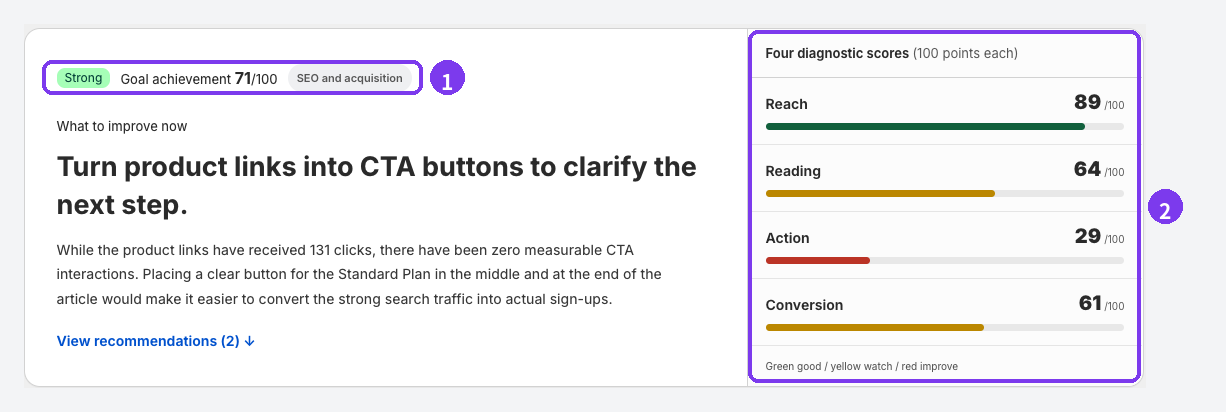
Reach, Reading, Action and Conversion. Above, Reach is 89 and Action is 29 — people arrive, and nothing happens inside the post. Note there is no "SEO score" in the app. See View article analytics, Use AI Rewrite and What pageviews cannot tell you.
How it looks on the storefront: checking theme fit
What is going on
The most common worry about installing a blog app is whether existing posts will break. However good the content becomes, it is worthless if the page renders badly.
What Shopify can do on its own
Your theme's blog post template decides how a post looks. Some themes let you adjust body width or date display in the theme editor. Whether related posts or a sidebar are possible at all depends on the theme.
The point to understand is that app sections only work on themes that support them. Shopify's Help Center states that app blocks can only be used with compatible themes. On an older or heavily customised theme, Apps may simply not appear under Add section in the theme editor. The reliable way to check is to open the theme editor and look.
What changes with Smart Agent Blog
Smart Agent Blog is added as a section on the blog post template. Selecting it exposes these display settings on the right:
| Setting | What it does |
|---|---|
| Show breadcrumbs | Displays a breadcrumb trail above the post |
| Author display | Hidden / in the sidebar / below the post / above the post |
| Related posts position | Shows related posts in the sidebar or below the post |
| Show popular posts | Shows popular posts in the sidebar |
| Show latest posts | Shows the newest posts in the sidebar |
| Show tag list | Shows a tag list in the sidebar |
| Share button position | Places share buttons above or below the post |
The author is Hidden by default. Beyond choosing a position, the post itself needs an author selected and saved in the app. Adding the section alone will not show an author on posts published before you installed it. See Display articles on your store and Register authors.
Installing without breaking existing posts
What installation changes is how the blog post template renders. Adding the section does not delete or rewrite existing post titles, bodies, images, URLs, tags or published state. Type size, spacing and image width can change, though, so never do this work on your live theme.
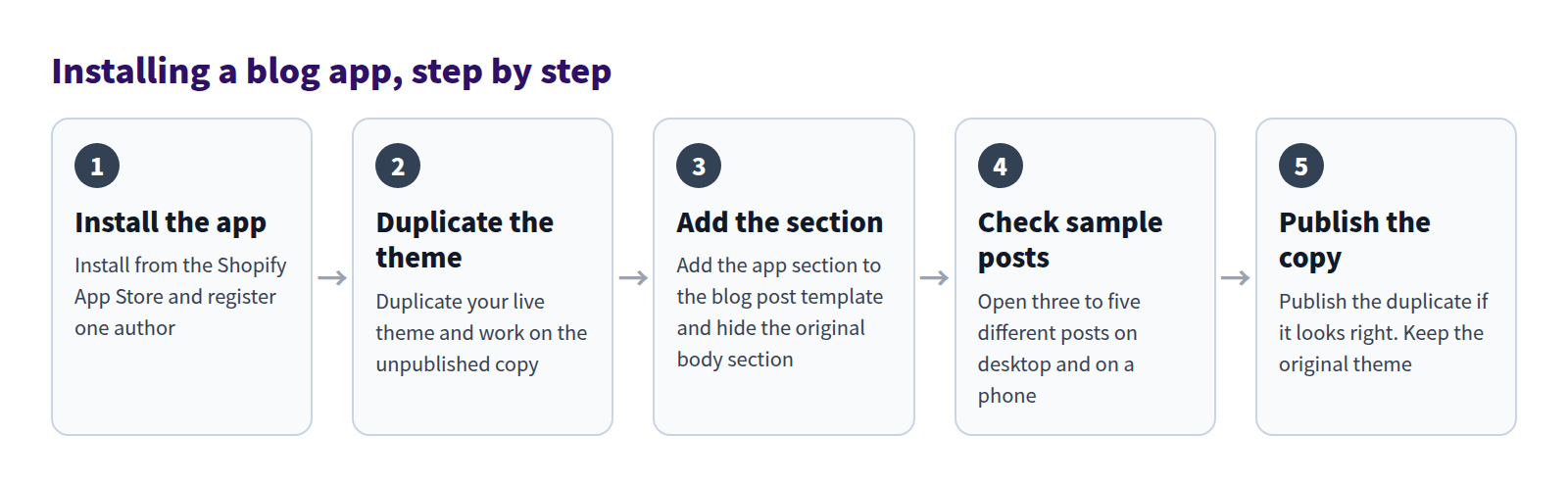
Pick three to five posts that render differently: a plain text-and-image post, a long one with many headings, one with a table or embedded video, and one using comments or custom HTML. That mix surfaces problems quickly.
On the duplicated theme's preview, confirm the body is not rendering twice, nothing overflows horizontally, and custom CSS is not conflicting — on desktop and on a phone. Publish the duplicate when it looks right, and keep the original theme.
The duplicated theme is a way to restore your storefront's appearance, not a backup of post content. Do not open and save existing posts in Smart Agent Blog while testing: saving overwrites the body, title, author, tags and SEO fields with whatever is on screen.
The full procedure is in Switch safely from your existing blog posts, with pre-install checks in Check your initial setup.
Choosing a plan
Smart Agent Blog has three plans: Free, Basic and Pro.
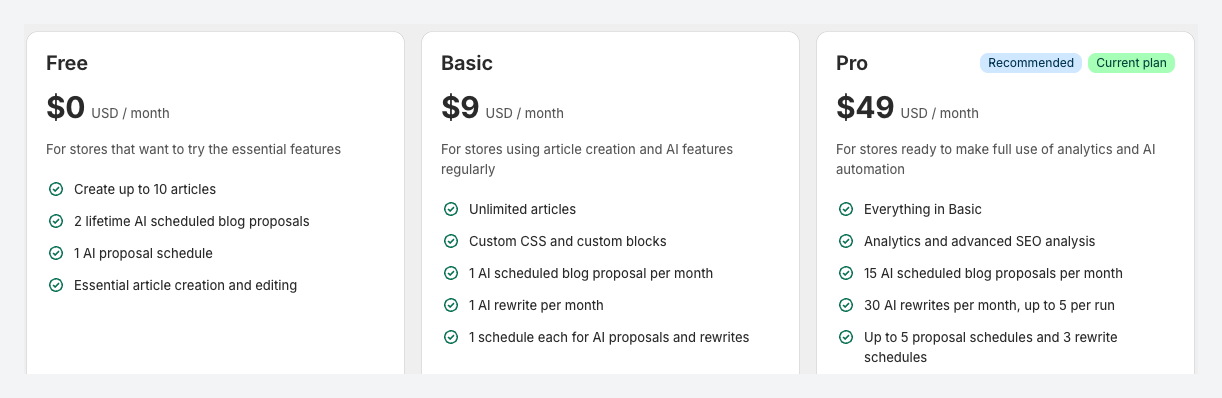
The main limits:
| Feature or limit | Free | Basic | Pro |
|---|---|---|---|
| Articles created in the app | Up to 10 | Unlimited | Unlimited |
| AI article generation | 2 total | 1 per month | 15 per month |
| AI generation schedules | 1 | 1 | 5 |
| AI Rewrite | Not available | 1 per month | 30 per month |
| Articles per rewrite run | Not available | 1 | 5 |
| Article analytics | Not available | Not available | Available |
| Custom CSS and custom blocks | Not available | Available | Available |
| SEO report email | Monthly, 3 in total | Monthly, no total limit | Weekly, no total limit |
Which one you want follows from what you are trying to do:
- Free — evaluating fit and display. Ten articles, two AI generations in total. No AI Rewrite and no article analytics.
- Basic — writing posts yourself, steadily. The article limit disappears, and custom CSS and custom blocks unlock. AI generation and AI Rewrite are one per month each.
- Pro — running the operation. 15 AI generations and 30 rewrites per month, article analytics becomes available, and the SEO report email arrives weekly.
The Free plan's article count only counts articles Smart Agent Blog created. Posts made directly in the Shopify admin are not counted — until you open one in the app and save it, at which point it starts counting.
Separately from the plans, AI article generation is capped at 3 per hour. Prices and billing terms are whatever Shopify's plan screen shows. Full limits are in Plans and usage limits.
Where to start
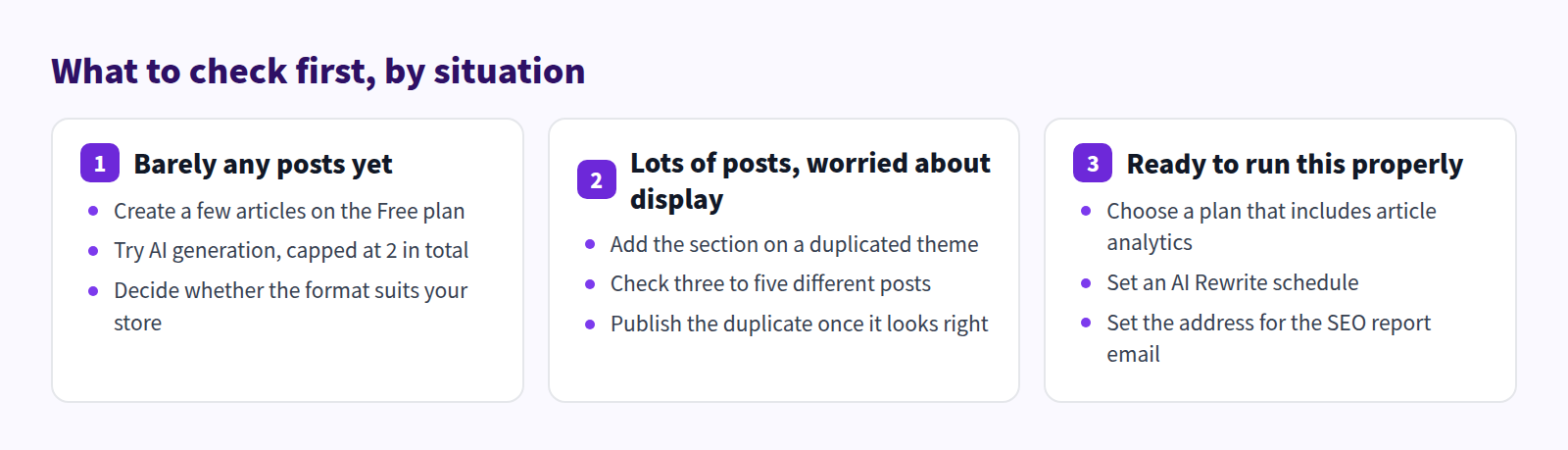
| Your situation | Check first | What tells you |
|---|---|---|
| Barely any posts | Create a few on the Free plan | How the blocks feel, what the drafts contain |
| A large archive | Preview 3-5 representative posts on a duplicate theme | Double-rendered body, layout, custom CSS |
| Old or custom theme | Whether Apps appears under Add section | If not, talk to whoever built the theme |
| Want results in numbers | A plan that includes article analytics | The four diagnostic scores and recommendations |
The order matters: confirm display first, evaluate features second. However well the feature set fits, none of it helps if your theme cannot host the section.
FAQ
What happens to my existing posts?
They stay where they are, as Shopify blog posts. Adding the section to your theme does not change titles, bodies, images, URLs, tags or published state. What changes is how the post page renders — and type size and spacing can shift, so confirm on a duplicated theme before switching. There is no bulk conversion of existing posts into the app's format.
If I uninstall, do I lose the posts?
No. Posts live as Shopify blog posts, so they survive uninstalling. But if you hid your theme's original body section and then disable the app, the post body can disappear from the page. Before disabling or uninstalling, re-enable the original section or republish your original theme.
Can I tell in advance whether my theme will work?
Open the theme editor, go to the blog post template, and check whether Apps appears under Add section. If it does not, that theme may not support app sections. Do not edit theme code yourself — ask whoever built the theme, or contact support. The steps are in Display articles on your store.
Summary
- Shopify on its own handles writing, headings, tables, images, video, SEO fields, scheduling and comment moderation.
- What is missing is an automatic table of contents, product cards, per-post performance, recurring drafts, and rewrite targeting.
- Under about ten posts, manual work is fine. The month that maintenance becomes a standing task is when an app starts to pay.
- Install via a duplicated theme. Choose the plan based on whether you need article analytics.
Start by confirming your theme can host an app section. Then create a few posts on the Free plan and see whether the format suits your store.