
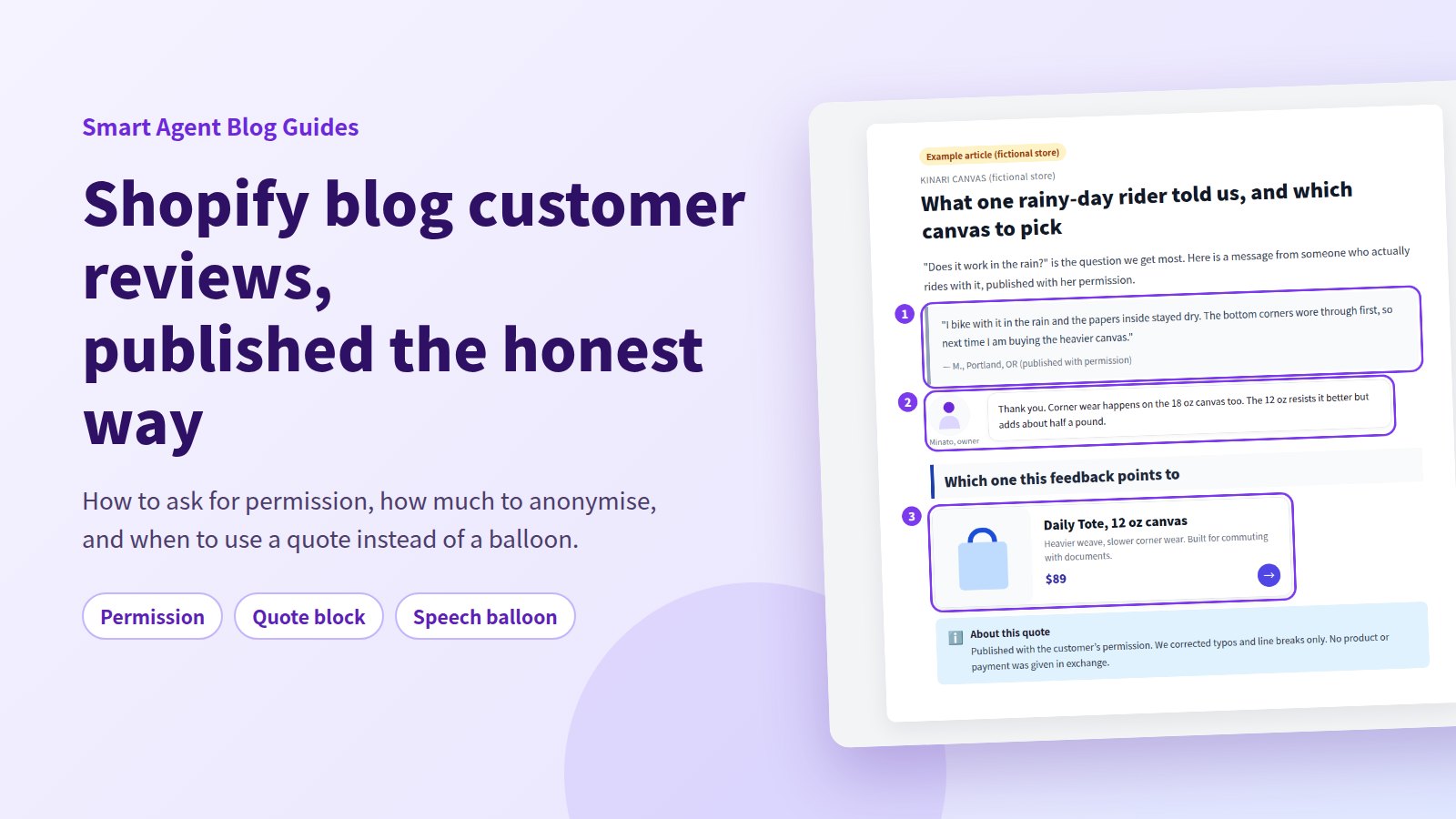
Customers say better things about your product than you ever write yourself. Yet most of that ends up buried in an inbox. Feedback is the most persuasive material a store has — and the easiest to ruin by handling it badly.
Three rules carry the whole thing: use only feedback you actually received, get permission from the person who wrote it, and never edit the meaning. With those in place, Shopify's built-in rich text editor can present it as a blockquote, and Smart Agent Blog gives you a quote block for the customer and a speech balloon for your reply.
This guide covers the whole path — collecting, asking, anonymising, publishing — and where each of the two blocks belongs.
- Four rules to follow before any customer quote goes live
- How to ask for permission, and what the request should contain
- How much of a name, place, or age to show
- How to publish a quote using Shopify's built-in editor
- When to use a quote block and when to use a speech balloon
Start from "do not invent it"
The most important part comes first.
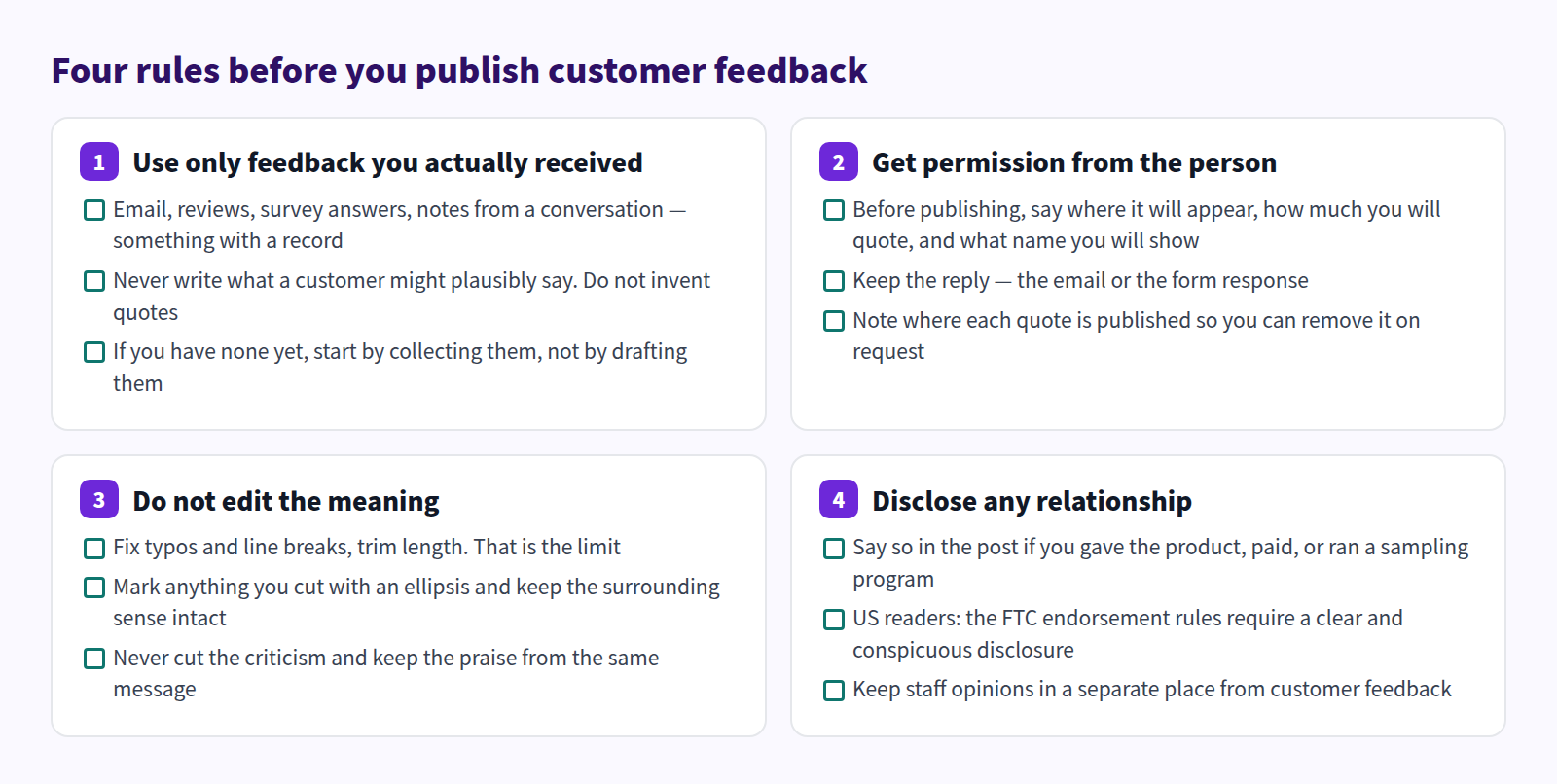
Never write a customer quote that nobody sent you. "Something along these lines is what people tell us" is not a paraphrase — it is fiction with quotation marks around it. This is not a question of whether readers notice.
Get permission from the person who wrote it. A review, a survey answer, a message — the words belong to whoever wrote them. "It was posted publicly, so we can reuse it" is not a rule you want to rely on.
And if you gave the product away, paid for the write-up, or ran a sampling program, say so in the post. In the US, the FTC's endorsement guidance requires that a material connection between you and an endorser be disclosed clearly and conspicuously. A single sentence next to the quote handles it.
Asking for permission
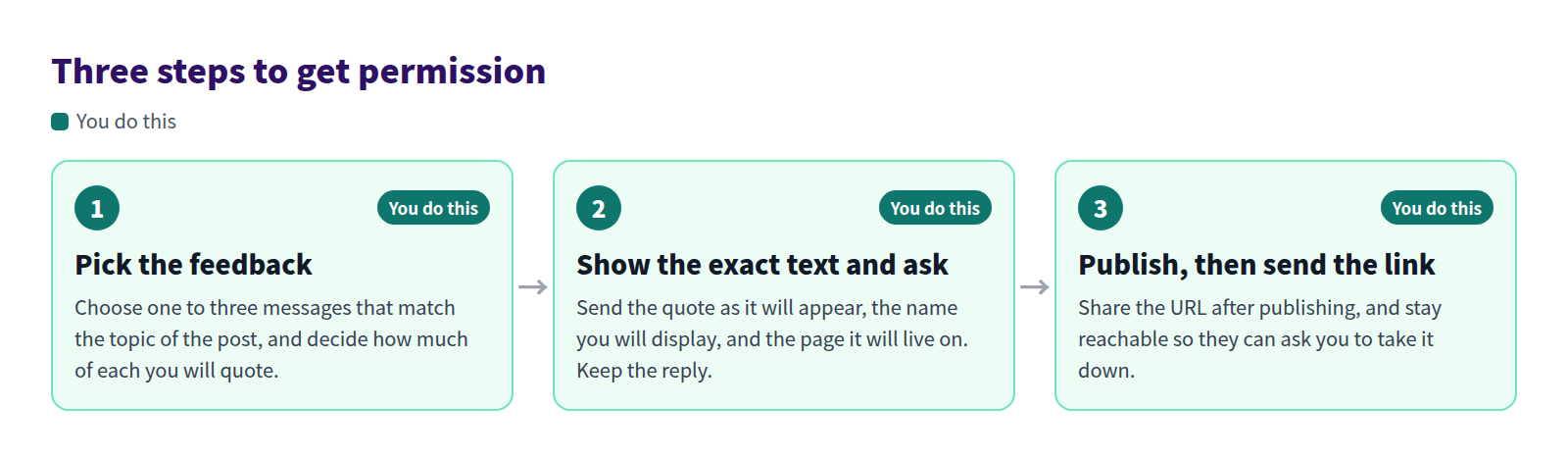
A request only needs four things:
- Where it will appear (your store blog, and the topic of the post)
- Exactly what you will quote — paste the actual text, not a summary
- How you will identify them ("M., Portland, OR" — show the real wording)
- That they can ask you to remove it later
Send the quote as it will be published. Agreeing to a rough description and discovering a mismatch afterwards is the single most common way this goes wrong.
How much to show
| Attribution | When it fits | What to check |
|---|---|---|
| Initial only (M.) | Most posts. This is the default | No collision with another person in the same post |
| Initial plus city and age range | Helps readers picture the use case | A town small enough to identify someone |
| Full name and photo | Interviews and featured stories | Name and photo need separate permission |
| Job title or company | B2B or professional use cases | Their employer may also need to approve |
Never publish an address, phone number, order number, or email. If you use a photo, check the background for anything identifying.
Feedback needs somewhere to go next
While preparing proposals for Smart Agent Blog in August and September 2026, we reviewed the blogs of 110 Shopify stores in Japan. Of the 88 posts we recorded, 66 (75%) had no link from the body to a product page.
Customer feedback is what a reader uses to decide "this might suit me too." If there is nowhere to go the moment they decide, the visit ends there. Put the quote and the product together. Adding product information to Shopify blog posts covers the mechanics.
What Shopify does on its own
Open Content → Blog posts in Shopify admin and build the body in the rich text editor.
Present it as a quote
- Paste the customer's text into the body, unchanged.
- Select that paragraph.
- Open Formatting in the toolbar and choose Blockquote.
- Add one line underneath with the attribution.
- Select Save.
Formatting covers paragraph, headings 1–6, and blockquote. Turning the passage into a blockquote makes it visually distinct, so readers can see exactly where someone else's words start and stop. That boundary is the whole point.
Turn recurring feedback into a table
When the same question keeps arriving, a table reads better than prose. Use Insert table and put the question on the left, your answer on the right. Shopify's built-in editor supports tables, so this needs no app. The format is covered in FAQ blog posts.
Photos and product links
Insert image adds a photo you have permission to use. Insert link attaches a product URL to text in the sentence.
What the built-in editor cannot do
- Visually separate the customer's words from your reply, as a conversation
- Present the product as a card with name, image, and price
- Keep quote styling consistent across posts independent of the theme
Blockquote styling comes from your theme, so a theme change alters the look of every quote you have published. If you plan to publish feedback regularly, check how your theme renders a blockquote before you start.
How this works in Smart Agent Blog
Smart Agent Blog lets you place the customer's words and your own words as separate blocks.
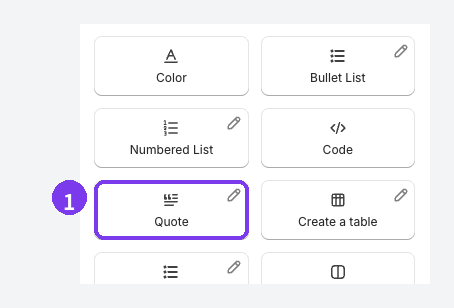
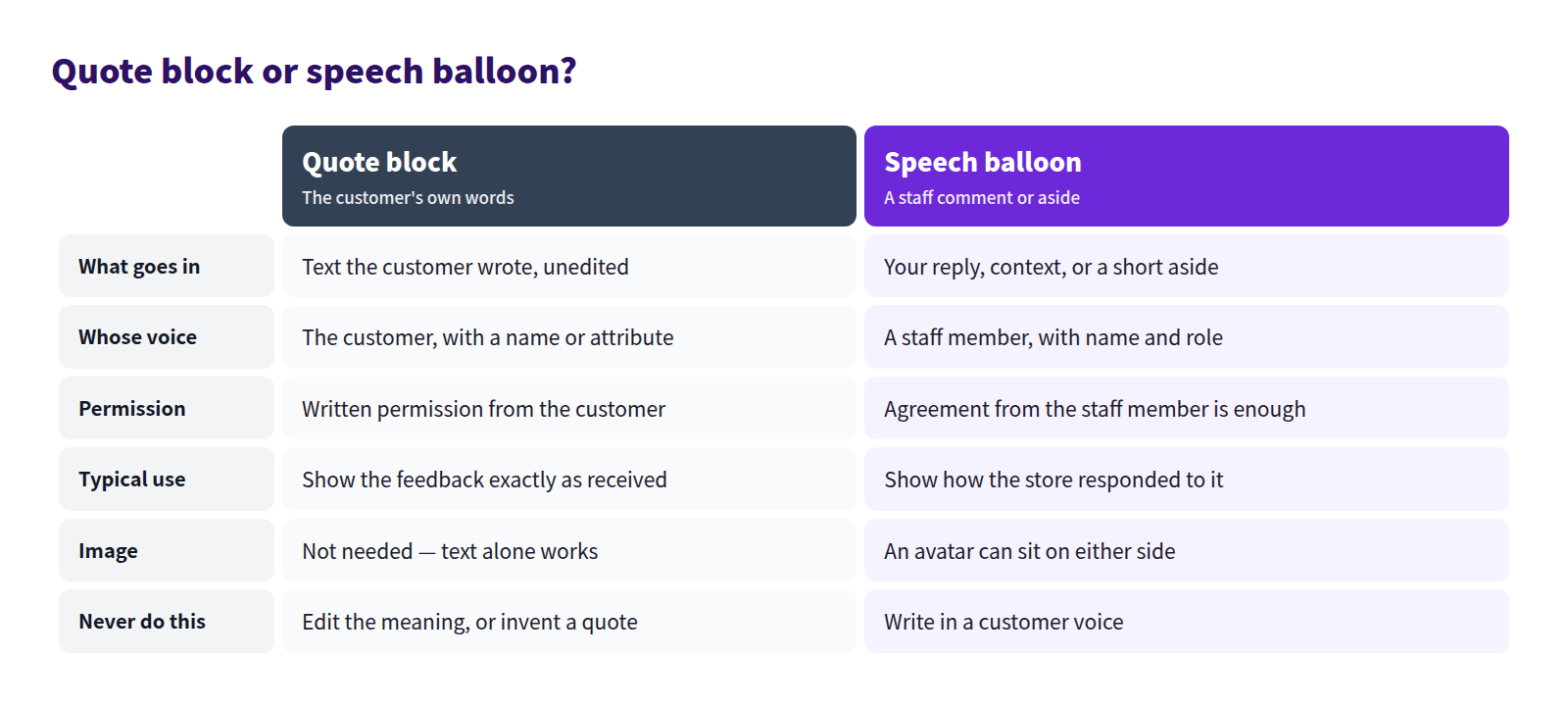
Put the customer's words in a Quote block
On a new line, type / and choose Quote, or select it from the insert menu on the right. What goes in is the message as received. Typos, line breaks, and trimming for length are the only edits.
Use the speech balloon for staff
The speech balloon presents a staff comment or aside as conversation. Putting a customer quote in a balloon makes it look like the store is speaking for them. Use the balloon for your answer to the feedback, not for the feedback itself.
Selecting a block's handle opens a menu that switches the balloon image between the left and right side — customer quote on the left, store reply on the right reads naturally. Speech balloons for staff comments goes deeper.
Point to the product the feedback is about
If the quote is about a specific product, drop a Product Insert block right below it. The card carries the name, image, and price, and shows a sold-out label when stock runs out. Draft, hidden, and archived products cannot be selected, so publish them in Shopify admin first.
What the finished post looks like
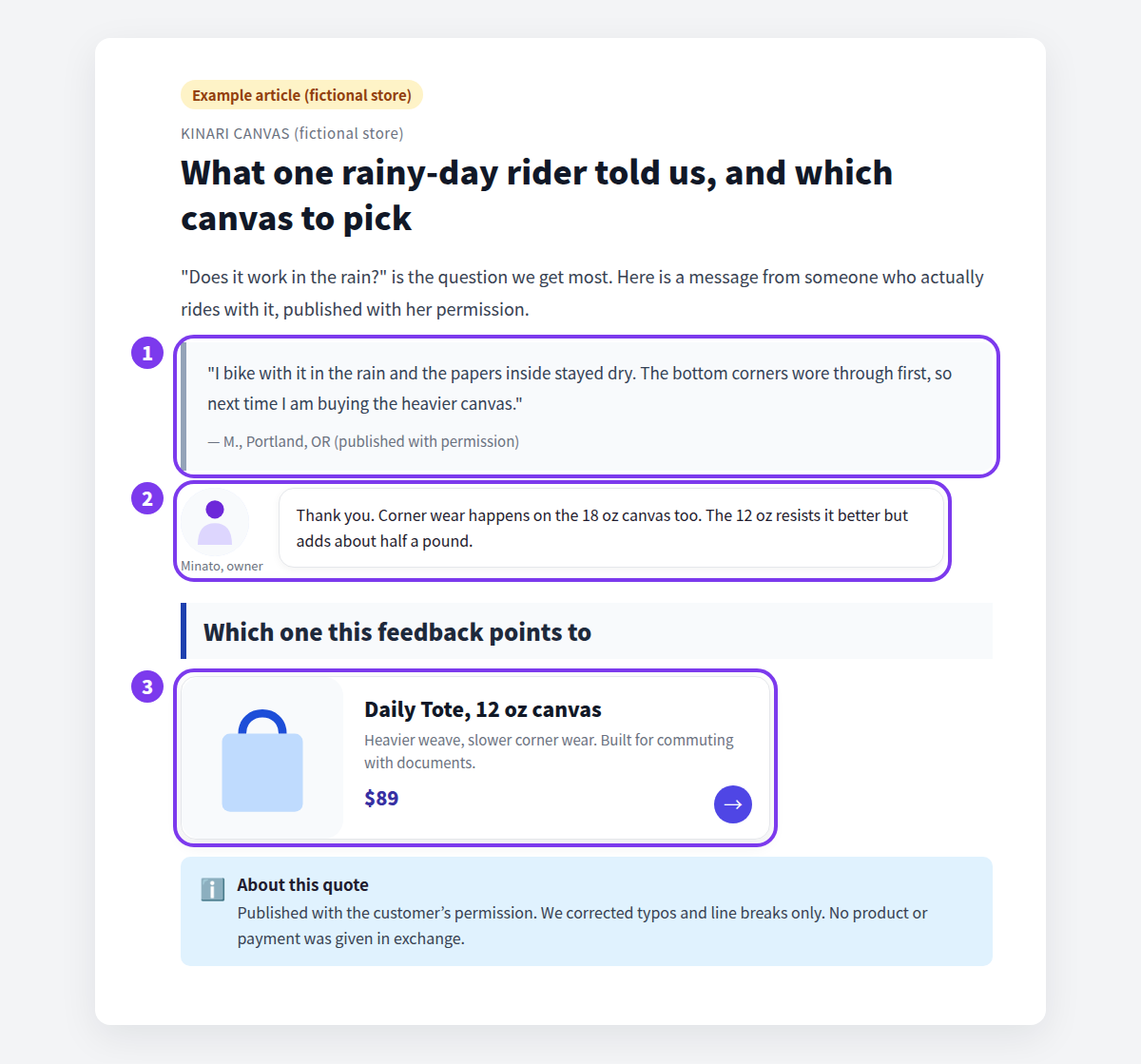
That closing note fits in a callout block. Permission obtained, what you edited, whether anything was given in exchange — one sentence each, and the way readers weigh the quote changes.
Preview before publishing
Rendering depends on your theme, so preview before publishing. Block-by-block instructions are in add content to an article. Design editing, which restyles quotes, balloons, and callouts, is a paid-plan feature.
Before you publish
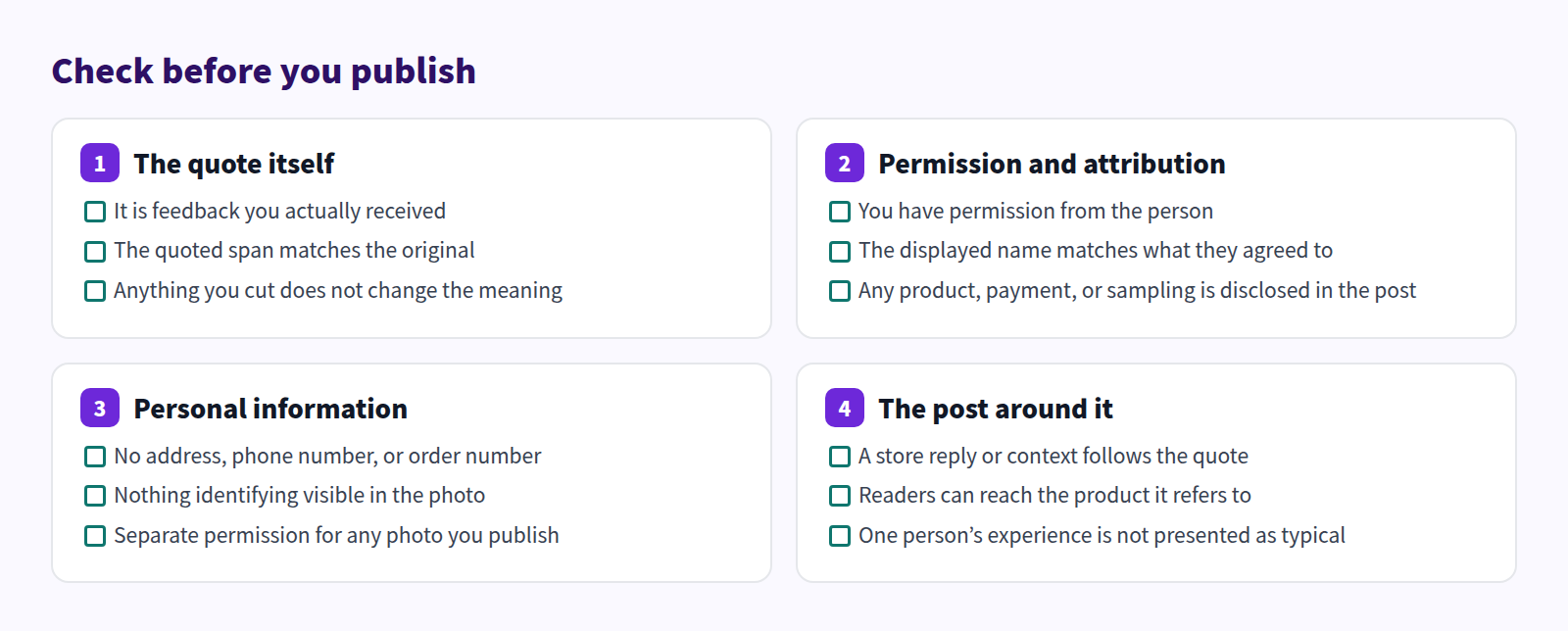
The last item is the one people miss: one person's experience is not a general claim. If a single customer wrote "it felt light," a heading saying "customers find it light" has no basis. One message is one message.
For gathering feedback in the first place, see turning customer questions into blog topics; for writing about the product itself, product stories that actually help. The wider picture is in how stores use a Shopify blog.
FAQ
Can I republish reviews collected by a review app?
You still need permission from the person who wrote them. Where a review was originally published and where you republish it are different questions. Check the app's terms as well — some restrict reuse.
Should I publish negative feedback too?
That is your call, but do not cut the criticism out of an otherwise negative message. "Some people find it heavy — that weight is the reinforced base" reads as more credible than praise alone, because you answered the objection instead of hiding it.
Do staff opinions count as customer feedback?
No. Keep staff and insider opinions in a separate place, such as a speech balloon or a staff feature. Staff picks posts covers that format.
Summary
- Never invent a quote. Publish only feedback you actually received and can show
- Get permission from the person, showing the exact text you will publish
- Edit typos, line breaks, and length. Nothing that changes the meaning
- Customer words go in a quote block; your words go in a speech balloon
Pick one message already sitting in your inbox and write the permission request. That is the whole first step.