
You started a blog on your Shopify store and you are not sure it is working. Posts go up but nobody reads them. People read but nobody buys. And there is no obvious way to tell which of those is actually happening.
Shopify ships with a blogging engine. Open Content and then Blog posts in your admin and you can write and publish at no extra cost. What that engine covers, though, is putting words and pictures on a page. Building a table of contents for a long post, showing a product with its image and price inside the body, measuring how far into one post readers actually got — those sit outside it.
This article is the map. It sets out what the built-in blog does and does not do, then walks the six places store blogs usually get stuck, with a link to the detailed guide for each one. Start wherever your situation matches.
- What role the Shopify blog plays next to your product pages
- Exactly what the built-in blogging engine covers, and what it does not
- The six places blogs get stuck, and the first fix for each
- What Smart Agent Blog changes, and what it leaves alone
- One first step based on where your blog is today
A blog is a second front door, not a product page
A Shopify blog is a container for posts. Open Content and then Blog posts and you will find your posts plus the blogs that hold them. A blog is the box; most stores start with one called "News". You can create more than one box, so announcements and long-form reading can live apart.
The difference from a product page is what you are allowed to write about. A product page exists to help someone decide on that product, so it stays close to specifications and appeal. A blog post can speak to people who do not yet know the product name: how to choose a material, how to measure a size, how to care for something, what makes a good gift. Those topics are awkward on a product page and heavily searched. Product pages vs blog posts covers where to draw the line.
So the blog is two things at once — a way to meet new people without paying for the click, and a place to answer the doubts that stop a purchase.
Six places a Shopify blog gets stuck
While preparing proposals for Smart Agent Blog in August and September 2026, we reviewed the blogs of 110 Shopify stores in Japan. About 4 in 10 (42 stores) had no posts at all, had stopped after a handful, or had not published in over a year.
The stores that were publishing hit different walls. Of the 88 posts we recorded, 66 (75%) had no link from the body to a product page. Of the 78 posts we recorded, 27 (about 35%) had no headings at all. Across 113 recorded posts, not one presented a product as a card with its name, image and price.
Sorted out, the sticking points fall into six groups.
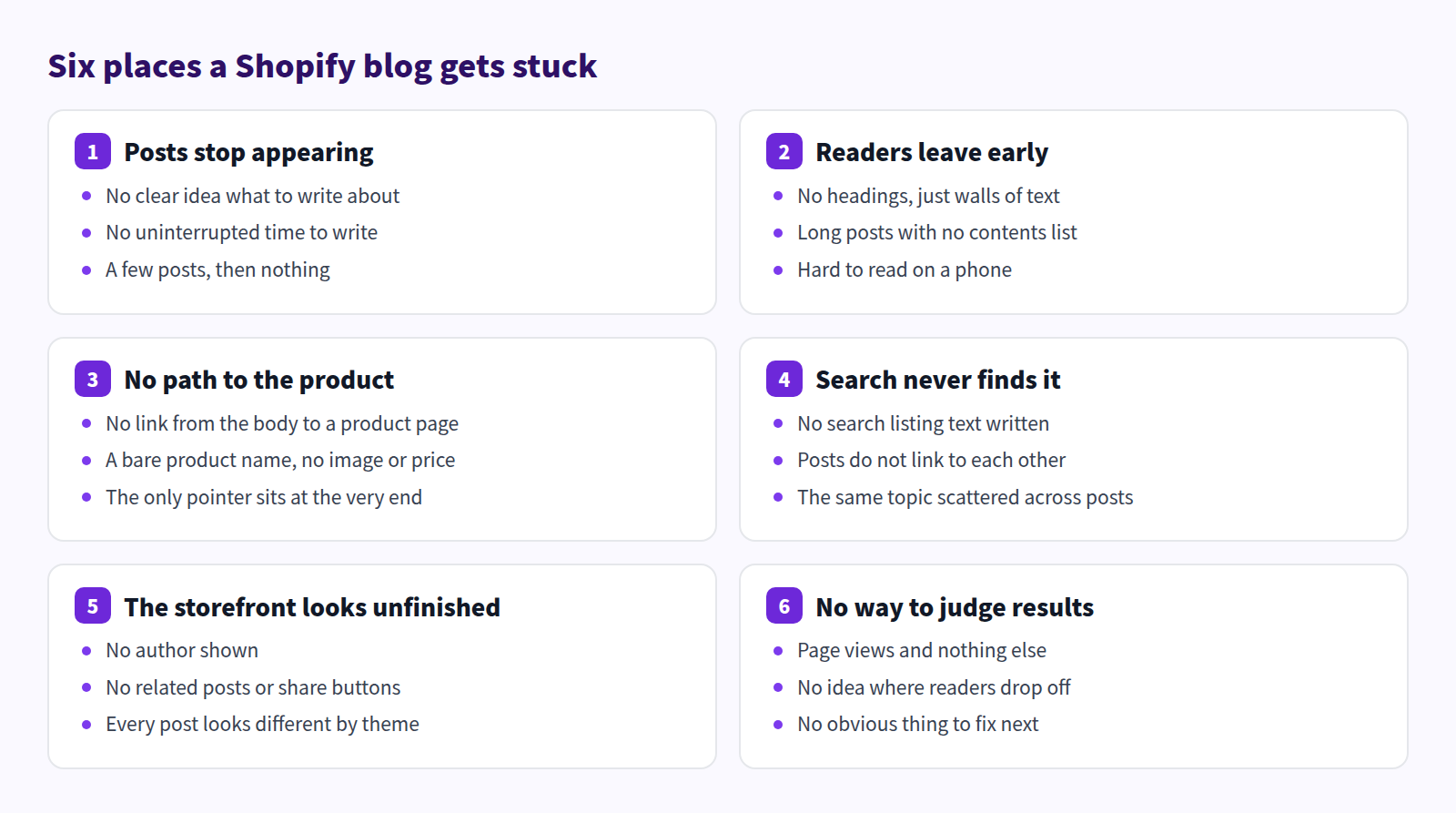
Each section below covers what is going wrong, how far you can get in Shopify on its own, and what changes with an app.
Posts stop appearing
This is the common one. The blog exists, the first few posts went up, and then nothing. The reason is rarely a lack of will. It is that the topic is undecided, the uninterrupted hour never arrives, and nobody can predict how long one post will take.
Creating a post in Shopify itself is quick. Open Content, then Blog posts, add a post, type a title and body, choose whether it is visible, and save. If the blank page is the problem, Shopify Magic can draft for you: the Generate text icon produces title ideas and body copy from a description you write. Whatever it returns is your store's responsibility, so read it properly before publishing.
What the built-in tools do not give you is a rhythm. Shopify Magic is a one-post-at-a-time tool, so every post needs a fresh topic, a fresh prompt, and a fresh edit. When the person doing the writing has a busy week, the blog stops.
Smart Agent Blog's AI Scheduled Blog Proposals takes your business overview, target audience, the products to reference, and a day and time, then proposes posts on that schedule. With the publish mode set to Save as draft (manual publish), nothing goes live until you have read it. The job changes from writing to editing. Setup lives in AI Scheduled Blog Proposals, and writing Shopify blog posts with AI walks the settings screens.
If it is the topic rather than the time, pick a format first. Ways to use a Shopify blog catalogues the formats, how to write a Shopify blog post covers one post end to end, and Shopify blogging best practices covers keeping it going.
Readers leave before the end
The post is open in a browser and abandoned halfway. Usually the structure is at fault, not the writing.
In our review, missing headings stood out: one post in three had none, so the text ran as a single block. Several posts with ten or more headings had no contents list. On a phone, an unbroken wall of text simply looks endless.
Shopify's built-in rich text editor does give you the parts for this. Headings, bullet lists, numbered lists, tables, images, YouTube and Vimeo embeds, links, and an HTML view. Tables are often assumed to be missing; they are not. Adding a heading wherever the topic turns and putting comparable facts into a table already changes how a post reads.
The gap is an automatic table of contents. In Shopify alone you set an anchor on each heading and hand-build the list of links, then keep that list in sync every time you edit a heading.
Smart Agent Blog has a Table of Contents block: drop one in and it builds itself from the headings, and updates when you change them.
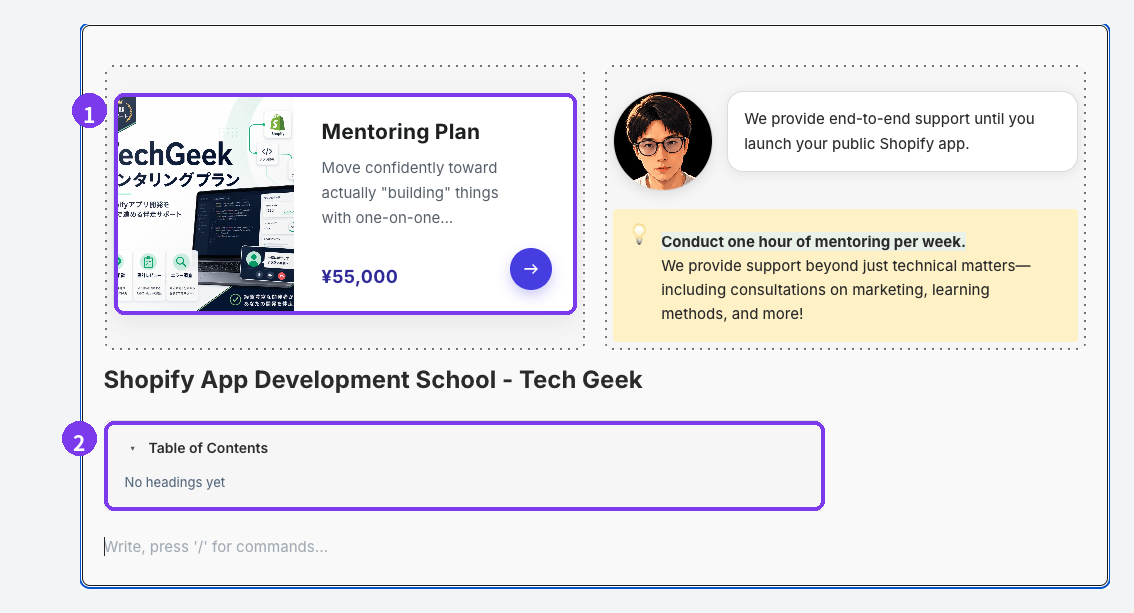
It lists Heading 2, Heading 3 and Heading 4 only. For the hand-built alternatives see adding a table of contents to a Shopify blog; for the headings themselves, structuring a blog post and mobile blog readability.
Nothing connects the post to a product
Posts that get read and sell nothing usually share one trait: they never tell the reader where to go next.
Three posts in four (75%) in our review had no route from the body to a product page. The product was named but not linked, or the only link sat at the very bottom. A reader wonders what it costs partway through, finds no answer, and leaves.
You can link to products in Shopify on its own. Select the text, insert a link, paste the product URL. It costs nothing and it is far better than no link at all — a good first pass is to add one to every paragraph that names a product.
The limit is that the link stays plain text. No price, no image, no stock status, so the reader has to click to find out what is waiting. That is almost certainly why none of the 113 posts we recorded used a card: doing it by hand is more work than it is worth.
With Smart Agent Blog, Product Insert adds a card carrying the product name, image and price, with a sold-out label when stock runs out. Collection Insert does the same for a whole collection at once.
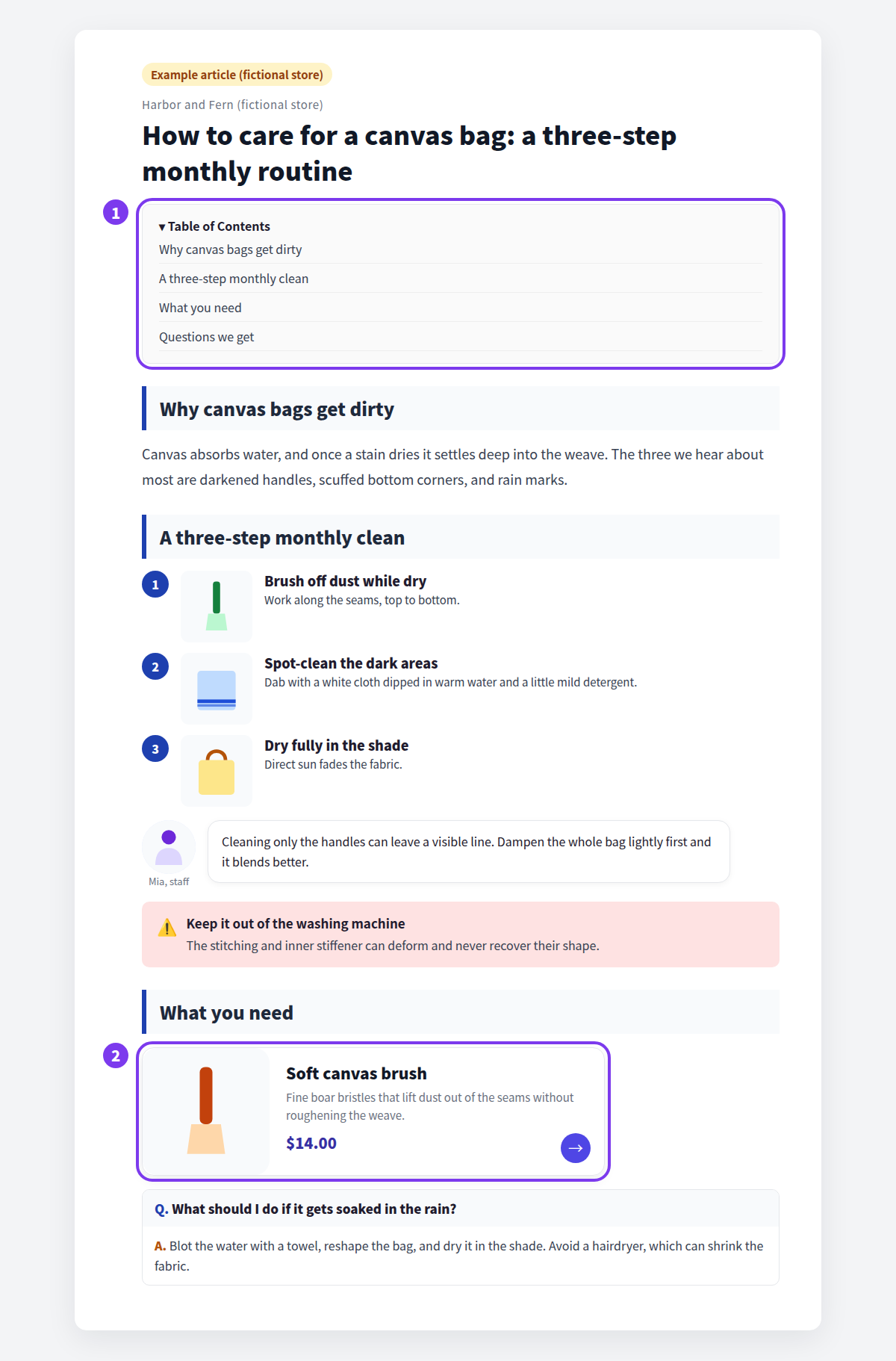
Where to place what is covered in Shopify blogs and sales; the mechanics are in adding products to a Shopify blog post and showing related products together.
Search never finds the post
The post is live and never surfaces in search — or it surfaces and nobody clicks.
Shopify covers the basics here. Under the post body, Search engine listing lets you set the title and description that appear in search results, plus the URL handle. Leave the title blank and the post title is used. Leave the description blank and a search engine will cut something out of your opening paragraph instead, which rarely reads like an invitation.
Internal links between posts are just ordinary links, so the built-in editor handles them. Point readers at the older post on the same topic. It gives them somewhere to go and it tells search engines how your posts relate.
What Shopify alone will not tell you is what happened next: how often a post appeared in search and how often it was clicked. That means registering with Google Search Console and checking it separately.
Smart Agent Blog connects to Google Search Console under Setting and then General Settings. Once connected, the SEO report email carries search performance (clicks, impressions, average CTR, average position), your most-clicked posts, and a prioritised list of posts worth improving. Frequency depends on plan; weekly on Pro.
For the listing text itself see writing blog meta descriptions, for linking posts together internal links in a blog, and for the wider picture Shopify blog marketing.
The storefront looks unfinished
This one is easy to miss, because the person writing rarely looks at the published page. No author. No related posts. No share buttons.
How a post looks is decided by the theme's Blog post template. What can be displayed varies by theme, and some themes cannot show an author or related posts at all.
Smart Agent Blog adds its own section to that template. Select the section and you can set the breadcrumb, the author display method (hidden, sidebar, below the article, above the article), where related posts appear, whether popular posts, latest posts and the tag list show in the sidebar, and where the share buttons sit.
If you already have posts, do not edit the live theme. Duplicate the published theme, add the section to the copy, and check three to five representative posts before publishing. Hide the theme's original article-body section with the eye icon rather than deleting it, so you can reverse the change. The steps are in safely switching from your existing blog and displaying articles on your store.
One caveat: an author only appears on posts that were saved in Smart Agent Blog with an author selected. Older posts need reopening and saving once. Why that is worth doing is covered in blog author profiles.
You cannot tell what worked
Finally, measurement. The posts exist and the page looks right. Did any of it do anything? Without an answer, there is no obvious next fix.
Shopify's analytics show store-wide sessions and which pages people landed on, which gives you a rough sense of blog traffic. Checking that once a month is already useful.
What it does not show is what happened inside one post: how far readers scrolled before leaving, whether the product links were clicked, whether anyone who read it went on to buy. Page views alone cannot separate "widely read" from "actually selling".
Smart Agent Blog's article analytics scores each post out of 100 for goal achievement plus four diagnostic scores — Reach, Reading, Action and Conversion — alongside scroll depth, traffic sources, product link CTR, direct purchases, and up to three prioritised recommendations.
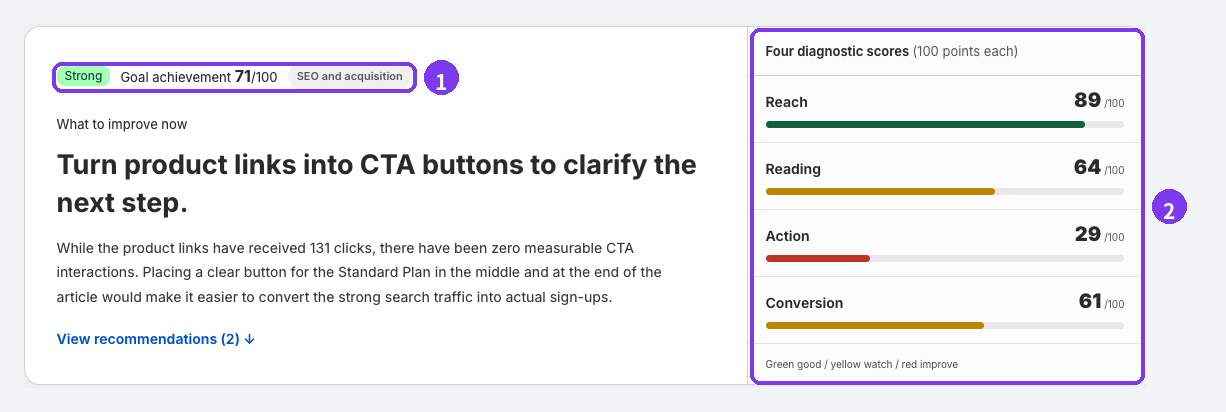
Article analytics is a Pro plan feature. Until there is enough data a score reads Collecting data, so a post published yesterday is not something to judge. There is no SEO score in article analytics; search impressions and clicks come from Google Search Console.
For what to watch besides page views see blog metrics beyond page views, and for turning numbers into changes, measuring blog improvements and the article analytics guide.
What Shopify covers on its own
Here is the built-in scope in one place. A Shopify blog gets you a long way with no app at all, and knowing exactly where the edge is makes the decision about an app much easier.
Without any app you can:
- create, edit and delete posts under Content and then Blog posts, and run more than one blog to sort them
- use the rich text editor for headings, bold, bullet and numbered lists, tables, images, YouTube and Vimeo embeds, links and an HTML view
- draft title ideas and body copy with Shopify Magic's Generate text
- tag posts and set a featured image
- set the title and description shown in search results, plus the URL handle, under Search engine listing
- publish, unpublish, or schedule a publish date
- choose whether comments are disabled, held for moderation, or published automatically (under Manage blogs)
- control how the post page looks through the theme's Blog post template
What is not included: an automatic table of contents; product cards and collection grids; readability blocks such as callouts and speech balloons; anything that proposes posts on a schedule; rewrite suggestions for older posts; and per-post measurement of read depth, product clicks and purchase contribution.
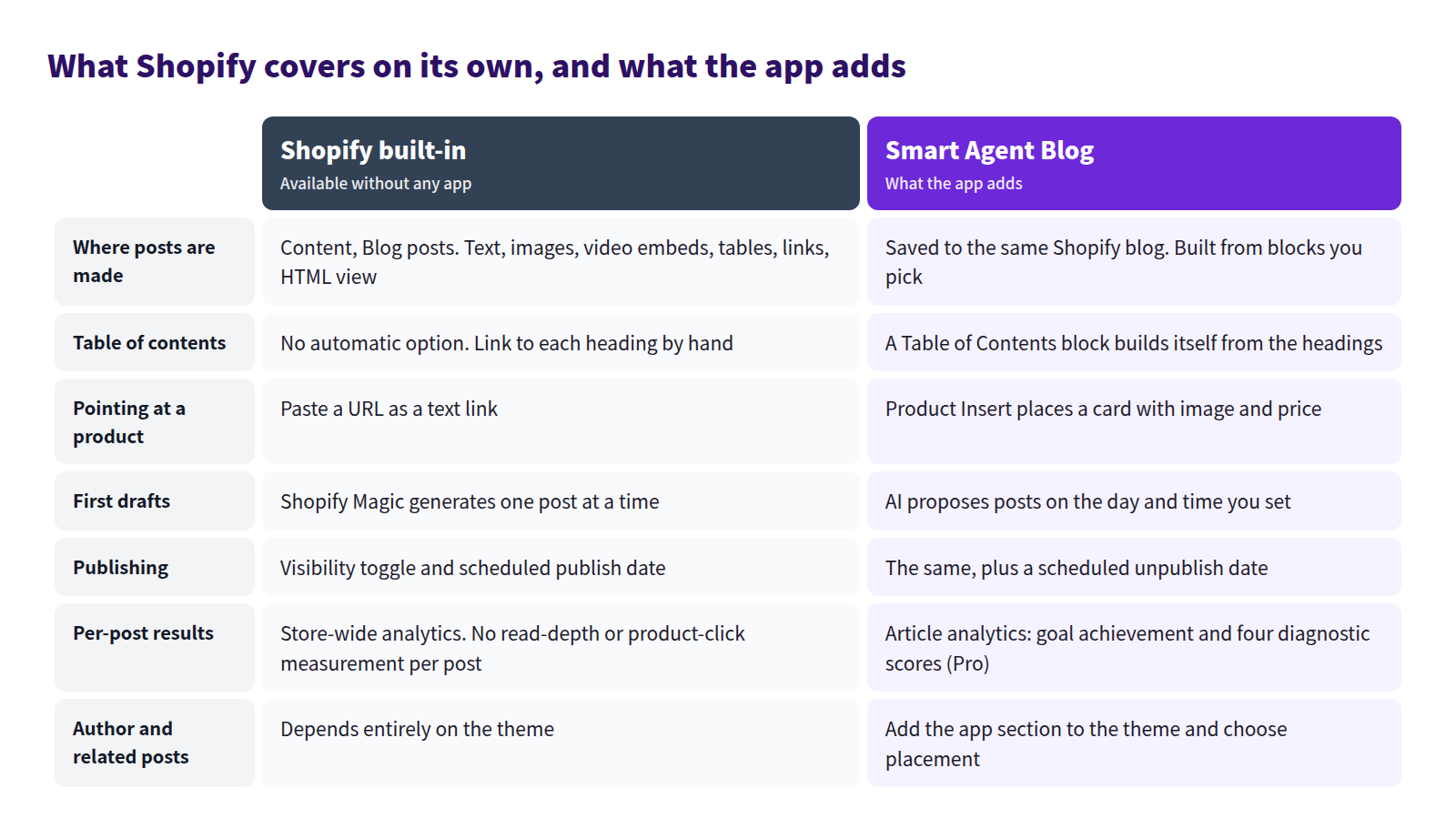
The important part: Smart Agent Blog does not replace the Shopify blog. Posts are still saved to your Shopify blog and keep their URLs. What an app can and cannot solve is covered in choosing a Shopify blog app.
How much you can use depends on plan. Free allows 10 posts created in the app, 2 AI-generated posts in total, and no AI Rewrite or article analytics. Basic removes the post limit and adds one AI post and one rewrite per month plus custom blocks. Pro raises this to 15 AI posts and 30 rewrites a month, unlocks article analytics, and sends the SEO report weekly. See plans and usage limits.
Where to start
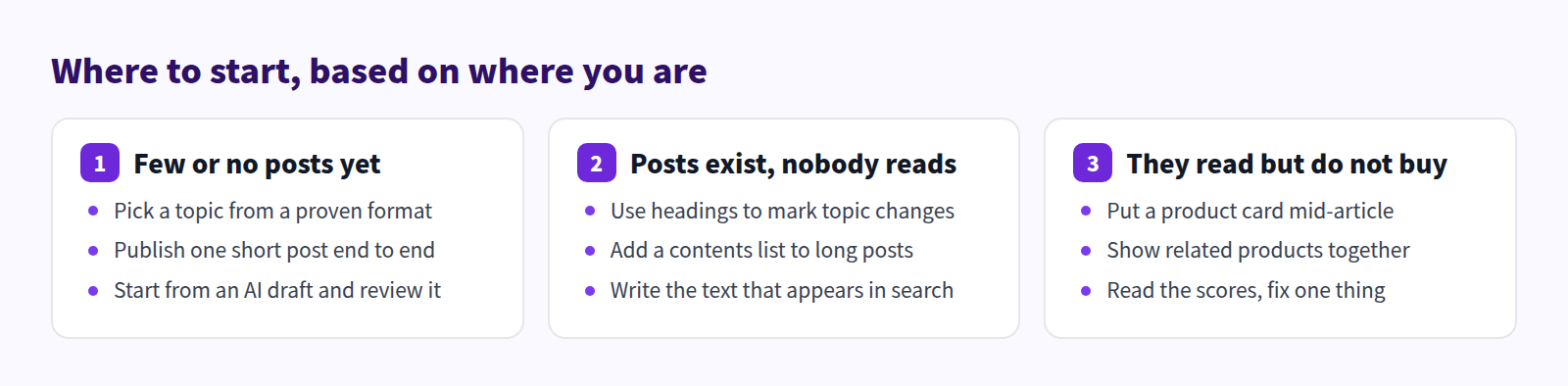
Doing all six at once does not work. Pick the row that sounds like your store.
| Where you are | First step | Guide |
|---|---|---|
| No posts, or a few that stalled | Pick a proven format and publish one short post end to end | Ways to use a Shopify blog |
| No time to write | Let AI draft, and start from reviewing instead of writing | Writing Shopify blog posts with AI |
| Posts exist but go unread | Add a heading at every topic change and a contents list to long posts | Adding a table of contents |
| Search sends nobody | Write the title and description that appear in search, and link related posts | Shopify blog marketing |
| Read but not buying | Put a product card mid-post and group related products | Shopify blogs and sales |
| Never sure what to write | Turn the questions customers actually ask into posts | Turning FAQs into blog posts |
Whichever you pick, save the first one hidden and preview it before it goes live. Adding content to an article lists everything you can put in a post.
Questions we get
Does the Shopify blog cost anything?
No. Blogging is included in every Shopify plan, there is no per-post charge, and there is no limit on how many posts you publish. An app like Smart Agent Blog is billed separately, though its free plan covers 10 posts created in the app and 2 AI-generated posts at no cost.
What happens to my existing posts if I add the app?
Post titles, bodies, images, URLs, tags and visibility are not changed by adding a section to your theme. What changes is presentation. Type sizes, spacing and image widths may not match what you had, so duplicate the published theme and check before switching. Custom CSS, custom Liquid and third-party app output do not always carry over. The procedure is in safely switching from your existing blog.
How many posts should I publish, and how often?
There is no correct number. Decide on a cadence you can actually sustain and pick topics backwards from it. Even one post a month adds up when each answers a question customers genuinely ask: fewer support emails, and more entry points from search. Shopify blogging best practices covers keeping it going.
In short
- Shopify's built-in blog covers writing, publishing, scheduling, the search listing fields and comment settings at no extra cost
- Outside it sit automatic contents lists, product cards, per-post measurement, and anything that proposes posts on a schedule
- Blogs get stuck in six recognisable places, and most stores are hitting several at once
- Smart Agent Blog sits on top of the Shopify blog rather than replacing it: same storage, same URLs, plus blocks, automation and measurement
Pick the row above that matches your store and fix one post. Expanding from something that visibly worked is what keeps a blog alive.