
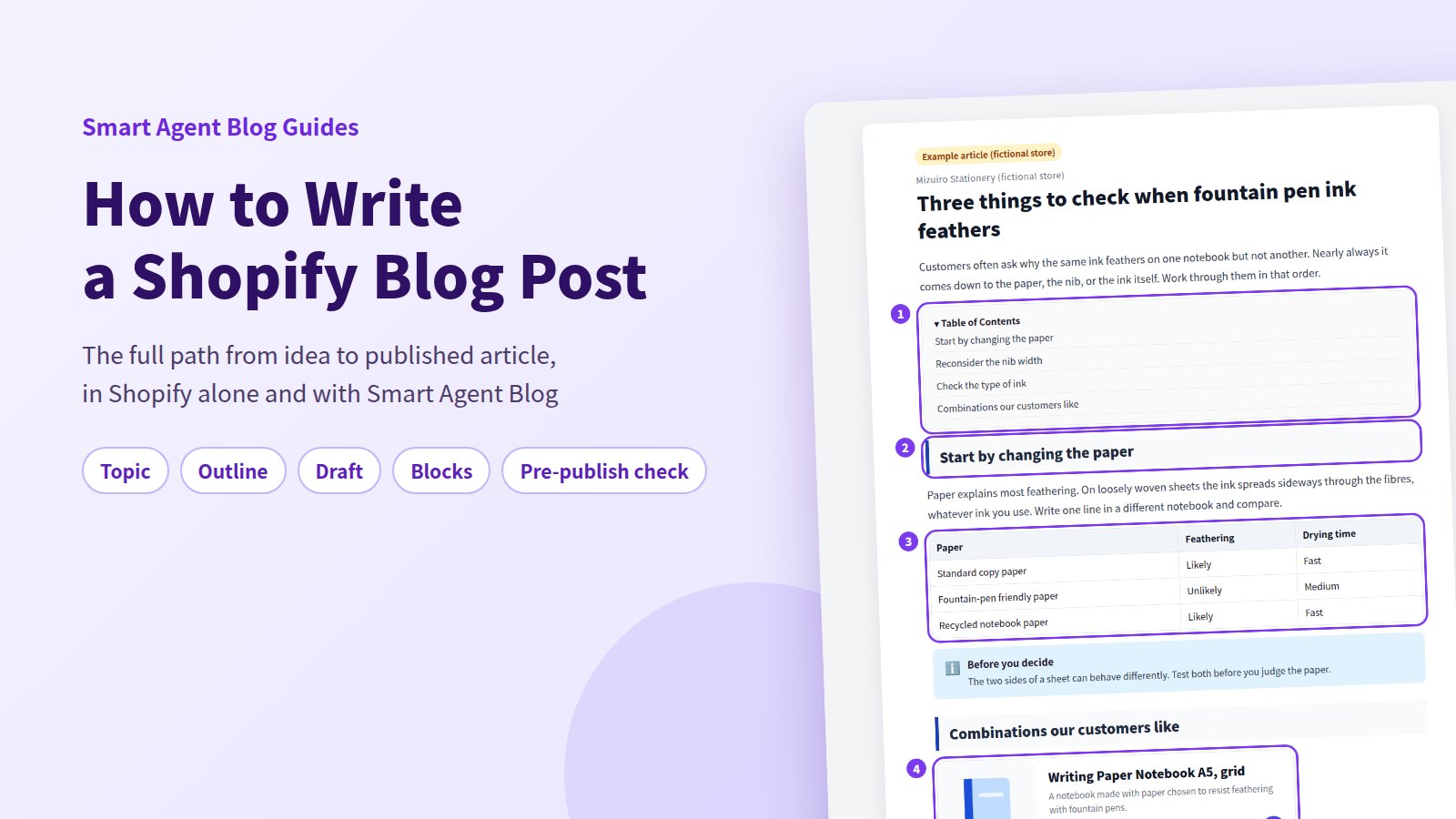
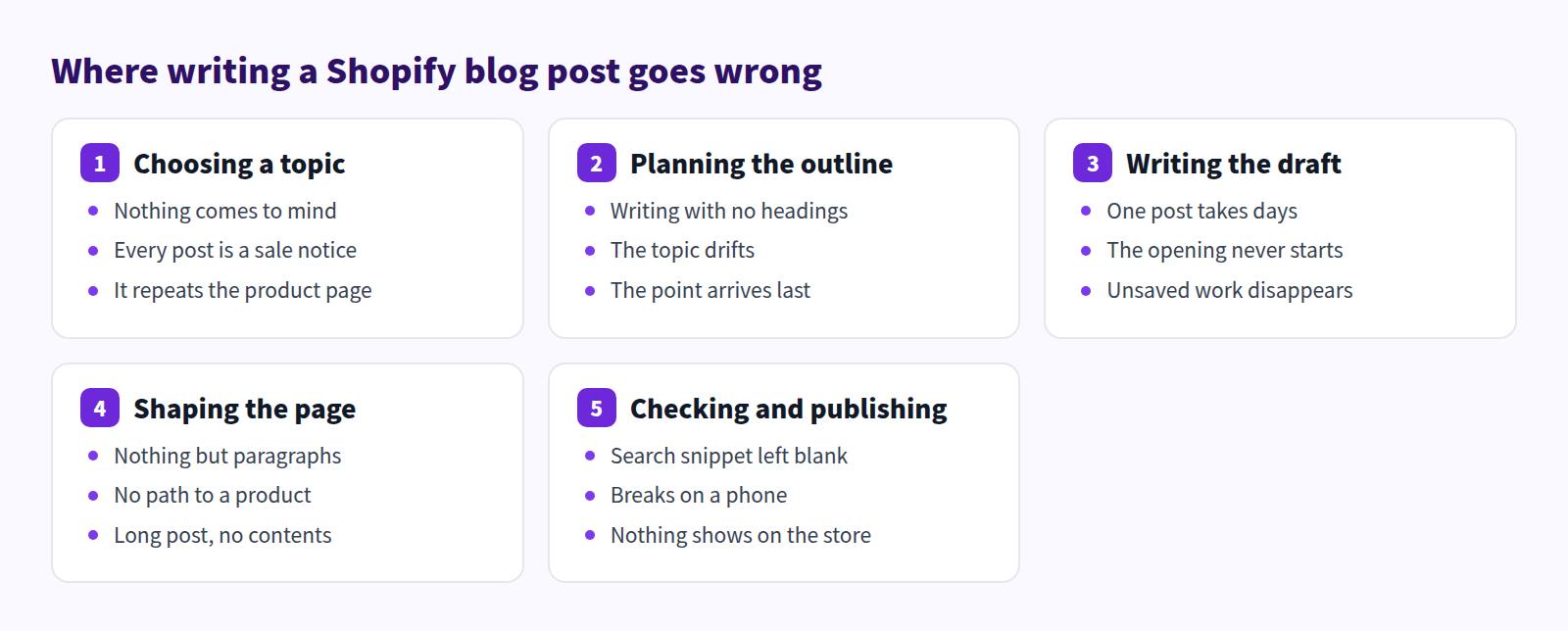
When a post doesn't get written, writing ability is rarely the reason. Choosing a topic, outlining, drafting, shaping the page, checking and publishing — the work stalls at one of those five stages. Once you know which one, the fix is usually small.
This article is a map of how to write a Shopify blog post, stage by stage. For each stage: what actually goes wrong, how far the Shopify admin takes you on its own, and what changes once Smart Agent Blog is installed.
Step-by-step instructions live in the individual articles linked along the way. The goal here is that you finish able to say "we were stuck at the outline" — and know what to do next.
- The five stages of a single post, and why each one stalls
- How to choose a topic and build an outline, using Shopify alone
- How to split drafting between you and AI
- Where to place a table of contents, a table, and product cards
- The four groups to check before publishing, and what to open afterwards
Posts stall at one of five stages
While preparing proposals for Smart Agent Blog in August and September 2026, we reviewed the blogs of 110 Shopify stores in Japan. About 4 in 10 — 42 stores — had no posts, had stopped after a handful, or hadn't published in over a year.
The published posts showed a pattern too. Of the 78 posts where we recorded heading use, 27 had no headings at all. Of the 88 posts where we recorded links, 66 — 75% — offered no way to reach a product page from the body.
Neither is a writing problem. They are missing stages. No headings means the outline stage was skipped; no path to a product means the shaping stage never happened.
Choosing a topic
Most people who stall on post one are not short of writing ability. They are short of topics in stock. Starting from "what should we write this month" each time leaves you with sale announcements and new arrivals, which mostly repeat the product page.
Topics are not out there to be found. They are already in your inbox:
- Questions asked before buying — email, chat, and DMs. The same question three times is one post.
- Hesitations while choosing — size, colour, material, this one or that one. Reviews and order notes hold these.
- Problems after buying — washing, storage, replacement parts, first-use warnings. Return reasons are a source too.
All three are things real people type into a search box. Start from what customers actually said, not from what is convenient to announce.
What Shopify does on its own
In the Shopify admin, go to Content > Blog posts and select Add blog post. The title takes up to 255 characters and the body uses the rich text editor.
For idea support there is Shopify Magic: the Generate text icon in the title and body fields turns a description of the post into title and body suggestions. You still decide the subject, and you still write a fresh prompt every time.
Stock-taking itself needs no app. Paste three months of enquiries into one note, group the similar ones, and sort by frequency — that list is your editorial calendar. For topic formats by situation, see Leveraging Shopify Blogs, and for turning questions into posts, Find blog topics in your customers' questions.
What changes with Smart Agent Blog
In AI Scheduled Blog Proposals, you register the inputs behind topic selection once:
- Business Overview (required, 300–1000 characters): what you sell, who buys, what you care about, how you differ
- Themes / Keywords: one topic per entry. "Caring for a canvas bag in the rain" beats "bags"
- Target Audience and Writing Style / Tone
- Product read mode: do not read, all products, specific products, or specific collections
After that, AI writes a post on the day and time you chose. There is no prompt to rewrite, so "what should we write" stops costing time. Setup is documented in Get scheduled AI article proposals.
Planning the outline
A post without headings is a tunnel with no visible exit. Readers can't tell how far the answer is, so they leave. As noted above, 27 of the 78 posts we recorded had no headings at all.
Build the outline before writing, on paper if you like:
- Pick one question the post answers. Not "canvas bag care" but "what to do when a canvas bag gets soaked."
- Write the answer in one sentence, first. Readers do not wait for the conclusion.
- List three reasons or three steps. These become your Heading 2s.
- Decide where readers go next — a product, a related post, or your contact form.
Then read only the headings, top to bottom. If the story holds, the outline works.
What Shopify does on its own
Shopify's rich text editor supports paragraphs, headings 1–6, blockquote, bold, italic, underline, bulleted and numbered lists, indentation, alignment, text and background colour, insert link, insert image, insert video, insert table, clear formatting, and show HTML. Everything an outline needs is there.
Worth stating plainly: inserting a table is supported. "Shopify can't do tables" is simply wrong.
What is missing is an automatic table of contents. To add one, you switch to the HTML view, give each heading an id, and hand-build a list of anchor links at the top. It works — but every new heading means editing the list again, and the burden grows with every update.
For heading structure see Headings and tables in Shopify blog posts, and for titles, Blog post title formats that work.
What changes with Smart Agent Blog
In the body, type / at the start of a new line to open the block list, or use the insert menu beside the editor.
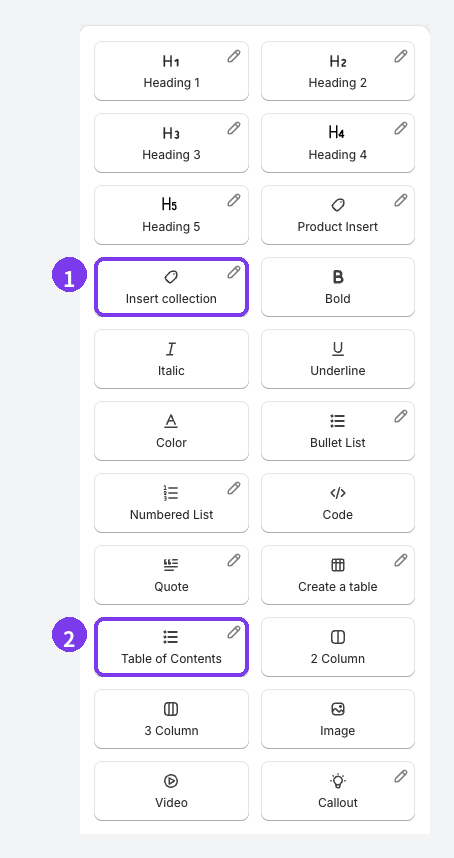
The Table of Contents block builds itself from Heading 2, Heading 3, and Heading 4, and updates as you add or reorder headings. Heading 1 and Heading 5 are not included, so use Heading 2–4 for anything that should appear. See Three ways to add a table of contents.
Writing the draft
With an outline, drafting is filling the gaps between headings. Posts still take days for two reasons: the opening sentence, and trying to finish in one pass. Three things help:
- Break every two to four sentences. Long paragraphs read as walls on a phone.
- Write the way you speak to a customer. Tidy the wording last.
- Draft roughly, edit tomorrow. It finishes sooner than perfecting as you go.
One practical warning: the Smart Agent Blog article editor has no autosave. Nothing reaches Shopify until you select Save, so save several times through a long post.
What Shopify does on its own
Shopify Magic's Generate text icon in the body field produces draft text. The more specific your prompt about product names, features, audience, and tone, the closer the result.
Accuracy, though, is yours to verify. Shopify's Help Center says the same: review generated content before publishing. Features the product doesn't have, and figures nobody checked, do appear.
What changes with Smart Agent Blog
AI Scheduled Blog Proposals drafts from your saved Business Overview and product settings on the day and time you set — no prompt each time.
Publish Mode offers Save as draft (manual publish) or Auto-publish at scheduled time. Use draft mode for your first few posts. Article purpose — Let AI decide, SEO and acquisition, Education and editorial, Product guide or comparison, or Campaign — steers the topic and structure.
Finished drafts arrive by email and collect under the AI-generated tab in Articles, each carrying an AI-generated label so you can tell them from your own.
AI article generation is capped at 2 in total on Free, 1 per month on Basic, and 15 per month on Pro, with a separate limit of 3 generations per hour. See Plans and usage limits.
For reviewing AI drafts see How to write Shopify blog posts with AI; for the division of labour, No time to blog?.
Shaping the page
Once the draft exists, shape it for the reader. This stage gets skipped most often and changes results most.
In our review, 66 of 88 posts — 75% — had no link from the body to a product page, and not one of the 113 posts we recorded used a card combining product name, image, and price. Readers who were convinced had nowhere to go.
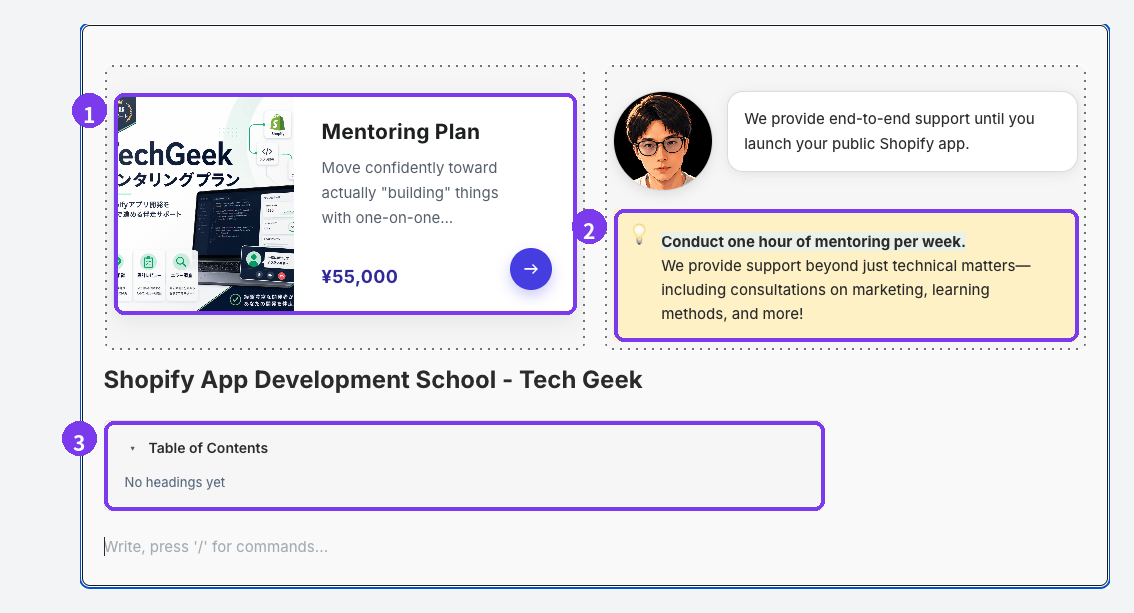
Where things belong is fairly settled:
| Place in the post | What to put there | Why |
|---|---|---|
| Top (five or more headings) | Table of Contents | Show how far the answer is |
| Where you explain a difference | Create a table | Finish the comparison at a glance |
| Conditions and warnings | Callout | Keep them out of the body text |
| A line from experience | Speech Balloon | Put a person in the room |
| Image paired with text | 2 Column | Stop the eye travelling |
| Right after the answer | Product Insert | Point at one thing |
| End of the post | Collection Insert | Show the range together |
What Shopify does on its own
The standard rich text editor covers the basics of readability: insert image, insert table, and insert link all work. Video means uploading to YouTube or Vimeo first, then embedding.
What it cannot do is present product data as a card. To build one by hand you insert the product image, type the name, add the link, and type the price. It works — until the price changes or the item sells out, and every post mentioning it needs editing. The more posts you have, the more often one gets missed.
Even so, there is something to do today without an app: put at least one text link to the product page inside the body. A plain link still lets the reader move forward.
What changes with Smart Agent Blog
Product Insert opens the Shopify product picker and adds a block with the name, image, and price, with a sold-out label when stock runs out. Draft, hidden, and archived products can't be selected, so publish them in Shopify admin first.
For a group of related products, Collection Insert takes one Shopify collection; Edit collection block controls the heading, description, product limit, and desktop and mobile columns. Product data is read from the collection, so a price change needs no edit to the post.
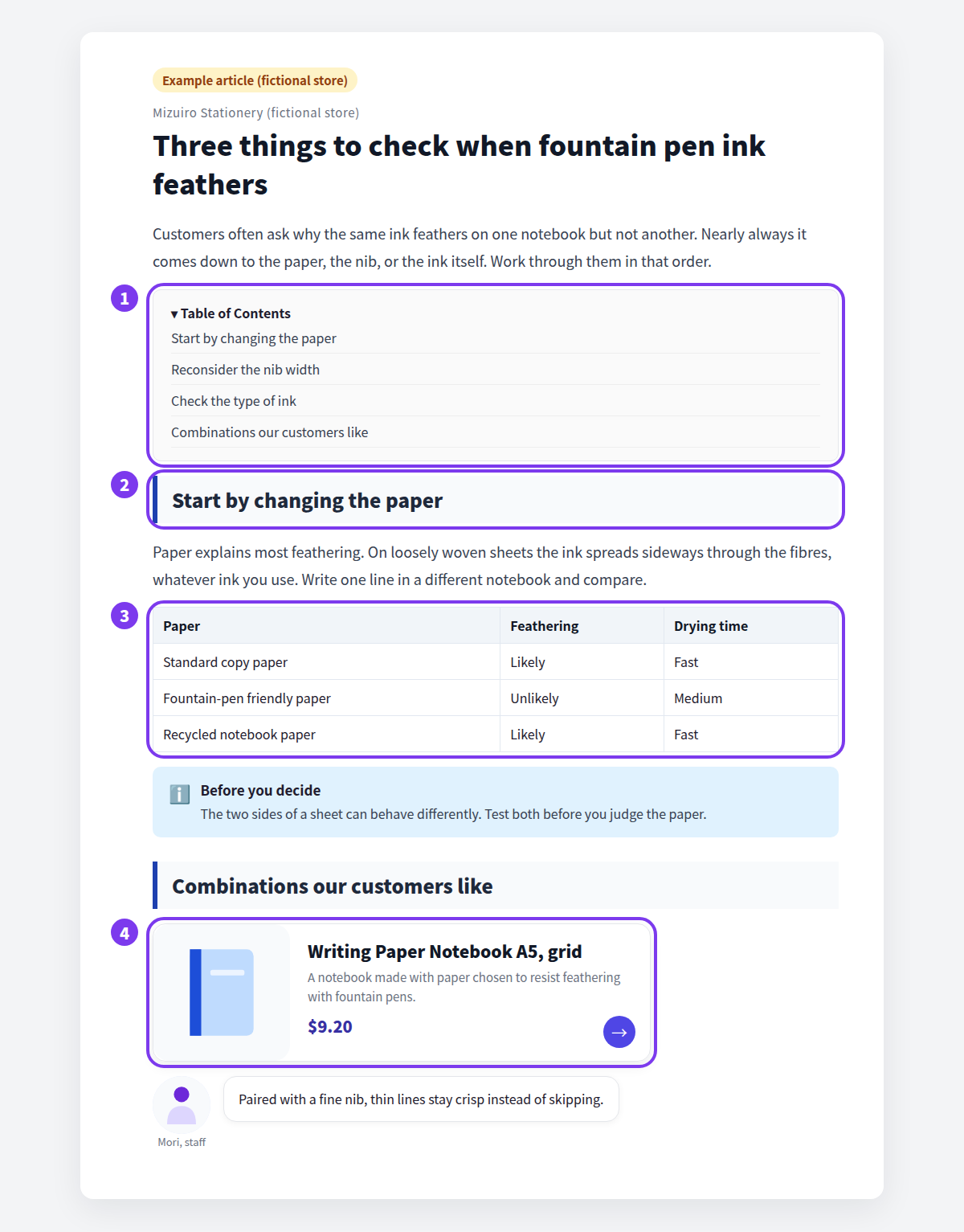
Block by block: How to add products to your Shopify blog, Showing related products with a collection block, and Choosing images for blog posts. Instructions are in Add content to an article.
Checking and publishing
Stores that stall here have a folder of drafts. "It still needs something" usually means no one decided what to check. Decide, and a post takes 10–20 minutes.
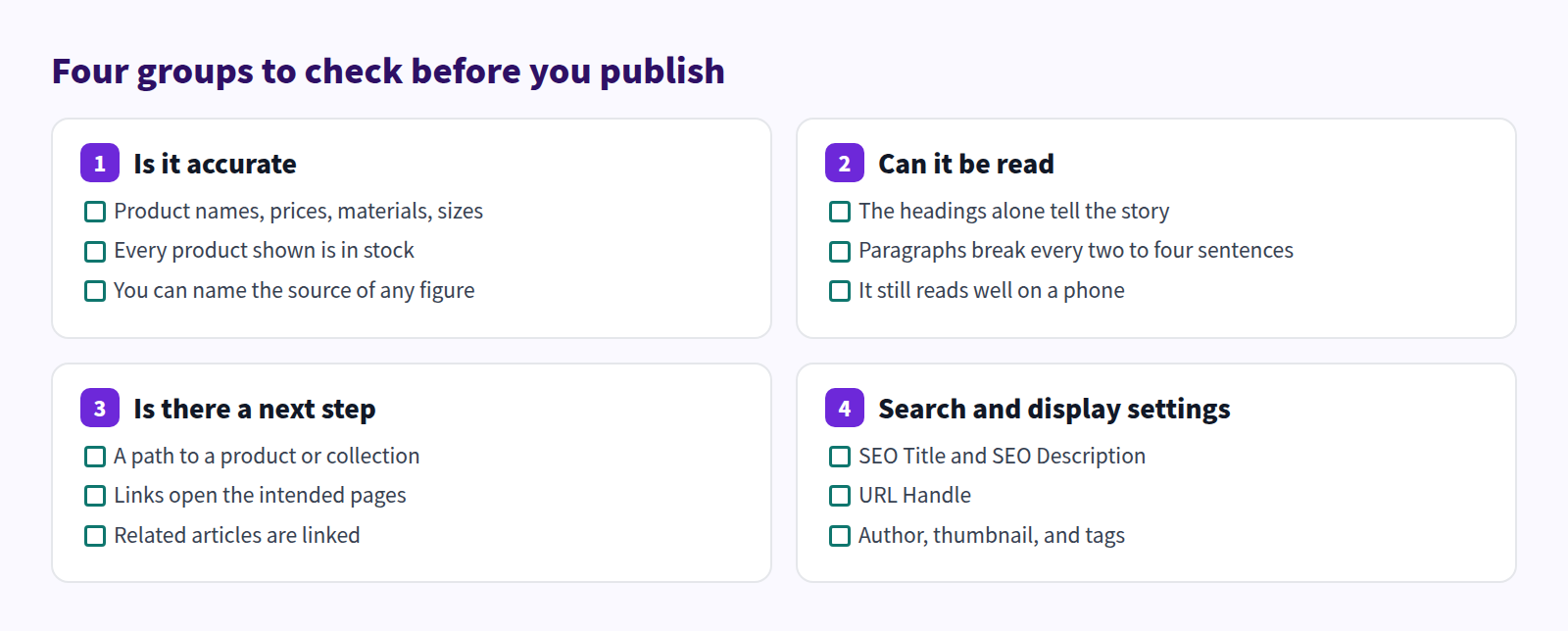
What Shopify does on its own
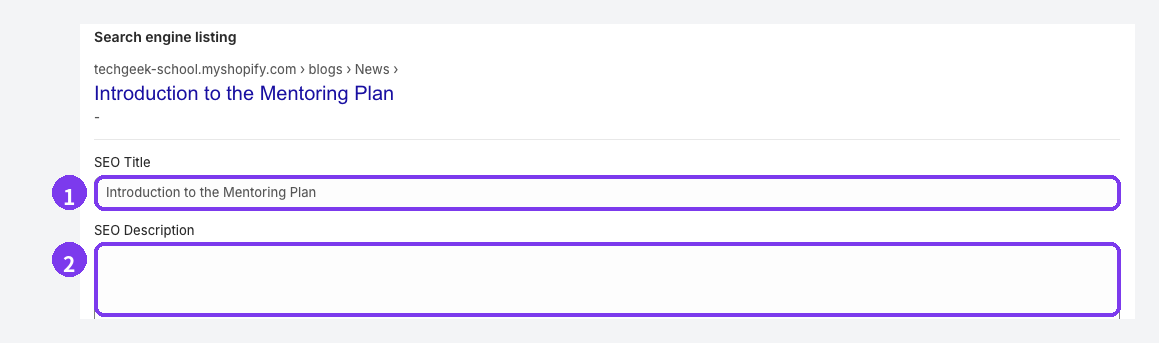
A Shopify blog post lets you set an excerpt, a featured image, the search engine listing (page title, meta description, URL handle), the author, the blog, tags, a theme template, and whether to publish now or schedule it.
Click-through from search is decided by the page title and meta description. Left blank, Shopify falls back to the post title and body, so write the meta description as one or two sentences at minimum. See Shopify blog meta descriptions and Post title vs. SEO title.
One limit worth knowing: the author can only be the store owner or staff with admin access. If you want posts to carry a shop assistant's name, that matters.
What changes with Smart Agent Blog
Choose Hidden in the Visible / Hidden card, save, then select Preview at the top and pick a theme — published or unpublished — to open it in the Shopify theme editor. When it's right, switch to Visible and save. Schedule lets you set a publish date, an unpublish date, or both.
Authors are created under Settings > Authors with a name, image, role, description, and social URLs — separate from Shopify admin access, so the person who wrote the post can be credited.
After publishing, open the storefront article. If the Smart Agent Blog section hasn't been added to your theme, the app's layout won't appear; see Show articles on your store. Checklist details: A pre-publish checklist for Shopify blog posts and Preview and publish an article.
What Shopify on its own already covers
Put back-to-back, the picture is clear. Shopify's built-in tools are enough to write and publish a post: write text, add headings, insert a table, place images, set the search listing, schedule it. None of that needs an app.
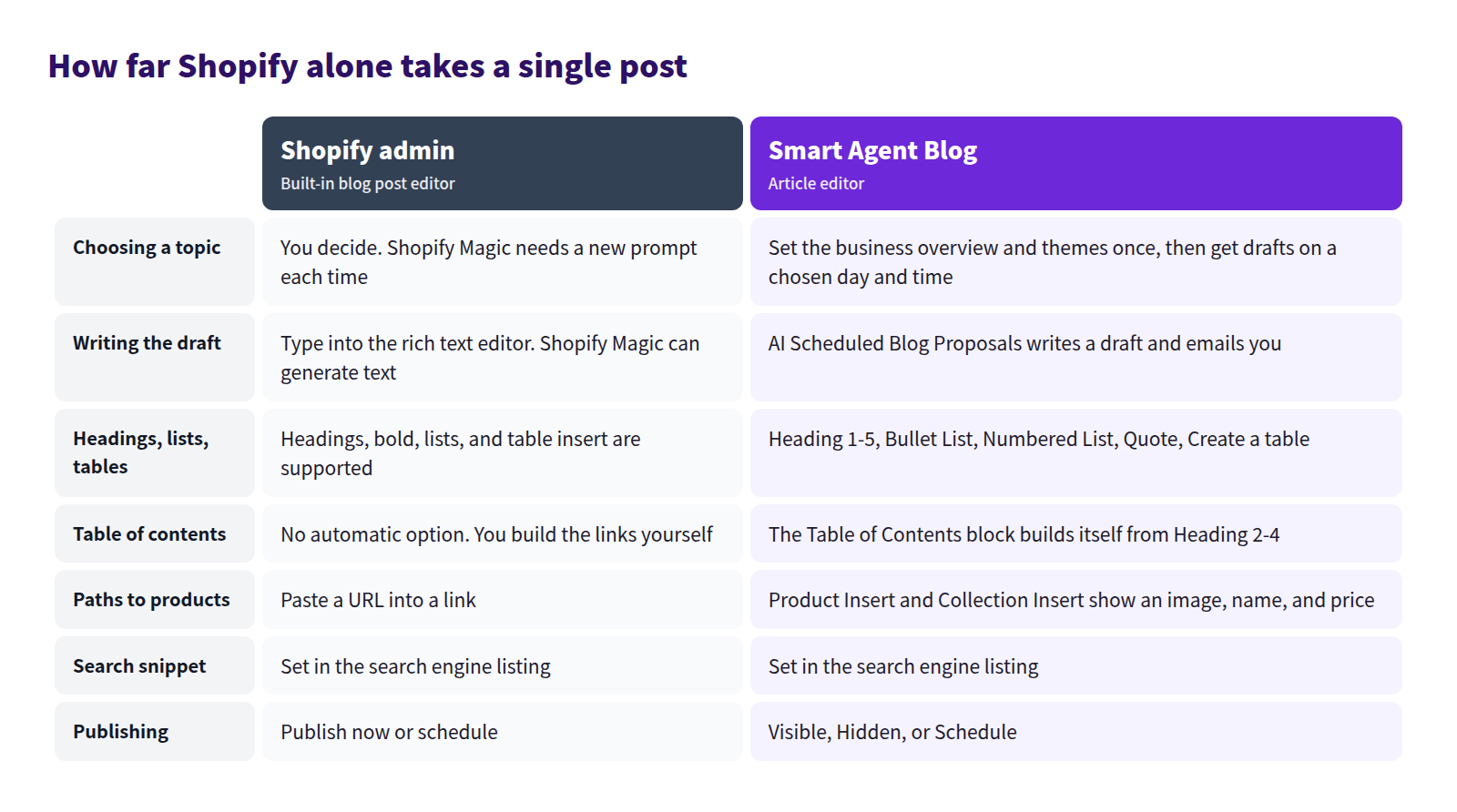
Three gaps remain.
Repetition. Topics and drafts start from zero every time. Fine for post one; identical effort at post ten.
Manual upkeep. A hand-built table of contents and hand-typed product details stay hand-maintained. Twenty posts means twenty things to update.
Author credit. Only admin-level accounts can be named as authors.
If you publish a few posts a year and your catalogue barely changes, Shopify alone is enough. The manual work stops being realistic when you want to keep adding posts.
Where to start
You don't need to change all five stages at once. Pick one first step.
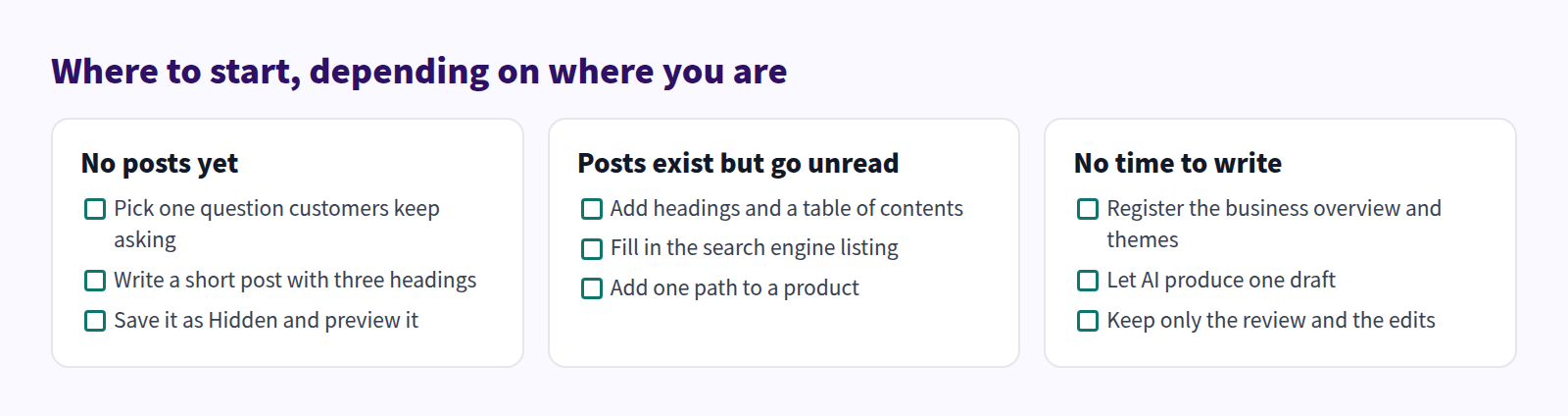
| Where you are | First step | Time |
|---|---|---|
| No blog, or a handful of posts | Pick one frequent question, write three headings, save it Hidden | 60 min |
| Posts exist but go unread | Add headings and a table of contents, fill in the search listing | 30 min each |
| Posts exist but don't sell | Put one product card right after the answer | 15 min each |
| No time to write | Register the Business Overview and themes, get one draft | 30 min once |
For keeping it going, see Shopify blogging best practices. For what to write, Leveraging Shopify Blogs.
FAQ
How long does a post need to be?
There is no word count to hit. The measure is whether the reader's question is answered. A sizing explainer may take 700 words; a seasonal gift guide runs longer because of the products in it. A short post that answers something beats a long one that doesn't.
Can I edit posts created in Shopify admin inside Smart Agent Blog?
Yes. The article list shows the posts stored in Shopify, and you can open any of them and add blocks. Note that on the Free plan, opening a Shopify-created post in Smart Agent Blog and saving it makes it count toward the 10-article limit.
Can I publish an AI draft as it is?
Not recommended. AI writes features a product doesn't have and details nobody verified. Check names, prices, materials, and sizes, and check that the claims are ones your store can stand behind. Then add one line only your staff could write — that is what makes it yours.
Summary
- Posts stall at one of five stages: topic, outline, draft, shaping, pre-publish check — not at writing ability.
- Shopify alone handles headings, tables, images, links, the search listing, and scheduling. Finish one post that way first.
- What stays manual is topic selection and drafting each time, maintaining a table of contents, and building and updating product cards.
- Smart Agent Blog takes over the repetition. The judgement and the review stay with you.
Start by picking one question customers keep asking and writing a short post with three headings, saved as Hidden. Once you've been through the stages, post two follows the same road.