
Somewhere past post thirty, "where did I put that one" starts eating more time than writing does. You rebuild a similar post from scratch because finding the old one takes longer. An outdated price sits in a post nobody has opened in a year.
The short version: Shopify admin's Content → Blog posts is a fine place to write, edit, and delete — but a thin place to search. Shopify's bulk editing feature does not cover blog posts at all, so batch fixes are off the table. Smart Agent Blog's article list adds four tabs, five filters, three sort orders, and a page-view figure on every row.
This guide covers what the built-in admin handles first, then what actually shortens the search.
- What Shopify admin can do with posts, and where bulk actions stop
- Rules for blogs, tags, authors, and titles to set before the list grows
- Filtering, sorting, and the AI-generated badge in Smart Agent Blog
- How to reuse a post format without rebuilding it each time
- A 30-minute monthly pass over the archive
The archive grows; the ways to search it do not
While preparing proposals for Smart Agent Blog in August and September 2026, we reviewed the blogs of 110 Shopify stores in Japan. Sixty-four were actively publishing. About 4 in 10 (42 stores) had no posts, had stopped after a handful, or hadn't posted in over a year.
The 64 that kept going share a different problem. The more posts there are, the harder each one is to find — and posts you cannot find stop getting used. They pick up no internal links and never get corrected.
Management is not tidiness for its own sake. It is what makes "reuse the one I wrote last spring" and "fix the price in that old post" into five-minute jobs.
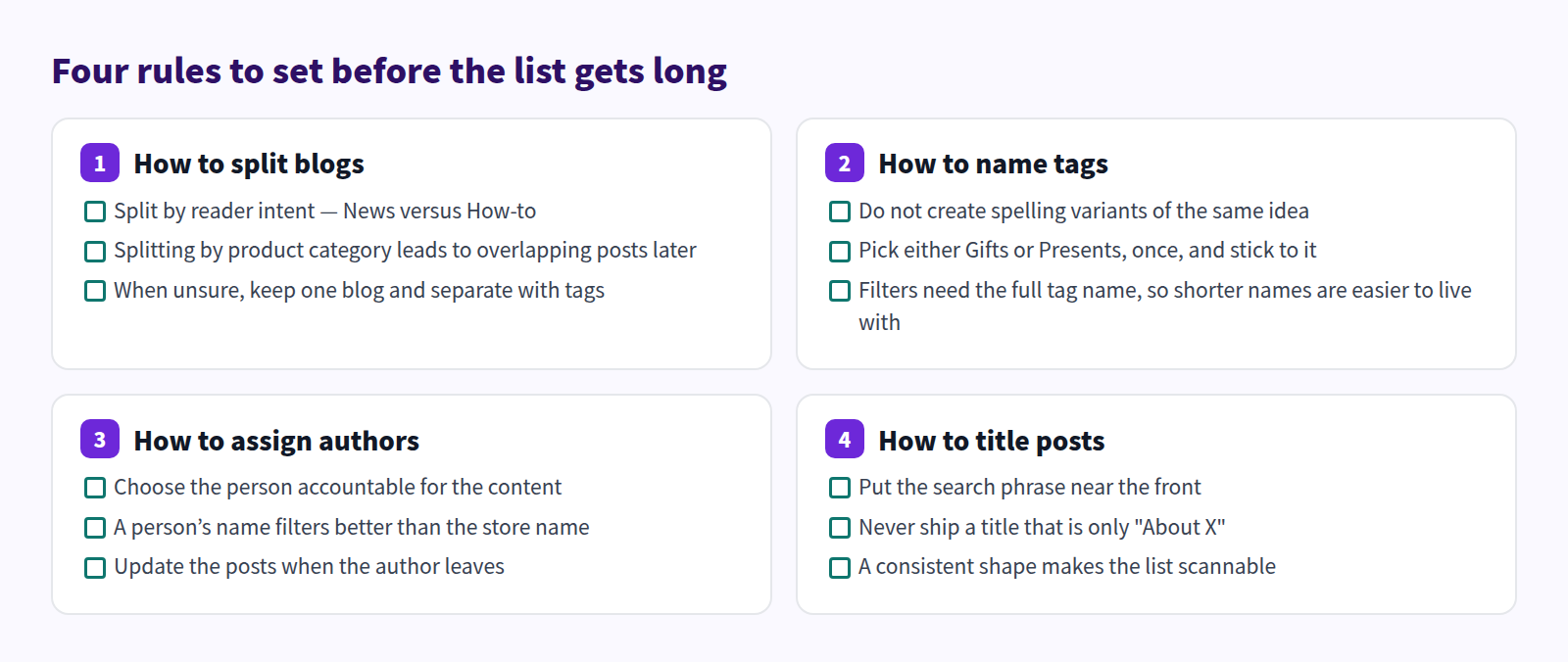
Tags are the expensive one to fix later. Once both "Gifts" and "Presents" are in circulation, every filter returns half the posts. Consolidating overlapping posts and tags goes into this.
What Shopify does on its own
Content → Blog posts in Shopify admin is where posts actually live.
Open, edit, delete
- Open Content → Blog posts.
- Select a post title to open the editor.
- Make your changes and select Save.
- To remove a post, open it, select Delete blog post, and confirm.
Visibility and scheduling
The Visibility section of the post editor sets Visible or Hidden, and lets you schedule publication for a future date. Scheduling campaign posts covers how to plan around it.
Organising with blogs and tags
Shopify lets you create several blogs. A post belongs to exactly one blog and can carry any number of tags.
- Blog: separate things readers come for differently — News versus How-to
- Tags: separate topics inside one blog — Gifts, Care, Staff picks
Too many blogs means more storefront navigation to maintain. When in doubt, keep one blog and separate with tags.
Bulk editing does not cover blog posts
Worth knowing before you plan around it. Per the Shopify Help Center, the bulk editing feature is not compatible with blog posts, pages, or URL redirects. Bulk actions exist for orders, drafts, abandoned checkouts, products, transfers, inventory, collections, gift cards, customers, discounts, and files.
For blog posts, that means:
- No selecting several posts and publishing or hiding them together
- No re-tagging a group of posts in one pass
- Every change is one post, opened individually
Re-tagging a hundred posts means opening a hundred posts. Which is exactly why the tag and blog rules are worth settling on day one.
Reusing a post format
There is no duplicate button for blog posts, so copy the body instead.
- Open the post you want to base the new one on.
- Select Show HTML in the body toolbar and copy all the markup.
- Select Add blog post to create a new post.
- In the new post, select Show HTML and paste.
- Switch back to the normal view and replace the content.
Keeping one hidden post as a template — heading order, where the warning sits, nothing else — means you always have something clean to copy. Shopify blog HTML editing explains what happens to markup on save.
Where the built-in list runs out
- The list does not tell you which posts get read
- Nothing marks a post as AI-drafted after the fact
- Filtering by author or tag is not part of the workflow
The Smart Agent Blog article list
The Smart Agent Blog Articles screen lists the same blog posts stored in Shopify, in a form built for finding them.
Four tabs

| Tab | What it shows |
|---|---|
| All | Both visible and hidden posts |
| Visible | Live on the storefront right now |
| Hidden | Not shown to customers |
| AI-generated | Posts created by Smart Agent Blog's AI |
The Hidden tab is where stalled drafts surface. A pre-publish checklist covers what to confirm before moving one to Visible.
Filters
Filters add Status, Tags, Blog, Author, and AI-generated as conditions. Applied filters sit above the list and can be removed one at a time or all at once.
Tags and authors need the full name, not a fragment. "Gif" will not match "Gifts" — type the name exactly as it is registered.
Title search does not filter as you type. The list updates when you run the search. If nothing comes back, use fewer words.
Sorting, and page views on every row

You can sort by Updated At, Published At, or PV (30 days) — dates newest or oldest first, page views highest or lowest first.
Each row carries the thumbnail and title, status, author, blog, PV (30 days), updated date, published date, and a View analytics button. Having page views in the list at all is the biggest departure from the built-in admin. On reading those numbers, see why page views alone are not enough.
Spotting AI-drafted posts

Posts created by AI carry an AI-generated badge under the title. Combined with the AI-generated tab, that gives you one place to review every AI draft, so none slips through mixed in with hand-written posts.
What it does not do
The Smart Agent Blog article list has no bulk publish, no bulk delete, and no scheduled-only filter. Use Content → Blog posts in Shopify admin for deletion. The list paginates at 20 posts. Full details are in find and open articles.
The two screens, side by side
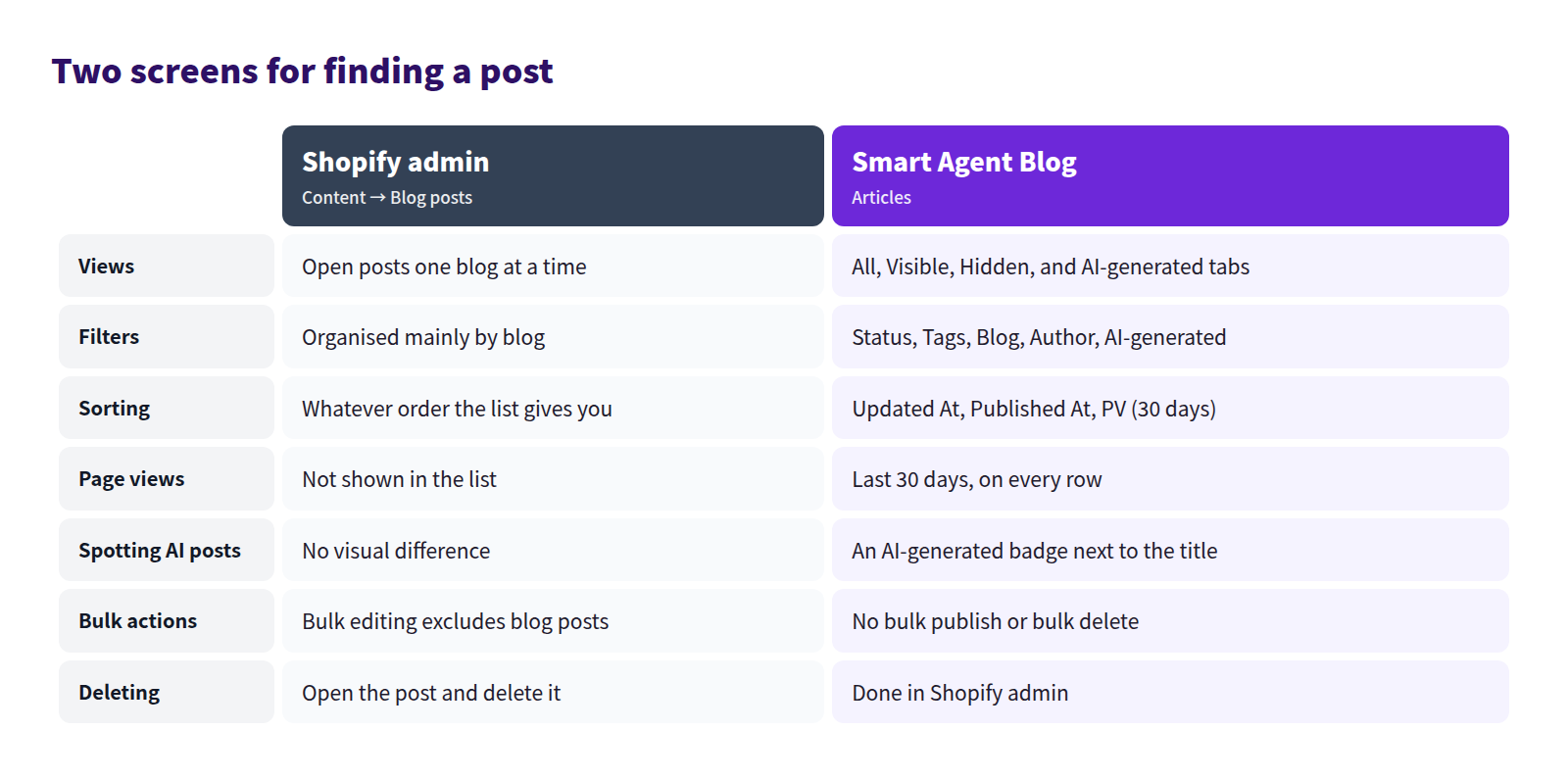
In practice: delete in Shopify admin, search in the Smart Agent Blog article list.
A monthly pass
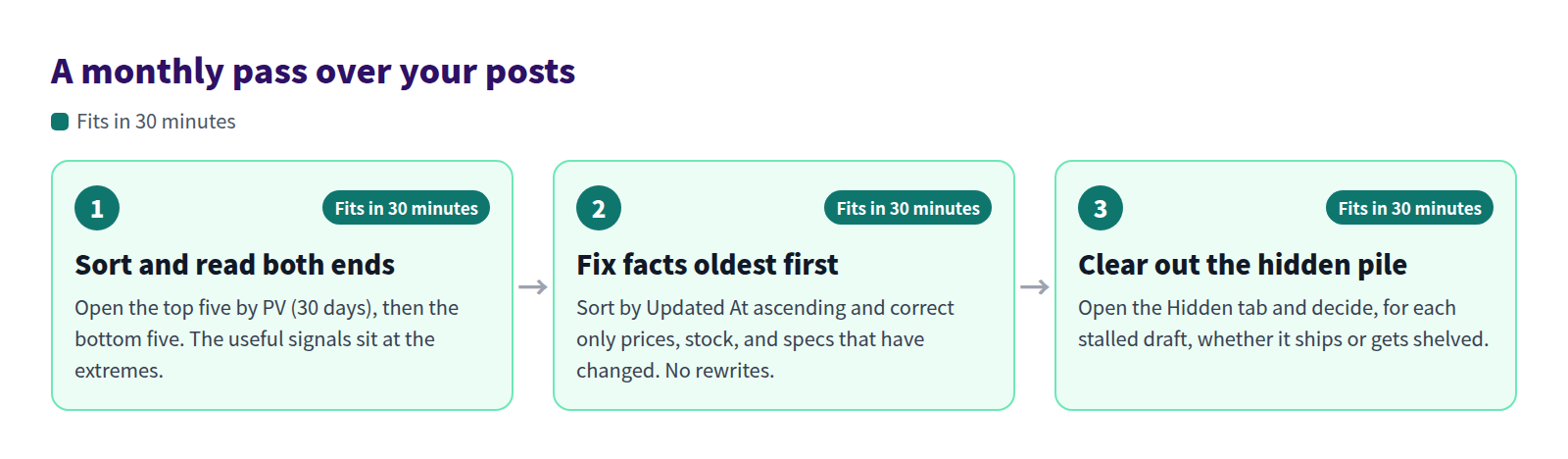
You do not reread everything. Read the two ends and the oldest. Well-read posts earn a product link or a related-post link. Ignored posts get a new title or fold into another post. For posts about products that sold out, see handling sold-out products in blog posts; for deciding between a new post and a revision, new post or update?.
On connecting posts to each other, see internal linking in a Shopify blog. The operating picture is in Shopify blogging best practices, and if the archive has gone quiet, restarting a Shopify blog that stopped updating.
FAQ
Can I publish or hide several posts at once?
No. Shopify's bulk editing does not cover blog posts, and the Smart Agent Blog article list has no bulk publish or bulk delete. Posts change one at a time.
Do posts created in Shopify admin appear in the article list?
Yes — the list shows blog posts stored in Shopify. On the free plan, note that opening and saving one in Smart Agent Blog makes it count toward the app's article limit. See plans and usage limits.
What happens when I delete a post?
Deleting in Shopify admin removes it from the storefront, and the URL stops resolving for anyone who had it bookmarked or linked. If anything points to that post from outside, hide it or merge it into another post instead.
Summary
- Shopify's bulk editing excludes blog posts, so plan on editing one at a time
- Settle blog, tag, author, and title rules before the archive grows
- The Smart Agent Blog article list adds four tabs, five filters, three sort orders, and per-row page views
- Reuse formats by copying the markup out of a hidden template post
Start by opening the Hidden tab and counting how many drafts stalled there. That number usually explains the rest.