
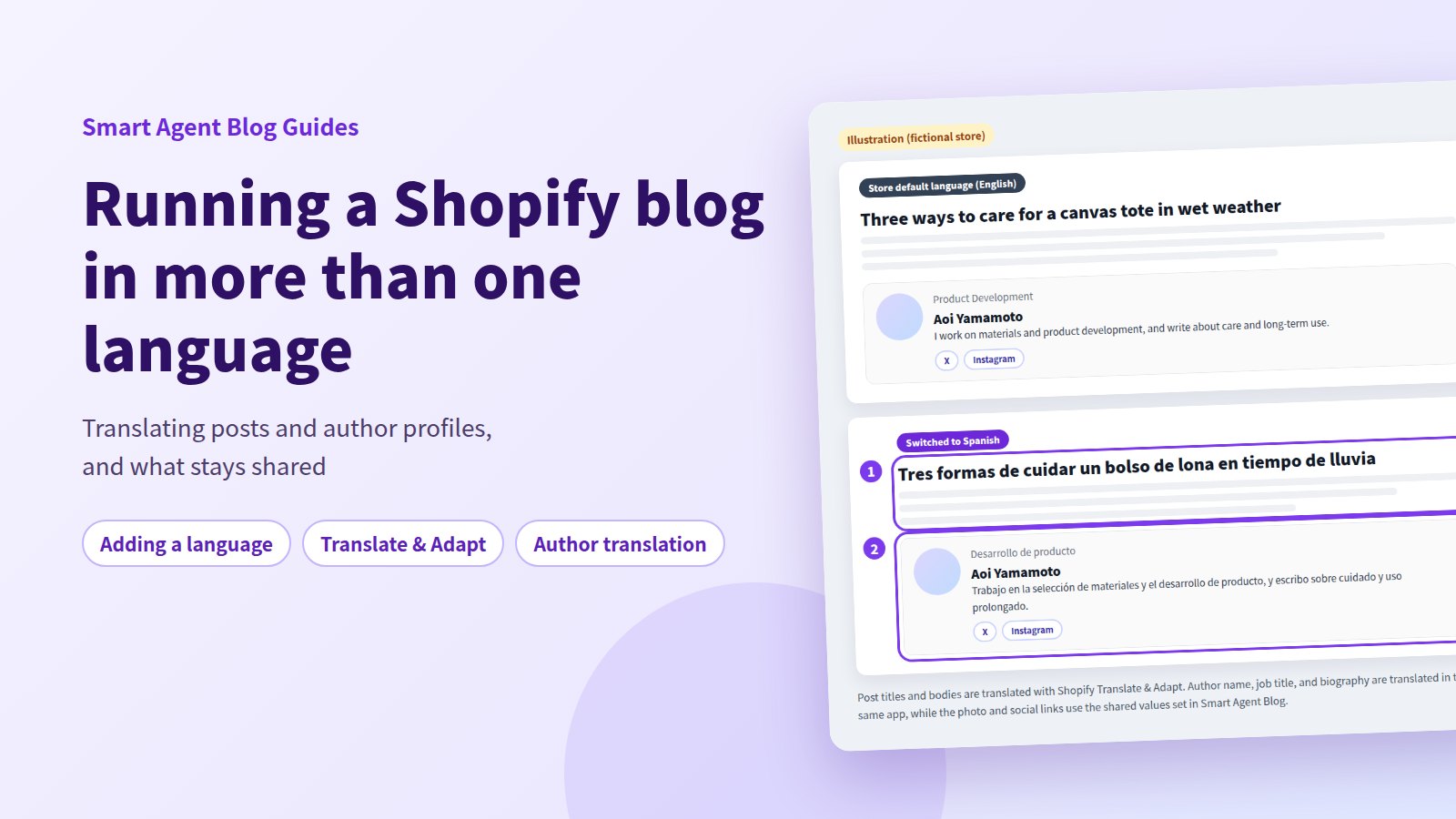
You added a second language, and the blog posts stayed in the original one. Or the posts translated fine and the author's name and job title didn't. Half-translated pages are the normal failure mode for multilingual store blogs.
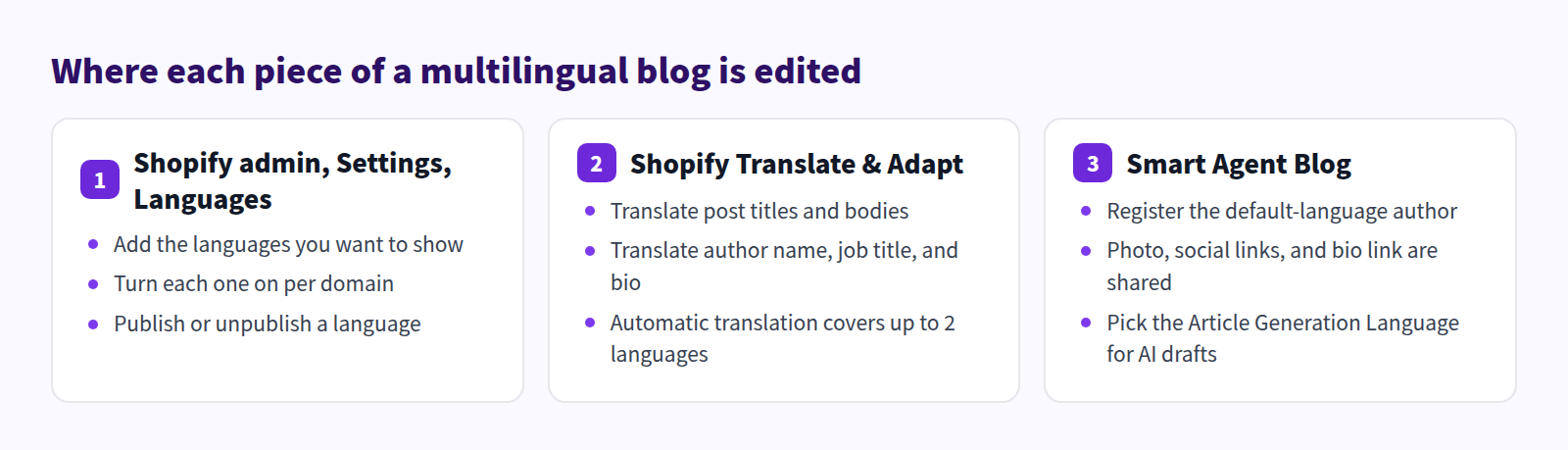
The reason is structural: translation happens in three different places. Languages themselves live in Shopify's Settings → Languages. Post content lives in Translate & Adapt. Anything an app added follows that app's own rules.
Smart Agent Blog author profiles are translated with Shopify's Translate & Adapt, and you never create a second author for a second language. This guide covers the Shopify side first, then the author workflow end to end.
- How to add and publish a language on a Shopify store
- What Translate & Adapt can and cannot translate
- How to show a Smart Agent Blog author in each storefront language
- Which author fields are translated, and which are shared across languages
- What to re-check after editing the default-language version
Half-translated pages are obvious to readers
While preparing proposals for Smart Agent Blog in August and September 2026, we reviewed the blogs of 110 Shopify stores in Japan. About 4 in 10 (42 stores) had no posts, had stopped after a handful, or hadn't published in over a year.
Multiply that workload by the number of languages you support and you can see the problem. Write it, translate it, then keep both versions current. Deciding exactly what needs translating before you start is what makes the routine survivable.
The usual failure states look like this:
- The post title and body are in English, but the author's name is still in the source language
- The post translated fine, but the search listing title and description didn't
- Someone created a separate author per language, and now every post needs the right pairing
What Shopify handles on its own
Start with an accurate picture of the built-in setup.
Adding a language
- In your Shopify admin, open Settings → Languages.
- Select Add language.
- Choose the language from the list.
- Turn on each domain where it should be available.
- Finish.
Adding is not publishing. In the language table, open the menu next to the language and select Publish to make it visible on the storefront. The same menu unpublishes it, and Shopify recommends creating a redirect to a 404 for a language you take down.
URLs and domains per language
Language-specific URLs take a subfolder form like example.com/de or a subdomain form like de.example.com. To manage languages for a specific market, configure international domains under Markets.
Blog post URLs follow the same shape, so the article's own URL handle does not change per language.
Translating the posts
Shopify supports two routes:
- Shopify's own Translate & Adapt app, or a compatible third-party translation app
- Importing translations from a CSV file
Translate & Adapt covers products, collections, blog posts, policies, and pages. Post titles are included.
Automatic translation is limited to two languages. Beyond that you enter translations manually or bring in another app. Manual translation works from the Translate & Adapt app directly, or from the content page you want to translate.
The translation steps
- From your Shopify admin, open Apps → Translate & Adapt.
- Choose the target language.
- Choose the content type — blog posts.
- Open the post and fill in the fields shown.
- Save.
Only fields that Translate & Adapt displays can be translated. If the search listing title and description appear, translate those too — they decide whether anyone clicks in that language. See post titles vs. SEO titles and writing meta descriptions.
Where the built-in setup stops
Shopify's languages plus Translate & Adapt will get your posts translated. What remains:
- Information added by an app stays in the original language unless that app supports translation. Author profiles are the usual example.
- Automatic translation covers two languages; the rest is manual.
- The more posts you have, the harder missing translations are to spot.
- Editing the source text can leave the translation silently out of date.
The first one bites hardest. A post reading fluently in English with the author's name and job title in another script looks unfinished, and readers notice.
Showing a Smart Agent Blog author in each language
Author profiles created in Smart Agent Blog are translated with Translate & Adapt. Switch the storefront language and the name, job title, and biography follow.
Create the default-language author first
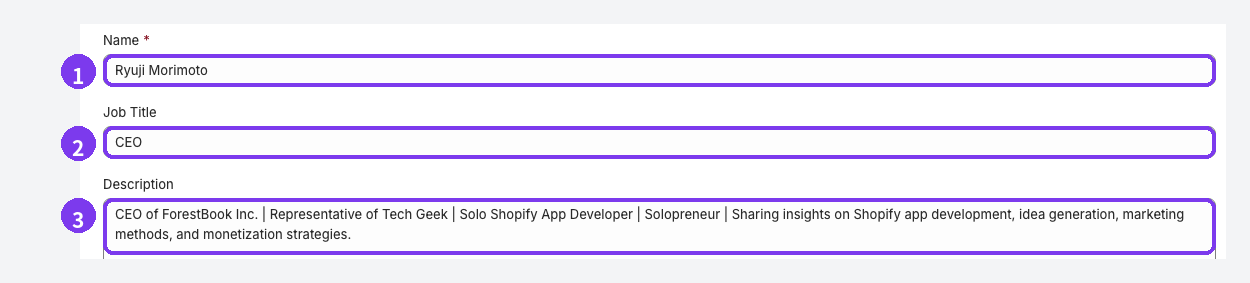
Create the author under Settings → Authors in Smart Agent Blog. Three fields matter here:
- Name (required) — used to tie the author to posts, so keep it unique.
- Job title — something that says what they do, like "Product Development."
- Description — one or two sentences on what they write about.
Registering the author itself is covered in author profiles on a Shopify blog and in Register an author.
Never create one author per language
This is the part worth getting right. Do not create a separate author in Smart Agent Blog for each language. Keep one profile and add its translations in Translate & Adapt.
Duplicating the author per language means every post needs the right pairing, and that breaks down quickly as the blog grows.
Translated fields vs. shared fields
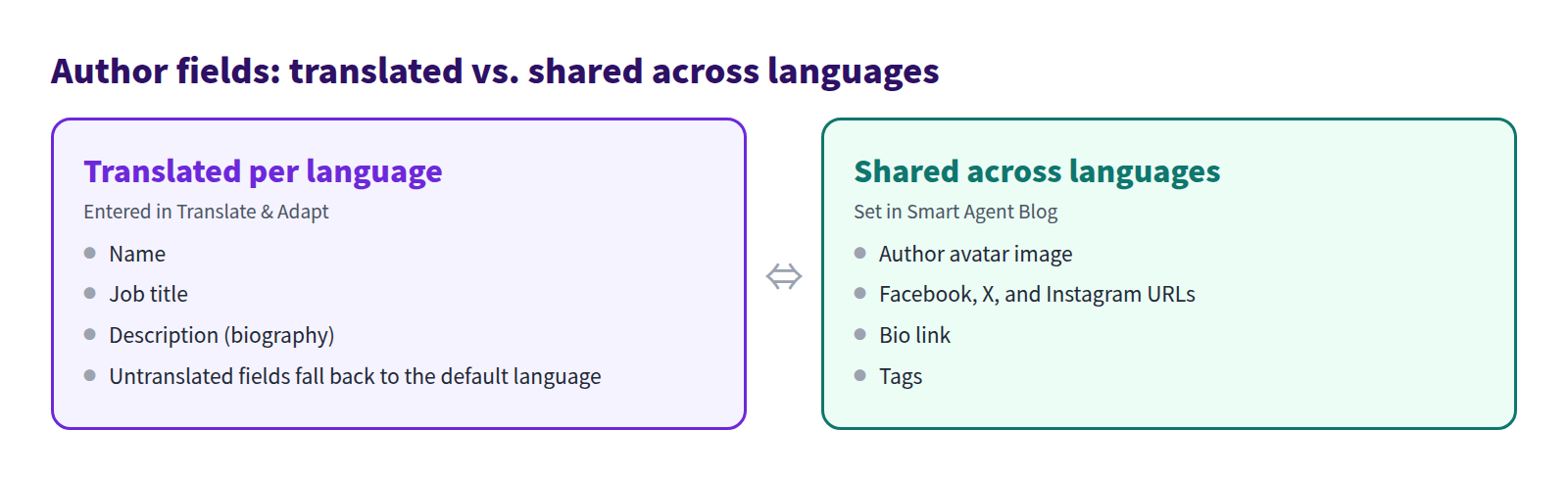
Fields with no translation input in Translate & Adapt — the photo, the social URLs — keep the shared value from Smart Agent Blog. Since the social accounts are the same everywhere, that's the right behaviour.
Where a translation hasn't been entered, Shopify shows the default-language content. A partially translated profile degrades gracefully rather than breaking.
The workflow
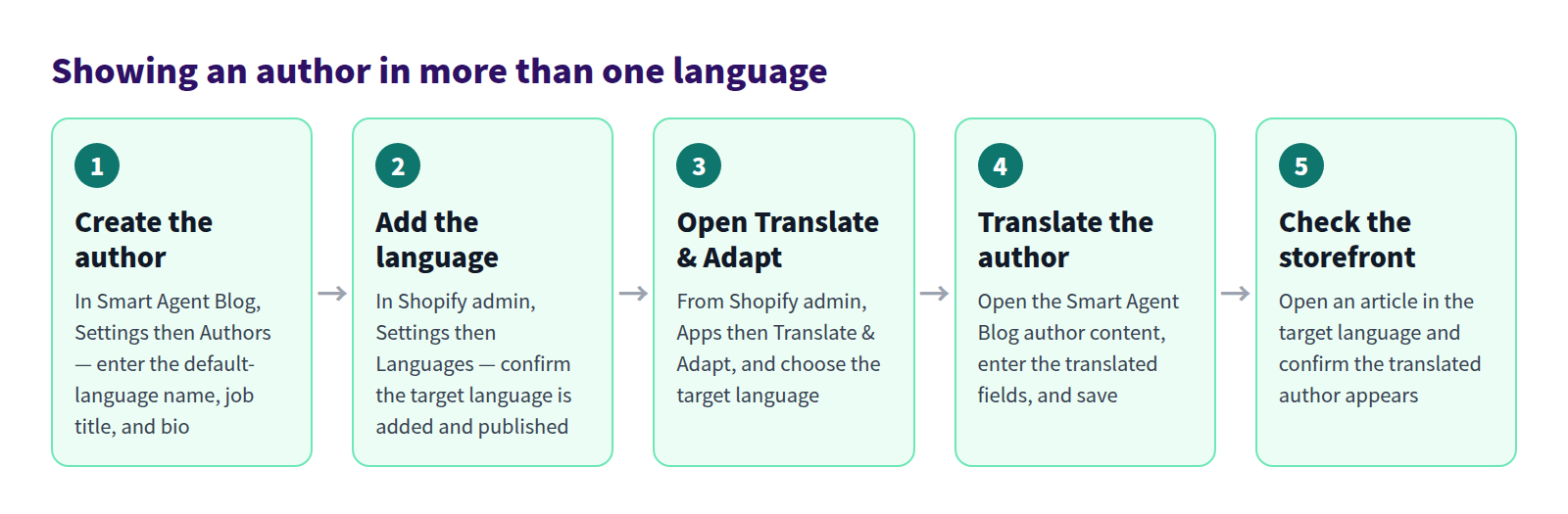
If the author isn't visible in Translate & Adapt, search for the name as written in the store's default language. Treat automatic translation as a draft: check names, proper nouns, and job titles before saving.
Full instructions are in Show authors in multiple languages.
Check the storefront
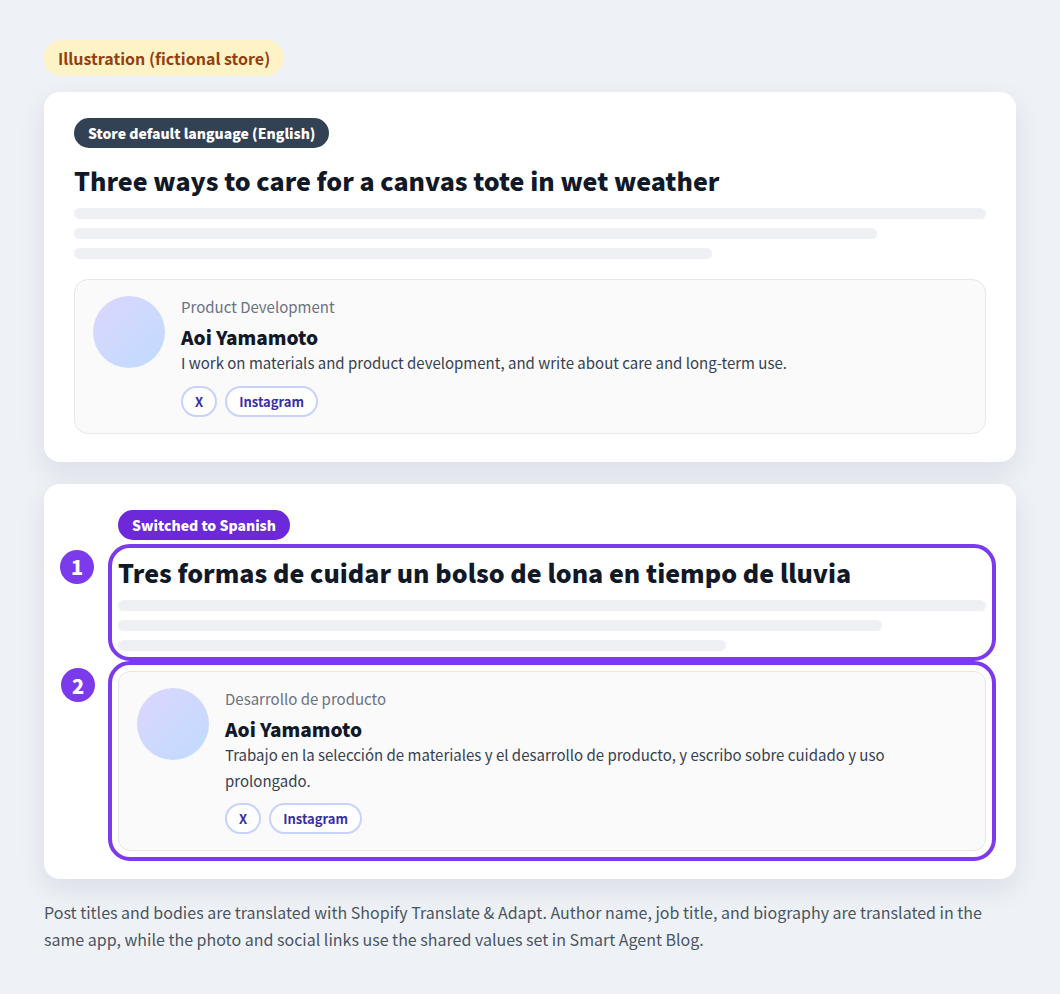
- Post title and body — whatever you entered in Translate & Adapt.
- Author name, job title, and description — also from Translate & Adapt. The photo and social links use the shared values.
After confirming the translated language, switch back to the default and confirm the source profile still appears.
If the author doesn't show at all, the cause is usually the theme rather than the translation. Select the Smart Agent Blog section in the theme editor and pick a position under Select Author Display Method. See Display articles on your store.
Choosing the language for AI drafts
Smart Agent Blog's AI Scheduled Blog Proposals includes an Article Generation Language setting, so you can pick the language a draft is written in. Running one schedule in your primary language and another for a second market is a reasonable setup. The settings are listed in Set up AI Scheduled Blog Proposals.
As always, nothing generated goes live unreviewed — and in a second language, it needs review by someone who reads that language.
After you edit the source text
Changing an author's name, job title, or biography in Smart Agent Blog can leave an existing translation out of date.
Open Translate & Adapt after any such change and look for translations marked as out of sync. Update them, then check the storefront again.
When a translation doesn't appear, work through this list:
- The target language is published under Settings → Languages in Shopify admin.
- You edited the correct language and the correct author in Translate & Adapt.
- You waited a few minutes after saving and reloaded the page.
- The article you're viewing has that author assigned.
- The storefront is actually showing the target language.
Before you publish
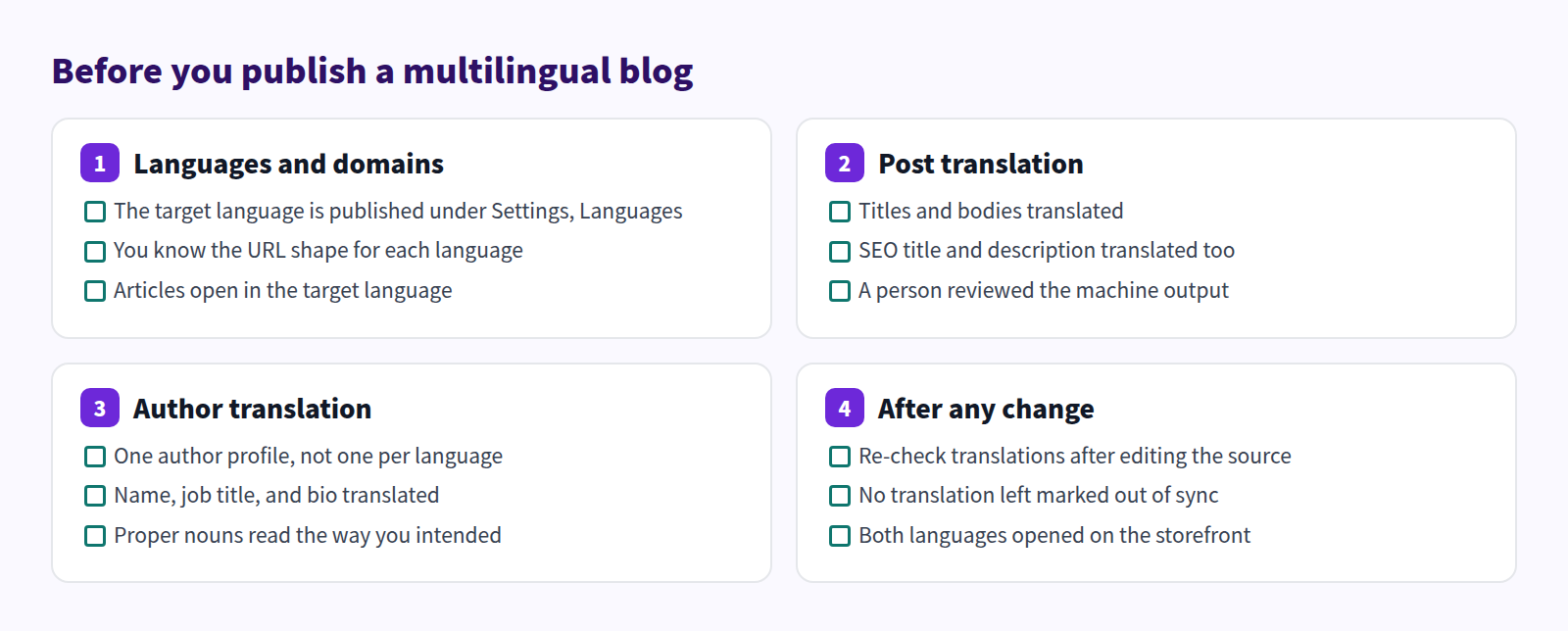
Once you have a few dozen posts, use the article list filters to review by author or by blog — missing translations are much easier to spot that way. See managing Shopify blog posts and Find and open articles.
Questions we get
Should I create a separate author per language?
No. Keep one author profile and add translations in Translate & Adapt. Duplicating the profile forces a per-post decision that gets worse as you publish more.
Can the photo or social links differ by language?
No. The avatar, social URLs, and bio link are shared across every language. Only fields with a translation input in Translate & Adapt can vary.
Can I support three or more languages?
Shopify lets you add more languages, but automatic translation is limited to two. Beyond that you enter translations manually or use a compatible third-party app. Because the manual work grows quickly, add languages in the order your sales actually justify.
In short
- Three places do the work: Shopify's Languages settings, Translate & Adapt, and Smart Agent Blog
- Post titles and bodies are translated in Translate & Adapt; automatic translation covers two languages
- Translate the Smart Agent Blog author rather than duplicating the profile per language
- Photo, social links, and bio link are shared; untranslated fields fall back to the default language
- Re-check translations whenever you edit the source text
The wider acquisition picture is in the Shopify blog marketing guide, and search data in the Shopify blog SEO report guide. Start with one author, one language.