
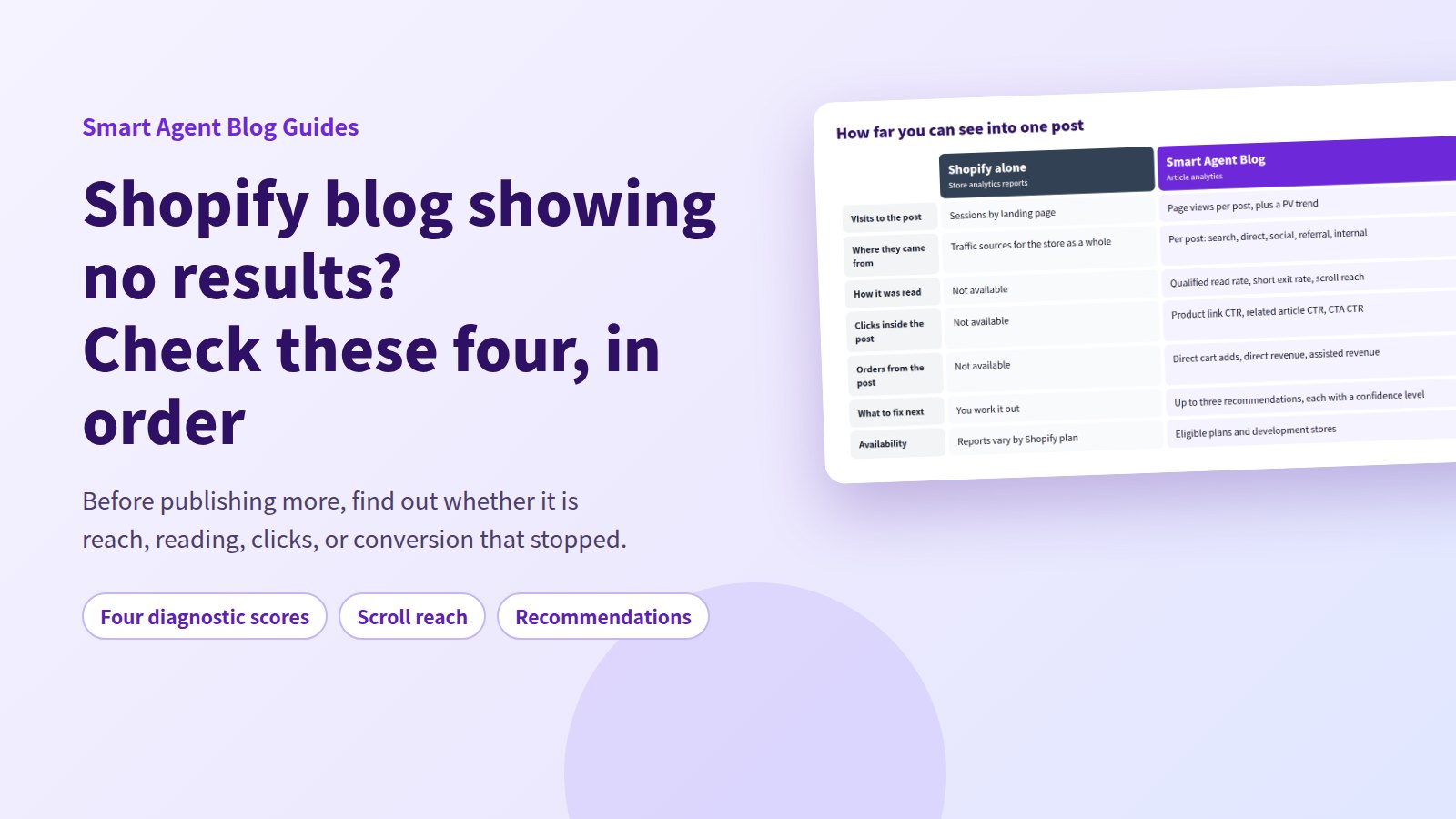
Twenty posts published. The cadence held. Sales look exactly the same. The worst move available at this point is "write more." Scaling a format that is not working turns twenty things to fix into forty.
"No results" is four separate problems sharing one phrase. Nobody arrives. People arrive but leave early. People read it all and click nothing. People click and do not buy. Those four are fixed in completely different places, and guessing wrong costs a quarter.
This guide sets the order to check them in, then shows what Shopify's own reports tell you and where article-level measurement takes over.
- The order to split "no results" into four checkable questions
- What Shopify's built-in reports tell you about a single post
- How to read goal achievement and the four diagnostic scores
- What to change next, depending on which score is low
- When the data is too thin to draw any conclusion
Decide which of the four stopped
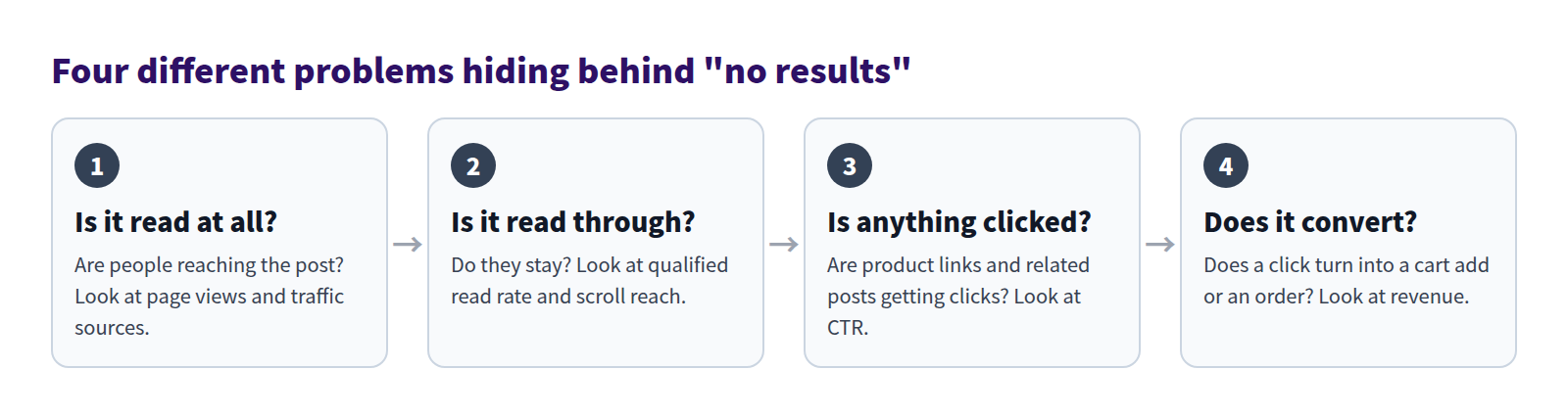
The order matters. Fixing number three while number one is broken just adds buttons nobody sees. The reverse is more encouraging: if one and two are healthy and three is where it stops, you do not need a single new post. You need a path out of the post you already have.
Most stores stop at number three
While preparing proposals for Smart Agent Blog in August and September 2026, we reviewed the blogs of 110 Shopify stores in Japan. Of the 88 posts we recorded, 66 (75%) had no link from the body to a product page.
Across the 113 posts we recorded, not one used a card pulling together a product's name, image, and price.
In other words, the common failure is not quality or quantity — it is that a reader who finishes the post has nowhere to go. Adding product information to blog posts covers the fix.
What Shopify does on its own
Without any app, you can answer question one and part of question four.
Find out how many people reached the post
Shopify admin's Analytics section includes reports on store activity. The ones that say something about an individual post:
| Report | What it tells you |
|---|---|
| Sessions by landing page | Which page was opened first. Your post URL shows how many arrived there |
| Sessions by device | The desktop-to-phone split |
| Conversion rate breakdown | Store-wide, how browsing turns into orders |
Which reports you can open depends on your Shopify plan. Go to Analytics → Reports and search by report name.
- Open Analytics in Shopify admin.
- From Reports, open the Sessions by landing page report.
- Set the period to last month.
- Look only at URLs containing
/blogs/. - Write down the posts with real session counts and the ones sitting near zero.
A post with almost no sessions will not be helped by better writing. That is an entrance problem.
Fix how it looks in search results
If search is not sending anyone, revisit Search engine listing in the post editor. SEO Title and SEO Description change how the result reads. Leave SEO Title blank and the post title is used as-is.
Whether the post appears in results but goes unclicked is a Google Search Console question. Improving search click-through on Shopify blog posts covers the thinking.
Build a path from post to product
Insert link attaches a product URL to a phrase in the body. The built-in editor cannot produce a product card, but a plain text link still beats the nothing that 75% of the posts we reviewed offered.
Where the built-in reports run out
Shopify alone will not tell you, for one post:
- How far down the page people got
- What share left within seconds
- Which link inside the post was clicked
- Whether someone who read it eventually bought
Which means you cannot separate two from three. Past this point you need per-post measurement.
Article analytics in Smart Agent Blog
Article analytics shows the result for one post and what to work on next. Open it from View analytics at the end of a row in the article list, or from the top of a saved post's editor. It is available on eligible plans and development stores.
Article purpose and goal achievement
Article analytics switches which metrics matter, and how heavily, based on the article's purpose: SEO and acquisition, Education and editorial, Product guide or comparison, and Campaign. AI picks one from the content at first; if it does not match, select Edit, choose the right purpose, and select Change and reanalyze.
The same post scores differently under a different purpose. Judge a reading piece as a product guide and of course it scores badly. Deciding what a post is for covers this choice.
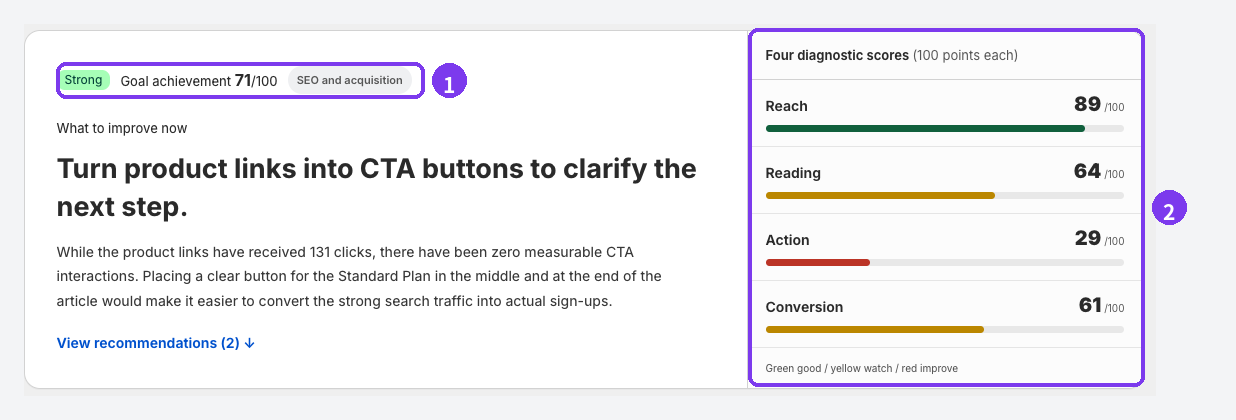
- Goal achievement: a 0–100 figure combining the metrics tied to the chosen purpose. The badge reads Strong at 70 or above, On track at 50 or above, Improvement opportunity below 50, and Collecting data when there is not enough to judge.
- Four diagnostic scores: Reach (how many read it), Reading (whether they stayed), Action (whether links and buttons were clicked), Conversion (whether it led to cart adds or orders). These map one-to-one onto the four questions above.
Green is good, yellow is watch, red is improve. Scores are relative to your other posts with the same purpose, so with few comparable posts you will see Collecting data instead of a number.
How it was read, and what was clicked
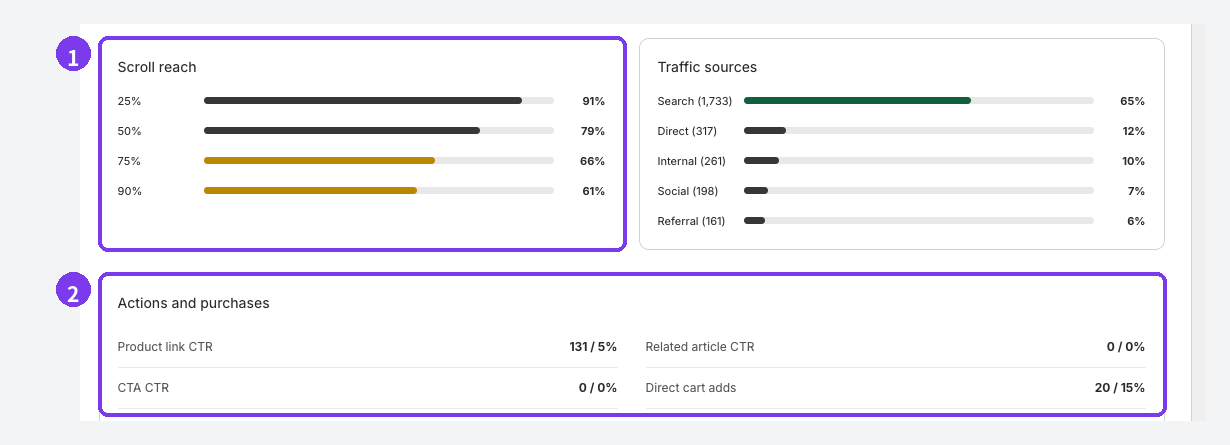
- Scroll reach: the share of views that got 25%, 50%, 75%, and 90% of the way down. A big drop between 50% and 75% usually means something around there is hard going. See reading scroll depth on Shopify blog posts.
- Actions and purchases: product link CTR, related article CTR, CTA CTR, direct cart adds, direct revenue, assisted revenue, direct purchases. If product links go unclicked, see when nobody clicks your product links; if they get clicked but nothing sells, clicks that do not turn into orders.
Alongside these sit PV, measured views, measurement coverage, average active reading time, qualified read rate (reached 90% and spent real time there), short exit rate (left within 10 seconds with almost no movement), return rate, and traffic sources.
It tells you what to change
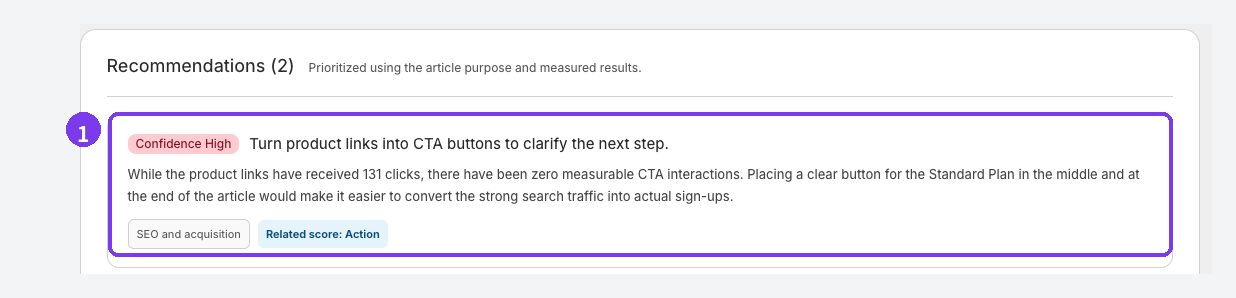
Up to three prioritised recommendations appear, drawn from the purpose and the measured results. Each carries a confidence level (high, medium, low), the recommendation, the reasoning, and the related score.
Change one thing, then wait for the next period's numbers. Fix three places at once and you will never know which one worked. Measuring whether a change helped covers the method.
When not to conclude anything
Low-confidence recommendations show up when there is not much data yet. The same applies to anything marked Collecting data — wait and look again. Do not draw conclusions from a post published last week. What to do while analytics is still collecting data covers the waiting period.
One clarification: there is no "SEO score" in article analytics. Judgement comes from the four diagnostic scores and goal achievement. Full detail is in view article analytics.
Hand the rewriting to AI
Once you know the direction, it maps onto the AI Rewrite strategies: CTR Improvement (shown in search, rarely clicked), Engagement Improvement (opened, then abandoned), Freshness Update (not updated in a long time), and Conversion Improvement (read, but not converting). Start on Approval required (Recommended) so you compare before and after before anything is applied. AI Rewrite is a paid-plan feature. See refreshing posts with AI and using AI Rewrite.
What to do next, by score
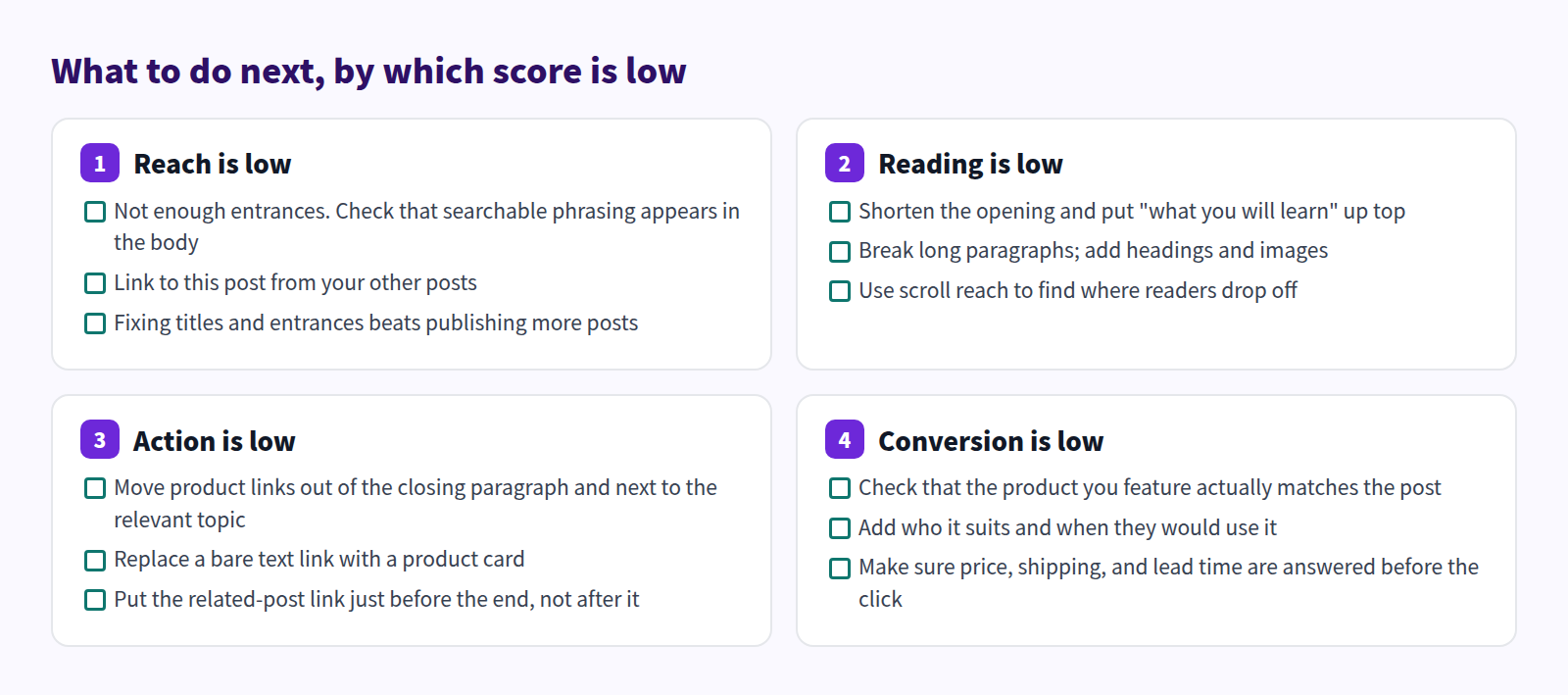
One change at a time, one place per post. For the wider view of the numbers, see why page views alone are not enough; for the operating picture, Shopify blogging best practices.
Built-in reports and article analytics, compared
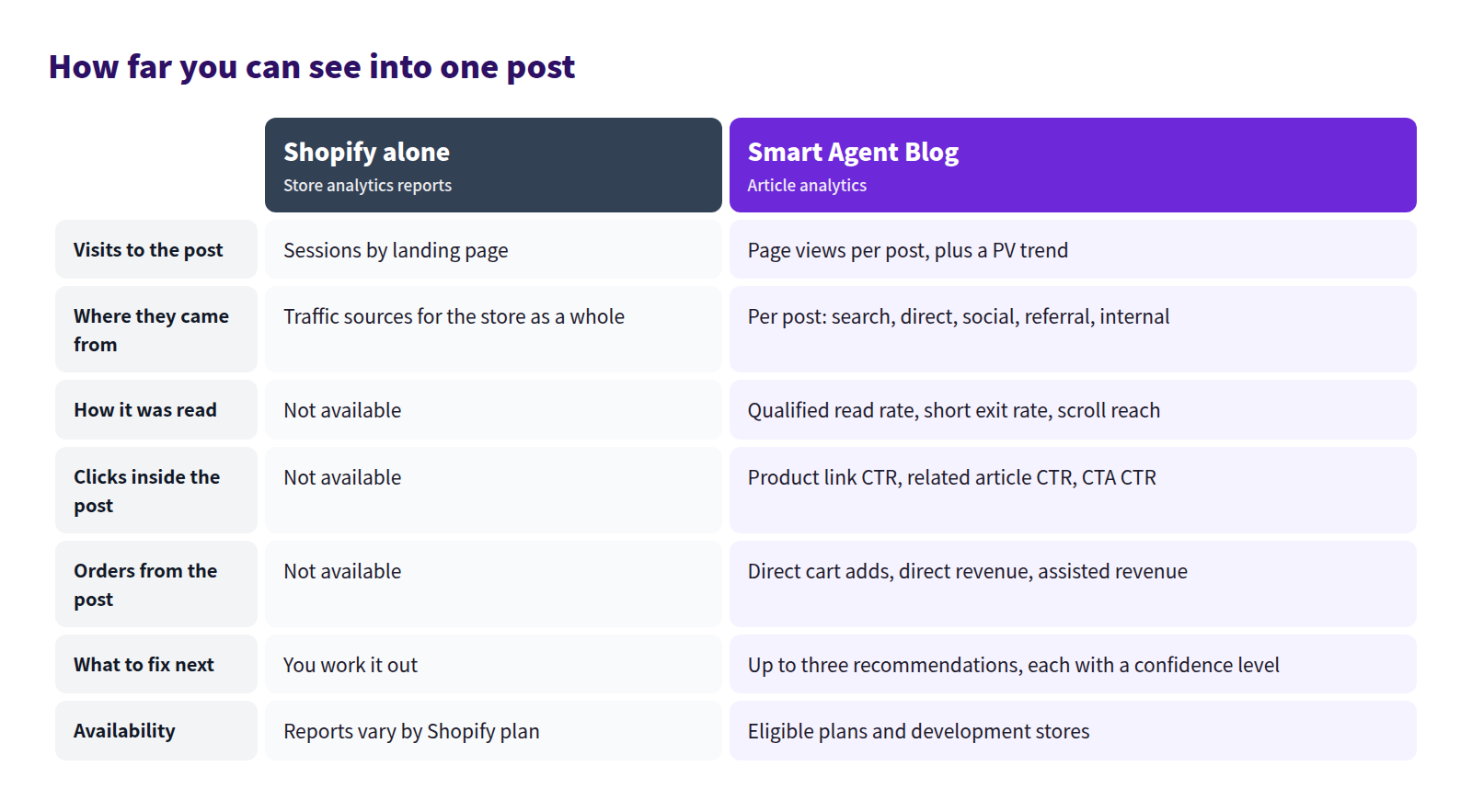
Shopify's own reports mostly answer question one. Separating two, three, and four needs measurement at the level of a single post.
FAQ
Should I delete posts with few page views?
Low page views alone do not make a post bad. Check how long it has been live, the season, whether the product is in stock, and whether anything was driving traffic to it. A seasonal post gets read when the season comes around.
How many posts before results appear?
It is not a count. It depends on which of the four is stopping you. If it is number three, adding product paths to the posts you already published will beat ten new ones. If the blog itself has gone quiet, see restarting a Shopify blog that stopped updating.
How long should I wait before judging?
Article analytics reports on the 30 days up to yesterday; today is not included. Make one change, then compare against the following 30 days. A week is rarely enough data for a single post.
Summary
- Split "no results" into read, read through, clicked, and converted — in that order
- Shopify's reports mainly answer the first. Sessions by landing page shows the entrances
- In the blogs we reviewed, 3 posts in 4 had no path to a product page. Suspect the path first
- Use the four diagnostic scores to pick the stopping point, then change one thing per post
Open your most-read post right now and check whether it contains a link to a product page. That single check settles it for most stores.