
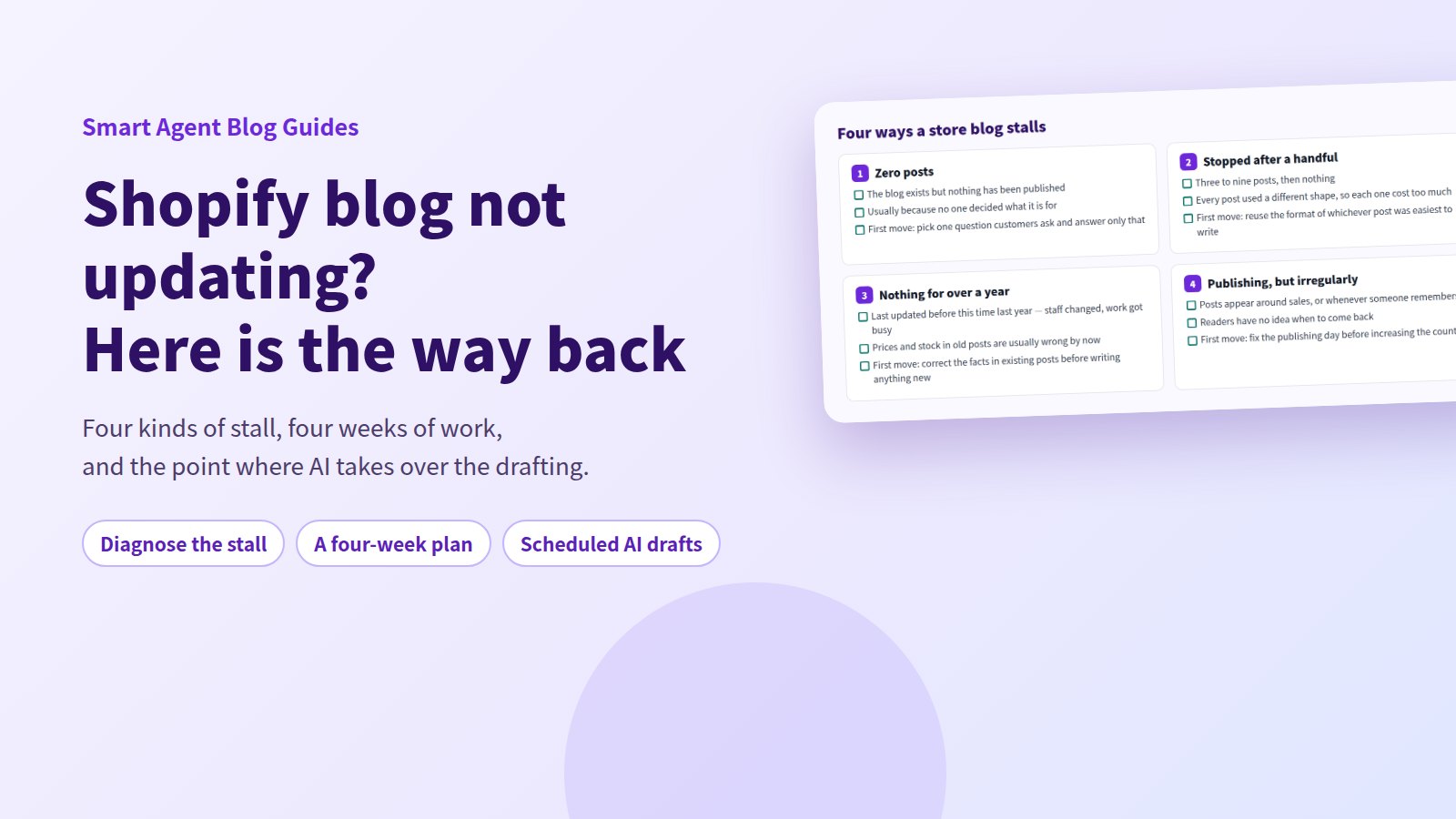
The most recent post is dated last year. You know you should write something. You have no idea what. Starting a brand-new post from that position usually gets you to post two and no further.
Restarting begins with naming the stall, not with writing. Zero posts, stopped after a handful, untouched for over a year, or publishing irregularly — the first move is different for each one, and picking the wrong first move is why the second attempt dies too.
This guide covers the diagnosis, what you can repair with Shopify alone, and the point where handing weekly drafts to AI makes the difference — laid out as four weeks of work.
- How to tell which of the four stalls you are in, and what to do first
- The three reasons store blogs stop, and how to remove each
- A repair sequence you can run in Shopify admin alone
- How to set up weekly AI drafts in Smart Agent Blog, screen by screen
- A four-week restart plan and a 15-minute weekly routine
It is not just your store
While preparing proposals for Smart Agent Blog in August and September 2026, we reviewed the blogs of 110 Shopify stores in Japan. Here is what we found:
| Blog state | Stores |
|---|---|
| Actively publishing | 64 |
| 1–9 posts | 18 |
| No posts | 14 |
| Stopped updating | 10 |
| Unclear | 4 |
About 4 in 10 (42 stores) had no posts, had stopped after a handful, or hadn't posted in over a year. More than one store in five had nothing published or nothing recent.
This was not a random sample, so treat it as a pattern rather than a national statistic. The pattern itself is clear enough: blogs stop when nothing in the setup makes them continue. That is a structural problem, and structural problems have fixes.
First, name the stall
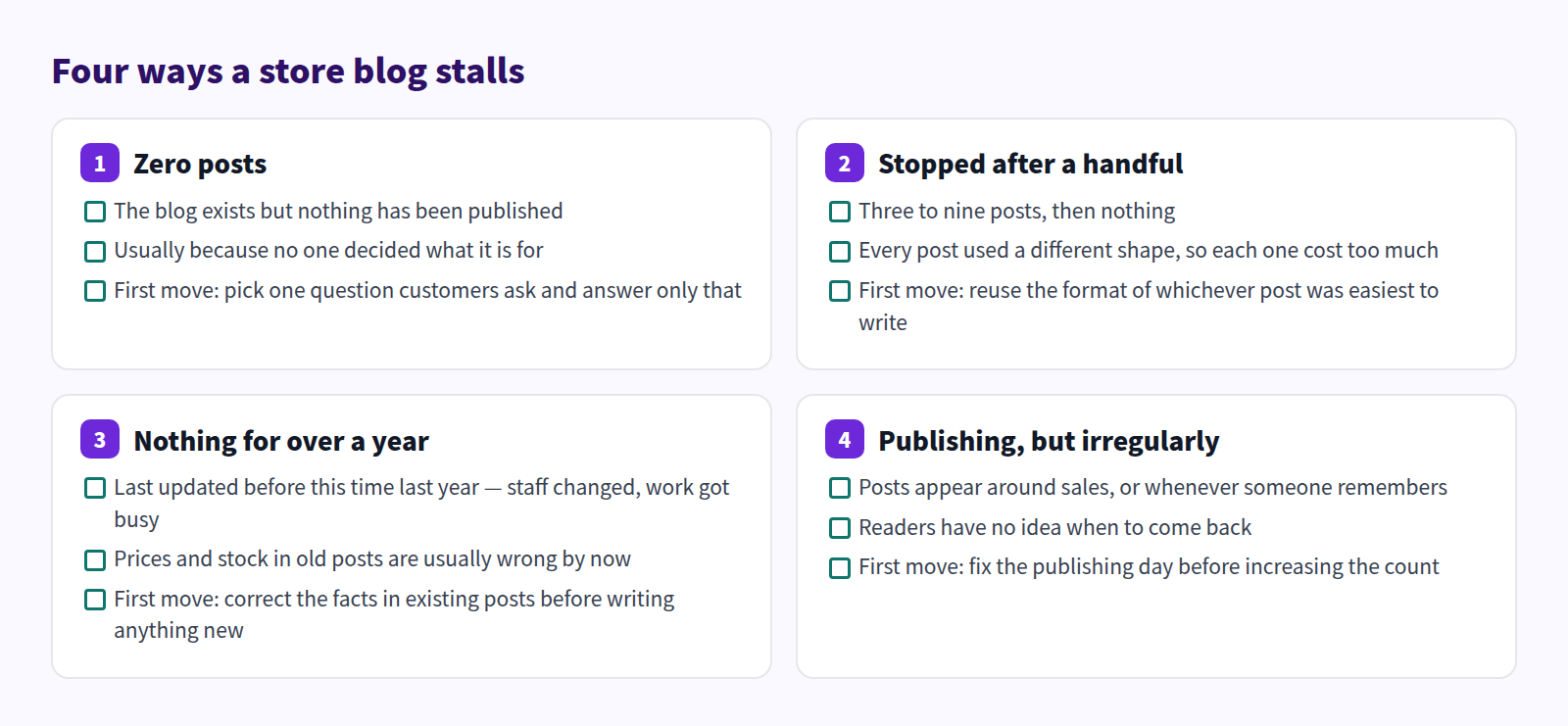
Pick yours before reading on. The costly mistake is the third one: a store that has not posted in over a year starting with a brand-new post. If the old posts still list last year's prices and discontinued products, a reader who arrives at your fresh post and clicks into the archive loses confidence in the store. Repair comes first.
Three reasons blogs stop
There is no time
The most common one by far. You know the products; you do not have the hours to turn that into posts. If a post costs two hours, one a week was never realistic. The fix is to shorten the per-post cost, not to try harder. Writing a Shopify blog when you have no time goes into how.
You do not know what to write
"We already covered the products. There is nothing left." In practice there is one post for every question customers ask. Turning customer questions into blog topics covers where to look.
Nothing seems to happen
Without visible results, the blog loses to everything else on the list. Judging from the first two weeks after publishing is too early, though. What to check when a Shopify blog shows no results covers the order to read the numbers in.
What you can fix in Shopify alone
The foundation of a restart needs no app at all.
Step 1: Count what you have
- Open Content → Blog posts in Shopify admin.
- Count the visible posts and the hidden ones.
- Check the date on the newest post. That is the day it stopped.
- Look for posts sitting hidden and half-written.
There are usually one or two unfinished drafts already there. Finishing one of those ships a post faster than starting from nothing.
Step 2: Repair the stale facts only
Before any new writing, correct what is now wrong. No rewrites.
- Prices that have changed
- Products that sold out or were discontinued
- Sizes, materials, or specs that are different now
- Links that go nowhere
For posts about products that are gone, see handling sold-out products in blog posts.
Step 3: Pick one format and reuse it
Stalled blogs usually reinvent the structure every time. Choose one shape and repeat it.
| Format | What it contains | Fits stores that |
|---|---|---|
| FAQ | One question, one answer | Get the same questions weekly |
| How-to | Numbered steps | Sell things that need explaining |
| Care guide | Handling by material | Sell things meant to last |
| Comparison | Two options and the deciding factor | Carry similar products |
FAQ blog posts covers the first one in detail.
Step 4: Draft with Shopify Magic
Shopify includes Shopify Magic, which drafts post copy with AI.
- In Content → Blog posts, select Add blog post.
- Select the Generate text icon in the title field or the body editor.
- Describe what you want written. The more specific you are about the product, its features, and the reader, the closer the draft lands.
- Read it, correct anything that is not true, and save.
You still write a prompt every time, but it beats a blank page.
Step 5: Spread the dates with scheduling
Write when you have time; publish on a schedule. The Visibility section of the post editor lets you set a future publication date. Write three posts in one sitting, release them over three weeks, and you become a store that publishes weekly. See scheduling campaign posts and, for the year view, building a seasonal content calendar.
Where this runs out
You can restart with the above. What remains:
- You have to generate the impulse to write, every week. Busy weeks get skipped
- You write a fresh prompt each time. It adds up
- Nothing tells you it stopped. Three quiet weeks pass unannounced
- You find the stale posts yourself. This gets worse as the archive grows
Stalled stores are not short on discipline. The trigger simply lives in someone's memory. That is the part worth replacing.
Making it continue with Smart Agent Blog
Smart Agent Blog's AI Scheduled Blog Proposals takes your store and product details, set once, and drafts a post on the day and time you choose.
Tell it what to write about
Open Setting in Smart Agent Blog, select Manage for AI Scheduled Blog Proposals, then select Enable AI Scheduled Blog Proposals to reveal the settings.
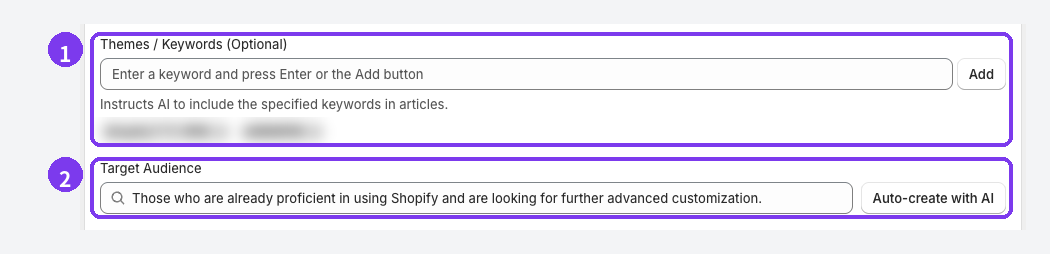
- Themes / Keywords (optional): register topics one at a time. "Caring for waxed canvas in wet weather" carries more intent than "bags". Put the format you chose in Step 3 here.
- Target Audience: who the post is for. Auto-create with AI suggests options you can then edit.
You also set Business Overview (required, 300–1000 characters), Writing Style / Tone, and the Target Blog and Article author (both required).
Fix the day and time
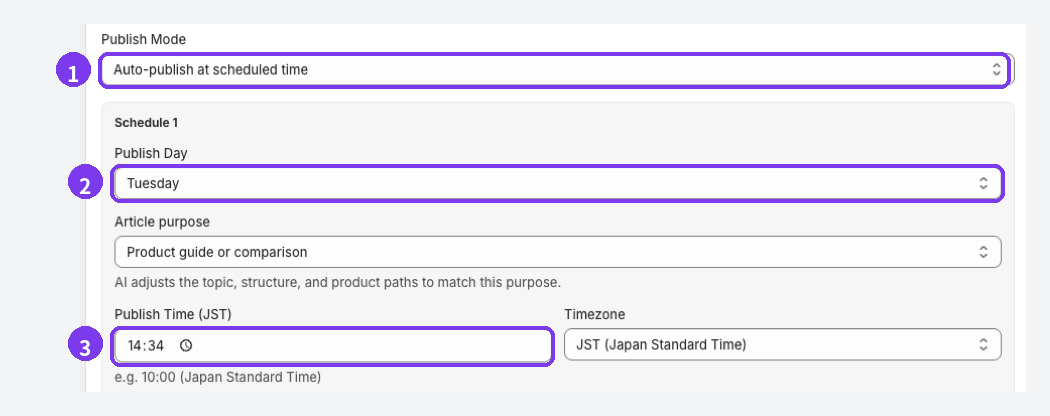
- Publish Mode: choose Save as draft (manual publish) or Auto-publish at scheduled time. Use Save as draft for your first several posts.
- Publish Day: the day the post gets created. Put it the day before you actually have time to review.
- Publish Time / Timezone: confirm the timezone matches where you work.
Finally, select Enable email notifications, enter the address, and select Save Settings. The schedule is registered when you save.
Give the drafts one place to pile up
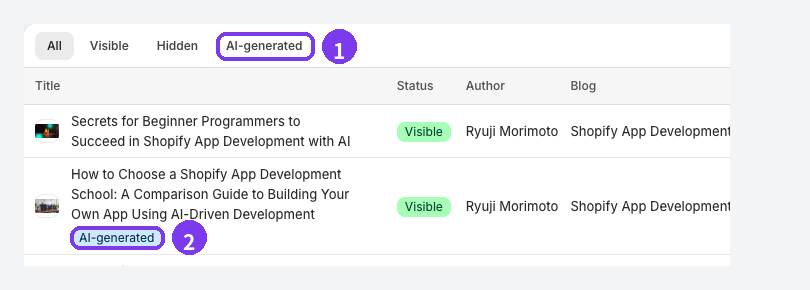
AI drafts collect in the AI-generated tab of the article list and carry an AI-generated badge under the title. When there is exactly one place to look, "I haven't done this week yet" is visible at a glance. Managing Shopify blog posts covers the rest of that screen.
Success and failure both arrive by email. That notification is what makes a stall noticeable in week one rather than week six.
Let AI Rewrite find the stale posts
Hunting for posts nobody has touched is work you can hand over. The Freshness Update strategy in AI Rewrite selects posts by how many months since the last update and drafts improvements. Start on Approval required (Recommended) so you compare before and after and approve change by change. AI Rewrite is a paid-plan feature. See refreshing old posts with AI and new post or update?.
Plan limits
AI article generation allows 2 articles in total on Free, 1 per month on Basic, and 15 per month on Pro. Pro registers up to 5 schedules. Separately from plan limits, generation is capped at 3 per hour. See plans and usage limits and scheduled AI article proposals.
The four-week plan
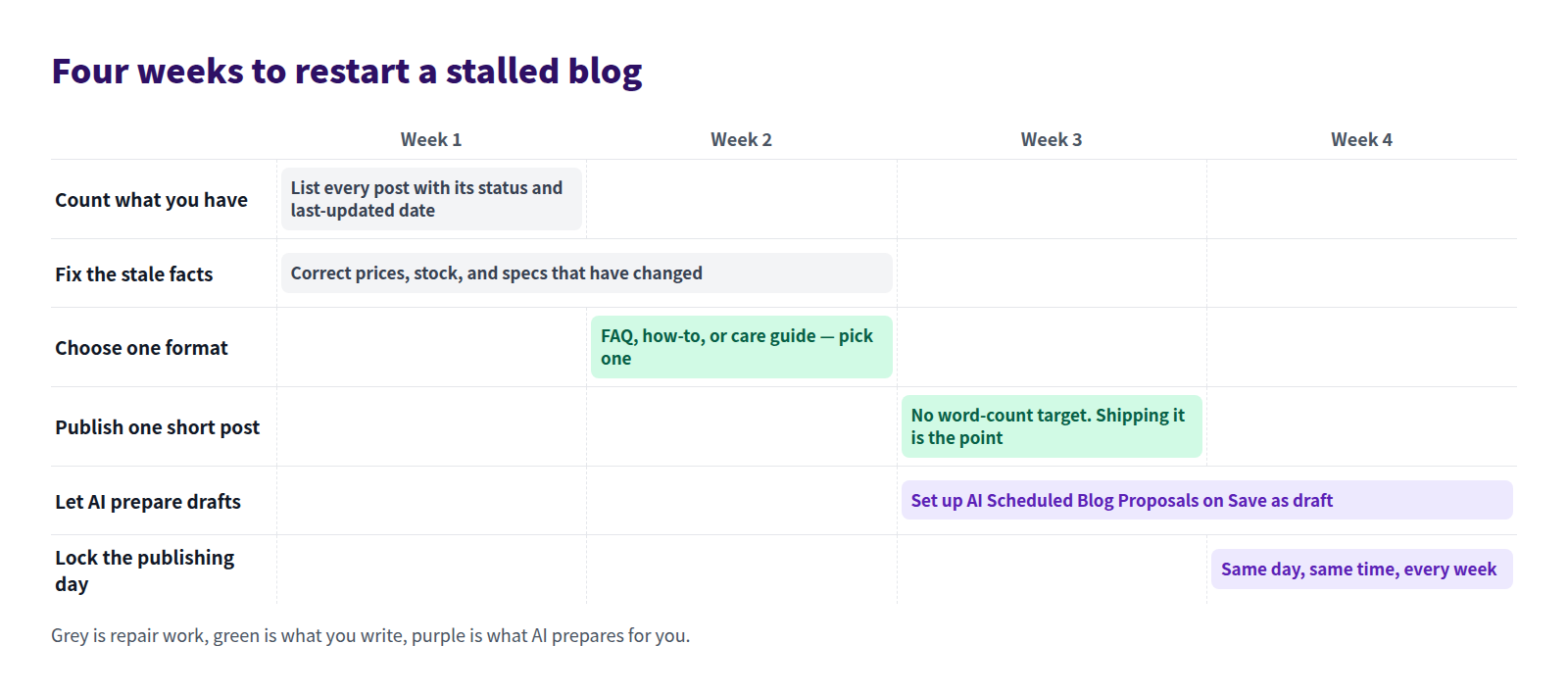
Notice that week one contains no writing. The first two weeks go to repairing what already exists. The format settles during that time, and week three ships one post.
The two approaches compared
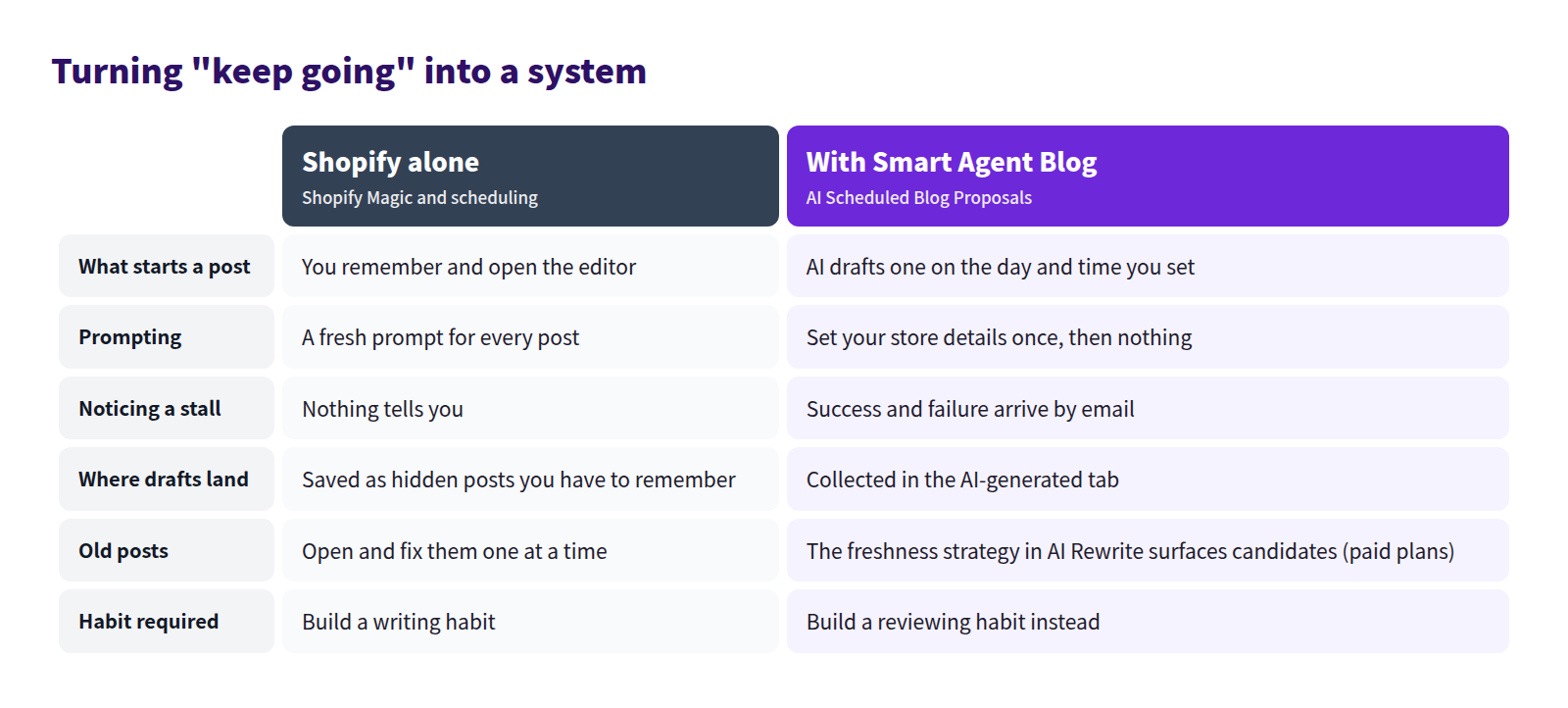
The last row is the one that matters. A writing habit is hard to build; a reviewing habit sticks. With a draft waiting every week, the job becomes read, correct, publish.
Fifteen minutes a week
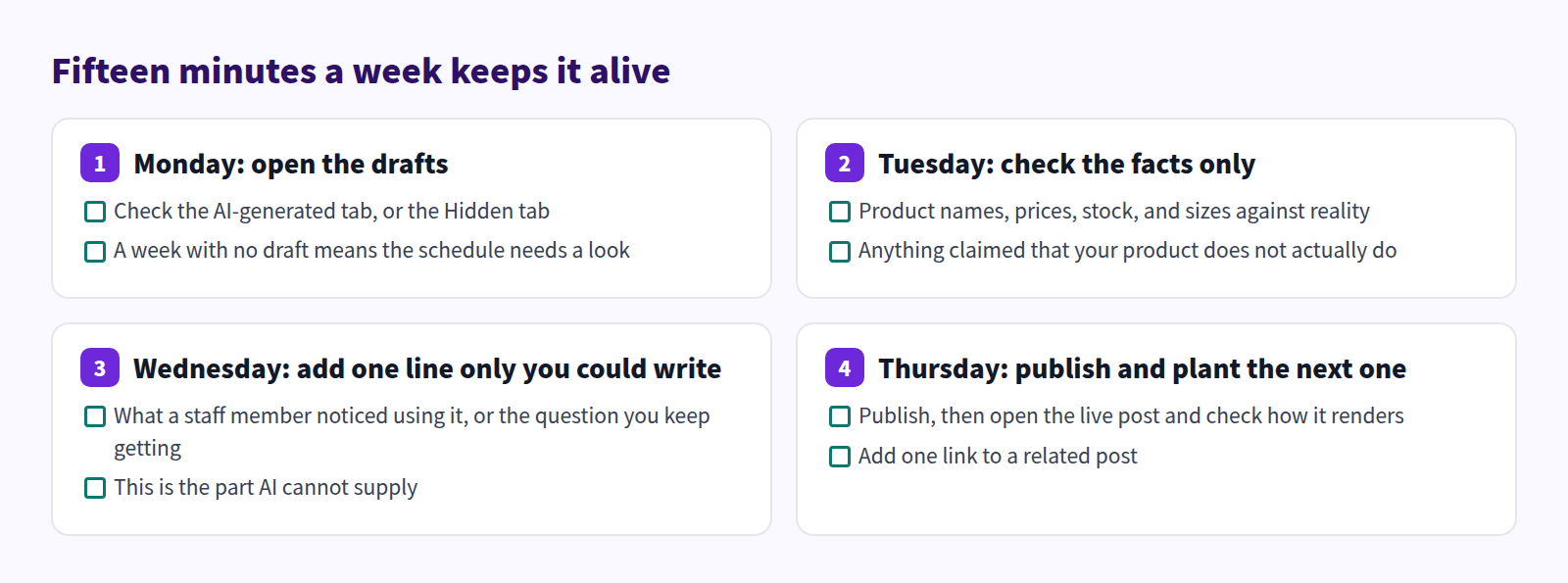
These sit on four separate days on purpose. Blocking out a single hour means the hour never arrives. The wider operating picture is in Shopify blogging best practices, and the split between you and the AI is covered in writing Shopify blog posts with AI.
FAQ
Should I delete a blog nobody has touched in a year?
No. Old posts often still bring in search traffic. Correct the facts first — prices, stock, specs. If a post is genuinely beyond saving, hide it or merge it into a newer post rather than deleting the URL.
One post a week is too many. Is monthly fine?
Yes. The count matters less than the interval staying constant. One post a month for twelve months beats four posts in January and silence afterwards. AI Scheduled Blog Proposals runs weekly, but on Save as draft you decide when anything goes live.
Can I publish an AI draft without reading it?
Review it. AI can describe features a product does not have or state things nobody verified. Checking four things — product facts, wording, readability, images and links — takes 10 to 20 minutes. A pre-publish checklist lists them.
Summary
- Start by naming the stall, not by writing. The right first move depends on which one you are in
- If nothing has changed in a year, repair the old facts before publishing anything new
- Commit to one post format. Rethinking the structure every time is the real cost
- Replace the writing habit with a reviewing habit by handing the drafting side to AI
Open Content → Blog posts and look at the date on your newest post. That number is the whole diagnosis.