
Someone reads your post and leaves. That's the default outcome, and share buttons exist to change it.
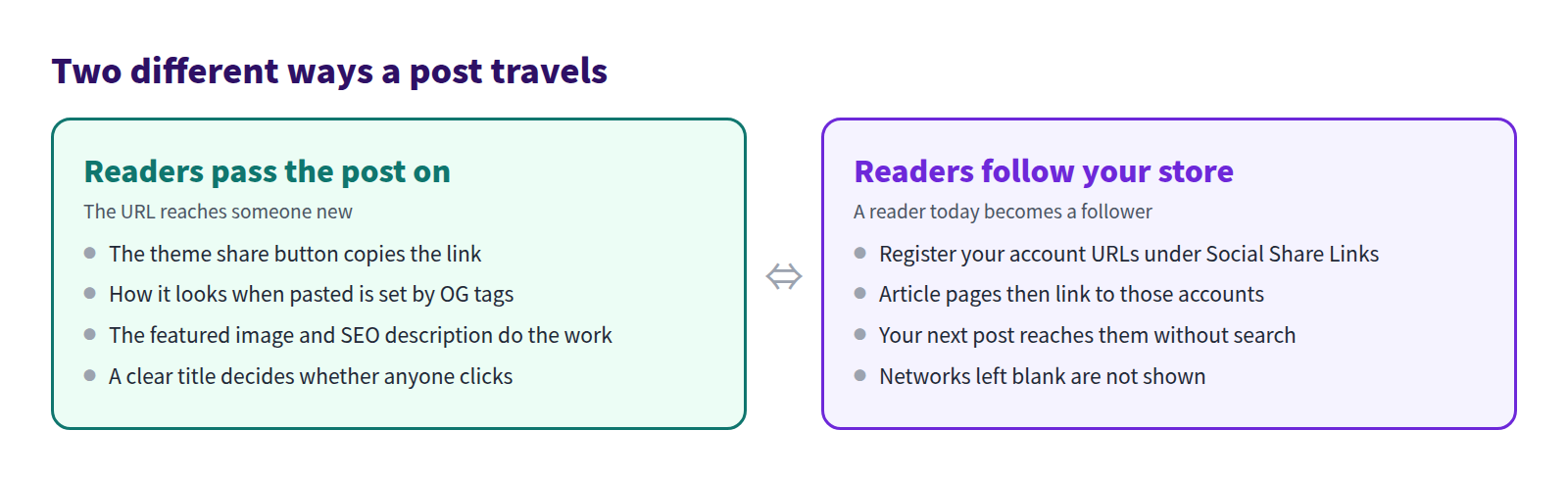
The catch is that "share button" describes two different things. One is a button that lets a reader hand your post's URL to someone else. The other is a link that sends a reader to your store's own social accounts. Smart Agent Blog's Social Share Links is the second kind.
Mixing the two up is why people set this once, see something they didn't expect, and never touch it again. This guide covers what Shopify does on its own first, then the app setup, then what to put around it so the traffic goes somewhere.
- The difference between passing a post on and sending readers to your accounts
- What the theme's share block and social settings actually do
- How to set up Social Share Links, and where the buttons appear
- What decides how your post looks when someone pastes the link
- What to have in place before the traffic arrives
Sharing without a destination just moves numbers
While preparing proposals for Smart Agent Blog in August and September 2026, we reviewed the blogs of 110 Shopify stores in Japan. Of the 88 posts we recorded, 66 (75%) had no link to a product page anywhere in the body. Three posts in four gave the reader nowhere to go.
That's worth knowing before you touch a share setting. A post that travels widely but ends in a dead end raises your view count and nothing else. A sharing path only works when both halves exist: something that carries the post out, and something that catches the reader when they land.
What Shopify handles on its own
Shopify themes ship with sharing-related pieces already. Start there.
Social accounts in theme settings
Shopify's theme settings include a Social media section where you enter the URLs of your store's accounts. Once saved, links to those accounts appear in your online store's footer.
- In your Shopify admin, open Online Store → Themes.
- Select Customize on the theme you publish.
- Open Social media in the theme settings sidebar.
- Enter the full URL for each service you use.
- Save.
Note where these appear: the footer. Not under the post a reader just finished. That distance matters more than it sounds.
The theme's share block
Shopify's Dawn theme includes a Share block on the blog post template. Add it in the theme editor and a share control appears on article pages.
What it does is show the current post's URL so the reader can copy it. It is not a row of buttons that post to X or Facebook. The reader copies the link and pastes it wherever they were going anyway.
- Open the Blog post template in the theme editor.
- Select the article section and add a block.
- Choose Share.
- Save.
Some themes don't offer the block at all. On an older or custom theme, check with whoever built it rather than editing theme code. Compatibility is covered in Shopify blog theme compatibility.
What the link looks like when pasted
When a reader pastes your URL somewhere, that platform shows a title, a description, and an image. Open Graph meta tags decide all three.
Dawn and most themes output those tags on article pages. For a post, the title and description come from the page's title and description, and the image is the post's featured image. The tags also request the large-image card format used on X.
So the practical lever here is not the button at all — it's the featured image and the SEO description. Those two decide whether a pasted link gets clicked.
- Featured image: pick one that shows what the post is about at a glance. See choosing images for Shopify blog posts.
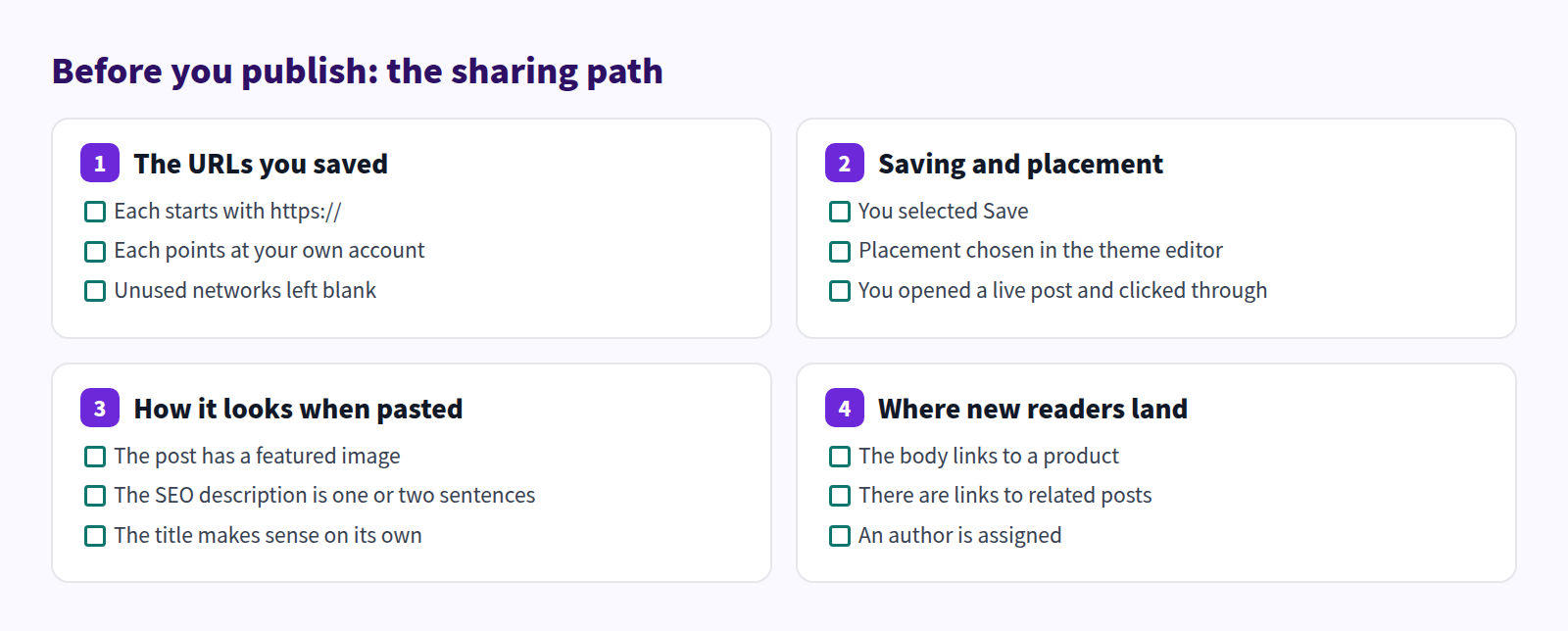
- SEO description: one or two sentences, set under Search engine listing in the article editor. See writing meta descriptions.
Where it runs out
You can get a post shared with nothing more than the above. What you can't easily do:
- Put a link to your own accounts anywhere except the footer
- Place social links consistently above or below the article body without editing theme code
- Keep any of it when you switch themes
The moment a reader finishes a post they liked is the moment worth using, and that's the one the built-in setup doesn't cover.
Setting up Social Share Links
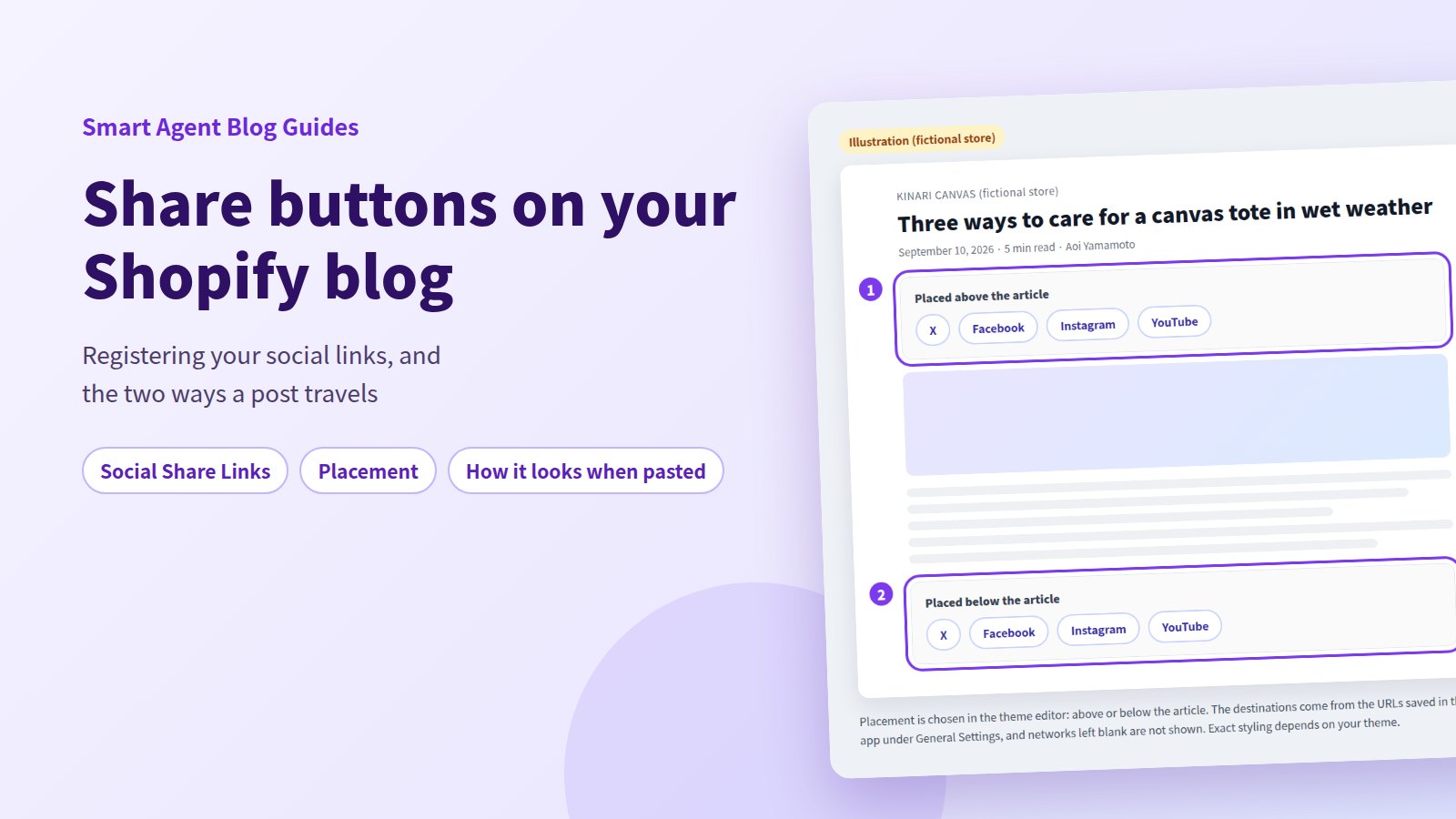
Smart Agent Blog puts links to your store's accounts above or below the article body. The URLs are registered in the app; the placement is chosen in the theme editor.
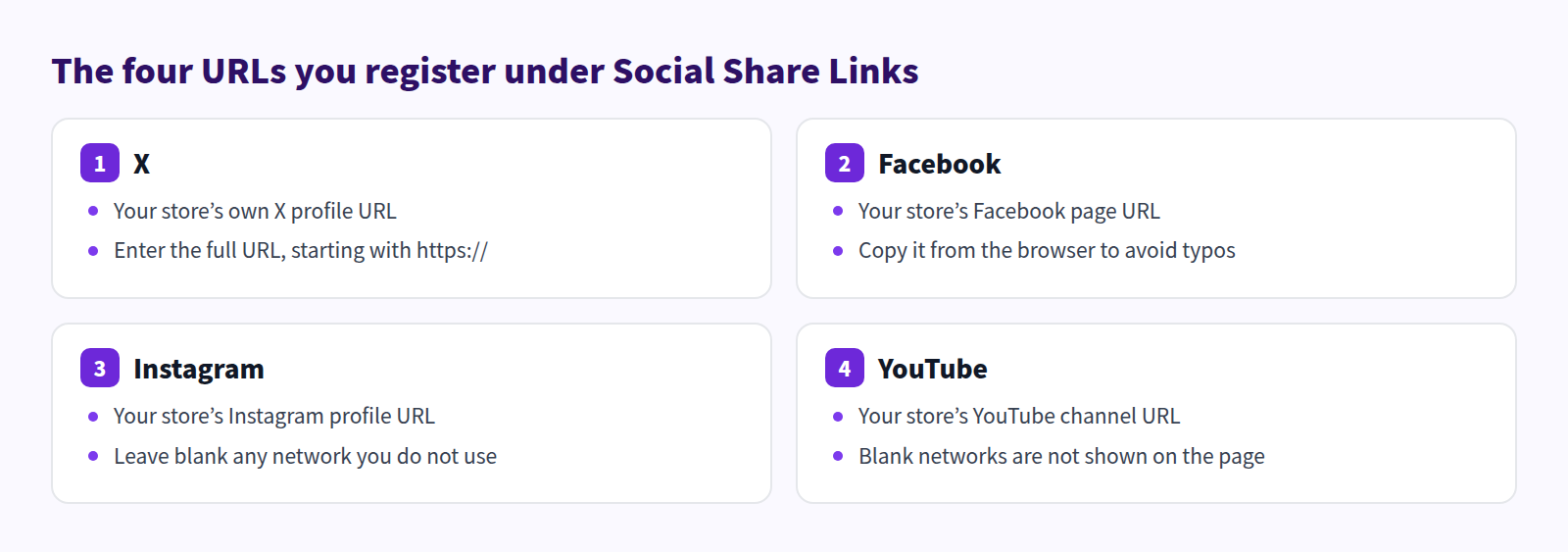
What you register is your store's own account page URL for X, Facebook, Instagram, and YouTube. Leave blank any service you don't use — blank networks are not shown on the page.
Open each profile in a browser and copy the URL to avoid typing mistakes. Each one should start with https://.
Save, then place
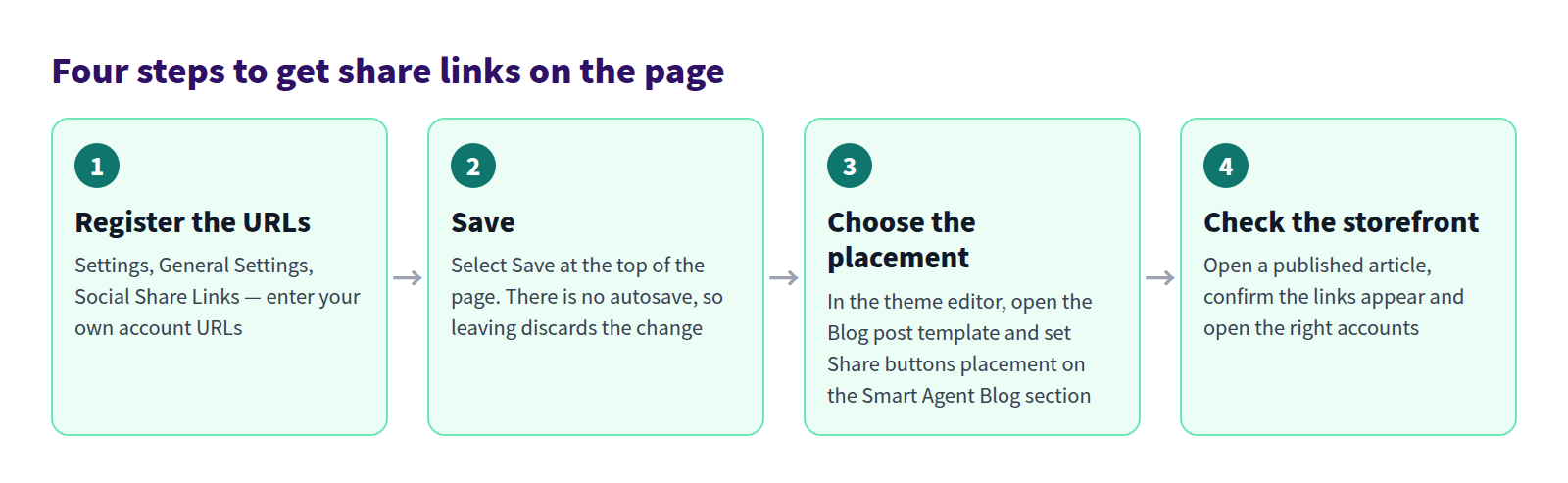
Changing anything reveals Save at the top of the page — in the save bar and next to the page title, either one works. Nothing appears at the bottom. There is no autosave: navigate away without saving and the change is gone.
Placement lives in the theme editor. Open the Blog post template, select the Smart Agent Blog section, and set Share buttons placement to above or below the article. Adding the section is covered in Display articles on your store.
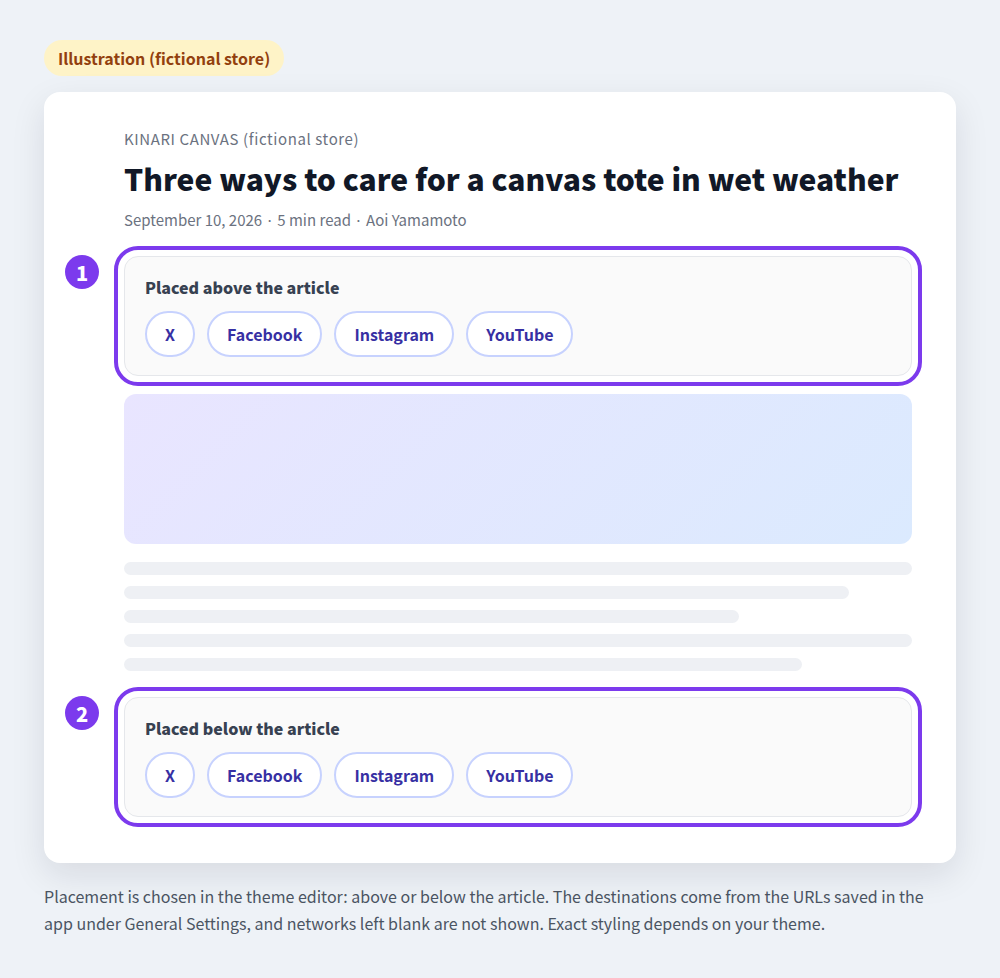
Above the article sets the tone before someone starts reading. Below it reaches people who finished and liked it. Pick one to start with — below the article is the safer first choice.
Using both, deliberately
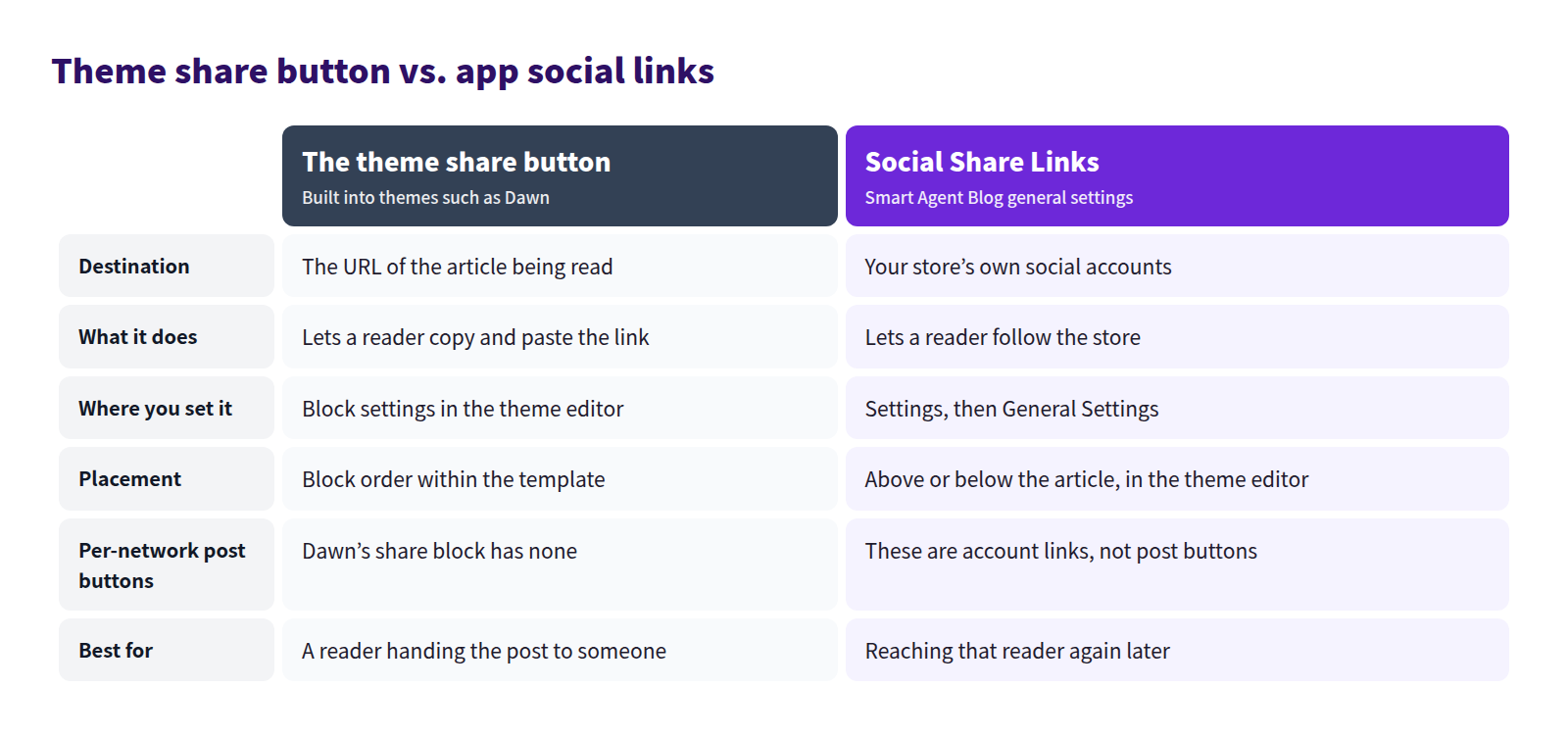
You don't have to choose. The theme's share button hands your URL to someone new; the app's social links turn today's reader into a follower. Different jobs, so run both.
Catch the traffic when it lands
Once the path out exists, make sure there's somewhere to go. As the survey above showed, this is the part most posts are missing.
- Put a product link in the body. Placed where the topic calls for it, it gets clicked far more than a list at the very bottom. See adding product information to Shopify blog posts.
- Link to a related post. One visit, two posts read.
- Assign an author. A first-time reader trusts a named person more than an anonymous store. See author profiles on a Shopify blog.
Did any of it work?
Article analytics on the Pro plan breaks visits down under Traffic sources: Search, Direct, Social, Referral, and Internal. Social is the line to watch after you change anything here — it counts readers who arrived from a social platform rather than from search. Sources with zero visits are omitted, so a missing Social line just means nobody has arrived that way yet.
Two cautions. Sharing is lumpy: one post picked up by the right account outperforms six months of steady numbers, so read the pattern over months rather than week to week. And a rising Social figure is only half a result — check whether Product link CTR moved with it. Traffic that never reaches a product page is only a bigger view count.
Questions we get
I saved the URLs but nothing shows on the page
Three things to check: that you actually selected Save, that each URL starts with https://, and that Share buttons placement is set in the theme editor. Confirm you edited the published theme too. See Change general settings.
Can I show buttons that post to X or Facebook?
Social Share Links shows links to your store's own accounts. For handing the post itself to someone, use the theme's share block — in Dawn that means the reader copies the post URL.
What about networks we don't use?
Leave them blank; blank networks aren't shown. Sending readers to an account nobody has updated in a year is worse than sending them nowhere.
In short
- "Share button" covers two jobs: passing the post on, and sending readers to your accounts
- Shopify gives you footer links from theme settings, and a copy-the-URL share block in Dawn
- How a pasted link looks is set by the featured image and the SEO description
- Social Share Links takes your own account URLs; placement above or below the article is a theme editor setting
- Add a product link, a related post, and an author so arriving readers have somewhere to go
The wider acquisition picture is in the Shopify blog marketing guide. Start by registering one account you actually post to, and save.