
A blog app is no use if it does not work with your theme. If an agency built your theme, or you have been running the same one for years, that doubt is enough to stop the whole decision.
The good news: you can settle it yourself without touching your live storefront. Open the Blog post template in the theme editor, choose Add section, and look under Apps. The app's section is either listed there or it is not. That single screen is the answer. This guide covers how to run that check without touching your live store, and what to do with each outcome.
- Why support varies from theme to theme
- The check you can run with nothing but the Shopify theme editor
- How to check without touching the published theme
- The display settings that become available once the section is added
- What to do — and specifically what not to do — if the section is missing
Where themes actually differ
A Shopify blog post page is rendered by the theme's Blog post template. That template is built from sections, and which sections are available depends on your theme and its version.
When an app takes over article display, it adds its own section to that template. So the whole question reduces to one thing: can this theme accept an app section? Older themes and heavily customized themes sometimes cannot.
We reviewed the blogs of 110 Shopify stores in Japan in August and September 2026 while preparing Smart Agent Blog proposals. About 40% (42 stores) had no posts, had stopped after a handful, or had not published in over a year. Stores that have not touched their blog in a long time are also the ones most likely to be on an older theme — which is exactly when this check earns its five minutes.
The check you can run in Shopify itself
Nothing but Shopify admin is required. One thing to get straight first: the Apps tab lists sections from apps you have already installed, so to check a specific app you install it first. Installing on its own changes nothing a customer sees — the storefront only changes when you add a section and save the theme.
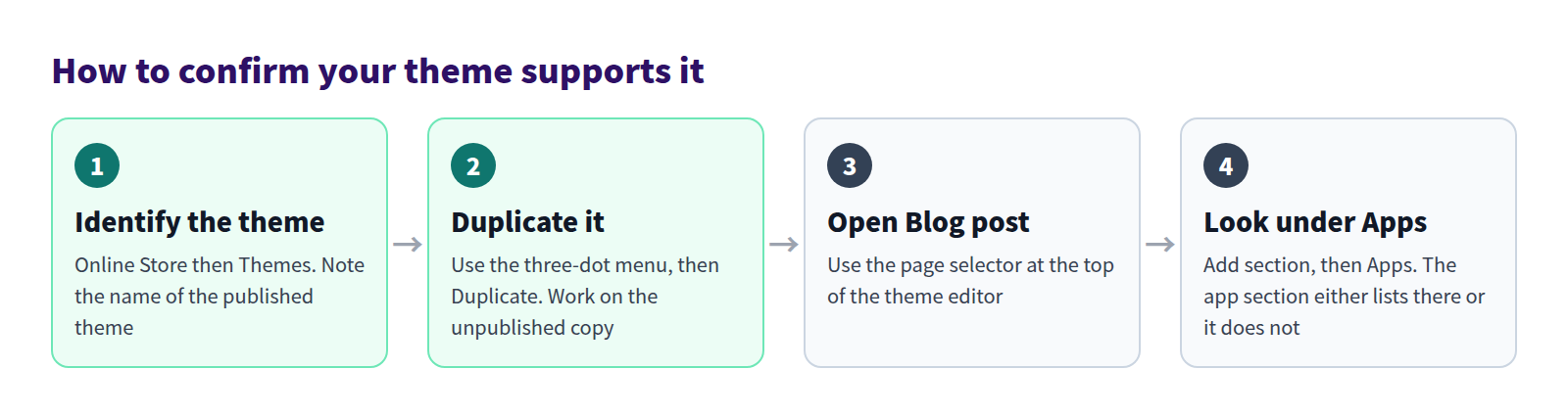
1. Note the published theme
Open Online Store → Themes in Shopify admin. The theme at the top is the live one. Write the name down.
While you are there, check whether anyone has edited theme code, added custom CSS, or installed a third-party blog app. If someone else maintains the theme, tell them you plan to add an app section to the blog post template — a theme update on their side can overwrite it.
2. Duplicate the published theme
Select ... on the live theme and choose Duplicate. The copy arrives with a Copy Of prefix, so rename it to something dated, like Theme check Sep 15. Shopify admin holds up to 20 themes.
Everything from here happens in Customize on the unpublished copy. Merely looking at the live theme does no harm, but working on the copy by habit is what stops an accidental save from becoming an incident.
3. Open the Blog post template
Select Customize on the copy and use the page selector at the top of the theme editor to open Blog post.
One thing to watch for here: a store can have more than one blog post template. Besides the default, there may be a feature layout or a campaign layout. Changing one template does not affect the others, so if you have several, you will repeat this check for each.
4. Look under Add section, then Apps
Select Add section and open Apps. Sections from your installed apps are listed there. If the one you want appears, your theme supports it.
Two different outcomes look similar and are not: an Apps tab that exists but does not list the app you want, and no usable app section on this template at all. If you have not installed the app yet, install it and come back to this screen before drawing any conclusion.
What this check cannot tell you
It tells you whether the section can be added. It does not tell you how your existing posts will look once it is. Text size, spacing, image width and how your custom CSS interacts with the new markup can only be judged by opening real posts and looking.
There is also no badge anywhere in Shopify admin reading "this theme supports app sections," and theme listings rarely mention it. Opening the editor is the fastest reliable answer.
Running the check for Smart Agent Blog
Same procedure. On the duplicated theme, open Blog post, choose Add section → Apps, and look for Smart Agent Blog.
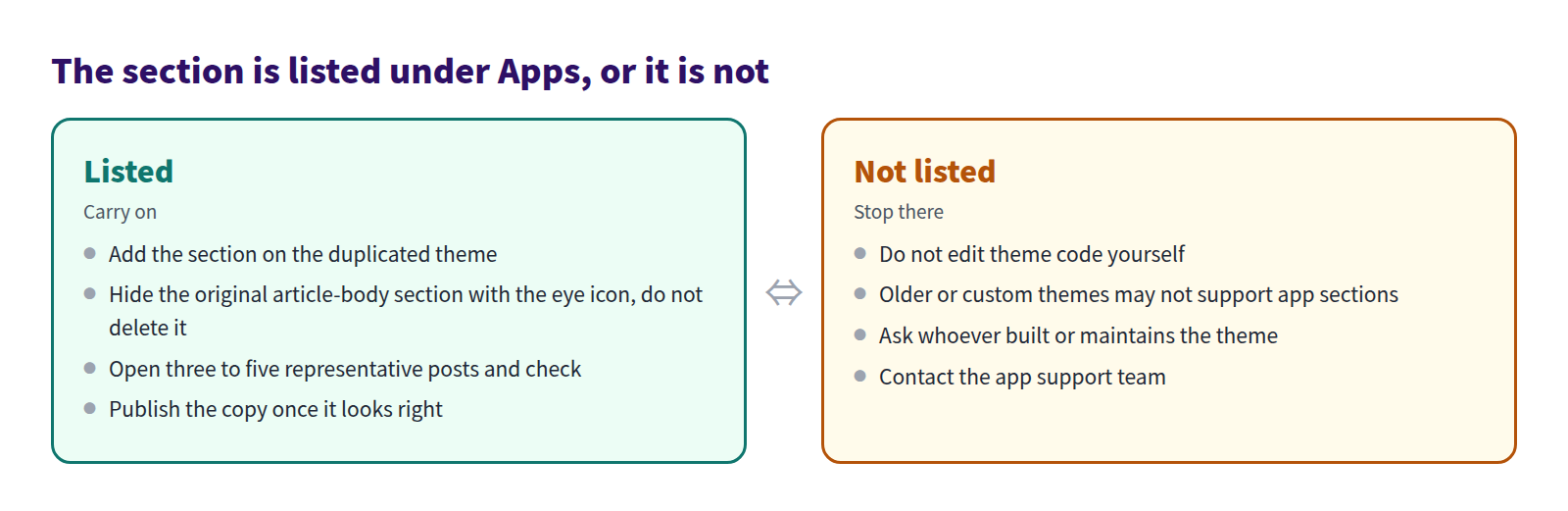
If it is listed: hide the original, do not delete it
After adding the section, hide the theme's original article-body section with the eye icon rather than deleting it. That is what lets you undo the change later by hiding the app section and unhiding the original. If the body appears twice, both are visible — show only one.
If it is not listed: stop there
If the Apps tab is missing, or Smart Agent Blog is not among the sections, stop. Older and custom themes sometimes do not support app sections.
Do not edit theme code yourself. Contact your theme developer or support. Hand-edited theme code tends to be wiped by the next theme update, and troubleshooting the resulting breakage costs far more than asking.
When you do ask, give them something specific to act on: the theme name and version, the name of the blog post template you opened, and the fact that Add section → Apps does not list the app. That is usually enough for a developer to tell you within minutes whether the theme can be updated to support app sections, or whether moving to a newer theme is the more sensible path. Either answer is useful — what you want to avoid is a week of guesswork on a live storefront.
What you can configure once it is added
Select the section and the right-hand panel offers these.
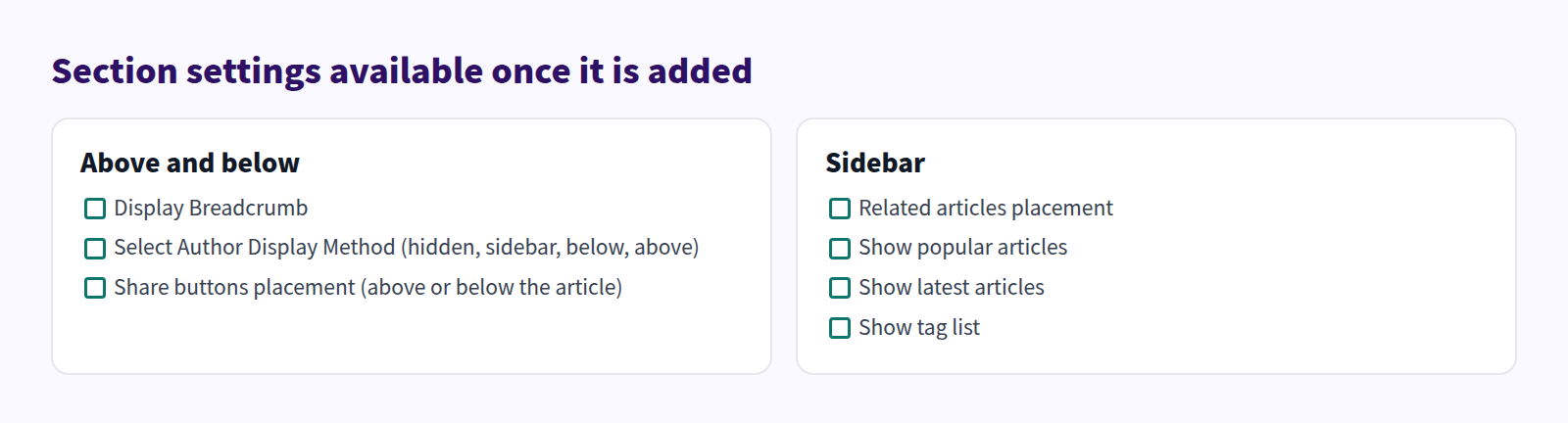
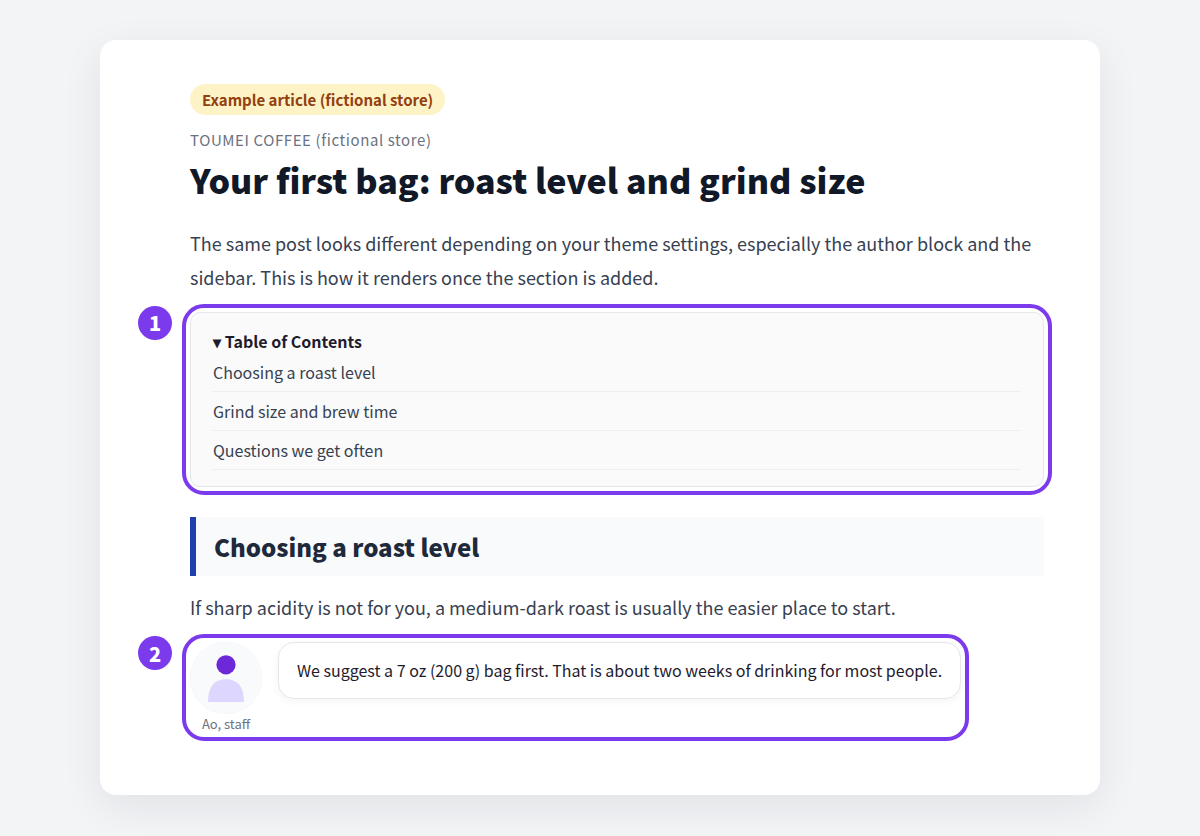
The sidebar only exists when the author is set to Show as Sidebar, or when related articles, popular articles, latest articles or the tag list are shown there. Turn all of them off and the article renders in a single column. The full list is in Display articles on your store.
Authors and reading time do not appear immediately
This one trips people up. Author information and estimated reading time come from data stored on the article when it is saved in the app. Posts published before you installed it show neither until you reopen them, select an author and save. Adding the theme section alone is not enough, so do not read a blank author block as a broken setting.
Share button destinations are registered in the app, not the theme editor: Setting → General Settings → Social Share Links. Networks left blank are not shown.
What it looks like once it works
A fictional store below, rendering as it does when the theme side is configured.
The checklist before you publish
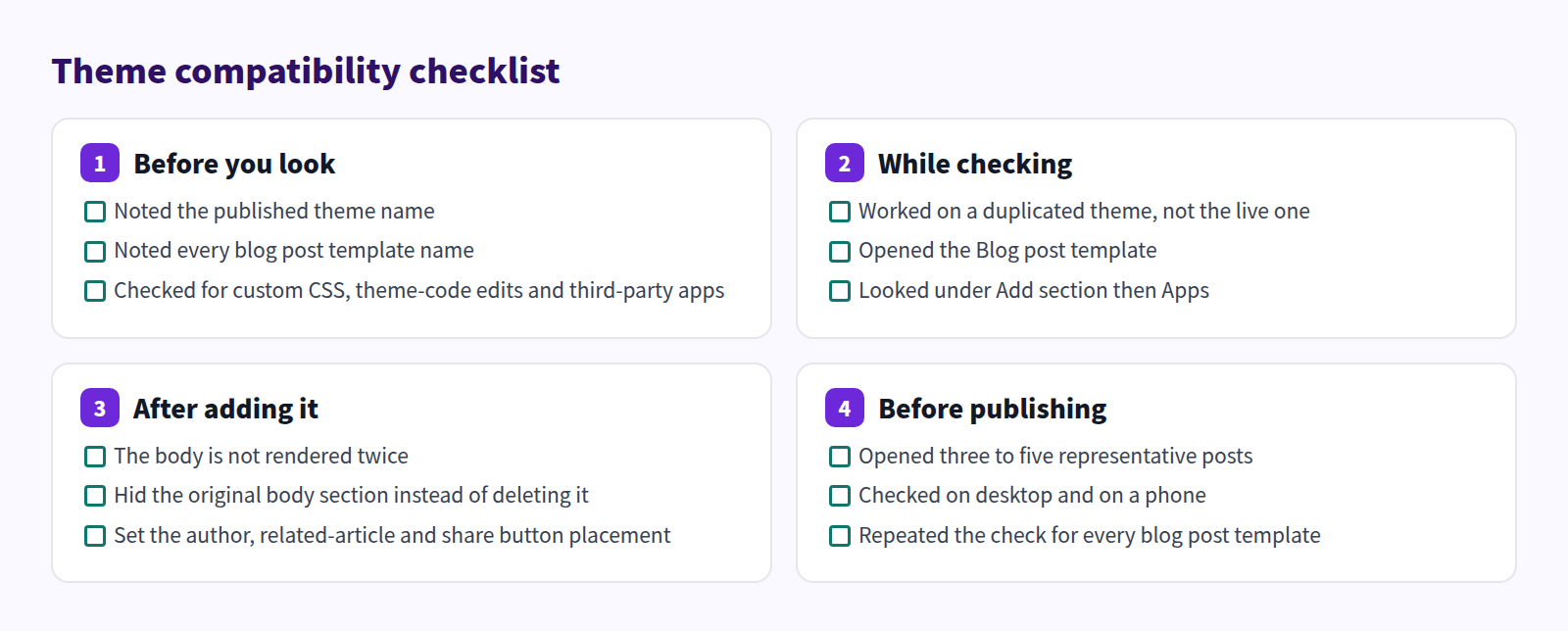
When you pick three to five posts to check, pick ones that differ: plain text and images, a long post with many headings, one with a table or video, one with custom HTML, and one on a different template. You do not need to open everything. For the full install sequence, see How to install a Shopify blog app.
Common questions
Do I have to check again if I change themes?
Yes. Run the same Add section → Apps check on the new theme. Section settings do not carry across, so you will also reconfigure the author and sidebar placement. Article content lives with the article, so the posts themselves are unaffected.
Will it clash with my theme's custom CSS?
It can. If the layout breaks, check whether your custom CSS and the app's CSS are conflicting. Shopify blog custom CSS covers how the layers interact. If you cannot tell, ask your theme developer or support before publishing.
Can I check and then walk away?
Yes. The duplicated theme stays unpublished, so no customer ever sees it. If it is not a fit, delete the copy. Nothing happened to your live theme.
Summary
- Compatibility comes down to whether the section is listed under Add section → Apps on the Blog post template
- Run the check on a duplicated, unpublished theme, not the live one
- If the section is missing, do not edit theme code — ask the theme developer or support
- Author and estimated reading time only appear on articles saved again in the app
Duplicating a theme and opening the editor takes five minutes, and it answers the question outright. For the wider picture, see What a Shopify blog app can do, and for how article appearance is decided, Shopify blog design.