
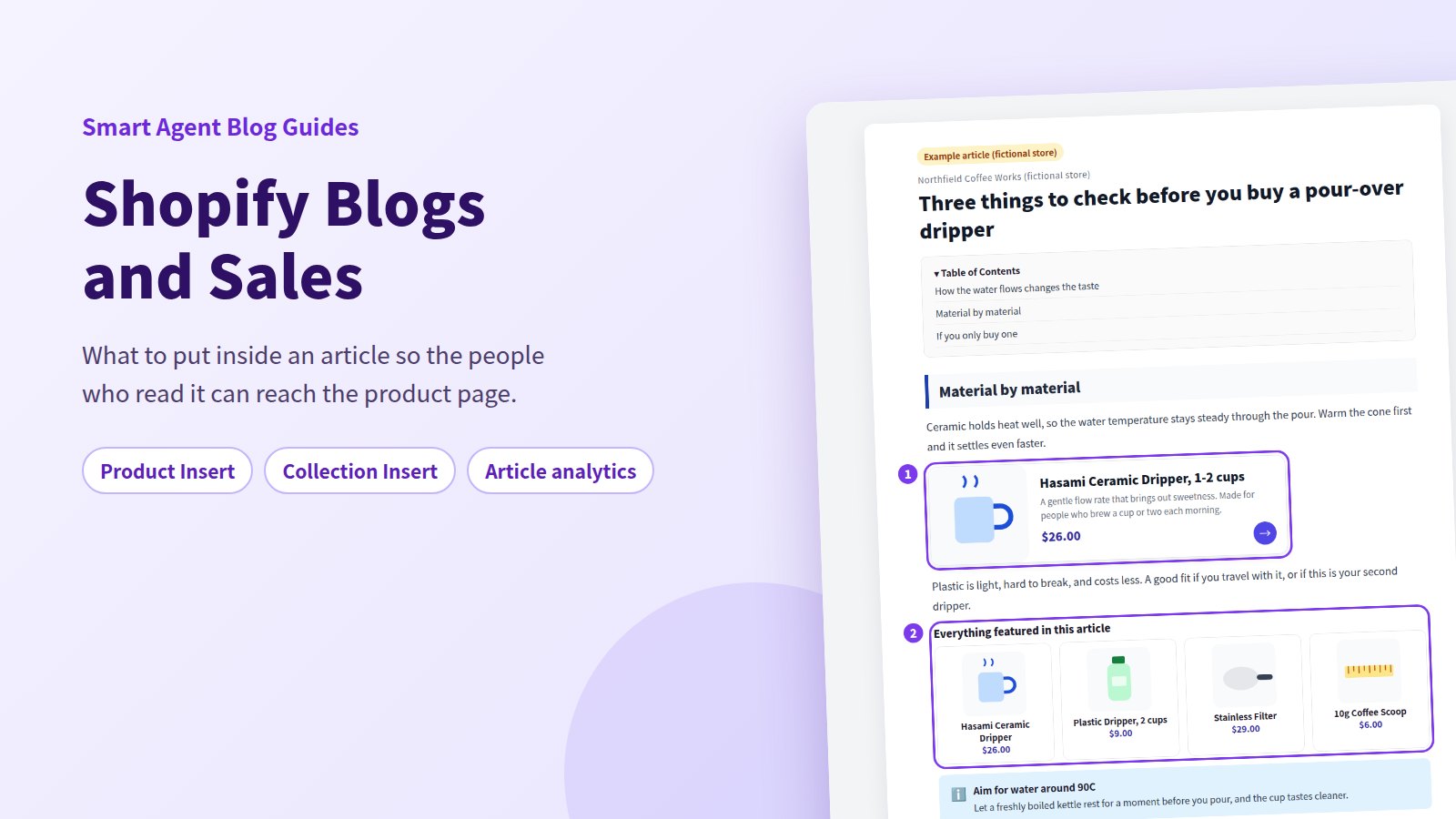
The article gets traffic. People stay on the page. And still, nothing in your order history traces back to it. That is the most common way a store blog stalls out — not from lack of readers, but from lack of anywhere for those readers to go.
The cause is rarely the writing. It is that the article never gives the reader a next step. This guide is a map of everything that sits between "someone read it" and "someone bought something," broken into the six problems that actually cause it. For each one: what is happening, how far Shopify gets you on its own, and what changes with Smart Agent Blog.
Getting people to the article in the first place — search, social, email — is a different job, and it has its own guide: Shopify Blog Marketing. This one starts the moment someone is already reading.
- The six things that break the path from a read to a sale
- Exactly how to link an article to a product using only Shopify's built-in editor
- What changes when the link becomes a product card or a collection block
- How the Action and Conversion scores separate "nobody tapped" from "they tapped and left"
- A first step matched to whichever situation you are in right now
Six things that go wrong between a read and a sale
While preparing proposals for Smart Agent Blog in August and September 2026, we reviewed the blogs of 110 Shopify stores in Japan. Of the 88 articles whose contents we recorded, 66 (75%) had no link at all from the body text to a product page. Three articles in four gave the reader nowhere to go.
Across the 113 articles we recorded in that pass, not one presented a product as a card with its name, image, and price together. Where links existed, they were almost always a line of blue text inside a paragraph.
For the person writing the posts, this is less an oversight than a question of order. You decide the topic, pick the photos, fix the typos, hit publish — and by then the energy is gone. Deciding where the reader goes next is the step that never gets reached. The better the article, the sharper that drop-off feels.
Break it down and it lands in six places.
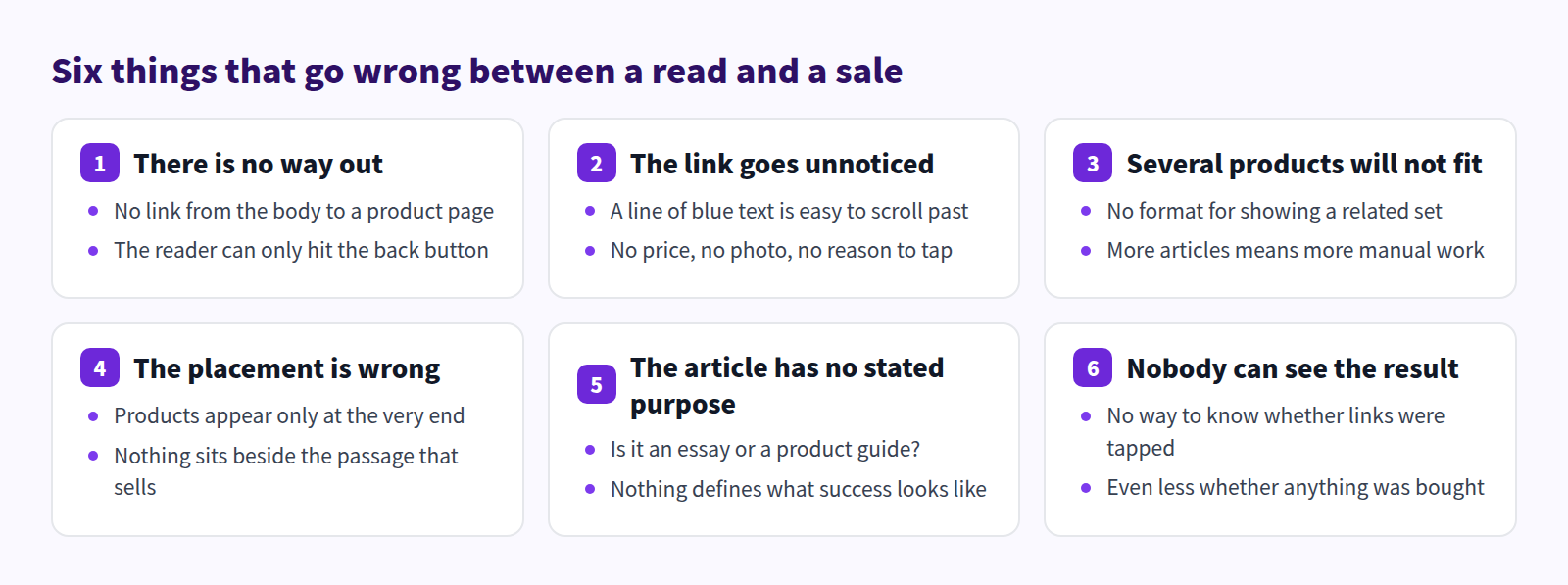
The first four are problems with how the article is built. The last two are problems with how it is measured. Fix one to four first, then use five and six to confirm it worked. Read the section that matches your situation rather than all of them.
What Shopify does on its own, without an app
Before anything else: Shopify's built-in editor gets you further than most posts on this subject admit. It is worth being precise about where the line actually falls.
Link the body text to a product page
In your Shopify admin, go to Content > Blog posts and open the article. The rich text editor handles the link:
- Open the product page on your storefront in another tab and copy its URL.
- In the article body, select the words you want to turn into a link — the product name itself, or a phrase like "see the full canvas tote."
- Insert the link and paste the URL.
- Save, open the published article on your storefront, and confirm that the link opens the product you meant.
Shopify's rich text editor supports images, links, tables, and embedded video from YouTube and similar services. You can put a link on an image too, so a product photo can act as the entry point. Tables are fully supported here, despite what you will sometimes read.
Give readers something to compare
When an article covers more than one product, a table earns its place. Put size, capacity, material, and price in columns and let the reader judge for themselves. Link each product name in the table, and the table itself becomes the path to your catalog. Comparison tables in a Shopify blog covers how to build one.
Photos work the same way. Place an in-use photo in the body and put the linked product name directly underneath it. As a piece of signposting, that is already enough.
Set up the listing and the publishing details
Under the article body, Search engine listing lets you set the page title, the meta description, and the URL handle. Shopify caps the title at 70 characters and the description at 320. You can tag articles to group them by theme, add a custom excerpt that controls how the post appears in the blog listing, choose a staff member as the author, and either publish immediately or schedule a date and time.
What the built-in editor cannot do
There are four things it does not offer:
- Displaying a product as a single unit with its name, image, and price together
- Pulling the products in a collection into the article as a set
- Building a table of contents automatically from your headings
- Telling you, per article, how often a product link was tapped and what came of it
So the built-in tools can absolutely produce an article that leads to a product. What they cannot produce is a presentation people want to tap, or a count of what happened after they did.
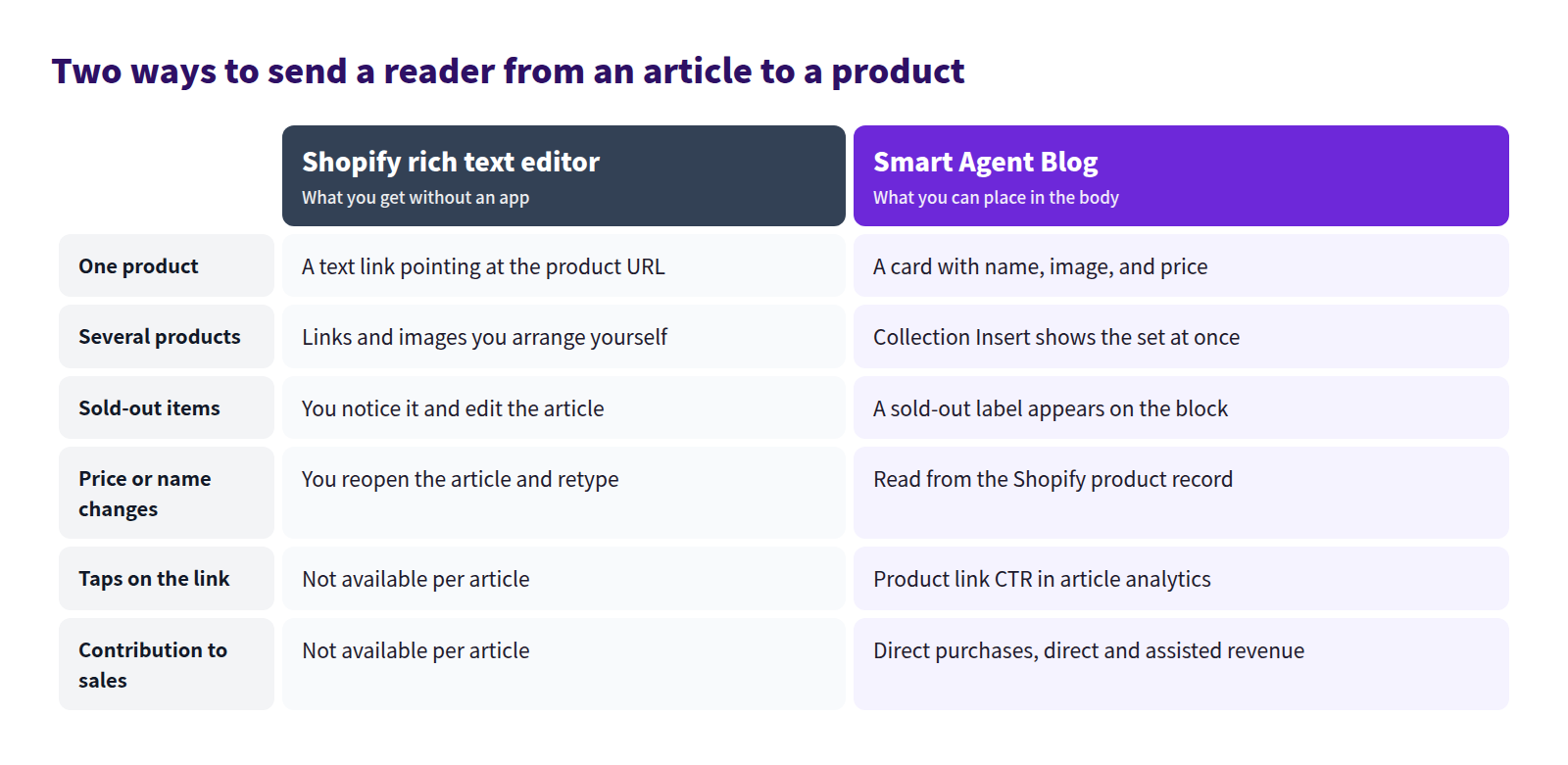
The rest of this guide walks the six problems one at a time.
Give the article a way out
Most of the articles we looked at ended with a closing line and nothing else. The reader hits a wall there. Back button, or close the tab.
Start by deciding, for each article, the one page you want its readers to see next. A product page, a collection page, or a related article — any of those work. What does not work is leaving it undecided until after the article is written, because then it never gets added.
In Shopify on its own, that means pasting the URL into the body as a link. The important part is not to save it all for the final paragraph, since not everyone reaches the final paragraph.
In Smart Agent Blog, the insert menu beside the body has Product Insert. Choose it, pick the product from Shopify, and the block appears where your cursor was — no copied URLs, no switching tabs.
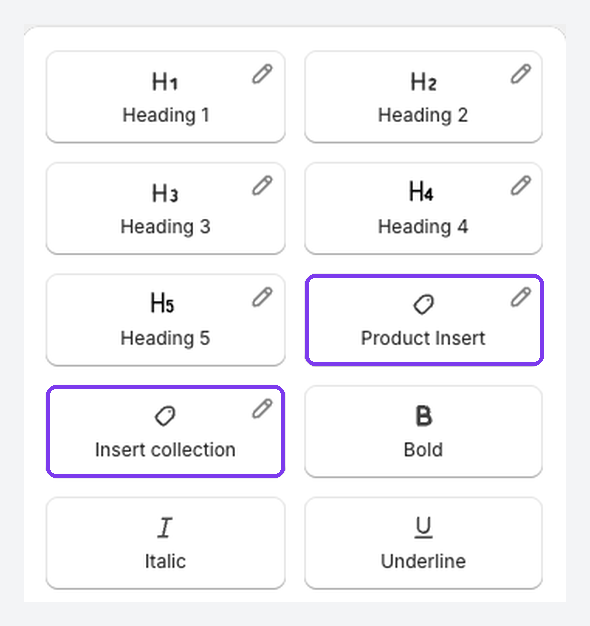
Draft, hidden, and archived products cannot be selected — publish them in the Shopify admin first. The full procedure is in Add content to an article.
Turn the text link into something tappable
Articles that have links but get no taps usually share one trait: the link sits in the same visual flow as everything around it, and gives no clue what is on the other side. No price, no colour, no stock status. You have to tap it to find out anything.
You can compensate in the built-in editor by surrounding the link with context. Add the product photo. State the price in the sentence. Add a line about who the product suits. It takes effort, and it works.
Product Insert in Smart Agent Blog produces a block with the product name, image, and price together, and it adds a sold-out label when the item is out of stock. Because the block reads from the Shopify product record, a price change does not send you back through every article to retype it.

How the block actually renders depends on your theme, so preview the storefront article before publishing. Adding product information to a Shopify blog walks through the setup and the display.
Present several products as a set
Some articles need more than one product: five new arrivals for autumn, three gifts under thirty dollars. In the built-in editor, that means repeating the same photo-description-link routine once per product. Five products, five rounds. Ten products, ten. And every price change means doing it again.
Collection Insert in Smart Agent Blog takes one Shopify collection and displays its products together with images, names, and prices. Select Edit collection block on the inserted block to set the heading, the description, how many products to show, and the column count on desktop and mobile.
The product data comes from the Shopify collection, so adding products to the collection keeps the article in step. After changing a collection's products or prices, open the storefront article and confirm the current information appears.
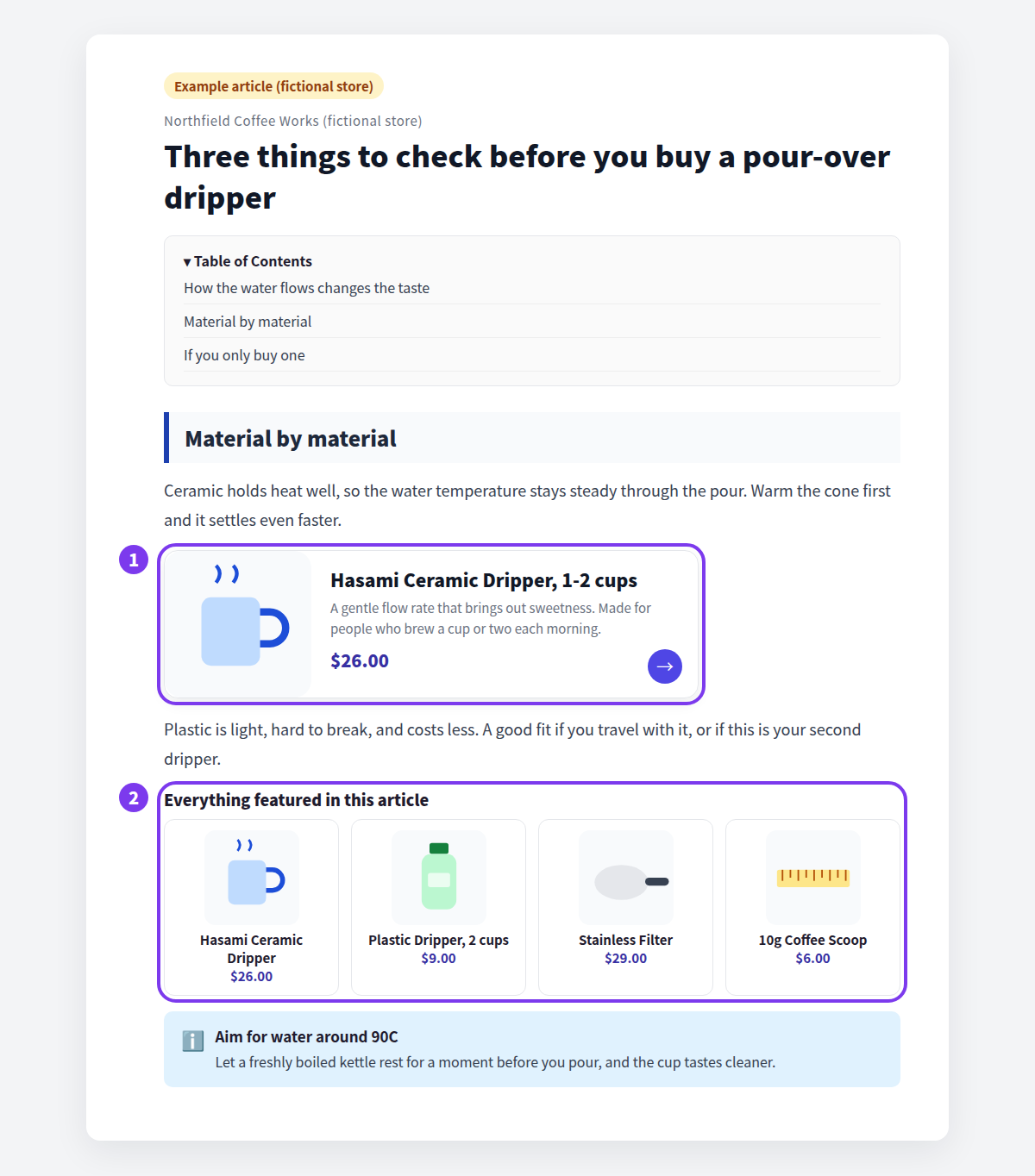
The rule of thumb: Product Insert when the article is arguing for one product, Collection Insert when the reader needs to choose. Gift guides on a Shopify blog and Cross-selling inside a blog post go further on each.
Put the product beside the passage that sells it
Placement matters about as much as format. A product block directly under the paragraph that discusses it gets tapped more than the same block collected at the end, because the reader meets it while that topic is still live in their head.
Smart Agent Blog's analytics says the same thing in its recommendations: when the Action score is low, it suggests reconsidering where product links and related articles sit, and notes that placing them next to the relevant passage works better than grouping them at the end.
In practice:
| Where in the article | What belongs there |
|---|---|
| The opening, where you state the conclusion | The one product the article is really about |
| Mid-body | Whatever product that paragraph is discussing |
| The ending | A collection of related products, or the next article to read |
If you are worried that a card in the middle of the body breaks the reading flow — in practice it does the opposite. The card looks different from the paragraphs around it, so it reads as a section break. As long as you do not stack several in a row, the article gets easier to read, not harder.
Decide what the article is for, then measure it
Sometimes the reason an article does not sell is that it was never a selling article. A post about how you source your materials and a post that helps someone choose between two products succeed in different ways. Packing product cards into the first one does not improve it.
Smart Agent Blog's article analytics assigns each article a purpose and weights the metrics accordingly. The four purposes are SEO and acquisition, education and editorial, product guide or comparison, and campaign. AI picks one from the article content on the first analysis; if it is wrong, select Edit, choose the right purpose, and select Change and reanalyze.
Once the purpose is set, you know which numbers to care about. A low Conversion score on an editorial piece is not a problem to solve. On a product comparison, it is the whole point. Brand articles versus sales articles covers how to choose, and Blog posts versus product pages covers what belongs where.
Separate "nobody tapped" from "they tapped and left"
Once the article is built properly, look at the result. A yes-or-no verdict on whether it sold anything will not tell you what to do next. You need the split:
- If the link is not being tapped, the problem is the format or the placement.
- If it is tapped but nothing is bought, the problem is the product choice or the information a buyer needs before deciding.
Shopify's own analytics show store-wide revenue and traffic, but not, per article, how many times a product link was tapped and what followed.
Smart Agent Blog's article analytics reports those as two separate scores. Action looks at whether product links, related articles, and buttons were selected. Conversion looks at whether the article led to cart adds and purchases. Article analytics is a Pro plan feature.
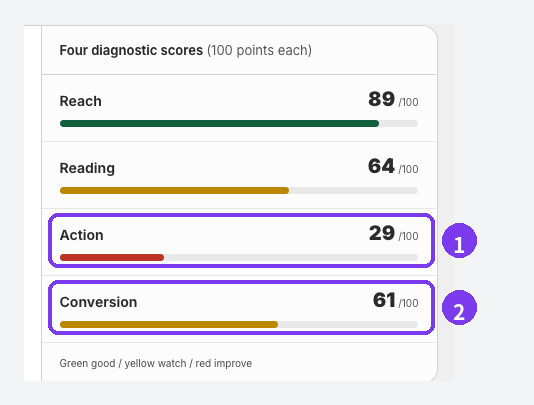
An article with a high Reach score and a low Action score is one where traffic is arriving and the exits are weak. Adding a product card to that article will do more, sooner, than writing a new one.
Under detailed metrics, Actions and purchases gives you the underlying figures: product link CTR, CTA CTR, direct cart adds, direct revenue, assisted revenue, and direct purchases.

Direct revenue is what the article led to immediately; assisted revenue is what it contributed to indirectly. Blog readers frequently come back days later rather than buying on the spot, so an article that looks flat on direct revenue can look quite different once assisted revenue is included.
When a score reads Collecting data, the article is either too new, has too few measured views, or has too few comparable articles to rank against. Wait rather than react.
For the tapping problem, see When nobody clicks your product links. For the buying problem, see Clicks without purchases. For the wider set of numbers worth watching, see Blog metrics beyond page views.
Where to start
None of this has to happen at once. Pick the row that matches you.
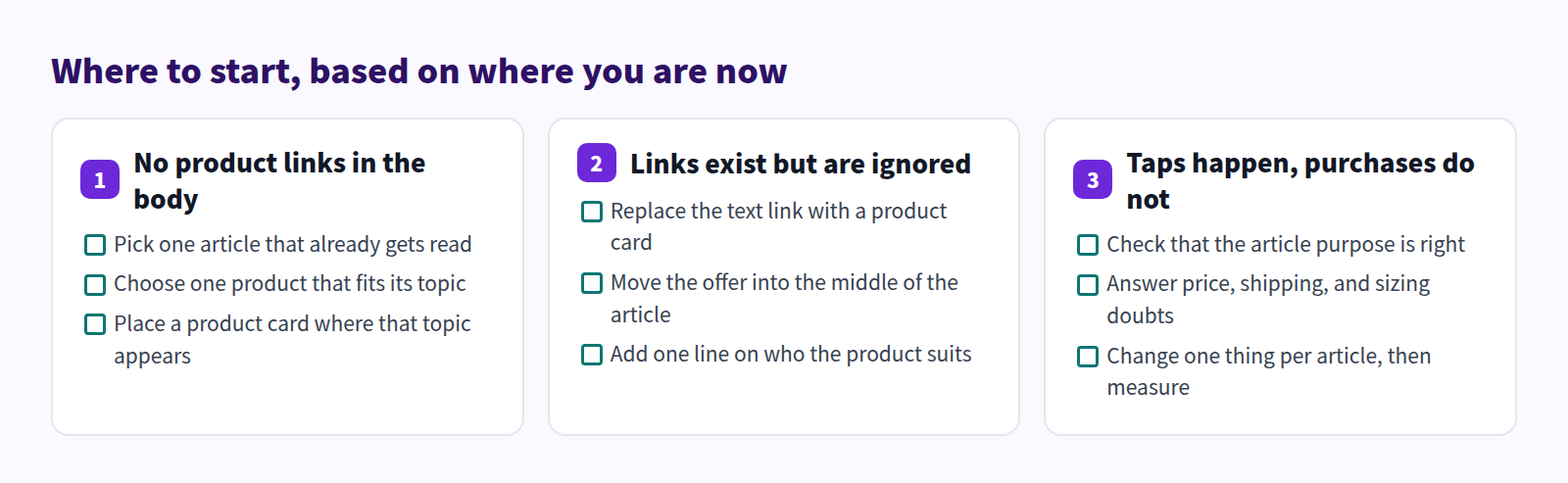
Whichever row you are on, change one thing per article. Change three at once and you will never know which one mattered. Make the change, wait for the next period's numbers, then make the next one.
If you want the whole picture of running a Shopify blog first, start with the Shopify blog guide.
Frequently asked questions
Do product cards make an article feel like an advertisement?
They do if the products have nothing to do with the topic. A relevant product, placed where that topic comes up, just saves the reader a search. The test to apply: is this the product someone would want after reading this paragraph? One or two per article beats five.
Can I add product cards to posts I wrote in the Shopify admin?
Yes — open the existing article in Smart Agent Blog and edit it. One caveat on the free plan: opening an admin-created article in Smart Agent Blog and saving it makes it count toward the free plan's 10-article limit from that point on. See Plans and usage limits.
Which plan includes article analytics?
Article analytics is a Pro plan feature; it is not available on Free or Basic. Product Insert and Collection Insert work on any plan. Building the article first and deciding about measurement later is a perfectly reasonable order.
Summary
- Of the articles we reviewed, 75% had no link from the body to a product page, and none of the 113 recorded articles presented a product as a card
- Shopify on its own handles links, tables, and images well enough to build a path to a product. What it does not handle is card display, collection sets, and per-article measurement
- Product Insert and Collection Insert change both the presentation and the maintenance burden — and placement in the middle of the body beats a pile at the end
- The Action and Conversion scores tell you whether the problem is that nobody tapped, or that tapping led nowhere
Open the article that already gets the most reads. Choose one product that genuinely fits its subject. Put a card where that subject comes up. That is the shortest possible first step.