
You want to show customers how a product works, so you drop a video into a blog post. Then the post underperforms. Readers open it on a train with the sound off, scroll past the player, and never find the one number they needed.
The fix is simple: sandwich the video between a short summary and written steps. Shopify's built-in editor can embed YouTube and Vimeo videos, and Smart Agent Blog's Video block goes further, taking a YouTube URL, a video file URL, a file from your computer, or a video already in Shopify.
This guide uses a fictional coffee store's post to show how to structure a video article, then walks through adding video in both editors.
- Why a video on its own often fails to teach
- What to write before and after the video
- How long each video should be, and how to make it work without sound
- How to add video in Shopify's editor and in Smart Agent Blog, with screenshots
Why a video alone doesn't carry the post
Video is great at things text struggles with: hand movements, pouring speed, how a fabric drapes. But a post that relies on video alone has three weak spots:
- It may never be played. People browsing at work or on transit often can't turn the sound on, or don't want to spend the data.
- Details are hard to find. A reader who only wants to check "how much water?" has to scrub back and forth through the clip.
- Nothing lands in the text. What you say in the video doesn't exist in the article body unless you write it down, and without headings, the table of contents has nothing to show.
When we reviewed Shopify stores in Japan while preparing proposals for Smart Agent Blog in August and September 2026, 27 of the 78 posts we recorded (about 35%) had no headings at all. Roughly 1 in 3 posts had no structure a reader could scan. Posts built around video need headings and text even more, so readers can see what they'll learn and where to find it.
What belongs in the video, and what belongs in text
You don't need to film everything. Splitting the job keeps both the video and the text short.
| Content | Best format | Example |
|---|---|---|
| Motion, speed, pressure | Video | Pouring technique, fabric stretch, assembly |
| Numbers, amounts, times | Text | 15 g of coffee, 7 fl oz of water, 30-second bloom |
| The order of steps | Numbered list plus video | Four written steps, with the video showing the motion |
| Warnings and conditions | Text, ideally a callout | Handling hot water, warranty terms |
Anything a reader might want to look up again, like measurements and cautions, should be written down, not just spoken in the video.
How to structure a post around a video
Build every video post in the same four steps.
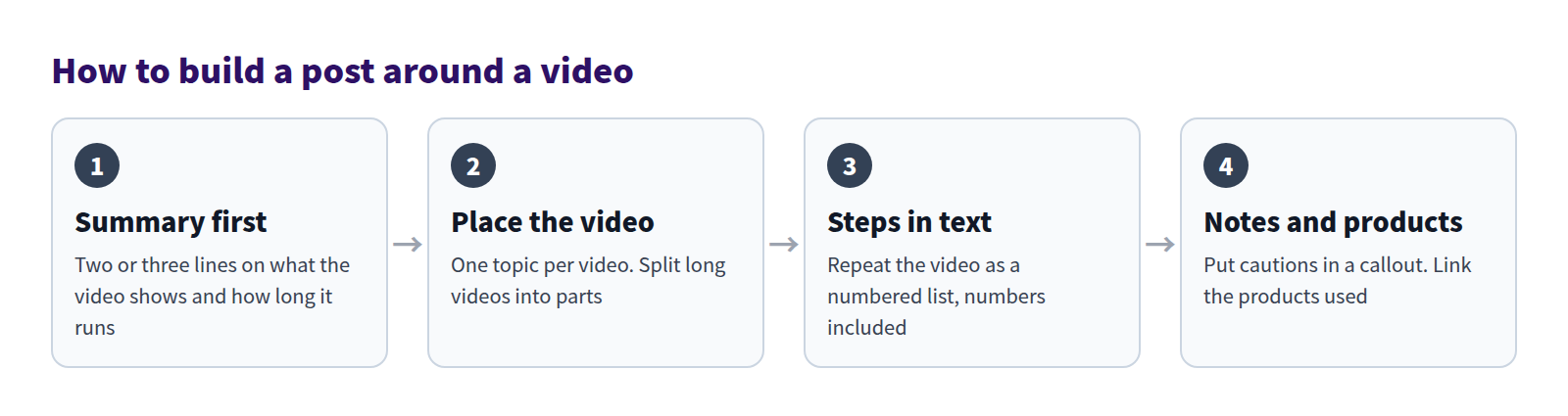
Put a summary above the video
Right before the player, write two or three lines on what the video shows and how long it runs. Readers can decide whether it's worth pressing play. If it has captions or works without sound, say so.
Write the steps below the video
Directly after the video, repeat what happens in it as a numbered list. This is where amounts, times, and temperatures go. The goal: a reader who never plays the video can still follow along from the text alone.
Keep each video to one topic
For how-to content, aim for roughly one to three minutes per video by limiting each one to a single task. Instead of one long clip covering "unboxing, setup, and care," make separate videos for setup and for care. Put a heading above each one, and readers can jump to the one they need from the table of contents.
Make it work with the sound off
Assume many viewers will watch muted:
- Show step names and measurements as on-screen text or captions.
- Film close-ups so the action is clear from the picture alone.
- Make the first few seconds show what the video is about.
- Write what you say in the video into the article body too.
Example: a fictional coffee store's pour-over guide
Here's the structure applied to a post from MORI DRIP COFFEE, a fictional coffee bean shop.
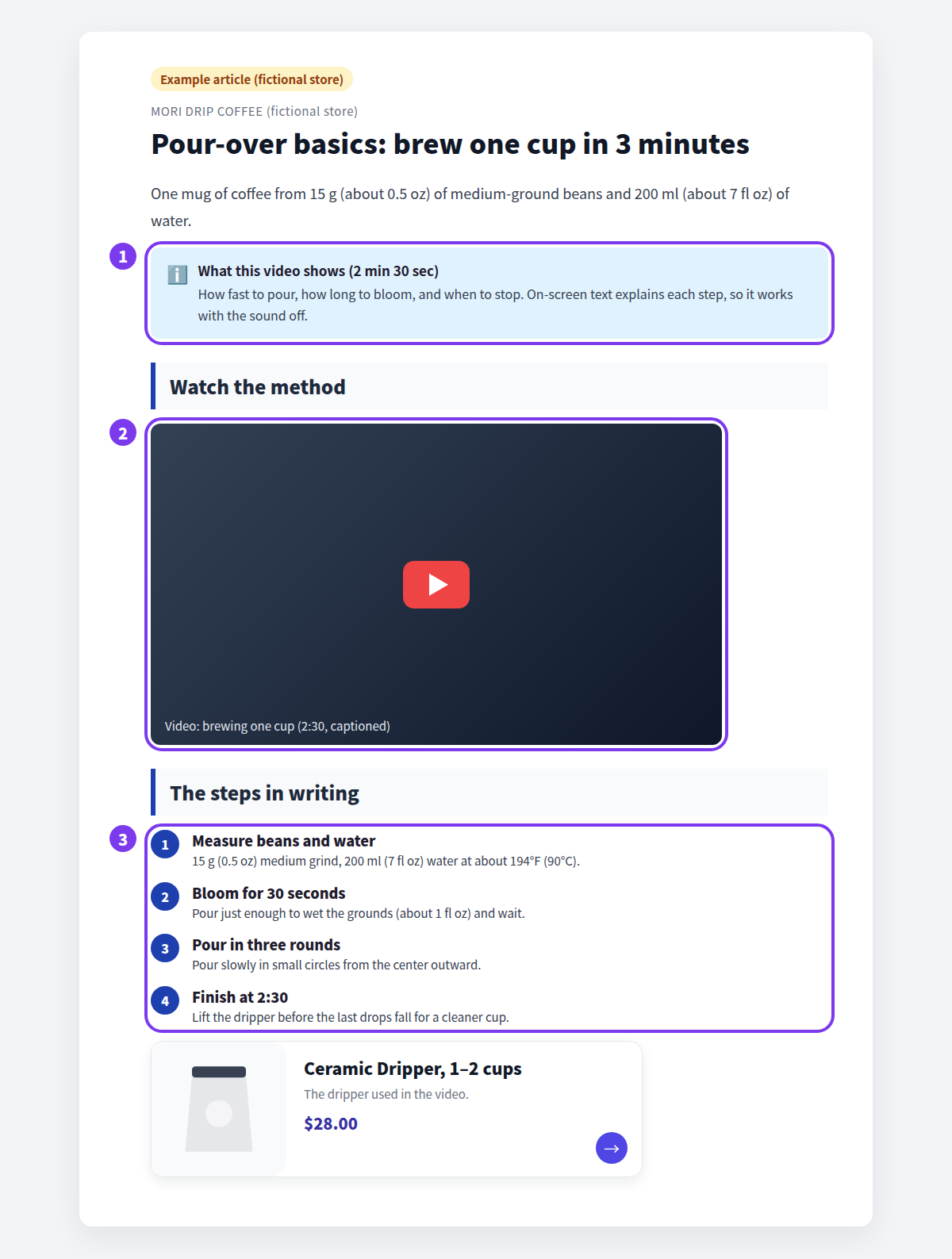
- Summary above the video: a short callout states what the video covers, its length (2:30), and that it works with the sound off.
- The video: one task only, brewing a single cup. It sits under a "Watch the method" heading so readers can find it from the table of contents.
- Steps below the video: coffee amount, water temperature and volume, and bloom time, all written out. Someone who skips the video can still brew from this list.
At the end, a product card links to the dripper used in the video, so a reader wondering "where do I get that?" can go straight to the product page.
Adding video in Shopify's built-in editor
The rich text editor you use under Content > Blog posts in your Shopify admin has an Insert video button. According to the Shopify Help Center, the process is:
- Copy the URL of the video on YouTube or Vimeo.
- Create embed code for it. The Help Center suggests Embed Responsively, a tool that generates embed code from the video URL.
- In the editor, click Insert video, paste the embed code into the dialog, and click Insert video.
- Save the post.
The built-in editor embeds videos hosted on a streaming site such as YouTube or Vimeo. If you shot the video yourself, you'll need to upload it there first. Working with embed code also adds a step that can feel fiddly the first few times.
Adding video in Smart Agent Blog
In Smart Agent Blog's article editor, you add a video by choosing Video from the insert menu beside the article body.
Choose Video in the insert menu
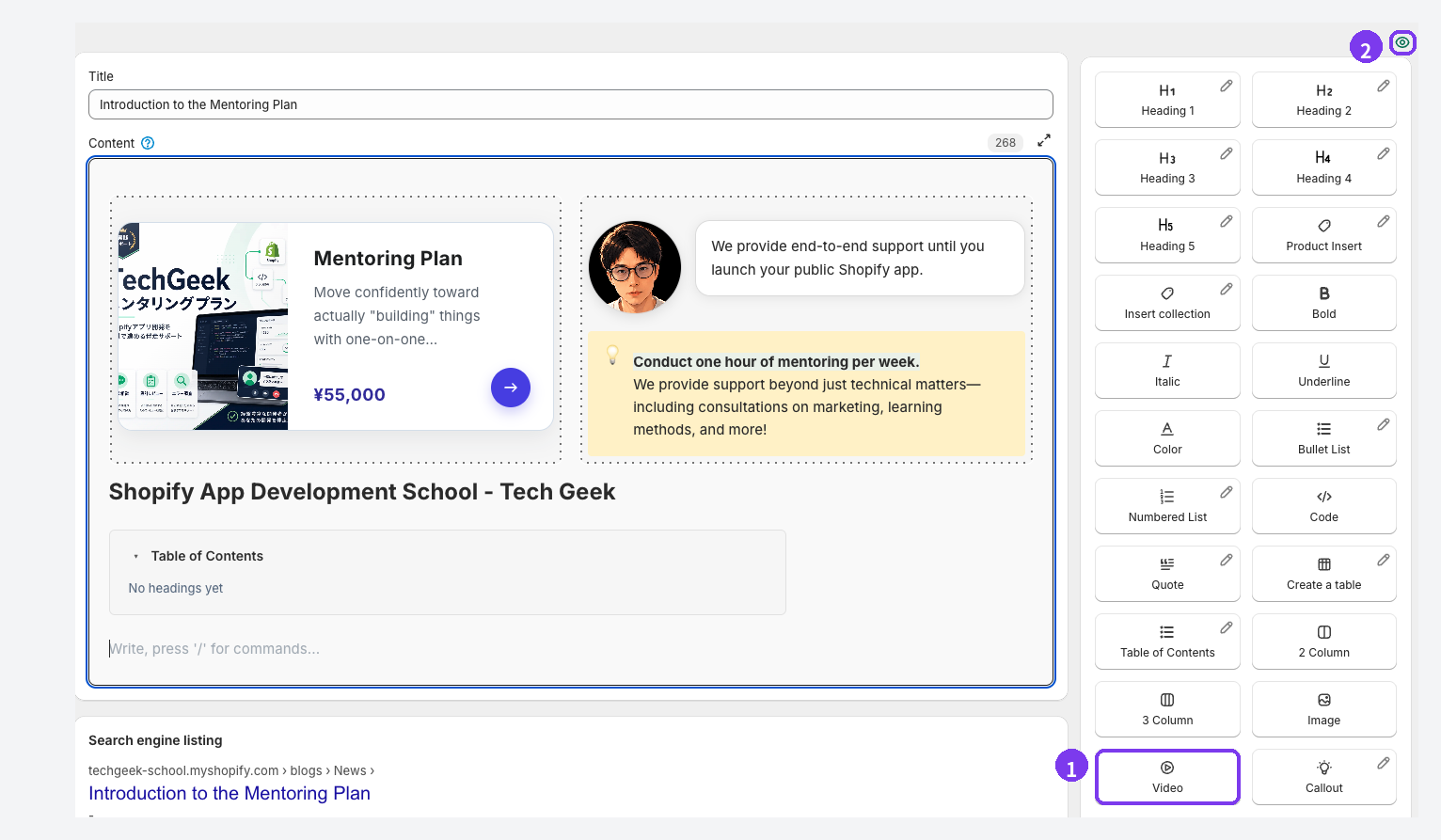
- Place the cursor where the video should go and select Video in the insert menu. You can also type
/at the start of a new line and choose Video from the list. - If the menu isn't visible, use the eye icon above it to show it. The choice is remembered for the store.
Pick one of four sources
The dialog that opens gives you four ways to add the video.
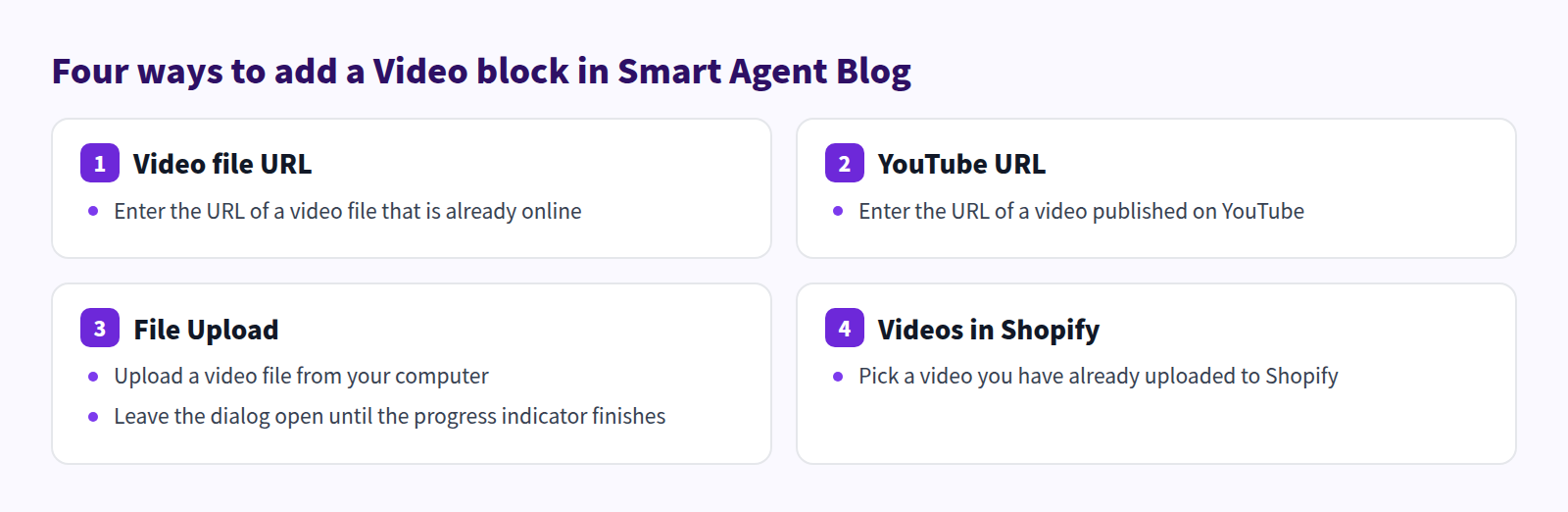
- Video file URL: enter the URL of a video file that's already online.
- YouTube URL: enter the URL of a YouTube video.
- File Upload: upload a video from your computer. Uploads can take a while, so leave the dialog open until the progress indicator finishes.
- Videos in Shopify: pick from videos you've already uploaded to Shopify.
No YouTube channel? File Upload or a video already in Shopify gets your clip into the post without a streaming site in between.
Finish the text around it
Once the video is in, finish the surrounding content in the same editor:
- Put the summary above the video in a Callout so it stands out. See How to make important notes impossible to miss.
- Write the steps below it as a Numbered List.
- Use Product Insert to add a card with the product name, image, and price for anything shown in the video. See How to add products to your Shopify blog.
- For long posts with several videos, add a Table of Contents. It builds itself from Heading 2 to Heading 4 (How to Add a Table of Contents to Shopify Blog Posts).
To add a staff member's take, try a speech balloon (Put staff comments in speech balloons).
Save and preview
Smart Agent Blog doesn't autosave. After adding a video, select Save, keep the post Hidden, and use Preview at the top of the editor. Check that the video plays and doesn't overflow on a phone, then switch to Visible and save. See Preview and publish an article.
The two approaches compared
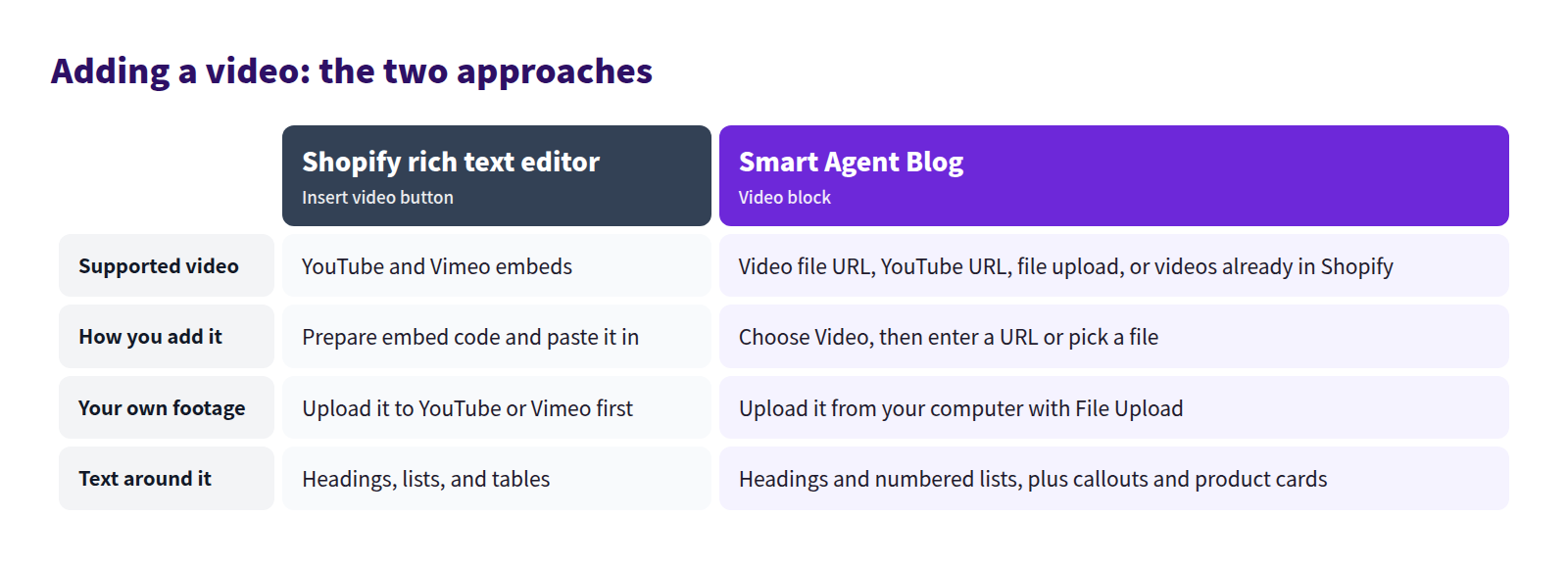
For a single YouTube video, the built-in editor does the job. If you want to post your own footage right away, or combine video with product cards and callouts so readers can read, watch, and buy in one post, Smart Agent Blog is the better fit.
Pre-publish checklist
Before a video post goes live, run through this list.
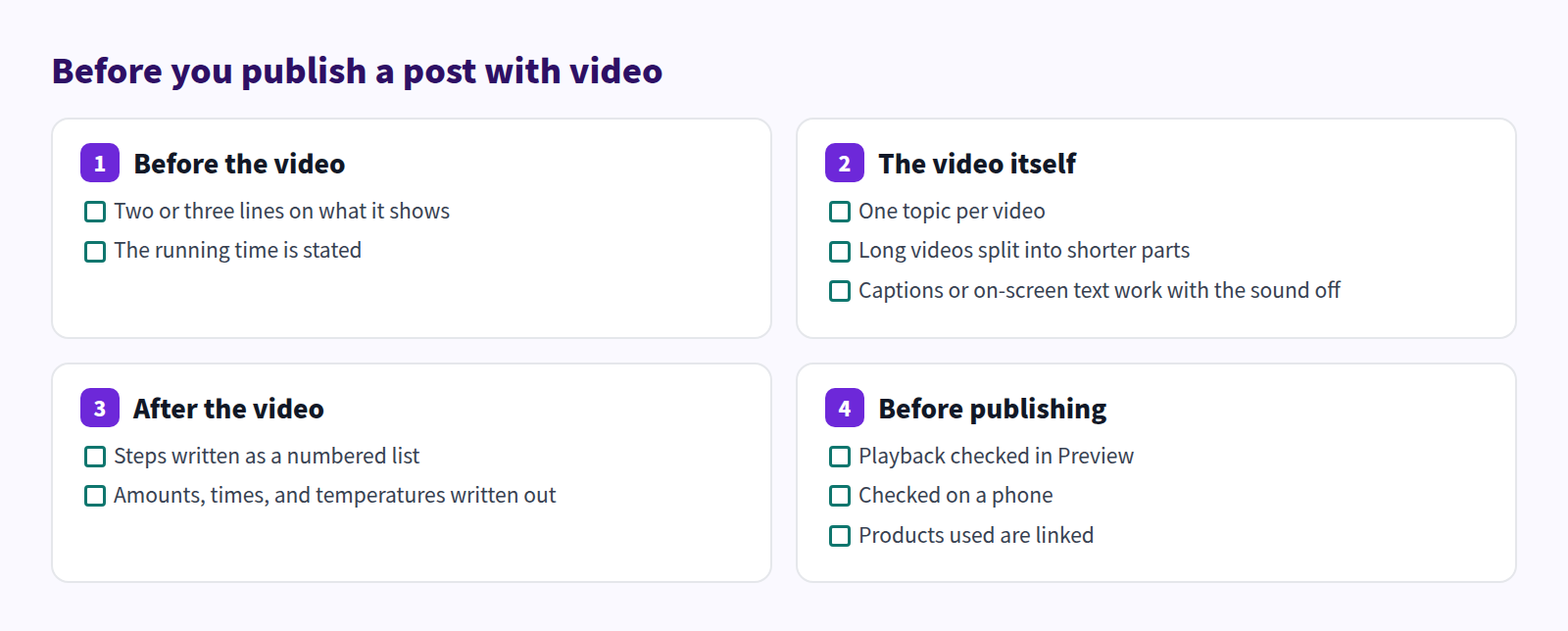
The two items people miss most are writing the numbers out in text and checking on a phone. Videos are usually edited on a computer, so check the mobile view both in Preview and on the live post.
FAQ
Should I use a YouTube URL or upload the file?
If the video is already on YouTube, the URL is the quickest option. For clips you shot just for the post, or ones you don't want on YouTube, use File Upload or pick a video already in Shopify.
Can I add video to a post I wrote in Shopify admin?
Yes, you can open it in Smart Agent Blog and edit it. When you save, though, the body, title, author, tags, and other fields are overwritten with what's in the Smart Agent Blog editor, and custom HTML may change shape. The author is selected automatically, so check it before saving. On the Free plan, posts you open and save in Smart Agent Blog count toward the 10-article limit.
My upload seems stuck
Video uploads can take a while. Keep the dialog open while the progress indicator is showing. For large files, consider splitting the video into shorter clips.
Summary
- A video alone may go unplayed, is hard to search, and leaves nothing in the text.
- Write what the video shows and how long it is above it, and the steps and numbers below it.
- One topic per video, and design it to work with the sound off.
- Smart Agent Blog's Video block takes a YouTube URL, a video file URL, File Upload, or a video already in Shopify.
Pick the question customers ask most about using your product, and publish one post that pairs a short video with written steps. For the next step in this series, see When to use 2-column and 3-column layouts. For the whole process a post goes through, see how to write a Shopify blog post.