

What you will learn
On this pageContentsCloseOpen
Shopify's native blog lets you write and publish a post at no extra cost. Merchants still shop for a blog app because the work that surrounds the writing never goes away.
Pick a topic, write it, attribute it to an author, publish it, read the numbers, fix what underperformed. The native feature set covers exactly one of those steps: write and publish.
This article breaks down which of those steps Smart Agent Blog takes over and which ones stay where they are. Full disclosure: this publication is run by Forest Book, the company that builds the app, so the limits and the things it cannot do get the same attention as the features. Research date: September 1, 2026. The screenshots show the Japanese admin UI; the app ships in both English and Japanese.
Your posts still live in Shopify
Clear up one misconception first. Smart Agent Blog does not create a blog outside of Shopify. Posts are saved as Shopify blog posts, and the URLs are Shopify URLs.
What changes is the screen you write in and how the post is rendered by your theme. To display posts, you add the "Smart Agent Blog" section to your blog post template in the theme editor and hide the existing article body section.
If you already have published posts, do not make that switch on your live theme. Duplicate the theme first, pick three to five posts that differ from each other, and check them there. The full procedure is in Switching from your existing blog posts safely.
Building the post
Shopify's Help Center describes the native editor as a rich text editor that supports inserting images, links, tables, and embedded video and other media. For text-first posts, that is enough.
In Smart Agent Blog, you type a half-width / at the start of a line, or pick from the insert menu on the right. The / list contains headings 1 through 5, bold, bulleted lists, numbered lists, code, quotes, tables, a table of contents, two-column and three-column layouts, images, video, product embeds, callouts, and speech bubbles. The insert menu adds italic, underline, and colour on top of that.
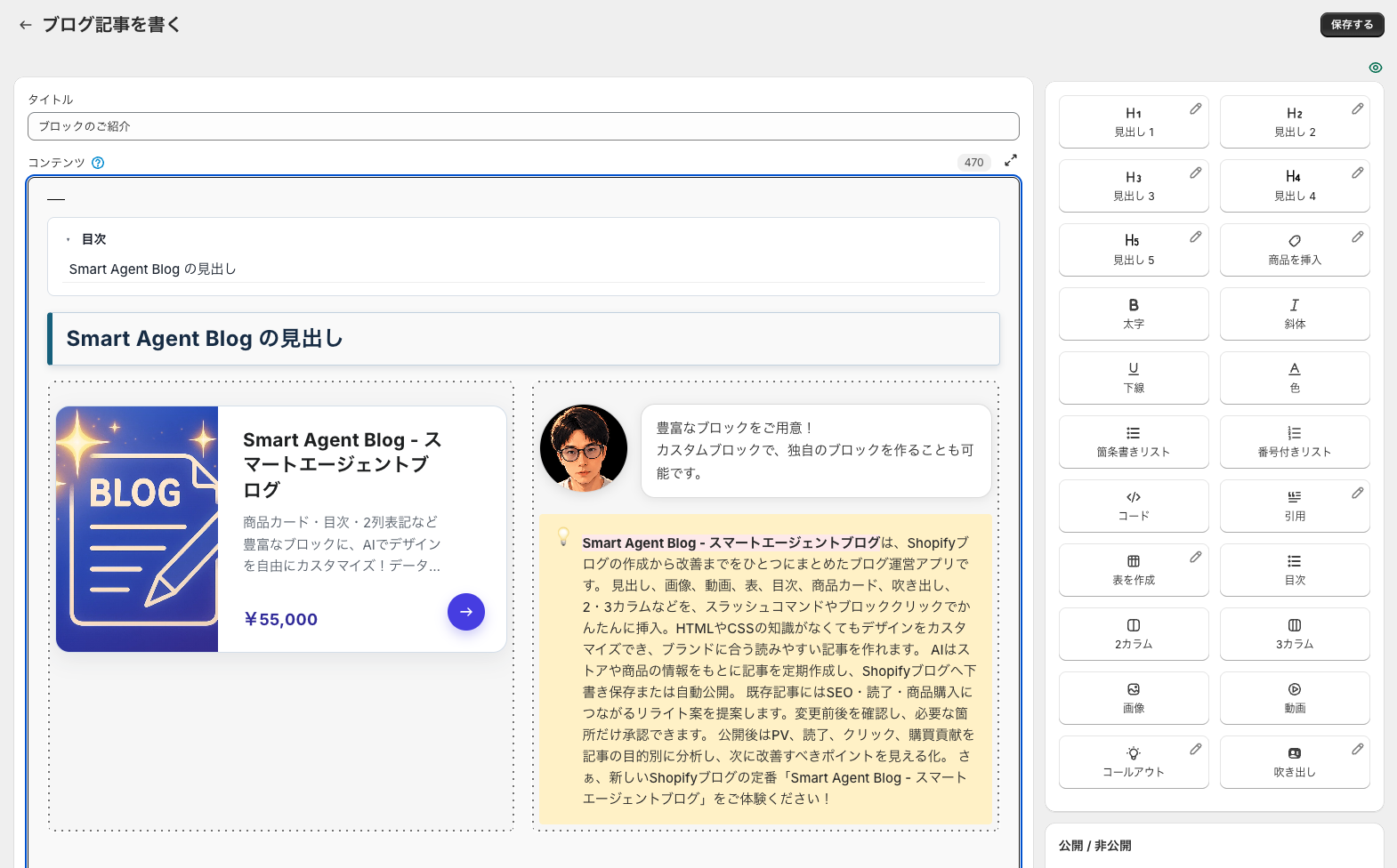
Three of those matter in practice.
The table of contents builds itself from your headings and updates when you add more. Only headings 2 through 4 appear in it; heading 1 and heading 5 are excluded. Shopify's documented post creation flow has no equivalent setting for generating a table of contents from headings.
Product embeds drop a card with the product name, image, and price into the body. Out-of-stock products are labelled as sold out. Draft, hidden, and archived products cannot be selected, so publish them in the Shopify admin first.
Custom blocks let you build your own block with HTML and CSS. JavaScript does not run, and Liquid written into the HTML is not processed. Custom blocks, along with the design editing option on headings, quotes, callouts, and speech bubbles, are paid-plan features.
One thing to know before you start: the editor has no autosave. Nothing reaches Shopify until you press Save, so long posts need saving along the way. If you are used to the native admin, this is the first difference that will catch you out.
Showing an author
Per Shopify's Help Center, the only people you can set as a post author natively are the store owner and staff with admin access. POS-only staff and collaborators do not appear in the list. If an outside writer produces the post, you cannot credit them without adding them as staff.
Smart Agent Blog stores authors as app-side profiles instead. Each one takes an avatar, name, job title, description, Facebook, X, Instagram, a personal link, and tags, and none of it is tied to a staff account.
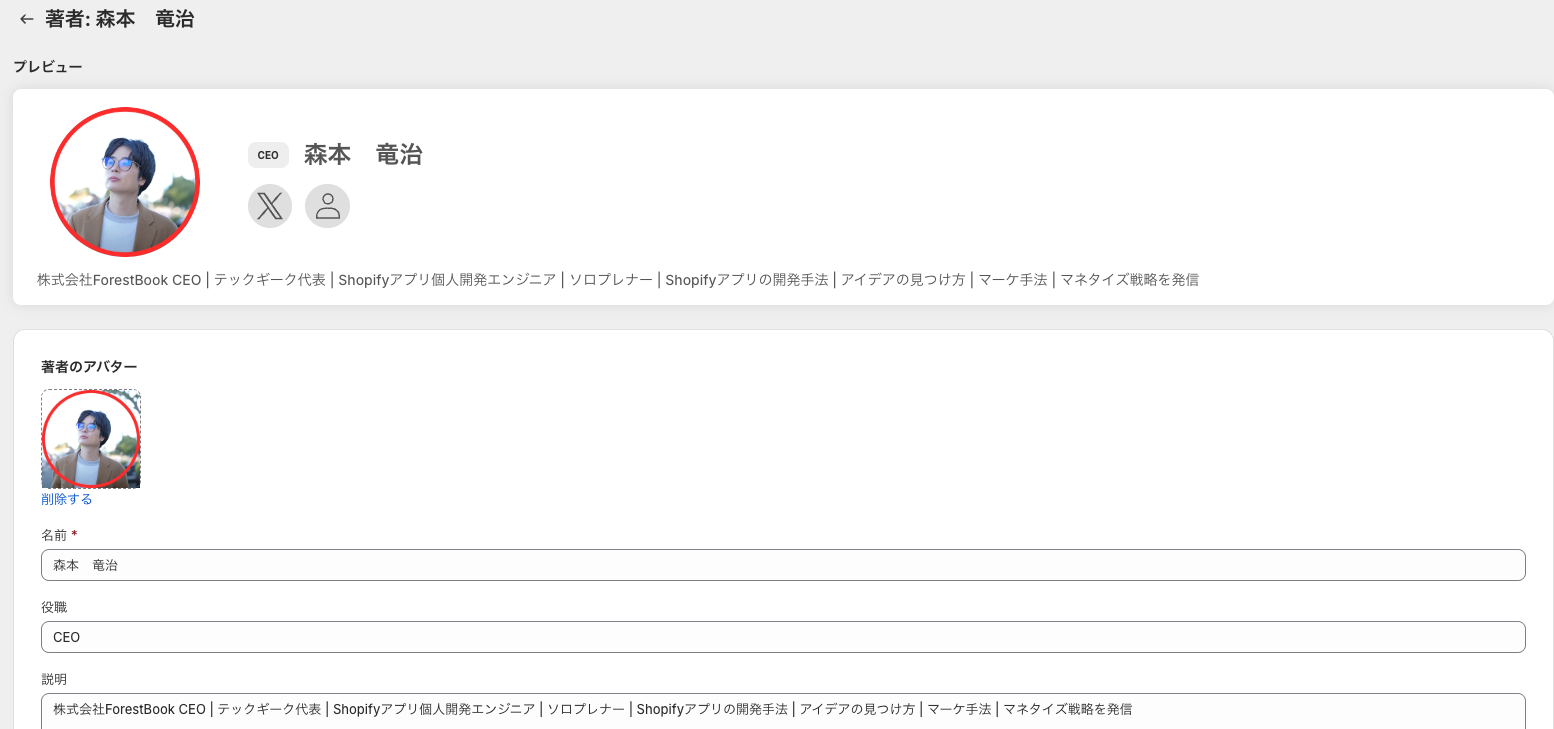
Two caveats. First, where the author appears is decided by your theme, not the app. The section settings offer hidden, sidebar, below the post, and above the post. Nothing shows by default.
Second, posts published before you installed the app will not show an author until you open them in Smart Agent Blog, pick an author, and save. There is no bulk conversion, so this is a post-by-post job.
Finding posts
The post list supports title search, tabs for All, Published, Unpublished, and AI-generated, and filters on status, tag, blog, author, and AI generation. You can sort by updated date, publish date, or 30-day page views.
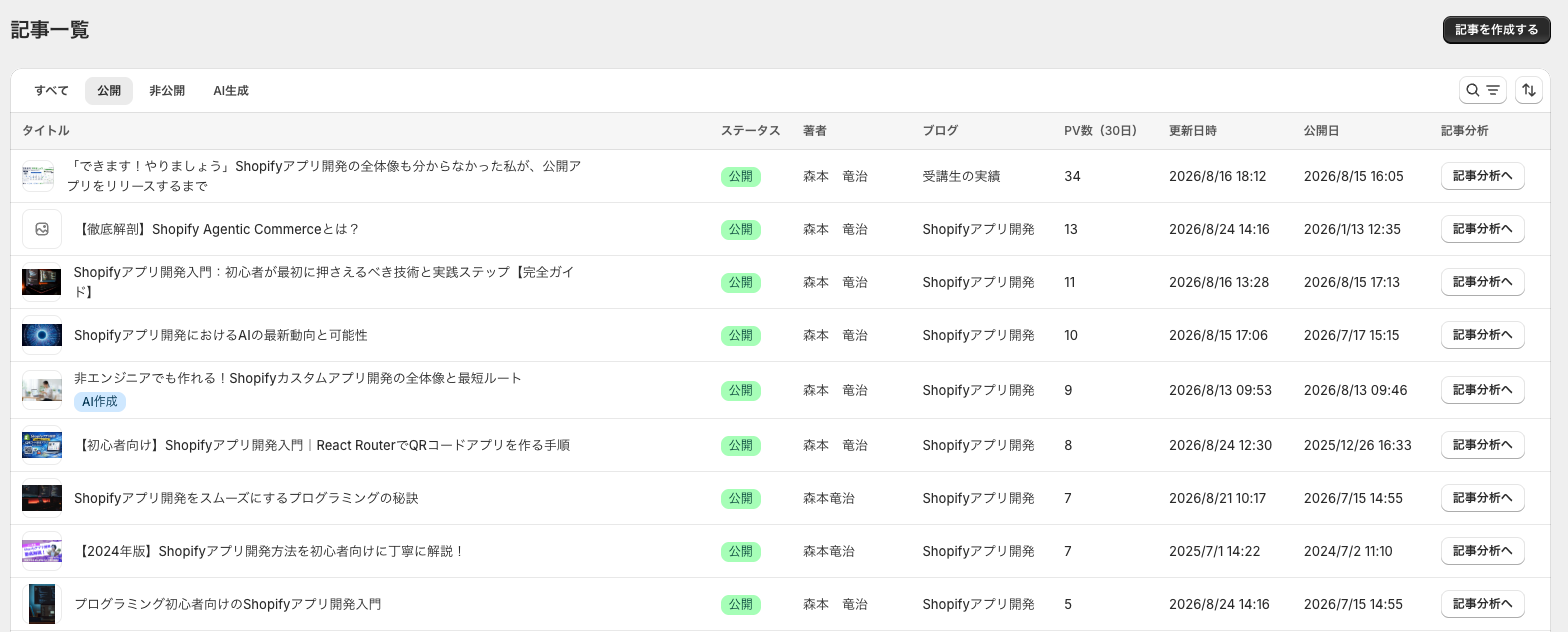
The 30-day page view column is the difference from the native post list. You can see which posts are being read without leaving for a reports screen.
What is missing: bulk publish, bulk delete, and a filter for scheduled posts. The post editor also only toggles between published and unpublished, so there is no scheduling a post for a future date and time. Deletion, bulk actions, and scheduled publishing all go through Content and then Blog posts in the Shopify admin.
Deciding what to write
This is the step with no native counterpart at all.
Scheduled AI blog suggestions take an AI provider (OpenAI or Anthropic), a business overview, themes and keywords, a target reader, tone, output language, a destination blog, an author, and which products to reference. Set a day, a time, and a time zone, and a post is produced once a week.
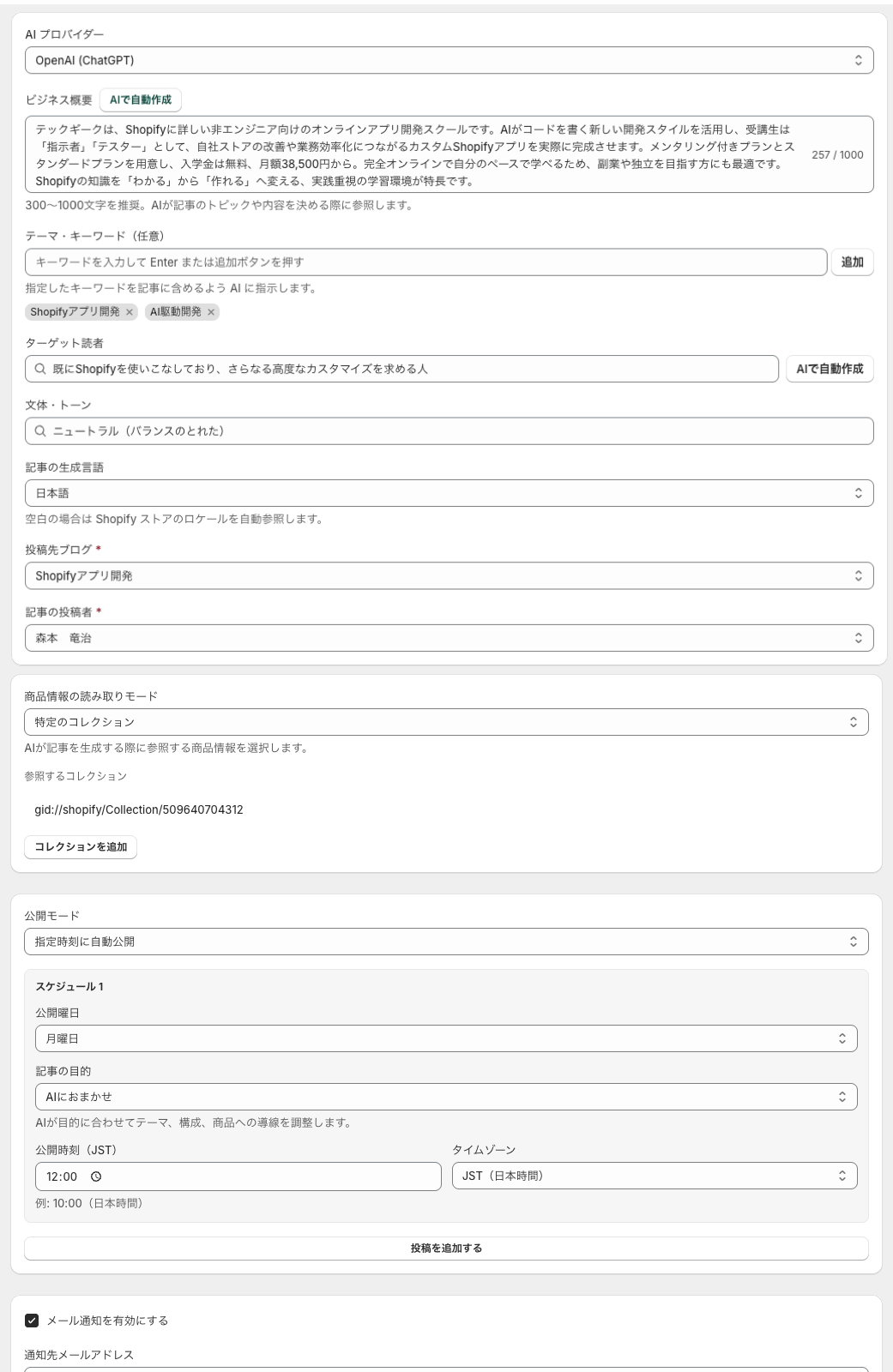
Two settings do most of the work: the business overview (300 to 1,000 characters recommended, 1,000 maximum) and the product reference mode. The reference mode offers none, all products, specific products, and a specific collection. The wider you cast, the vaguer the output, so a small set of products is easier to evaluate at first.
Publish mode offers "save as draft (publish manually)" and "publish automatically at the scheduled time". Choose draft for your first several posts. AI writes attributes products do not have and claims that cannot be verified. The review checklist is in Reviewing an AI draft.
Separately from your plan, AI generation is capped at three posts per hour. Trying to batch them will get you a message asking you to wait.
Reading the numbers after publishing
Shopify's behaviour reports include sessions by landing page, so you can see where sessions started. What the documented list of behaviour reports does not include is anything covering, for a single post, how far it was read, whether in-post links were clicked, and what that contributed to purchases.
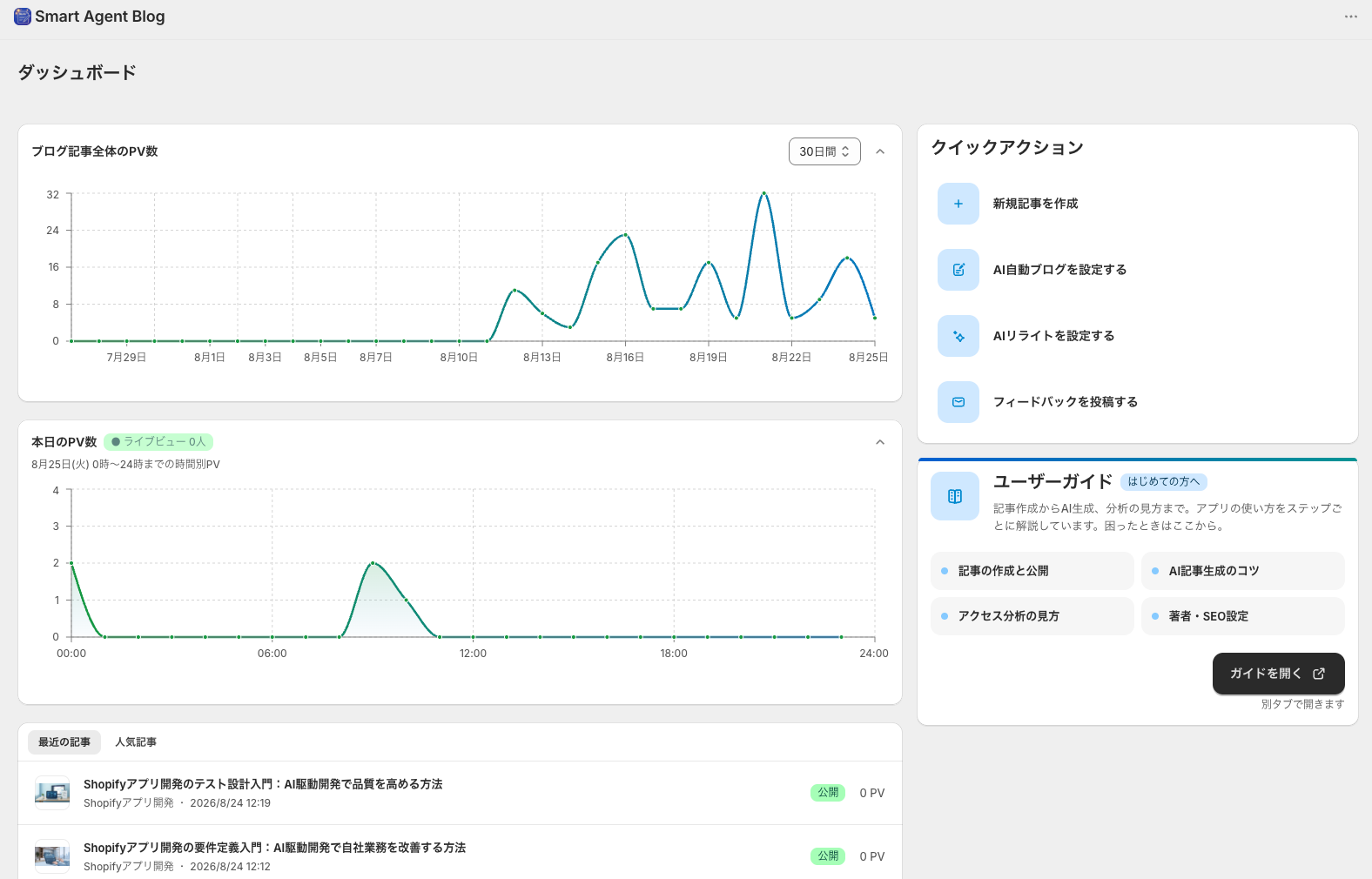
The Smart Agent Blog home screen shows blog-wide page views over 7, 30, or 90 days, today's hourly page views, recent posts, popular posts, and the AI execution history on one screen. It is built around opening it once a week.
Individual posts are scored in post analytics. The app classifies the post's purpose (SEO and traffic, explainer, product comparison, or campaign), switches the metrics and weightings to match, and reports a goal achievement score plus four diagnostic scores out of 100: traffic, read-through, call to action, and purchase contribution.
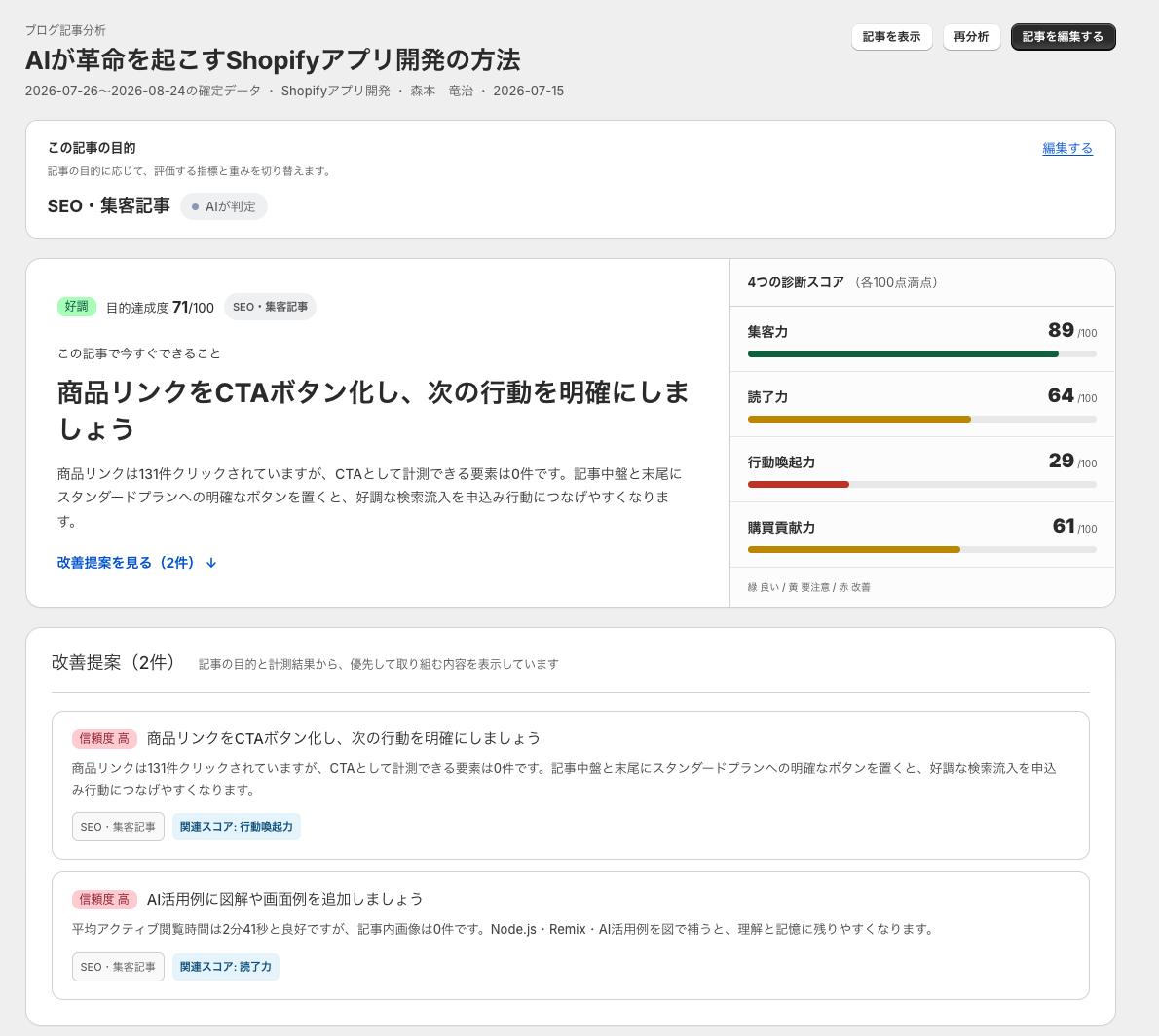
Up to three suggestions appear, each with a confidence level and the evidence behind it. In the screen above, the measurement that product links were clicked 131 times while zero elements were measurable as a CTA is what produces the suggestion to add a CTA button. The numbers and the suggestion sit on the same screen, so you can check the reasoning.
Detailed metrics cover page views, effective read-through rate, average active reading time, quick bounce rate, return rate, scroll depth at 25, 50, 75, and 90 percent, traffic source breakdown, product link CTR, direct add to cart, direct revenue, and assisted revenue.
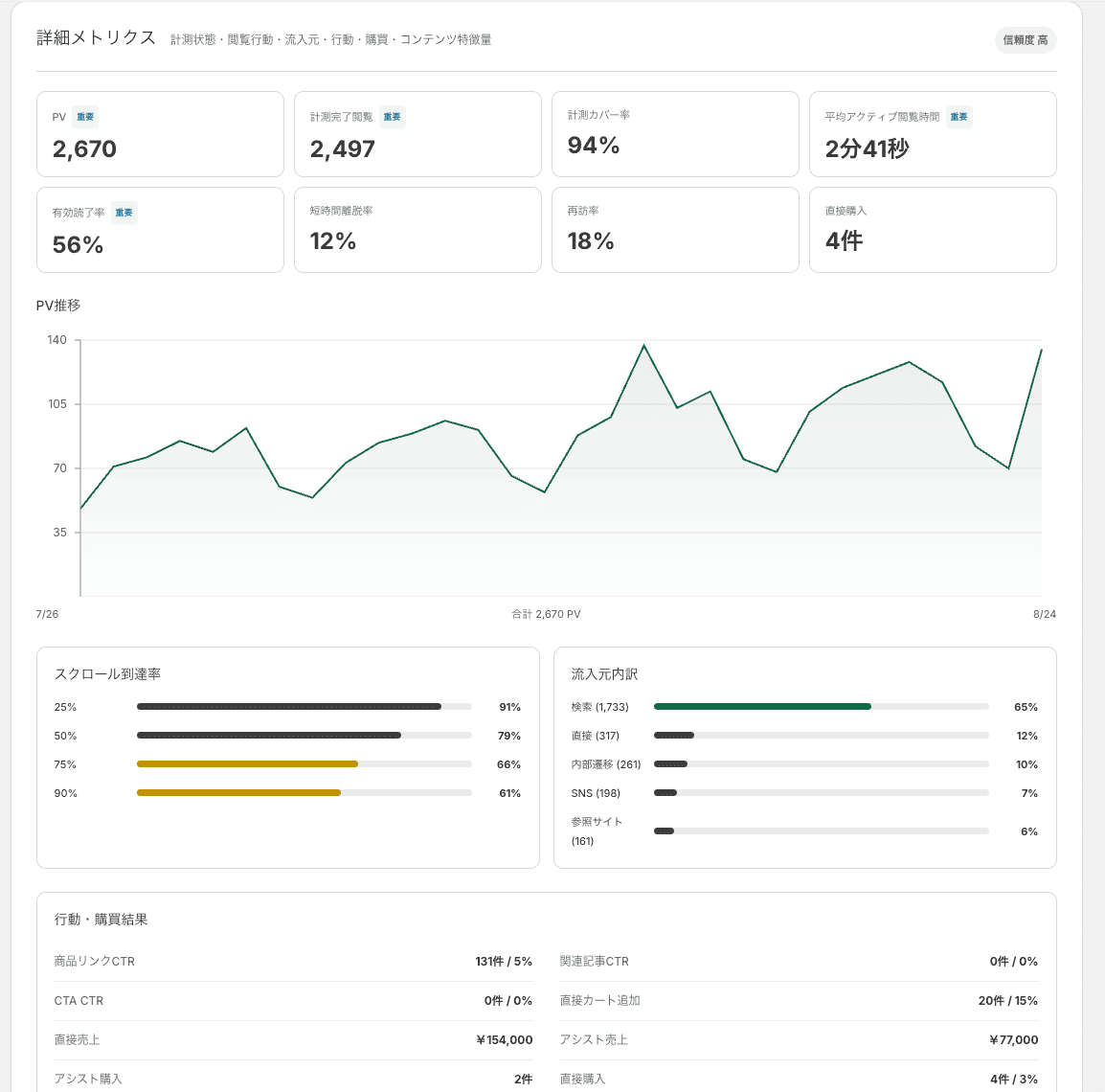
The window is the 30 days ending yesterday. A post that has just gone live shows "preparing analytics data" instead of a result, and the diagnostic scores show "collecting data" until there are enough comparable posts and page views.
There is no "SEO score" in post analytics. Impressions and clicks in search are expected to come from Google Search Console. Post analytics is a Pro plan feature and is not available on Free or Basic. Strictly, the condition is an active Pro subscription or a Shopify development store.
Fixing what you published
AI rewrite proposes changes to the title, body, and SEO description of an existing post. Pick from four strategies — CTR, engagement, freshness, and conversion — and narrow the candidates by CTR threshold, bounce rate, minimum page views, and months since the last update. The CTR strategy is the one that requires a Google Search Console connection.
Publish mode is the setting that matters. With "approval required (recommended)", nothing changes in the original post until you approve it. The approval screen shows before, after, and the intent behind each change, and you decide per change whether to approve it or keep the original.
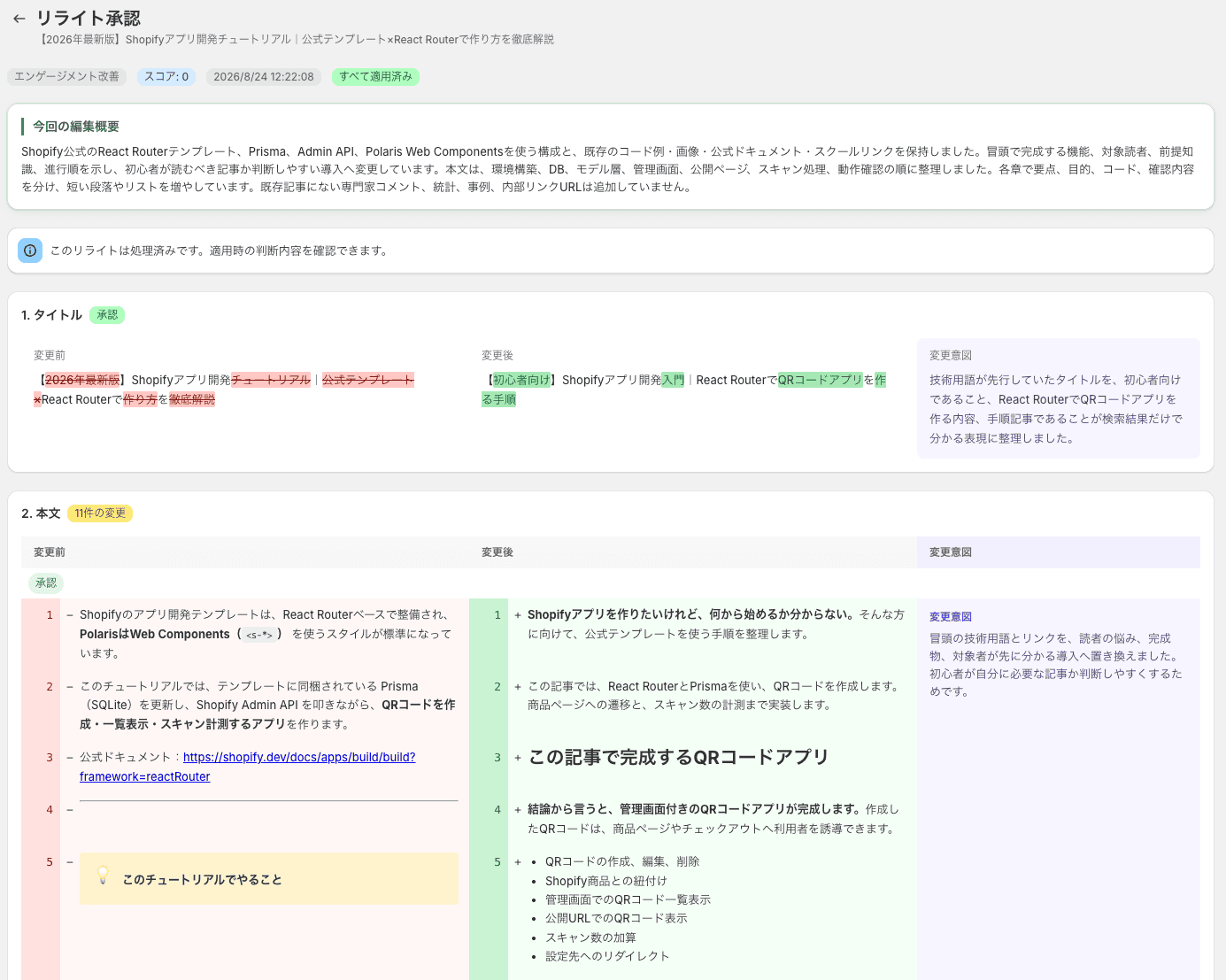
There is a trap here. Approving even one body change rebuilds the entire body from the version that existed when the rewrite was generated. If you edited the body yourself after that point, those edits are gone. The title and SEO description are judged per field and are unaffected — the body is the exception. Using AI rewrite has the details.
AI rewrite is not available on the Free plan. Basic gets one per month, Pro gets 30 per month with a maximum of five per run.
What the Search Console connection is used for
Connecting Google Search Console pulls in impressions, clicks, CTR, and average position. That data is used by the SEO report email and by AI rewrite — both for selecting candidates under the CTR strategy and for the current performance panel in the post editor. It does not appear in the post analytics screen.
The SEO report email contains search performance, the top five posts by clicks, and an AI-generated list of posts worth improving first. The send job runs on Tuesday mornings Japan time. Free gets one per month up to three in total, Basic gets one per month, and Pro gets one per week. Nothing is sent if the notification email address is blank.
Pricing, and what the track record tells you
| Plan | Monthly | What it includes |
|---|---|---|
| Free | $0 | Up to 10 posts created in the app, two AI suggestions in total, one suggestion schedule |
| Basic | $9 | Unlimited posts, custom CSS and custom blocks, one AI suggestion per month, one AI rewrite per month |
| Pro | $49 | Everything in Basic, analytics and advanced SEO analysis, 15 AI suggestions per month, 30 AI rewrites per month with five per run, five suggestion schedules and three rewrite schedules |
Paid plans come with a 30-day free trial. Annual pricing is $90 for Basic and $490 for Pro. Whatever the Shopify pricing screen shows takes precedence over this table.
The Free plan's 10-post limit counts posts created by Smart Agent Blog. Posts created in the Shopify admin are not counted as such, but opening one in Smart Agent Blog and saving it adds it to the count from that moment.
The track record deserves saying out loud. The app launched on June 25, 2025, ships in English and Japanese, and holds a 5.0 rating from a single review. It does not carry a Built for Shopify badge. When an app has that few reviews, do not skip the step of proving it against your own theme on the Free plan and the 30-day trial.
Who this fits, and who it does not
It fits stores that have already decided to keep blogging. Publish weekly, drive readers from posts to products, improve posts using numbers. If two or more of those describe you, more of your steps get replaced.
It does not fit stores that publish infrequently. At one or two posts a month with a layout your theme already handles, staying native costs less in both money and learning. If a table of contents is your only complaint, a dedicated table of contents app is cheaper.
Stores that have built out their blog post page with custom Liquid or other apps should also budget time for the theme-side verification. If an agency manages your theme, tell them before you start.
A safe order to roll it out
- Install on the Free plan, duplicate your theme, and verify the rendering (Switching from your existing blog posts safely)
- Register one author and choose a display position in the theme
- Write one new post using blocks and check it in preview
- Turn on scheduled AI suggestions in draft mode and read what comes out (the Free plan allows two AI generations in total)
- Once you have 20 to 30 posts and want to judge them by numbers, consider the Pro plan
Upgrading to Pro on day one does not help. Diagnostic scores need a certain volume of measured sessions and comparable posts with the same purpose before they appear. Working in order gives you something to judge.
Wrap-up
Shopify's native blog completes the write-and-publish step. What Smart Agent Blog replaces are the four steps around it: building, deciding what to write, measuring, and improving.
Scheduled publishing, bulk actions, and deletion stay with the native admin. This is not a question of committing to one or the other — it is a matter of using each where it does the job.
The app is documented in the user guide, and the per-plan limits are in Checking pricing plans and usage limits.
Smart Agent Blog compared against Bloggle, Tapita, and All in one blog on the same axes. Pricing, AI generation limits, and post-publish analysis, all verified against Shopify App Store listings as of September 2, 2026.