
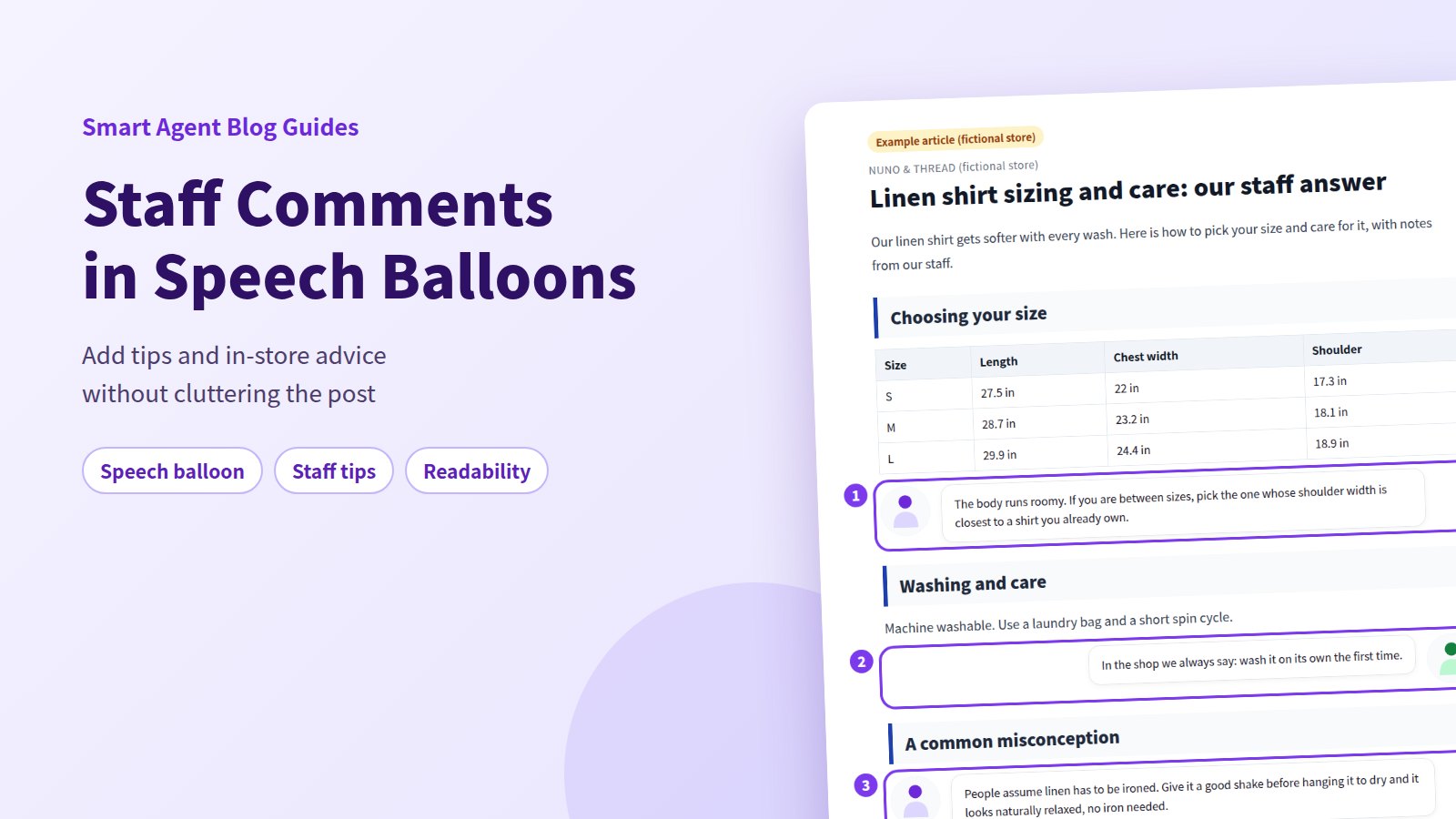
Your product descriptions are accurate. Your blog posts are thorough. And yet they read like a catalog, with no sign of the people who run the store. What's missing is the quick aside you'd naturally add if the customer were standing in front of you.
The answer: put those asides in speech balloons. A balloon sets a staff comment apart from the body text, catches the eye, and makes the whole post feel more human. Keep them to three situations, a quick tip, advice you give in person, and a common misconception, and aim for no more than one per heading.
Shopify's built-in editor has no speech balloon feature. In Smart Agent Blog, you add one from the insert menu and can switch the image between left and right. This guide uses a fictional clothing store's post to show where balloons work and how to add them.
- Three situations where a speech balloon works, and what belongs in the body instead
- How many balloons is too many
- A finished example from a fictional store
- How to add a speech balloon in Smart Agent Blog and switch the image side
Why description-only posts lose readers
When we reviewed Shopify stores in Japan while preparing proposals for Smart Agent Blog in August and September 2026, 27 of the 78 posts we recorded (about 35%) had no headings at all. Roughly 1 in 3 posts was one unbroken block of text. Even good content gets abandoned when there's nowhere for the eye to rest.
A lack of breaks isn't the only problem:
- No visible voice. Specs and explanations alone don't tell readers how your store is different from any other.
- Key advice gets buried. A line like "if in doubt, size down" is easy to skim past in the middle of a paragraph.
- No rhythm. Paragraph after paragraph in the same tone feels long, especially on a phone.
Headings divide the topics. A few staff balloons scattered through the post add rhythm and let customers hear from real people.
Three good places for a speech balloon
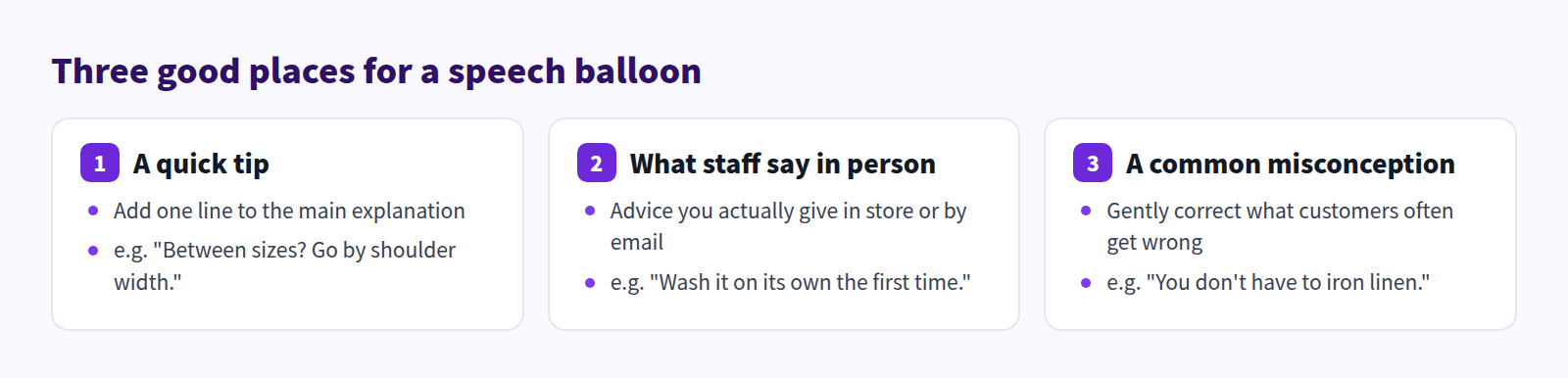
Balloons don't help just because they're there. Use them in these three situations and each comment lands.
A quick tip
Right after a size chart or spec list, add a line like "Between sizes? Go by shoulder width." Let the body state the facts; let the balloon offer the judgment call.
What staff say in person
Turn the advice you actually give in store or in email replies into a balloon. "Wash it on its own the first time" is the kind of line staff repeat every day, and it's valuable in a post. If a question keeps coming up in your inbox, that's a balloon waiting to be written.
A common misconception
Correct what customers often get wrong, in a conversational voice: "People assume linen has to be ironed, but…" The same correction written as body text can sound blunt. In a balloon, it sounds like friendly advice.
Balloon or body text?
Balloons are for things worth hearing from a person. The core information goes in the body.
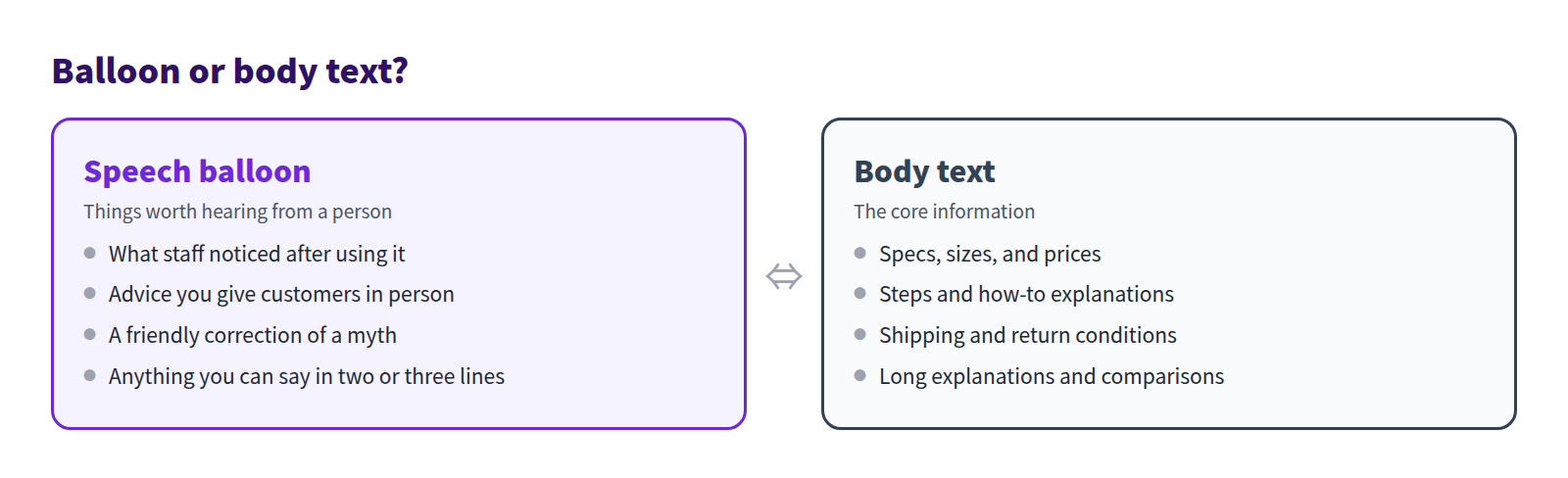
One rule matters most: never put specs or conditions only in a balloon. Prices, sizes, and shipping or return terms belong in the body or a table, where skimming readers still find them. Conditions nobody should miss go in a callout. See How to make important notes impossible to miss.
Example: a fictional clothing store's linen shirt post
Here are the three situations in a post from NUNO & THREAD, a fictional clothing store.
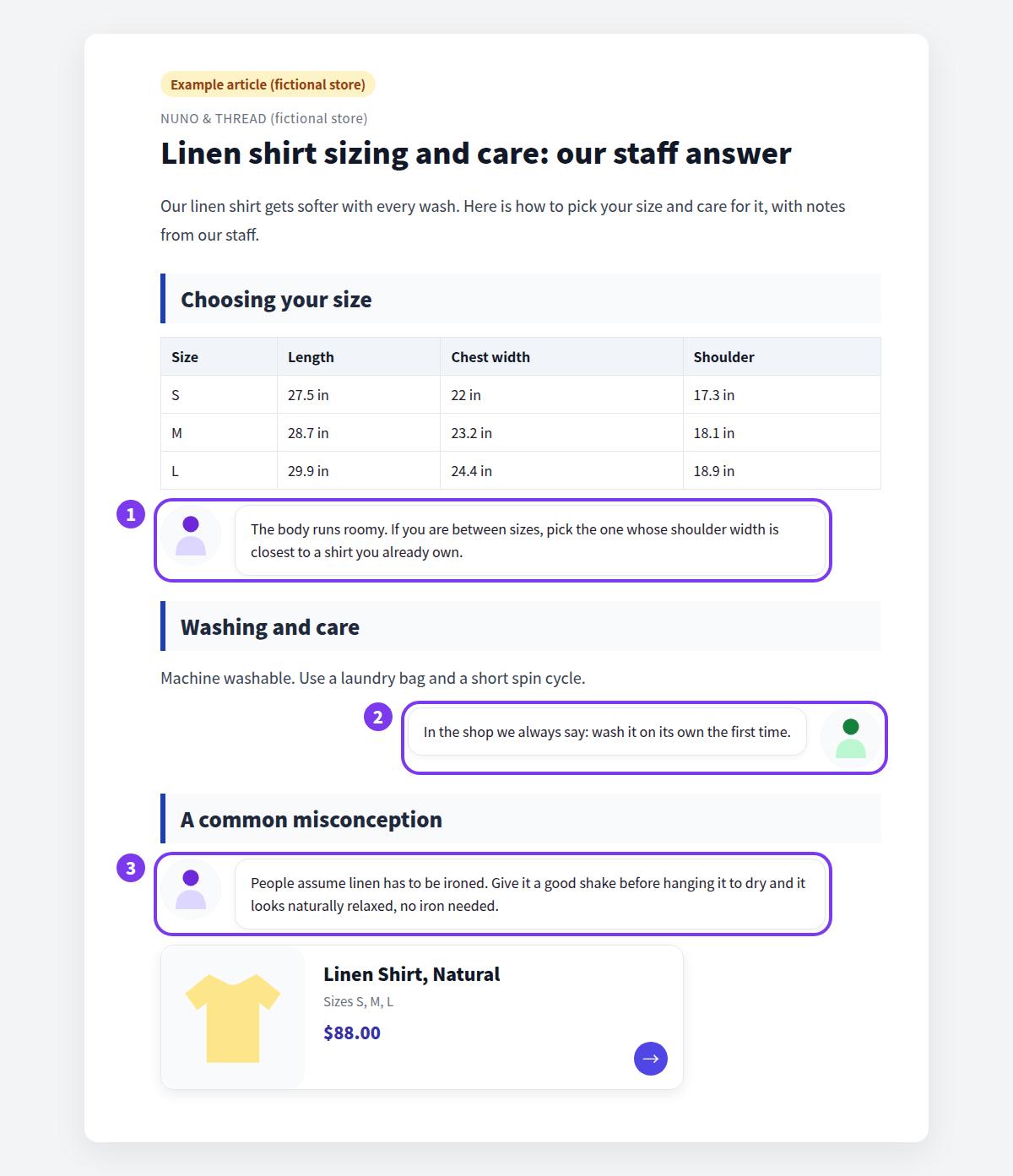
- A quick tip: placed right after the size chart (in inches). The numbers stay in the table; the advice on choosing goes in the balloon.
- What staff say in person: after the care instructions, the line staff repeat to every customer. It's a different staff member, so the image sits on the right.
- A common misconception: a friendly correction of a common assumption.
There's no more than one balloon per heading, and the post ends with a product card that links to the product page. See How to add products to your Shopify blog.
What Shopify's built-in editor can do
The rich text editor under Content > Blog posts in your Shopify admin has buttons for bold, color, lists, tables, images, video, and links, but nothing for speech balloons.
To make a staff comment stand out there, your options are:
- emphasize the line with bold or color,
- start a separate paragraph with "From our staff:", or
- switch to the HTML view and build a balloon yourself in HTML and CSS.
The last option takes coding knowledge, and the result can look different from theme to theme, so it needs checking every time.
Adding a speech balloon in Smart Agent Blog
In Smart Agent Blog, a speech balloon is one of the blocks you can add to the article body. The process has four steps.
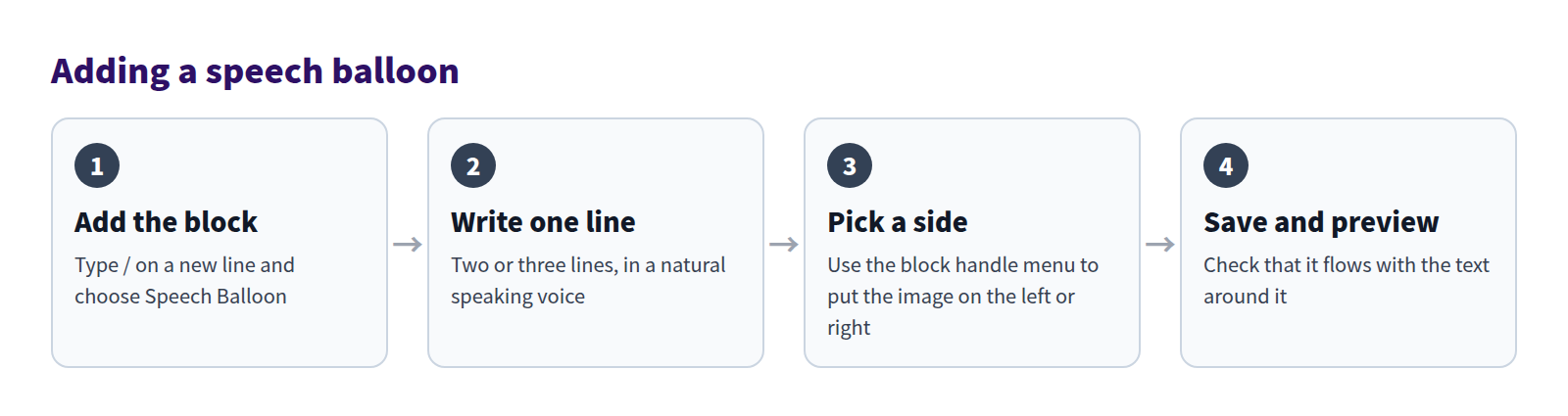
Add the Speech Balloon block
Place the cursor where the comment should go, then select Speech Balloon in the insert menu, or type / at the start of a new line and choose it from the list. The block shows an image next to your text.
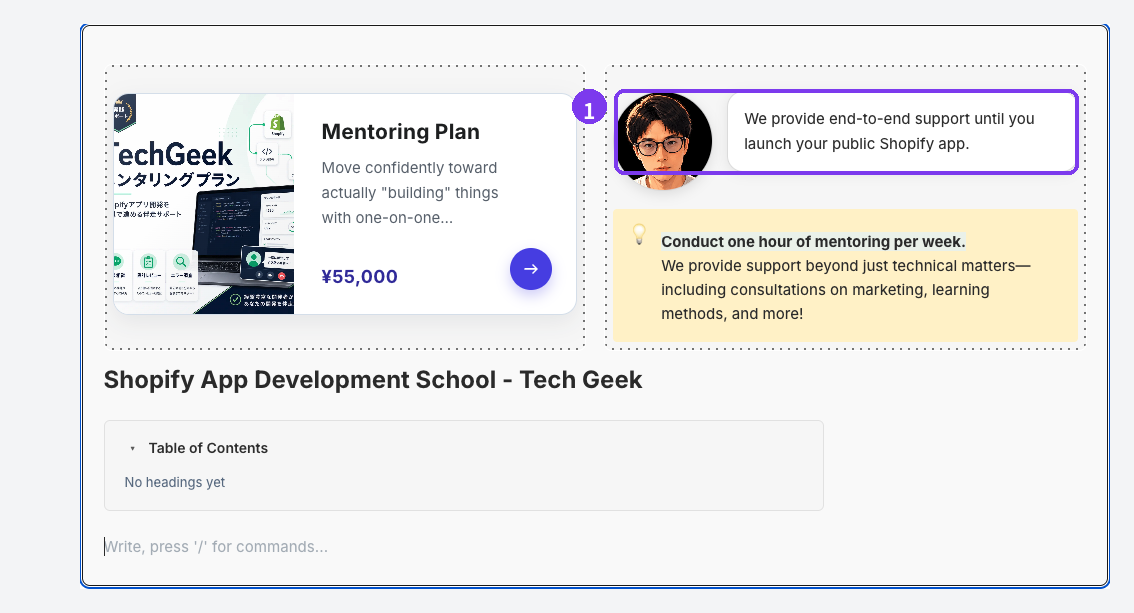
Write two or three lines in the voice you'd use with a customer. Make sure readers can tell who's speaking, either from the text before the balloon or in the balloon itself.
Switch the image to the left or right
Hover over a block in the body and a handle appears on its left.
- Select the handle to open its menu. For a speech balloon, this is where you switch the image between the left and right side.
- Drag the handle to move the balloon up or down.
- Choose Delete in the menu to remove it.
When several staff members appear in one post, keep each person on the same side, say the manager on the left and a staff member on the right, and it reads like a conversation. After moving a block, check that the surrounding text still flows.
Change the look with design editing
Speech balloons in the insert menu carry a pencil icon for design editing (Custom CSS), which lets you change how the balloon looks to match your store. Design editing requires a paid plan (Basic or Pro); on Free, you'll see a notice when you try to use it. Adding speech balloons works on every plan.
Save and preview
Smart Agent Blog doesn't autosave. Select Save, keep the post Hidden, and use Preview to check the result, including whether the balloon text feels too long on a phone. See Preview and publish an article. The final look depends on your theme, so always preview before publishing.
How not to overdo speech balloons
The fewer balloons you use, the more each one stands out. Check the number and content against this list.
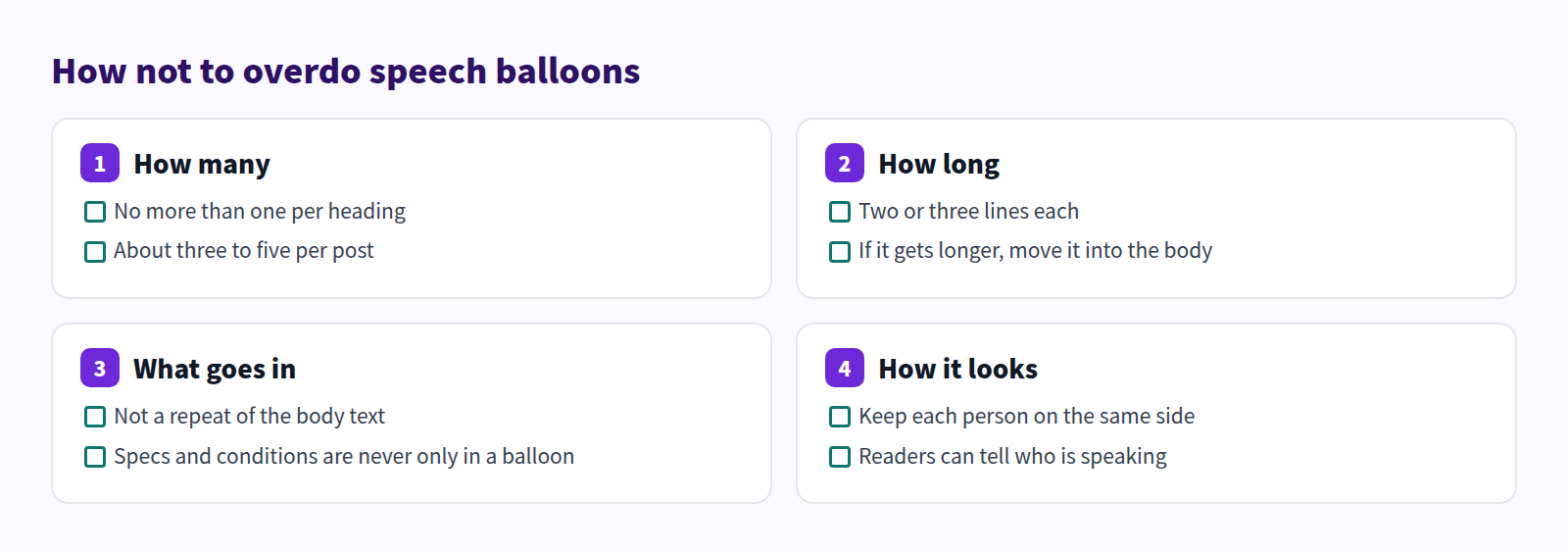
If a balloon repeats what the body already says, cut one of them. Keep only what sounds best coming from a person, and the whole post tightens up.
FAQ
Whose photo should go in the balloon?
A photo of the staff member who made the comment, or an illustrated portrait, works well. If you use a staff photo, get their permission first. Your store logo is another option.
Can I put customer reviews in balloons?
For customer comments, consider the Quote block instead. Using balloons for staff and quotes for customers makes it clear who's speaking. Either way, only use words customers actually wrote, with their permission, and don't rewrite them.
Are speech balloons available on the Free plan?
Yes. Adding balloons and switching the image side work on Free. Design editing, which changes how they look, requires Basic or Pro. See Plans and usage limits.
Summary
- Use speech balloons for three things: a quick tip, advice staff give in person, and a common misconception.
- Keep specs and conditions in the body or a table, never only in a balloon.
- No more than one balloon per heading, two or three lines each.
- In Smart Agent Blog, add a Speech Balloon block and use the block handle menu to switch the image side.
Start with one question customers ask all the time, and add the answer to a post as a staff balloon. Also in this series: How to add video to your Shopify blog and When to use 2-column and 3-column layouts. To see where balloons fit into the whole writing process, see how to write a Shopify blog post.