
Stack product photos and descriptions one after another and the post gets long fast. Show three colors of the same item and readers end up scrolling up and down just to compare them.
The short answer: put two things in two columns and three options in three columns, so readers can compare at a glance. Keep it to two or three side-by-side sections per post, and always check how they look on a phone before publishing.
Shopify's built-in editor has no button for placing a photo beside text. In Smart Agent Blog, 2 Column and 3 Column in the insert menu add a side-by-side frame you can fill with images, text, and product cards. This guide uses a fictional ceramics store's post to show where columns work and how to add them.
- When to use 2 columns and when to use 3 (image plus text, comparisons, color options)
- How many side-by-side sections is too many
- A finished example from a fictional store
- How to add columns in Smart Agent Blog and check them on a phone
What goes wrong when everything is stacked
Stacking photos and text top to bottom is fine for a single product. It breaks down when you want readers to compare.
- Hard to compare. By the time a reader scrolls from the small size to the large, they've forgotten what the small one offered.
- Unclear pairings. When a photo and its description drift apart, readers have to work out which text belongs to which image.
- Long posts. Three color options alone can take several screens on a phone.
Often there's also nowhere to go after comparing. When we reviewed Shopify stores in Japan while preparing proposals for Smart Agent Blog in August and September 2026, 66 of the 88 posts we recorded (75%) had no link from the body to a product page. Three out of four posts gave readers no way to reach the product. Put options side by side so they're easy to compare, then point readers to the product.
2 Column or 3 Column?
Choose the number of columns by asking what you're comparing.
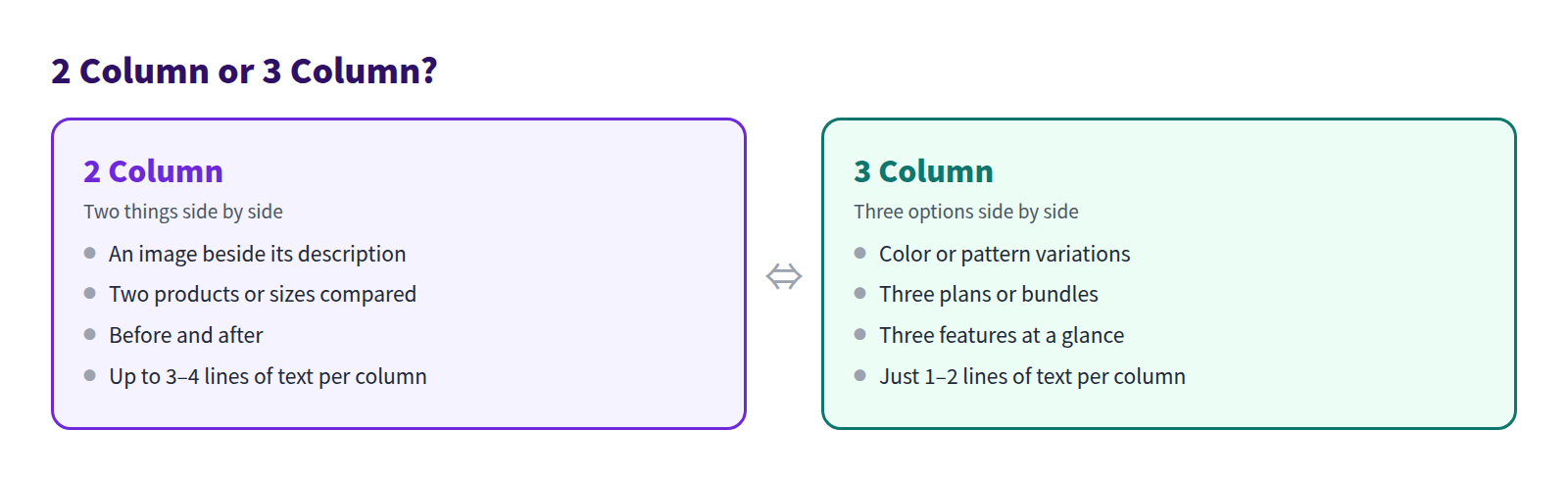
2 columns: image plus text, or two things compared
Two columns have two main uses:
- Image plus text: a product photo on the left, key features as a bullet list on the right. Photo and description sit together, so there's no guessing which is which.
- Comparing two things: small vs. large, classic vs. limited edition, before vs. after, laid out in the same format.
Aim for no more than three or four lines of text per column. If you need more, write it in the body instead.
3 columns: color options and three choices
Three columns suit color or pattern variations of one product, or three plans or bundles. Give each column just three things, image, name, and a short line, and keep the text to one or two lines. Columns get narrow at three across, and long text turns them into tall, thin strips.
When not to use columns
- Long explanations or steps: a numbered list shows the order better.
- Detailed numbers: comparing several dimensions or capacities is easier to read in a table.
Example: a fictional ceramics store's mug guide
Here's a mug buying guide from SOMA CERAMICS, a fictional ceramics store.
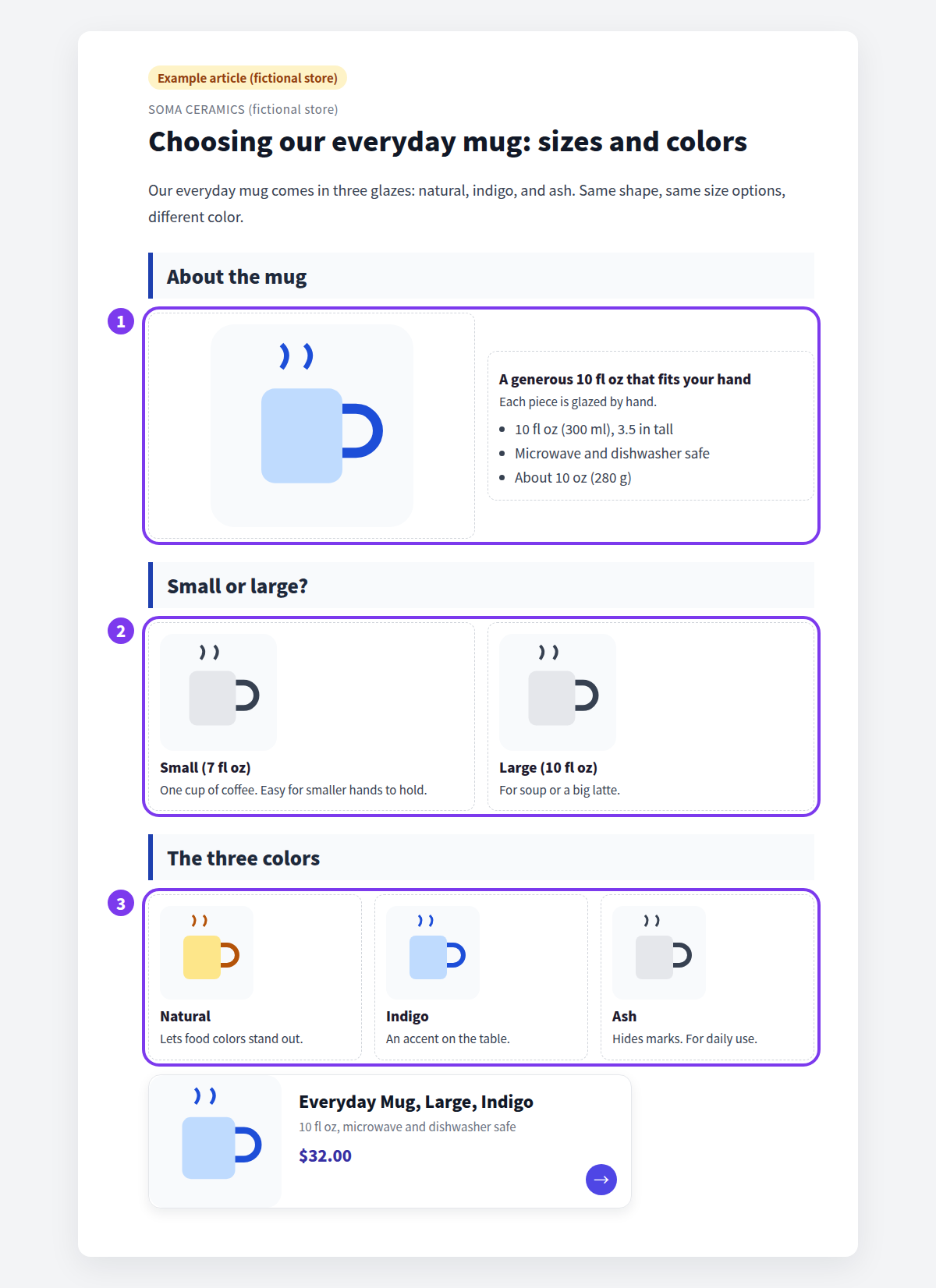
- 2 columns, image plus text: the photo on the left; capacity (10 fl oz), height (3.5 in), and care details on the right.
- 2 columns, comparison: small and large in the same format, each with its size and best use in one line.
- 3 columns, color options: three glazes, each with just an image, a name, and a few words, so three across never feels cramped.
There are only three side-by-side sections, each under its own heading. A product card at the end takes readers straight to the product page. See How to add products to your Shopify blog.
Keep side-by-side layouts under control
The more columns you use, the less each one stands out. These guidelines keep a post clean.
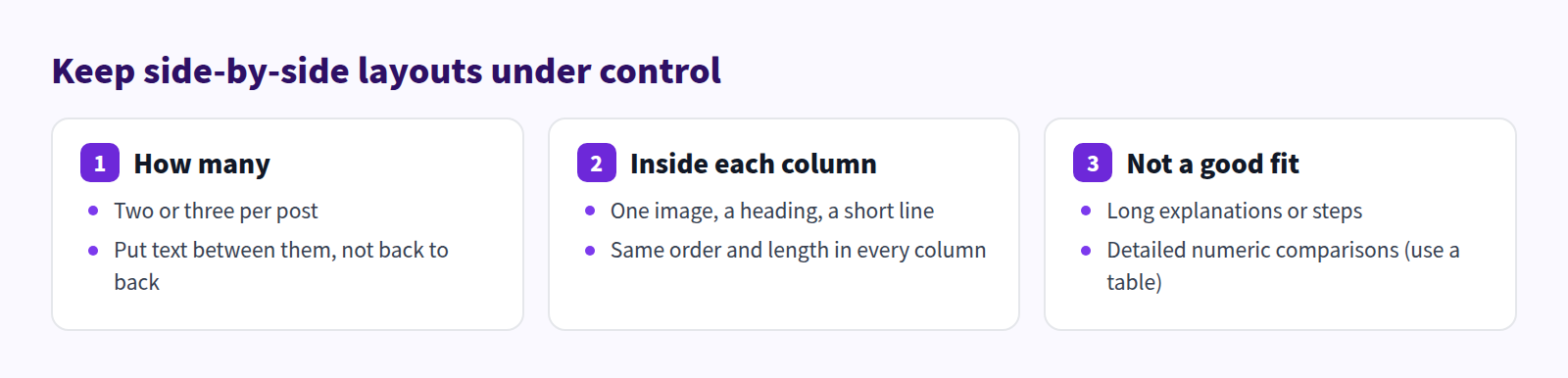
The trick is to keep every column in the same order, image, heading, description, with roughly the same amount of text. If one column runs much longer than the others, the layout meant for comparing becomes harder to read.
What Shopify's built-in editor can do
The rich text editor under Content > Blog posts in your Shopify admin has buttons for tables, images, video, and links, but none for columns.
To show a comparison there, your options are:
- stack images and descriptions, separated by headings,
- put numeric comparisons in a table (the built-in editor does support tables), or
- switch to the HTML view and build a side-by-side layout yourself in HTML and CSS.
The last option takes coding knowledge, and you'll also have to decide how it should behave on phones.
Adding columns in Smart Agent Blog
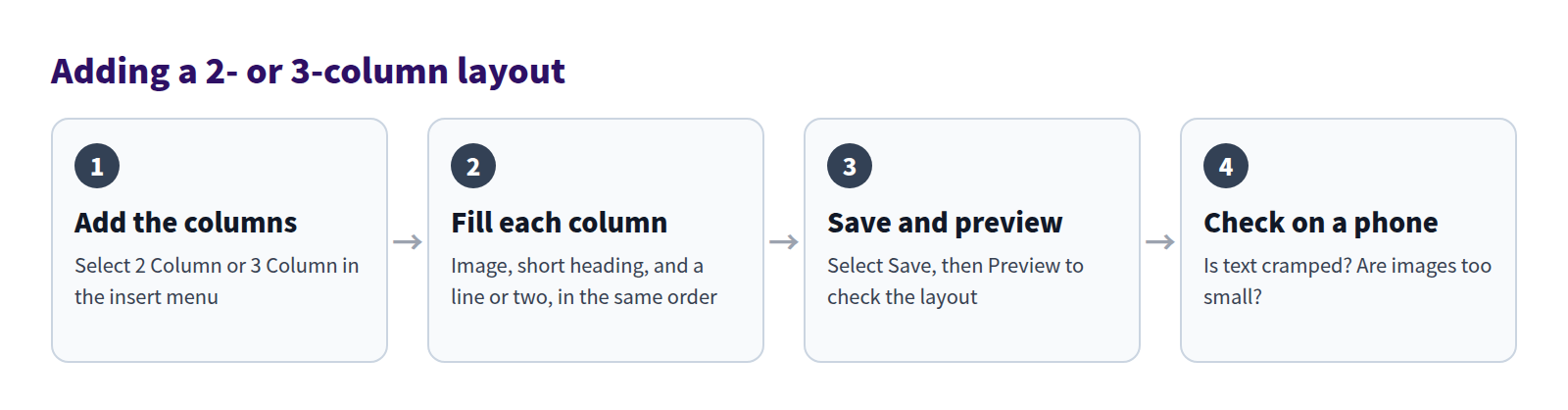
In Smart Agent Blog, 2 Column and 3 Column are blocks you add from the insert menu. The process has four steps.
Choose 2 Column or 3 Column
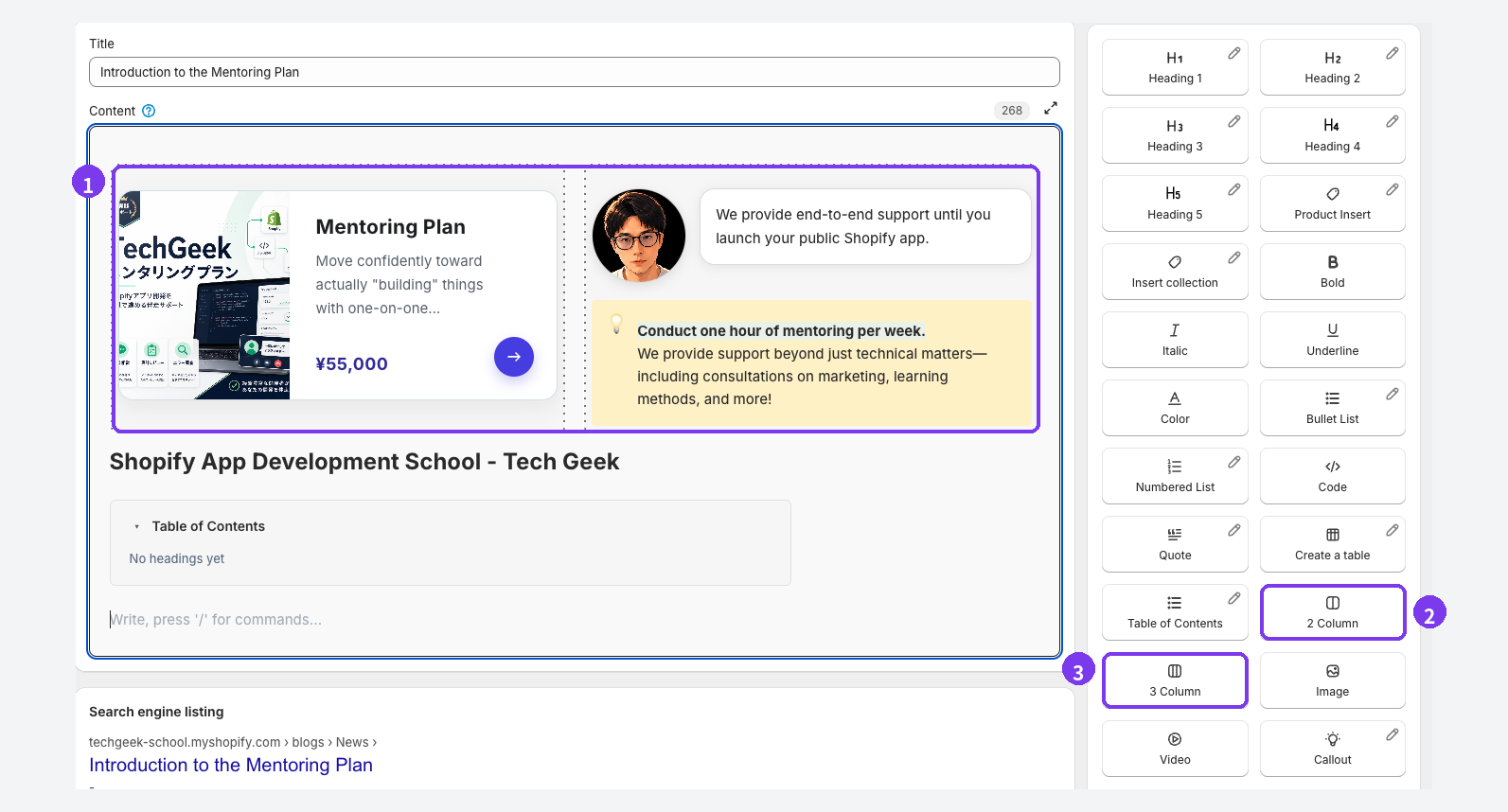
- The two-column frame: two columns separated by a dotted line. In this example, the left column holds a product card, and the right holds a speech balloon and a callout.
- 2 Column: place the cursor where you want the layout and select 2 Column in the insert menu.
- 3 Column: the three-column version, just below. You can also type
/at the start of a new line and pick either one from the list.
Fill each column
Columns can hold text and blocks such as images and product cards. Drag or paste an image into the body and it uploads to Shopify automatically.
- For image plus text: image in the left column, heading and bullet list in the right.
- For a comparison: the same order in both columns, image, name, description.
- For color options: image, color name, and a short line in each of three columns.
To feature products side by side, use Product Insert in each column to add product cards. To reorder, drag the handle that appears to the left of a block.
Save, preview, and check on a phone
Smart Agent Blog doesn't autosave. Select Save, keep the post Hidden, and select Preview at the top of the editor to see it in the theme editor for the theme you choose.
Side-by-side layouts are where screen width matters most, and the mobile look also depends on your theme. Check in Preview, then open the live post on your own phone after publishing. See Preview and publish an article.
Check these on a phone before publishing
A layout that looks tidy on desktop can feel different on a phone. Run through this list first.
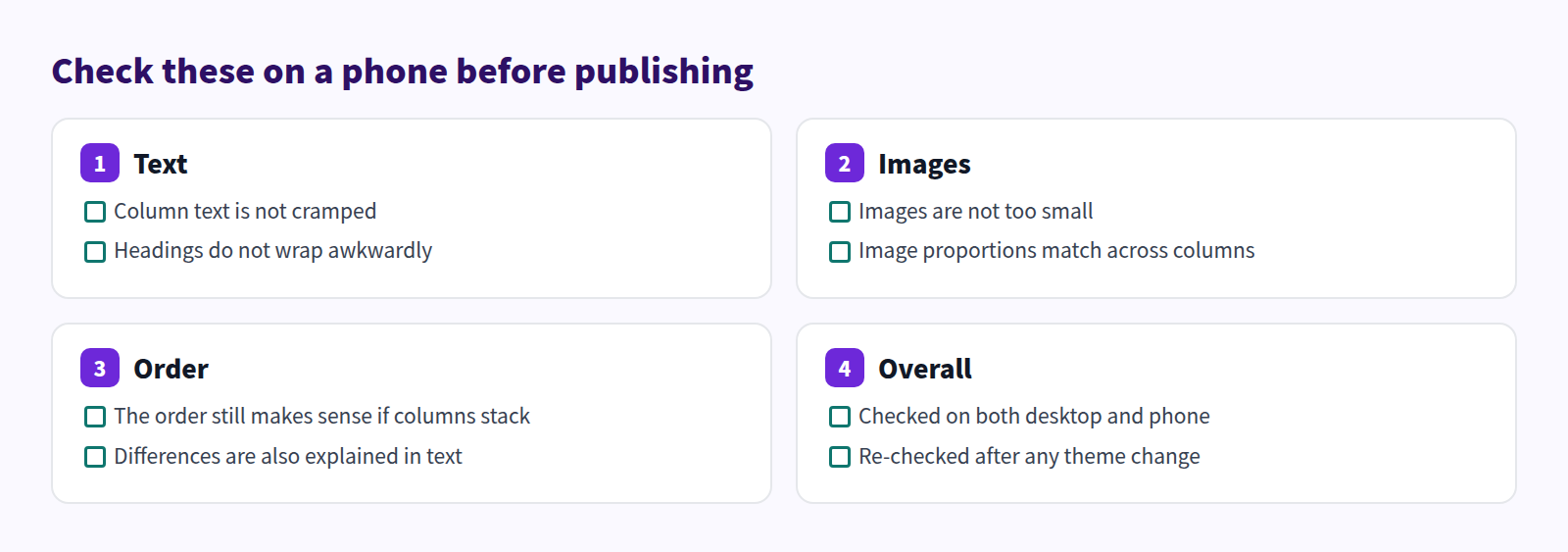
Three columns need the most care, since each column gets narrow. If the text looks cramped, cut it to one line or switch to two columns. After changing themes, re-check any post that uses columns.
FAQ
Can I put product cards in columns?
Yes. For a post comparing two products, add a card to each column with Product Insert, and readers can go straight to the product page after comparing. For three or more related products, Collection Insert works well too; its editor lets you set the number of columns for desktop and mobile.
Table or columns?
Use columns when a photo shows the difference, and a table when you're comparing numbers or specs in detail. Colors in three columns, measurements by size in a table.
Do columns stay side by side on phones?
That can vary by theme. Check in Preview before publishing and on a real phone afterward. Keep column text short and mention the key difference in the body too, so the post reads well either way.
Summary
- Two things go in 2 columns (image plus text, comparisons); three options go in 3 columns (colors and similar).
- Two or three side-by-side sections per post, with the same order and length in every column.
- Long explanations and detailed numbers read better as numbered lists or tables.
- Check in Preview before publishing, and on a phone after.
Pick one product with several colors or sizes and put the part readers need to compare side by side. Also in this series: Put staff comments in speech balloons, How to make important notes impossible to miss, and How to add video to your Shopify blog. For long posts, add a table of contents. For the whole process a post goes through, see how to write a Shopify blog post.