
You have written a useful guide to choosing or using a product. But if there is no clear path to that product, readers may leave without exploring your store. Before writing another post, check whether your existing articles help readers take that next step.
Smart Agent Blog lets you select a Shopify product and insert a card with its name, image, and price into your article. Here is how to use that feature—and how to make the recommendation useful to your reader.
What you will learn
- Why product information belongs alongside useful advice
- How to insert a product with Smart Agent Blog
- Where to place a card and what to write around it
- What to check before publishing and how to review results
What does product information add to a blog post?
A blog can answer questions that customers have before buying: what to choose, how something works, or whether it suits their needs. A relevant product card beside that answer lets readers check the image and price and visit the product page without searching your store again.
| Article topic | A useful place to introduce a product |
|---|---|
| Choosing a work bag | After explaining size and storage requirements |
| Understanding coffee flavors | After describing the flavor profile the product offers |
| Caring for clothing | Alongside advice about a suitable care product |
A card alone does not guarantee sales. The connection between the advice and the product is what makes the recommendation useful.
How to insert a product with Smart Agent Blog
You do not need to write HTML to insert a product card.
- Open the article you want to edit in Smart Agent Blog.
- At the intended position in the article, choose the product insertion option from the insert menu.
- Select the product in Shopify’s product picker.
- Check the inserted name, image, and price, along with the surrounding text.
- Save the article and preview it before publishing.
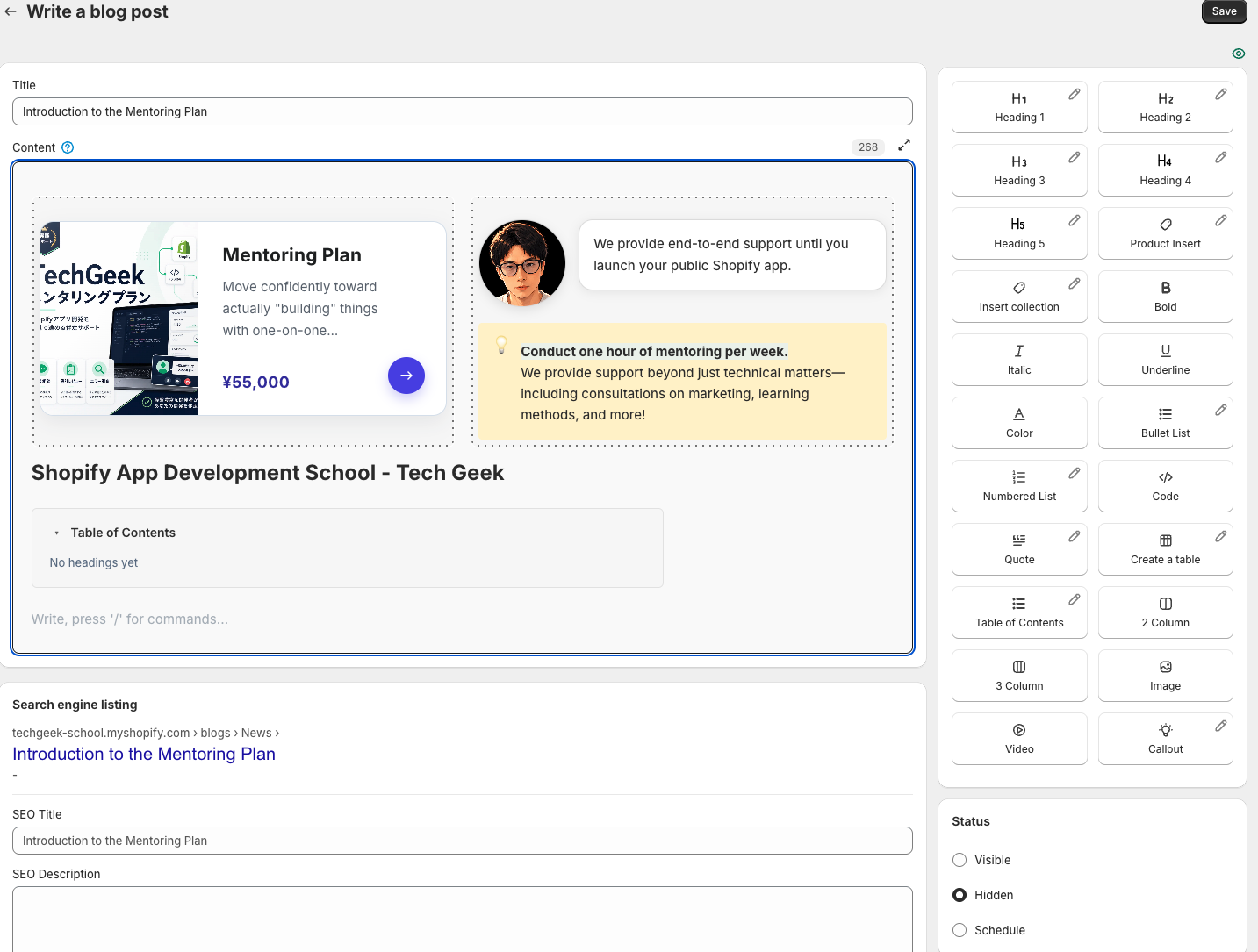
Draft, hidden, and archived products cannot be selected. If a product is missing, check its publication status in Shopify. Out-of-stock products display a sold-out label.
For detailed editor instructions, see the guide to adding content to articles.
Place the card where readers are ready to explore
A product section at the end can work, but in a long article it may be far from the relevant explanation. Start by placing the card after the advice that makes the product relevant.
For a work-bag article, the sequence might be:
- The question: “What should I check if I carry A4 documents?”
- The advice: explain internal dimensions, the opening, and the reader’s typical load.
- The recommendation: explain why a particular product matches those needs.
- The card: let readers check the image and price and open the detailed specifications.
Answer the question before presenting a long list of products. Starting with one closely related product in one article makes it easier to review the result.
Add a reason to choose, not just a recommendation
A card shows product information, but it may not explain why the reader should consider that item. Introduce it with a sentence about who it suits, when they would use it, and why.
The following is a fictional writing example for a bag that fits A4 documents and has internal pockets. Check your actual product specifications before adapting it.
With little context
Here is our recommended bag.
With a reason to consider it
If you want to keep A4 documents separate from small essentials, this bag with internal pockets is an option to consider. Check the product page for its storage dimensions and pocket layout.
Specific conditions help readers decide whether an item is suitable. Base statements about size, materials, compatibility, and care on verified product information.
Should you insert a product or a collection?
Use product insertion to highlight an individual item. Use collection insertion when readers would benefit from browsing a related selection.
| Purpose | Suggested approach |
|---|---|
| Explain one product’s features or use | Link to that item with a product card |
| Offer a selection of seasonal gifts | Insert a relevant collection |
| Explain differences between two products | Write a comparison or create a table, then introduce each item |
A collection groups products for display. Explain the differences that matter in your article text. The content blocks guide covers the settings.
Check the published experience on a phone
Your store’s theme and screen width can affect the appearance. Preview before publishing, then check the live article too.
- Do the name, image, and price match the intended product?
- Does the card open the correct product page?
- Does the surrounding text match current specifications and sales conditions?
- Are images and text readable on a phone, with an easy-to-tap product link?
- If the item is sold out, does the article avoid implying that it is available?
Prices or time-limited offers written directly in the article need separate attention. Revisit that text when your sales conditions change.
Review product clicks after publishing
Look beyond page views to whether readers click product links. Smart Agent Blog’s article analytics includes product-link CTR. See the article analytics guide for measurement setup and metric definitions.
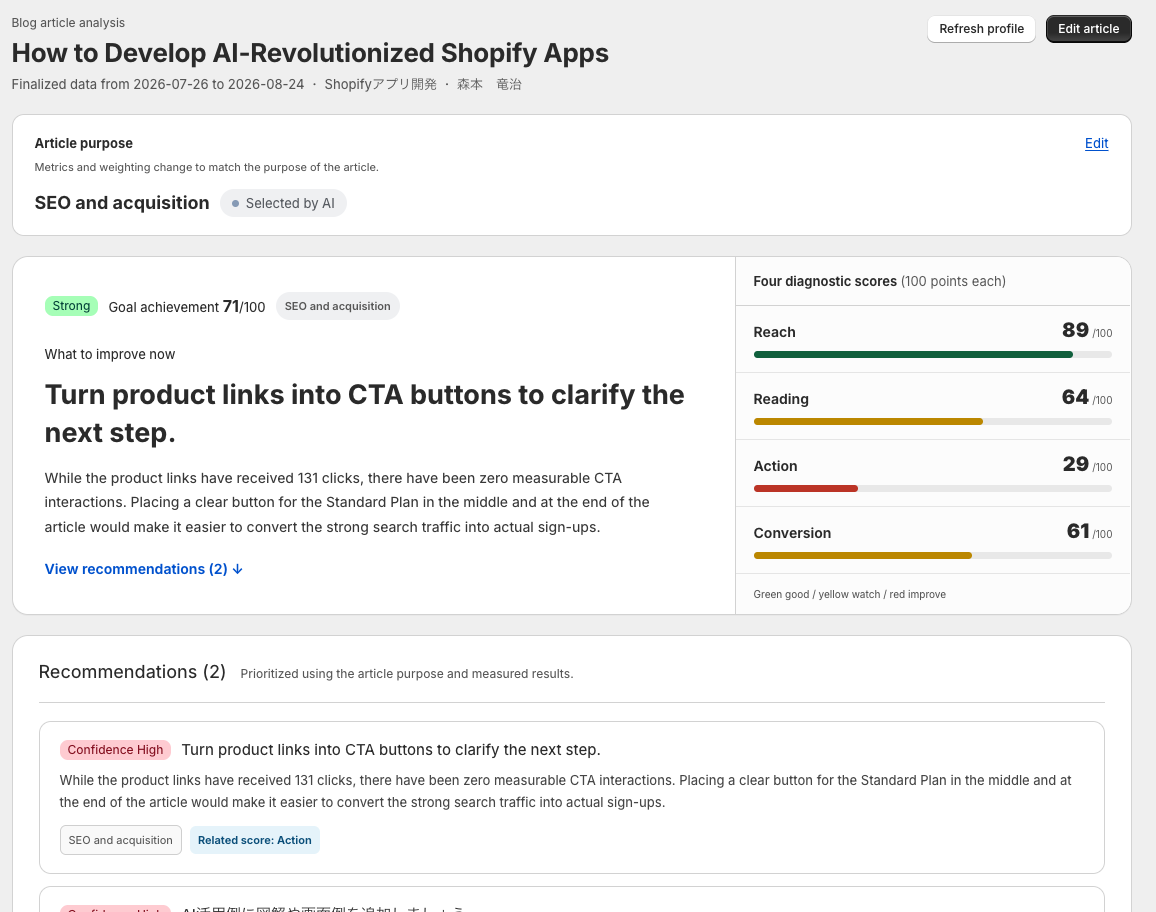
If an article gets views but few product clicks, check whether the product matches the reader’s interest, whether you explain the recommendation, and whether the card is close to the relevant advice.
Record what you changed and when. Change a small number of things at a time, and avoid drawing conclusions from very little traffic. A product click is not a purchase; also review purchase data in Shopify.
For the whole path from an article to a purchase, see Turning your Shopify blog into sales.
Start with one existing article
Choose an article that already explains a product’s use or helps customers choose. Insert a related product after the explanation and add one sentence about who it suits.
Smart Agent Blog lets you select the product, insert it, and edit the surrounding text in the same editor. Start with the product insertion guide. If you do not use the app yet, explore Smart Agent Blog in the Shopify App Store.