
Open the blog and it's all "Summer Sale Starts Now," "Holiday Shipping Deadlines," and "Sale Ends Tonight." Announcements matter, but once the offer ends there's no reason to read them, and the whole blog starts to look like an archive of expired promotions.
The fix doesn't mean announcing less. Keep publishing announcements, and add one evergreen post (a buying guide, a how-to, a care guide) every month. Give each sale post one piece of lasting advice, too, and when the sale ends, either rewrite the post or hide it.
This guide covers how the two kinds of posts differ, how to balance them, what a better sale post looks like, and what to do with sale posts after the sale, with Smart Agent Blog screens along the way.
- How announcement posts and evergreen posts differ
- How to balance the two, with a six-month example plan
- How to add buying and care advice to a sale post
- When to rewrite, hide, or delete a post after a sale, and how
- How to use callouts, scheduled publishing and unpublishing, and AI Rewrite in Smart Agent Blog
What happens when a blog is only announcements
Sales, restocks, and closures are news for people who already know your store. A blog built only on that runs into a few problems:
- Short shelf life. When the sale ends, so does the post's job. You put in the writing time for a few days or weeks of readers.
- Hard for new people to find. People who don't know you yet search for things like "how to wash a linen shirt," not for a particular store's sale.
- Nothing to announce, nothing to post. In quiet months the blog simply stops.
- Expired news hangs around. A "sale on now" post sits at the top of the blog long after it ended and confuses visitors.
While preparing proposals for Smart Agent Blog in August and September 2026, we reviewed the blogs of 110 Shopify stores in Japan. About 4 in 10 had no posts, had stopped after a handful, or hadn't posted in over a year. Blogs stall for many reasons, but if announcements are your only topic, the blog stalls whenever there's nothing to announce.
There's more to write than you'd think; the catalog of store blog use cases lists the formats worth trying first.
Announcement posts vs. evergreen posts
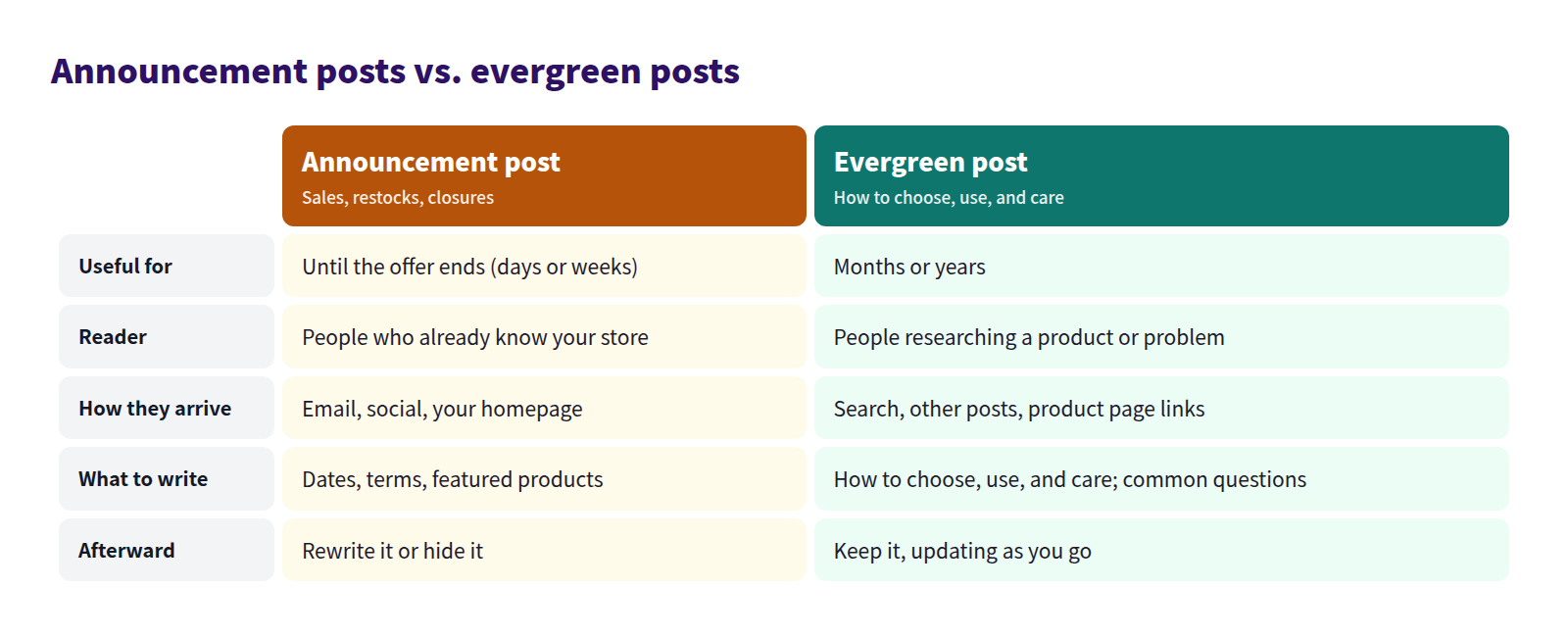
Announcement posts are read by people who already know you, arriving from your emails, social posts, or homepage. They cover dates, terms, and featured products, and they're done when the offer ends.
Evergreen posts are read by people researching a product or a problem, arriving from search or from your other posts. They cover how to choose, use, and care for things, plus common questions, and with occasional updates they keep getting read for months or years.
Evergreen topics you already have
You don't need special ideas. The questions customers ask you are the topics.
| Topic | Example for a linen clothing store |
|---|---|
| How to choose | Choosing by fabric weight; picking your first linen shirt |
| How to use | Outfits by season; how to layer |
| Care | Washing, smoothing wrinkles, storing |
| Common questions | Does linen shrink? Is it see-through? |
| Comparisons | Shirt vs. blouse; linen vs. cotton |
For more on turning questions into posts, see Find blog ideas in customer questions.
Balancing the two
You don't need fewer announcements. Post them when you need them, and separately add evergreen posts at a steady pace. Here's a six-month plan for a fictional linen clothing store.
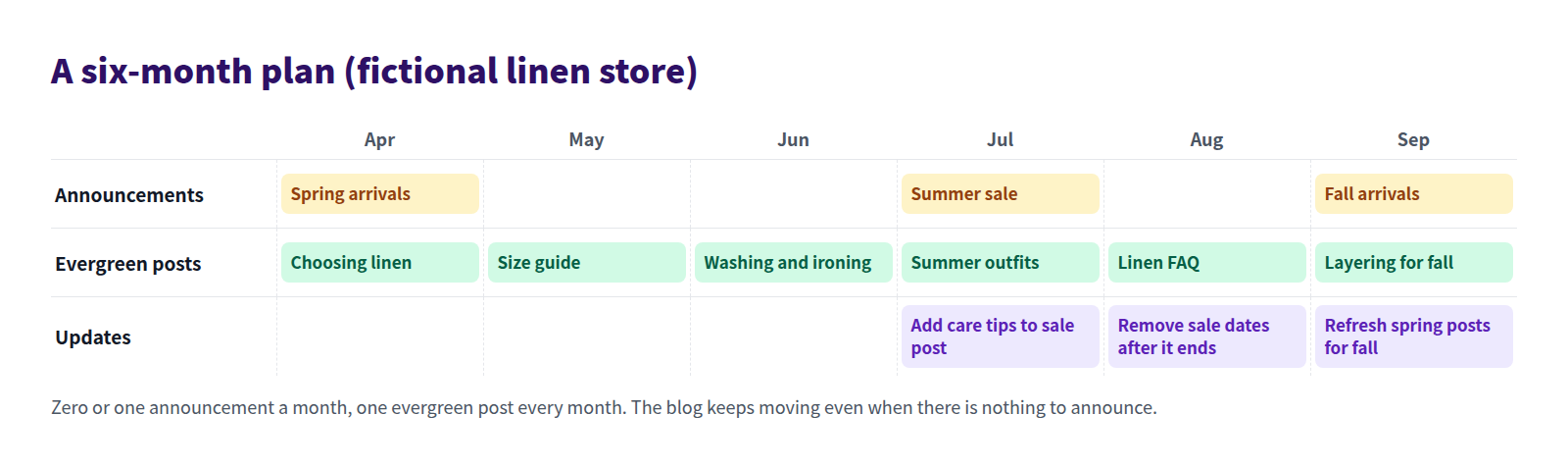
Three things make the plan work:
- Start with one evergreen post a month. Aim higher and you'll burn out. One a month still gives you twelve posts in a year.
- Write the related guide before the announcement. If "Choosing linen" and "Washing and ironing" already exist before the summer sale, the sale post can link straight to them.
- Schedule updates, too. Set aside time after a sale ends and when seasons change to fix posts that have gone stale.
For planning topics around the calendar, see Plan a seasonal content calendar.
Add lasting value to your sale posts
Don't stop at dates and discounts. Add one piece of buying or care advice, and the post stays useful after the sale. Here's a sale post from a fictional store, Asaha Linen.
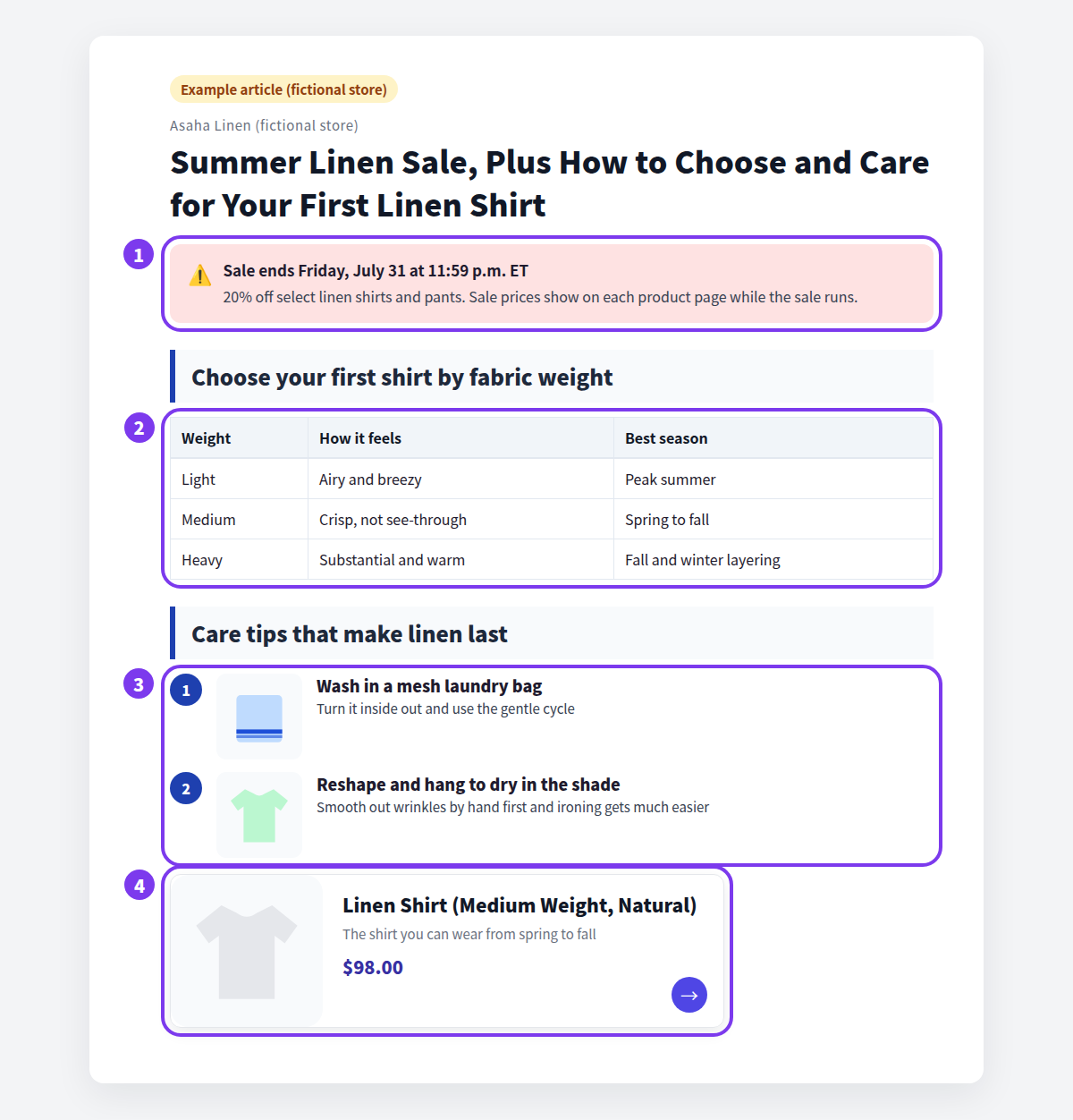
- Dates and terms in a single callout. Put the end date, discount terms, and featured products in one box at the top. When the sale ends, delete the box and the post still makes sense.
- A buying table. "Choose your first shirt by fabric weight" is useful whether or not there's a sale.
- Care steps. Numbered steps for washing and drying give customers a reason to come back after they buy.
- Product cards. Show featured products as cards instead of typing sale prices into the text. Fewer numbers to fix later.
Sale prices and "only a few left" scattered through the text all have to be found and changed later. Keep time-limited details in one place and write everything else so it still holds after the sale.
What to do with sale posts after the sale
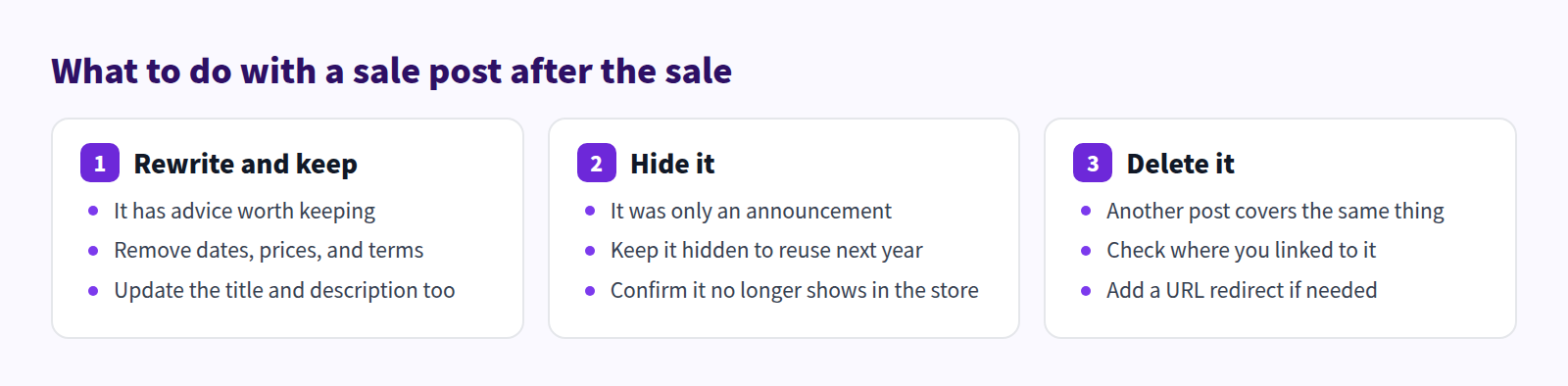
When a sale ends, choose one of three options for each post.
Rewrite and keep
If the post has lasting advice, keep it. Remove the dates, prices, and terms, and retitle it to match what's left, for example "How to Choose and Care for Your First Linen Shirt." Update the search description as well.
Don't change the URL. Changing a post's URL after publishing can break links to the old address.
Hide it
If the post was only dates and discounts, hide it. If you run the same sale every year, keep it hidden instead of deleting it, then update the dates and terms and publish it again.
Delete it
If another post covers the same ground, deleting is an option. The old URL will then show a page-not-found error, so check first whether emails, social posts, or other posts link to it. Shopify lets you create a URL redirect that sends a broken URL to another page. For tidying up overlapping posts, see Consolidate duplicate blog posts.
What Shopify can do out of the box
In Shopify, you create and edit posts under Content > Blog posts. The features that matter for sale posts:
- Scheduled publishing. In the post's Visibility section, click the calendar icon, pick a date and time, and click Set visibility date. You can prepare a sale post ahead of time and have it go live when the sale starts. Hiding it after the sale is something you do yourself.
- Tables, images, and links. The standard rich text editor handles buying tables, photos, and text links to products. There's no built-in card that shows a product's name, image, and price.
- URL redirects. Go to Content > Menus > View URL redirects > Create URL redirect, fill in Redirect from and Redirect to, and save. You can only redirect from a broken URL that shows a page-not-found error.
With a few posts, that's enough. As sale posts pile up, it gets easy to miss the cleanup after each one.
How to do it in Smart Agent Blog
Smart Agent Blog combines a block for time-limited details, scheduled publishing and unpublishing, and AI help with refreshing old posts.
Put dates and terms in a callout
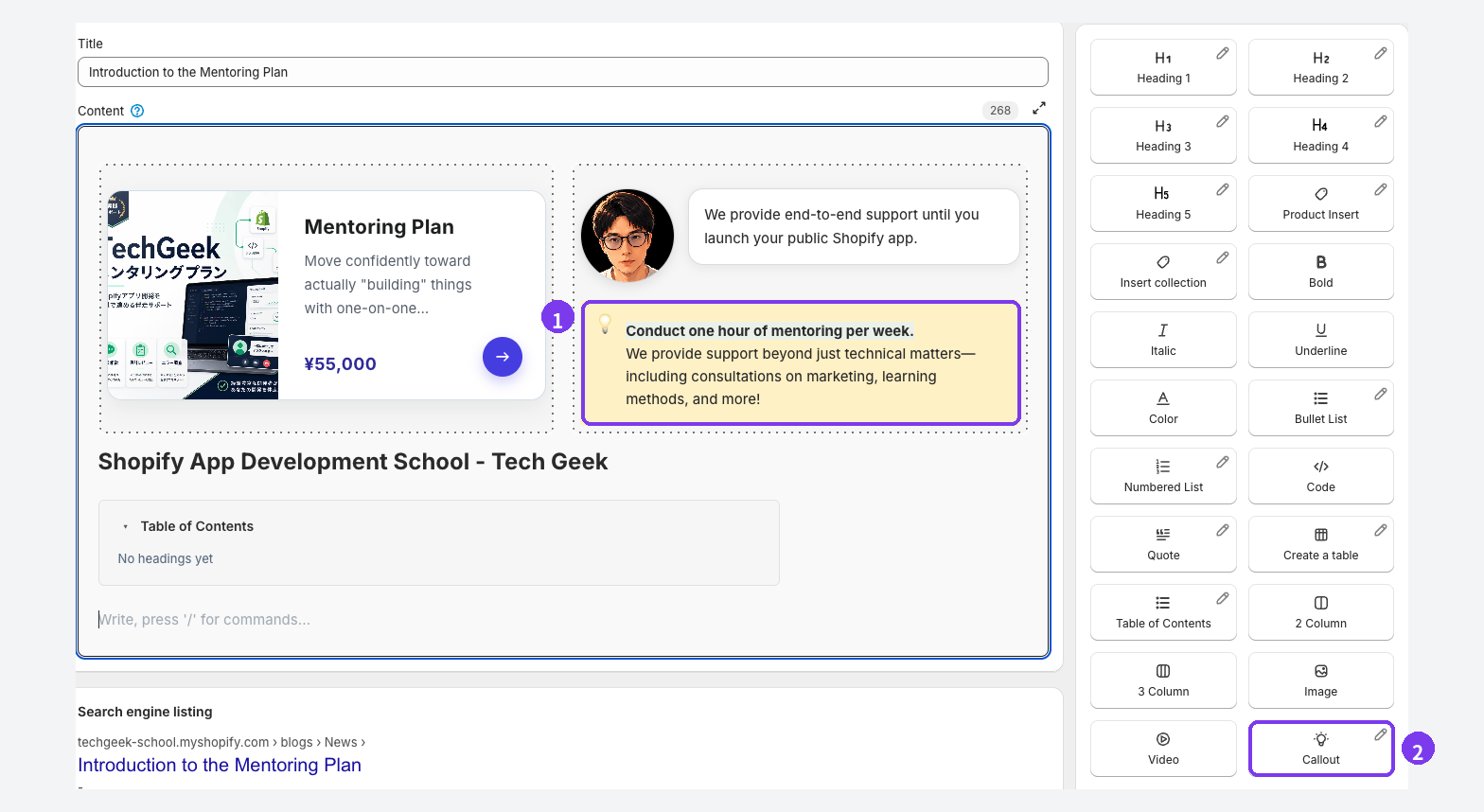
- The callout in the body. Put the sale dates, terms, and featured products inside this box. When the sale ends, hover over the block, select the handle on its left, and choose Delete to remove the whole box.
- Callout in the insert menu. Place your cursor where the dates should go and select it. You can also type
/at the start of a line and pick it from the list.
Add featured products with Product Insert. Out-of-stock products show a sold-out label. After the sale, open the live article and check how the product cards look. For more on callouts, see Use callouts for important notes.
Schedule when a post goes live and when it's hidden
In Smart Agent Blog's editor, you can schedule an unpublish date as well as a publish date.
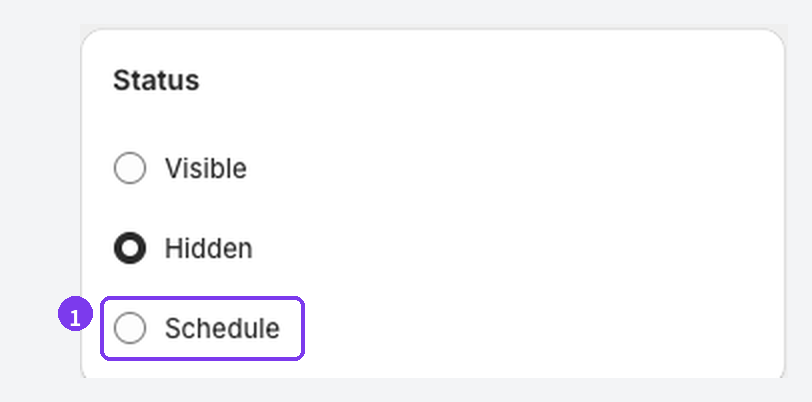
- In the status card, choose Schedule.
- Under Set current status, choose whether the post should be Visible or Hidden right after saving.
- Select Publish date and Unpublish date, and set a date and time for each.
- Save the article.
For a post that's only dates and discounts, set the publish date to the sale's start and the unpublish date to the day after it ends, so the expired sale never lingers. For a post with buying or care advice, don't unpublish it; delete the callout after the sale and keep it live. After each scheduled time passes, check the article list and the live page to confirm the status changed as intended.
Let AI Rewrite handle stale posts
Evergreen posts go stale too. On paid plans, AI Rewrite's Freshness Update strategy has AI propose updates to posts that haven't been updated for a while.
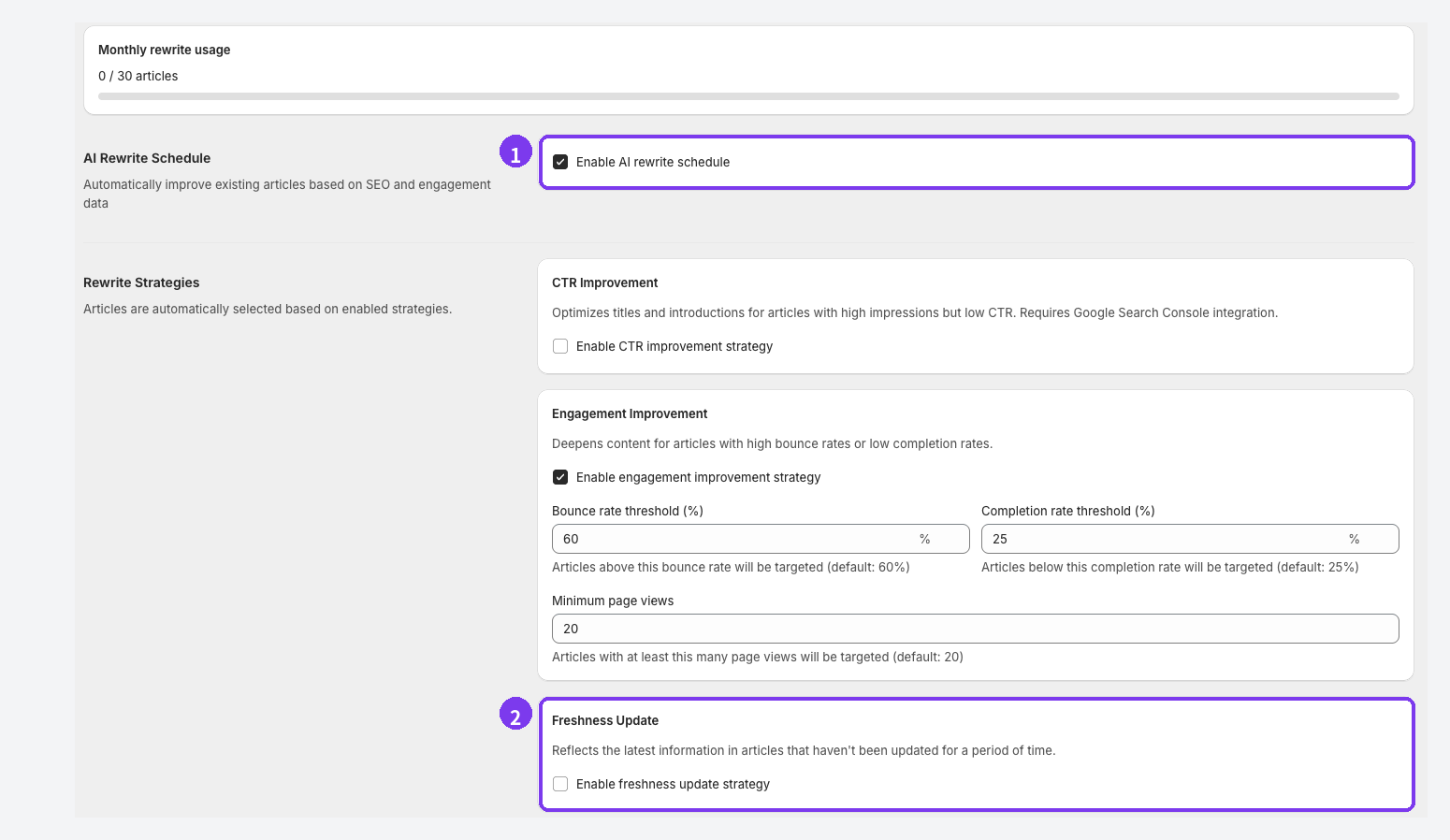
- Open Settings → AI Rewrite and select Enable AI rewrite schedule.
- Under Rewrite Strategies, enable Freshness Update. Keep the default thresholds, such as months since the last update, until you have a reason to change them.
Set the publish mode to Approval required (Recommended). You'll compare before and after and choose Accept change or Keep original for each change, and the original post stays untouched until you apply. AI Rewrite includes 1 rewrite per month on Basic and 30 per month on Pro. See Use AI Rewrite for details.
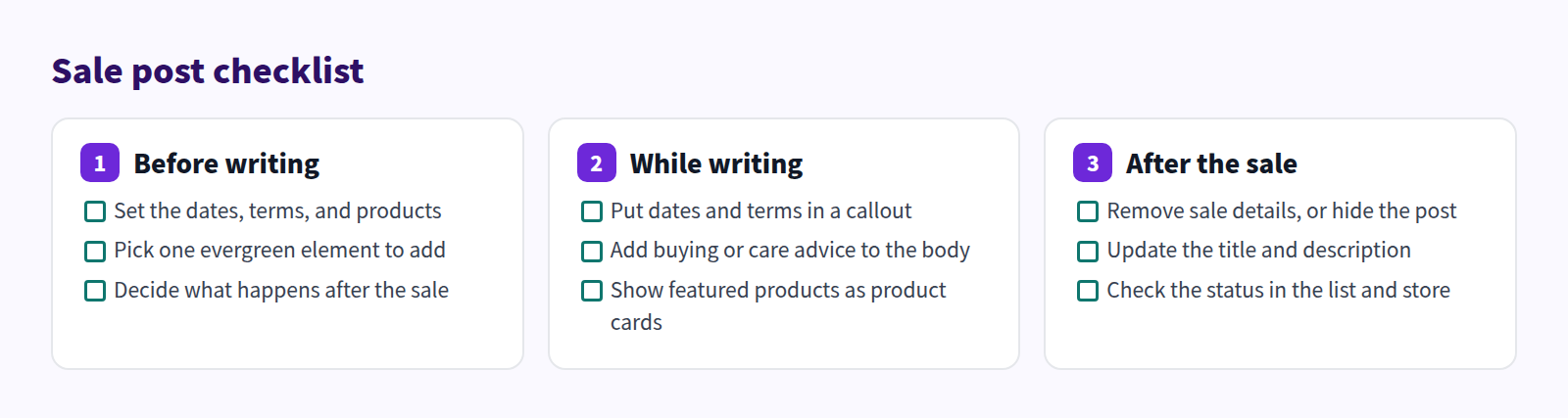
Sale post checklist
Run through this before, during, and after each sale.
FAQ
Can I announce sales by email and social media only?
You can. Putting the sale on the blog as well gives your emails and social posts somewhere to send people, and lets the post carry buying and care advice. Make the blog post a little more detailed than the social caption and list featured products as cards, so it's worth the click.
We run the same sale every year. Do I write a new post each time?
You can keep last year's post hidden, update the dates and terms, and publish it again. In Smart Agent Blog, switching a hidden post back to Visible and saving records that moment as the new published date. Refresh the buying and care sections while you're at it.
I can't think of evergreen topics.
Start with the questions customers ask and the things you explain in person all the time. If time is the problem, Smart Agent Blog's AI Scheduled Blog Proposals can help: add a specific topic like "caring for linen" under Themes / Keywords, set Article purpose to Education and editorial, and AI drafts a post on the day and time you choose. A person should always review before publishing. See Schedule AI article suggestions.
Summary
- Announcement posts have a short shelf life, and a blog of nothing else tends to stall.
- Keep announcing, and add one evergreen post (buying, how-to, or care) every month.
- Give each sale post one lasting element. Put dates and terms in a callout and products in product cards.
- After a sale, rewrite and keep, hide, or delete each post, and don't change URLs.
Pick one expired sale post on your blog today and decide: delete the callout and add advice, or hide it.