
You want to keep your blog going, but you can't think of what to write next. Before you try to invent a fresh idea, look at the questions customers already send you. The topics worth writing about are sitting in your inbox.
The short answer: gather the questions you get through your contact form, chat, reviews, phone and in-store conversations, and social DMs. Sort them by whether they come before or after purchase and which product they're about, and you have a ready-made list of post topics. Add that list to Themes / Keywords in Smart Agent Blog's AI Scheduled Blog Proposals, and it also feeds a weekly AI draft. This guide covers where to find questions, how to turn them into topics, and how to hand them to AI.
- Why customer questions make good blog topics
- Six places questions pile up, and how to collect them
- How to sort questions and rewrite them as a topic list
- How to add that list to AI Scheduled Blog Proposals in Smart Agent Blog, screen by screen
- What a post built from one question looks like (fictional example)
Plenty of store blogs stall for lack of ideas
While preparing proposals for Smart Agent Blog in August and September 2026, we reviewed the blogs of 110 Shopify stores in Japan. About 4 in 10 (42 stores) had no posts, had stopped after a handful, or hadn't posted in over a year.
Running out of ideas is one reason. Start from what the store wants to say, and topics drift toward new arrivals and sales, then run dry.
So start from what customers want to know. They tell you every day, in the form of questions.
If you want to see the formats those questions can become, the guide to what a Shopify store blog is used for lists them side by side.
Why customer questions make good blog topics
Posts built from questions are easier to write and more likely to be read, for four reasons:
- Someone actually wants the answer. Behind every customer who asks, there are others who had the same doubt and simply left the page.
- Only you have the answer. Specs, hands-on experience, and common mistakes are things only your store can write.
- They lead naturally to products. Most questions are about a specific product, so the answer can introduce it without a hard sell.
- You can reuse the answer. Once a question has a post, you can send the link next time someone asks, instead of typing the same explanation again.
Six places customer questions pile up
Start by checking where questions already live in your business.
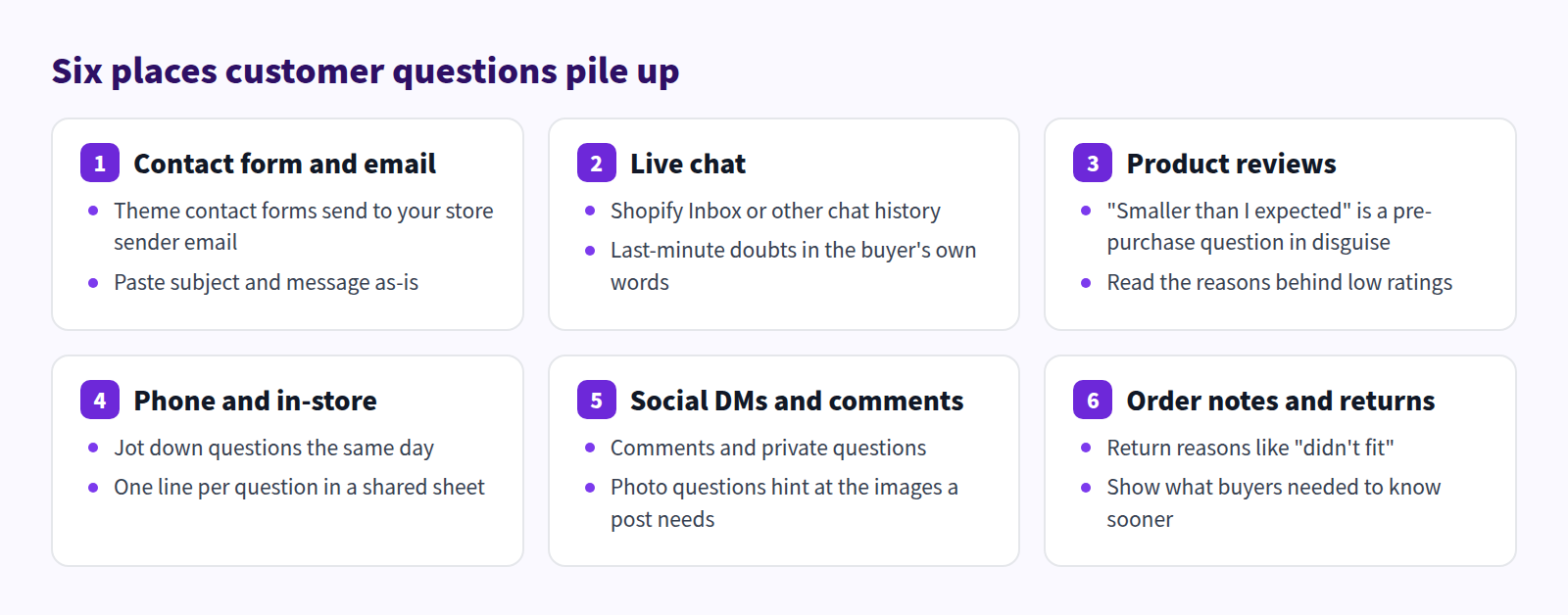
- Contact form and email. Submissions from your theme's contact form go to your store's sender email address, according to the Shopify Help Center.
- Live chat. If you use Shopify Inbox or another chat tool, the conversation history captures last-minute doubts in the customer's own words.
- Product reviews. "Smaller than I expected" or "the smell bothered me" is a question someone wishes they'd asked before buying. Read the reasons behind low ratings, too.
- Phone and in-store. These rarely get written down. Log each question in a shared sheet the same day.
- Social DMs and comments. Comments and private messages. When someone asks with a photo, that's a hint about which images your post needs.
- Order notes and return reasons. "Didn't fit" tells you what buyers needed to know sooner.
The one rule: keep the customer's exact words. The way customers phrase a question is close to how others search for the same problem. Give your sheet four columns (date, source, question as asked, product) and sorting gets easy later.
Turning questions into a topic list
Then run them through this process:
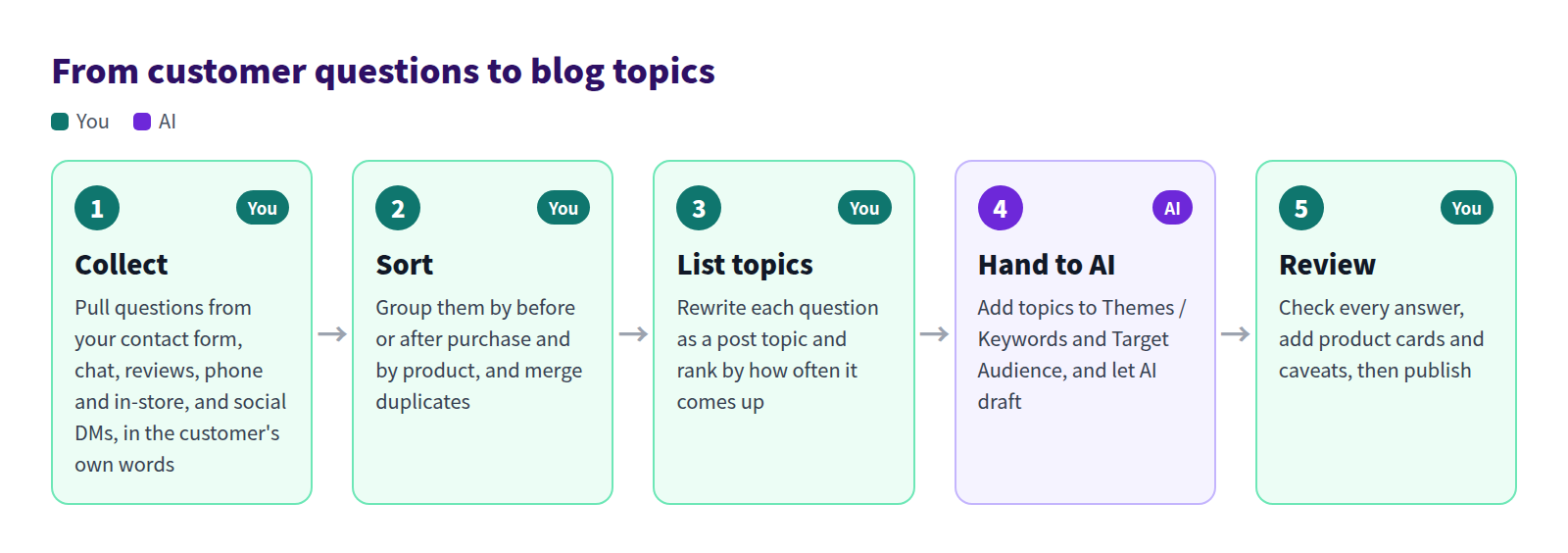
Collecting, sorting, and rewriting are your job: only someone who knows the store can judge which questions matter. AI can take over the drafting.
Sort by timing and by product
Sort each question on two axes: when it's asked, and what it's about.
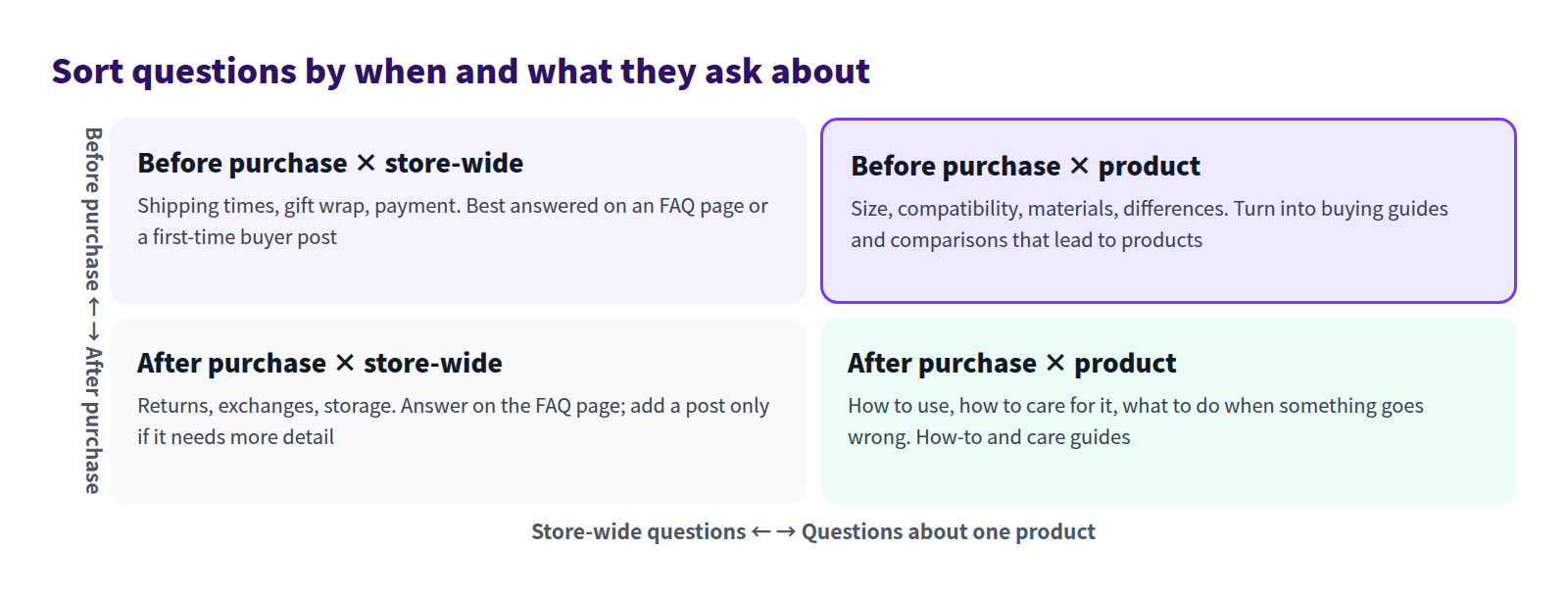
- Before purchase, about a product. Size, compatibility, materials, and how one item differs from another. These make the best posts, because buying guides and comparisons lead straight to products.
- After purchase, about a product. How to use it, how to care for it, what to do when something goes wrong. These become how-to and care guides, and they give existing customers a reason to come back to your store.
- Store-wide questions. Shipping times, payment, returns. Most have short answers, so handle them on your FAQ page and write a post only when the conditions are complicated.
Merge duplicates and rank by frequency
"Will this work on induction?" and "Is this OK for my cooktop?" are the same question. Merge them. The more often a question comes up, the more people it's stopping, so rank by count and write from the top.
Rewrite each question as a topic
Finally, turn each question into a post topic:
- Change "Can I…?" into something that shows the answer, like "How to tell if…" or "How to choose…".
- Answer one question per post. Related questions become headings inside that post.
- Include the situation, not just the product name. "How to tell if a pan works on induction" beats "pans."
Here's what that looks like for a kitchenware store (a fictional example):
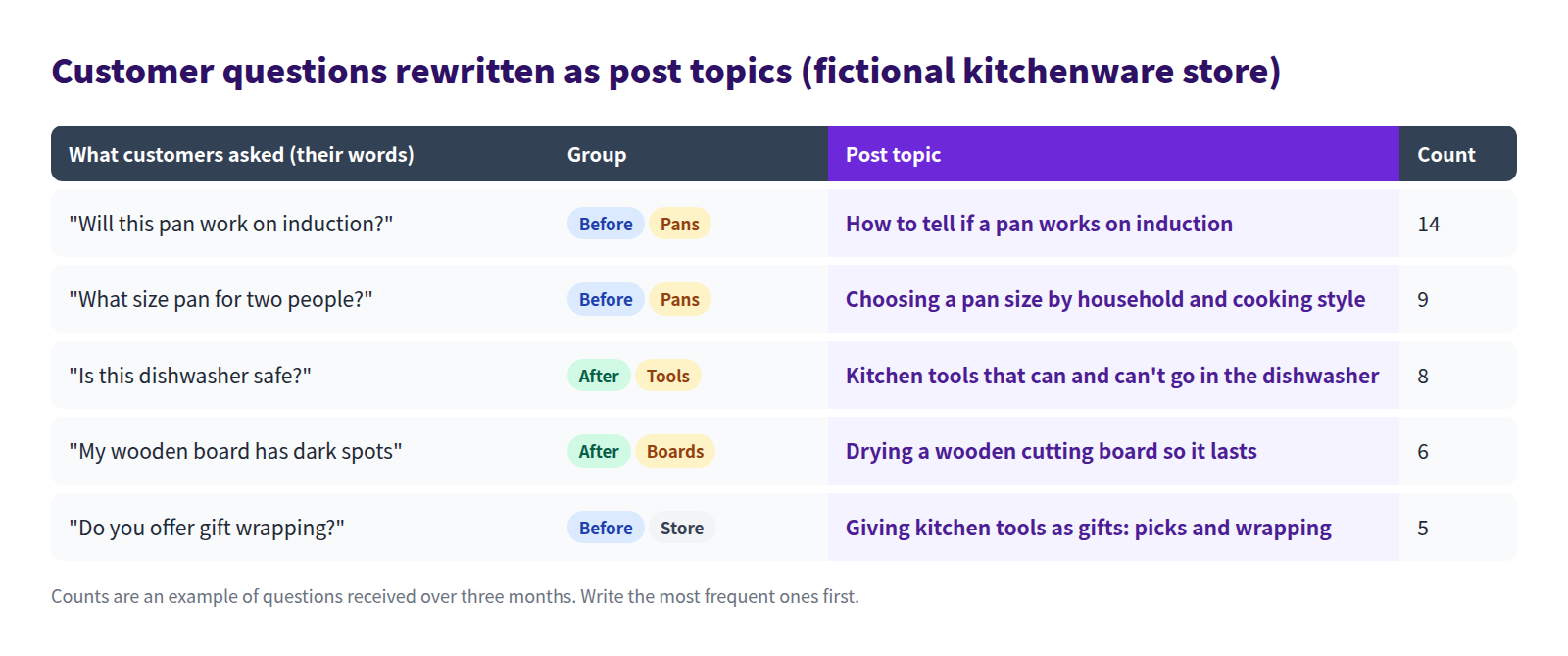
Which questions deserve a post
Not every question needs its own post. This split keeps the list manageable:
| Type of question | Where it belongs | Examples |
|---|---|---|
| One-line answer | FAQ page | Shipping cost, payment methods, business hours |
| Needs reasons or conditions | Blog post | Works on induction? Dishwasher safe? |
| Needs steps or photos | Blog post | First-use prep, cleaning and care |
| Compares several products | Blog post | Choosing between sizes or materials |
For how to write the post itself (question, answer, reasons, caveats, then products), see How to Turn FAQs Into Blog Posts That Answer Pre-Purchase Doubts.
What a post built from one question looks like
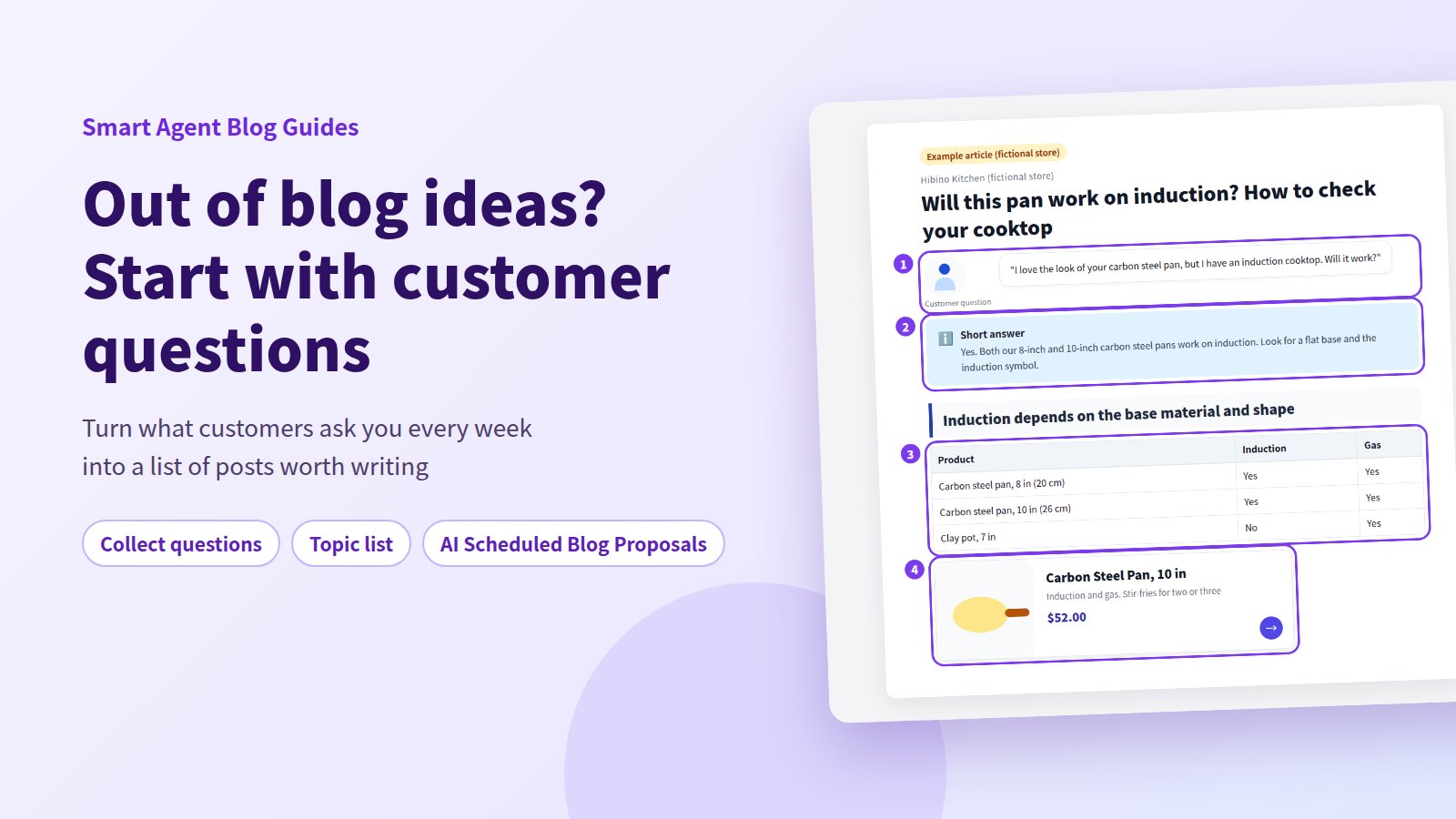
Here's the first question on the list, "Will this pan work on induction?", written up as a post. The store is fictional.
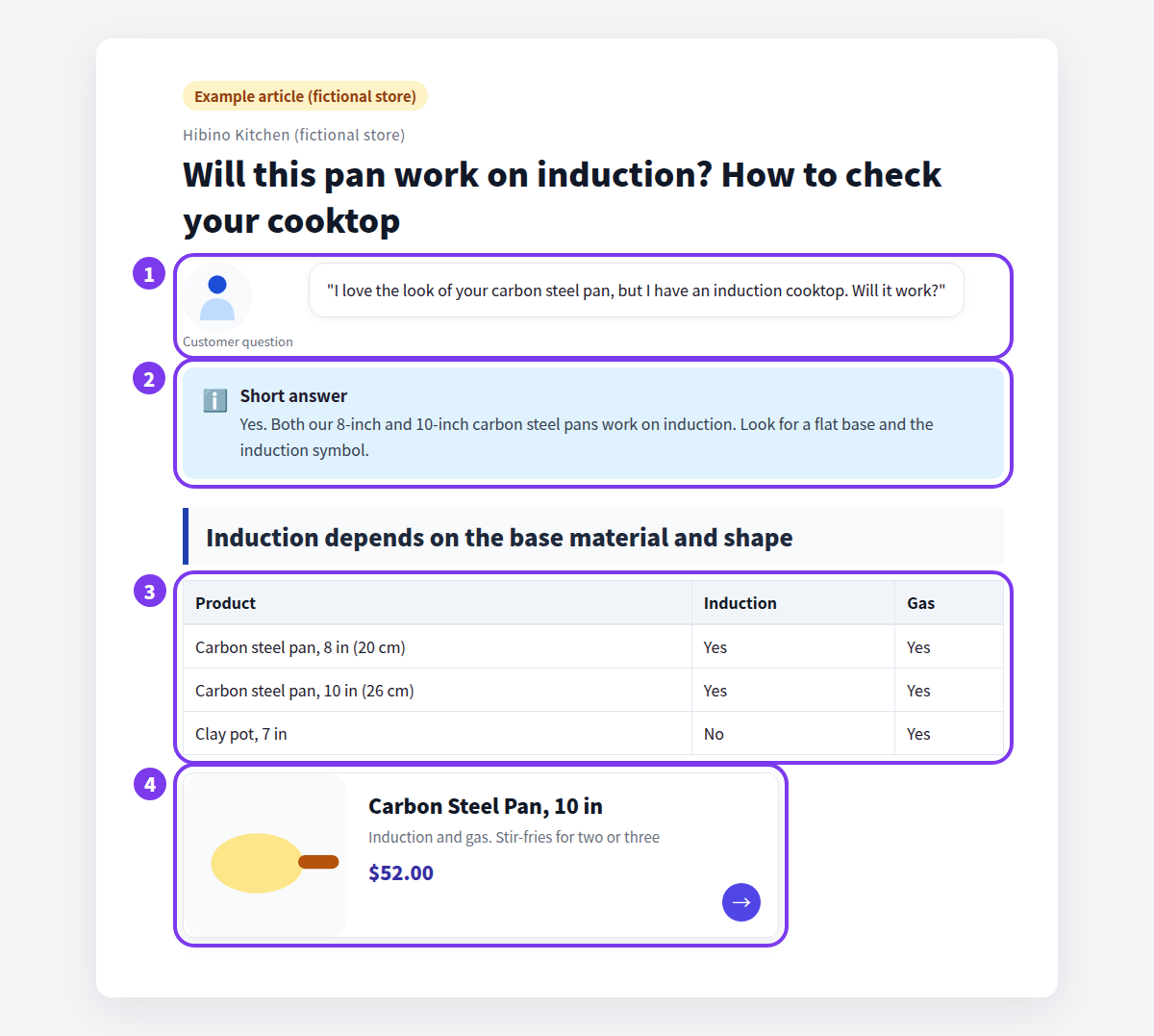
- Quote the question as asked. Readers with the same doubt see right away that the post is for them.
- Answer first. Say yes or no up front, with any conditions.
- Back it up with a table. A product-by-product table lets readers check their own situation.
- Lead to the product. The item mentioned in the answer appears as a card with its name, image, and price.
What Shopify can do on its own
You can build question-based posts with Shopify's built-in tools:
- Create the post. In your Shopify admin, go to Content > Blog posts and click Add blog post. The rich text editor supports headings, tables, images, video (YouTube and Vimeo embeds), and links.
- Draft with AI. The Generate text icon (Shopify Magic) writes post text from your description.
What you'll need to handle yourself:
- There's no place to collect or sort questions. A spreadsheet works fine.
- Shopify Magic needs a new prompt for every post. There's no way to save a topic list and have posts drafted on a schedule.
- Links are added by typing a URL. There's no product card with name, image, and price, and no automatic table of contents.
Using your topic list in Smart Agent Blog
AI Scheduled Blog Proposals in Smart Agent Blog creates a post on the day and time you choose, based on your store and product information. Add your topic list here and it becomes the raw material for a weekly draft.
To open it, go to Setting in Smart Agent Blog and select Manage for AI Scheduled Blog Proposals. Turn on Enable AI Scheduled Blog Proposals to show the settings.
Add topics and describe the reader
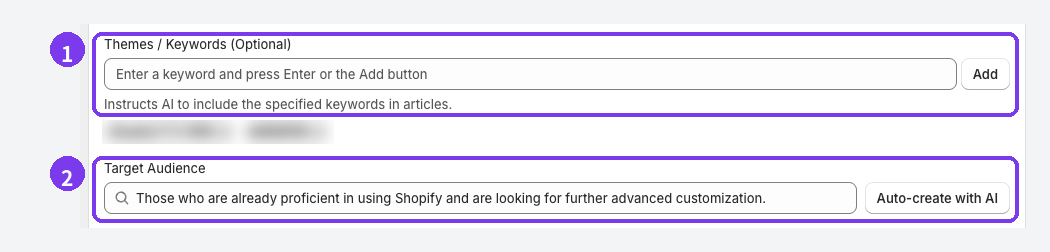
- Themes / Keywords. Enter each topic from your list one at a time and press Enter or Add. Saved terms appear as removable tags. A specific phrase such as "how to tell if a pan works on induction" communicates your intent much better than "pans."
- Target Audience. Describe the customer who asked. For example: "Home cooks with an induction cooktop buying their first carbon steel pan." Auto-create with AI suggests options you can pick and then edit.
In the required Business Overview, add a line about the questions you hear most and how you like to answer them. It helps the AI reflect your store's point of view.
Pick the products the questions are about
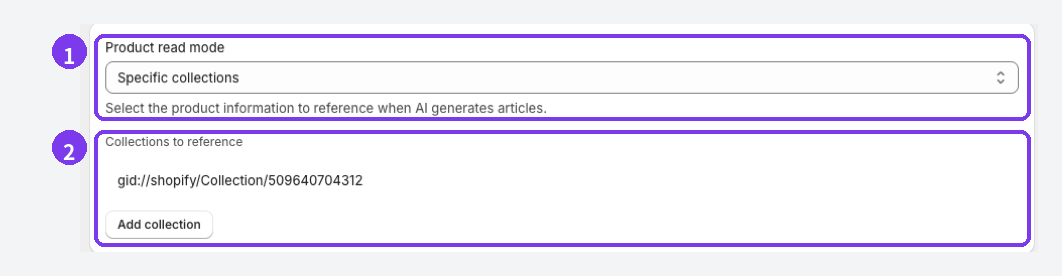
- Product read mode. Choose Do not read, All products, Specific products, or Specific collections. For a question about one item, choose Specific products. For a question about a category, such as pans in general, choose Specific collections.
- Products or collections to reference. Add them with the selection button. Too many and the post loses focus, so start with the few products your questions are about.
Then, under Schedule Settings, set Publish Mode to Save as draft (manual publish). For Article purpose, Product guide or comparison fits pre-purchase questions, and Education and editorial fits post-purchase ones. Set the publish day, time, and timezone, then select Save Settings. One post is created each week at that day and time.
Add your store's answer to the draft
AI can describe features a product doesn't have or state things nobody verified. You know the real answer to each question, so when a draft arrives:
- check the answer (compatibility, size, materials) against your product data,
- put the customer's actual words in an opening speech balloon or a heading, and
- link the product in the answer with Product Insert, and highlight conditions or caveats with a Callout.
Product Insert adds a card with the product name, image, and price, and shows a sold-out label when the item is out of stock. See Add content to an article for every block. The editor doesn't autosave, so select Save after each round of edits.
Three ways to write from your list
Once you have a topic list, there are three ways to get posts written:
| Write it yourself | Shopify Magic | Smart Agent Blog (AI Scheduled Blog Proposals) | |
|---|---|---|---|
| How drafts are made | Entirely by hand | A new prompt for each post | From saved topics, on your chosen day and time |
| Product information | You look it up | You type it into the prompt | References specific products or collections |
| Finishing touches | Built-in editor | Built-in editor | Product cards, callouts, and a table of contents in the same editor |
| Best for | You have time to write | One specific post you want now | Working through a topic list every week |
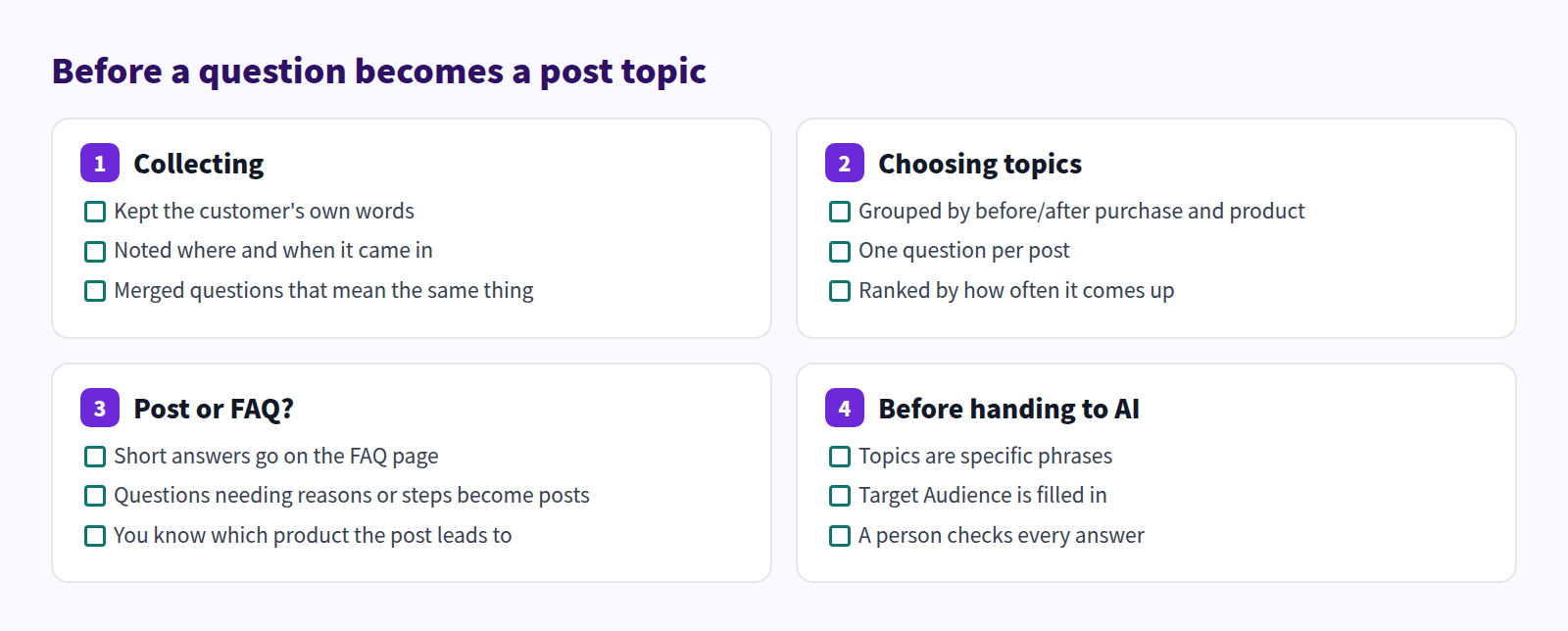
Checklist before a question becomes a topic
Keep this next to your sheet:
FAQ
I barely get any questions. Where do I start?
Even a quiet inbox has material. Look at what staff explain again and again on the phone or in person, where your product descriptions have grown long, and the reasons behind returns and reviews.
Many questions are similar. Won't my posts repeat each other?
If different wordings lead to the same answer, write one post. Smaller related questions become headings or an FAQ section inside it.
Can I try this on the Free plan?
Yes. AI Scheduled Blog Proposals creates up to 2 articles in total on the Free plan, with one schedule. Basic includes 1 per month and Pro 15 per month. See Plans and usage limits.
Summary
- Your next blog topics are already arriving as customer questions.
- Collect them from your contact form, chat, reviews, phone and in-store, social, and return reasons, in the customer's own words.
- Sort by before or after purchase and by product, then rewrite the most frequent ones as topics.
- Add the list to Themes / Keywords in Smart Agent Blog, and add your store's answer to each draft before publishing.
Start by writing down ten questions you've been asked this month. Your next post is somewhere on that list.