

More photographs do not automatically make a product easier to understand. Ask what decision each image helps the reader make. A beautiful mood photograph and a useful demonstration can serve different purposes.
This article explains how to choose supporting images and write the nearby text that makes them useful.
Choose the question before the photograph
A reader wondering about size needs different evidence from someone unsure about a setup procedure. Write the question and answer first, then find an image for the part that words alone do not explain well.
| Reader question | Useful image | Context to include |
|---|---|---|
| How large is it? | A measured view or actual use scene | Dimensions and shooting conditions |
| What fits inside? | Contents laid out and packed | Items actually tested |
| How do I use it? | One photograph per important step | Order and cautions |
| What is different? | A comparison under matching conditions | The criterion being compared |
Explain what readers should notice
For a fictional storage product, “shown with paperback books placed horizontally; see the product page for internal dimensions” is more useful than “lifestyle image.” It identifies the evidence without promising more than the photograph shows.
Do not use a caption to invent performance claims. A photograph may show texture, but it does not establish durability or water resistance. Separate verified specifications from the particular setup you photographed.
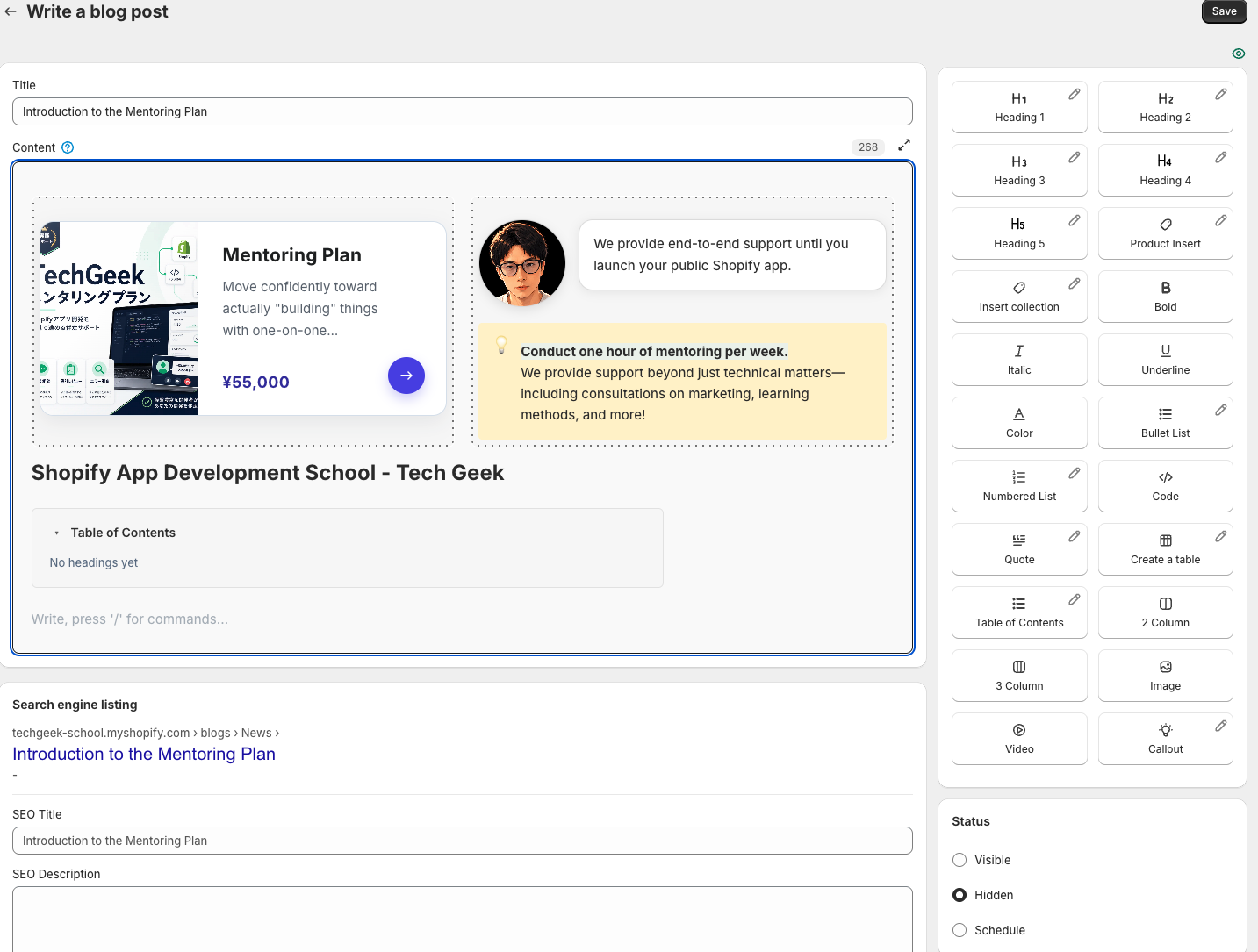
Add the image in Smart Agent Blog
Choose the image block in the editor and use a local file, an image URL or an existing Shopify image. Dragging or pasting an image is also supported. Use photographs you have permission to publish and check for personal information or unnecessary account details.
Place a question before the image and the explanation immediately after it. Important conditions should remain in normal text instead of being embedded only in tiny lettering inside the picture.
Give covers and body images different jobs
A cover tells readers what the post is about. A body image supports a particular decision or action. Repeating several similar mood photographs adds length without necessarily adding explanation.
If you use generated illustrations, do not present them as actual product photographs or evidence of customer use. Use photographs of the real item when its precise shape, color or specification matters.
Check the final page
Confirm that the image answers the nearby heading, that its model and size match the prose, and that the point remains visible on a phone. Important facts should still be available in text if the image fails to load. Remove repetitive images where they do not add information. Start by giving one decorative image in an existing article a clear explanatory purpose. For how images fit into the rest of the work, see how to write a Shopify blog post.
Read the detailed steps in the user guide
Related reading: Seven checks for a more readable mobile blog