
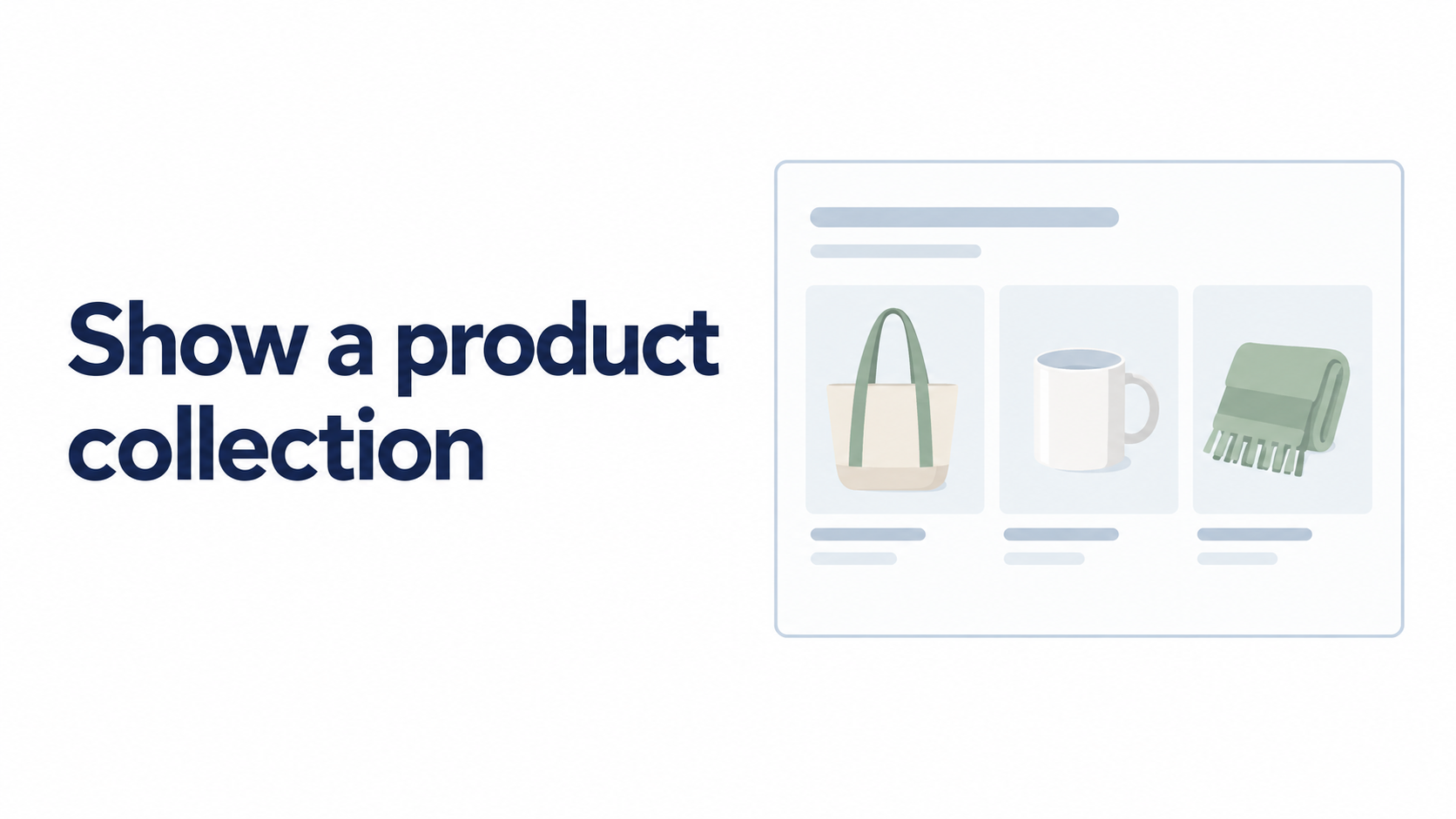
Gift guides and seasonal articles often need to introduce several options. But a row of products alone does not explain which one suits the reader.
Smart Agent Blog can insert a Shopify collection into an article. Here is how to choose a useful selection and configure its presentation.
What you will learn
- When to use a product card or collection
- How to define a coherent selection
- What to check when choosing counts and columns
Decide whether readers need one item or a selection
For an article about one product’s use, an individual product card is often appropriate. For alternatives within a purpose or occasion, a collection can help.
| Topic | Suggested approach |
|---|---|
| Caring for one bag | Introduce the specific product |
| Choosing a work bag | Display a collection of suitable candidates |
| Gifts for a particular recipient | Explain your selection and show the related products |
Displaying a collection does not automatically explain differences. Provide the decision criteria in your article.
Define why these products belong together
For a fictional gift guide, you might choose “everyday desk essentials” or “gifts for someone organizing small items.” A broad selection gives readers fewer clues about where to start.
Prepare the relevant collection in Shopify and check that its products match the article. If the title mentions a budget, verify the actual prices too.
Insert the collection in Smart Agent Blog
- Open the article and choose the intended position.
- Select the collection insertion option, then choose a Shopify collection.
- Adjust the heading, description, and number of products in the editing dialog.
- Set presentation options, including desktop and mobile columns, then apply.
- Save and preview the article.
See the collection guide for detailed controls. Recheck the live article after changing collection products or prices.
Show a selection you can explain
More choices are not always easier to use. Begin with a small group whose differences you can describe. Three or four products is one editorial starting point, not a feature limit.
For each item, explain who it suits and what to check. If every description says the same thing, refine the selection or consider directing readers to the collection page.
A fictional introduction might say:
This selection focuses on things you use at your desk each day. Consider a mug if you enjoy a drink while working, or storage accessories if small items need a home. Check each product page for dimensions and specifications.
Adapt the text to the products actually included.
Review the mobile experience
A desktop column count may make names and prices too small on a phone. Check both images and text:
- Are image proportions consistent enough to compare products?
- Can readers read the name and price and open the correct item?
- Does a long selection separate products too far from the explanation?
- If using a swipeable layout, is it clear there are more options?
- Does the article avoid implying unavailable products are in stock?
Appearance also depends on the theme and settings, so check the published page as well as the preview.
Update the article when the selection changes
Changing collection products does not automatically correct wording such as “three options” or “within this budget.” Review headings and descriptions during assortment changes.
After publishing, look at product-link behavior and reading depth. The product-path review guide explains how to choose a change.
For the whole path from an article to a purchase, see Turning your Shopify blog into sales.
Start with one existing feature article and a collection whose purpose is easy to explain.
Learn more about Smart Agent Blog in the Shopify App Store.