
"How to choose an insulated bottle." "How much water to bring camping." "The best bottles for winter camping." Scroll through your article list and you find the same topic three times. Every blog that keeps going ends up here eventually.
The short answer: compare similar posts on three things, the reader, the question, and the products they point to. If all three match, merge them into one post. If any one differs, give each post a clear role and link them together. For each post you remove, send its old URL to the post you kept with a Shopify URL redirect.
This guide walks through finding duplicates, deciding what to merge, handling URLs, and deleting safely, using a fictional outdoor store as the example.
- Why similar posts pile up, and what happens if you leave them
- How to find duplicates with the article list and article analytics
- When to merge, when to split roles, and when to keep both
- How to handle URLs after a merge, including Shopify URL redirects
- What to check before deleting a post
Why similar posts pile up
Duplicates aren't a sign of sloppy work. They're a side effect of blogging consistently:
- Seasonal rewrites. Each year's new lineup gets a new post instead of an update to last year's.
- Team changes. Whoever takes over the blog doesn't know what was already written.
- AI drafting. Broad topic settings can produce several posts with the same angle.
- Customer questions. The same question gets answered again, in different words, every few months.
What happens if you leave them
Nothing breaks right away. Over time, though:
- Readers get stuck. They can't tell which post to read, so they open both and compare.
- Facts drift apart. You update the price or specs in one post and forget the other.
- Every update costs double. Each product change means editing the same content in several places.
- Search engines get mixed signals. With several posts on one topic, it's less clear which one represents it.
One merged post keeps everything in one place, for readers and for you.
Decide each post's role by reader, question, and products
For each similar post, write one line for each of these:
- Reader: who it's for (first-time buyers, people upgrading, and so on)
- Question: what that reader wants to know when they open it (how big, how to clean it)
- Products: which products or collection the post sends people to
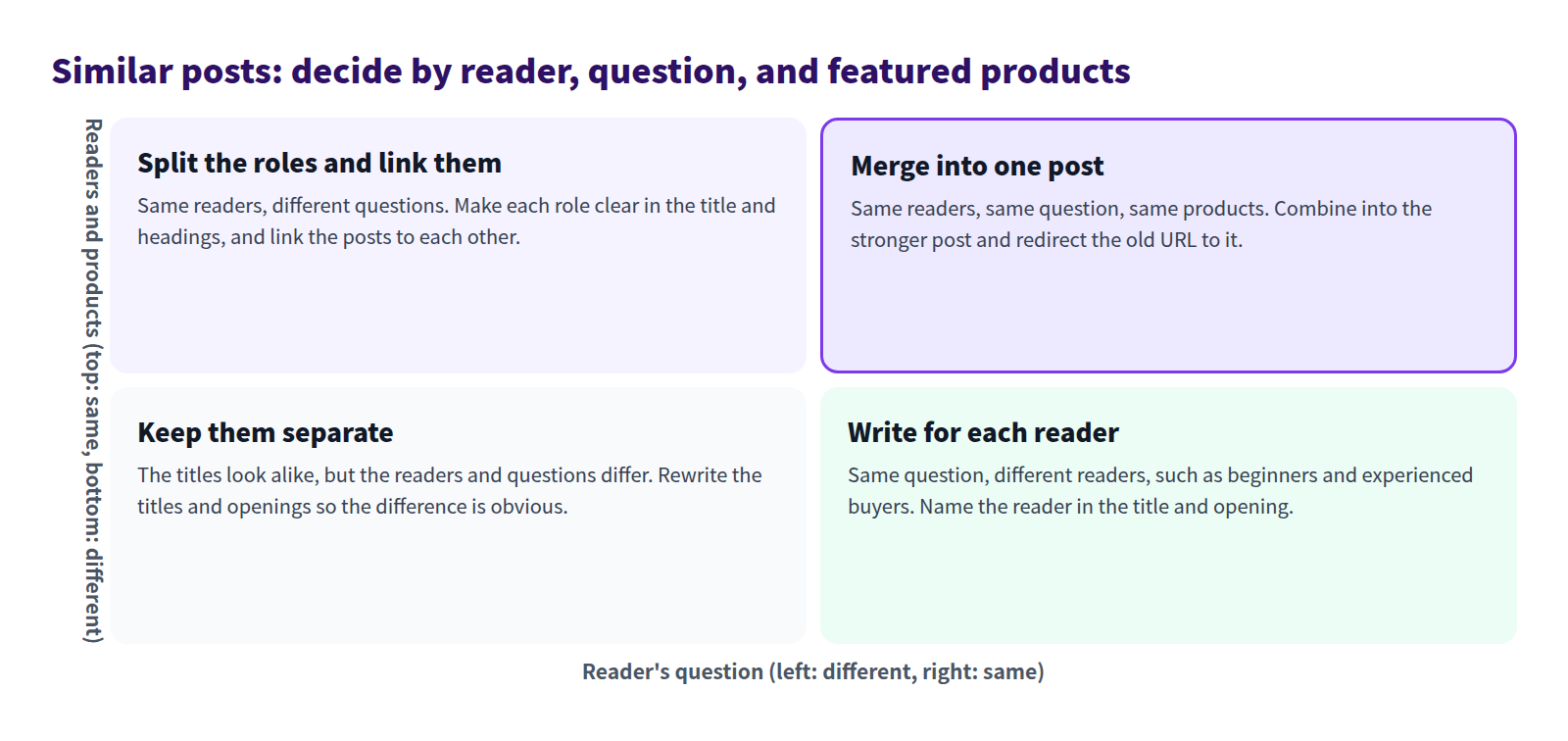
Then compare the two posts:
| Decision | When | What to do |
|---|---|---|
| Merge into one post | Same reader, question, and products | Combine into the stronger post, delete the other, and redirect its URL |
| Split the roles and link them | Same reader, different question | Make each role clear in the title and headings, and link the posts |
| Write for each reader | Same question, different reader | Name the reader in the title and opening, such as "for first-timers" |
| Keep them separate | Only the titles look alike | Rewrite the titles and openings so the difference is obvious |
When in doubt, ask: would a reader who compared both be satisfied with just one? If yes, merge. If both are worth reading, split the roles.
How to find duplicate posts
Search the article list for similar titles
In Smart Agent Blog's Articles list, you can search by part of a title.
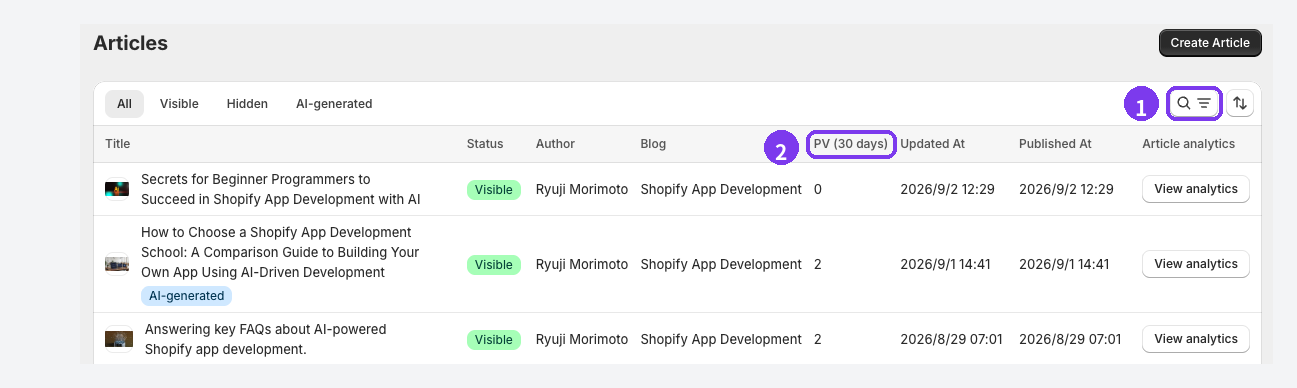
- Search. Select the search button at the top right, type a shared word such as "bottle" into Search by title, and run the search. Typing alone doesn't change the list. If nothing turns up, try fewer words.
- Sort by page views. Sort by PV (30 days), highest first, to see which of the similar posts gets read most. Sorting by Published At, oldest first, surfaces the posts that haven't been touched in a while.
If you use tags, the Tags filter helps too. Enter the full tag name, not part of it. The list shows 20 articles per page, so check the next pages as well.
Note each post's title, reader, question, products, page views, and published date in a simple table.
Compare how each post performs
On Pro, View analytics at the end of each row opens that post's analytics.
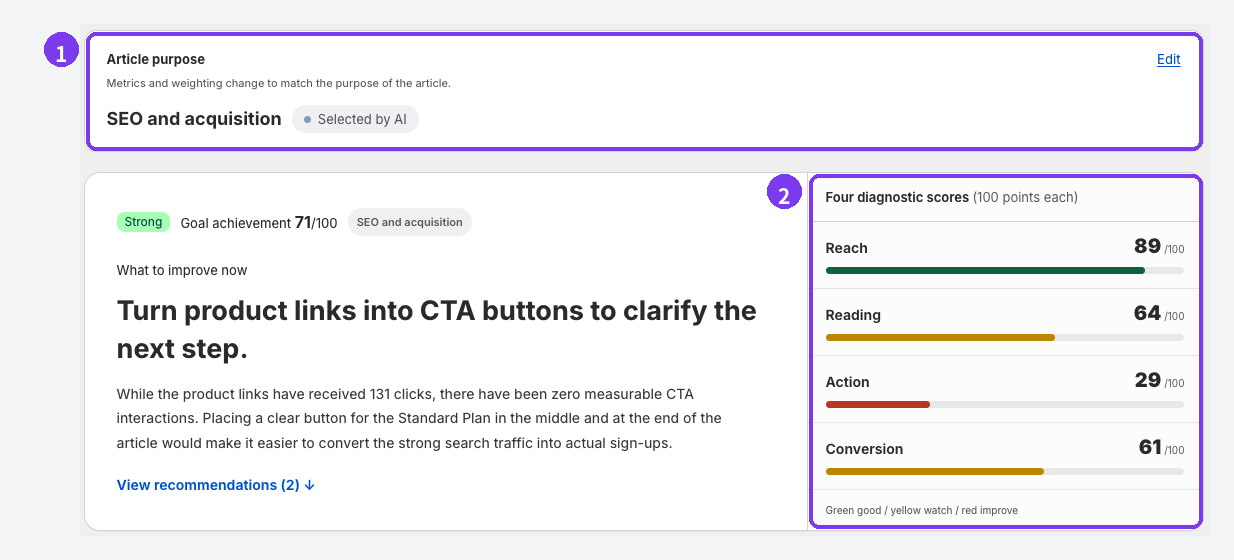
- Article purpose. If two similar posts serve different purposes, you may be able to keep both with separate roles.
- The four diagnostic scores. A post with strong Reach is a good candidate to keep. If Reading or Action is weak, rework the structure while you merge.
If Traffic sources shows that a post gets much of its traffic from search, keep that post and its URL. Analytics uses the finalized 30 days ending yesterday, and shows Collecting data for posts with too few views. See Review article analytics.
How to merge two posts into one
Once you've decided to merge, work through these steps:
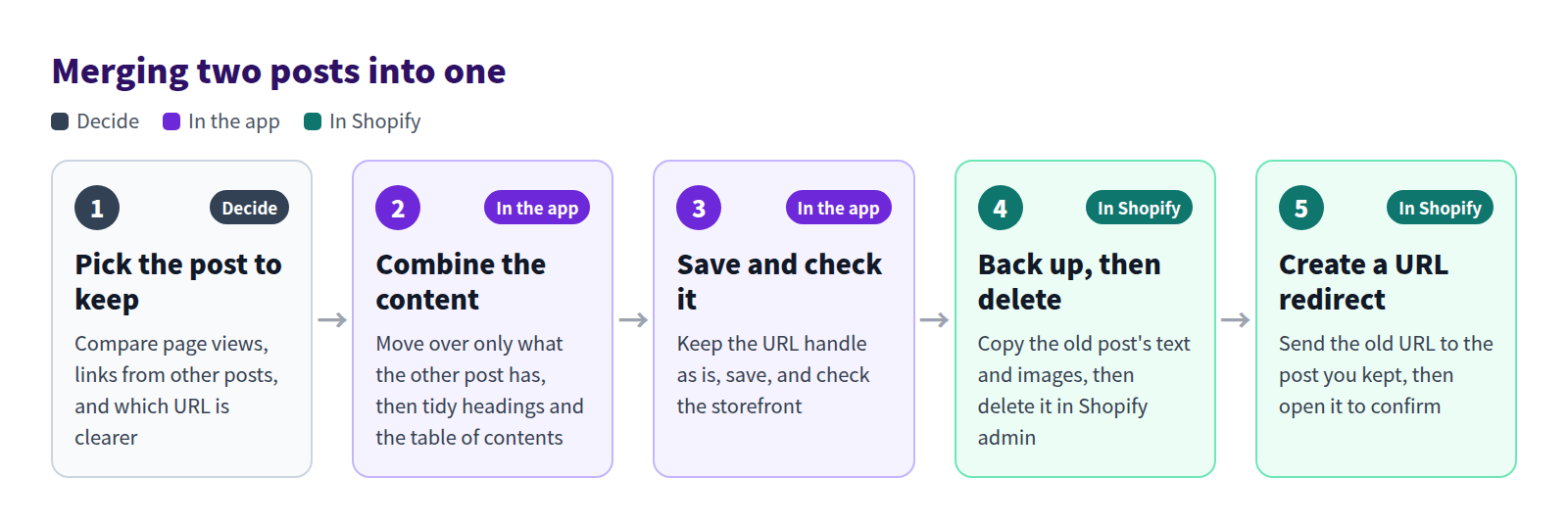
- Pick the post to keep. Favor the one with more page views, more links from other posts or product pages, and a URL that describes the topic.
- Combine the content. Move over only what the other post has that this one doesn't. Cut anything that would be said twice.
- Save and check it. Save without changing the URL handle. Editing a post that's already visible doesn't change its published date.
- Back up, then delete the old post. Copy its text and images first (details below).
- Create a URL redirect. Send the old post's URL to the one you kept.
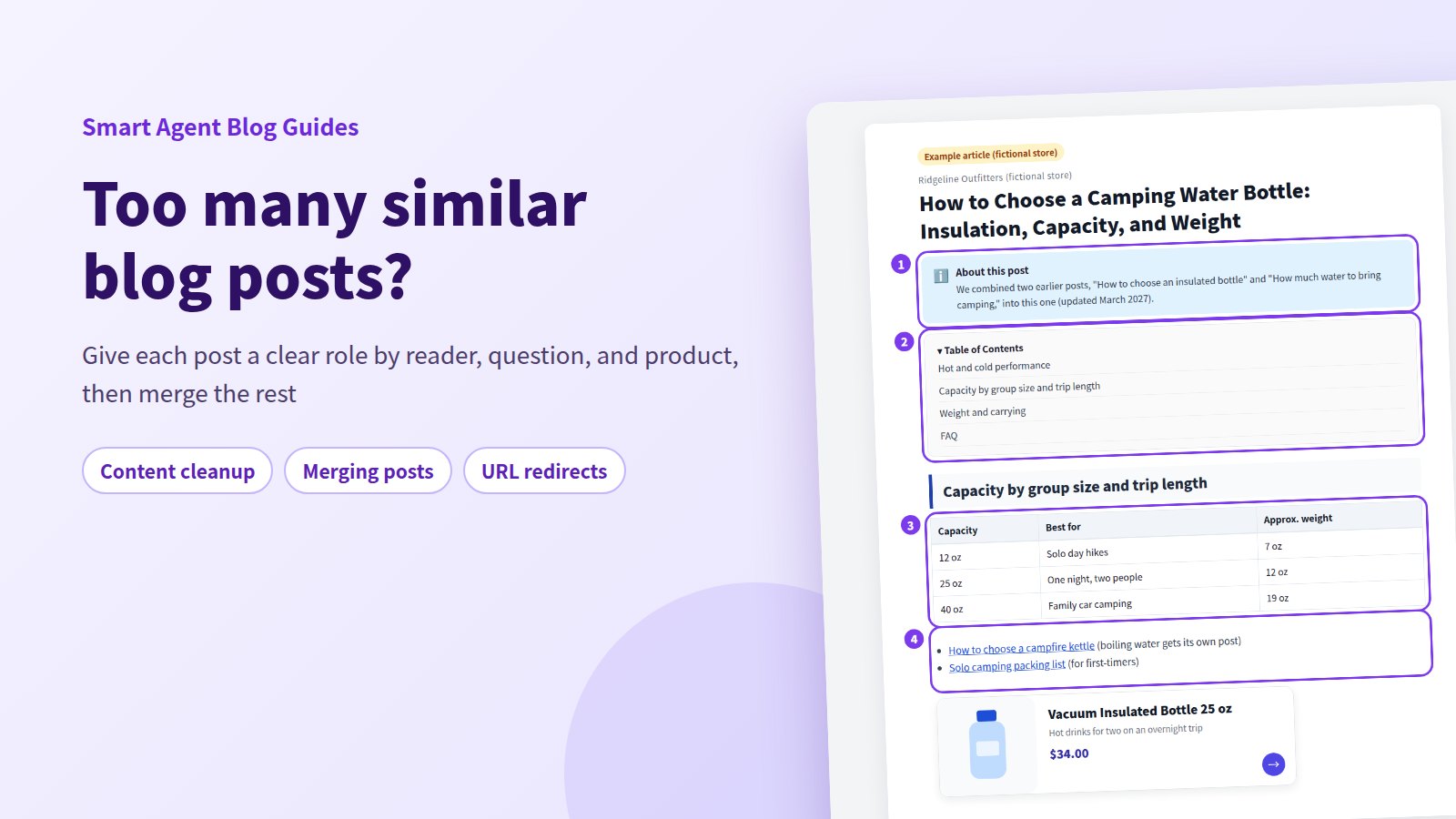
Here's what a merged post can look like, using a fictional store:
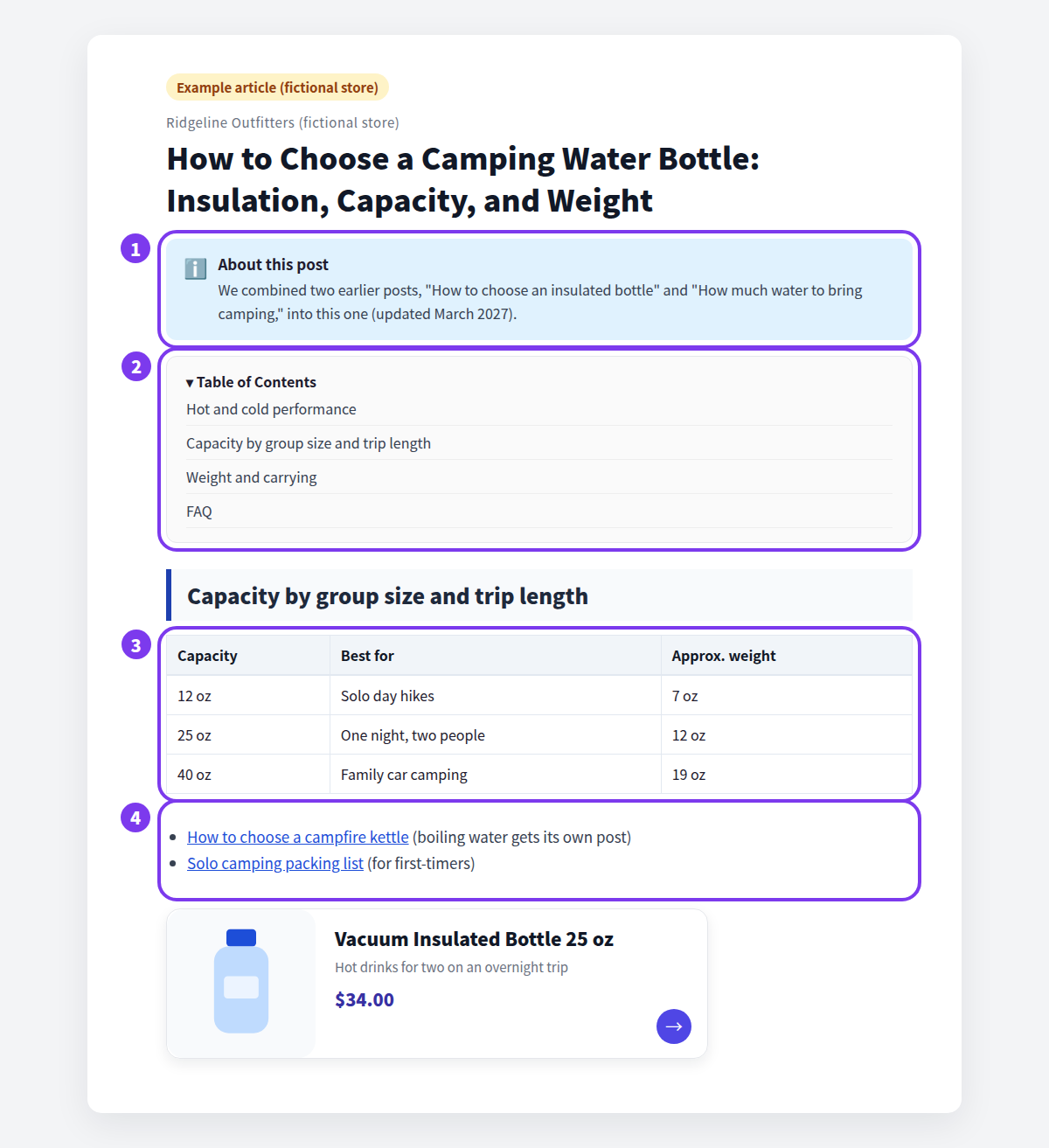
- Say that you merged them. A short note with the update month helps readers who remember the old posts.
- Show the whole post with a table of contents. Merged posts run long. A table of contents lets readers jump to what they need.
- Reshape what you moved. Information from the other post often reads better as a table than as pasted paragraphs.
- Link to posts with different roles. Related posts you didn't merge get a clear "read more" link.
While preparing proposals for Smart Agent Blog in August and September 2026, we reviewed the blogs of 110 Shopify stores in Japan. About 1 in 3 posts had no headings at all (27 of the 78 we recorded). Merge two posts without headings and you get one long, hard-to-read post. Use the merge as a chance to add headings and a table of contents.
Handling URLs after a merge
People may still reach the deleted post's URL from search results, social posts, or links on other pages. Without a redirect, they land on Page not found. Use a Shopify URL redirect to send them to the post you kept.
Create the URL redirect
- In Shopify admin, go to Content > Menus and click View URL redirects.
- Click Create URL redirect.
- In Redirect from, enter the old post's URL: the part after your domain, such as
/blogs/news/old-handle. - In Redirect to, enter the URL of the post you kept.
- Click Save redirect.
- Open the old URL in your browser and confirm it lands on the kept post.
According to the Shopify Help Center, you can redirect only from broken URLs, the ones that show Page not found or 404. While the old post is still live, a redirect won't work. That's why you delete the old post first and create the redirect after.
Don't change the kept post's URL
In the Smart Agent Blog editor, URL Handle under Search engine listing controls the last part of the URL. Changing it after publication can break the old URL, so leave the kept post's handle as it is.
For reference, when you edit a blog post's URL handle in Shopify admin, a pre-selected Create a URL redirect option forwards the old address to the new one.
Delete with care
Deleting the leftover post is the step that deserves the most caution.
- Delete in Shopify admin. Smart Agent Blog's article list has no bulk delete. In Shopify admin, open the post under Content > Blog posts, click Delete blog post, and confirm.
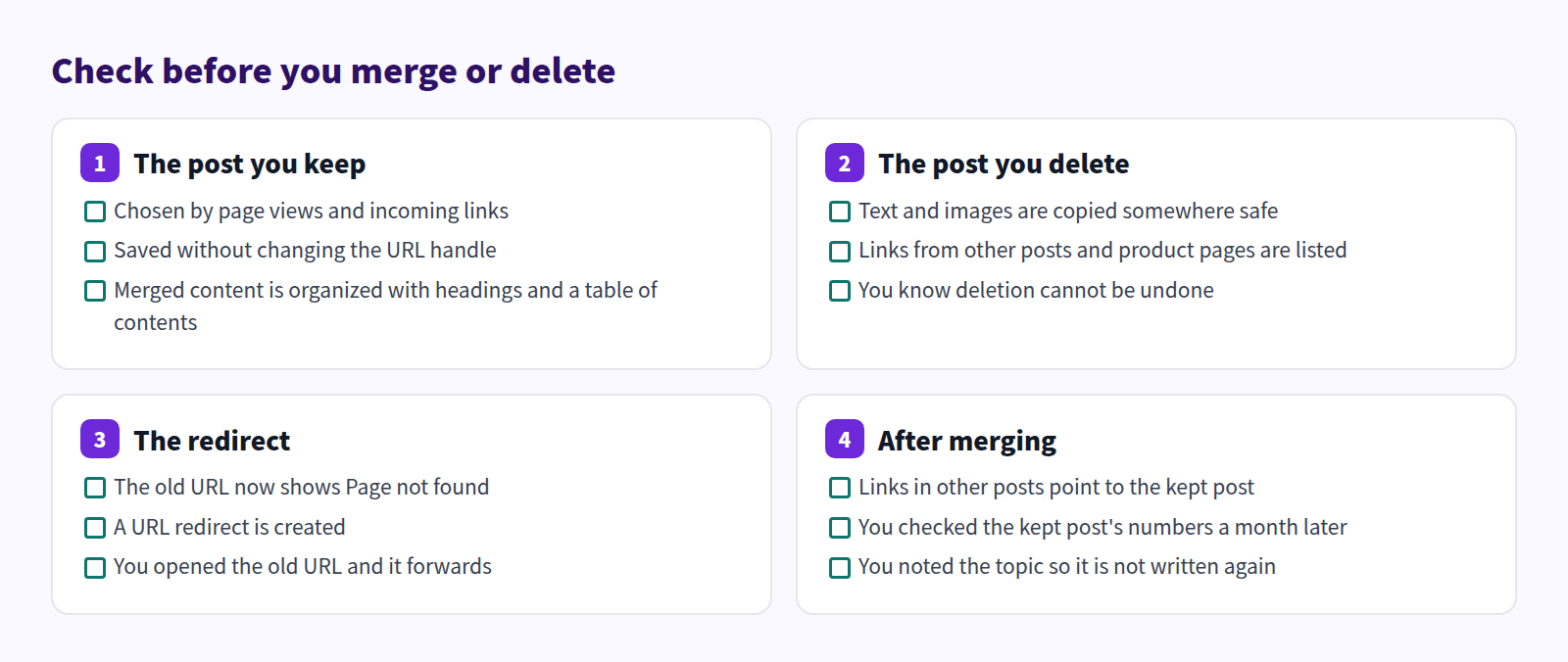
- Deletion can't be undone. Copy the text and images somewhere safe first.
- Find incoming links. Check other posts and product pages for links to the post you're deleting, and point them at the kept post.
If you're not ready to delete, you can set the post to Hidden first. Hiding doesn't delete it, and you can make it visible again later. The Shopify Help Center doesn't say whether a hidden post's URL can be redirected, though. If the redirect needs to work for sure, back up the post, delete it, then open the old URL to confirm it forwards.
Tidy the merged post in Smart Agent Blog
A merged post is longer, so the finishing work matters. Smart Agent Blog handles it in the same editor.

- Table of Contents block. It builds itself from Heading 2, Heading 3, and Heading 4, and updates when you change them. Reorder sections during the merge and the table of contents follows.
- The insert menu. Besides the table of contents, it adds tables and product cards. Use Product Insert for the products the merged post features, so each one shows its name, image, and price.
To move a block, drag the handle that appears on its left when you hover. For more, see How to Add a Table of Contents to Shopify Blog Posts.
On Pro, the Rewrite action in a saved post's editor can propose improvements. Under What would you like to improve?, write something like "Two posts were merged here. Remove repeated explanations and tidy the order of the headings." With Approval required (Recommended), you compare before and after and only the changes you accept are applied.
Keep duplicates from coming back
Once you've cleaned up, stop the pile from rebuilding:
- Search before you write. Run a title search for your topic before starting a new post.
- Update instead of adding. If the new information is small, add it to the existing post.
- Be specific with AI topics. If you use AI Scheduled Blog Proposals, enter specific Themes / Keywords, and review AI drafts under the AI-generated tab before publishing.
If you keep writing a new seasonal post every year, the "update last year's post" approach in When should you start seasonal blog posts? will help.
For the habits that stop duplicates forming in the first place, see Shopify blog best practices.
Check before you merge or delete
FAQ
Will merging posts raise my search rankings?
Not necessarily. Merging is about getting readers to the answer in one post. Redirecting the deleted post's URL to the kept post makes sure people who arrive at the old address don't hit a dead end.
How soon should I check the results?
Wait about a month. Article analytics uses the finalized 30 days ending yesterday, so numbers right after the merge don't tell you much. If a post shows Collecting data, wait until it goes away.
Can I get a deleted post back?
No. Always copy the text and images before deleting. If you're unsure, hide the post first and delete it once you're confident.
Summary
- Compare similar posts by reader, question, and products. If all three match, merge them.
- Use title search, page view sorting, and article analytics to choose the post to keep.
- Redirect each deleted post's URL to the kept post with a Shopify URL redirect, then open it to confirm.
- Deletion can't be undone. Back up the text and images and fix incoming links first.
Start by searching your article list for the topic you write about most, and count how many similar posts turn up.