
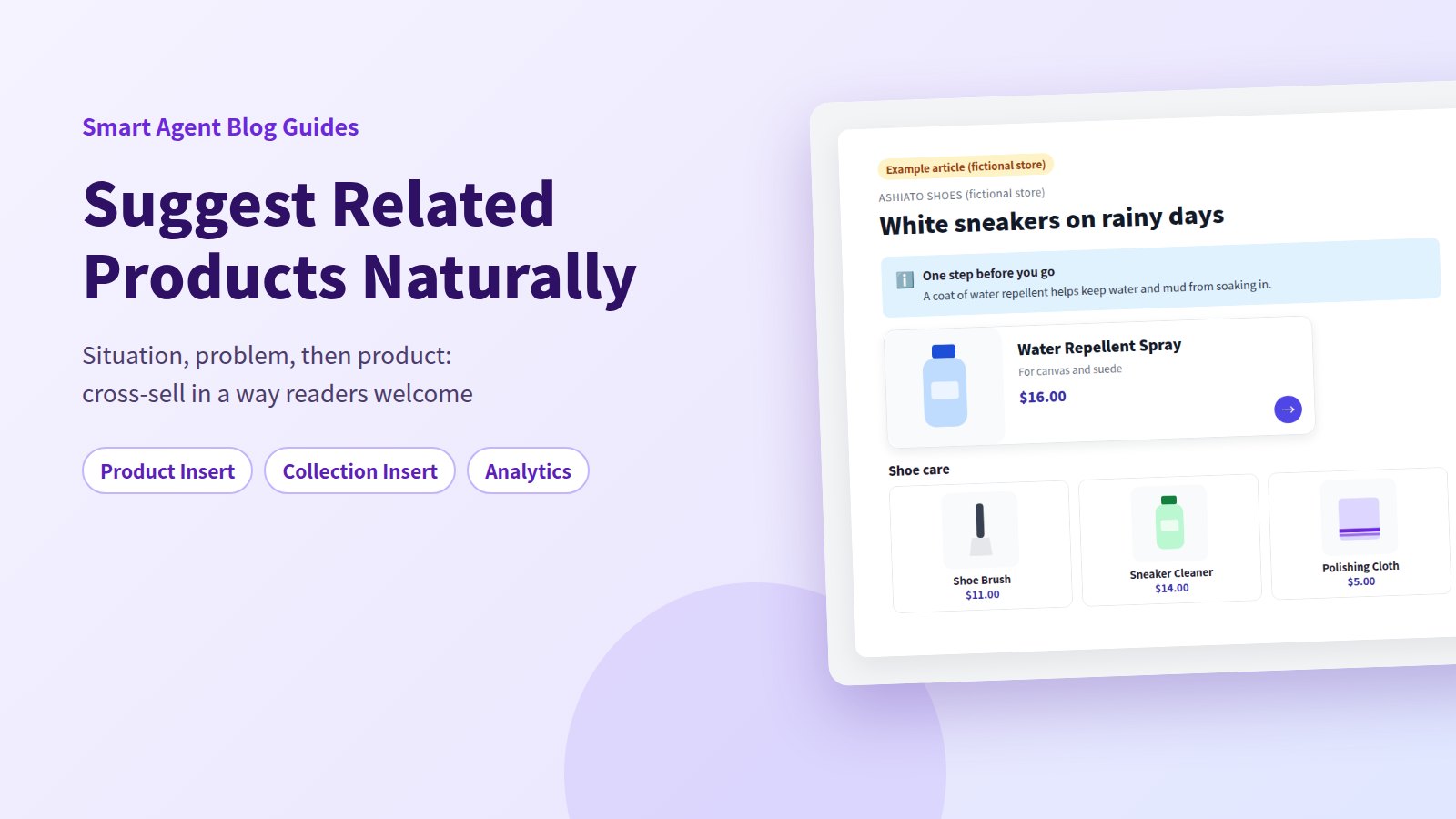
The product in your post works better with a few other things you sell. But lining up extra products feels like a sales pitch, so you end the post without mentioning them at all. Sound familiar?
Related products feel pushy not because of the products themselves, but when there's no reason given for them. Describe the situation the reader is in and the problem it causes first, then suggest one or two products that solve it. To the reader, that's helpful advice.
This guide covers how to choose related products and how to set up the context, using a fictional store's post. You'll also see when to use a product card or a collection in Smart Agent Blog, and how to use article analytics afterwards to check whether readers clicked and bought.
- Why related products come across as a sales pitch
- The four kinds of related products, and where to find candidates
- The situation, problem, product pattern, with a fictional example
- When to use a product card or a collection, and how many is too many
- How to review results with the Action and Conversion scores
Why related products feel like a sales pitch
Cross-sells tend to feel pushy when:
- best-sellers unrelated to the post are piled up at the end,
- the only explanation is "You might also like…", or
- the list of products is longer than the article.
When a product shows up at the moment the reader thinks, "Oh right, I'll need that too," it's a service, not a pitch. It's the same as a store clerk saying, "If you'll wear these in the rain, a coat of water repellent helps."
In practice, many posts don't link to any product at all, related or otherwise. While preparing proposals for Smart Agent Blog in August and September 2026, we reviewed the blogs of 110 Shopify stores in Japan. Of the 88 posts where we recorded body links, 66 (75%) had no link to a product page. In 3 out of 4 posts, readers couldn't get from the article to a product. Before worrying about being pushy, make sure readers can reach what they'll need next.
The flow of a natural cross-sell
Suggest related products in four steps:
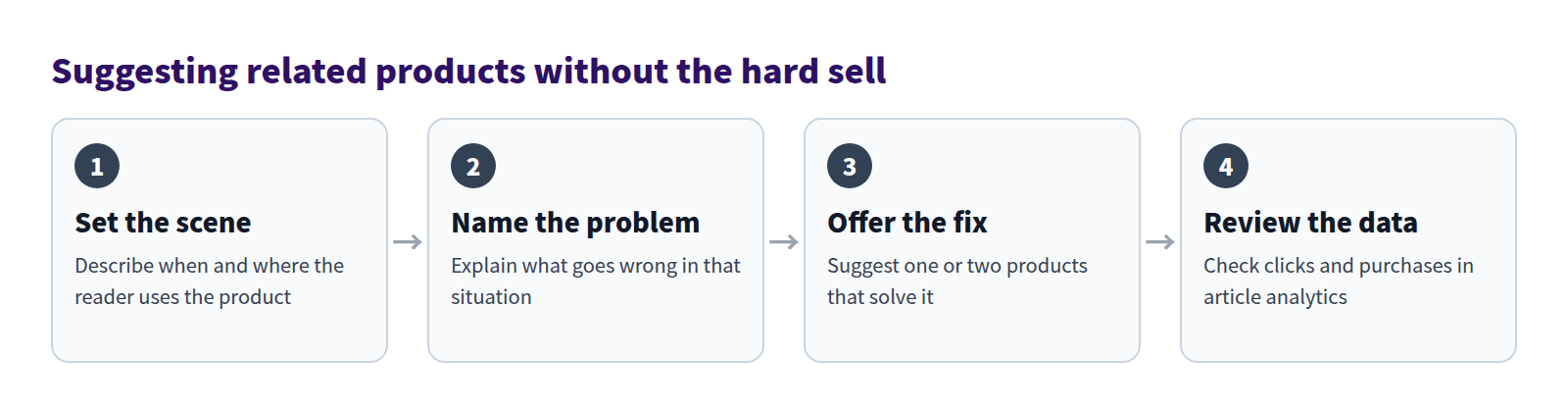
Keep steps 1 to 3 in order. Show the product first and explain later, and readers assume you're just trying to sell. Set the scene and name the problem first, and the product reads as the answer.
How to choose related products
Four kinds of related products
Products that go together fall into four kinds, depending on when they're needed and how essential they are.
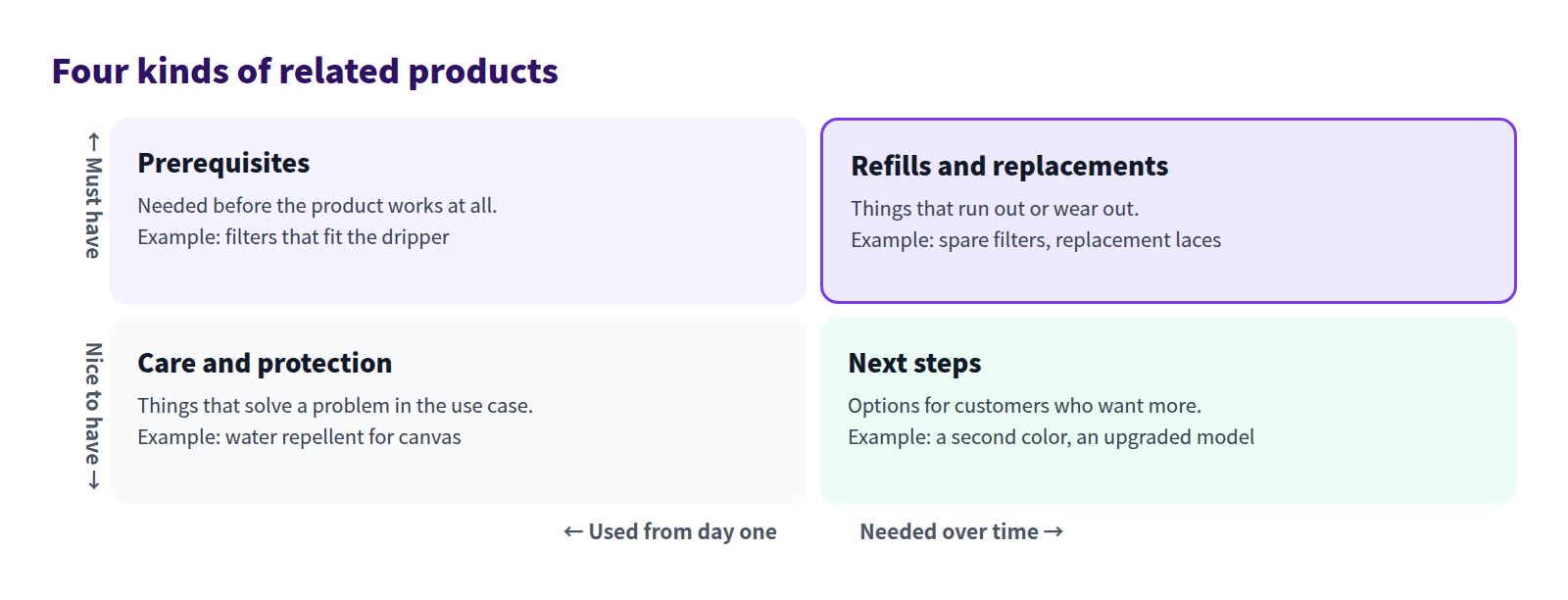
- Prerequisites are needed before the product works at all. Skip them and readers get stuck when the package arrives. Mention them up front, under "What you'll need."
- Refills and replacements will be needed eventually, so suggesting them never feels pushy. They're the easiest kind to recommend.
- Care and protection products solve a problem in a specific situation. Say who needs them and who doesn't.
- Next steps suit customers who want more. Mention them lightly near the end.
Where to find candidates
Look at what customers do, not at what you'd like to sell:
- products people email about ("Do I also need…?"),
- combinations that often appear in the same order when you look back through orders,
- items reviewers say they wish they'd bought at the same time, and
- things your staff routinely suggest in person or on the phone.
For each candidate, write one sentence on how the reader would struggle without it. If you can't, the product doesn't belong in that post.
Write it as situation, problem, product
Here's a post from a fictional shoe store. It's aimed at customers who bought white canvas sneakers, and it covers preparing for rain and cleaning up afterwards.
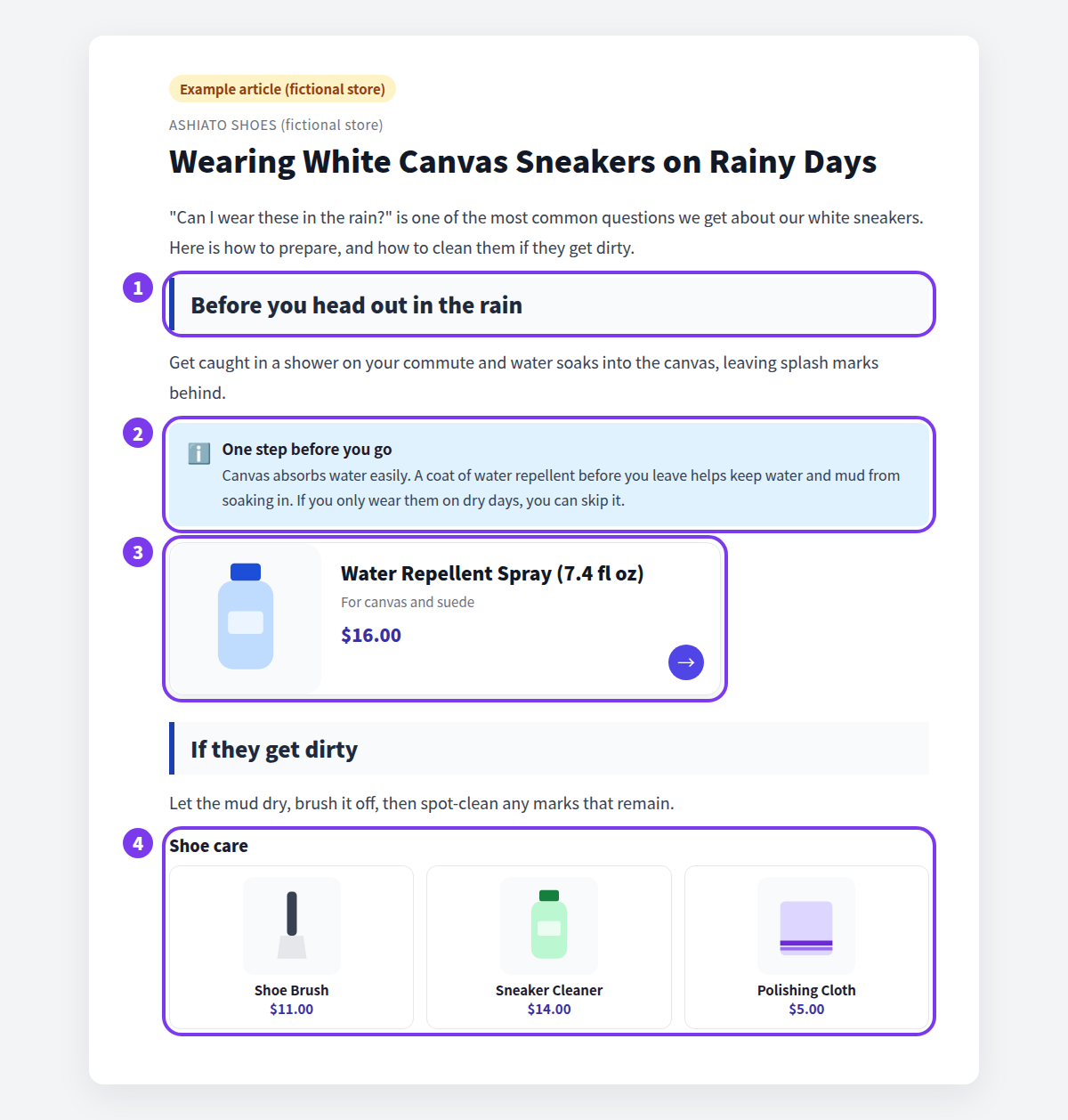
- The situation. The heading, "Before you head out in the rain," names a moment readers actually face. The paragraph below describes what happens when you're caught in a shower on the way to work.
- The reason. A callout explains that canvas absorbs water and why a coat of repellent helps. Notice that it also says who can skip it: "If you only wear them on dry days, you can skip it."
- One related product. A single product card for the spray sits right below the reason. There's only one thing to get here, so there's no need for choices.
- Several related products. A different situation, "If they get dirty," gets a collection of a brush, cleaner, and cloth. What you need depends on the mess, so the reader chooses.
Compare the two ways of writing it:
- No reason: "You might also like this."
- Situation and reason: "If you'll wear them in the rain, a coat of water repellent before you leave helps keep splash marks from setting in. If you only wear them on dry days, you can skip it."
The second lets readers decide for themselves. Not claiming everyone needs it, and saying who doesn't, makes the suggestion more trustworthy.
Product card or collection?
Choose the format for each situation based on whether there's a real choice to make.
| Situation | Format | Example |
|---|---|---|
| Exactly one thing is needed | One product card | Water repellent for rainy days; filters that fit a dripper |
| The right choice depends on the reader | A collection | Cleaning supplies for different kinds of dirt; laces in several colors |
| The reader should pick one of two | Comparison table plus product cards | Two products with similar uses |
For choosing between two products, see How to build a comparison table post. For the basics of inserting product cards and giving reasons, see How to add products to your Shopify blog.
How many is too many
More related products don't mean more sales. The more options there are, the more tiring it is to choose, and some readers leave without picking anything.
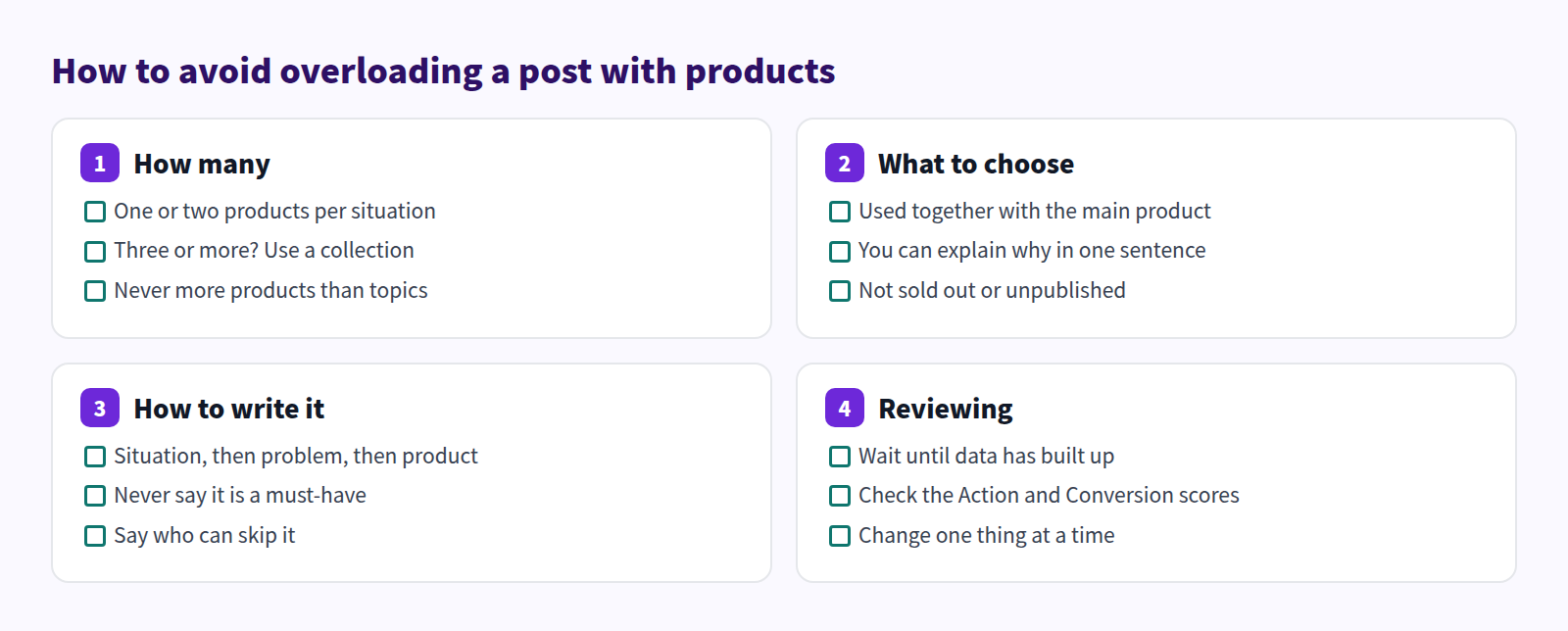
A good rule: one or two products per situation, and a collection once you reach three. Across the whole post, never feature more products than topics. The main product, and the answer to the reader's question, stay the focus.
What Shopify's standard editor can do
In Shopify's standard rich text editor, you select text or an image, click Insert link, and enter the product URL to link to a related product.
What it can't do is show a product card with the name, image, and price, or display a collection's products as a grid. When prices or stock change, you have to check and edit the text yourself, and showing several related products means arranging images and links one by one.
How to suggest related products in Smart Agent Blog
Feature one product with Product Insert, or several with Collection Insert
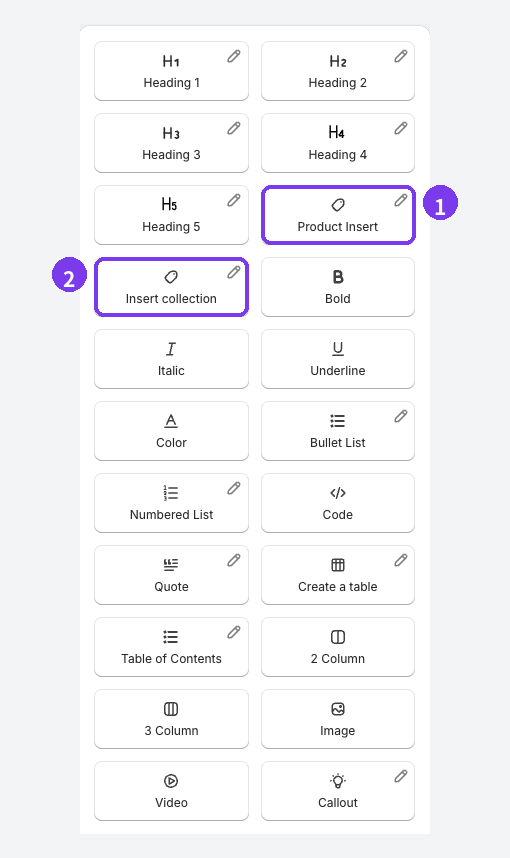
- Product Insert. On the line right after the reason, select Product Insert and choose the product in Shopify's product picker. A card with the product name, image, and price is added. Out-of-stock products show a sold-out label.
- Collection Insert (labeled Insert collection in the menu). Select it and choose one Shopify collection. Then select Edit collection block on the inserted block, adjust the heading, description, product limit, and desktop and mobile columns, and select Apply.
Draft, hidden, and archived products can't be selected, so if a product is missing, check its status in the Shopify admin. The final look depends on your theme, so preview before publishing.
A small collection built for the situation, such as "Shoe care," works best. Limit it to three or four products to avoid overload. Collection data comes from Shopify, so after changing products or prices, check the live article to confirm it's up to date. See How to feature collections in your blog for more.
Review results in article analytics (Pro plan)
Once related products are in place, check whether readers clicked them and bought. Article analytics (Pro plan) shows four diagnostic scores for each article. Open it with View analytics at the end of the article's row in the article list, or at the top of the editor for a saved article.
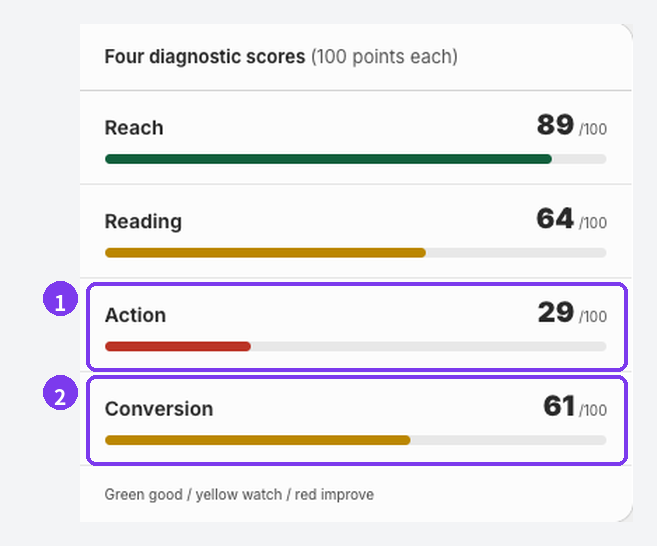
- Action shows whether product links, related articles, and buttons were selected. If nobody clicks your related product cards, this score drops.
- Conversion shows whether the article led to cart adds and purchases.
Both scores compare the article with your other articles that have the same purpose. They cover the 30 days ending yesterday, and show Collecting data until there are enough views. Don't judge right after publishing.
Under Actions and purchases in the detailed metrics, you can see the actual counts.

- Product link CTR: how many times product links in the article were selected, as a count and a rate.
- Direct cart adds: how many times readers added to cart from the article, as a count and a rate.
If Action is low, move the product cards. They get clicked more right after the situation and reason than bunched at the end. If Conversion is low, check that the products fit the article and that you've said who they suit and when to use them. Change one thing, then compare the next period. See Review article analytics for details.
FAQ
Can I feature the same related product in several posts?
Yes, but write a different situation and reason for each. The same water repellent might be for "a rainy commute" in a sneaker post and "a sudden shower" in a bag post.
What if a related product sells out?
Smart Agent Blog's product cards show a sold-out label for out-of-stock products. If it won't be restocked, swap in another product that does the same job, or remove the card and rewrite the text. Check that nothing still suggests it can be bought now.
Which plan includes article analytics?
Article analytics is included in the Pro plan (it's also available on Shopify development stores). Blocks like Product Insert and Collection Insert are available from the Free plan. See Plans and usage limits.
Summary
- Related products feel pushy when no reason is given.
- Write the situation, then the problem, then the product, and say who can skip it.
- Keep it to one or two products per situation; use a collection when there's a real choice.
- After publishing, check Action and Conversion to see whether readers clicked and bought.
Pick one post about a best-selling product and write down one thing that makes it easier to use. If you're writing a how-to post, see How to turn product instructions into a photo guide too. For the whole path from post to purchase, see how to turn Shopify blog readers into buyers.