
You published a gift guide with 20 great picks, and it barely moved. Shoppers looking for a gift get stuck when the list is long, and they close the tab without choosing.
The short answer: pick one main angle out of budget, recipient, and occasion, use it for your headings, and cover the other angles in a quick-pick table. Group the products for each heading into a Shopify collection, then use Smart Agent Blog's Collection Insert to show them with a heading, description, product limit, and column count that fit.
This guide walks through choosing the angle, structuring the post, and writing gift wrap and shipping details, using a fictional home goods store's housewarming guide.
- Why shoppers struggle to choose from a gift guide
- The three angles, budget, recipient, and occasion, and how to pick the main one
- How to build the post around a quick-pick table and collections
- Which Collection Insert settings to adjust for gift guides
- How to make gift wrap and delivery cutoffs impossible to miss
Why shoppers can't choose
Buying a gift is different from buying for yourself. Gift shoppers are weighing three questions at once:
- Does it fit my budget? What's a normal amount to spend here?
- Will they like it? Is it safe for someone whose taste I don't know well?
- Will it arrive on time? Can it be gift wrapped and delivered before the day?
A guide that just lists favorites leaves shoppers to answer all three alone. They open product page after product page to compare prices and gift wrap options, and they give up.
While preparing proposals for Smart Agent Blog in August and September 2026, we reviewed the blogs of 110 Shopify stores in Japan. Among the 113 posts we recorded, none presented products as cards with the name, image, and price together. Letting shoppers compare prices and images right in the post takes a lot of the work out of choosing a gift.
Gift guides are seasonal, but they work best beside evergreen posts; see what else a store blog can cover.
Three angles: budget, recipient, occasion
There are three ways to organize a gift guide:
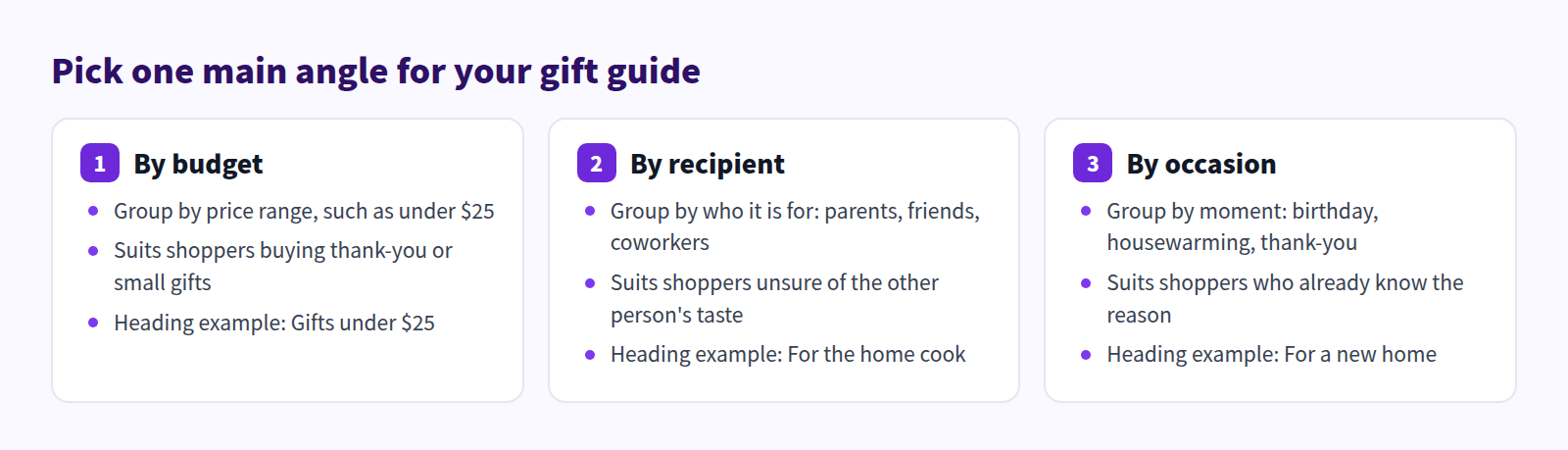
Packing all three into one post creates too many headings. Give each angle its own job instead:
| Job | Angle | Example |
|---|---|---|
| Post topic (title) | Occasion | Housewarming |
| Headings | Budget (or recipient) | Gifts under $25, Gifts under $50 |
| Quick-pick table | The remaining angles combined | Recipient × budget |
Occasions are usually what people type into search. Put the occasion in the title, such as "housewarming gifts" or "baby shower gifts," then organize the post by budget or recipient.
Let your catalog decide between budget and recipient headings. If prices span a wide range, go with budget. If products split clearly by use, like gifts for home cooks versus gifts for plant lovers, go with recipient. When unsure, pick budget. Numbers are the fastest thing for a shopper to scan.
Cover the other angles in a quick-pick table
Whatever angle you didn't use for headings goes into a quick-pick table near the top. With budget headings, the table combines recipient and budget:
| Recipient | Under $25 | Under $50 | Under $100 |
|---|---|---|---|
| Coworker or neighbor | Set of 2 hand towels | Candle and matches | — |
| Friend | Stoneware mug | Bath towel set | Room diffuser |
| Family | Small potted plant | 3-piece kitchen tool set | Pair of dinner plates |
Put one product in each cell. Crowd the cells and the table stops helping. Keep the price bands identical in the headings and the table.
How to build the post
Work through five steps:
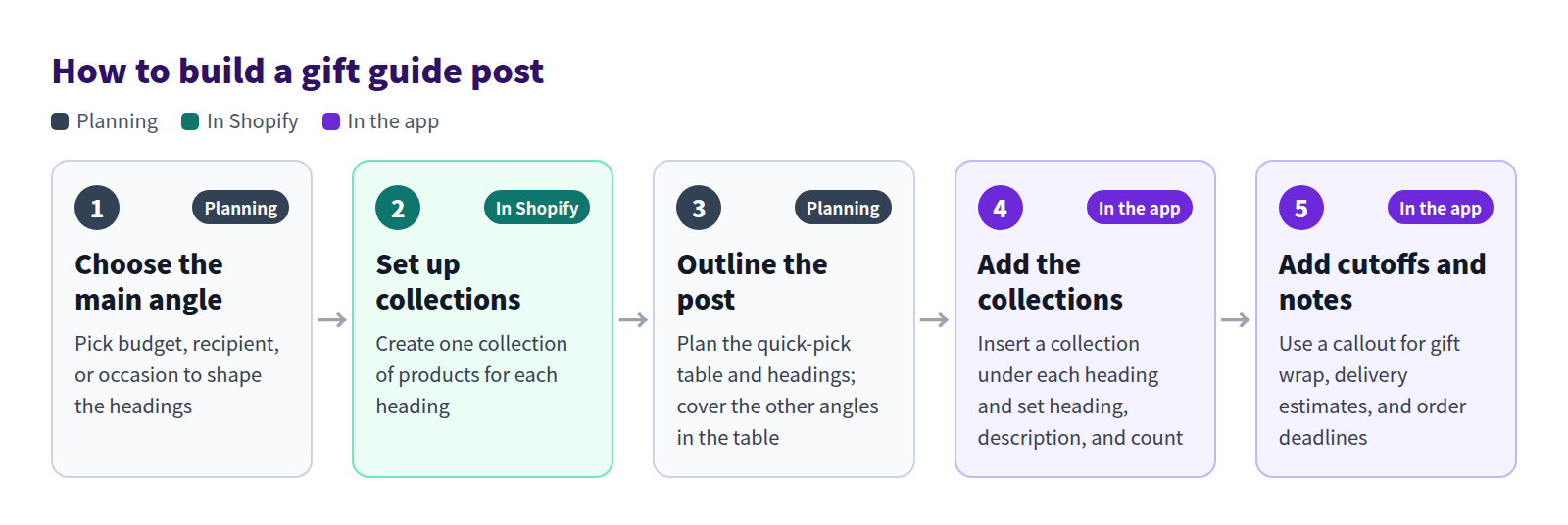
- Choose the main angle. Decide the occasion for the title and the angle for the headings.
- Set up collections. In Shopify, create a collection for each heading with the products you want to feature.
- Outline the post. Plan the quick-pick table and headings before writing any product copy.
- Add the collections. Insert a collection under each heading and set its heading, description, and product limit.
- Add cutoffs and notes. Put gift wrap, delivery estimates, and order deadlines in a callout near the top.
What the finished post looks like
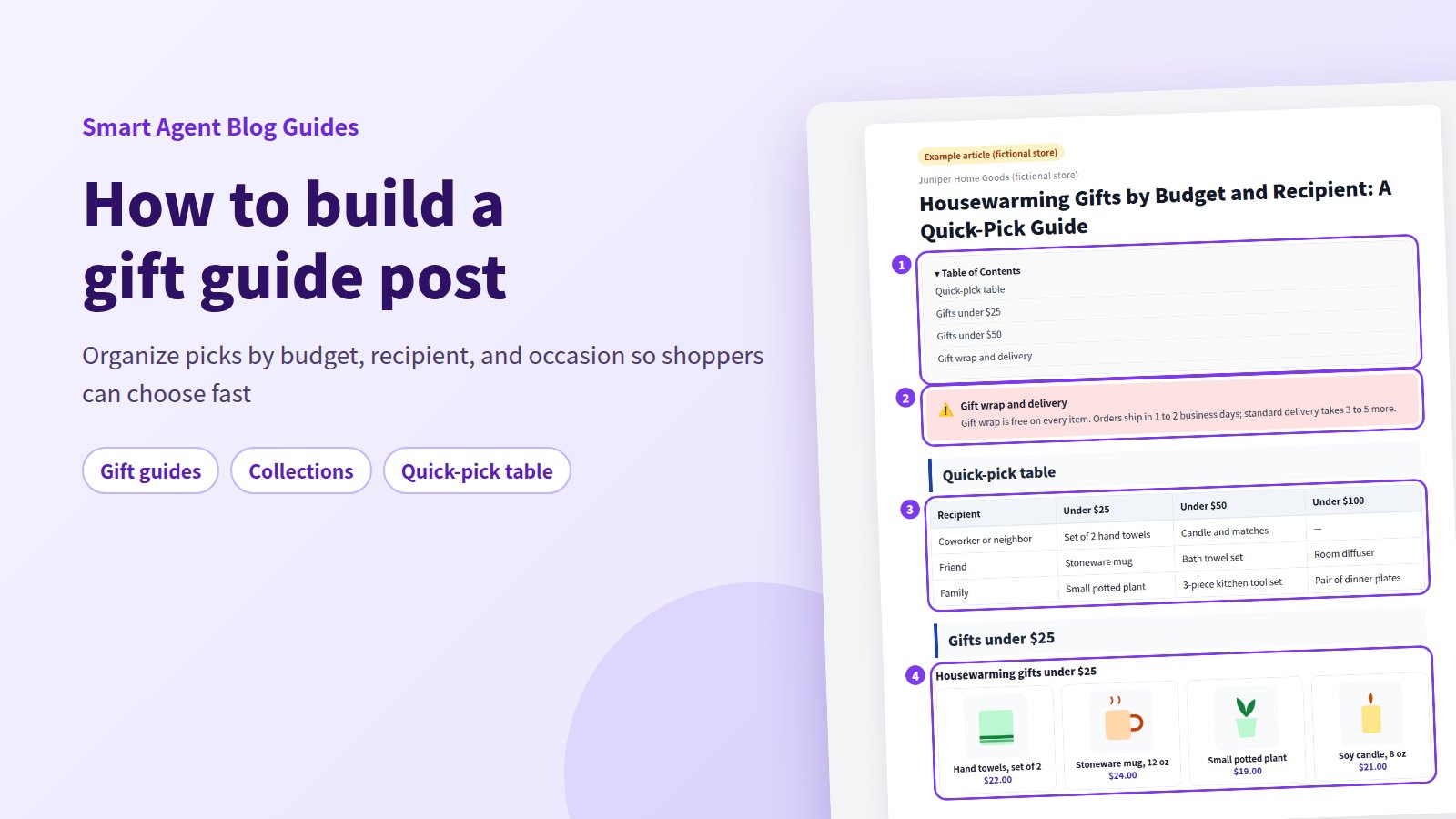
Here's a housewarming gift guide from a fictional home goods store:
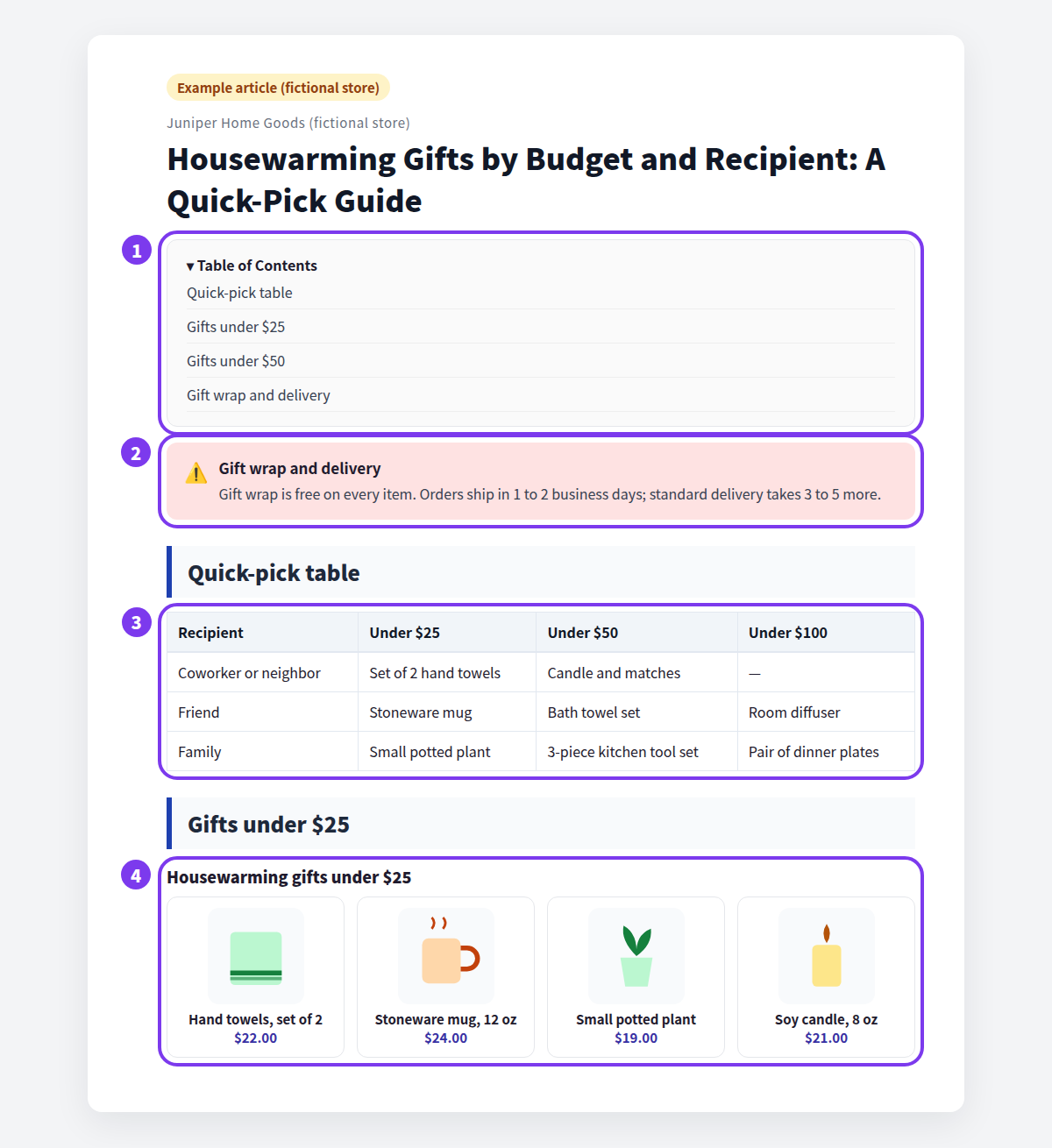
- Table of contents. Budget headings line up in the table of contents, so shoppers can jump straight to theirs.
- Gift wrap and delivery callout. The conditions gift shoppers care about come before any product.
- Quick-pick table. Recipient plus budget narrows things down to one candidate.
- Collection. Only the products that fit the heading's price band, with images and prices.
What Shopify handles on its own
Shopify collections can be manual or automated. An automated collection gathers products that meet conditions such as product tags or price. Set the price condition to "is less than" and you have a budget collection like "under $50." With several conditions, you choose whether products must match all of them or any of them.
Shopify's standard blog editor doesn't display a collection's products with images and prices inside a post, though. You either link to the collection page from text or an image, or build the grid by hand, one image and description at a time.
Lay out collections with Smart Agent Blog
Insert a collection
Collection Insert shows the products in a Shopify collection with images, names, and prices.
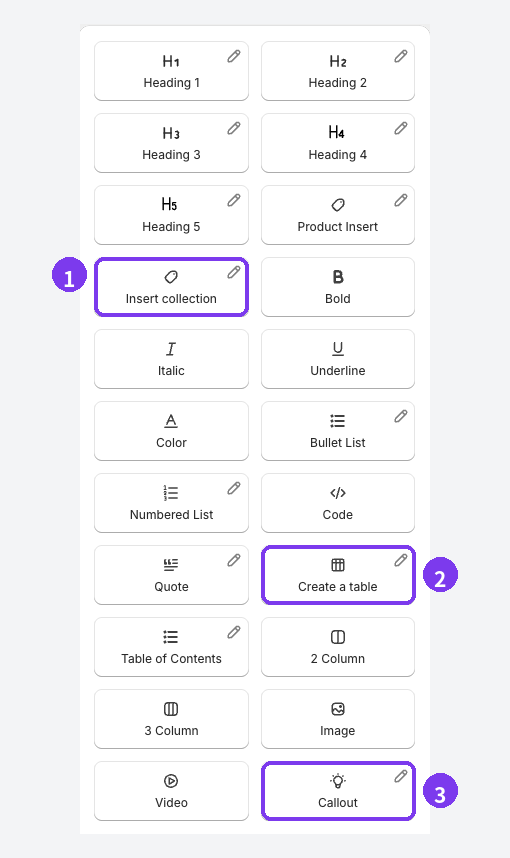
- Where you want the collection, choose Collection Insert (1 in the menu, labeled Insert collection), or type
/at the start of a line and pick it from the list. - Select one Shopify collection.
- In the inserted block, select Edit collection block.
- Adjust the heading, description, product limit, and desktop and mobile columns, then select Apply.
For gift guides, these settings make choosing easier:
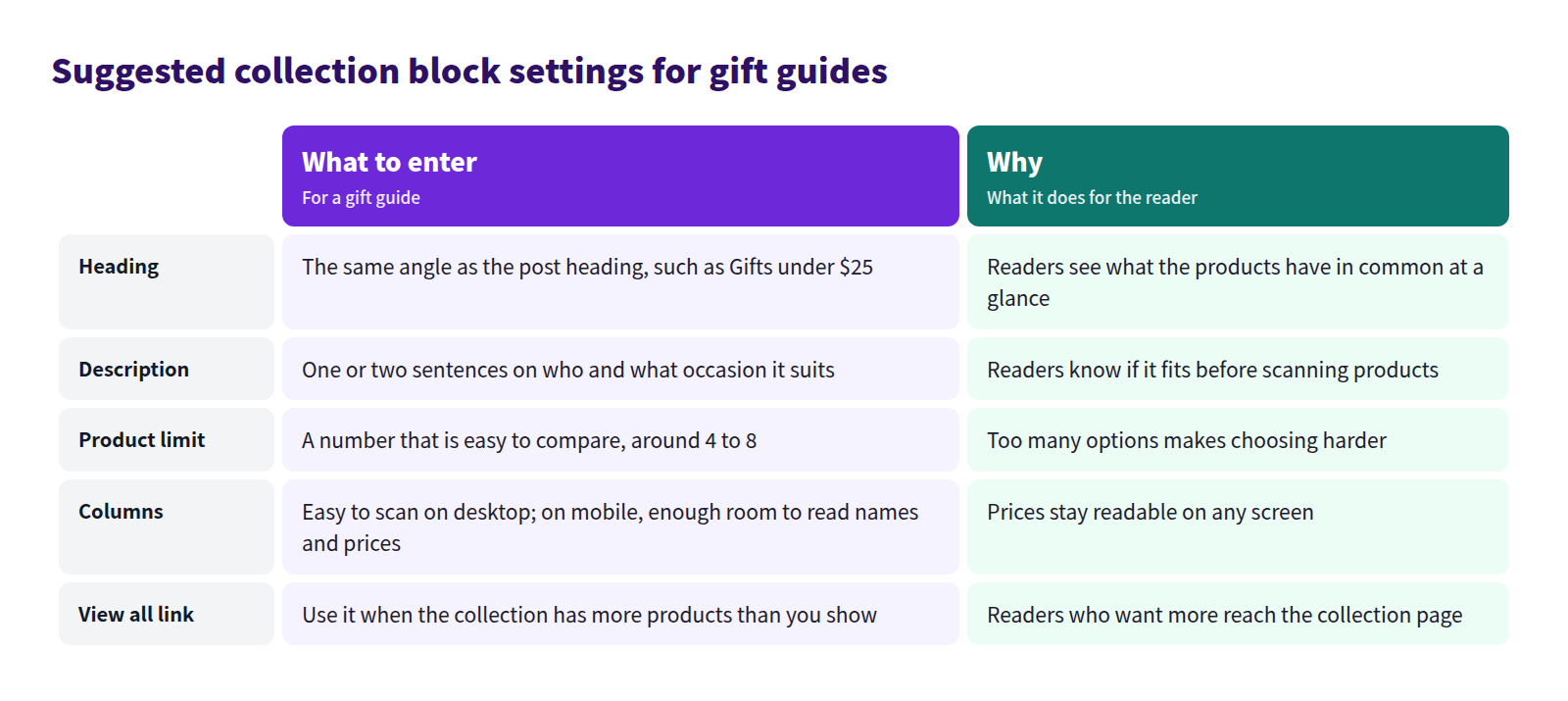
The same editor controls the product-image ratio and shape, ratings, the View all link when the collection has more products than you show, and horizontal swiping on mobile. Product data comes from the Shopify collection, so after changing its products or prices, open the live post and confirm the current information appears.
For the basics of collections in posts, see our guide to featuring multiple products with collections. This post sticks to arranging them for gift shoppers.
Add the quick-pick table, a top pick, and cutoffs
The rest comes from the same insert menu:
- Create a table (2 in the menu above) builds the recipient and budget quick-pick table.
- Callout (3) highlights gift wrap and delivery conditions that shoppers must not miss.
- Product Insert adds one product card for a single standout pick. Use Collection Insert to compare several products and Product Insert when you want to push one.
Let AI draft the gift guide
AI Scheduled Blog Proposals can draft gift guides for you. Add an occasion like "housewarming gifts for a first apartment" to Themes / Keywords, then point Product read mode at your gift collections.
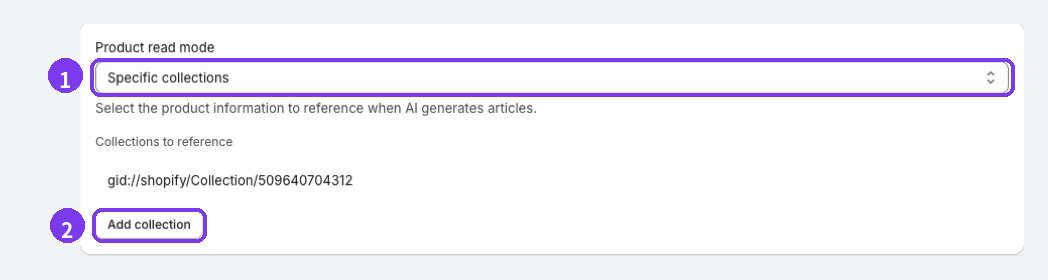
- Product read mode: choose Specific collections.
- Add collection: pick the gift collections for the AI to reference. Keep the list short so the draft stays focused.
For Article purpose, choose Product guide or comparison to explain differences between products, or Campaign for a seasonal promotion like Mother's Day. Once you've reviewed the draft, add the quick-pick table and collection blocks to finish it. See Schedule AI article suggestions.
Put gift wrap and shipping cutoffs near the top
Gift wrap and shipping are where gift shoppers' questions pile up. Answer them in a callout before the first product:
- Gift wrap: is it available, what does it cost, and what does it look like?
- Gift notes: can shoppers add a message, and how?
- Delivery: how long orders take to arrive, and whether a date can be chosen
- Order cutoff: the last day to order and still arrive in time, especially around carrier holiday deadlines
- Shipping to the recipient: whether prices appear in the package, or whether you offer gift receipts
When cutoffs or fees change, update the callout too. For more on callouts, see how to use callouts for important notes.
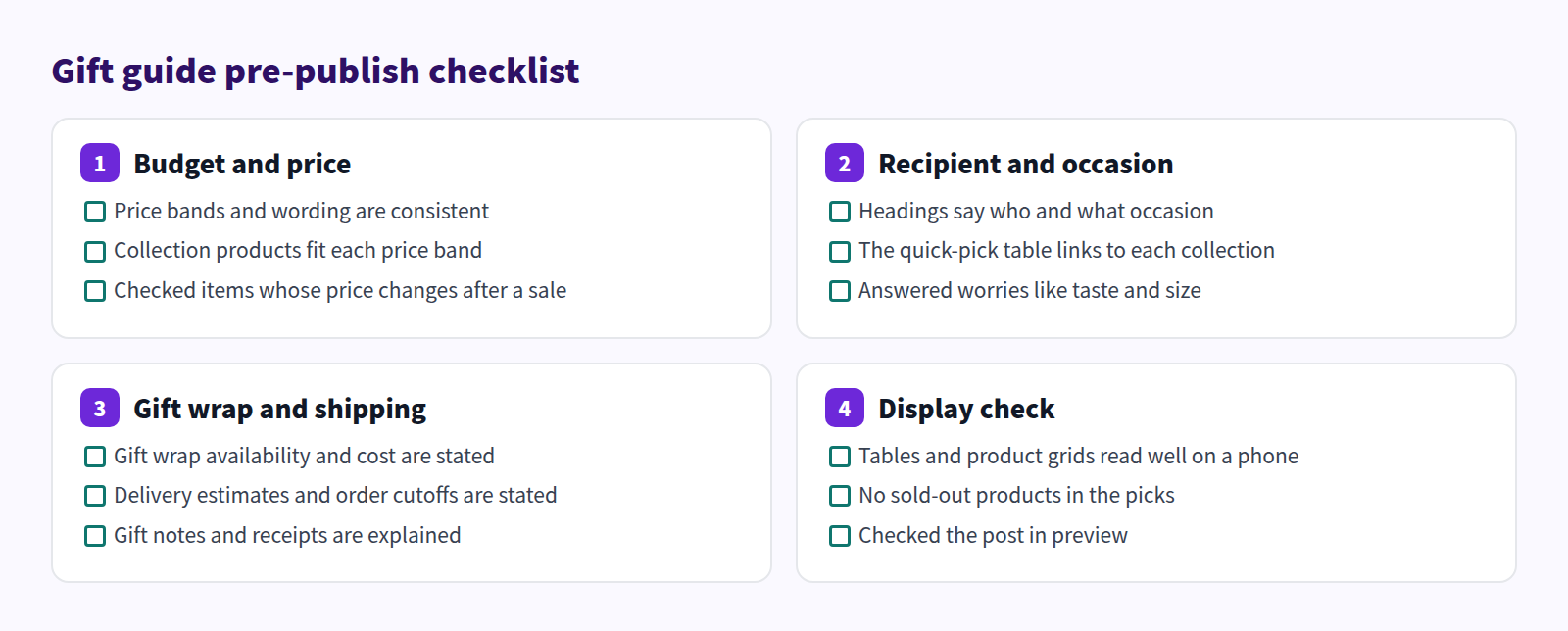
Pre-publish checklist
FAQ
How is this different from a Mother's Day or holiday gift guide?
Seasonal guides come with a deadline, so treat them as Campaign posts. The structure here works the same, but you add publish timing and a yearly refresh. See When should you start seasonal blog posts?
Do I have to rebuild budget collections every time prices change?
Not with an automated collection that uses a price condition; matching products are grouped automatically. With a manual collection, you swap products yourself. Either way, open the live post afterward and check what it shows.
What if a featured product sells out?
Swap it out of the collection or update the product name in the quick-pick table. See What to do with blog posts that feature sold-out or discontinued products.
Summary
- Put the occasion in the title, budget or recipient in the headings, and the remaining angles in a quick-pick table.
- Create a Shopify collection per heading, then set its heading, description, product limit, and columns with Collection Insert.
- State gift wrap, delivery estimates, and order cutoffs in a callout before any product.
- Before publishing, check price wording, sold-out items, and how it reads on a phone.
Pick the gift occasion customers ask you about most, and start by building its budget collections.