

A post can look tidy on a desktop and still feel like a wall of text on a phone. Small product photos, wide tables and crowded links can make a useful explanation difficult to use. Start by finding the awkward moments instead of rewriting the entire article.
Here are seven checks you can make with Smart Agent Blog and your actual storefront.
Read the post on a real phone first
Follow the article from its opening paragraph to the product page as if you did not already know the product. Note where you zoom, skip a paragraph or tap the wrong link. The editing screen and your published theme may render content differently, so check the storefront as well.
Seven things to check
| Check | A practical change |
|---|---|
| 1. Does the opening explain the purpose? | State whose question the post answers. |
| 2. Are paragraphs too long? | Start a new paragraph when the subject changes. |
| 3. Do headings tell a useful story? | Replace “Features” with a specific topic such as “What fits inside for work.” |
| 4. Is the comparison table too wide? | Keep essential criteria and move details into prose. |
| 5. Do images explain something? | Add a nearby sentence identifying what readers should notice. |
| 6. Can links be tapped separately? | Remove crowded links and describe each destination. |
| 7. Can readers reach the relevant product? | Place the product near the explanation that makes it useful. |
There is no universal paragraph length or image count. Breaking every sentence onto a new line can interrupt the argument. Keep one topic per paragraph and preserve a natural reading order.
Turn a vague claim into useful evidence
For a fictional bag article, “roomy enough for work and weekends” provides little help. A real packing photo, a caption identifying the notebook and pouch shown, and a short dimensions table give the reader something to assess. Only describe items you have actually checked; do not infer that a larger laptop fits from a photograph of a notebook.
Edit in the app, then check the theme
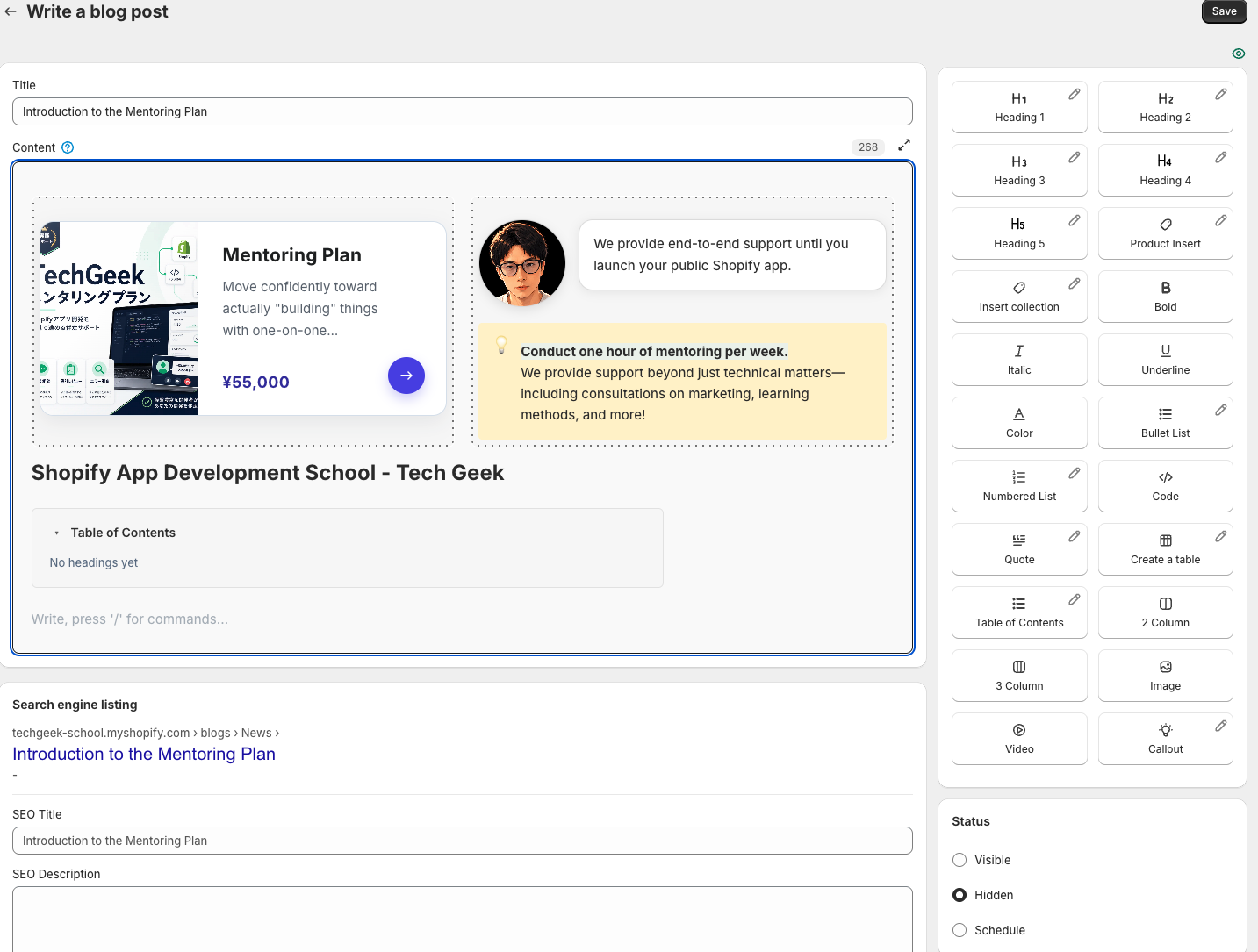
Use the insertion menu or type “/” on a new line to add headings, lists, tables and images. Two- and three-column blocks can help on wider screens, but verify their reading order on a phone.
- Open the draft or the post you want to improve.
- Choose one difficult section and simplify its structure.
- Save and preview it using the theme you intend to publish with.
- Open the published storefront page on a phone and test the links.
Review the area you changed
Scroll depth in article analytics can suggest where to look, but it cannot tell you why someone stopped. A reader may have found the answer already. Combine the metrics with a direct reading check and choose one follow-up improvement. Avoid treating every exit as a failure or changing several unrelated sections at once.
For how these checks fit into an ongoing routine, see Shopify blog best practices.
Read the detailed steps in the user guide
Related reading: Use scroll depth to find places worth reviewing