
Your product description has grown into a buying guide. Or you copied the specs into a blog post, changed the price a month later, and forgot the post. Once a store has both product pages and a blog, "which one does this go on?" comes up constantly.
The rule is simple. Anything a shopper needs to decide on a purchase (price, specs, stock, shipping) belongs on the product page. How to choose, how to use, comparisons, and the story behind the product belong on the blog. Then connect the two: a product card inside the post, and one line on the product page that links back to the post.
This guide covers how to sort the information, a fictional store example, what Shopify does out of the box, and how Smart Agent Blog handles it.
- What to put on product pages and what to put in blog posts
- How to sort details that could go either way, like sizing and materials
- How to link posts to product pages, and product pages back to posts
- How to add product cards in Smart Agent Blog and check whether posts send readers to products
When roles blur, both pages get harder to use
If you start writing without deciding what each page is for, a few things tend to happen:
- The product page fills up with buying advice, and price, sizing, and shipping, the things people need right now, get pushed down.
- The blog repeats specs and prices, so when the product page changes, the post quietly goes out of date.
- A reader finishes a post, wants the product, and can't tell where to buy it.
That last one is common. While preparing proposals for Smart Agent Blog in August and September 2026, we reviewed the blogs of Shopify stores in Japan. Of the 88 posts we recorded, 66 (75%) had no link from the body to a product page. In 3 out of 4 posts, readers couldn't reach a product page from the text. And across 113 posts we recorded, none used a card that showed a product's name, image, and price together.
A post with great buying advice only does half its job if the reader can't get to the product. Splitting the roles and linking the pages go together.
Once the split is clear, the guide to what store blogs are used for shows which post formats fill the blog side.
What goes on the product page, and what goes in the blog
Start with where the reader is when they land on each page.
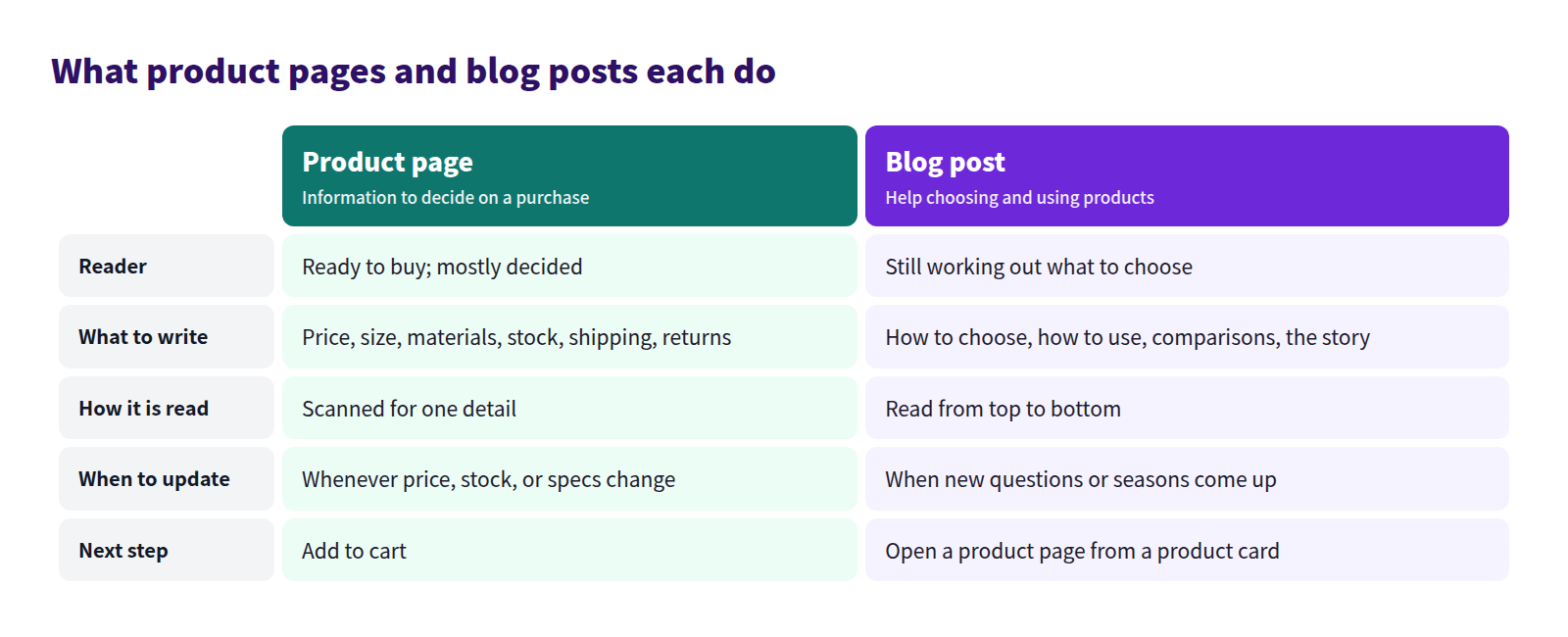
Product page: what a shopper needs to decide
Someone on a product page has mostly made up their mind. They want to know what it costs, what exactly they're getting, and when it will arrive.
- Price and variants (size, color, and so on)
- Dimensions, weight, materials, contents
- Stock, processing time, shipping cost
- Return and exchange terms
- Essential cautions ("hand wash only")
Shoppers scan for one detail rather than reading top to bottom. Keep each item short and easy to find.
Blog post: help choosing and using
Blog readers are still working out what to pick. The blog is the place for things a product page can't hold:
- How to choose: what to look for, and what suits which use or taste
- How to use: steps, tips, and common mistakes
- Comparisons: how similar products differ and who each one suits
- The story: why you made it, where the materials come from
Posts are read in order, so use headings and tables to build the explanation step by step.
Sorting details that could go either way
Some details, like size and material, touch both pages. When in doubt, put the fact itself on the product page and put how to use that fact in a decision on the blog.
| Detail | On the product page | In the blog post |
|---|---|---|
| Size | Dimensions and weight | Which size suits which use |
| Material | Material name and origin | How materials feel and how care differs |
| How to use | One or two essential cautions | Full steps, tips, and common mistakes |
| Price | Current price | Usually skip it and let the product card show it |
| FAQs | Pre-purchase questions (shipping, returns) | Questions that come up after using it |
Prices in body copy mean one more place to update every time you change them. In posts, let the product card show the price.
A fictional store example: writing the blog side
Here's a finished post for a fictional coffee roaster, Ridge & Kettle Coffee. The product pages already cover bag size, roast date, and shipping, so the post focuses on which coffee to pick.
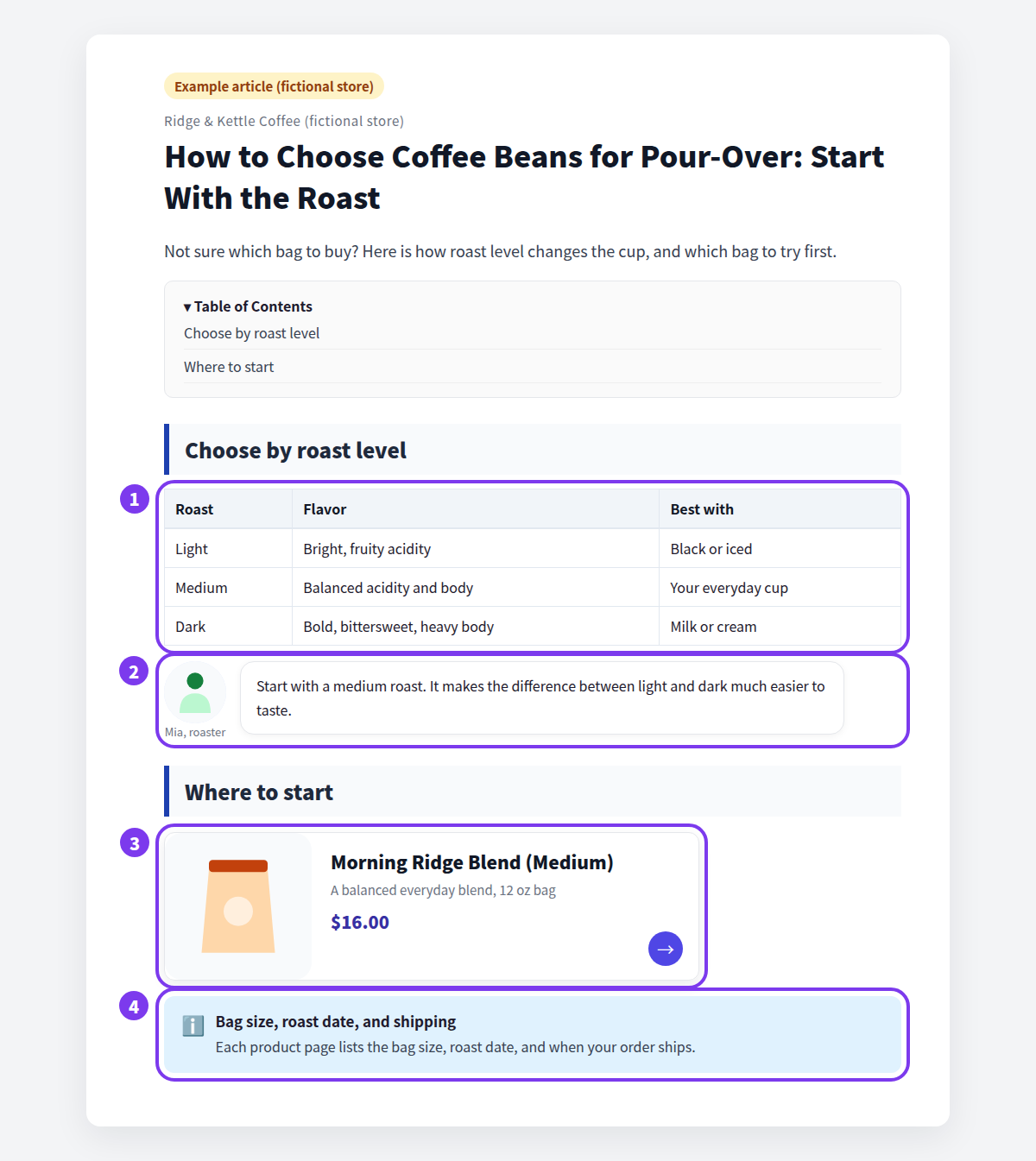
- Comparison table: flavor and best use for each roast level. Explaining how to choose is the blog's job.
- Speech balloon: a short line from the roaster, like "Start with a medium roast," nudges the reader toward a decision and makes the post sound like your shop.
- Product card: the recommended coffee sits right after the advice. Name, image, and price in one place, one click from the product page.
- Callout: bag size, roast date, and shipping are covered on each product page, so the post says so instead of copying them.
The post never states a price or a bag weight in its text. Readers still finish knowing which blend to try, and they can go straight to it from the card.
Link posts and product pages both ways
Once the roles are split, make it easy to move between them.
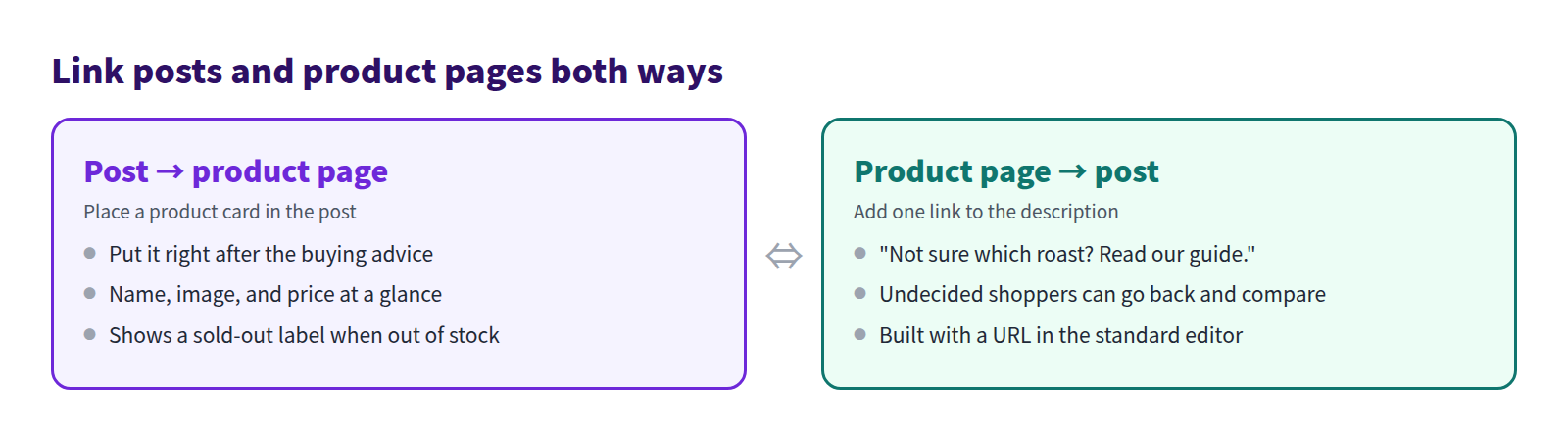
From the post to the product page
Place products next to the passage they relate to, not in a list at the end. If you've just said "start with a medium roast," put the medium roast right there so nobody has to hunt for it. A text link works, but a card with the image and price shows at a glance which product you mean.
From the product page to the post
Some shoppers reach a product page and still can't decide. Add one line at the end of the description, such as "Not sure which roast? Read our pour-over buying guide," so they can go back and compare. You don't need it on every product. Start with the ones that already have a guide.
What Shopify can do out of the box
Shopify product descriptions and blog posts both use the standard rich text editor. You create posts under Content > Blog posts, and the editor supports tables, images, embedded video (YouTube and Vimeo), and links.
- Product page to post: add a link with the post's URL in the product description. The built-in tools handle this fine.
- Post to product page: you can add a text link with the product URL, or insert a product image. There's no built-in way to show a card with the product's name, image, and price, and no automatic table of contents.
- Prices: any price in a post is typed by hand, so when you change it on the product page, you have to update the post yourself.
With a handful of posts, the built-in editor is enough. As the blog grows, missed price updates and forgotten links become more likely.
How to do it in Smart Agent Blog
Smart Agent Blog lets you place Shopify products inside a post as product cards. Product data comes from Shopify, so you don't copy prices into the post by hand.
Add a product card
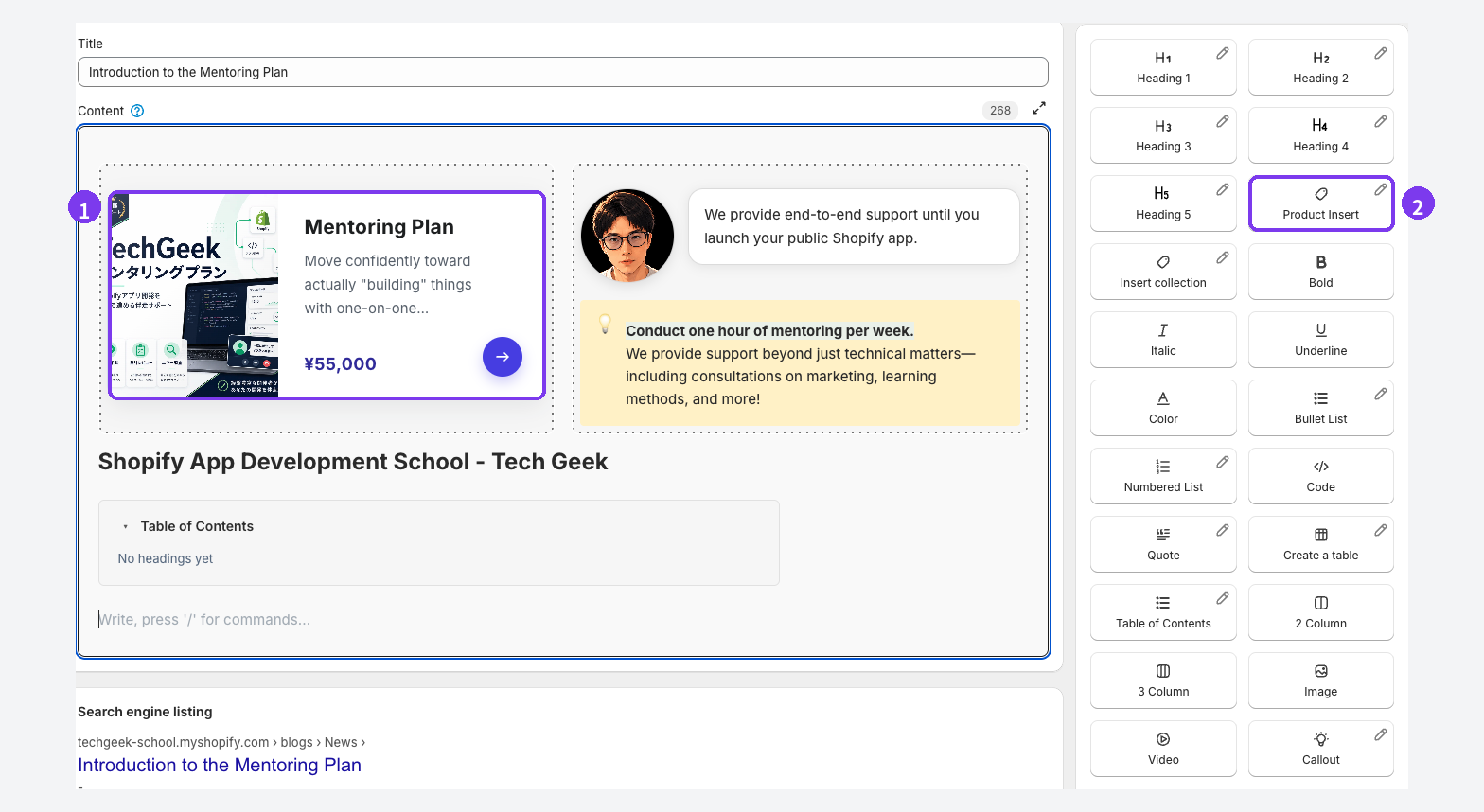
- Put your cursor where the product should appear and choose Product Insert from the insert menu. You can also type
/at the start of a line and pick it from the list. - Select the product in Shopify's product picker. A block with the product name, image, and price is added to the post.
Out-of-stock products show a sold-out label. Draft, hidden, and archived products can't be selected, so publish the product in Shopify admin first. How the card looks depends on your theme, so preview before publishing.
Use Create a table for comparisons, Callout to point readers to product pages, and Speech Balloon for a staff comment. To show several products together, use Collection Insert. See Add content to an article for details on each block.
Check whether posts send readers to products
On the Pro plan, Article analytics shows whether a post is working as a path to your products. Open it with View analytics in the article list.

- Product link CTR: how many times product links in the post were selected, as a count and a rate. If it's low, check whether your product cards sit too far from the passages they relate to.
- Direct cart adds: cart adds attributed to the post. If readers reach the product page but don't add to cart, check that the product page covers price, shipping, and sizing clearly.
Analytics covers the 30 days ending yesterday, and a newly published post shows Preparing analysis data at first. See Review article analytics for the full breakdown.
Checklist: who does what
Run through this before writing a post and whenever product details change.
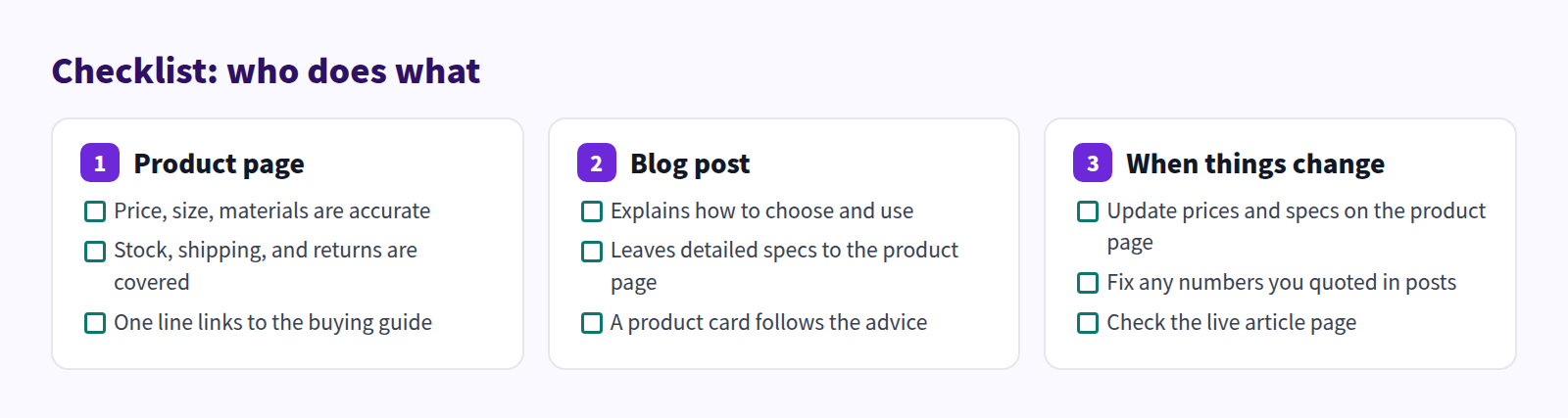
You don't need to fix every product at once. Start with the products customers ask about most, or the ones people struggle to choose between. For more on placing products, see How to add products to your Shopify blog, and for comparison tables, see Comparison tables in blog posts.
FAQ
Can I reuse my product description as a blog post?
Publishing the same text in two places gives readers nothing new and doubles your updates. In the post, assume the product page exists and add who the product suits, how to choose, and how to use it. If a product description has grown too long, move the buying advice into a post and link to it from the product page.
What if I want to mention price in a post?
A price in body copy has to be updated whenever you change it. Let the product card show the price, and in the text either use a range ("most options are around $15 to $20") or leave price out. If you mention a limited-time price, set a date to review the post after it ends.
What happens to the post if a featured product sells out?
In Smart Agent Blog, product cards show a sold-out label when the product is out of stock. If it won't be restocked, swap in a card for an alternative. See Handling sold-out products in blog posts for more.
Summary
- Product pages hold what shoppers need to decide: price, specs, stock, shipping, and returns.
- Blog posts hold what helps them choose and use: buying advice, how-tos, comparisons, and the story.
- For details that fit both, put the fact on the product page and the decision advice in the post. Don't copy prices into posts.
- Link both ways: product cards next to the relevant passage in posts, and one line on the product page pointing back to the post.
Pick one product that customers ask about often, and start by splitting its product page and blog content.