
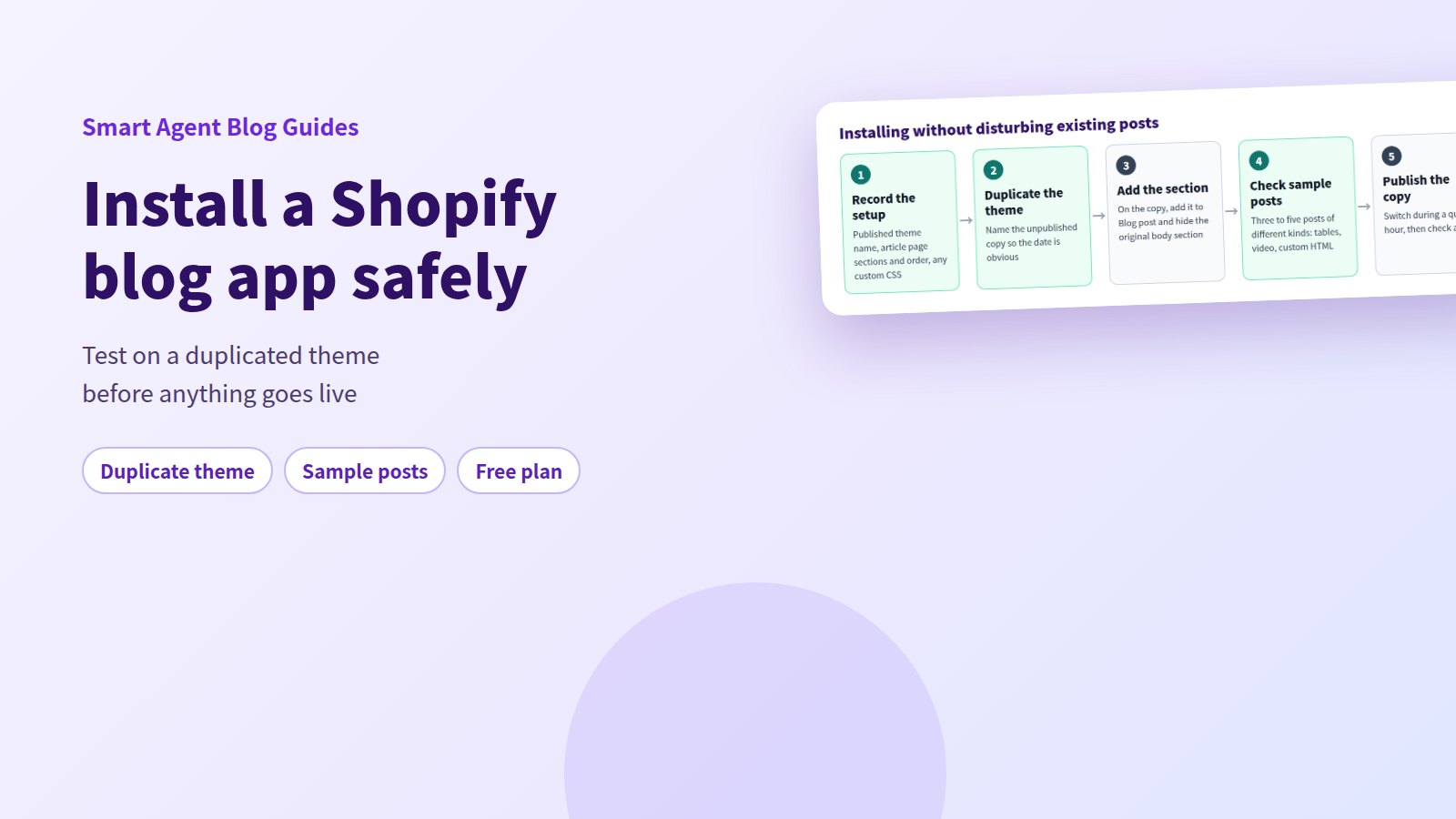
You would try a blog app, except your posts are already live and you do not want them to break. No feature list gets past that objection.
The short answer: Shopify blog posts live in Shopify's own blog, so installing an app does not delete them. What changes is how the article page is rendered — and you can see that change on a duplicated, unpublished theme before a single customer does. This guide walks through that procedure and sets out what the Smart Agent Blog free plan actually lets you test.
- What changes and what does not when a blog app is added
- The groundwork Shopify itself handles: access scopes and theme duplication
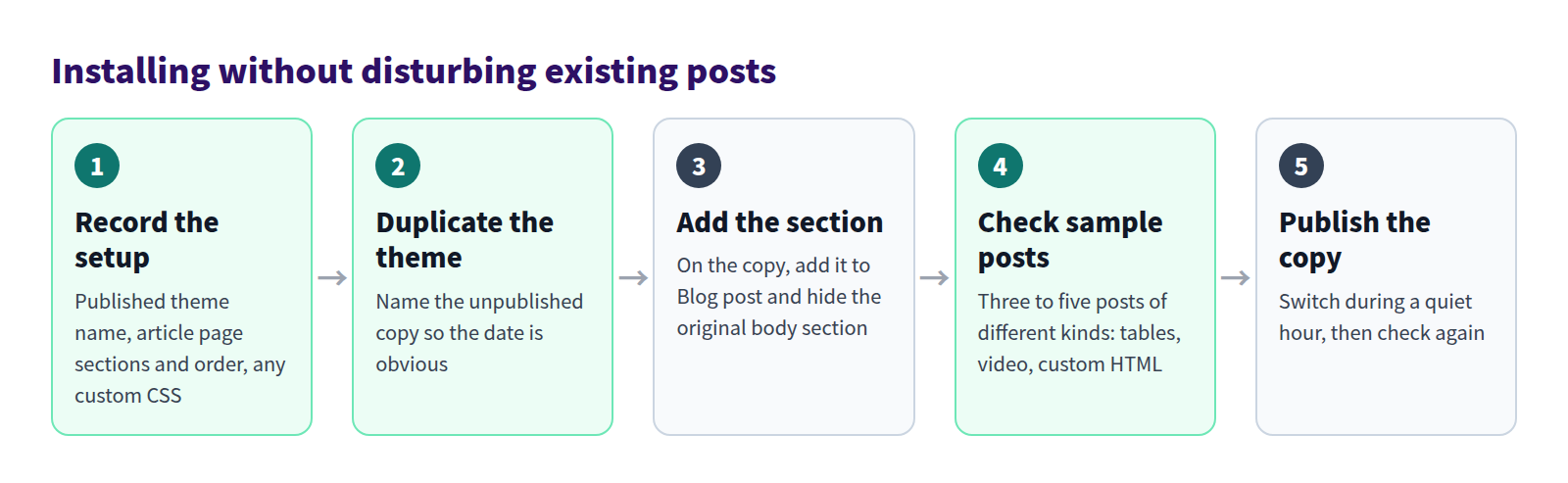
- The five-step install that leaves existing posts alone
- What to check on the duplicated theme
- What the free plan covers, and how its article count works
Why installing feels risky
We reviewed the blogs of 110 Shopify stores in Japan in August and September 2026 while preparing Smart Agent Blog proposals. About 40% (42 stores) had no blog posts, had stopped after a handful, or had not published in over a year.
The stores whose blogs have stalled are exactly the ones most reluctant to touch anything. Three worries come up again and again:
- The theme was built by an agency and might break
- Old post URLs or tags might change and send search traffic to a 404
- If it does not work out, there might be no way back
All three are answerable up front.
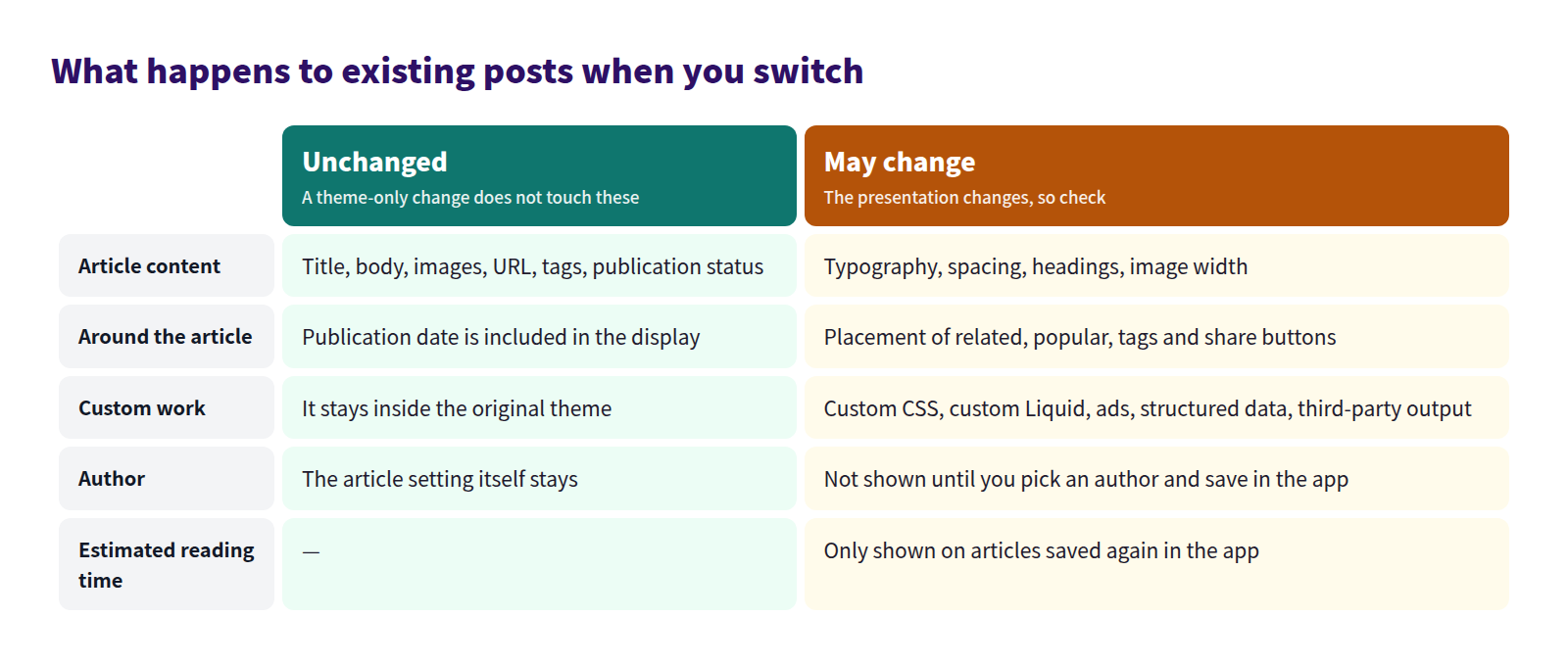
Titles, body content, images, URLs, tags and publication status are not modified by a theme change. What does change is presentation: text size, spacing, image width, and where related posts and share buttons sit. Custom CSS, custom Liquid, ads, structured data and third-party app output might not carry over automatically.
What Shopify handles on its own, before any app
There is real groundwork you can do with nothing but Shopify. Skipping it is what turns a twenty-minute job into a bad afternoon.
Confirm where your posts actually live
Open Content → Blog posts in Shopify admin. That list is your blog. Posts created in Smart Agent Blog are saved there too — there is no separate database inside the app.
While you are there, confirm you have a blog to post into (most stores start with one called News).
Review the access scopes at install time
Select Install on an app in the Shopify App Store and a confirmation screen appears first. Per Shopify's Help Center, it shows two categories:
- View personal data — customer information and similar data the app can read
- View and edit store data — products, orders, discounts and other areas the app can act on
A link to the app's privacy policy appears alongside them. Read both before approving. If you later move to a paid plan, Shopify shows and confirms the charge on its own screen.
One thing worth knowing for later: uninstalling an app deregisters resources such as webhooks, carrier services and inventory connections.
Duplicate the published theme
This is the step that makes everything else reversible. In Shopify admin, open Online Store → Themes, select ... on the published theme, and choose Duplicate. The copy is named with a Copy Of prefix — rename it to something dated, such as Smart Agent Blog test Sep 15.
Shopify admin holds up to 20 themes. If you are at 20, delete one before duplicating.
Everything from here happens in Customize on the duplicated, unpublished theme. Not on the live one.
Write down the current setup
Before or just after duplicating, record:
- The name of the published theme
- Every blog post template name, if there is more than one
- The sections on the article page and their order
- Author, date, comment and related-post settings
- Any custom CSS, theme-code edits, or third-party app output
If an agency or developer maintains the theme, tell them you are adding an app section to the blog post template. A theme update on their side can otherwise overwrite it.
The limit of the built-in groundwork
Everything above is pure Shopify. But be clear about what a duplicated theme is: a way to restore the storefront presentation, not a backup of article content. If you open an existing post in the app and save it while testing, the post's content is overwritten with what the app screen holds. Keep theme testing and article editing as separate activities.
The install, step by step
1. Create one author
Saving an article requires an author. With none registered, saving stops with a message asking you to select one.
Go to Setting → Author Management → Manage, then Create author.
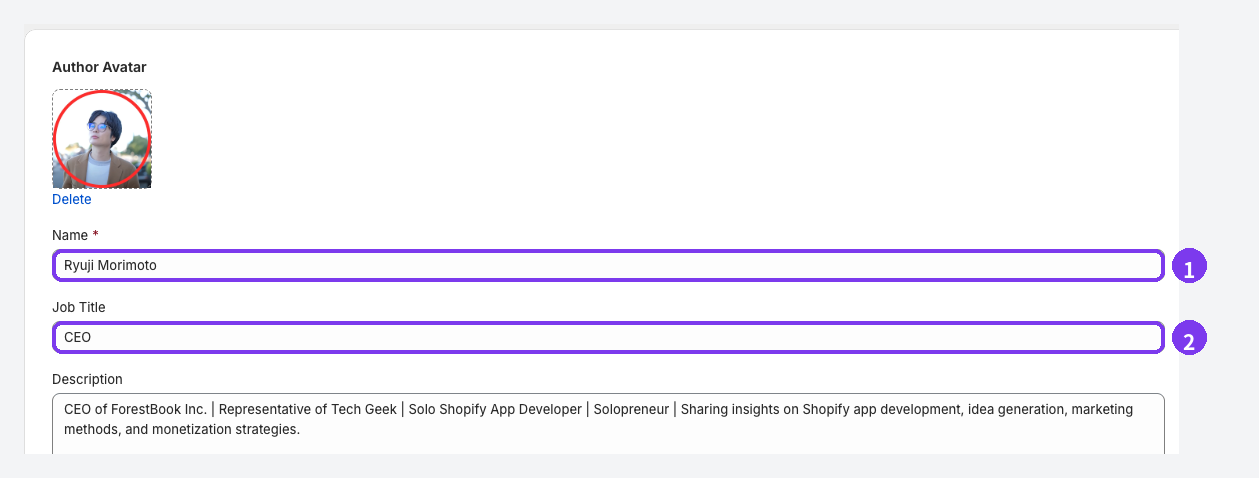
- Name (required) — what appears on the article
- Job Title (optional) — a role makes it clearer who is writing
Description, avatar, social URLs and tags can all be added later. For why any of this matters, see Showing an author on a Shopify blog.
2. Add the section on the duplicated theme
Open Customize on the copy, use the page selector at the top to open the Blog post template, then Add section → Apps → Smart Agent Blog.
Then hide the theme's original article-body section with the eye icon. Do not delete it. That is what lets you undo the change by hiding the app section and unhiding the original. If Apps or the Smart Agent Blog section does not appear at all, stop there — see Shopify blog theme compatibility.
3. Check three to five representative posts
You do not need to open everything. Pick posts that differ from each other:
- A plain post with text and images
- A long post, or one with many headings
- A post with a table, video, embed or product mention
- A post using comments or custom HTML
- A post assigned to a different blog post template
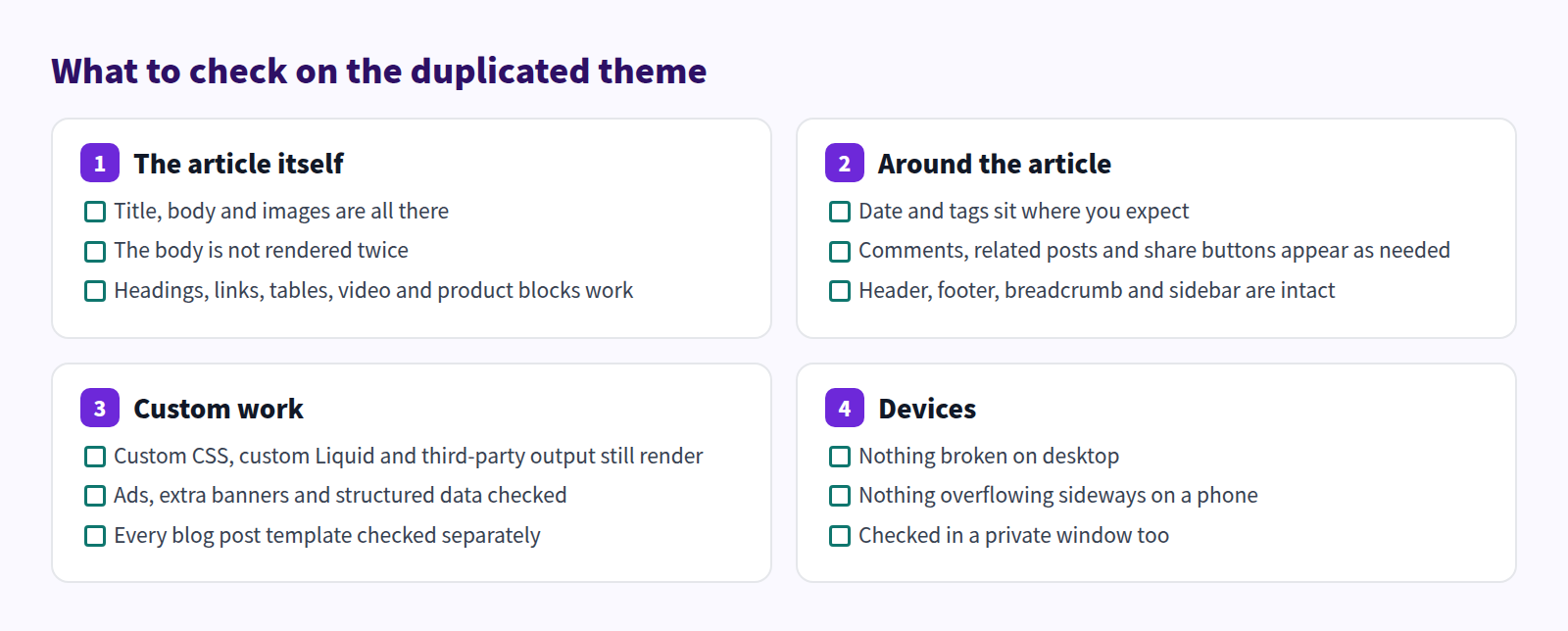
If the body appears twice, both the app section and the original body section are visible — show only one. An author not appearing is expected: posts published before you installed the app show none until you reopen them, pick an author and save.
4. Publish the copy
When the checks pass, publish the duplicated theme during a quiet hour. Then open your sample posts on the live store, on desktop and on a phone, and ideally in a private window so login state does not affect what you see.
If something is wrong, republish the previous theme and the storefront goes back. Do not delete the old theme until the switch has settled. The full procedure is in Safely switch from your existing blog.
What the free plan covers
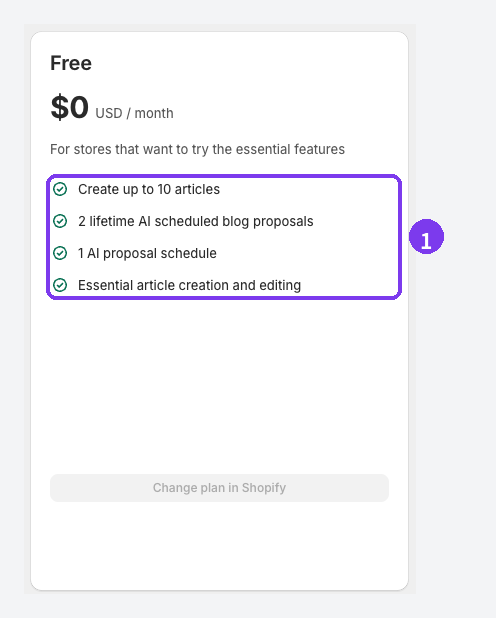
The free plan allows 10 articles created in Smart Agent Blog and 2 AI generations in total. Writing and editing, the table of contents, Product Insert, callouts and speech balloons all work on it. Design Edit, custom blocks, AI Rewrite and article analytics are paid-plan features.
The article count deserves a note. The limit of 10 counts articles Smart Agent Blog created. Posts made directly in Shopify admin are not counted on their own — but open one in the app and save it, and from that moment it counts. Hitting the limit does not delete or hide anything you already have. See Plans and usage limits.
What you gain once it is in
A fictional store below. Same blog, now with a table of contents, a product card and a highlighted warning.
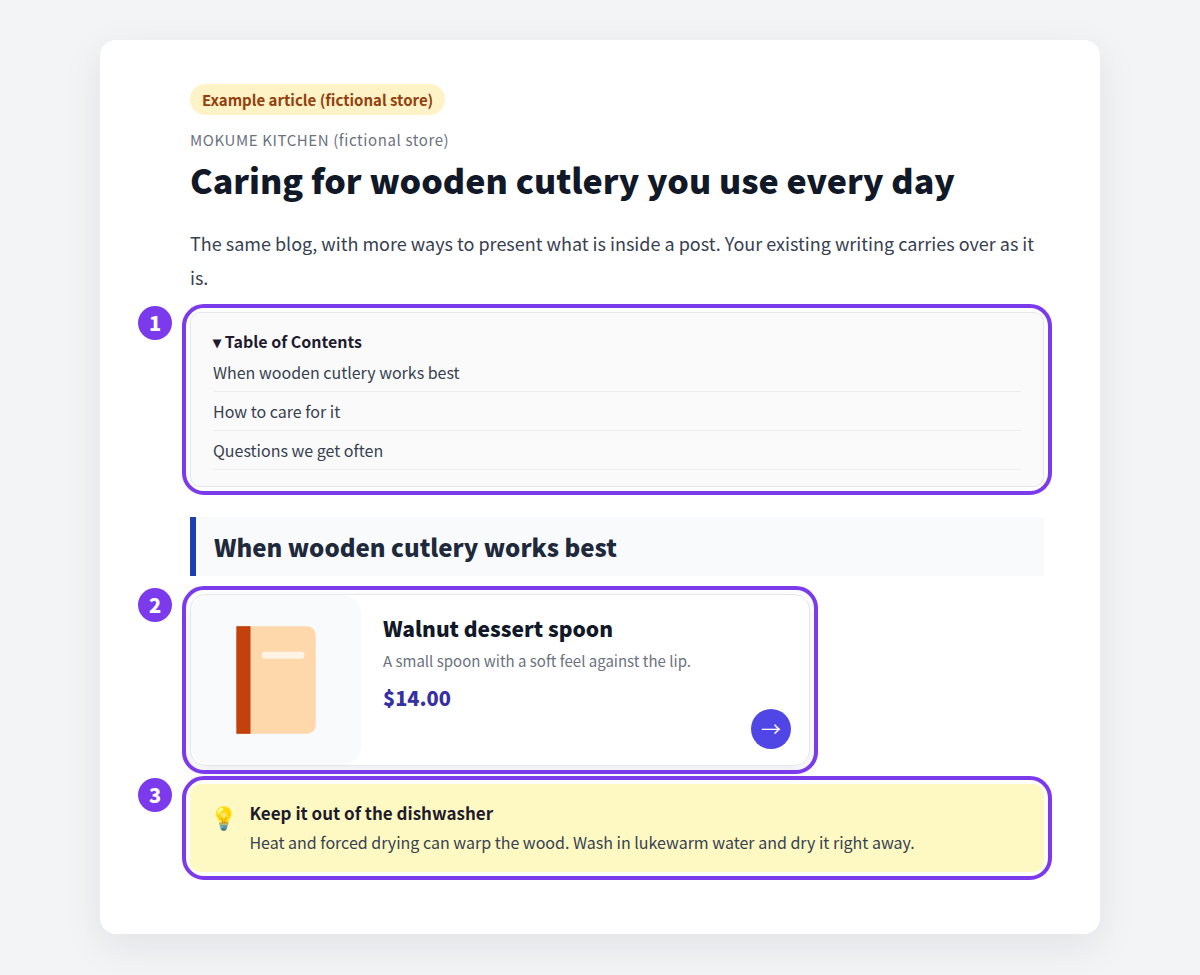
Across the 113 posts we recorded, not one presented a product as a card with its name, image and price. The standard rich text editor has no way to build that. For the reasoning, see How to add products to your Shopify blog.
Common questions
Can I bulk-convert my existing posts?
No. There is no bulk conversion, and the switch only changes how posts are displayed. Posts that need an author or an estimated reading time have to be opened and saved one at a time.
What if I want to remove the app later?
Before you disable or uninstall Smart Agent Blog, unhide the theme's original article-body section or republish the original theme. Leaving the original section hidden can leave article bodies missing.
What gets overwritten if I open an existing post in the app and save?
Body, title, target blog, author, publication status, tags, thumbnail, SEO title, SEO description, URL handle and theme template are all replaced with what the screen holds. Custom HTML can be reshaped on save. An author is preselected automatically when you open an older post, so check it before saving.
Summary
- Post content lives in Shopify's blog and survives a theme change
- What changes is presentation — custom CSS and third-party output need checking individually
- Duplicate the published theme, check three to five representative posts there, then switch
- The free plan covers 10 articles; Design Edit and analytics are paid
Duplicate your theme, build one hidden post, and look at it. That alone is enough to decide. For the wider picture, see What a Shopify blog app can do.