
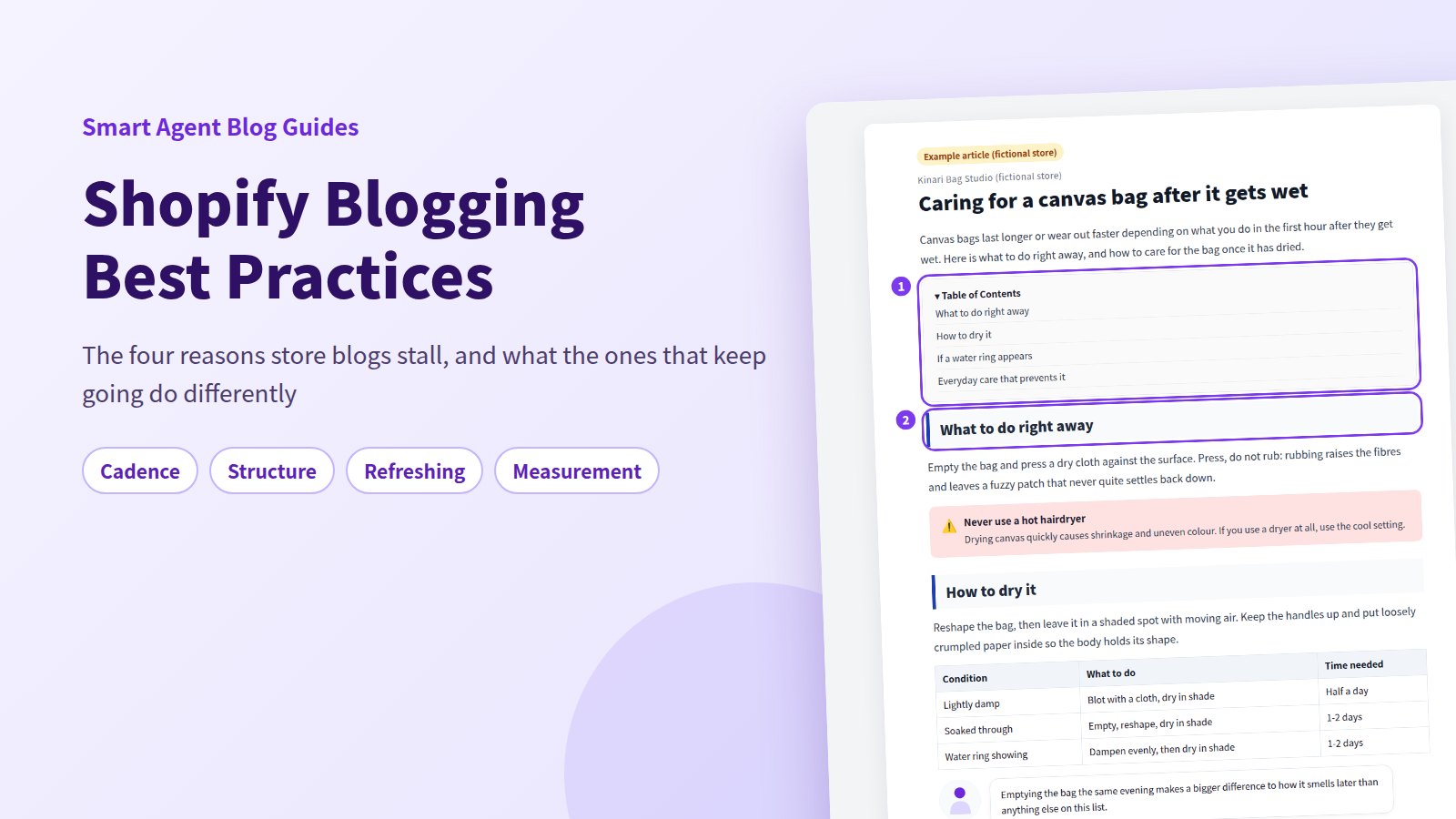
The energy you start a store blog with tends to run out around post three. Or you keep publishing, and nothing about it feels like it is working. Either way, the fix is rarely better writing. It is a better operating setup.
This guide is a map of Shopify blogging best practices, organised around the four places store blogs actually run aground: publishing stalls, readers do not finish, old posts sit untouched, and nobody knows what worked. For each one, we look at what is going on, how far Shopify's own tools get you, and what changes once Smart Agent Blog is installed. Writing a single post start to finish is covered in How to write a Shopify blog post; what to write about is in Leveraging Shopify blogs.
- The four places a store blog runs aground, and which one you are in
- How to set a publishing cadence that survives a busy month
- Headings, a table of contents, and phone readability as the minimum bar
- How to audit old posts, and which numbers are worth watching
- How far the built-in tools get you, and where manual work stops scaling
The four places a store blog runs aground
While preparing proposals for Smart Agent Blog in August and September 2026, we reviewed the blogs of 110 Shopify stores in Japan. About 4 in 10 (42 stores) had no posts, had stopped after a handful, or had not published in over a year.
These are not lazy stores. They know their products, and they have years of customer questions saved up. The blog stops because writing a post is a fresh act of will every time, rather than something the week already accounts for.
The stores still publishing have a different problem. Of the 78 posts we recorded in detail, 27 had no headings at all — roughly one post in three. Posts get written, and then never get read all the way through.
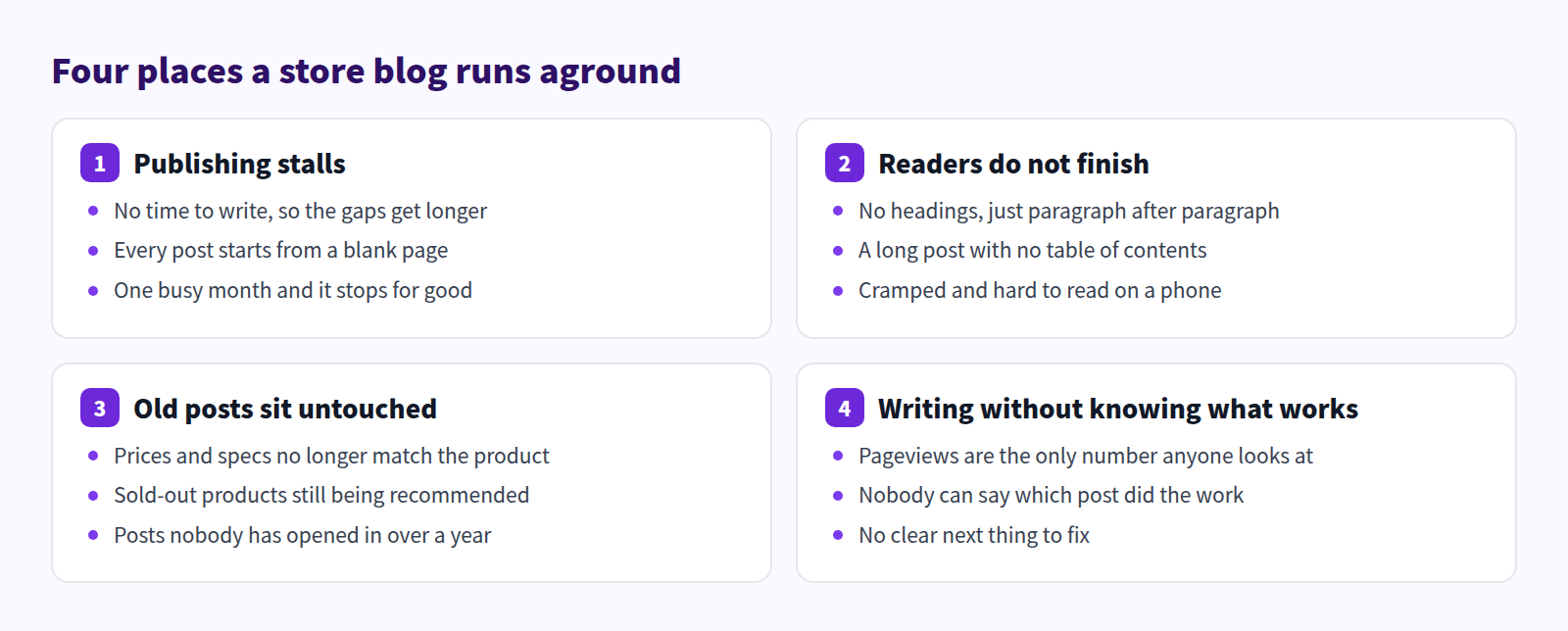
Pick the one you are in before reading on. You do not need to fix all four at once.
Publishing stalls: decide the date before the topic
What is going on
The failure mode is almost always the same. "I'll write when I have time" means the post loses every scheduling contest it enters. And because the next topic has not been chosen, every session starts with deciding what to write, which adds a decision cost before a single word appears. Two busy weeks later, restarting feels harder than it did.
Stores that keep going have usually inverted this. They fix the publishing date first and let the volume be whatever it is. One post a month on a known date beats two a week for six weeks.
What Shopify can do on its own
In your Shopify admin, Content > Blog posts > Add blog post creates a post. The setting that matters most here is visibility: you can publish immediately or set a future date and time, and Shopify publishes it for you. So a realistic pattern is to write two or three posts in a week when you have room, then space their publish dates out over the following month. That is available with no app and no extra cost.
For the drafting itself, Shopify includes Shopify Magic. The Generate text icon in the title field and in the content editor takes a description of what you want and returns a draft. The more specific you are about products, audience, and tone, the closer it lands. Accuracy is your responsibility, so read it properly before publishing.
For organisation, you get two levels: blogs and tags. Creating a "Care guides" blog alongside the default "News" blog keeps themes separate, and tags subdivide further. Building a simple content calendar and loading it into scheduled posts is entirely doable in Shopify itself.
The limit is that every part of this runs on your intention. You supply the material, the time, and the reminder. Scheduling moves the publish date of a post you already wrote; it does not produce the post.
What changes with Smart Agent Blog
Smart Agent Blog's AI Scheduled Blog Proposals takes your store information once and produces a draft on the day and time you choose. The job changes from writing from scratch to reviewing something that arrived.
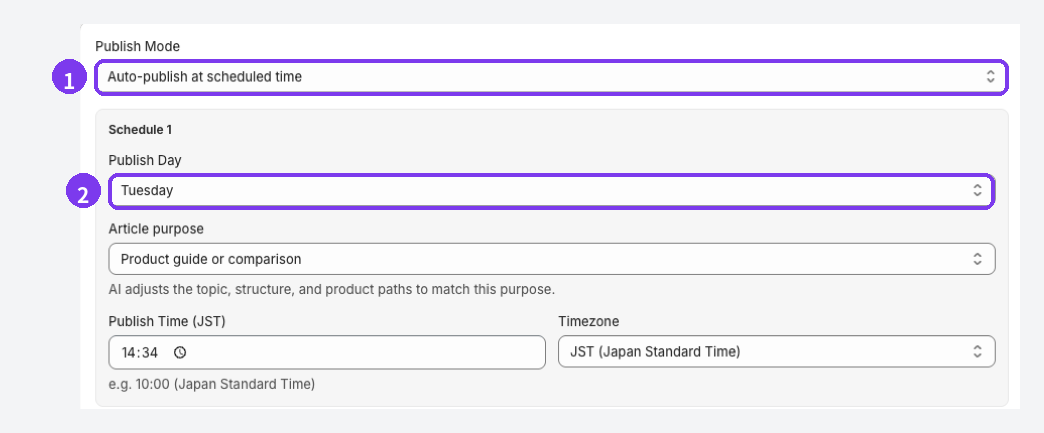
- Publish Mode: choose Save as draft (manual publish) or Auto-publish at scheduled time. Use draft mode for the first several posts.
- Publish Day: a post is created once a week on the day and time you set.
Adding entries under Themes / Keywords means you are not re-deciding the topic each week. Setup is documented in Get scheduled AI article proposals. For the workflow side, see No time to blog? Build a practical writing workflow with AI and Plan a seasonal content calendar.
Readers do not finish: headings and a table of contents are the floor
What is going on
One post in three with no headings means readers are being handed an undifferentiated block of text. Nobody reads a store blog post linearly from the top. They scan the headings, decide whether any of it applies to them, and leave if they cannot tell. With no headings, there is nothing to scan.
We also found long posts — 13 to 16 headings — with no table of contents. Length is not the problem. Not signalling where the answer lives is.
What Shopify can do on its own
Shopify's built-in rich text editor is better than its reputation. Per the Help Center, it lets you "add an image, insert a link, make a table, and embed a video or other media," and heading levels are available from the paragraph menu. So "I cannot add headings" is not true of Shopify.
Most unreadable store posts are therefore not a tooling problem. Adding a heading wherever the subject changes, and breaking text every three or four paragraphs, is available to you today in the standard editor and will do more than any app.
What the built-in editor does not have is an automatic table of contents. To build one, you add a bulleted list at the top of the post, give each heading an id attribute in the HTML, and point each list item at the matching #id anchor. That is fine for one post. It stops being fine when you add a heading six months later and the contents list silently goes out of date — and it goes out of date in every post you ever did this to.
What changes with Smart Agent Blog
In the Smart Agent Blog editor, you type a forward slash at the start of a line, or use the insert menu on the right, and pick the block you want. Headings and the table of contents are both in that list.
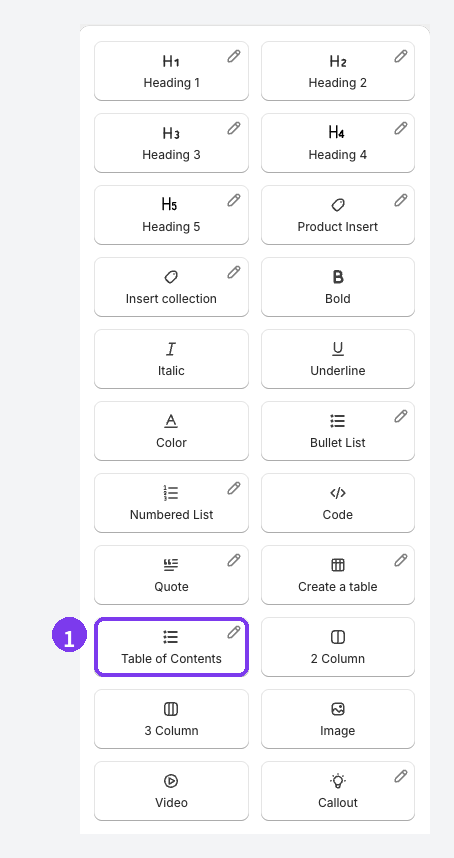
Choosing Table of Contents builds the list from the post's headings, and it updates itself when you add or change a heading later. It includes Heading 2, Heading 3 and Heading 4; Heading 1 and Heading 5 are left out. The drift that manual anchors produce simply cannot happen.
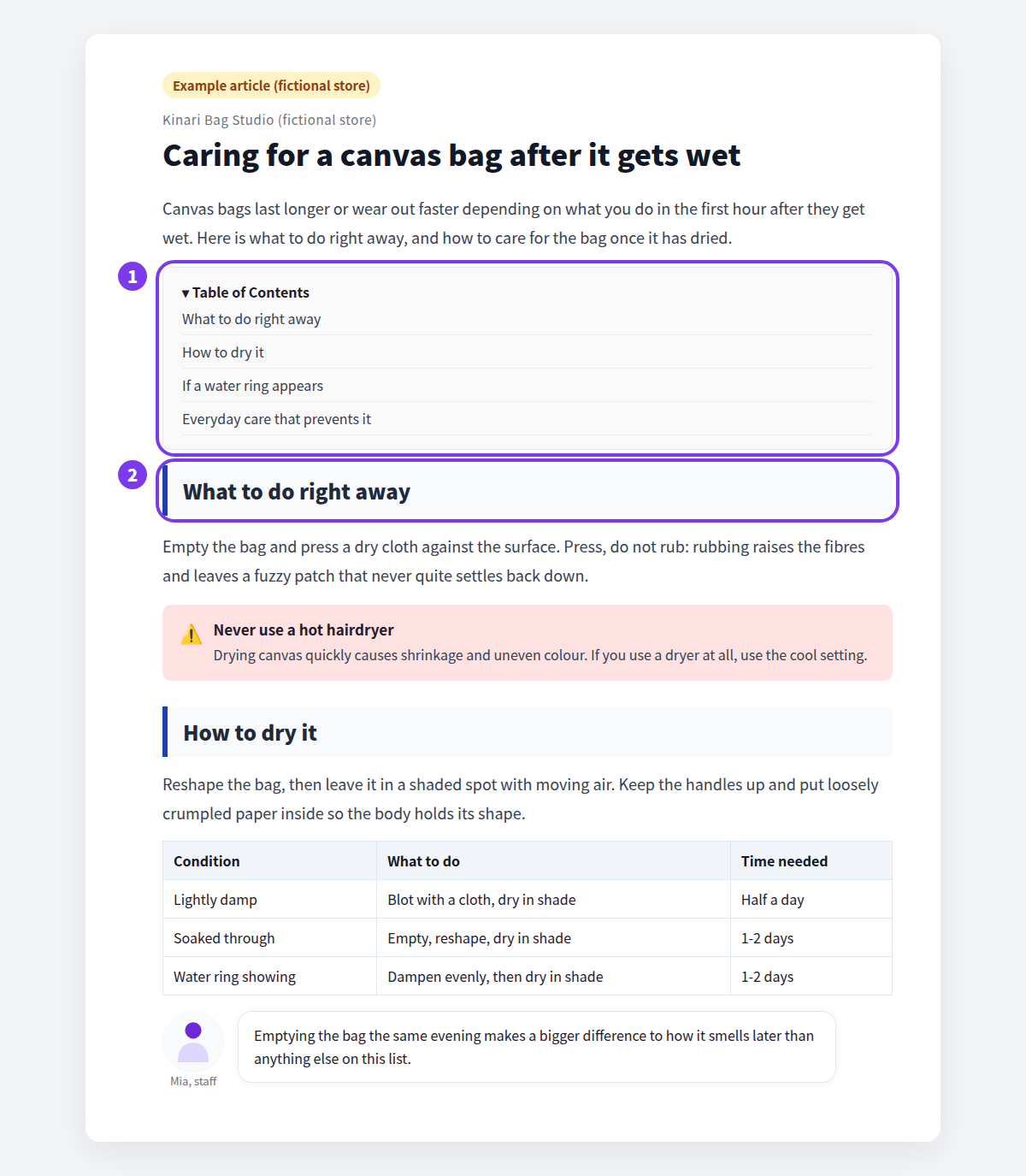
For the detail, see Structure a blog post so people read it, How to add a table of contents to Shopify blog posts, and Fix a blog that is hard to read on a phone. The full block list is in Add content to an article.
Old posts sit untouched: every published post is also a liability
What is going on
A post you wrote a year ago is still bringing people in from search. It is also still quoting last year's price. What we recorded as "no update in over a year" is less neglect than it is a live page whose accuracy nobody is guaranteeing any more.
Posts recommending sold-out products, expired promotions, superseded specs. Fixing one of those often beats publishing a new post.
What Shopify can do on its own
The Shopify admin's blog post list lets you search posts and filter by published state. Open a post, correct the body, save. As long as you leave the URL handle alone, the address does not change.
The first move is an audit. Pull up the list and sort every post into three questions: is the information still correct, can the product still be bought, and do the links still resolve? Doing that twice a year prevents most embarrassments.
What is hard without an app is knowing which posts to fix. The admin's post list does not show per-post pageviews or search performance. To prioritise, you open Google Search Console and your analytics separately and reconcile them against your post list by hand. Somewhere past fifty posts, that reconciliation stops happening.
What changes with Smart Agent Blog
AI Rewrite produces revised versions of the title, body, and SEO description of existing posts. Which posts it picks is driven by the strategies you enable.
| Strategy | Posts it targets |
|---|---|
| CTR improvement | Shown in search results but rarely clicked |
| Engagement improvement | Opened, but abandoned partway through |
| Freshness update | Not updated in a long time, traffic declining |
| Conversion improvement | Read, but not leading to product views or orders |
The publish mode is either Approval required (recommended) or Auto-publish rewrites. Start with approval. The review screen shows before, after, and the reasoning for each change, and you approve or keep the original for each change individually. Anything you leave untouched counts as unreviewed and is not applied.
AI Rewrite is a paid feature: 1 per month on Basic, 30 per month on Pro (up to 5 per run). Steps are in Use AI Rewrite; for deciding between a rewrite and a new post, see New post or update? and Refresh old posts with AI.
Writing without knowing what works: watch one number
What is going on
Most stores stop at "pageviews are up a bit, I think." Pageviews cannot tell you whether the post was read to the end, whether anyone moved to a product page, or whether anything sold. Without that, you keep producing whichever format you happen to like.
The opposite failure is picking ten metrics and tracking none of them. Choose one number for this month. That is the version that survives contact with a real workweek.
What Shopify can do on its own
Shopify's own analytics show store-wide sessions and traffic sources, which is genuinely useful but not per-post.
For post-level numbers, register the store in Google Search Console to see impressions, clicks, and average position, and set up an analytics property to see time on page and exits for your blog URLs. Both are free and both work on a Shopify store. Filter by your blog path and the per-post data is there.
The cost is what comes after. You get numbers, but translating "this post has impressions and no clicks" into "so change the SEO title" is on you, every month, for every post. That review is the first thing to get dropped.
What changes with Smart Agent Blog
Article analytics scores each post on four axes.
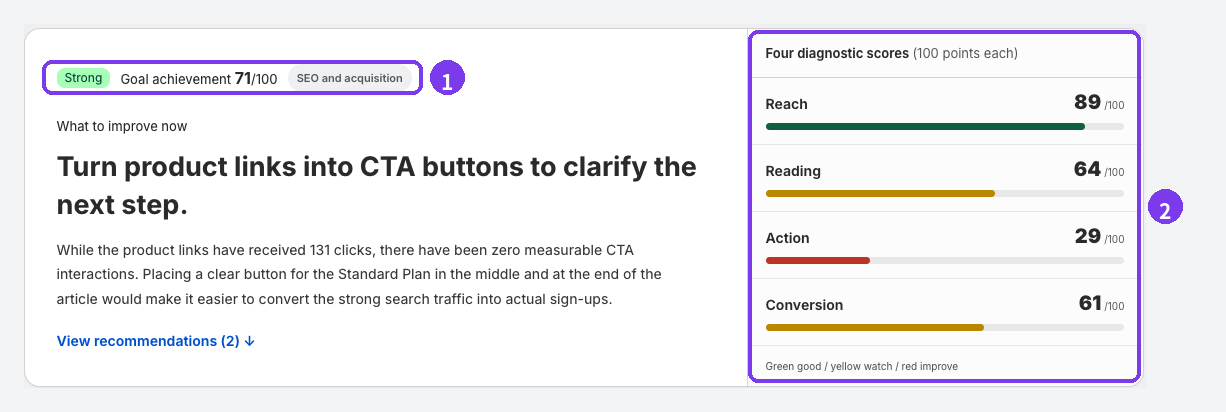
| Score | What it looks at |
|---|---|
| Reach | How many people read it |
| Reading | Whether it was read properly, or abandoned quickly |
| Action | Whether product links, related posts and buttons were used |
| Conversion | Whether the post led to add-to-cart or a purchase |
In the screen above, Reach is 89 and Action is 29. People arrive and then nothing happens inside the post — which tells you what to change without any interpretation work. Alongside the scores, each recommendation carries a confidence level and the evidence behind it.
Article analytics is a Pro plan feature. Note that there is no "SEO score" in the app; judgement comes from the four scores and the goal achievement figure. See View article analytics, plus What pageviews cannot tell you and Confirm blog improvements with numbers.
Three habits of blogs that stop
Separate from the four, these three come up constantly.
| Common mistake | What it costs | Do this instead |
|---|---|---|
| Only publishing sales and launches | Search brings no one; only existing customers read | Turn the questions you already answer daily into posts |
| Holding out for the perfect post | Drafts pile up unpublished, momentum dies | Save it unpublished, reread tomorrow, publish |
| Running the blog out of one person's head | It ends the day that person gets busy | Put the blog, author and direction into settings, not memory |
The third is the one stores miss. Registering authors and assigning them per post leaves a record of who wrote what, which is where a handover starts. See Register authors and Show author profiles on your blog. For the drafts problem, see A pre-publish checklist, and for topics beyond promotions, What to write when it is not a sale.
What Shopify covers on its own, laid out
Here is the whole thing side by side. The built-in tools cover more than most merchants assume — an app is not the price of entry.
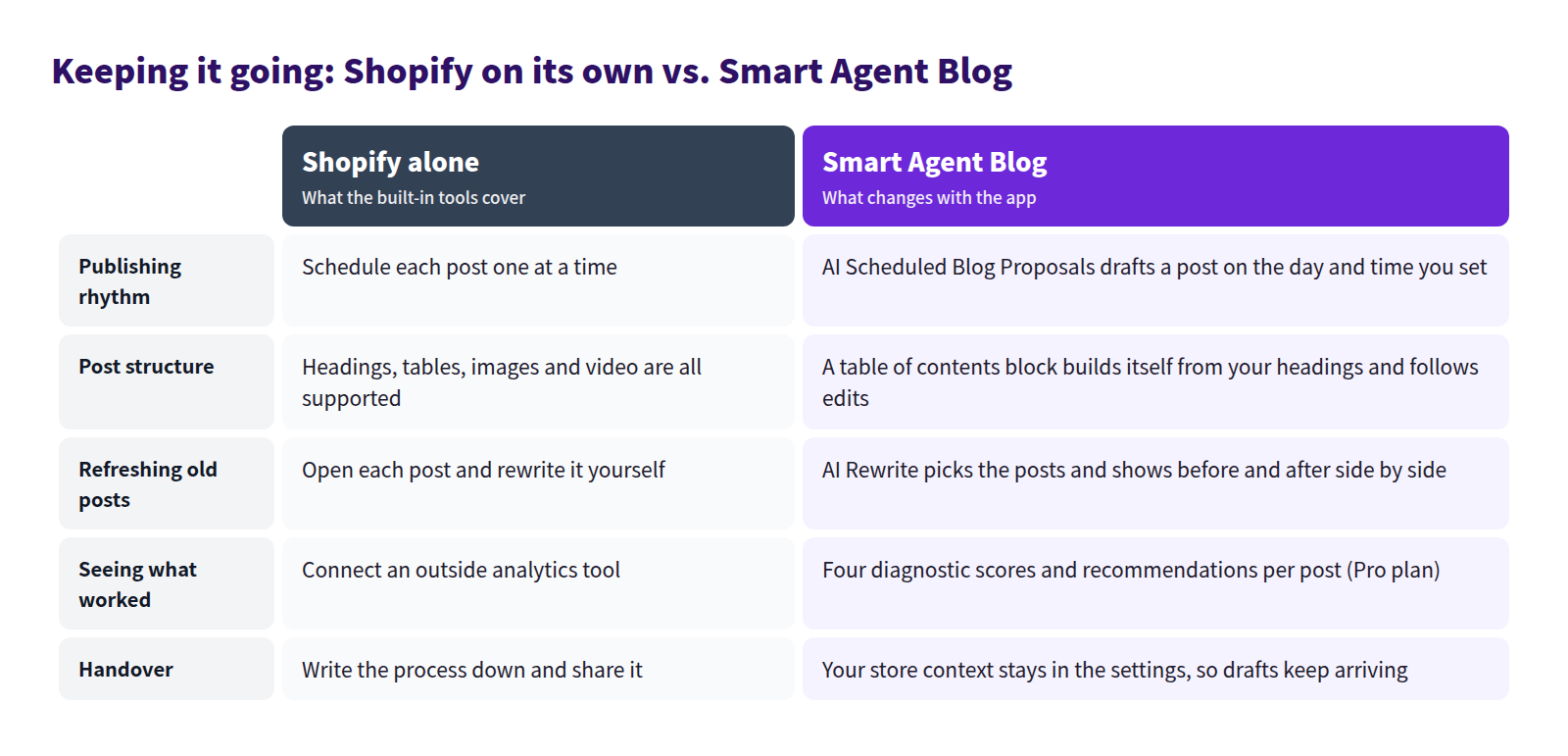
Everything below is available in Shopify with no app:
- multiple blogs, plus tags to categorise posts within them
- headings, tables, images, embedded video and links in the post body
- Shopify Magic for drafting body copy
- scheduled publishing at a date and time you set
- per-post SEO title, meta description and URL handle
- a featured image and a custom excerpt
- comments set to off, moderated, or auto-published
- Search Console and analytics for per-post numbers
What is either unavailable or manual:
- an automatic table of contents (you hand-write ids and anchors)
- product cards showing name, image and price (links are URL-based)
- per-post performance inside the admin post list
- a draft waiting for you on a set day
- something choosing which post to fix and showing you before and after
Under about ten posts, doing this by hand is fine. Re-anchoring a contents list or pulling numbers once a month is not a burden at that size. It stops being fine when you have dozens of posts and updating, checking and measuring becomes a standing monthly job. That is the point where installing an app is worth deciding about — covered in Shopify blog apps.
Where to start
The right first move depends on where you are.
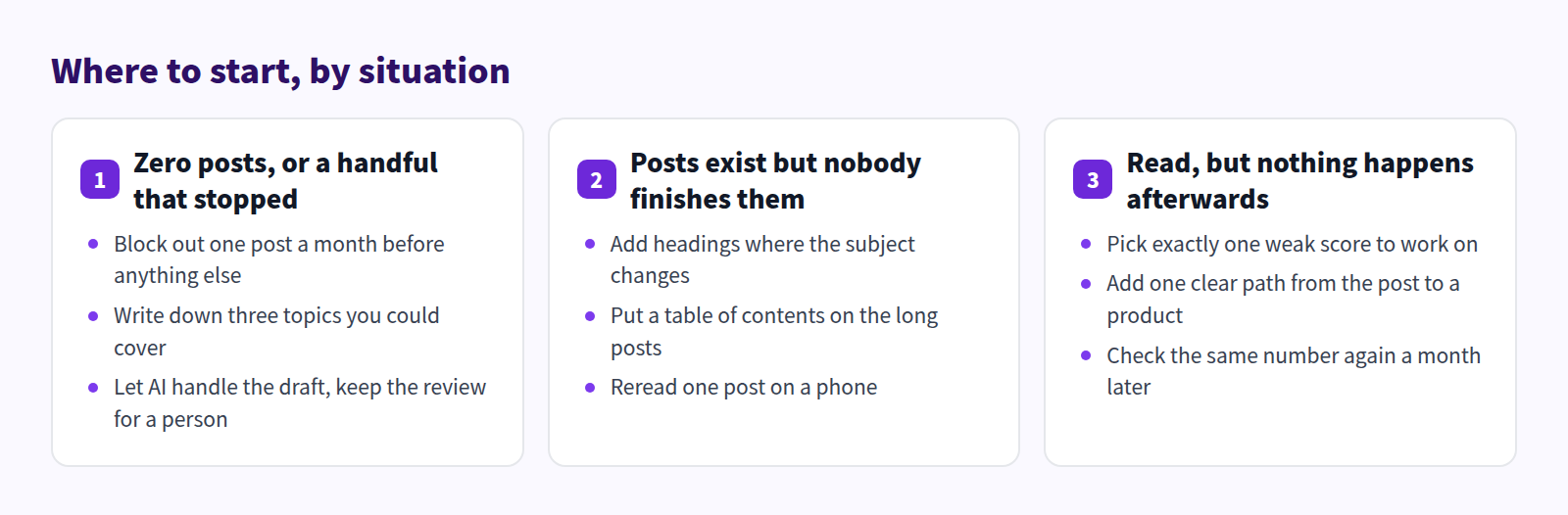
| Situation | First step | Feature to use |
|---|---|---|
| No posts, or a few that stopped | Fix one publishing date a month | Scheduled publishing, AI Scheduled Blog Proposals |
| Posts exist but are not read | Add headings and a contents list to the last five | Heading blocks, Table of Contents block |
| Many posts, some of them old | Audit everything older than six months | Post list filters, AI Rewrite |
| Read, but nothing happens | Pick one weak score and fix it | Article analytics, Product Insert |
The common thread is doing one thing at a time. Change one variable a month, then look at the same number the month after. That is the version that lasts.
If switching your theme's article display is the part you are nervous about, Switch safely from your existing blog posts walks through checking on a duplicated theme before publishing anything.
FAQ
How often should I publish?
There is no correct number. What matters is not missing the cadence you set. A store that published monthly for a year ends up with more posts than one that published twice a week for a month. Start at a rate you can protect, and raise it only once that feels easy.
Should I rewrite all my old posts?
No. Prioritise posts that still bring in search traffic but contain outdated information. Sort by whether the information is still correct, whether the product is still purchasable, and whether the links still work, then fix only what fails. Posts with impressions but no clicks are the other high-priority group. New post or update? covers the decision.
How much can I evaluate on the Free plan?
The Free plan allows up to 10 articles created in the app and 2 AI generations in total. AI Rewrite, article analytics, custom CSS and custom blocks are not included. For deciding whether this way of working fits your store, that is enough. Limits are listed in Plans and usage limits.
Summary
- Store blogs run aground in four places: cadence, structure, stale posts, and measurement.
- Shopify on its own handles scheduling, headings, tables, Shopify Magic, SEO fields and external measurement.
- What stops scaling by hand is maintaining contents lists, choosing what to fix, and reconciling per-post numbers.
- Smart Agent Blog takes on the drafts, the generated table of contents, rewrite targeting, and the four diagnostic scores.
Decide which of the four you are in, then pick exactly one thing to change this month.