

You wrote a long, genuinely useful post, and readers still leave before they reach the part they came for. Once an article has more than ten headings, a table of contents at the top changes how easy it is to use.
Here's the short answer: Shopify's built-in blog editor has no table of contents feature. Your options are to hand-code one in HTML, add a script to your theme, or use an app block. If you publish and update posts regularly, an app that builds the table of contents from your headings — and keeps it in sync — is the lowest-effort route.
- What happens to long posts without a table of contents
- How to build one by hand in Shopify's editor
- How to generate one for every post with a theme edit, and what can go wrong
- How to add one automatically with Smart Agent Blog's table of contents block
- A side-by-side comparison, plus placement tips
What happens to long posts without one
While preparing proposals for Smart Agent Blog in August and September 2026, we reviewed blog posts from Shopify stores in Japan. Of the 78 posts where we recorded heading structure, 27 (about 35%) had no headings at all. We also found several long posts with 13 to 16 headings and no table of contents.
On a phone, a long post with no table of contents gives readers no way to see where the part they care about is. Someone who only wants the sizing advice, or only the care instructions, has to scroll from the top. A table of contents shows the shape of the article up front and lets them jump straight to the section they need.
Before you start: fix your headings
Every method builds the table of contents from your headings, so check three things first.
- Use real heading formats. Bold paragraphs used as headings won't be picked up. Use Heading 2 and Heading 3 from the editor.
- Keep the hierarchy consistent. Main topics get H2, subtopics under them get H3. Jumping straight to H3 without an H2 makes the list look broken.
- Write headings that stand on their own. "Size up by half a size for wide feet" tells a reader far more than "Tip 1" when they scan the list.
Method 1: Build it by hand in Shopify's editor
Shopify's blog post editor can insert tables, images, videos, and links, but it can't generate a table of contents. You write one in HTML instead.
- In your Shopify admin, open the blog post.
- Click the
</>button in the editor toolbar to switch to HTML view. - Add an
id(letters, numbers, hyphens) to each heading you want listed. - At the top of the post, add a list of links pointing to those ids.
- Save, preview the post, and click each link to confirm it jumps to the right heading.
<ul>
  <li><a href="#sizing">How to choose your size</a></li>
  <li><a href="#materials">How the materials differ</a></li>
  <li><a href="#care">Care tips that make it last</a></li>
</ul>

<h2 id="sizing">How to choose your size</h2>
<p>...</p>
<h2 id="materials">How the materials differ</h2>
<p>...</p>
It's free, but the upkeep is real:
- You write the HTML again for every post.
- Every time you add or rename a heading, you fix the links by hand.
- If your theme has a sticky header, the heading can land hidden behind it. You'll need CSS in your theme that gives
h2[id], h3[id]ascroll-margin-topof about 80px.
For a handful of posts you rarely edit, this is enough.
Method 2: Generate it with a theme code edit
Add a script to your blog post template that reads the headings and builds the list, and every post gets a table of contents. In Shopify's free Dawn theme, you'd add something like this to the end of sections/main-article.liquid:
<script>
  document.addEventListener('DOMContentLoaded', function () {
    var body = document.querySelector('.article-template__content');
    if (!body) return;
    var headings = body.querySelectorAll('h2, h3');
    if (headings.length < 3) return;
    var list = document.createElement('ol');
    headings.forEach(function (h, i) {
      if (!h.id) h.id = 'section-' + (i + 1);
      var item = document.createElement('li');
      var link = document.createElement('a');
      link.href = '#' + h.id;
      link.textContent = h.textContent;
      item.appendChild(link);
      list.appendChild(item);
    });
    var nav = document.createElement('nav');
    nav.setAttribute('aria-label', 'Table of contents');
    nav.appendChild(list);
    body.insertBefore(nav, body.firstChild);
  });
</script>
No per-post work once it's in place, but watch for these:
- The class name around the article body differs by theme, so this code may not work as-is.
- Theme updates or switching themes can remove your edit.
- You still need CSS for spacing, font size, and any collapse behavior.
- Test on a duplicate theme before touching your live theme.
This works if someone on your team is comfortable editing Liquid and JavaScript, or you have a developer to hire.
Method 3: Use an app's table of contents block
Smart Agent Blog is a blog editor that runs inside your Shopify admin. Drop a Table of Contents block into the body and it builds the list from your headings automatically.
- Open a post from Articles in Smart Agent Blog, or select Create Article.
- On the line where you want the table of contents, type
/and choose Table of Contents. You can also select it in the insert menu on the right. - Your H2–H4 headings appear as the table of contents.
- Preview, then save and publish.
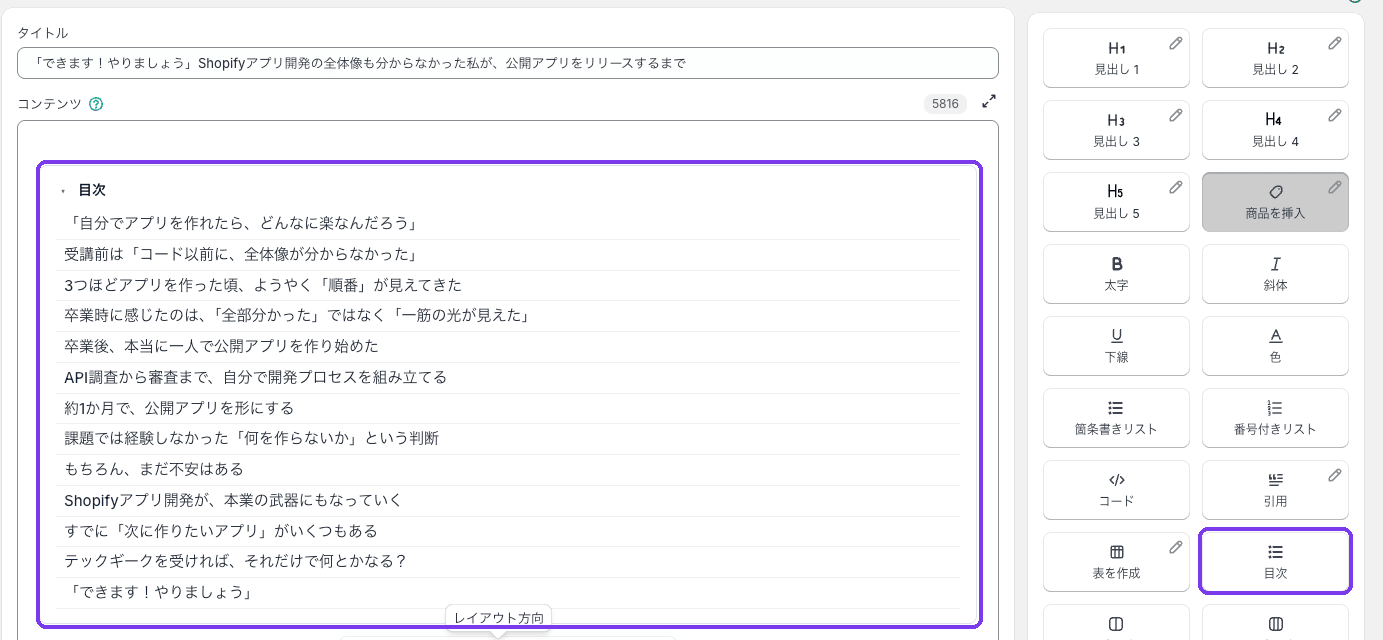
Add or rename headings later and the table of contents updates on its own. No HTML, no ids to maintain.
Two things to know:
- Only H2–H4 are listed. H1 and H5 are left out.
- To show posts on your storefront, add the Smart Agent Blog section to your theme's Blog post template once. The steps are in Display articles on your store.
The three methods side by side
| Shopify editor (by hand) | Theme code edit | Smart Agent Blog | |
|---|---|---|---|
| Work per post | Write HTML every time | None | Drop in one block |
| When headings change | Fix links by hand | Updates automatically | Updates automatically |
| Skills needed | Basic HTML | Liquid, JavaScript, CSS | None |
| Cost | Free | Free (or developer fees) | Free plan (up to 10 articles) |
| Theme changes | Mostly unaffected | Edit can be lost | Re-add the section |
| Best for | A few posts, rarely edited | Teams that manage their theme | Stores that keep publishing and revising |
Where to place it, and how to keep it readable
Put it right after your intro. Use the first few lines to say who the post is for and what it covers, then show the table of contents so readers can decide where to go.
Skip it if you have fewer than three headings. A table of contents pays off on long posts where different readers want different sections: buying guides, comparisons, how-to tutorials, and maker interviews.
If the list gets too long, look at your H3s. When one H2 has five or more H3s under it, consider splitting the topic or turning the H3s into a bulleted list.
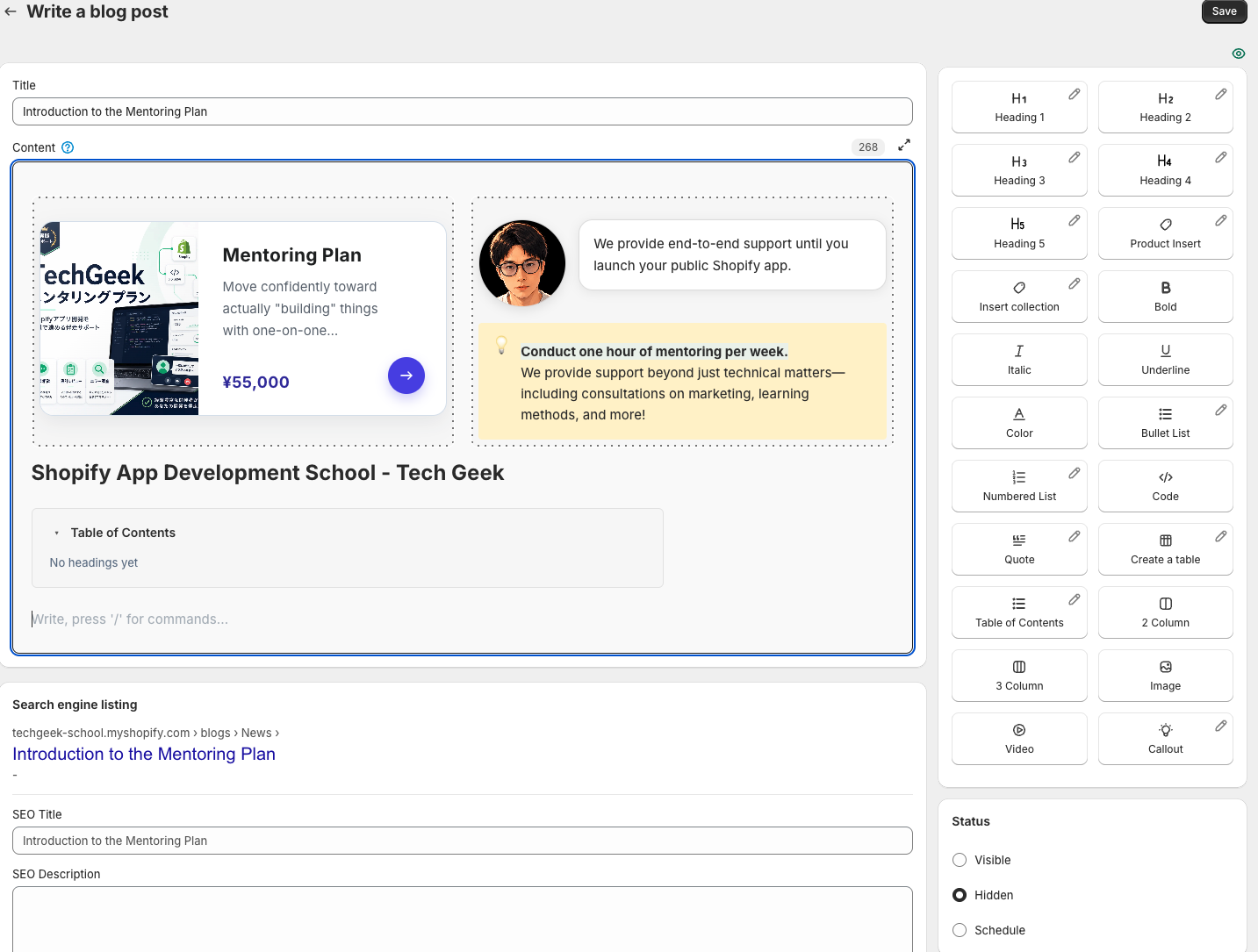
When a reader jumps to the section they need, make it easy for them to pick a product right there. In Smart Agent Blog you can combine a table of contents, headings, product cards, and callouts in one editor. For product cards, see How to show product information in your Shopify blog.
FAQ
Can I add a table of contents to posts I've already published?
Yes. Posts you created in the Shopify admin also appear under Articles in Smart Agent Blog, and you can open them and add the block. On the Free plan, a post created in the Shopify admin counts toward the 10-article limit once you save it in Smart Agent Blog. If a post uses custom HTML or elements from another app, check it on a duplicate theme or while unpublished first.
Will a table of contents improve my rankings?
A table of contents on its own isn't a ranking guarantee. Organizing your headings to build one does make the structure clearer to readers and search engines. Treat it first as a way to get readers to the section they came for.
Does it look different depending on my theme?
The final look can vary with your theme settings. Preview on desktop and mobile before publishing.
Summary
- Shopify's built-in editor can't generate a table of contents.
- Hand-coded HTML is free but needs fixing for every post and every heading change.
- A theme code edit covers all posts but can disappear with theme updates.
- Smart Agent Blog's block builds the list from H2–H4 and keeps it in sync as you edit.
If you have even one post with more than ten headings, start by adding a table of contents to that one. If you want to rethink how the post itself is built, see how to write a Shopify blog post.