
"Should I get a medium or a large?" If you sell clothing, bags, or shoes, you hear this every day. Online, where nobody can try anything on, not knowing the size is one of the biggest reasons shoppers hesitate.
The short answer: alongside the size chart on your product page, publish a blog post that walks through how to measure (with images), the size chart (as a table), how to choose between sizes, caveats (in a callout), and the product itself. That gives shoppers everything they need to decide on their own. Shopify can show a size chart on product pages, but a blog post is the better place to explain how to measure and how to choose. This guide shows how to build one, and how to do it in Smart Agent Blog.
- The path a reader follows through a size guide post
- How to show measuring steps with a diagram, and how to build the chart
- How to help readers choose between sizes and flag the caveats
- How a blog size guide differs from Shopify's product page size chart
- How to add images, tables, callouts, and product cards in Smart Agent Blog (with screens)
When size is unclear, shoppers hold off
Shoppers choosing clothes online are usually worried about three things:
- a "medium" from one brand isn't the same as a medium from another,
- the numbers in a chart don't tell them whether it will fit them, and
- returning or exchanging is a hassle if it doesn't.
A size chart alone doesn't solve this if readers can't tell what was measured or what to compare it with.
While preparing proposals for Smart Agent Blog in August and September 2026, we reviewed the blogs of 110 Shopify stores in Japan. Apparel was the second most common category, with 23 stores. And of 88 posts we recorded, 66 (75%) had no link from the body to a product page. In 3 out of 4 posts, readers couldn't get to a product from the text. A reader who's finally sure of their size shouldn't have to go searching for the product again.
A size guide is one of several posts that answer pre-purchase worries; the list of store blog use cases covers the rest.
The path a reader follows
Build a size guide so readers can act in this order:
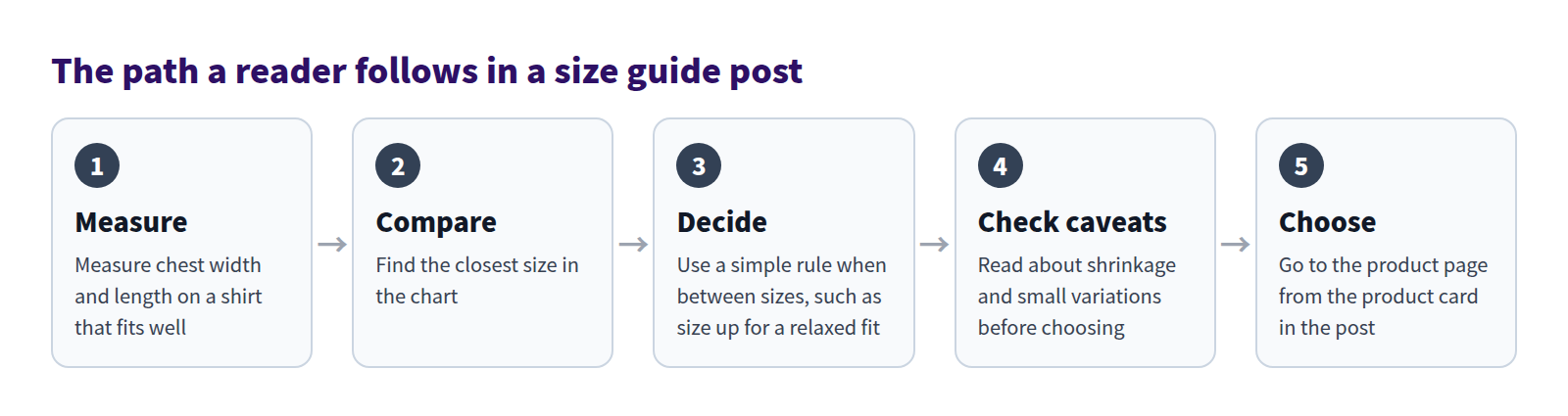
Use the same order for your headings: How to measure, Size chart, Between sizes?, Good to know, and Our pick. Readers can then decide on a size just by reading top to bottom. With four or more headings, a table of contents at the top makes it easy to jump around.
Show how to measure with a diagram and photos
Start by showing exactly where to measure. "Measure across the chest below the armpits" is much clearer as a picture.
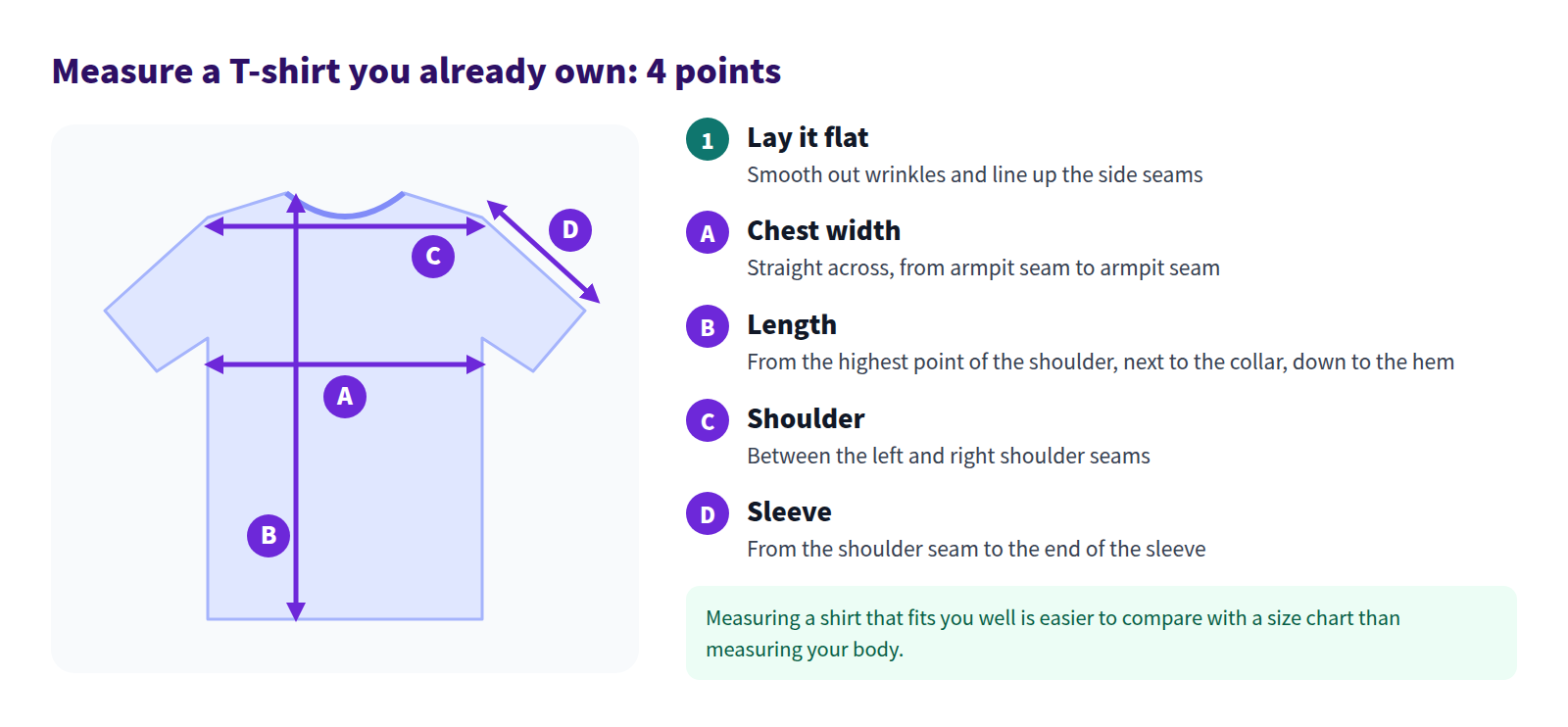
Four tips for explaining measurements:
- Have readers measure a shirt they own. Measuring a shirt that fits well is easier than measuring your body, and it compares directly with a garment chart.
- Label each point. Match the labels in the diagram (A chest width, B length) with the column names in your chart.
- Shoot photos from directly above. A top-down photo with a tape measure in place backs up the diagram.
- Say how you measured. State that the numbers are garment measurements taken flat, so readers measure the same way.
Build the size chart as a table
Make the size chart a real table, not an image. Tables stay readable when zoomed, and numbers are easy to update.
- Give both units. For US shoppers, lead with inches and put centimeters in brackets, and say so in the heading: "Size chart (inches, cm in brackets)."
- Match the diagram. Use the same names and order as your measuring diagram: chest width, length, shoulder, sleeve.
- Keep columns few. Wide tables are hard to read on phones. Stick to about five columns and split into two tables if you need more.
- Match the product page. If the post and the product page disagree, shoppers won't know which to trust.
- Note the tolerance. Something like "Measured flat; allow ½ in (1–2 cm) either way" tells readers how precise the numbers are.
Give one rule for choosing between sizes
Some readers will still land between two sizes. Give them a rule, in one sentence:
- "Between sizes? Match the chest width of a shirt you like."
- "Size up for a relaxed fit, size down for a closer fit."
- A staff example: "Our 5'5" team member wears a medium."
A staff example works well as a speech balloon, like chatting with someone in the store. Just don't promise a perfect fit. Bodies and preferences vary.
Put caveats in a callout
Size-related caveats should be boxed so they don't get lost in a paragraph:
- cotton and similar fabrics can shrink in the wash or dryer,
- handmade items can vary slightly from piece to piece, and
- stretchy fabrics like knits may feel roomier than the numbers suggest.
If you accept returns or exchanges for fit, say so here and link to the details. Knowing what happens if it doesn't fit is part of the decision.
What the finished post looks like
Put it all together and you get something like this post from a fictional T-shirt store:
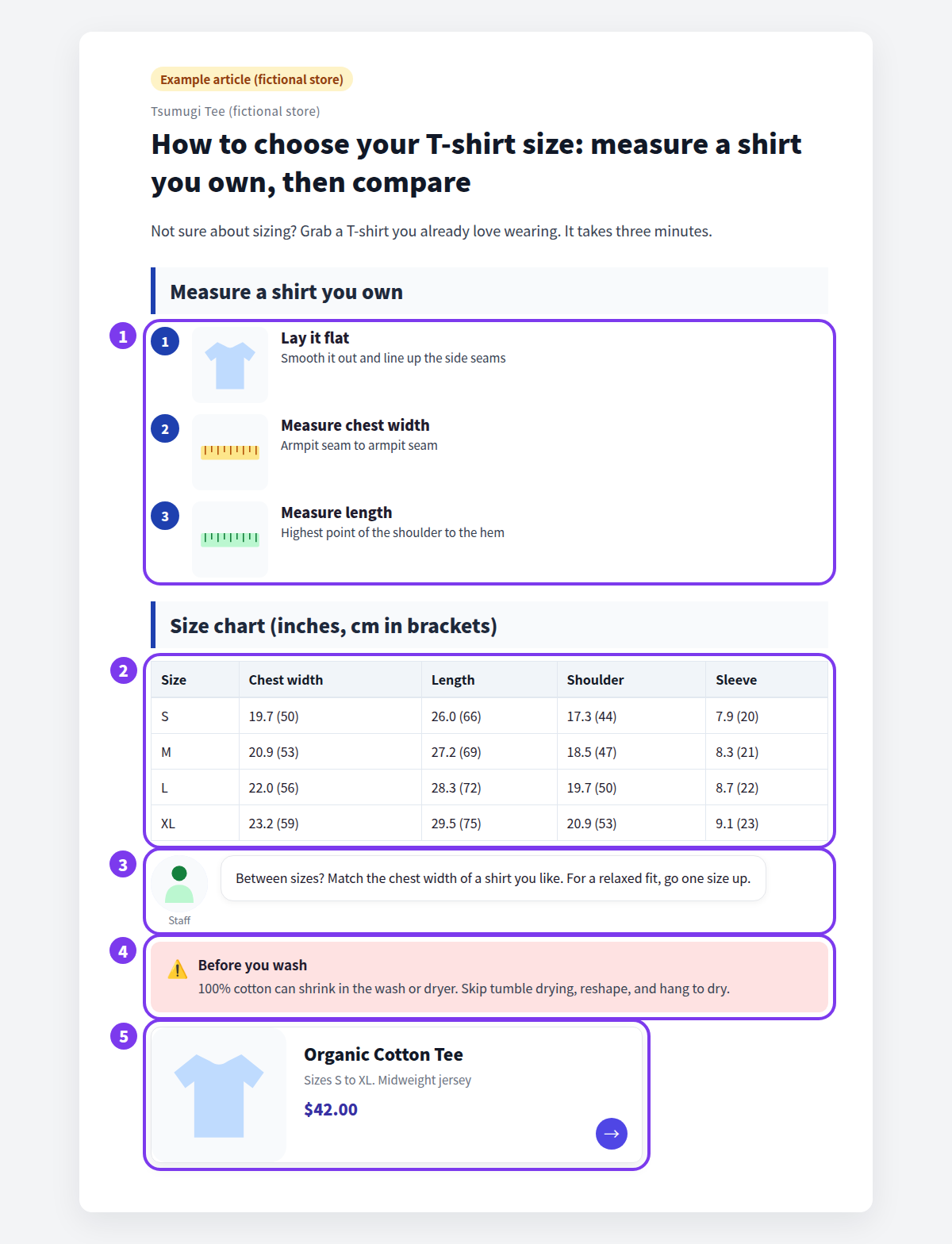
- Measuring steps: numbered, with an image for laying the shirt flat and for each measurement.
- Size chart: units in the heading, inches first with cm in brackets, and columns named to match the steps.
- Choosing between sizes: a staff tip in a speech balloon.
- Caveat: shrinkage and how to dry it, in a callout.
- Product: the T-shirt the guide covers, as a product card.
What Shopify can do on its own
You can share size information with Shopify's built-in tools:
- Tables and images in blog posts. The rich text editor under Content > Blog posts supports tables and images, so you can write the size guide itself.
- A pop-up size chart on product pages. The Shopify Help Center explains how: create a page with your size chart, add a product metafield that references a page, then add a Pop-up block to your product template in the theme editor and connect it with a dynamic source. Your theme needs to support dynamic sources.
A product page chart and a blog size guide do different jobs:
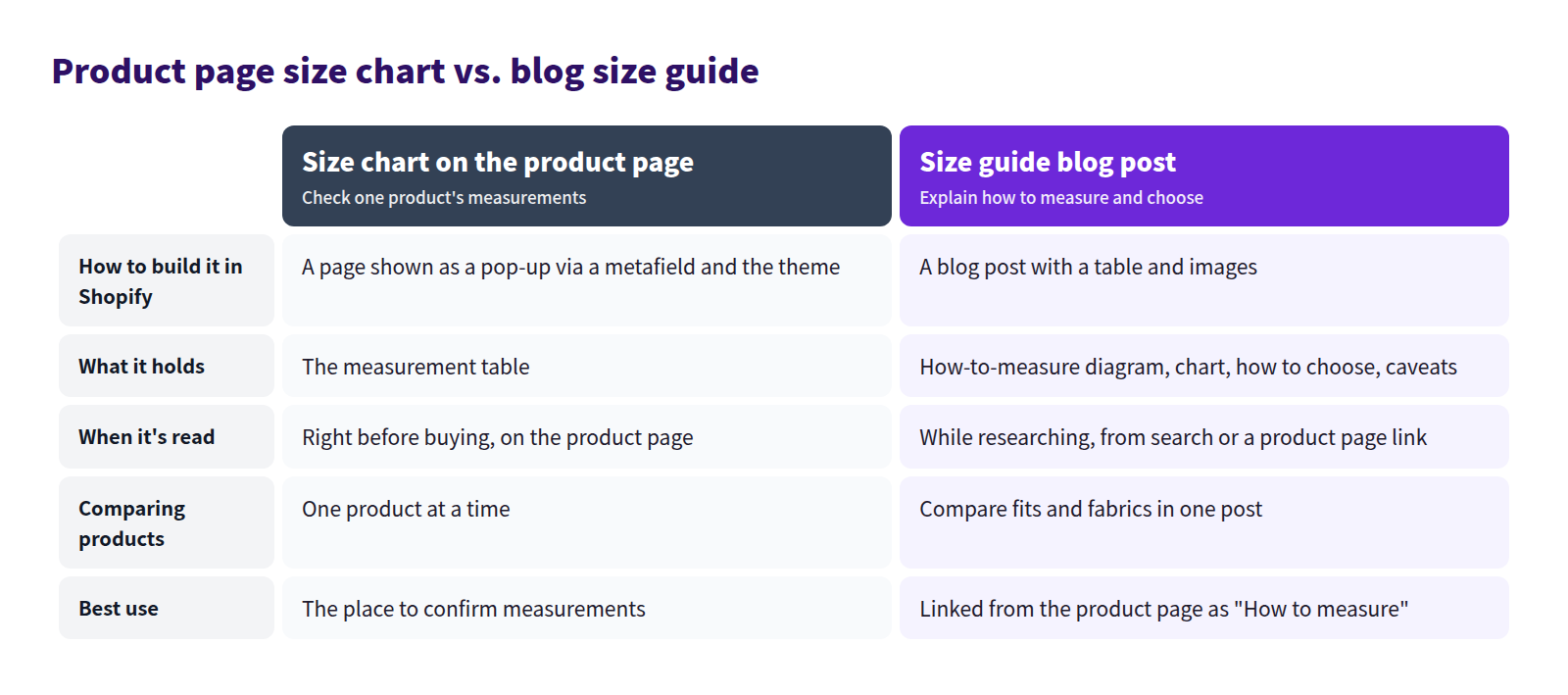
The best setup: keep the measurements on the product page, and add a "How to measure and choose your size" link in the product description that points to the post.
In a standard blog post, a few things take extra work:
- there's no menu option to box a caveat like a callout,
- product links are typed URLs, with no card showing name, image, and price, and
- there's no automatic table of contents.
Building a size guide in Smart Agent Blog
In Smart Agent Blog's editor, every piece of a size guide is a block you add from the insert menu or by typing /.
Insert images, tables, and callouts
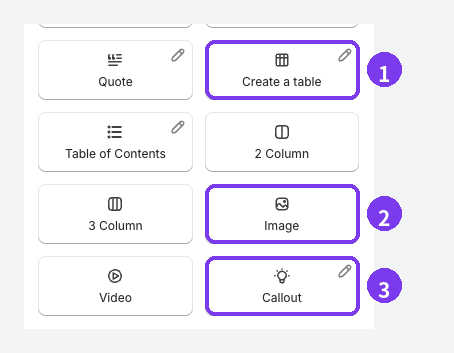
- Create a table: build the size chart, with columns named to match your measuring diagram.
- Image: enter an image URL, upload from your computer with File Upload, or pick an image already in Shopify. Dragging or pasting an image into the body also works and uploads it to Shopify automatically.
- Callout: highlight shrinkage, variation, or anything else readers should know before choosing.
Don't let an image carry the explanation alone. Add a line of text nearby, such as "A, chest width, runs from armpit seam to armpit seam."
Add a staff tip and a product card
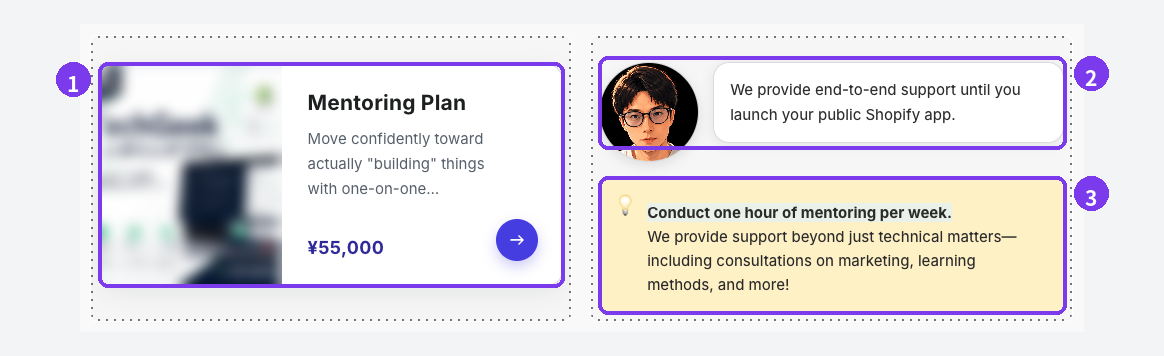
- Product card: use Product Insert to add the product the guide covers. It shows the name, image, and price, with a sold-out label when stock runs out.
- Speech Balloon: a staff fit example or a "between sizes?" tip, shown as conversation. The block handle's menu switches the image between left and right.
- Callout: caveats in a colored box.
With 2 Column, you can put the product card next to the staff tip, as shown. When you're done, save as Hidden, check it with Preview (including whether the chart reads well on a phone), then publish. Finally, link to the post from the product description.
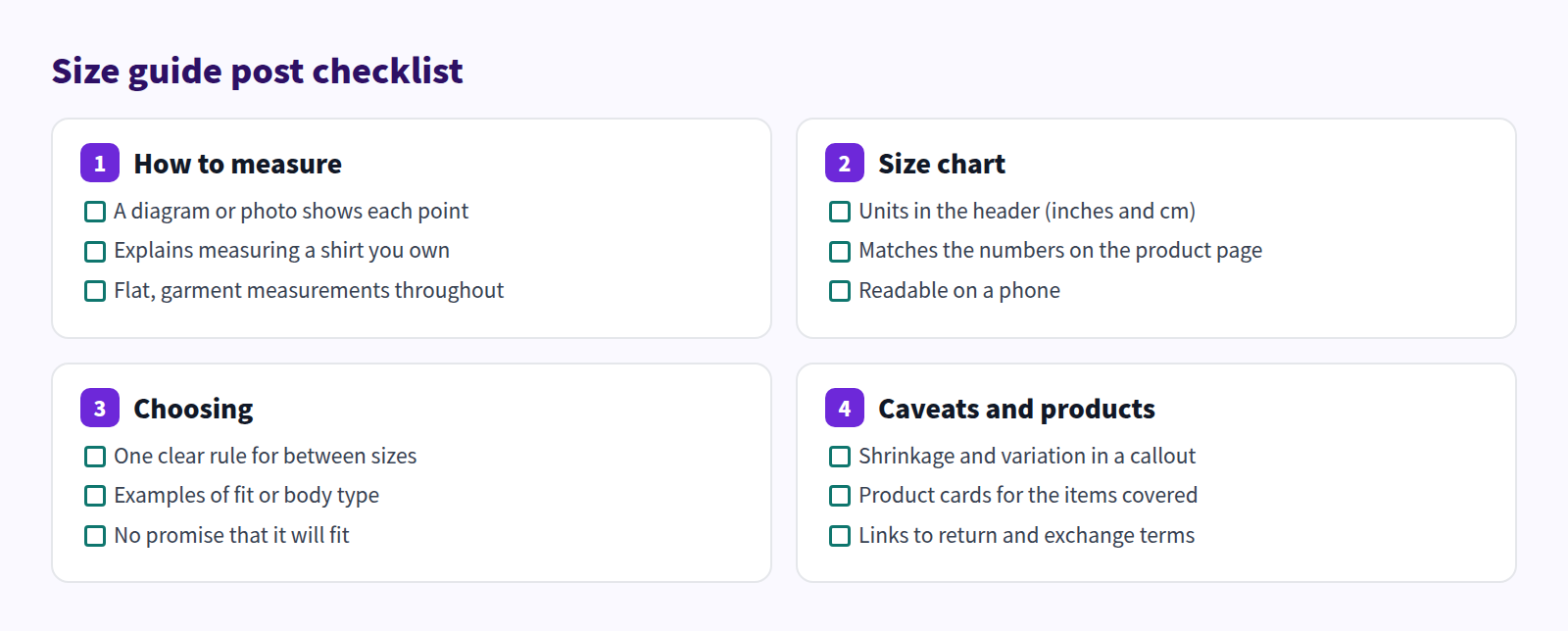
Size guide checklist
Before publishing, make sure all four areas are covered:
FAQ
My products have different size charts. What should I do?
How to measure and how to choose are the same across products, so keep them in one post. Then either list a chart per fit or collection under its own heading, or leave the individual charts on product pages. Very different fits are easier to read as separate posts.
Should I list body measurements or garment measurements?
Either works if you label it clearly next to the table: "garment measurements" or "fits body measurements of." If you're asking readers to measure a shirt they own, garment measurements are easier to compare.
Do I need both inches and centimeters?
If you sell internationally, listing both is a courtesy. Keeping both units in the same table also prevents mismatches between language versions of the post.
Summary
- For shoppers unsure about size, publish one post covering how to measure, the chart, how to choose, and caveats.
- Show measuring with a diagram and photos, build the chart as a table, and keep names and units consistent.
- Give one rule for choosing between sizes, and put caveats in a callout.
- Keep the measurements on the product page, and link from the product description to the post.
Pick the product you get the most size questions about, and start by measuring a sample.