
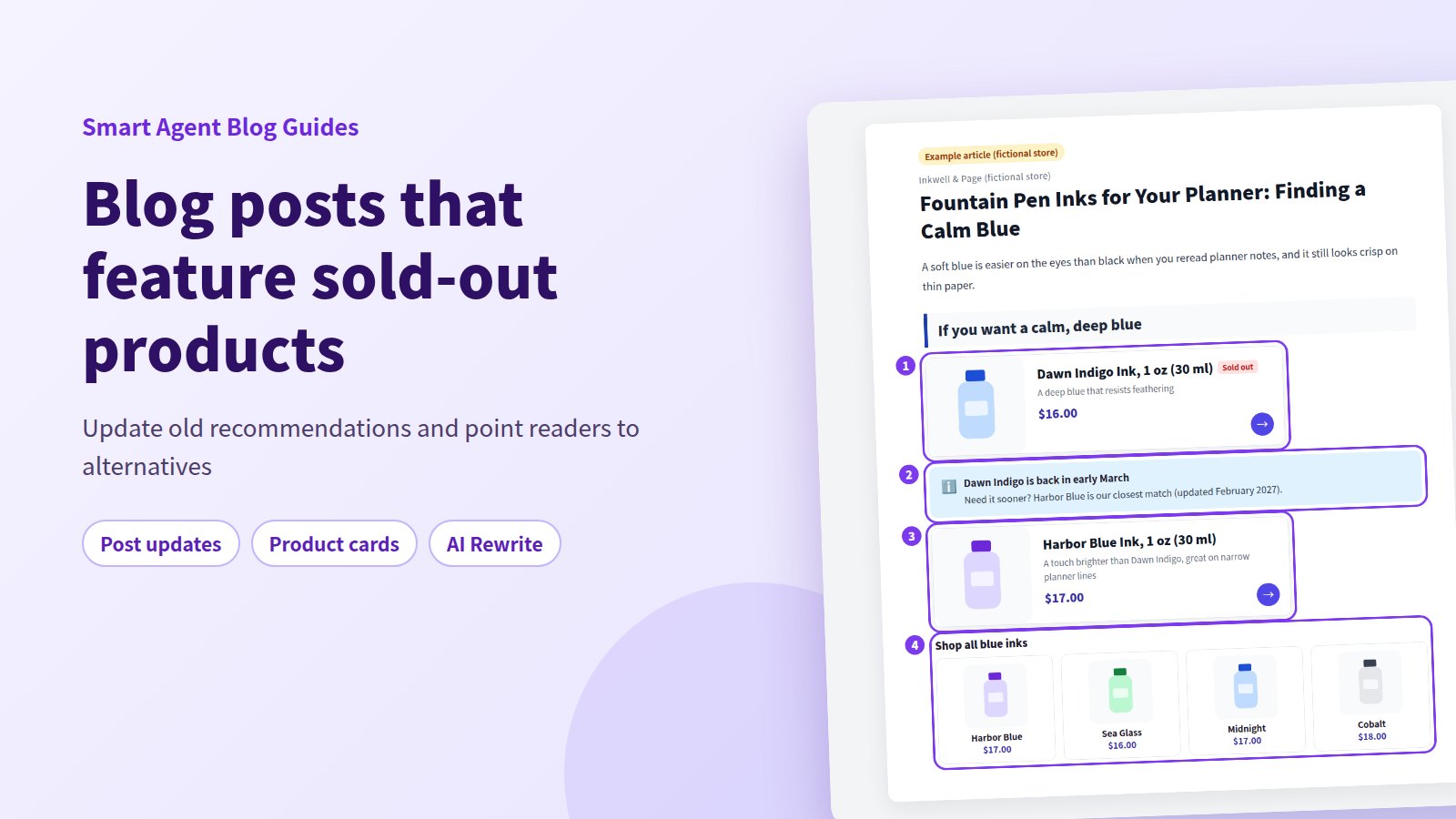
One of your most-read posts recommends a product that sold out weeks ago. Another still describes an item you stopped carrying last season. If you blog about products, this happens sooner or later.
The short answer: update the post, don't delete it. If the product is temporarily sold out, add the expected restock timing and a close alternative. If it's discontinued, swap in a successor or a collection, and fix any prices or dates written in the text. The goal is simple: readers who find the post should never hit a dead end.
In Smart Agent Blog, a product card shows a sold-out label when the product is out of stock, so readers see the status at a glance. Deciding what to recommend instead, and rewriting the text around it, is still your call. This guide walks through the review process with a fictional stationery store.
- What goes wrong when posts keep promoting products you can't sell
- Four ways to fix a post, depending on product status
- How to find the posts worth reviewing first
- How to swap in alternatives, restock notes, or collections
- When AI Rewrite strategies help, and what to watch for
What happens if you leave it
A post that still promotes sold-out or discontinued products causes a few problems:
- Readers hit a dead end. They want the product, can't buy it, and get no hint about what to buy instead.
- The post looks out of date. Prices and phrases like "limited time" no longer match the product page.
- Your best posts suffer most. A post that pulls steady search traffic keeps losing sales for as long as it's wrong.
While preparing proposals for Smart Agent Blog in August and September 2026, we reviewed the blogs of 110 Shopify stores in Japan. Of the 88 posts we recorded, 66 (75%) had no link from the body to a product page. In 3 of every 4 posts, readers couldn't get from the text to a product at all. Linking to products matters, and once you do, you also need a way to review those links when products change.
Posts that don't hinge on one product age better; the range of store blog use cases shows which formats hold up.
Let product status decide the fix
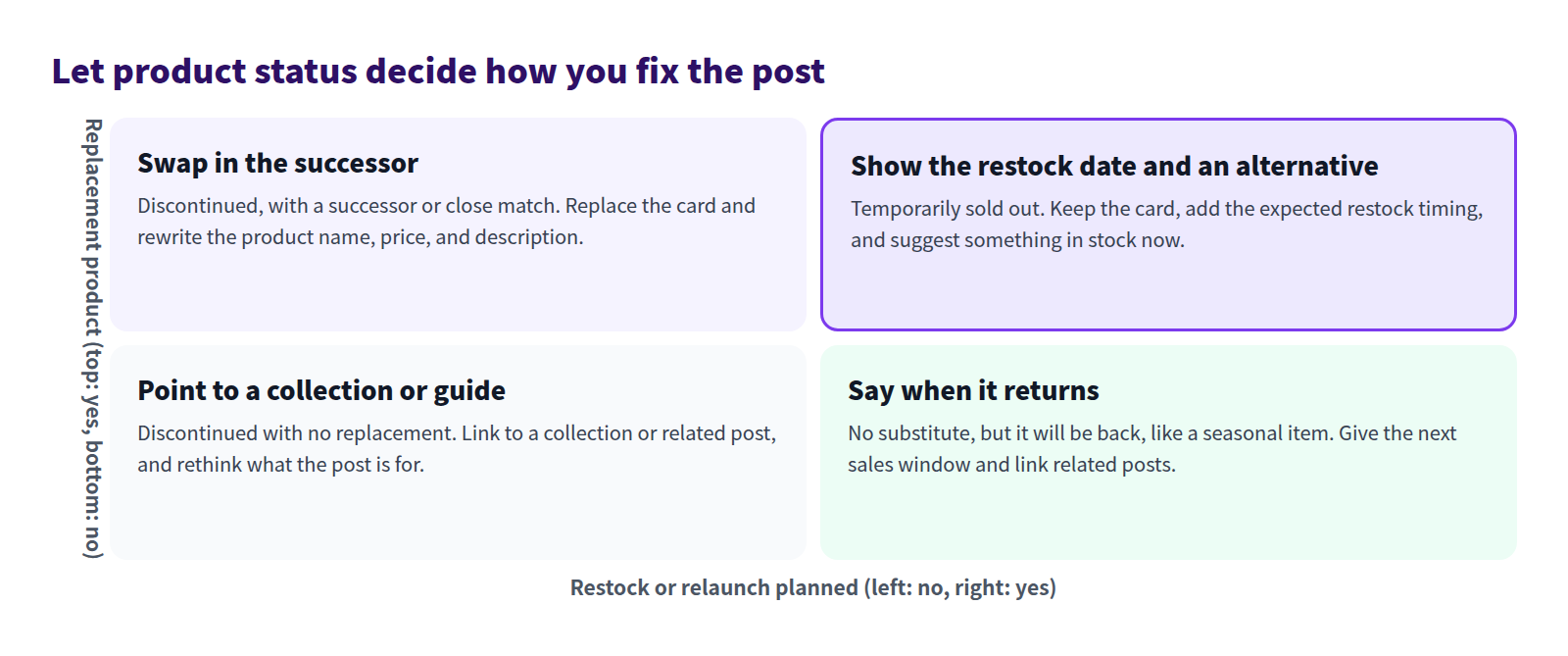
The fix depends on two questions: is a restock or relaunch planned, and is there a product that can stand in?
| Status | Product in the post | What to change in the text |
|---|---|---|
| Temporarily sold out (restock planned) | Keep the card and add a close alternative | Add the expected restock timing |
| Discontinued (successor or close match) | Replace the card with the successor | Rewrite the product name, price, and description |
| Seasonal or returns every year | Keep the card, or swap in a related product | Say when it will be available again |
| Discontinued (no replacement) | Point to a collection or a related post | Rethink the post's role and decide whether to keep it as a guide |
For a temporary sellout, don't pull the card right away. People willing to wait lose their only clue. If you know roughly when it's coming back, say so, then show something they can buy today.
The review process
Work through five steps:
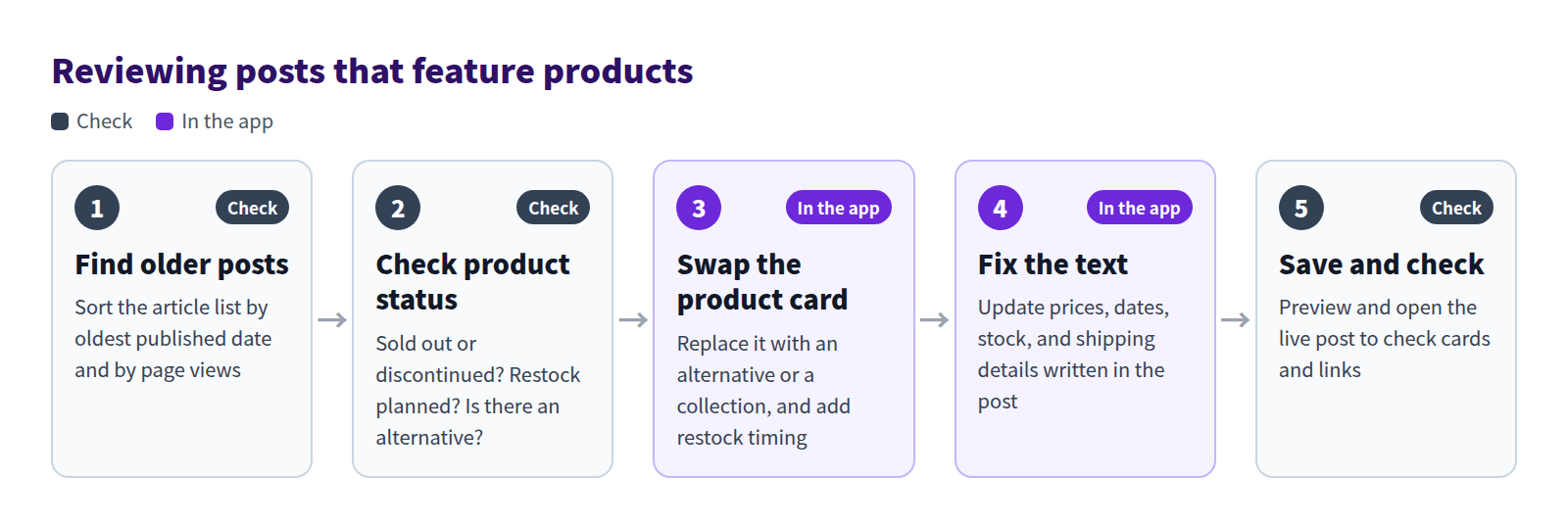
- Find older posts. Start with posts published a while ago and posts that get the most traffic.
- Check product status. For each featured product: sold out or discontinued? Restock planned? Is there an alternative?
- Swap the product card. Follow the table above: replace it with an alternative or a collection, and add restock timing.
- Fix the text. Update prices, dates, stock, and shipping details written in the post.
- Save and check. Use the preview and the live post to confirm the cards and links look right.
What an updated post looks like
Here's a post from a fictional stationery store, updated after one of its featured inks sold out.
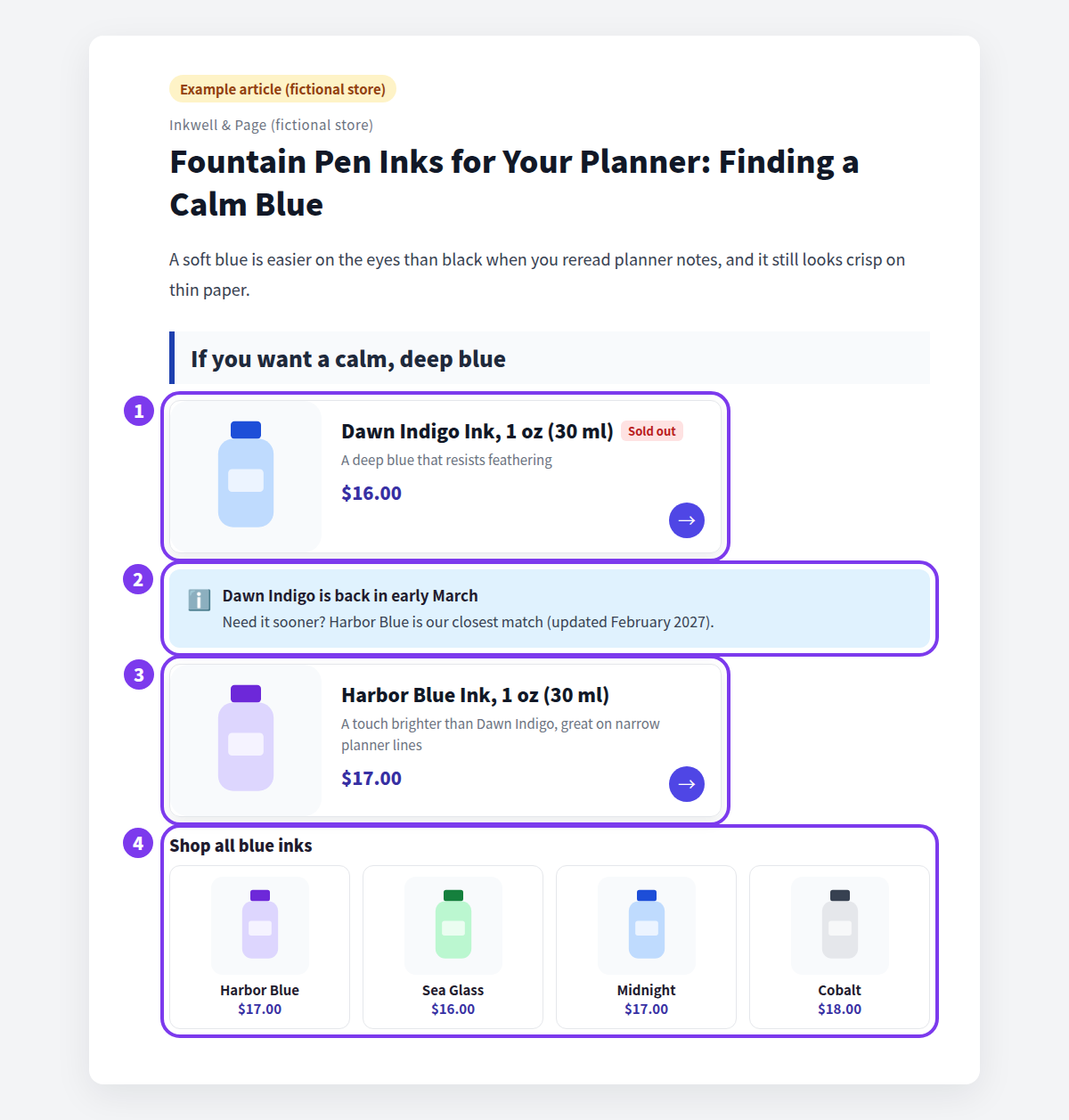
- Keep the sold-out card. A restock is planned, so the card stays. The sold-out label tells readers right away that it's out of stock.
- Add restock timing and an update date. A callout says roughly when it returns and what to buy meanwhile, with the month you updated the post.
- Show something they can buy now. A card for a close match, with one line on why it's a good substitute.
- Widen the choice with a collection. If no single alternative fits everyone, add a collection of similar products.
What Shopify handles on its own
In Shopify's standard blog editor, you link to products by entering a URL. When a product sells out or is discontinued, the text and links in your posts stay exactly as they were, so reviewing means opening each post.
For the discontinued product's own page, Shopify's URL redirects can send visitors to a successor or a collection. According to the Shopify Help Center, you can redirect only from URLs that show Page not found or 404. Setting a product to Draft or removing it from all sales channels makes its URL eligible. You set this up under Content > Menus > View URL redirects.
A redirect gets readers to the new product page, but the post itself still describes the old product. The post needs its own update.
Review posts in Smart Agent Blog
Find the posts to review first
In Smart Agent Blog's Articles list, sorting decides your review order.
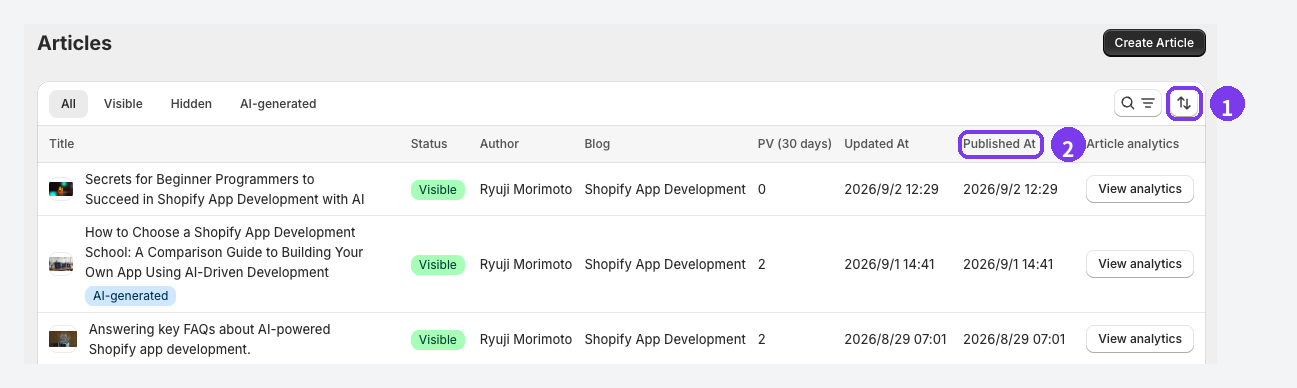
- Sort. Sort by Published At, oldest first, to start with posts you haven't touched in a while. Sort by PV (30 days), highest first, to fix the posts with the most impact.
- Published At. The older the post, the more likely its featured products have changed.
Search by title only searches titles, so product names work if they appear in the title. If you tag posts by season or product line, the Tags filter helps too.
Swap the product card
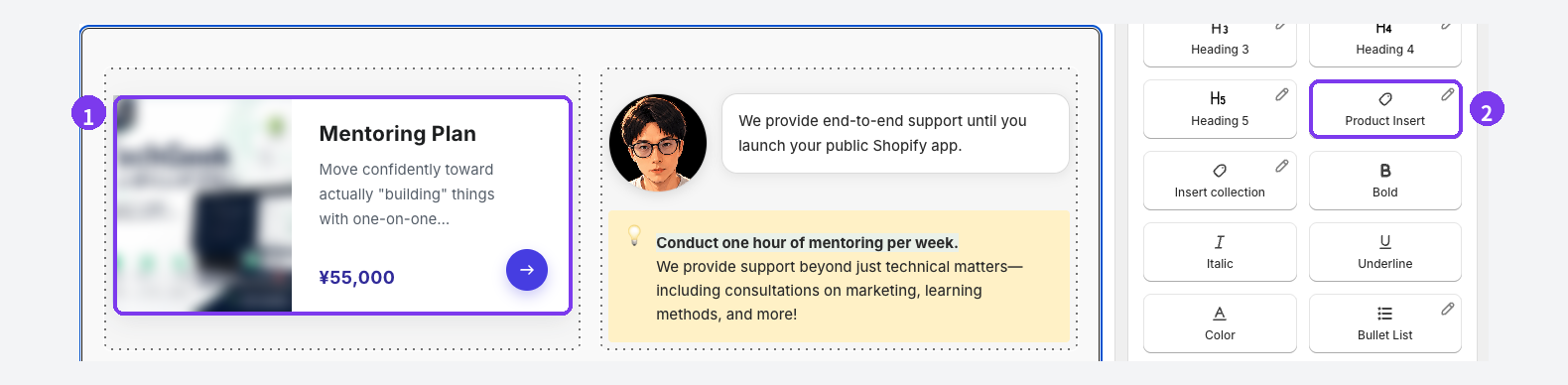
- Delete the old card. Hover over the card to reveal a handle on its left, select it, and choose Delete. Skip this for a temporary sellout.
- Insert the new product. Where you want it, choose Product Insert and select the alternative in Shopify's product picker. A card with the name, image, and price is added.
Draft, hidden, and archived products can't be selected. If the successor isn't published yet, publish it in Shopify admin first. Card appearance depends on your theme, so preview after every swap. For the basics, see How to add products to your Shopify blog.
For products that change often, Collection Insert is another option. It shows the products in one Shopify collection with images, names, and prices, reading the product data from the collection. After changing the collection's products or prices, open the live post and confirm the current information appears. See our guide to featuring multiple products with collections.
Fix prices and dates in the text
Swapping a card doesn't change the words around it. Look for:
- prices such as "$16.00",
- dates and stock phrases such as "through March," "limited time," or "almost gone,"
- conditions such as "free shipping" or "preorder now," and
- feature descriptions that no longer match the new product.
To make future reviews easier, let the card show the price instead of repeating it in the text. Put important changes in a callout so readers notice them.
Use AI Rewrite strategies
On paid plans, AI Rewrite proposes changes to an existing post's title, body, and SEO description. Two strategies suit posts that feature products:
| Strategy | When it helps |
|---|---|
| Freshness Update | Regularly revisiting posts that haven't been updated in a while or are losing traffic |
| Conversion Improvement | Fixing posts that get read but rarely lead to product views or purchases |
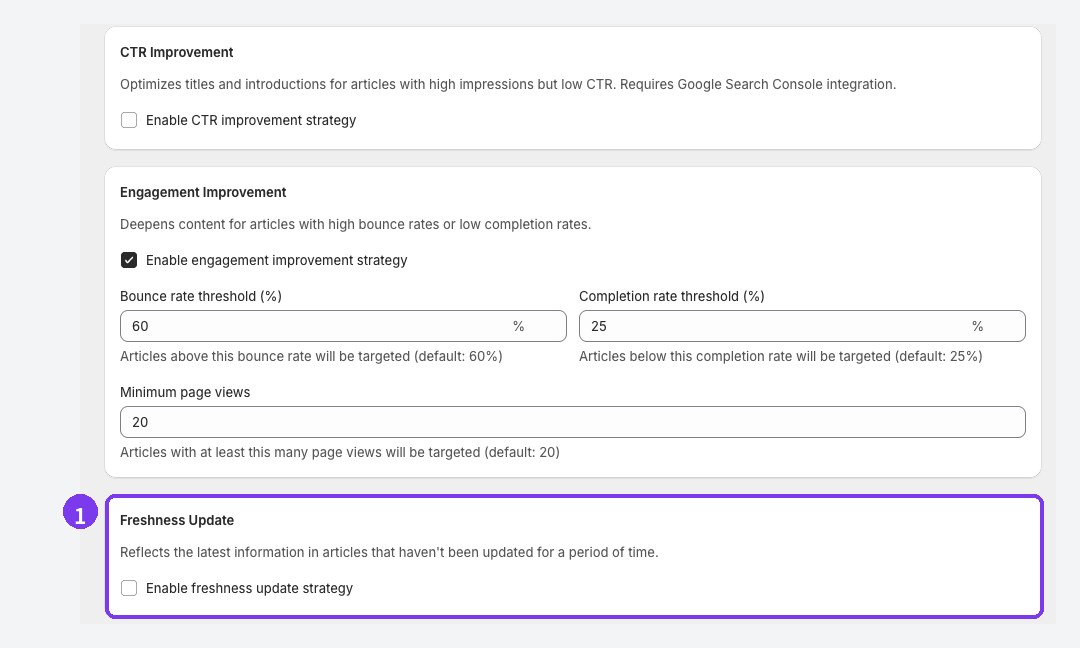
Enabled strategies select matching posts and generate proposals. Which product to recommend instead, and how to describe the restock, are store decisions. Handle product swaps yourself, and use AI Rewrite to bring the writing up to date.
Choose Approval required (Recommended) as the publish mode. Pending proposals let you compare before and after and decide change by change.
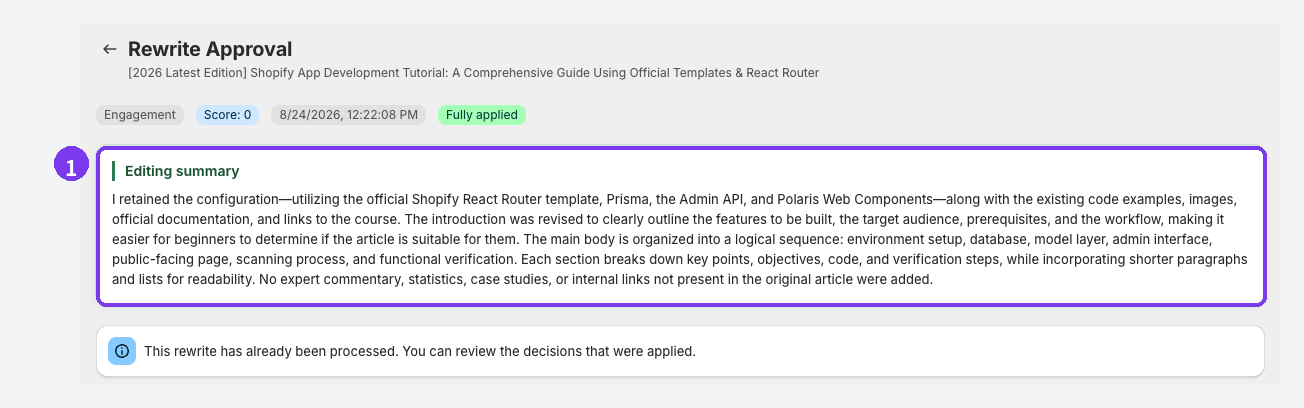
The Editing summary at the top explains what the AI aimed to change. Below it, Title, Body, and SEO Description each show Before, After, and Change intent. For each change, choose Accept change or Keep original. Changes you leave unreviewed aren't applied.
Keep this order for any post you run through AI Rewrite:
- Accept and apply the rewrite.
- Then swap product cards and fix prices and dates by hand.
If you accept even one body change, the whole body is rebuilt from the post as it was when the proposal was generated. Swap the cards first and the swap can be lost. See Use AI Rewrite.
Review checklist
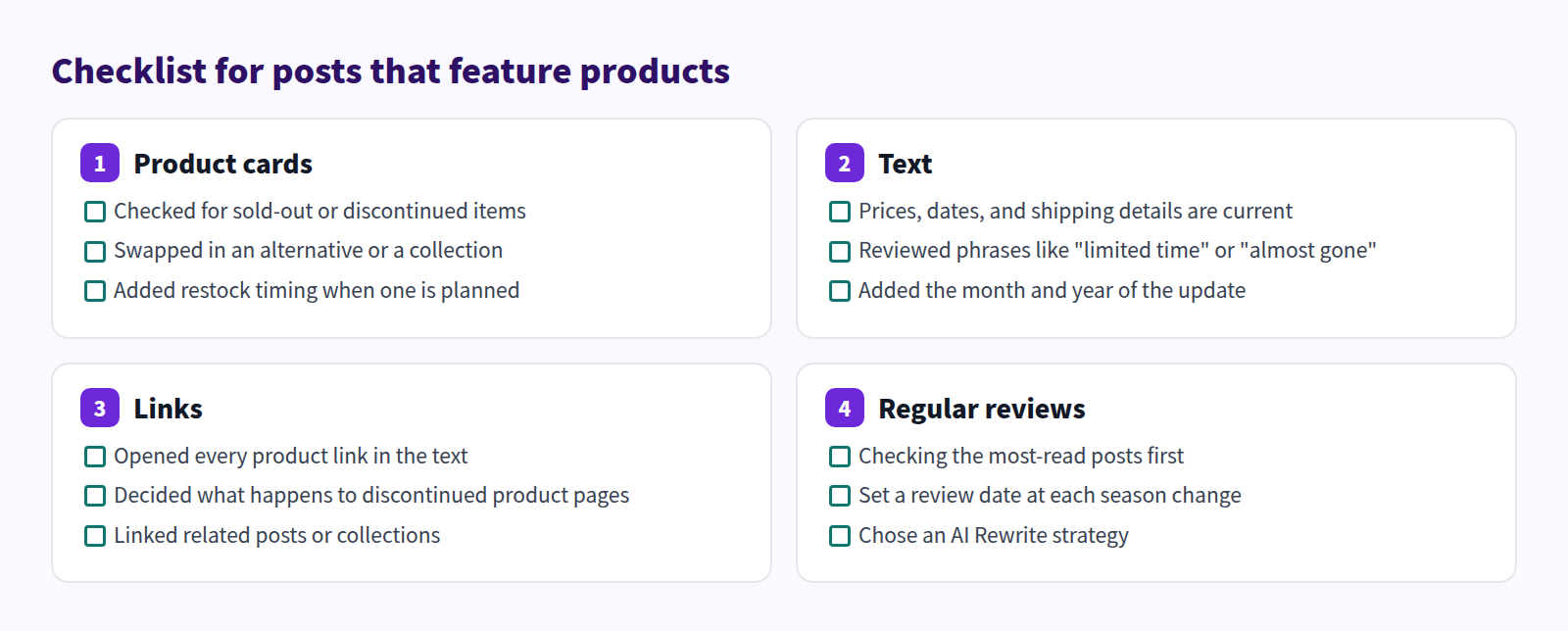
FAQ
Should I remove a sold-out product card right away?
Not if a restock is planned. Keep the card and add the expected timing; the sold-out label already tells readers what's going on. If there's no restock and no alternative, replace it with a link to a collection or related post.
Should I hide a post about a discontinued product?
If it still gets search traffic, keep it live and swap in alternatives or a collection. That serves readers better than hiding it. If the whole post is about that one product and nothing replaces it, hide it or merge it with a similar post. See What to do when your blog has too many similar posts.
How often should I review these posts?
Batch the review around season changes and big catalog updates, starting with the most-read posts. For timing seasonal reviews, see When should you start seasonal blog posts?
Summary
- Update posts that feature sold-out or discontinued products instead of deleting them.
- For temporary sellouts, add restock timing and a close alternative. For discontinued items, swap in a successor or collection.
- Sort the article list by published date or page views, fix the highest-impact posts first, and update prices and dates in the text too.
- Use AI Rewrite with approval, then swap cards and fix prices by hand after applying.
Sort your article list by page views and check whether the products in your top posts can still be bought today.