Display articles on your store
Publishing an article is not enough if the theme has not been configured to show the Smart Agent Blog layout and author information.
If you already have articles, first follow Safely switch from your existing blog and test on a duplicated, unpublished theme.
Open the article template
- In Shopify admin, open Online Store → Themes.
- Select Customize for the target theme.
- Open the Blog post template. The Smart Agent Blog section is only available on this template.
If you are working through the in-app setup guide, its Theme setup step has an Open article template button. It becomes available once the store has at least one blog post.
Add Smart Agent Blog
- Select Add section in the Blog post template.
- Open Apps and select Smart Agent Blog.
- If the content appears twice, hide the theme's original article-body section with the eye icon. Do not delete it.
- Save the theme.
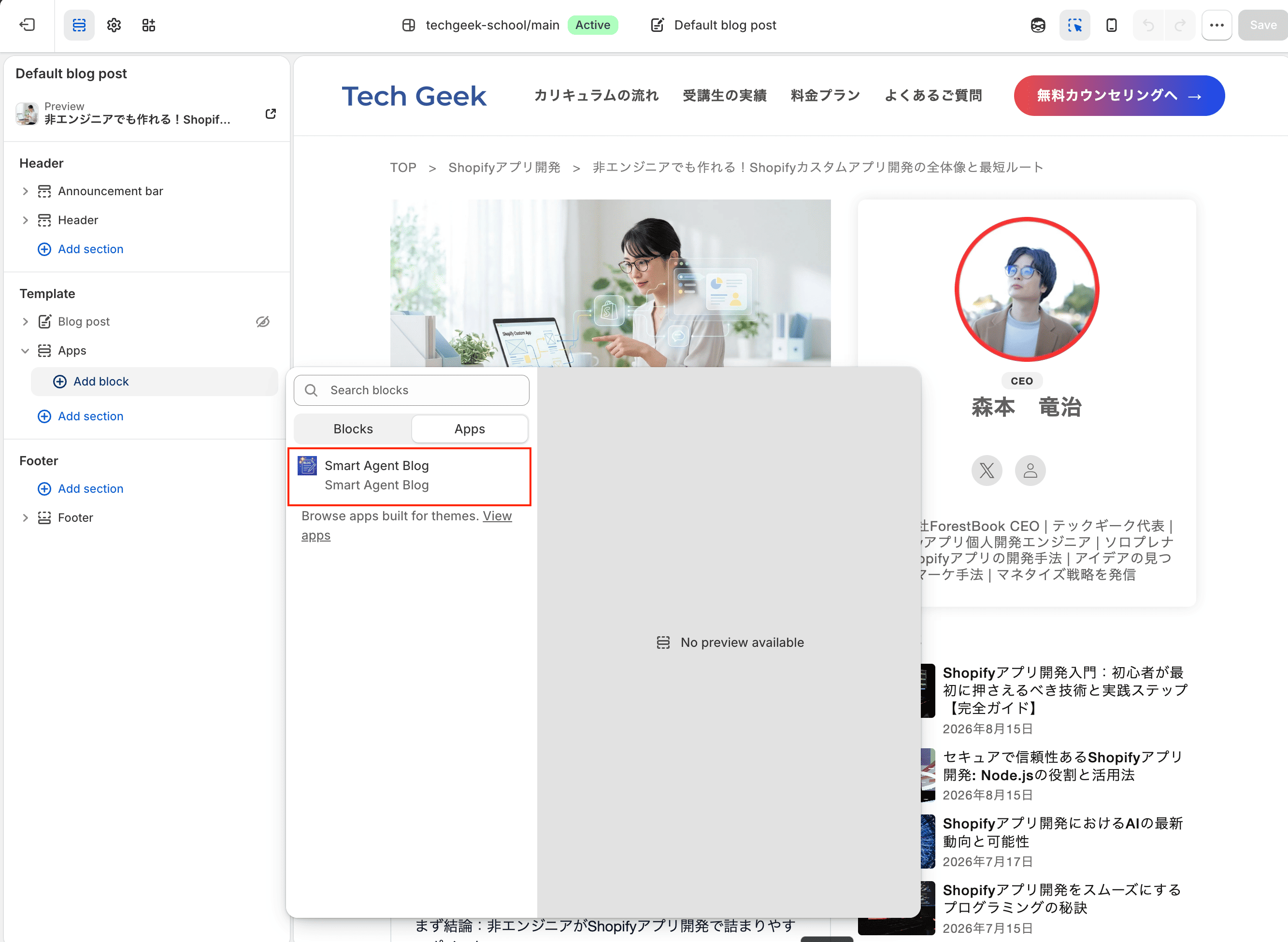
If Apps or the Smart Agent Blog section is missing, do not edit theme code yourself. An older or custom theme might not support app sections. Contact your theme developer or support.
Section settings
Select the section to configure it in the right panel.
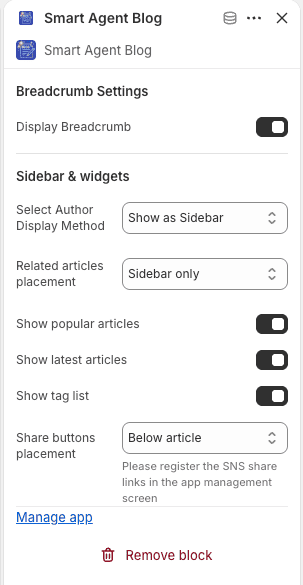
| Setting | What it does |
|---|---|
| Display Breadcrumb | Shows a breadcrumb above the article |
| Select Author Display Method | Hidden / Show as Sidebar / Show below Article / Show above Article |
| Related articles placement | Shows related articles in the sidebar or below the article |
| Show popular articles | Adds popular articles to the sidebar |
| Show latest articles | Adds latest articles to the sidebar |
| Show tag list | Adds the tag list to the sidebar |
| Share buttons placement | Shows share buttons above or below the article |
The sidebar is only created when the author is set to Show as Sidebar, or when related articles, popular articles, latest articles, or the tag list are shown there. With everything hidden, the article renders in a single column.
Share button destinations are registered in the app, not in the theme editor: open Setting → General Settings → Social Share Links. Networks left blank are not shown.
Display the author
The author is hidden until you choose a position. Select the Smart Agent Blog section and pick an option under Select Author Display Method.
If the author still does not appear, check the article itself. Only articles saved in Smart Agent Blog with an author selected carry author information. Older articles need to be reopened, assigned an author, and saved again.
Check the result
Open a published article and confirm that the body is not duplicated, that headings, images, and inserted products appear correctly, that the author is visible, and that the page does not overflow on a phone.
Estimated reading time, when enabled, only appears on articles that have been saved in Smart Agent Blog.
If changes do not appear
Confirm you edited the published theme, saved the theme editor, and made the article visible, then reload the page. If the problem continues, see Article cannot be saved or displayed.