
"But the post said order by the 20th." "I did mention it gets hot after use." The more important a condition or warning is, the more likely it is to be skimmed past when it sits in the middle of a paragraph.
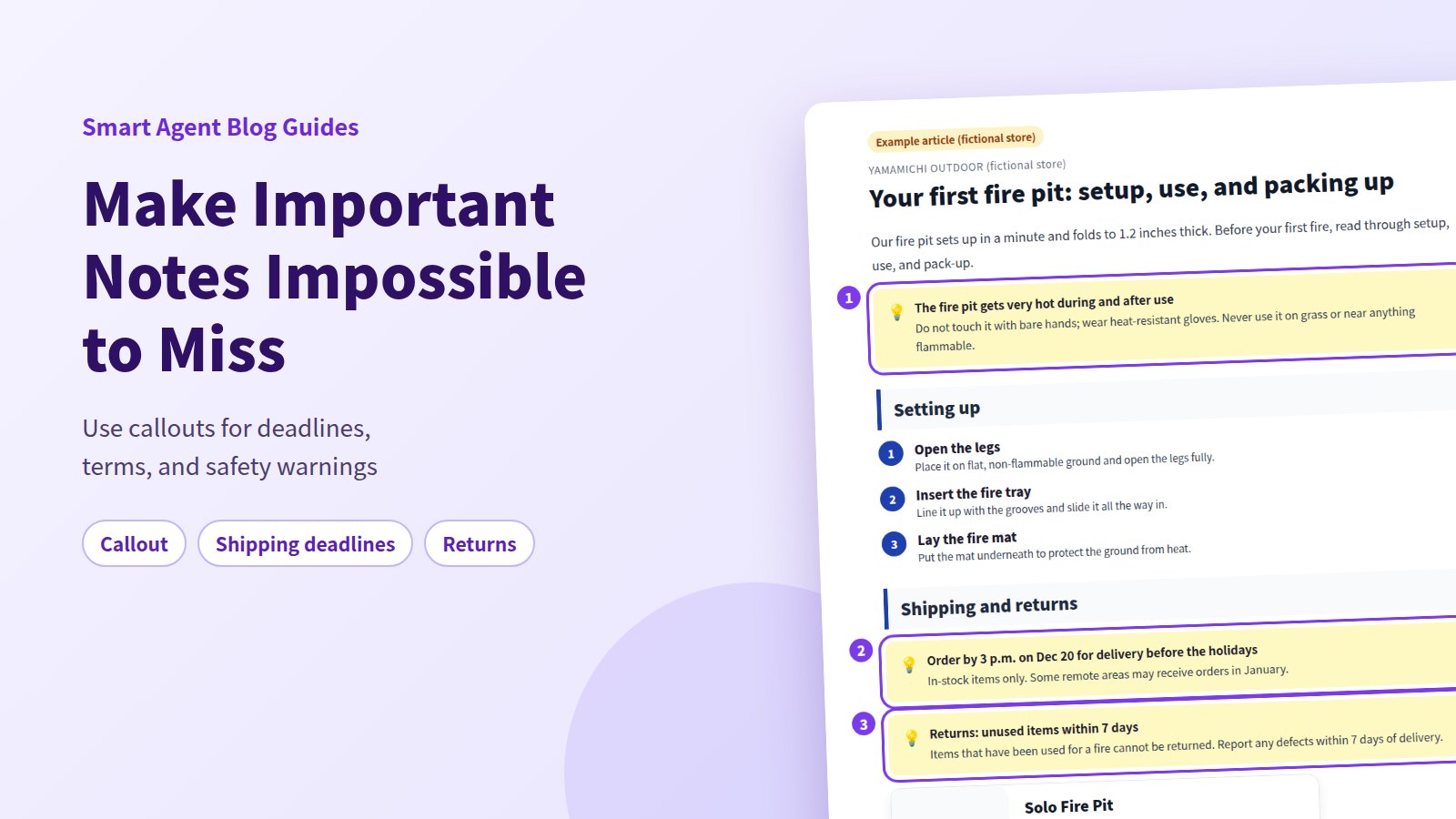
The fix: pull anything readers must not miss out of the body and into a callout box. Reserve callouts for the things customers need to know, like shipping deadlines, discount terms, safety warnings, and return policy essentials. Use two or three per post at most, keep the heading short, and make each box make sense on its own.
Shopify's built-in editor has no callout button. In Smart Agent Blog, you add one with Callout in the insert menu. This guide uses a fictional outdoor store's post to show how to write callouts and how to add them.
- Four kinds of information that belong in a callout, and how many is too many
- How to write a callout people actually read: a short heading and text that stands alone
- A finished example from a fictional store
- How to add a callout in Smart Agent Blog, with screenshots
Why important conditions get lost in the body
Most readers don't read a post line by line. They scan headings and bold text and stop only where something looks relevant to them. A condition or warning tucked into the middle of a paragraph slips right past.
When we reviewed Shopify stores in Japan while preparing proposals for Smart Agent Blog in August and September 2026, 27 of the 78 posts we recorded (about 35%) had no headings at all. Roughly 1 in 3 posts was a single unbroken block of text. Even if "orders must be placed by the 20th" or "unused items only" is in there somewhere, readers will struggle to find it.
When notes get missed:
- orders arrive after the cutoff and can't be delivered in time,
- customers try a discount they don't qualify for, and support emails pile up,
- a safety warning doesn't land, which risks injury or damage, and
- customers who never saw the return terms end up in back-and-forth with your team.
Nobody wants any of those outcomes.
Four kinds of information that belong in a callout
Callouts are for information customers need to know, or that will cause problems later if they don't.
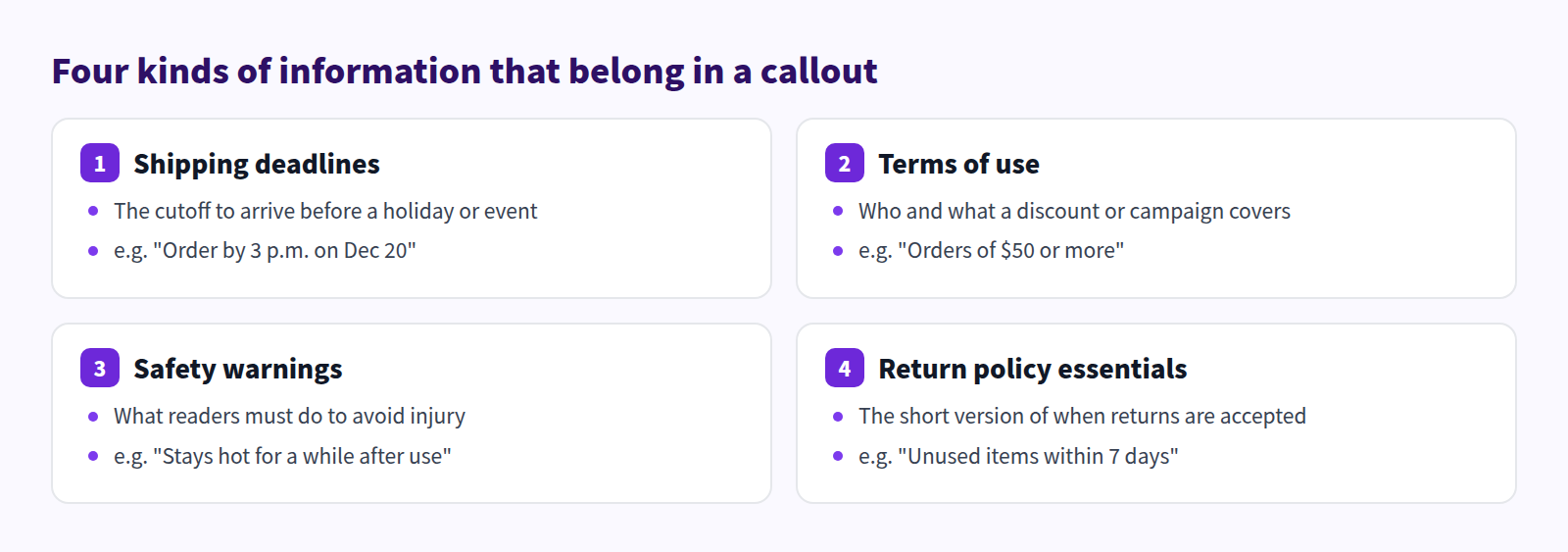
- Shipping deadlines: the last day to order for delivery before a holiday, Mother's Day, or an event.
- Terms of use: which products, order values, and dates a discount or campaign covers.
- Safety warnings: things that get hot, sharp edges, small parts, anything readers must know to avoid injury.
- Return policy essentials: the short version of when returns or exchanges are accepted. Leave the full policy to its own page.
Product highlights, fun facts, and staff opinions don't need a callout. A staff member's take works better in a speech balloon (Put staff comments in speech balloons).
How many is too many
The fewer callouts you use, the more each one stands out. Aim for two or three per post and one topic per box. Box every paragraph and nothing looks important, so nothing gets read.
How to write a callout people read
Once you know what goes in, get the wording right. Three rules:
Keep the heading short, and put the point in it
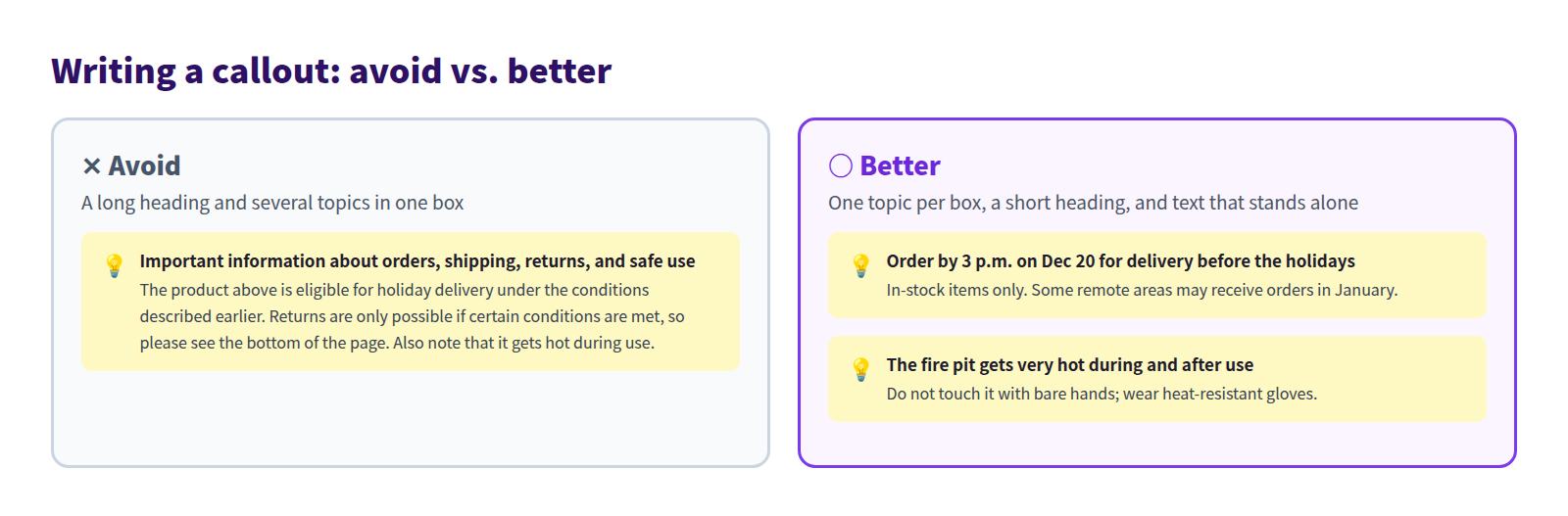
Make the first line a short heading that delivers the point on its own. Not "Important notice," but "Order by 3 p.m. on Dec 20 for delivery before the holidays." Readers who glance only at the heading still get what they need.
Make it stand alone
People may land on a callout from anywhere in the post. Phrases like "the product above" or "as described earlier" leave anyone who reads only the box confused. State what it applies to, the deadline, and any exceptions, in two or three lines inside the box.
One topic per box
Put shipping, returns, and safety in one box and the heading gets long and nothing comes through clearly. Give each topic its own box and place it next to the section it relates to.
Example: a fictional outdoor store's fire pit guide
Here's a fire pit guide from YAMAMICHI OUTDOOR, a fictional outdoor store.
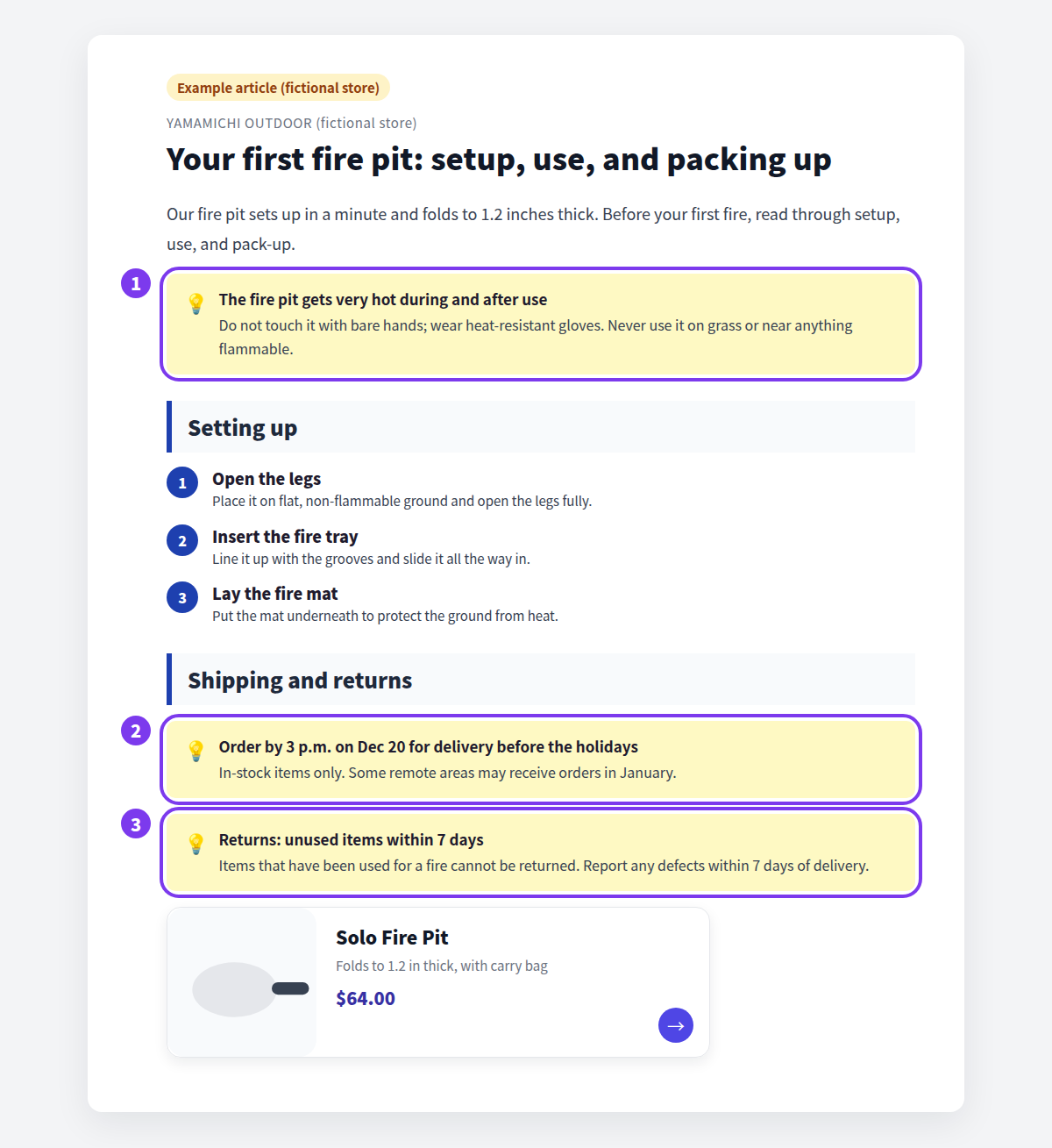
- Safety warning: at the very top, before the setup steps, because readers need it before they start.
- Shipping deadline: under the "Shipping and returns" heading, with the cutoff date and time as its heading.
- Return policy essentials: "Unused items within 7 days" as the heading, with the exception (used for a fire) in the body.
There are just three callouts, and each heading carries its point. Setup steps use a numbered list and the product link uses a product card, each block doing its own job. See How to add products to your Shopify blog.
What Shopify's built-in editor can do
The rich text editor under Content > Blog posts in your Shopify admin has buttons for bold, color, lists, and tables, but no button for a callout box.
To make a note stand out there, your options are:
- emphasize it with bold or color,
- give it its own heading and paragraph, or
- switch to the HTML view and build a shaded box yourself in HTML and CSS.
The last option takes coding knowledge, can look different from theme to theme, and means writing the same code for every post.
Adding a callout in Smart Agent Blog
In Smart Agent Blog, a callout is a block you add from the insert menu. The process has four steps.
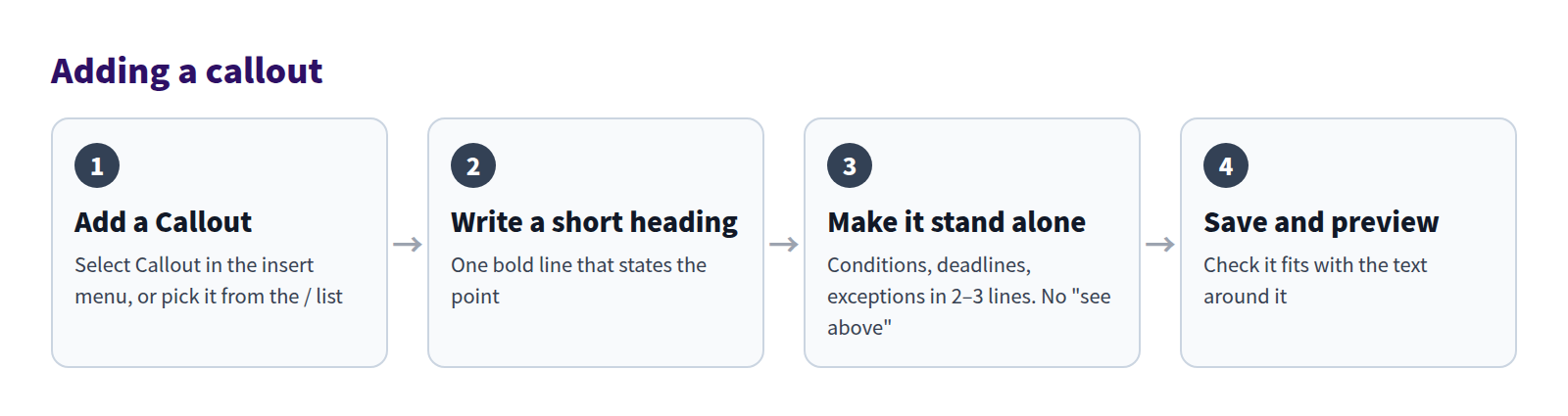
Choose Callout in the insert menu
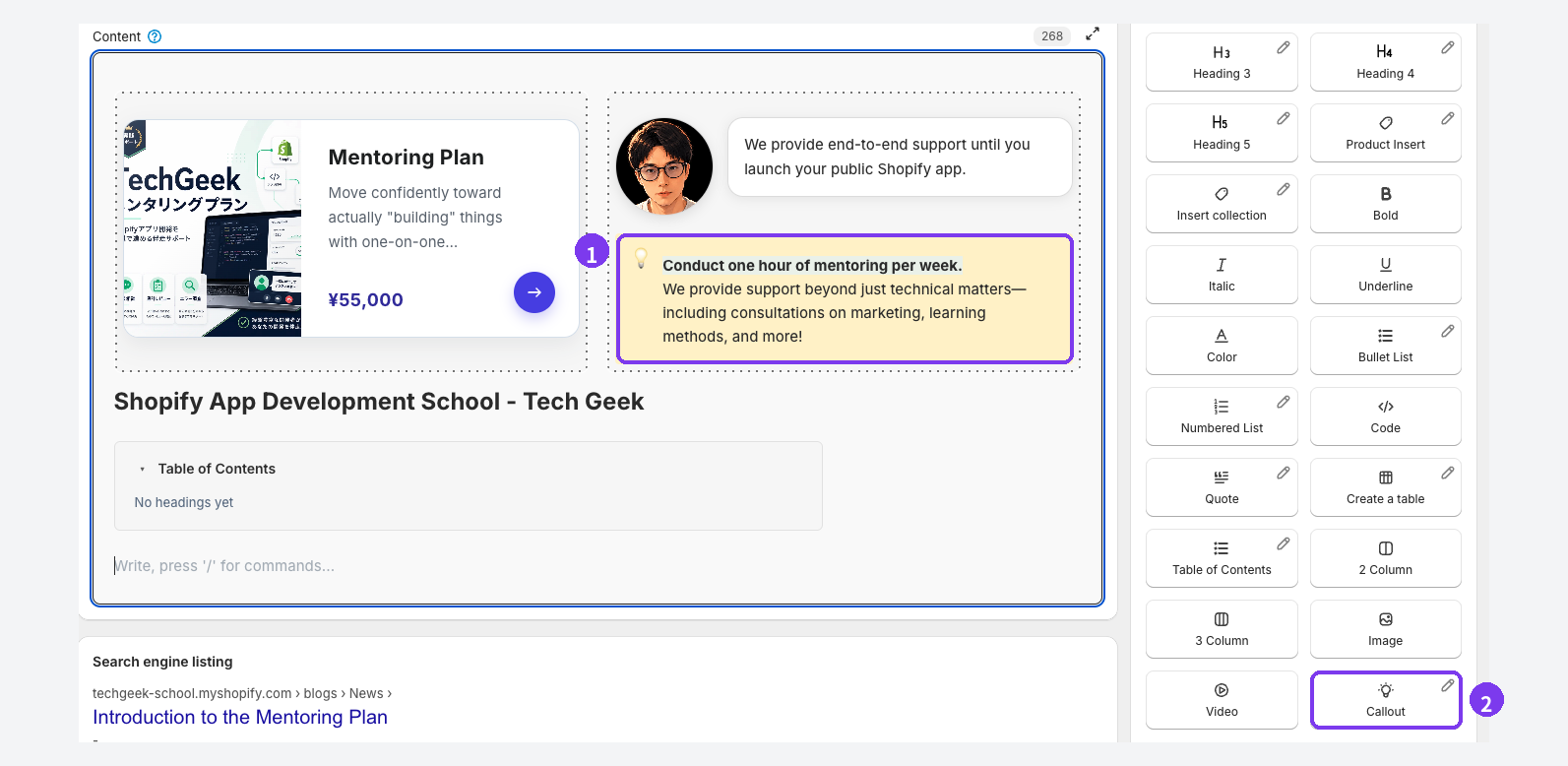
- The callout in the body: a shaded box with a light bulb icon and your text. Here it sits in the right column of a 2 Column layout, with a bold first line as its heading.
- The Callout button: place the cursor where the note should go and select Callout in the insert menu. You can also type
/at the start of a new line and choose it from the list.
Write a short heading, then make it stand alone
Write the point as a short first line and make it bold, using the small menu that appears when you select text or Bold in the insert menu. Then add two or three lines covering what it applies to, the deadline, and any exceptions.
Placement matters too. Put safety warnings before the steps, and shipping deadlines under the heading about ordering, close to where readers need them. To move a callout, drag the handle that appears to the left of the block.
Change the look with design editing
Callouts in the insert menu carry a pencil icon for design editing (Custom CSS), which lets you change how callouts look, such as the background color, to match your store. Design editing requires a paid plan (Basic or Pro); on Free, you'll see a notice when you try to use it. Adding callouts works on every plan.
Save and preview
Smart Agent Blog doesn't autosave. Select Save, keep the post Hidden, and use Preview to check that each callout fits with the surrounding text and isn't too long on a phone. See Preview and publish an article.
Callout checklist before publishing
Before a post with callouts goes live, check these items.
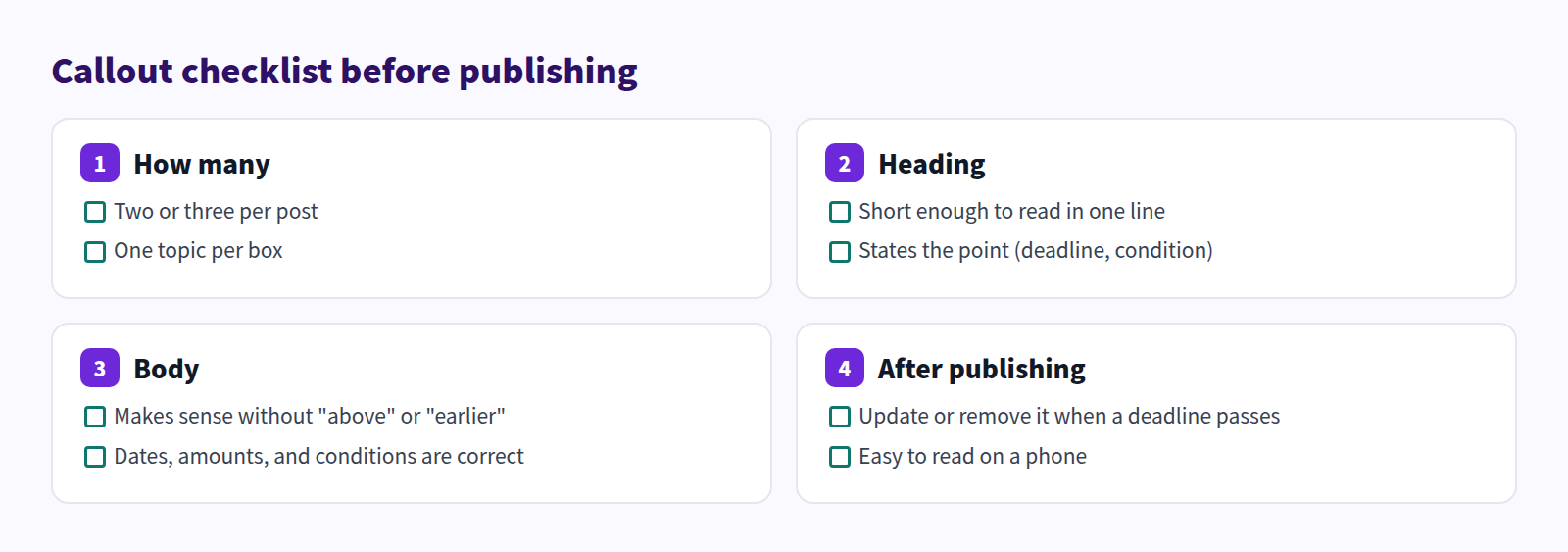
The item people miss most is updating after publishing. Shipping deadlines and campaign terms turn into wrong information once the date passes. For posts with seasonal notices, put a reminder on your calendar to update or remove the callout when the deadline is over.
FAQ
Should I put my whole return policy in a callout?
No. A full policy makes the box long and it won't get read. Put the essentials in the post, like "unused items within 7 days," and point readers to your store's return policy page for the details.
What if a product has lots of warnings?
Put the single most important one, such as anything that could cause injury, in a callout. List the rest as bullets under a "Safety notes" heading. Box them all and the one that matters most gets lost.
Are callouts available on the Free plan?
Yes. Adding callouts works on Free. Design editing, which changes how they look, such as the background color, requires Basic or Pro. See Plans and usage limits.
Summary
- Use callouts for what customers need to know: shipping deadlines, terms of use, safety warnings, and return policy essentials.
- Two or three per post, one topic per box.
- A short heading that states the point, and a body that stands on its own.
- In Smart Agent Blog, add a callout from the insert menu; change its look with design editing on a paid plan.
Pick one post with a condition that often leads to support emails, like a shipping cutoff or return terms, and move that condition into a callout. Also in this series: How to add video to your Shopify blog and When to use 2-column and 3-column layouts. For the whole process a post goes through, see how to write a Shopify blog post.